lock HONDA ODYSSEY 2020 (in English) Manual Online
[x] Cancel search | Manufacturer: HONDA, Model Year: 2020, Model line: ODYSSEY, Model: HONDA ODYSSEY 2020Pages: 767, PDF Size: 43.89 MB
Page 232 of 767
230
uuInterior Lights/Interior Convenience Items uInterior Convenience Items
Controls
Interior Convenience Items
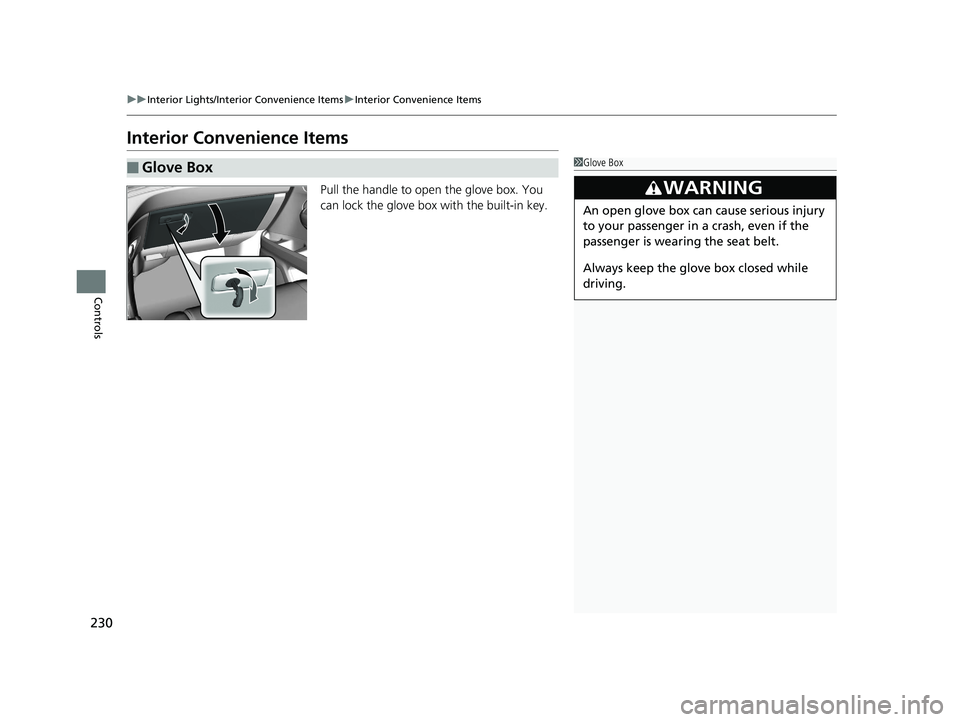
Pull the handle to open the glove box. You
can lock the glove box with the built-in key.
■Glove Box1Glove Box
3WARNING
An open glove box can cause serious injury
to your passenger in a crash, even if the
passenger is wearing the seat belt.
Always keep the glove box closed while
driving.
20 US ODYSSEY-31THR6210.book 230 ページ 2020年2月28日 金曜日 午前7時26分
Page 234 of 767
232
uuInterior Lights/Interior Convenience Items uInterior Convenience Items
Controls
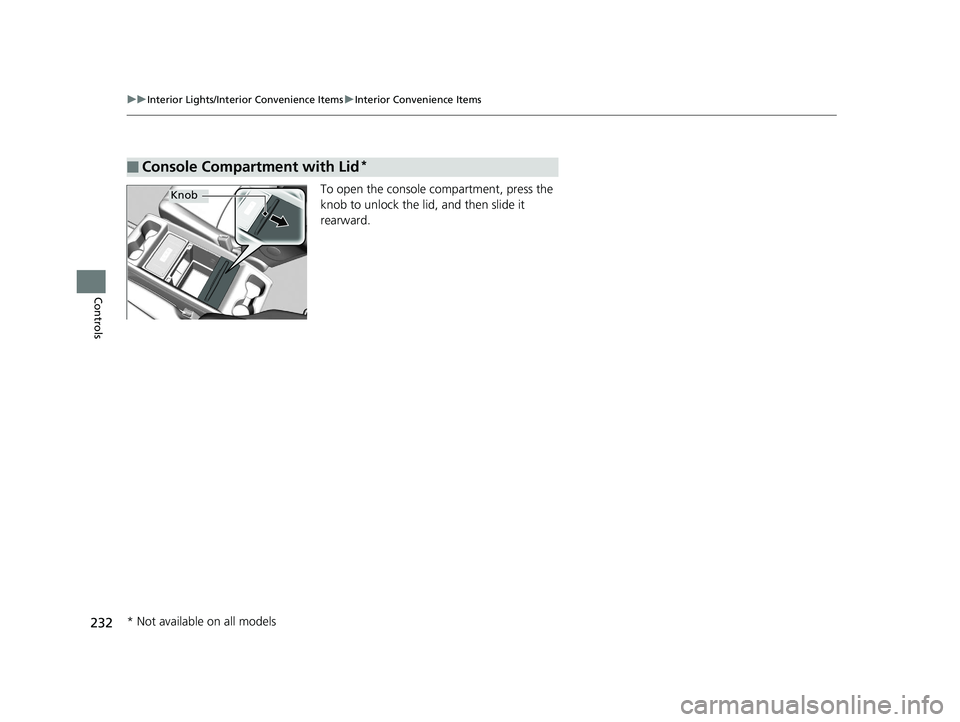
To open the console compartment, press the
knob to unlock the lid , and then slide it
rearward.
■Console Compartment with Lid*
Knob
* Not available on all models
20 US ODYSSEY-31THR6210.book 232 ページ 2020年2月28日 金曜日 午前7時26分
Page 240 of 767

uuInterior Lights/Interior Convenience Items uInterior Convenience Items
238
Controls
The AC power outlet can be used when the engine is running.
Open the cover to use it. Plug in the appliance
slightly, turn it 90° clockwise, then push it all
the way.
■AC Power Outlet*1AC Power Outlet*
NOTICE
Do not use the AC power outlet for electric
appliances that require hi gh initial peak wattage,
such as cathode-ray tube type televisions,
refrigerators, electric pumps, etc. It is not suitable for
devices that process precis e data, such as medical
equipment, and that require an extremely stable
power supply, such as microcomputer-controlled
electric blankets, touc h sensor lamps, etc.
The AC power outlet is desi gned to supply power for
up to 115 volt appliances that are rated 150 watts or
less.
Continued use of any elec tric appliance/device
exceeding these ratings may result in damage to the
appliance/device.
* Not available on all models
20 US ODYSSEY-31THR6210.book 238 ページ 2020年2月28日 金曜日 午前7時26分
Page 252 of 767
uuInterior Lights/Interior Convenience Items uInterior Convenience Items
250
Controls
■To empty the canister or change the debris bag
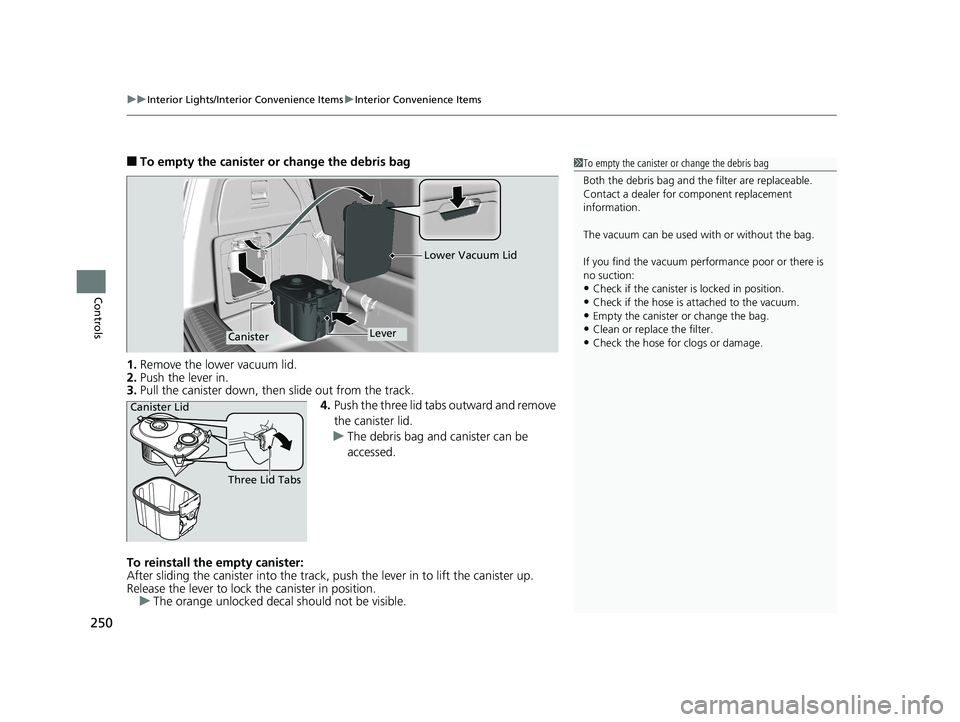
1. Remove the lower vacuum lid.
2. Push the lever in.
3. Pull the canister down, th en slide out from the track.
4.Push the three lid tabs outward and remove
the canister lid.
u The debris bag and canister can be
accessed.
To reinstall the empty canister:
After sliding the canister into the track, pu sh the lever in to lift the canister up.
Release the lever to lock the canister in position. u The orange unlocked decal should not be visible.1To empty the canister or change the debris bag
Both the debris bag and th e filter are replaceable.
Contact a dealer for component replacement
information.
The vacuum can be used with or without the bag.
If you find the vacuum performance poor or there is
no suction:
•Check if the canister is locked in position.
•Check if the hose is attached to the vacuum.•Empty the canister or change the bag.
•Clean or replace the filter.
•Check the hose for clogs or damage.
Lower Vacuum Lid
LeverCanister
Canister Lid
Three Lid Tabs
20 US ODYSSEY-31THR6210.book 250 ページ 2020年2月28日 金曜日 午前7時26分
Page 262 of 767
260
uuClimate Control System uRear Climate Control System
Controls
Rear Climate Control System
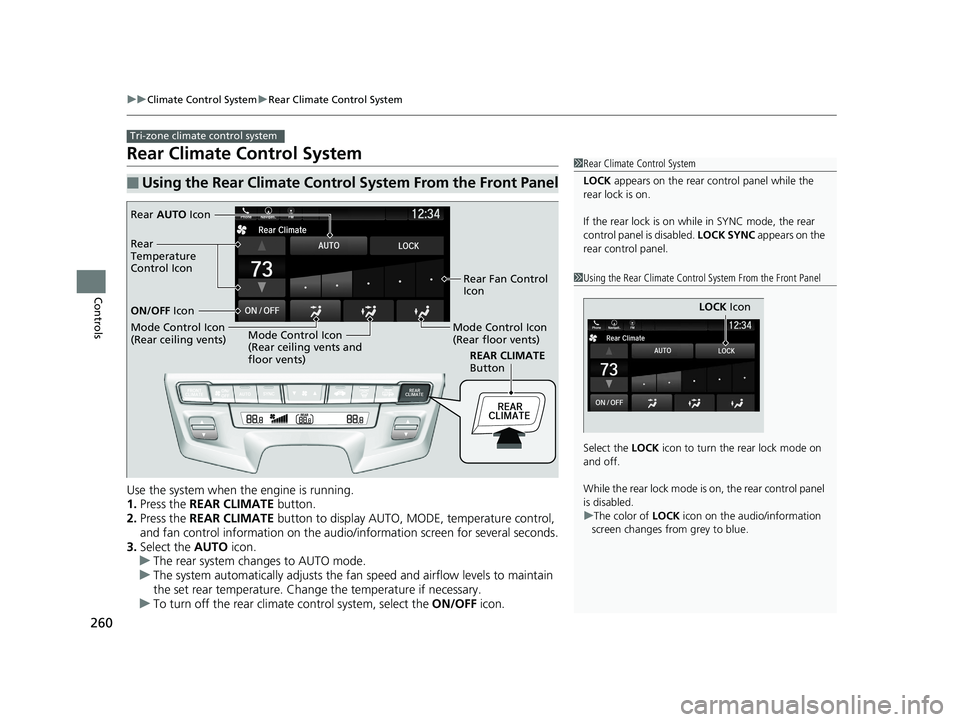
Use the system when the engine is running.
1. Press the REAR CLIMATE button.
2. Press the REAR CLIMATE button to display AUTO, MO DE, temperature control,
and fan control information on the audio/ information screen for several seconds.
3. Select the AUTO icon.
u The rear system changes to AUTO mode.
u The system automatically adjusts the fan speed and airflow levels to maintain
the set rear temperature. Change the temperature if necessary.
u To turn off the rear climat e control system, select the ON/OFF icon.
■Using the Rear Climate Control System From the Front Panel
Tri-zone climate control system
1Rear Climate Control System
LOCK appears on the rear control panel while the
rear lock is on.
If the rear lock is on while in SYNC mode, the rear
control panel is disabled. LOCK SYNC appears on the
rear control panel.
1 Using the Rear Climate Control System From the Front Panel
Select the LOCK icon to turn the rear lock mode on
and off.
While the rear lock mode is on, the rear control panel
is disabled.
u The color of LOCK icon on the audio/information
screen changes from grey to blue.
LOCK Icon
REAR CLIMATE
Button
Rear AUTO Icon
Rear Fan Control
Icon
Mode Control Icon
(Rear floor vents)
Mode Control Icon
(Rear ceiling vents and
floor vents)
Mode Control Icon
(Rear ceiling vents) ON/OFF
Icon
Rear
Temperature
Control Icon
20 US ODYSSEY-31THR6210.book 260 ページ 2020年2月28日 金曜日 午前7時26分
Page 263 of 767
261
uuClimate Control System uRear Climate Control System
Controls
Use the system when the engine is running.
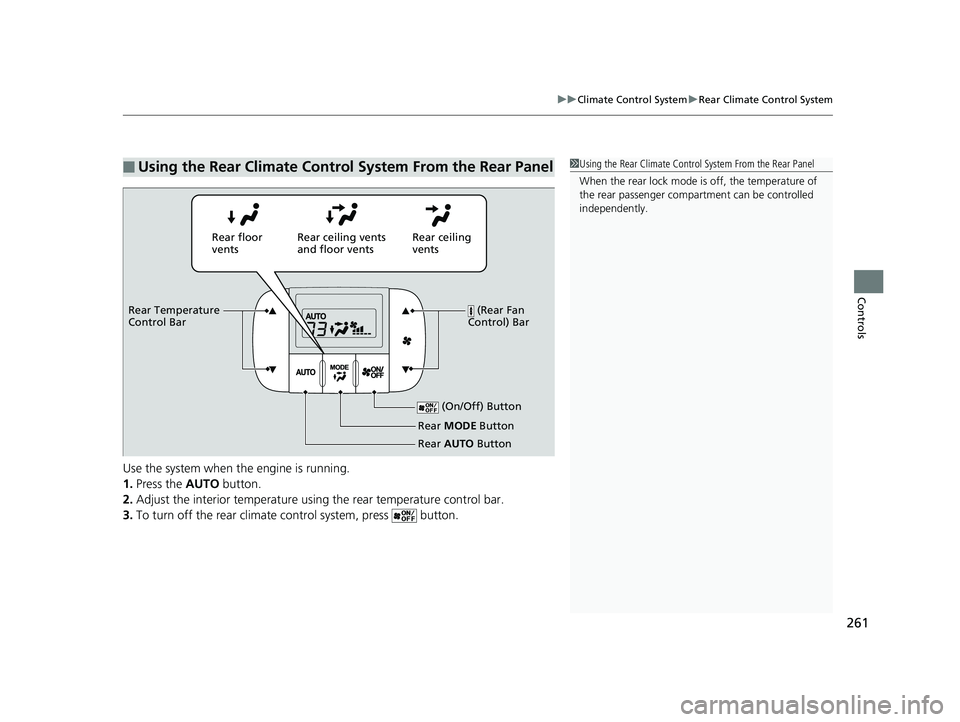
1. Press the AUTO button.
2. Adjust the interior temperature usi ng the rear temperature control bar.
3. To turn off the rear climate control system, press button.
■Using the Rear Climate Control System From the Rear Panel1Using the Rear Climate Control System From the Rear Panel
When the rear lock mode is off, the temperature of
the rear passenger compar tment can be controlled
independently.
Rear ceiling
vents
Rear floor
vents
Rear ceiling vents
and floor vents
(Rear Fan
Control) Bar
Rear Temperature
Control Bar
(On/Off) Button
Rear MODE Button
Rear AUTO Button
20 US ODYSSEY-31THR6210.book 261 ページ 2020年2月28日 金曜日 午前7時26分
Page 273 of 767
271
Features
Audio System Basic Operation
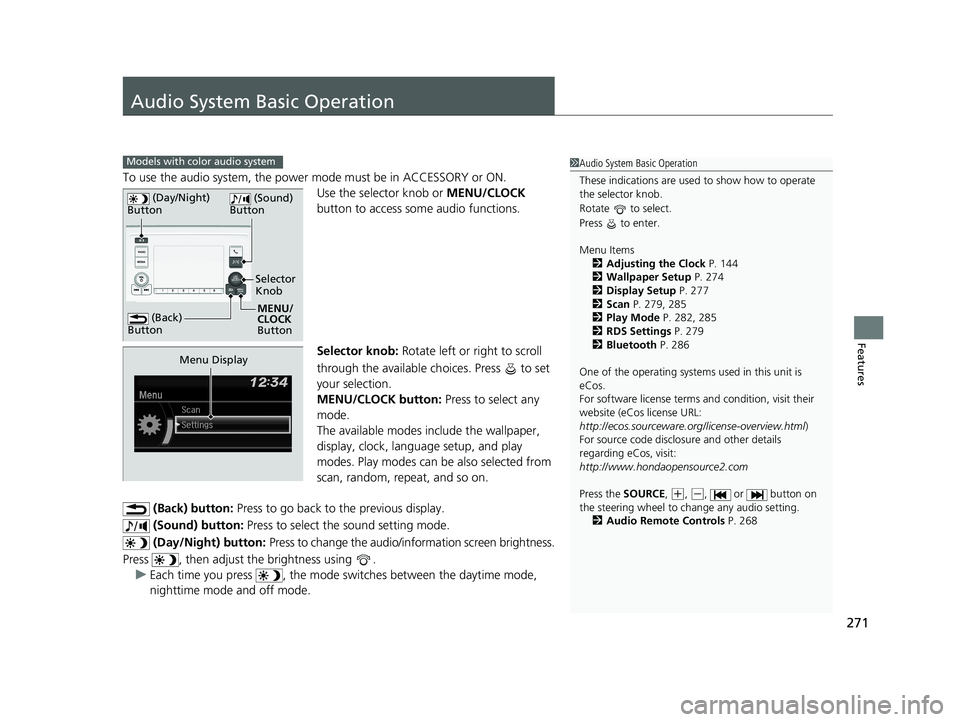
To use the audio system, the power mode must be in ACCESSORY or ON.Use the selector knob or MENU/CLOCK
button to access some audio functions.
Selector knob: Rotate left or right to scroll
through the available ch oices. Press to set
your selection.
MENU/CLOCK button: Press to select any
mode.
The available modes in clude the wallpaper,
display, clock, language setup, and play
modes. Play modes can be also selected from
scan, random, repeat, and so on.
(Back) button: Press to go back to the previous display.
(Sound) button: Press to select the sound setting mode.
(Day/Night) button: Press to change the audio/information screen brightness.
Press , then adjust the brightness using . u Each time you press , the mode sw itches between the daytime mode,
nighttime mode and off mode.
Models with color audio system1 Audio System Basic Operation
These indications are used to show how to operate
the selector knob.
Rotate to select.
Press to enter.
Menu Items
2 Adjusting the Clock P. 144
2 Wallpaper Setup P. 274
2 Display Setup P. 277
2 Scan P. 279, 285
2 Play Mode P. 282, 285
2 RDS Settings P. 279
2 Bluetooth P. 286
One of the operating system s used in this unit is
eCos.
For software license terms and condition, visit their
website (eCos license URL:
http://ecos.sourceware.org/license-overview.html )
For source code disclo sure and other details
regarding eCos, visit:
http://www.hondaopensource2.com
Press the SOURCE ,
(+, (-, or button on
the steering wheel to change any audio setting.
2 Audio Remote Controls P. 268
(Back)
Button
Selector
Knob
MENU/
CLOCK
Button
(Day/Night)
Button
(Sound)
Button
Menu Display
20 US ODYSSEY-31THR6210.book 271 ページ 2020年2月28日 金曜日 午前7時26分
Page 274 of 767
272
uuAudio System Basic Operation uAudio/Information Screen
Features
Audio/Information Screen
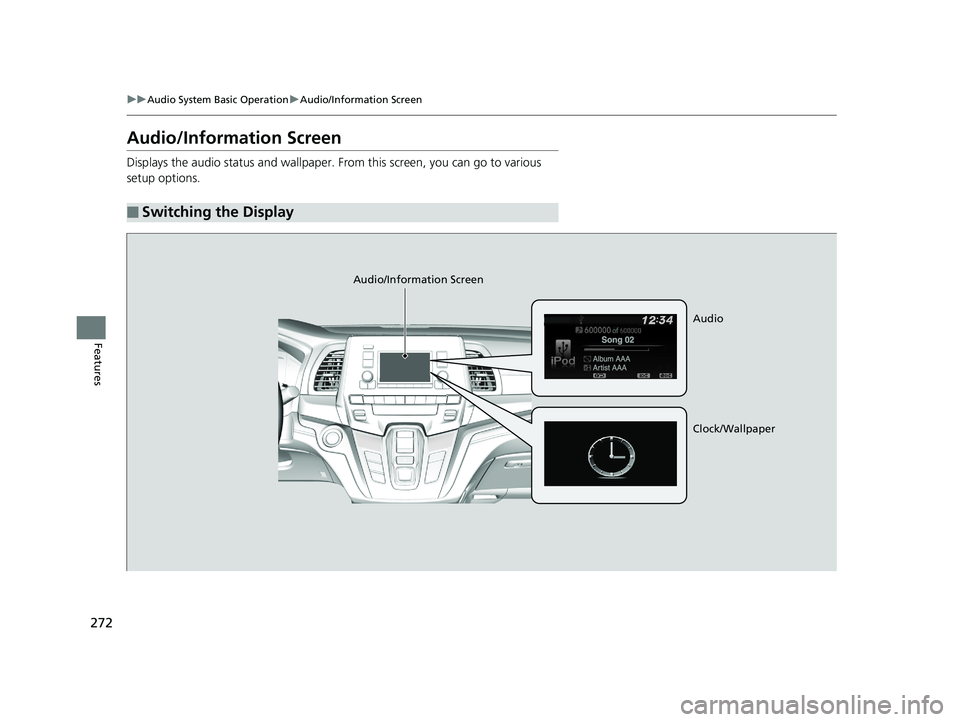
Displays the audio status and wallpaper. From this screen, you can go to various
setup options.
■Switching the Display
Audio/Information Screen
Audio
Clock/Wallpaper
20 US ODYSSEY-31THR6210.book 272 ページ 2020年2月28日 金曜日 午前7時26分
Page 275 of 767
273
uuAudio System Basic Operation uAudio/Information Screen
Continued
Features
■Audio
Shows the current audio information.
■Clock/Wallpaper
Shows a clock screen or an image you import.
■Change display
1. Press the MENU/CLOCK button.
2. Rotate to select Settings, then press .
3. Rotate to select Display Change, then press .
4. Rotate to select Wallpaper, then press .
u If you want to return to the audio/information screen, select Audio.
20 US ODYSSEY-31THR6210.book 273 ページ 2020年2月28日 金曜日 午前7時26分
Page 276 of 767
uuAudio System Basic Operation uAudio/Information Screen
274
Features
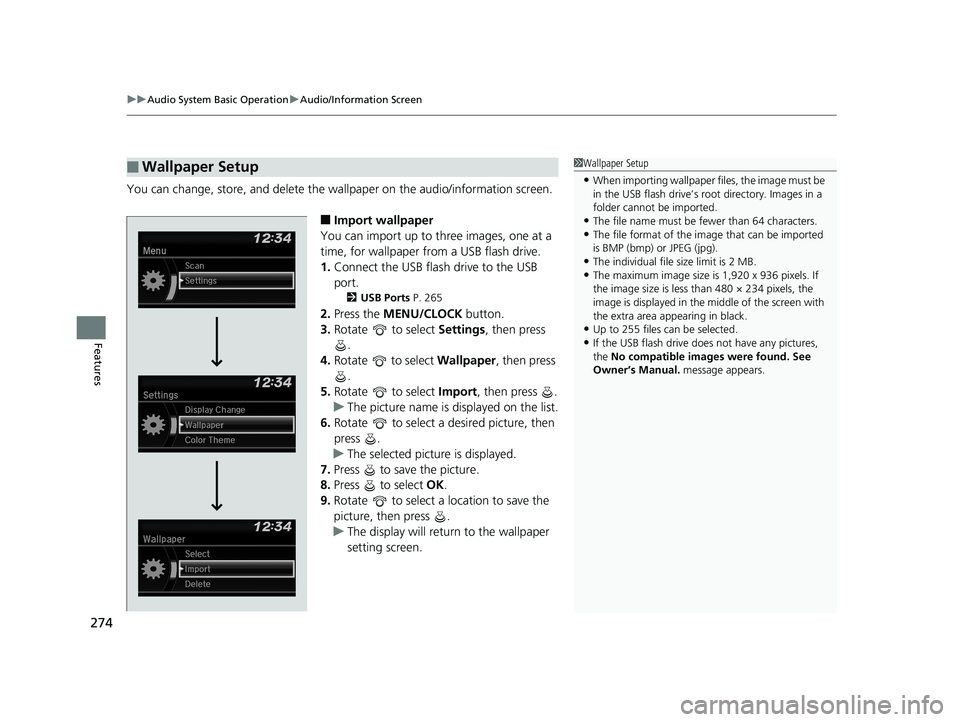
You can change, store, and delete the wa llpaper on the audio/information screen.
■Import wallpaper
You can import up to three images, one at a
time, for wallpaper from a USB flash drive.
1. Connect the USB flash drive to the USB
port.
2 USB Ports P. 265
2.Press the MENU/CLOCK button.
3. Rotate to select Settings, then press
.
4. Rotate to select Wallpaper , then press
.
5. Rotate to select Import, then press .
u The picture name is displayed on the list.
6. Rotate to select a desired picture, then
press .
u The selected picture is displayed.
7. Press to save the picture.
8. Press to select OK.
9. Rotate to select a location to save the
picture, then press .
u The display will return to the wallpaper
setting screen.
■Wallpaper Setup1Wallpaper Setup
•When importing wallpaper files, the image must be
in the USB flash drive’s root directory. Images in a
folder cannot be imported.
•The file name must be fewer than 64 characters.•The file format of the im age that can be imported
is BMP (bmp) or JPEG (jpg).
•The individual file size limit is 2 MB.•The maximum image size is 1,920 x 936 pixels. If
the image size is less than 480 × 234 pixels, the
image is displayed in the middle of the screen with
the extra area appearing in black.
•Up to 255 files can be selected.
•If the USB flash drive doe s not have any pictures,
the No compatible images were found. See
Owner’s Manual. message appears.
20 US ODYSSEY-31THR6210.book 274 ページ 2020年2月28日 金曜日 午前7時26分