eco mode HONDA ODYSSEY 2022 Owners Manual
[x] Cancel search | Manufacturer: HONDA, Model Year: 2022, Model line: ODYSSEY, Model: HONDA ODYSSEY 2022Pages: 782, PDF Size: 27.17 MB
Page 331 of 782
330
uuAudio System Basic Operation uVoice Control Operation
Features
Voice Control Operation
Your vehicle has a voice control system that allows hands-free operation.
The voice control system uses the (tal k) and (back) buttons on the steering
wheel and a microphone near the map lights on the ceiling.
To achieve optimum voice recognition when using the voice control system:
• Make sure the correct screen is displa yed for the voice command that you are
using.
The system recognizes only certain commands. Available voice commands.
2 Voice Portal Screen P. 331
•Close the windows and moonroof*.
• Adjust the dashboard and side vents so air does not blow onto the microphone
on the ceiling.
• Speak clearly in a clear, natural speaking voice without pausing between words.
• Reduce any background noise if possible. The system may misinterpret your
command if more than one person is speaking at the same time.
■Voice Recognition
1Voice Control Operation
When you press the button, a helpful prompt asks
what you would like to do. Press and release the
button again to bypass this prompt and give a
command.
1 Voice Recognition
The voice control system can only be used from the
driver’s seat because the microphone unit removes
noises from the front passenger’s side.
* Not available on all models
22 US ODYSSEY-31THR6400.book 330 ページ 2020年11月16日 月曜日 午後1時41分
Page 332 of 782
331
uuAudio System Basic Operation uVoice Control Operation
Continued
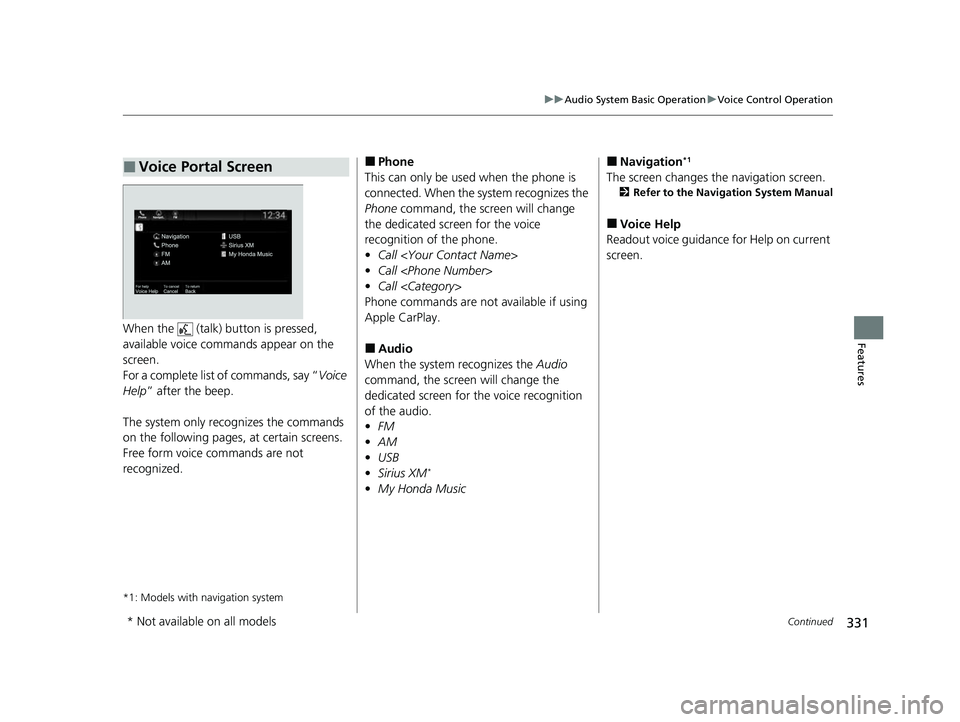
FeaturesWhen the (talk) button is pressed,
available voice comma nds appear on the
screen.
For a complete list of commands, say “ Voice
Help ” after the beep.
The system only recognizes the commands
on the following pages, at certain screens.
Free form voice commands are not
recognized.
*1: Models with navigation system
■Voice Portal Screen■Phone
This can only be used when the phone is
connected. When the sy stem recognizes the
Phone command, the screen will change
the dedicated screen for the voice
recognition of the phone.
• Call
• Call
• Call
Phone commands are not available if using
Apple CarPlay.
■Audio
When the system recognizes the Audio
command, the screen will change the
dedicated screen for the voice recognition
of the audio.
• FM
• AM
• USB
• Sirius XM
*
•My Honda Music
■Navigation*1
The screen changes the navigation screen.
2 Refer to the Navigation System Manual
■Voice Help
Readout voice guidance for Help on current
screen.
* Not available on all models
22 US ODYSSEY-31THR6400.book 331 ページ 2020年11月16日 月曜日 午後1時41分
Page 333 of 782
332
uuAudio System Basic Operation uVoice Control Operation
Features
The system accepts th ese commands on the
dedicated screen for the voice recognition
of the phone.
• Call
• Call
• Call
■Phone Commands
The system accepts these commands on the
dedicated screen for the voice recognition
of the audio.
■FM Commands
• Tune to <87.7-107.9> FM
■AM Commands
• Tune to <530-1710> AM
■Sirius XM Commands*
•Channel <1-999>
• Channel
■USB/My Honda Music Commands
• Play Artist
• Play Album
• Play Genre
• Play Playlist
• Play Music
• Play Song
■Audio Commands
* Not available on all models
22 US ODYSSEY-31THR6400.book 332 ページ 2020年11月16日 月曜日 午後1時41分
Page 342 of 782
Continued341
uuAudio System Basic Operation uPlaying SiriusXM ® Radio*
Features
The system can record up to the last 60 minutes broadcast of your currently tuned
channel as well as the last 30 minutes broadcast of preset channels, starting from
the moment you turn the vehicle on. If y ou tuned to preset channel, the system
records up to 60 minutes of a broadcast instead of up to 30 minutes. You can
rewind and replay the last 30 or 60 minutes of a broadcast.
Move the position you want to replay by selecting or .
To play or pause on playback mode, select the play/pause icon.
■Returning to real-time broadcast
Select and hold .
■Replay Function1 Replay Function
The system starts storing broadcast in memory when
the power mode is turned ON. You can go back to
the program from that point.
You can no longer repl ay any program once the
power mode is turned off as it erases memory.
You can check how long the program has been
stored in memory from th e audio/information screen.
After 30 or 60 minutes of recording the system will
automatically start deleting the oldest data.
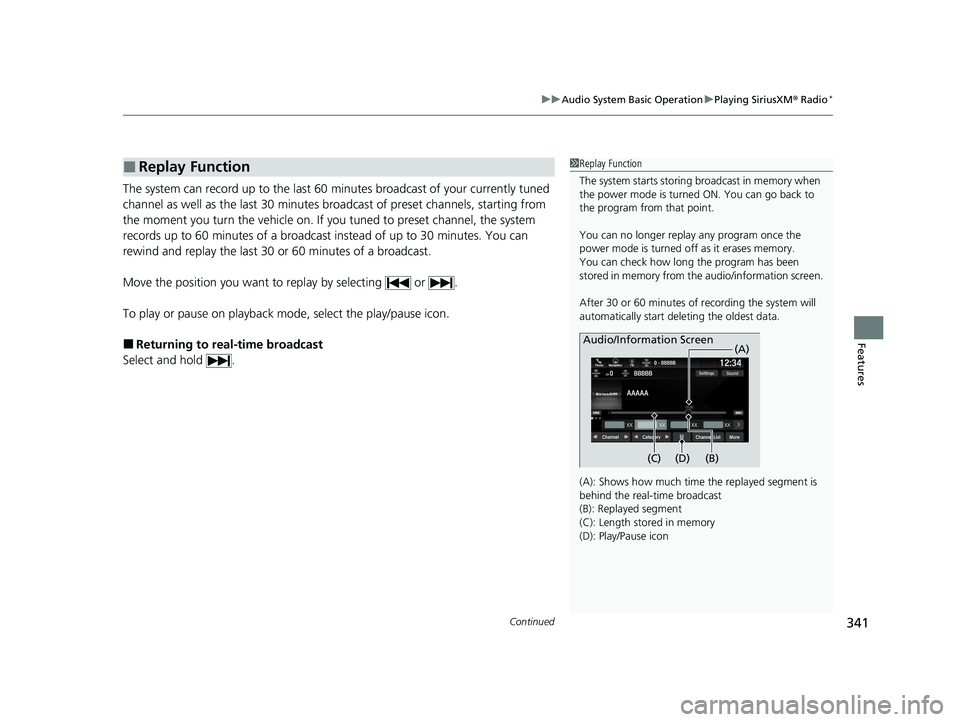
(A): Shows how much time the replayed segment is
behind the real-time broadcast
(B): Replayed segment
(C): Length stored in memory
(D): Play/Pause icon
Audio/Information Screen
(C) (B) (A)
(D)
22 US ODYSSEY-31THR6400.book 341 ページ 2020年11月16日 月曜日 午後1時41分
Page 347 of 782
uuAudio System Basic Operation uPlaying SiriusXM ® Radio*
346
Features
Sample each channel on the selected mode for 10 seconds.
1. Select More.
2. Select Scan.
You can change a scan mode by the following procedure.
1. Select Settings .
2. Select Scan Mode .
3. Select Channel or Preset.
To turn off scan, select Stop.
■Scan1Scan
The “Scan Songs in Preset s” function is based on
TuneScan
TM technology of SiriusXM ®.
The “Featured Channels ” function is based on
Featured Favorites
TM technology of SiriusXM ®.
TuneScan
TM and Featured FavoritesTM are registered
trademarks of SiriusXM ® Radio, Inc.
22 US ODYSSEY-31THR6400.book 346 ページ 2020年11月16日 月曜日 午後1時41分
Page 348 of 782
347
uuAudio System Basic Operation uPlaying a CD*
Continued
Features
Playing a CD*
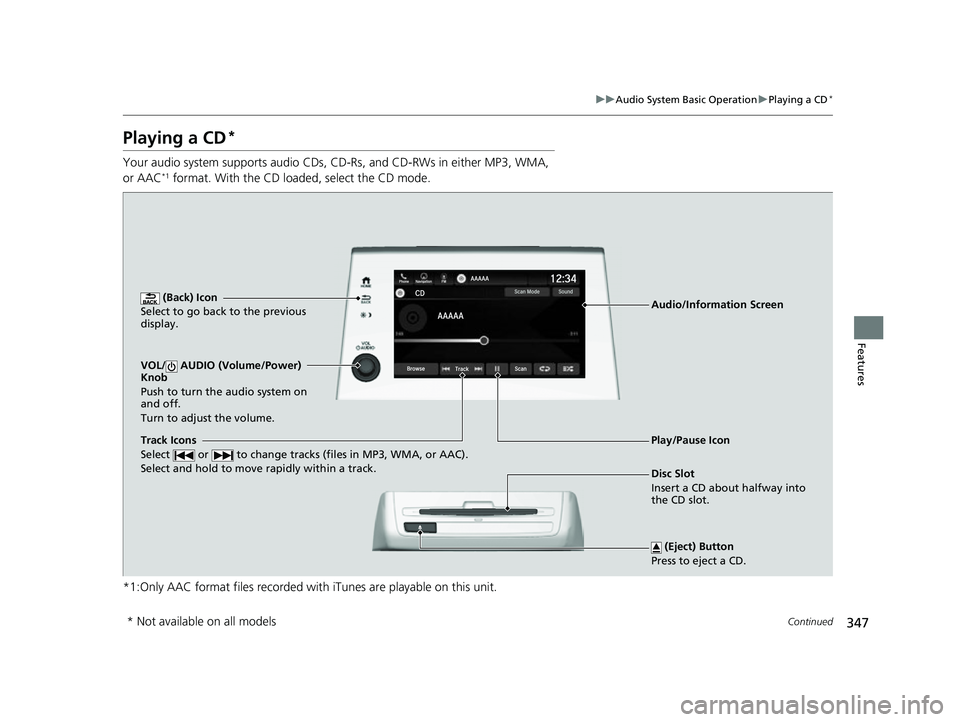
Your audio system supports audio CDs, CD- Rs, and CD-RWs in either MP3, WMA,
or AAC*1 format. With the CD loaded, select the CD mode.
*1:Only AAC format files recorded with iTunes are playable on this unit.
(Back) Icon
Select to go back to the previous
display.
Track Icons
Select or to change tracks (files in MP3, WMA, or AAC).
Select and hold to move rapidly within a track.
VOL/ AUDIO (Volume/Power)
Knob
Push to turn the audio system on
and off.
Turn to adjust the volume.
(Eject) Button
Press to eject a CD.
Audio/Information Screen
Disc Slot
Insert a CD about halfway into
the CD slot.
Play/Pause Icon
* Not available on all models
22 US ODYSSEY-31THR6400.book 347 ページ 2020年11月16日 月曜日 午後1時41分
Page 349 of 782
uuAudio System Basic Operation uPlaying a CD*
348
Features
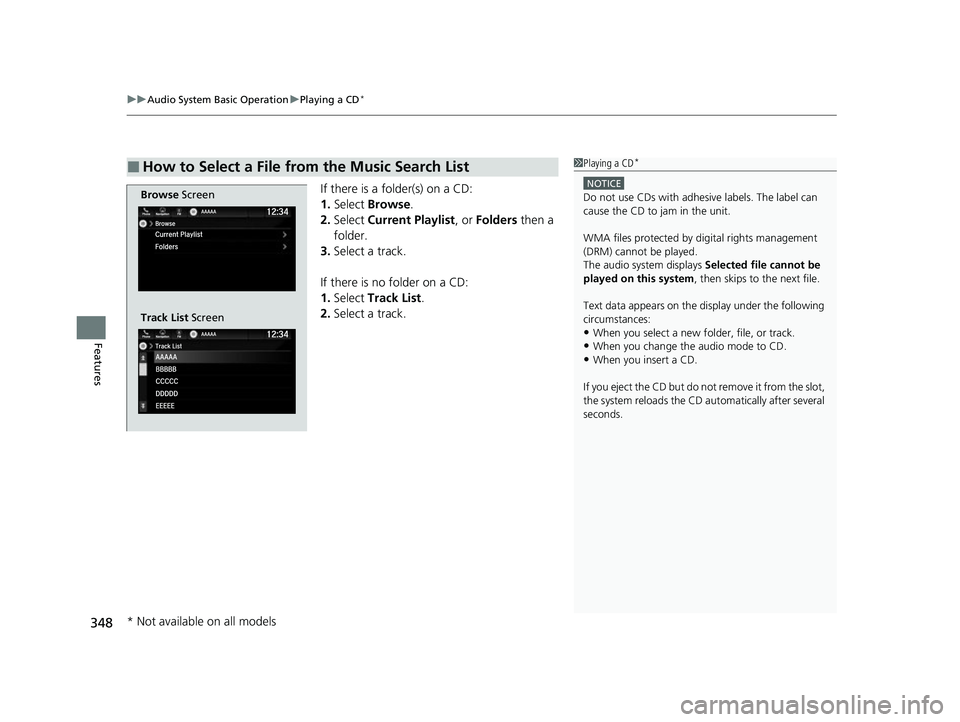
If there is a folder(s) on a CD:
1. Select Browse .
2. Select Current Playlist, or Folders then a
folder.
3. Select a track.
If there is no folder on a CD:
1. Select Track List .
2. Select a track.
■How to Select a File from the Music Search List1Playing a CD*
NOTICE
Do not use CDs with adhesive labels. The label can
cause the CD to jam in the unit.
WMA files protected by di gital rights management
(DRM) cannot be played.
The audio system displays Selected file cannot be
played on this system , then skips to the next file.
Text data appears on the di splay under the following
circumstances:
•When you select a new folder, file, or track.
•When you change the audio mode to CD.
•When you insert a CD.
If you eject the CD but do not remove it from the slot,
the system reloads the CD automatically after several
seconds.
Browse Screen
Track List Screen
* Not available on all models
22 US ODYSSEY-31THR6400.book 348 ページ 2020年11月16日 月曜日 午後1時41分
Page 350 of 782
349
uuAudio System Basic Operation uPlaying a CD*
Features
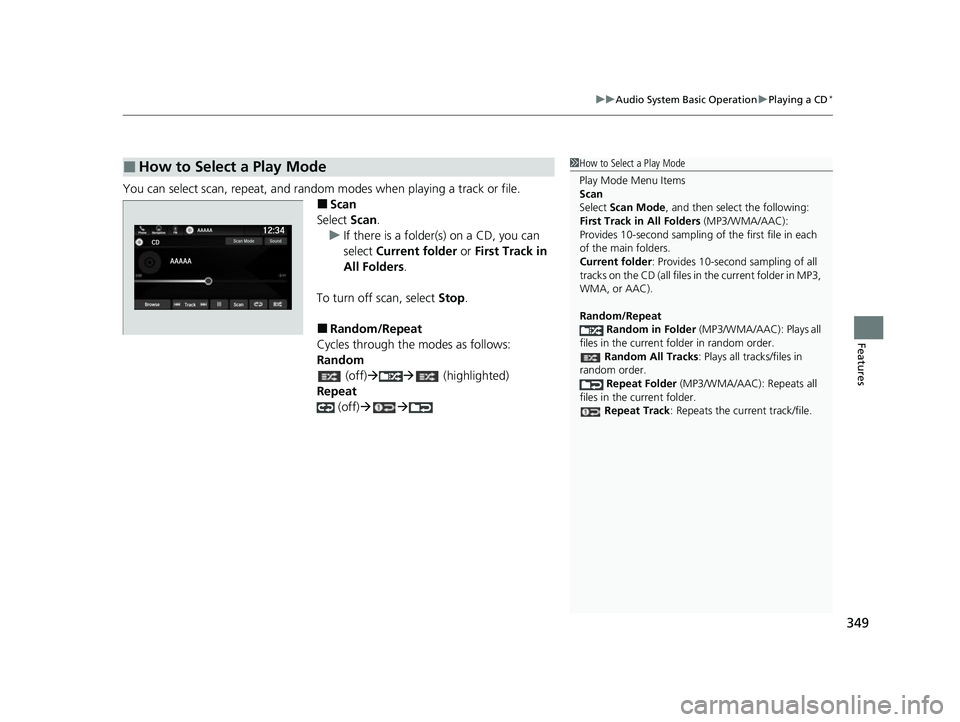
You can select scan, repeat, and random modes when playing a track or file.
■Scan
Select Scan.
u If there is a folder(s) on a CD, you can
select Current folder or First Track in
All Folders .
To turn off scan, select Stop.
■Random/Repeat
Cycles through the modes as follows:
Random (off) (highlighted)
Repeat (off)
■How to Select a Play Mode1How to Select a Play Mode
Play Mode Menu Items
Scan
Select Scan Mode , and then select the following:
First Track in All Folders (MP3/WMA/AAC):
Provides 10-second sampling of the first file in each
of the main folders.
Current folder : Provides 10-second sampling of all
tracks on the CD (all files in the current folder in MP3,
WMA, or AAC).
Random/Repeat
Random in Folder (MP3/WMA/AAC): Plays all
files in the current folder in random order. Random All Tracks: Plays all tracks/files in
random order. Repeat Folder (MP3/WMA/AAC): Repeats all
files in the current folder.
Repeat Track : Repeats the current track/file.
22 US ODYSSEY-31THR6400.book 349 ページ 2020年11月16日 月曜日 午後1時41分
Page 352 of 782
Continued351
uuAudio System Basic Operation uPlaying an iPod
Features
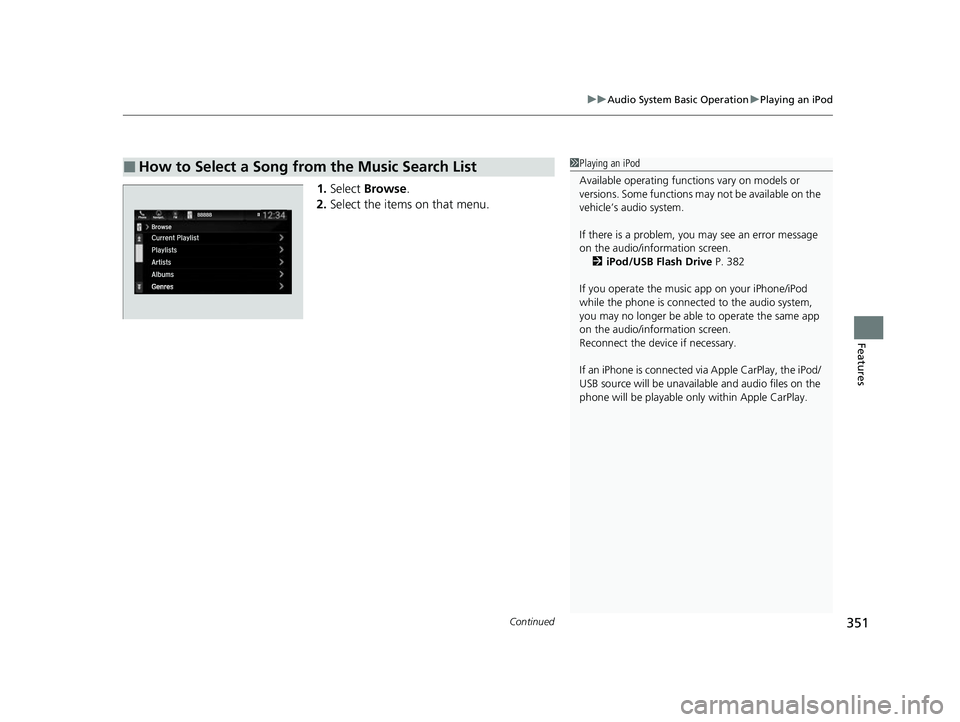
1. Select Browse .
2. Select the items on that menu.
■How to Select a Song from the Music Search List1Playing an iPod
Available operating functi ons vary on models or
versions. Some functions ma y not be available on the
vehicle’s audio system.
If there is a problem, you may see an error message
on the audio/information screen. 2 iPod/USB Flash Drive P. 382
If you operate the musi c app on your iPhone/iPod
while the phone is connected to the audio system,
you may no longer be able to operate the same app
on the audio/information screen.
Reconnect the devi ce if necessary.
If an iPhone is connected vi a Apple CarPlay, the iPod/
USB source will be unavailable and audio files on the
phone will be playable onl y within Apple CarPlay.
22 US ODYSSEY-31THR6400.book 351 ページ 2020年11月16日 月曜日 午後1時41分
Page 354 of 782
353
uuAudio System Basic Operation uPlaying a USB Flash Drive
Continued
Features
Playing a USB Flash Drive
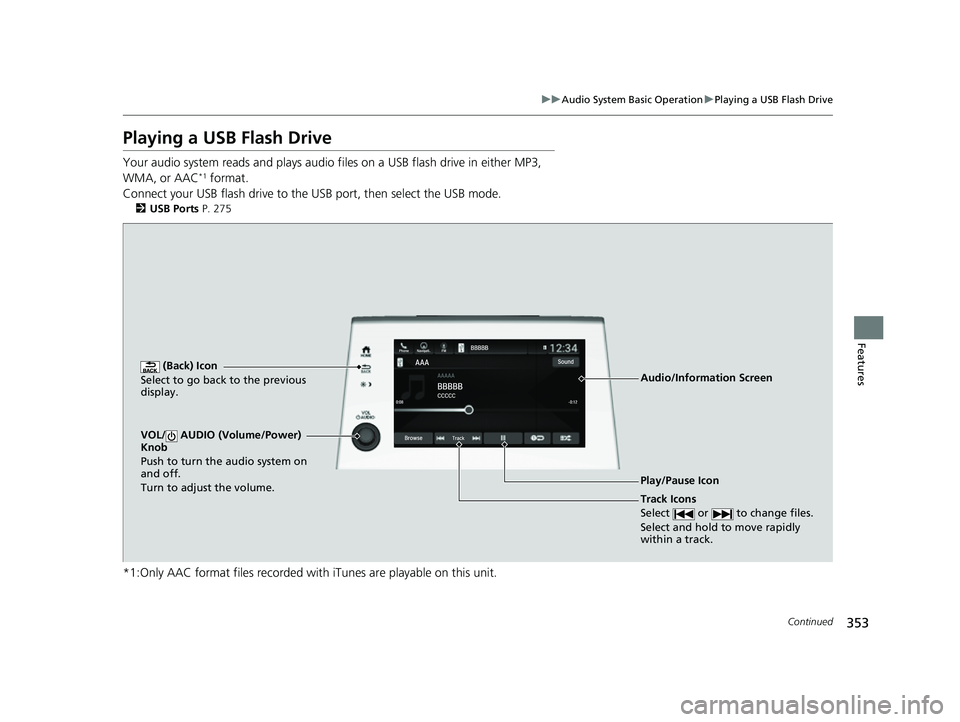
Your audio system reads and plays audio f iles on a USB flash drive in either MP3,
WMA, or AAC*1 format.
Connect your USB flash drive to the USB port, then select the USB mode.
2 USB Ports P. 275
*1:Only AAC format files recorded with iTunes are playable on this unit.
AAAAAAAA
CCCCCBBBBB
BBBBB
BrowseTrack
Phone Navigati.. FMSound
0:08 -0:12
AAAAAAAAAAA
CCCCCCCCBBBBBB
BBBBBBBBBBBBBBB
BrowseTrack
PhoneNavigati..FMSound
0:08-0:121
(Back) Icon
Select to go back to the previous
display.
Track Icons
Select or to change files.
Select and hold to move rapidly
within a track.
VOL/ AUDIO (Volume/Power)
Knob
Push to turn the audio system on
and off.
Turn to adjust the volume.
Audio/Information Screen
Play/Pause Icon
22 US ODYSSEY-31THR6400.book 353 ページ 2020年11月16日 月曜日 午後1時41分