key HONDA ODYSSEY 2022 Owner's Guide
[x] Cancel search | Manufacturer: HONDA, Model Year: 2022, Model line: ODYSSEY, Model: HONDA ODYSSEY 2022Pages: 782, PDF Size: 27.17 MB
Page 201 of 782
uuOperating the Switches Around the Steering Wheel uENGINE START/STOP Button
200
Controls
If you open the driver’s door when the power mode is set to ACCESSORY, a warning
beep sounds.
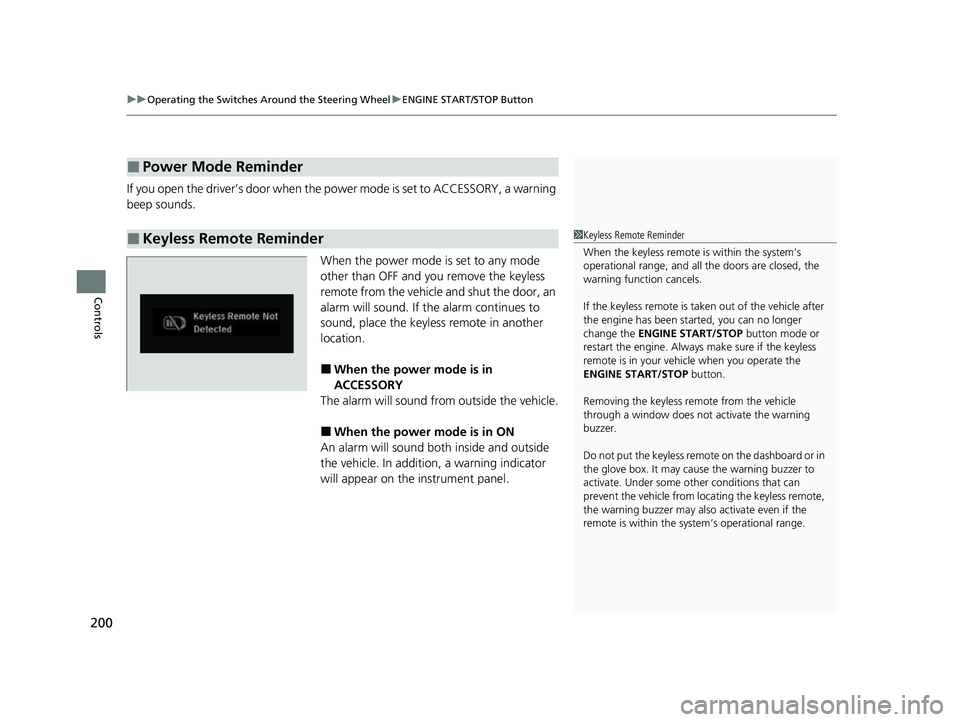
When the power mode is set to any mode
other than OFF and you remove the keyless
remote from the vehicle and shut the door, an
alarm will sound. If the alarm continues to
sound, place the keyless remote in another
location.
■When the power mode is in
ACCESSORY
The alarm will sound from outside the vehicle.
■When the power mode is in ON
An alarm will sound both inside and outside
the vehicle. In addition, a warning indicator
will appear on the instrument panel.
■Power Mode Reminder
■Keyless Remote Reminder1 Keyless Remote Reminder
When the keyless remote is within the system’s
operational range, and all the doors are closed, the
warning function cancels.
If the keyless remote is taken out of the vehicle after
the engine has been st arted, you can no longer
change the ENGINE START/STOP button mode or
restart the engine. Always make sure if the keyless
remote is in your vehi cle when you operate the
ENGINE START/STOP button.
Removing the keyless remote from the vehicle
through a window does not activate the warning
buzzer.
Do not put the keyless remo te on the dashboard or in
the glove box. It may cause the warning buzzer to
activate. Under some ot her conditions that can
prevent the vehicle from locating the keyless remote,
the warning buzzer may also activate even if the
remote is within the system’s operational range.
22 US ODYSSEY-31THR6400.book 200 ページ 2020年11月16日 月曜日 午後1時41分
Page 232 of 782
Continued231
uuSeats uThird Row Seats
Controls
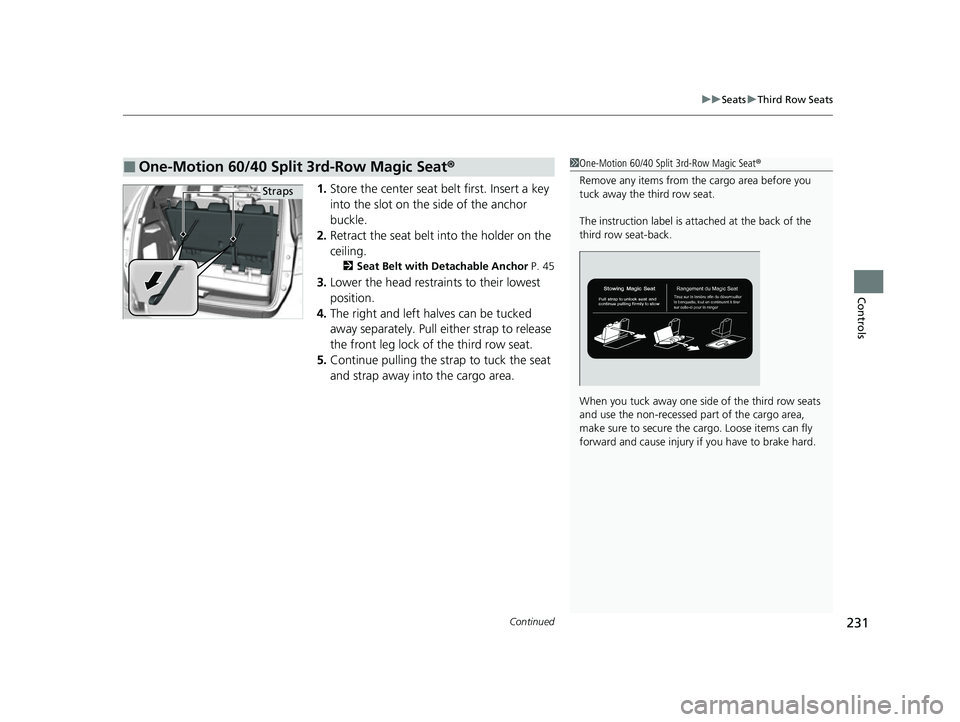
1. Store the center seat belt first. Insert a key
into the slot on the side of the anchor
buckle.
2. Retract the seat belt into the holder on the
ceiling.
2 Seat Belt with Detachable Anchor P. 45
3.Lower the head restrain ts to their lowest
position.
4. The right and left halves can be tucked
away separately. Pull either strap to release
the front leg lock of the third row seat.
5. Continue pulling the strap to tuck the seat
and strap away into the cargo area.
■One-Motion 60/40 Split 3rd-Row Magic Seat ®1One-Motion 60/40 Split 3rd-Row Magic Seat ®
Remove any items from the cargo area before you
tuck away the third row seat.
The instruction label is atta ched at the back of the
third row seat-back.
When you tuck away one si de of the third row seats
and use the non-recessed pa rt of the cargo area,
make sure to secure the cargo. Loose items can fly
forward and cause injury if you have to brake hard.
Straps
22 US ODYSSEY-31THR6400.book 231 ページ 2020年11月16日 月曜日 午後1時41分
Page 242 of 782
241
uuInterior Convenience Items uStorage Items
Continued
Controls
Storage Items
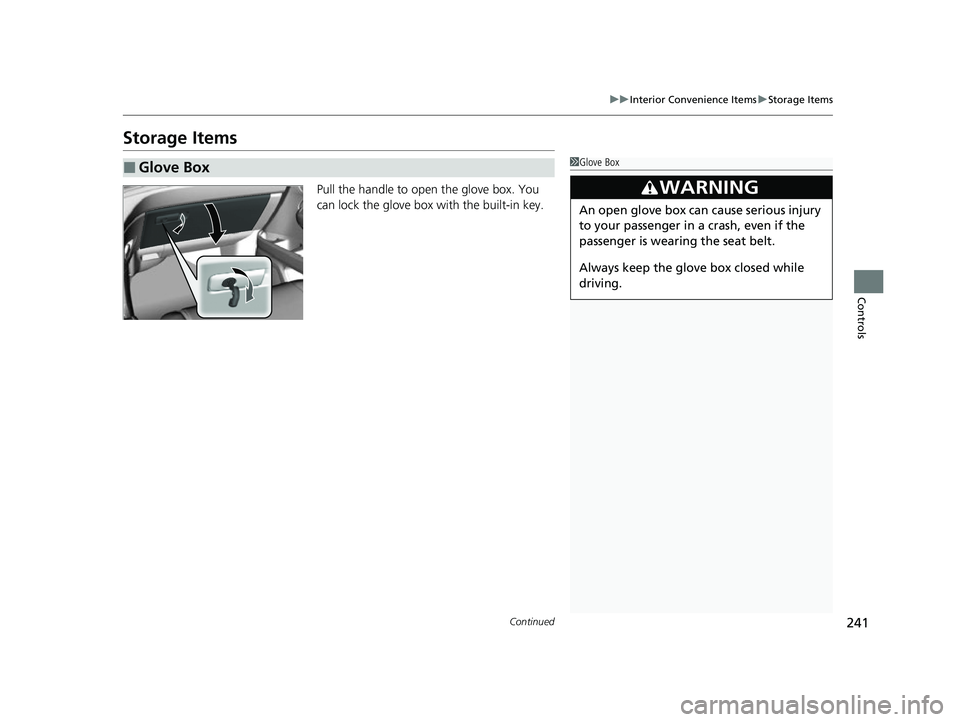
Pull the handle to open the glove box. You
can lock the glove box with the built-in key.
■Glove Box1Glove Box
3WARNING
An open glove box can cause serious injury
to your passenger in a crash, even if the
passenger is wearing the seat belt.
Always keep the glove box closed while
driving.
22 US ODYSSEY-31THR6400.book 241 ページ 2020年11月16日 月曜日 午後1時41分
Page 256 of 782
Continued255
uuInterior Convenience Items uOther Interior Convenience Items
Controls
1Wireless Charger*
NOTICE
Do not place any magneti c recording media or
precision machines within the charging area while
charging.
The data on your cards such as credit cards can be
lost because of the magneti c effect. Also, precision
machines such as watches may malfunction.
“Qi” and marks are the registered trademarks
owned by Wire less Power Consortium (WPC).
mark is the registered trademark owned by
Power Matters Alliance (PMA).
In the following cases, ch arging may stop or not start:
•The device is already fully charged.•The temperature of the device is extremely high
while charging.
•You are at a place that emits strong
electromagnetic waves or noises, such as a TV
station, electric power plant, or gas station.
A device may not charge if the si ze or shape of its chargeable
side is not appropriate for use with the charging area.
Not all devices are compatible with the system.
During the charging phase, it is normal for the
charging area and de vice to heat up.
Charging may be briefl y interrupted when:
•All the doors and the tailgate are closed
- to avoid interference with the proper functioning
of the keyless access system.
•The position of the device is altered.
Do not charge more than one device at a time on a
charging area.
* Not available on all models
22 US ODYSSEY-31THR6400.book 255 ページ 2020年11月16日 月曜日 午後1時41分
Page 334 of 782
333
uuAudio System Basic Operation uPlaying AM/FM Radio
Continued
Features
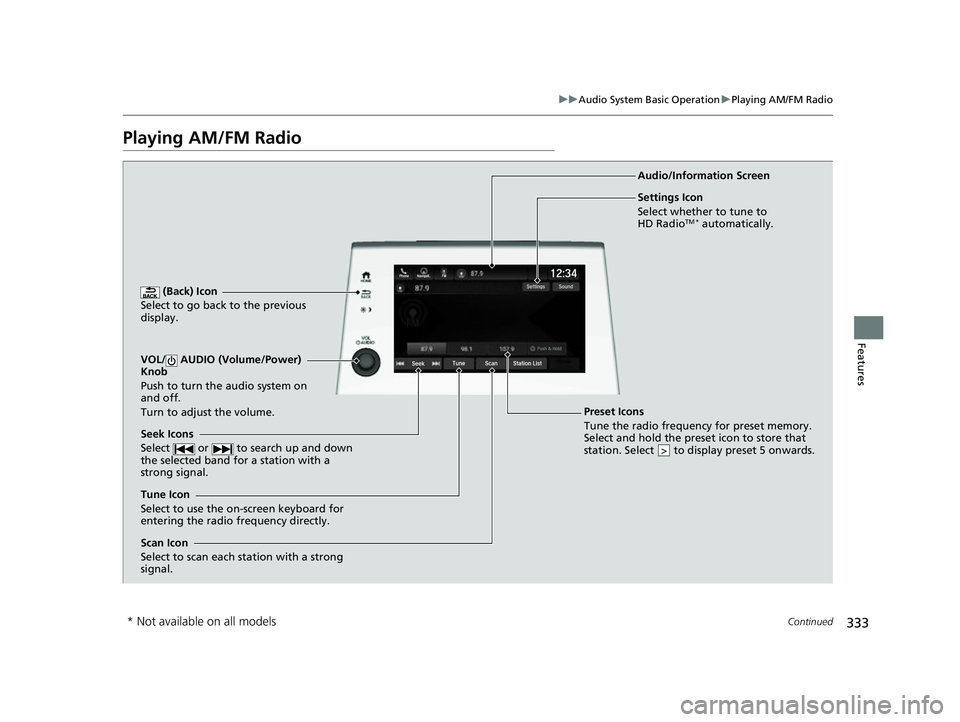
Playing AM/FM Radio
(Back) Icon
Select to go back to the previous
display.
Seek Icons
Select or to search up and down
the selected band for a station with a
strong signal.
VOL/ AUDIO (Volume/Power)
Knob
Push to turn the audio system on
and off.
Turn to adjust the volume.
Tune Icon
Select to use the on-screen keyboard for
entering the radio frequency directly. Audio/Information Screen
Scan Icon
Select to scan each station with a strong
signal.
Preset Icons
Tune the radio frequency for preset memory.
Select and hold the preset icon to store that
station. Select to display preset 5 onwards.
>
Settings Icon
Select whether to tune to
HD Radio
TM * automatically.
* Not available on all models
22 US ODYSSEY-31THR6400.book 333 ページ 2020年11月16日 月曜日 午後1時41分
Page 341 of 782
uuAudio System Basic Operation uPlaying SiriusXM ® Radio*
340
Features
Suggested channel listing received from SiriusXM ® can be displayed and selected.
1. Select Channel List.
2. Select the featured channel list title you want to listen to.
u The selected channel list of the title is displayed.
3. Select the channel.
■Listening to Featured Channels1Listening to Featured Channels
Up to three featured channels by SiriusXM ® can be
displayed.
Featured channel lists are at the top of the channel
list.
To switch the sorting method, select Number, Name
or Category on the upper right of the screen.
Select Keypad to use the on-screen keyboard for
entering the channel number directly.
22 US ODYSSEY-31THR6400.book 340 ページ 2020年11月16日 月曜日 午後1時41分
Page 345 of 782
uuAudio System Basic Operation uPlaying SiriusXM ® Radio*
344
Features
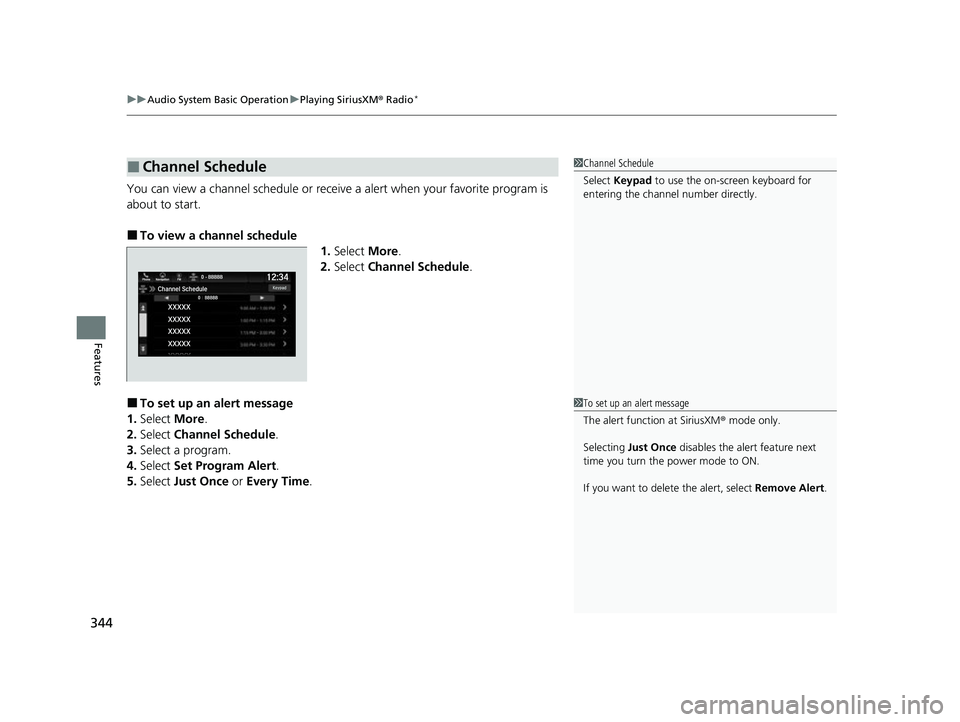
You can view a channel schedule or receiv e a alert when your favorite program is
about to start.
■To view a channel schedule 1.Select More.
2. Select Channel Schedule .
■To set up an alert message
1. Select More.
2. Select Channel Schedule .
3. Select a program.
4. Select Set Program Alert .
5. Select Just Once or Every Time .
■Channel Schedule1Channel Schedule
Select Keypad to use the on-screen keyboard for
entering the channel number directly.
1To set up an alert message
The alert function at SiriusXM ® mode only.
Selecting Just Once disables the alert feature next
time you turn the power mode to ON.
If you want to delete the alert, select Remove Alert.
22 US ODYSSEY-31THR6400.book 344 ページ 2020年11月16日 月曜日 午後1時41分
Page 378 of 782
Continued377
uuAudio System Basic Operation uAndroid Auto
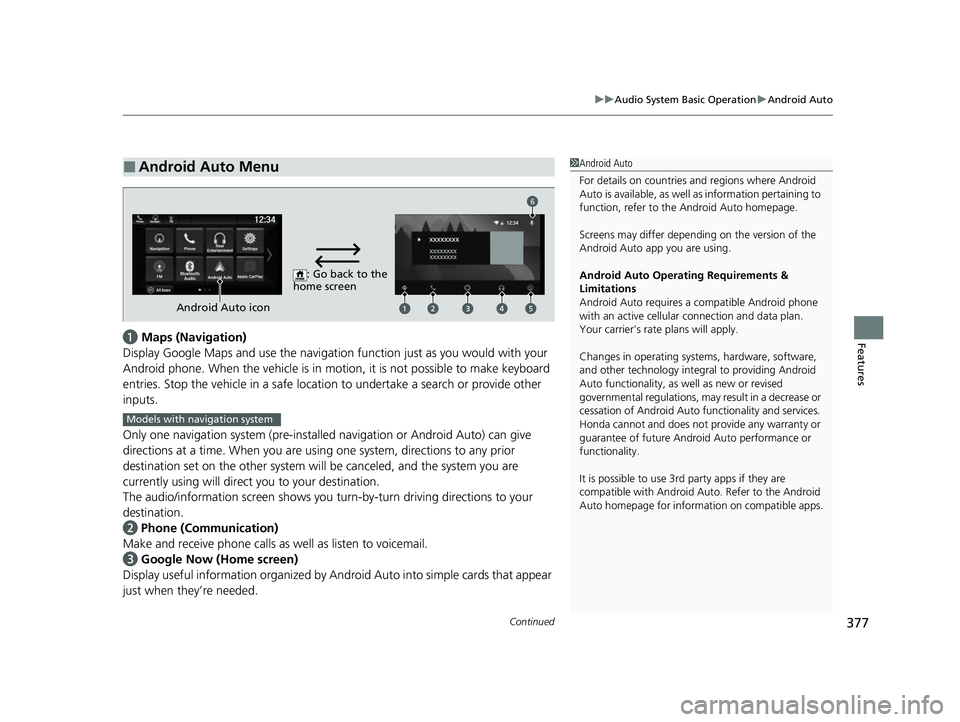
Featuresa Maps (Navigation)
Display Google Maps and use the navigation function just as you would with your
Android phone. When the vehicle is in motion, it is not possible to make keyboard
entries. Stop the vehicle in a safe locati on to undertake a search or provide other
inputs.
Only one navigation system (pre-installed navigation or Android Auto) can give
directions at a time. When you are using one system, directions to any prior
destination set on the other system will be canceled, and the system you are
currently using will direct you to your destination.
The audio/information screen shows you turn-by-turn dr iving directions to your
destination.
b Phone (Communication)
Make and receive phone calls as well as listen to voicemail.
c Google Now (Home screen)
Display useful information organized by Android Auto into simple cards that appear
just when they’re needed.
■Android Auto Menu1 Android Auto
For details on c ountries and regions where Android
Auto is available, as well as information pertaining to
function, refer to the Android Auto homepage.
Screens may differ depending on the version of the
Android Auto app you are using.
Android Auto Operating Requirements &
Limitations
Android Auto requires a compatible Android phone
with an active cellular connection and data plan.
Your carrier’s rate plans will apply.
Changes in operating systems, hardware, software,
and other technology integral to providing Android
Auto functionality, as well as new or revised
governmental regulations, may result in a decrease or
cessation of Android Auto functionality and services.
Honda cannot and does not pr ovide any warranty or
guarantee of future Android Auto performance or
functionality.
It is possible to use 3r d party apps if they are
compatible with Android Auto. Refer to the Android
Auto homepage for informat ion on compatible apps.
: Go back to the
home screen
Android Auto icon
6
Models with navigation system
22 US ODYSSEY-31THR6400.book 377 ページ 2020年11月16日 月曜日 午後1時41分
Page 415 of 782
414
uuBlu-ray/DVD Rear Entertainment System*uVideo Accessibility
Features
Video Accessibility
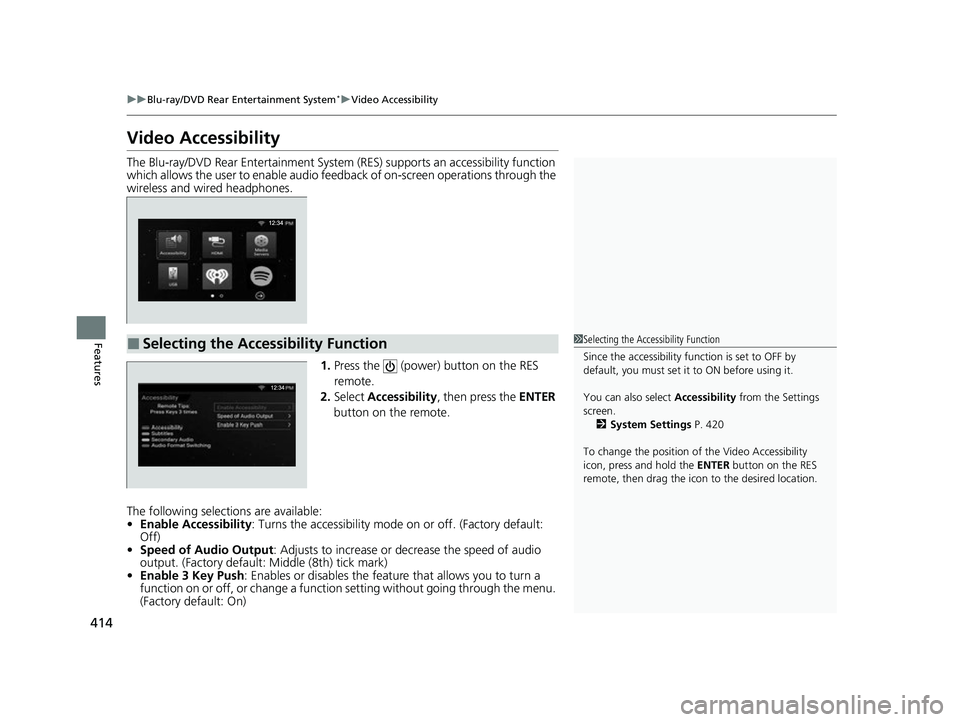
The Blu-ray/DVD Rear Entertainment System (RES) supports an accessibility function
which allows the user to enable audio fe edback of on-screen operations through the
wireless and wired headphones.
1.Press the (power) button on the RES
remote.
2. Select Accessibility , then press the ENTER
button on the remote.
The following selections are available:
• Enable Accessibility : Turns the accessibility mode on or off. (Factory default:
Off)
• Speed of Audio Output : Adjusts to increase or de crease the speed of audio
output. (Factory default: Middle (8th) tick mark)
• Enable 3 Key Push : Enables or disables the featur e that allows you to turn a
function on or off, or change a functi on setting without going through the menu.
(Factory default: On)
■Selecting the Accessibility Function1 Selecting the Accessibility Function
Since the accessibility function is set to OFF by
default, you must set it to ON before using it.
You can also select Accessibility from the Settings
screen. 2 System Settings P. 420
To change the position of the Video Accessibility
icon, press and hold the ENTER button on the RES
remote, then drag the icon to the desired location.
22 US ODYSSEY-31THR6400.book 414 ページ 2020年11月16日 月曜日 午後1時41分
Page 460 of 782
459
uuCustomized Features u
Continued
Features
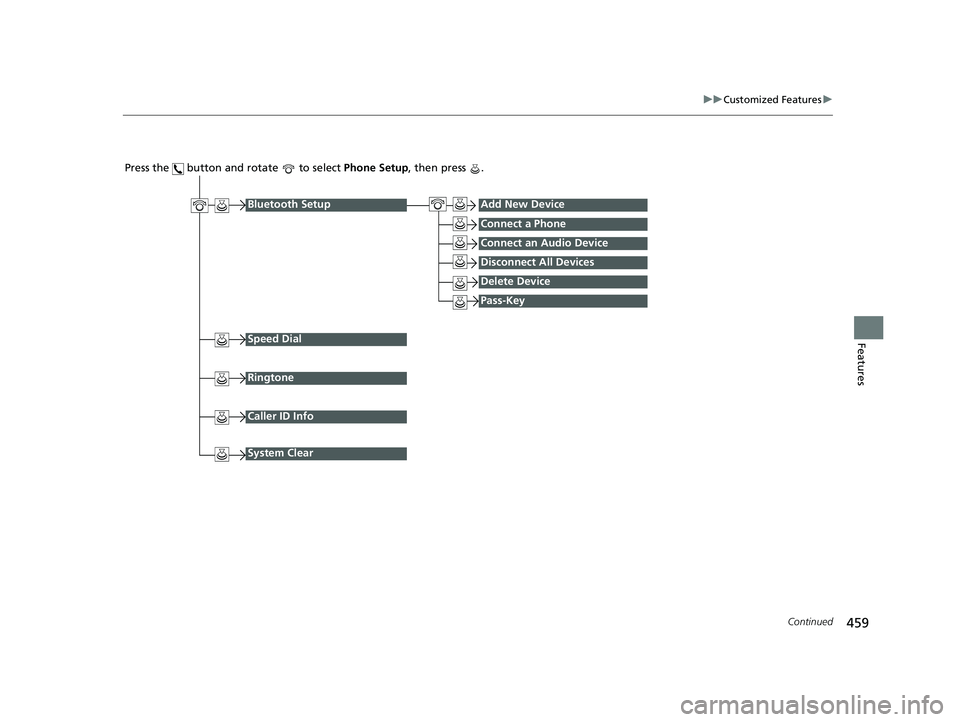
Press the button and rotate to select Phone Setup, then press .
Ringtone
Bluetooth SetupAdd New Device
Connect a Phone
Connect an Audio Device
Disconnect All Devices
Delete Device
Pass-Key
Speed Dial
Caller ID Info
System Clear
22 US ODYSSEY-31THR6400.book 459 ページ 2020年11月16日 月曜日 午後1時41分