lock HONDA PASSPORT 2023 Manual PDF
[x] Cancel search | Manufacturer: HONDA, Model Year: 2023, Model line: PASSPORT, Model: HONDA PASSPORT 2023Pages: 610, PDF Size: 20.93 MB
Page 220 of 610
219
uuClimate Control System uRear Climate Control System
Continued
Controls
Rear Climate Control System
Use the system when the engine is runni ng and the climate control system is
operating.
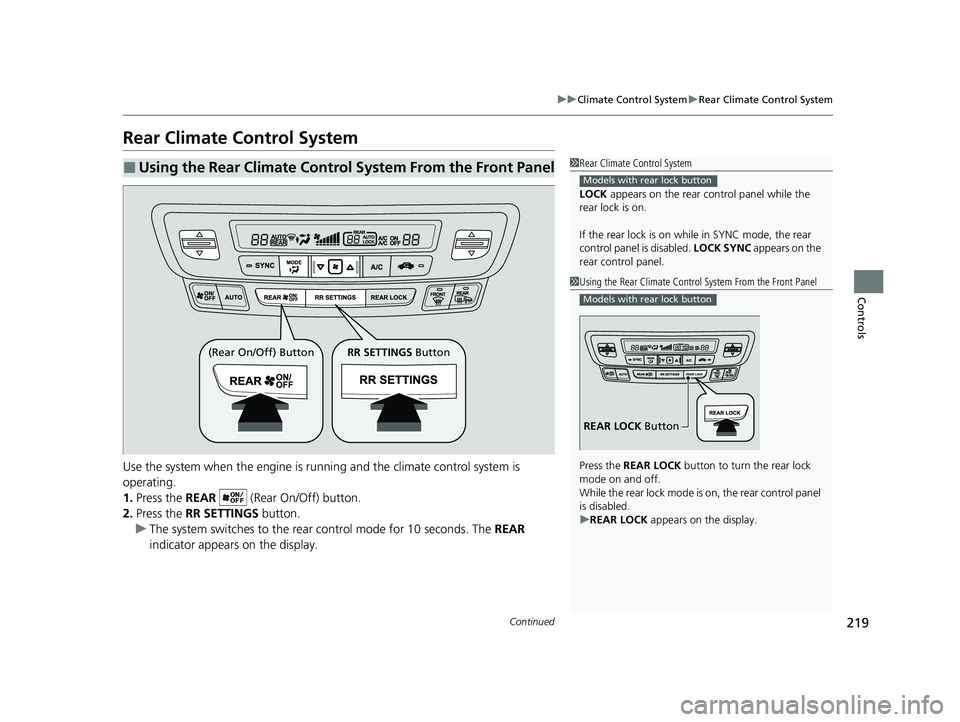
1. Press the REAR (Rear On/Off) button.
2. Press the RR SETTINGS button.
u The system switches to the rear control mode for 10 seconds. The REAR
indicator appears on the display.
■Using the Rear Climate Control System From the Front Panel1 Rear Climate Control System
LOCK appears on the rear control panel while the
rear lock is on.
If the rear lock is on while in SYNC mode, the rear
control panel is disabled. LOCK SYNC appears on the
rear control panel.
Models with rear lock button
1 Using the Rear Climate Control System From the Front Panel
Press the REAR LOCK button to turn the rear lock
mode on and off.
While the rear lock mode is on, the rear control panel
is disabled.
u REAR LOCK appears on the display.
Models with rear lock button
REAR LOCK Button
(Rear On/Off) Button RR SETTINGS Button
23 PASSPORT-31TGS6400.book 219 ページ 2022年8月5日 金曜日 午後9時2分
Page 221 of 610
uuClimate Control System uRear Climate Control System
220
Controls
3. Press the AUTO button.
u The rear system changes to AUTO mode.
u The system automatically adjusts the fan speed and airflow levels to maintain
the set rear temperature. Change the temperature if necessary.
4. To turn off the rear climate control system, press the (Rear On/Off) button.
Use the system when the engine is running and the climate control system is
operating.
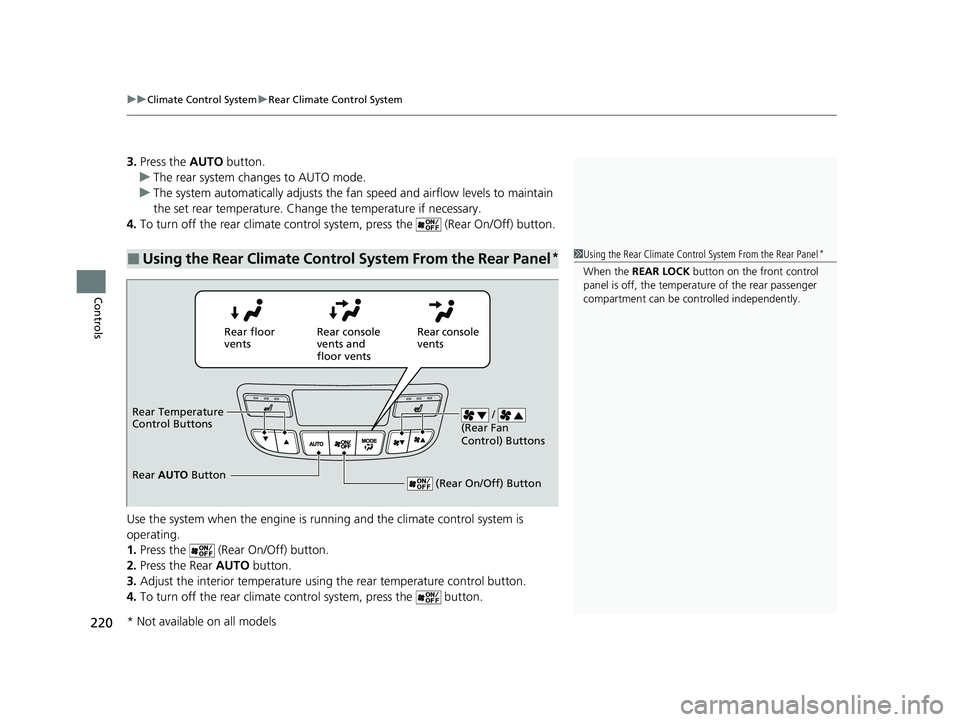
1. Press the (Rear On/Off) button.
2. Press the Rear AUTO button.
3. Adjust the interior temperature using the rear temperature control button.
4. To turn off the rear climate co ntrol system, press the button.
■Using the Rear Climate Control System From the Rear Panel*1Using the Rear Climate Control System From the Rear Panel*
When the REAR LOCK button on the front control
panel is off, the temperat ure of the rear passenger
compartment can be cont rolled independently.
Rear floor
ventsRear console
vents and
floor vents Rear console
vents
/
(Rear Fan
Control) Buttons
(Rear On/Off) Button
Rear Temperature
Control Buttons
Rear AUTO Button
* Not available on all models
23 PASSPORT-31TGS6400.book 220 ページ 2022年8月5日 金曜日 午後9時2分
Page 233 of 610
232
uuAudio System Basic Operation uAudio/Information Screen
Features
■Phone
Displays the HFL information.
2 Bluetooth ® HandsFreeLink ® P. 351
■Trip Computer
Displays the trip co mputer information.
• Current Drive tab: Displays the current trip information.
• Trip A /Trip B tab: Displays information for the current and three previous drives.
The information is stored every time you reset Trip A/B.
To reset Trip A/B, select Reset.
To change the setting of how to reset Trip A/B, select Settings, then select Trip
A Reset Method or Trip B Reset Method .
■Clock
Displays the clock.
■System Updates
Updates the software version of the audio system.
2 System Updates P. 244
■FM/AM/Sirius XM*/USB/Bluetooth Audio/AUX Input/My Honda Music/
Social Playlist
Displays the audio information.
■Settings
Enters the customiz ing menu screen.
2Customized Features P. 329
* Not available on all models
23 PASSPORT-31TGS6400.book 232 ページ 2022年8月5日 金曜日 午後9時2分
Page 235 of 610
uuAudio System Basic Operation uAudio/Information Screen
234
Features
You can change, store, and delete the wa llpaper on the audio/information screen.
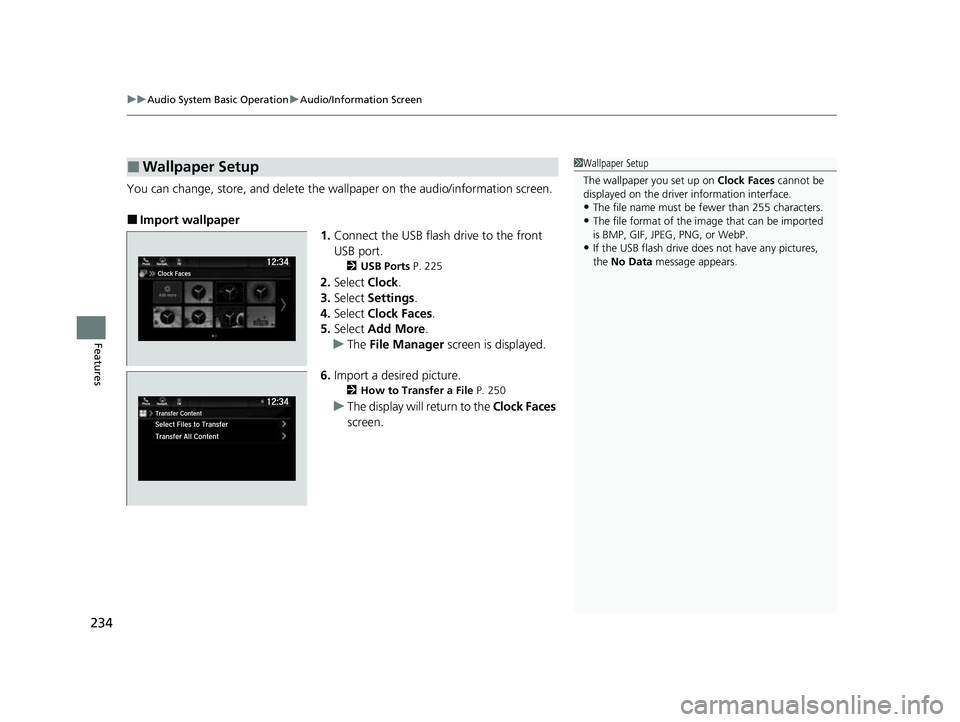
■Import wallpaper
1.Connect the USB flash drive to the front
USB port.
2 USB Ports P. 225
2.Select Clock.
3. Select Settings .
4. Select Clock Faces.
5. Select Add More .
u The File Manager screen is displayed.
6. Import a desired picture.
2 How to Transfer a File P. 250
uThe display will return to the Clock Faces
screen.
■Wallpaper Setup1 Wallpaper Setup
The wallpaper you set up on Clock Faces cannot be
displayed on the driver information interface.
•The file name must be fewer than 255 characters.
•The file format of the im age that can be imported
is BMP, GIF, JPEG, PNG, or WebP.
•If the USB flash drive doe s not have any pictures,
the No Data message appears.
23 PASSPORT-31TGS6400.book 234 ページ 2022年8月5日 金曜日 午後9時2分
Page 236 of 610
235
uuAudio System Basic Operation uAudio/Information Screen
Continued
Features
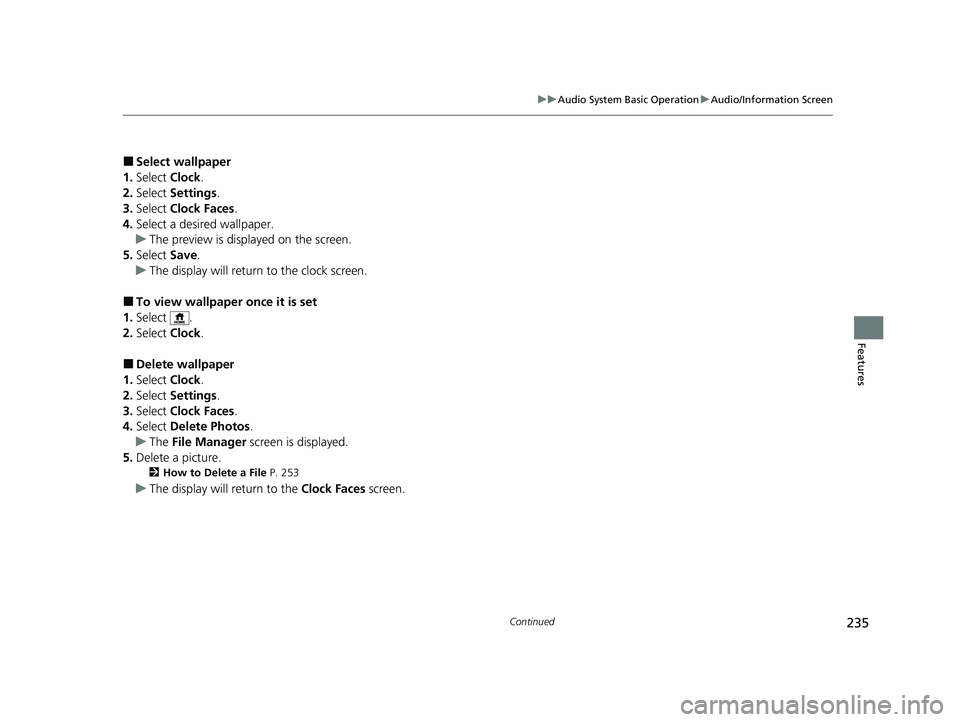
■Select wallpaper
1. Select Clock.
2. Select Settings .
3. Select Clock Faces.
4. Select a desired wallpaper.
u The preview is displayed on the screen.
5. Select Save.
u The display will return to the clock screen.
■To view wallpaper once it is set
1. Select .
2. Select Clock.
■Delete wallpaper
1. Select Clock.
2. Select Settings .
3. Select Clock Faces.
4. Select Delete Photos .
u The File Manager screen is displayed.
5. Delete a picture.
2 How to Delete a File P. 253
uThe display will return to the Clock Faces screen.
23 PASSPORT-31TGS6400.book 235 ページ 2022年8月5日 金曜日 午後9時2分
Page 308 of 610
307
Features
General Information on the Audio System
SiriusXM® Radio Service*
1.You need your radio ID ready before regist ering for subscription. To see the ID in
the screen, select Channel to 0.
2. Have your radio ID ready, and either call or visit the SiriusXM® website to
subscribe.
Switch to the SiriusXM ® mode by using the audio remote controls on the steering
wheel, or through the audio/information sc reen, and stay in this mode for about 30
minutes until the service is activated. Make su re your vehicle is in an open area with
good reception.
Channel not subscribed. Call SiriusXM to subscribe.:
You are not subscribed to the channel selected.
Subscription Update:
SiriusXM ® radio is receiving informat ion update from the network.
Channel Not Available:
No such channel exits, or the artist or title information is unavailable.
No Signal:
The signal is too weak in the current location.
Check Tuner:
There is a problem with the SiriusXM ® tuner. Contact a dealer.
Check Antenna:
There is a problem with the SiriusXM ® antenna. Contact a dealer.
■Subscribing to SiriusXM® Radio
■Receiving SiriusXM ® Radio
■SiriusXM ® Radio Display Messages
1 Subscribing to SiriusXM ® Radio
Contact Information for SiriusXM ® Radio:
•US: SiriusXM ® Radio at
www.siriusxm.com/subscribenow , or
1-866-635-2349
•Canada: SiriusXM ® Canada at
www.siriusxm.ca/subscribe-now , or
1-877-209-0079
1 Receiving SiriusXM ® Radio
The SiriusXM ® satellites are in orbit over the equator;
therefore, objects south of the vehicle may cause
satellite rece ption interruptions. Sa tellite signals are
more likely to be blocked by tall buildings and
mountains the farther north you travel from the
equator.
You may experience rece ption problems under the
following circumstances:
•In a location with an obstruction to the south of
your vehicle.
•In tunnels•On the lower level of a multi-tiered road
•Large items carried on the roof rack
* Not available on all models
23 PASSPORT-31TGS6400.book 307 ページ 2022年8月5日 金曜日 午後9時2分
Page 309 of 610
308
uuGeneral Information on the Audio System uCompatible iPod, iPad, iPhone, and USB Flash Drives
Features
Compatible iPod, iPad, iPhone, and USB Flash Drives
• A USB flash drive of 256 MB or higher is recommended.
• Some digital audio players may not be compatible.
• Some USB flash drives (e.g., a device with security lockout) may not work.
• Some software files may not allow for audio play or text data display.
• Some versions of MP3, WMA, or AAC formats may be unsupported.
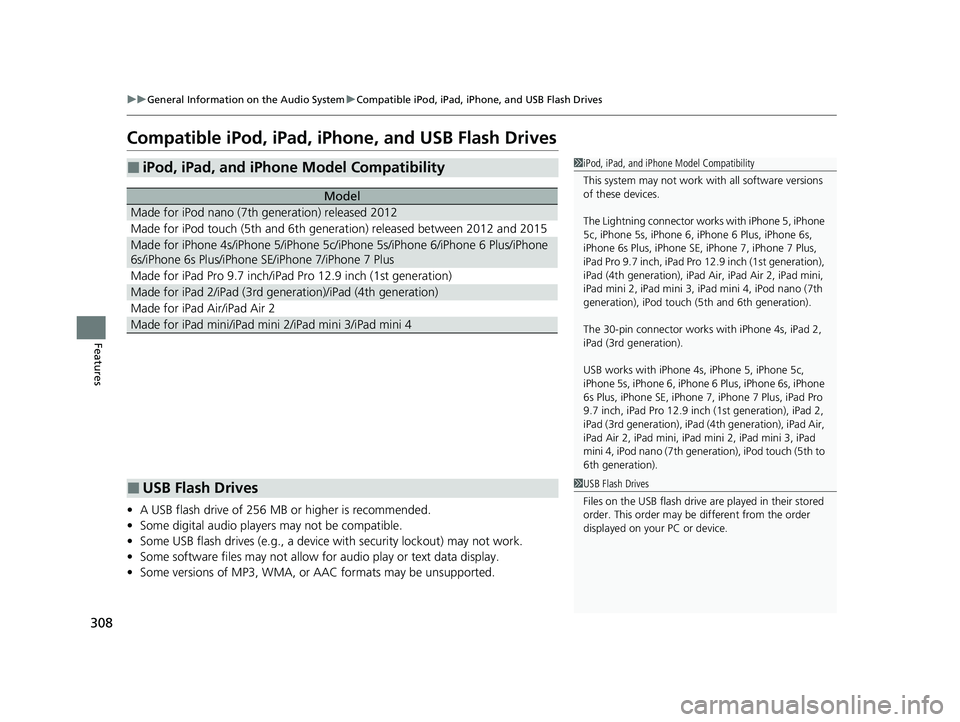
■iPod, iPad, and iPhone Model Compatibility
Model
Made for iPod nano (7th generation) released 2012
Made for iPod touch (5th and 6th generation) released between 2012 and 2015
Made for iPhone 4s/iPhone 5/iPhone 5c/iPhone 5s/iPhone 6/iPhone 6 Plus/iPhone
6s/iPhone 6s Plus/iPhone SE/iPhone 7/iPhone 7 Plus
Made for iPad Pro 9.7 inch/iPad Pro 12.9 inch (1st generation)
Made for iPad 2/iPad (3rd ge neration)/iPad (4th generation)
Made for iPad Air/iPad Air 2
Made for iPad mini/iPad mini 2/iPad mini 3/iPad mini 4
1iPod, iPad, and iPhone Model Compatibility
This system may not work with all software versions
of these devices.
The Lightning connector work s with iPhone 5, iPhone
5c, iPhone 5s, iPhone 6, iPhone 6 Plus, iPhone 6s,
iPhone 6s Plus, iPhone SE, iPhone 7, iPhone 7 Plus,
iPad Pro 9.7 inch, iPad Pro 12.9 inch (1st generation),
iPad (4th generation), iPad Ai r, iPad Air 2, iPad mini,
iPad mini 2, iPad mini 3, iPad mini 4, iPod nano (7th
generation), iPod touch (5 th and 6th generation).
The 30-pin connector works with iPhone 4s, iPad 2,
iPad (3rd generation).
USB works with iPhone 4s, iPhone 5, iPhone 5c,
iPhone 5s, iPhone 6, iPhone 6 Plus, iPhone 6s, iPhone
6s Plus, iPhone SE, iPhone 7, iPhone 7 Plus, iPad Pro
9.7 inch, iPad Pro 12.9 inch (1st generation), iPad 2,
iPad (3rd generation), iPad (4th generation), iPad Air,
iPad Air 2, iPad mini, iPad mini 2, iPad mini 3, iPad
mini 4, iPod nano (7th gene ration), iPod touch (5th to
6th generation).
■USB Flash Drives1 USB Flash Drives
Files on the USB flash drive are played in their stored
order. This order may be different from the order
displayed on your PC or device.
23 PASSPORT-31TGS6400.book 308 ページ 2022年8月5日 金曜日 午後9時2分
Page 334 of 610
333
uuCustomized Features u
Continued
Features
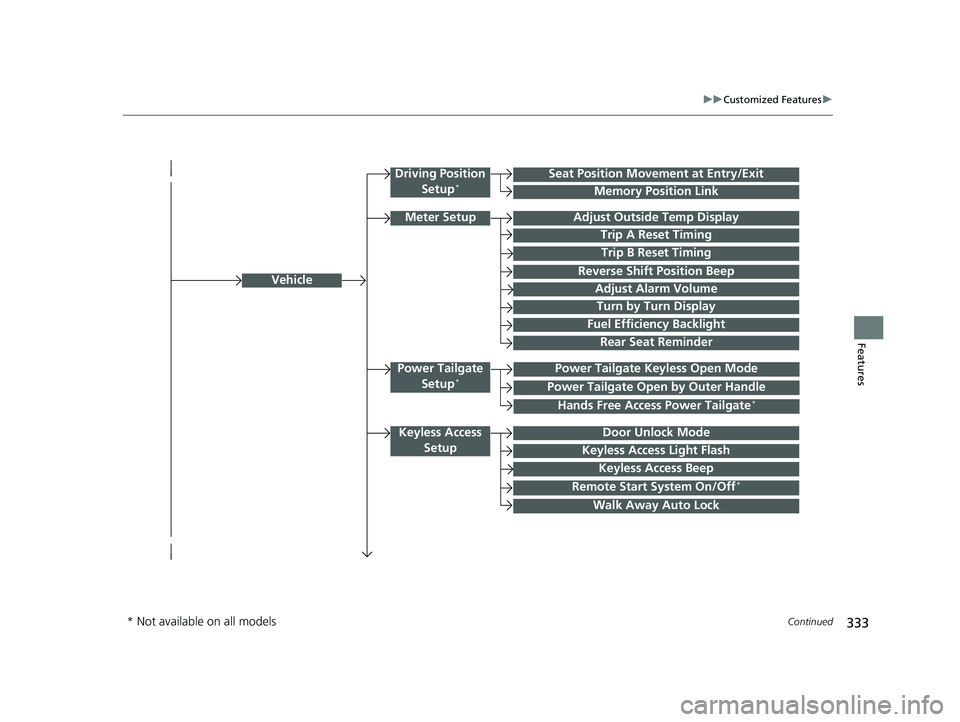
Vehicle
Driving Position
Setup*Seat Position Movement at Entry/Exit
Memory Position Link
Meter SetupAdjust Outside Temp Display
Trip A Reset Timing
Trip B Reset Timing
Reverse Shift Position Beep
Adjust Alarm Volume
Turn by Turn Display
Power Tailgate
Setup*Power Tailgate Keyless Open Mode
Power Tailgate Open by Outer Handle
Keyless Access SetupDoor Unlock Mode
Keyless Access Light Flash
Keyless Access Beep
Remote Start System On/Off*
Walk Away Auto Lock
Fuel Efficiency Backlight
Hands Free Access Power Tailgate*
Rear Seat Reminder
* Not available on all models
23 PASSPORT-31TGS6400.book 333 ページ 2022年8月5日 金曜日 午後9時2分
Page 335 of 610
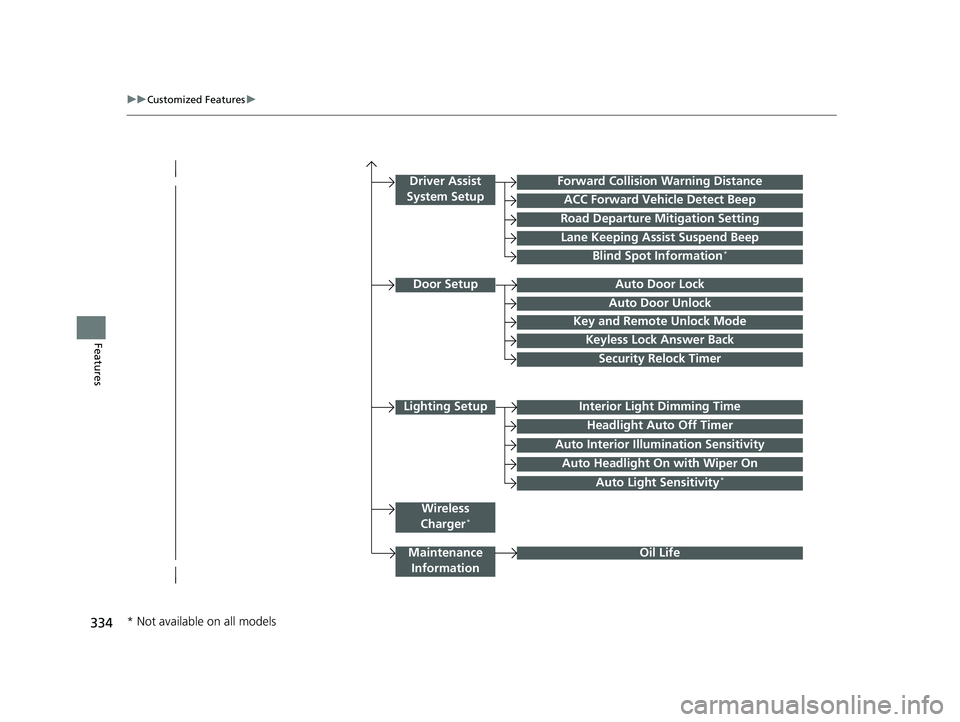
334
uuCustomized Features u
Features
Lighting SetupInterior Light Dimming Time
Headlight Auto Off Timer
Forward Collision Warning Distance
ACC Forward Vehicle Detect Beep
Auto Interior Illumi nation Sensitivity
Door SetupAuto Door Lock
Auto Door Unlock
Key and Remote Unlock Mode
Keyless Lock Answer Back
Security Relock Timer
Maintenance
Information
Driver Assist
System Setup
Oil Life
Road Departure Mitigation Setting
Lane Keeping Assist Suspend Beep
Blind Spot Information*
Wireless
Charger*
Auto Headlight On with Wiper On
Auto Light Sensitivity*
* Not available on all models
23 PASSPORT-31TGS6400.book 334 ページ 2022年8月5日 金曜日 午後9時2分
Page 337 of 610
336
uuCustomized Features u
Features
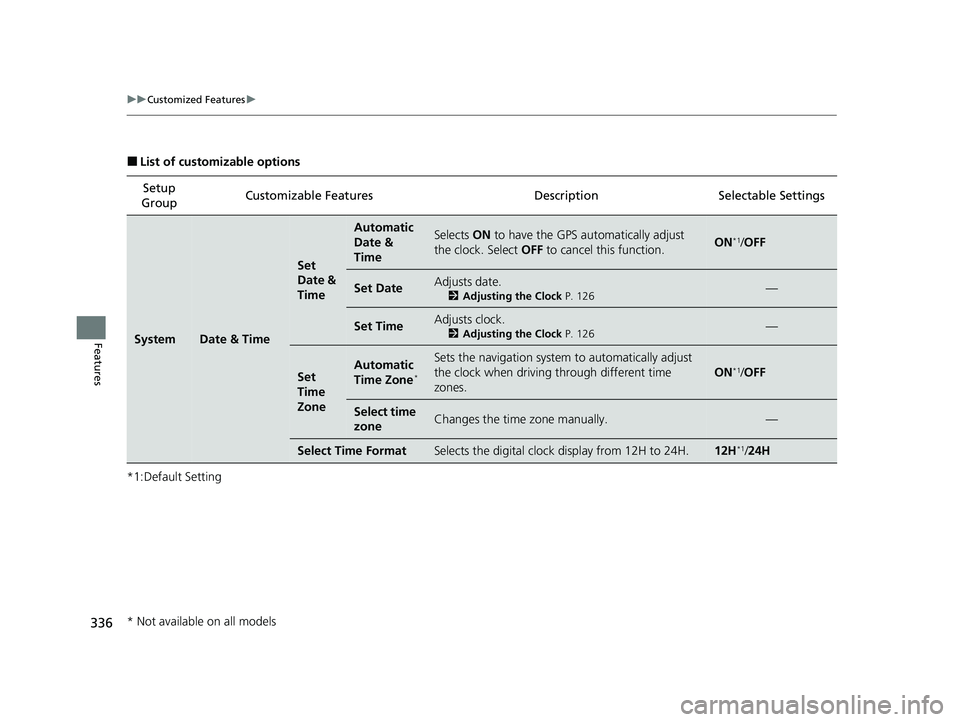
■List of customizable options
*1:Default Setting Setup
Group Customizable Features
DescriptionSelectable Settings
SystemDate & Time
Set
Date &
Time
Automatic
Date &
TimeSelects ON to have the GPS automatically adjust
the clock. Select OFF to cancel this function.ON*1/OFF
Set DateAdjusts date.
2 Adjusting the Clock P. 126—
Set TimeAdjusts clock.
2Adjusting the Clock P. 126—
Set
Time
ZoneAutomatic
Time Zone*
Sets the navigation system to automatically adjust
the clock when driving through different time
zones.
ON*1/ OFF
Select time
zoneChanges the time zone manually.—
Select Time FormatSelects the digital clock display from 12H to 24H.12H*1/24H
* Not available on all models
23 PASSPORT-31TGS6400.book 336 ページ 2022年8月5日 金曜日 午後9時2分