steering wheel HONDA PILOT 2013 2.G Owner's Manual
[x] Cancel search | Manufacturer: HONDA, Model Year: 2013, Model line: PILOT, Model: HONDA PILOT 2013 2.GPages: 488, PDF Size: 10.18 MB
Page 138 of 488
137Continued
Controls
Adjusting the Seats
Adjusting the Seat Positions
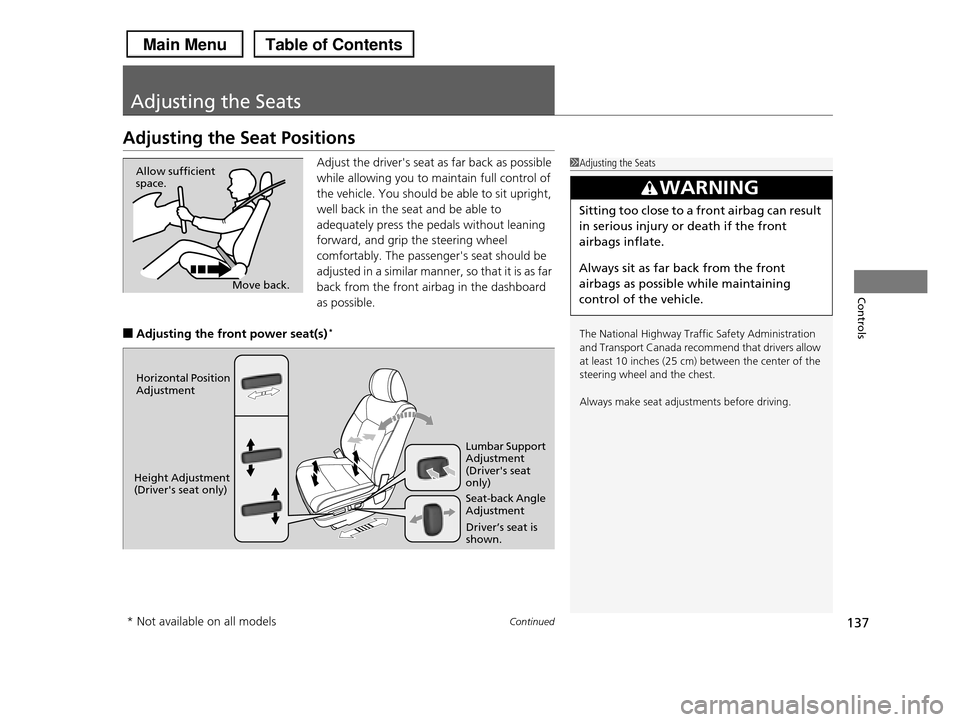
Adjust the driver's seat as far back as possible
while allowing you to maintain full control of
the vehicle. You should be able to sit upright,
well back in the seat and be able to
adequately press the pedals without leaning
forward, and grip the steering wheel
comfortably. The passenger's seat should be
adjusted in a similar manner, so that it is as far
back from the front airbag in the dashboard
as possible.
■Adjusting the front power seat(s)*
1Adjusting the Seats
The National Highway Traffic Safety Administration
and Transport Canada recommend that drivers allow
at least 10 inches (25 cm) between the center of the steering wheel and the chest.
Always make seat adjustments before driving.
3WARNING
Sitting too close to a front airbag can result
in serious injury or death if the front
airbags inflate.
Always sit as far back from the front
airbags as possible while maintaining
control of the vehicle.
Move back.
Allow sufficient space.
Horizontal Position Adjustment
Height Adjustment (Driver's seat only)Seat-back Angle Adjustment
Lumbar Support Adjustment (Driver's seat only)
Driver’s seat is shown.
* Not available on all models
Page 141 of 488
uuAdjusting the SeatsuAdjusting the Seat Positions
140
Controls
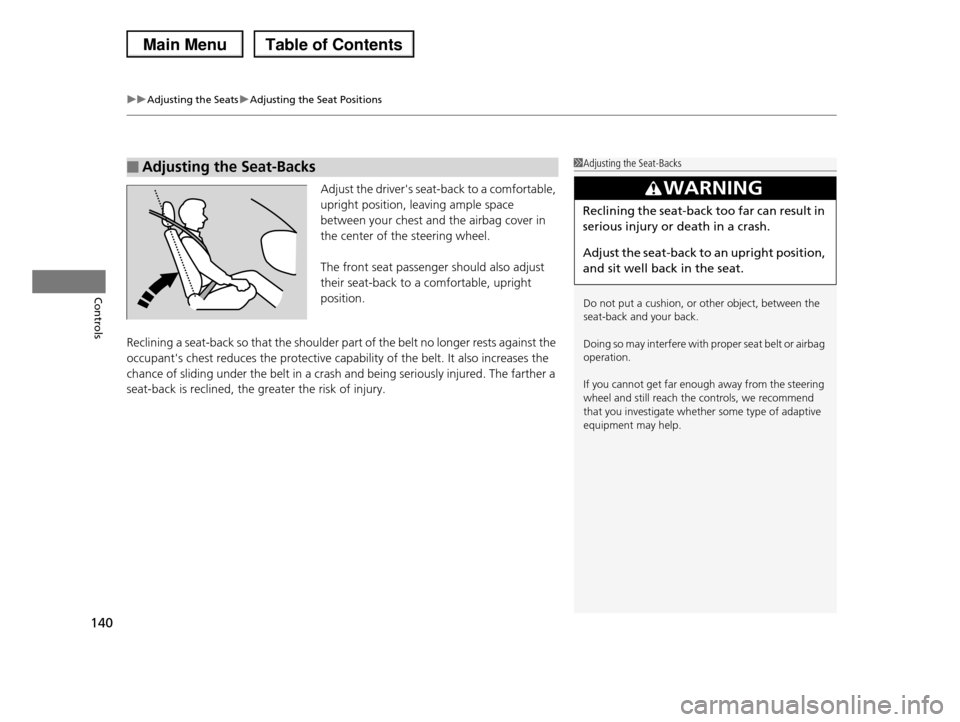
Adjust the driver's seat-back to a comfortable,
upright position, leaving ample space
between your chest and the airbag cover in
the center of the steering wheel.
The front seat passenger should also adjust
their seat-back to a comfortable, upright
position.
Reclining a seat-back so that the shoulder part of the belt no longer rests against the
occupant's chest reduces the protective capability of the belt. It also increases the
chance of sliding under the belt in a crash and being seriously injured. The farther a
seat-back is reclined, the greater the risk of injury.
■Adjusting the Seat-Backs1Adjusting the Seat-Backs
Do not put a cushion, or other object, between the seat-back and your back.
Doing so may interfere with proper seat belt or airbag operation.
If you cannot get far enough away from the steering wheel and still reach the controls, we recommend
that you investigate whether some type of adaptive
equipment may help.
3WARNING
Reclining the seat-back too far can result in
serious injury or death in a crash.
Adjust the seat-back to an upright position,
and sit well back in the seat.
Page 173 of 488
172
Features
Audio System
About Your Audio System
See the Navigation System Manual for operation of the voice commands.
The audio system features AM/FM radio and the XM® Radio* service. It can also play
audio CDs, WMA/MP3/AAC files, iPod®, iPhone®, USB flash drives, and Bluetooth®
devices.
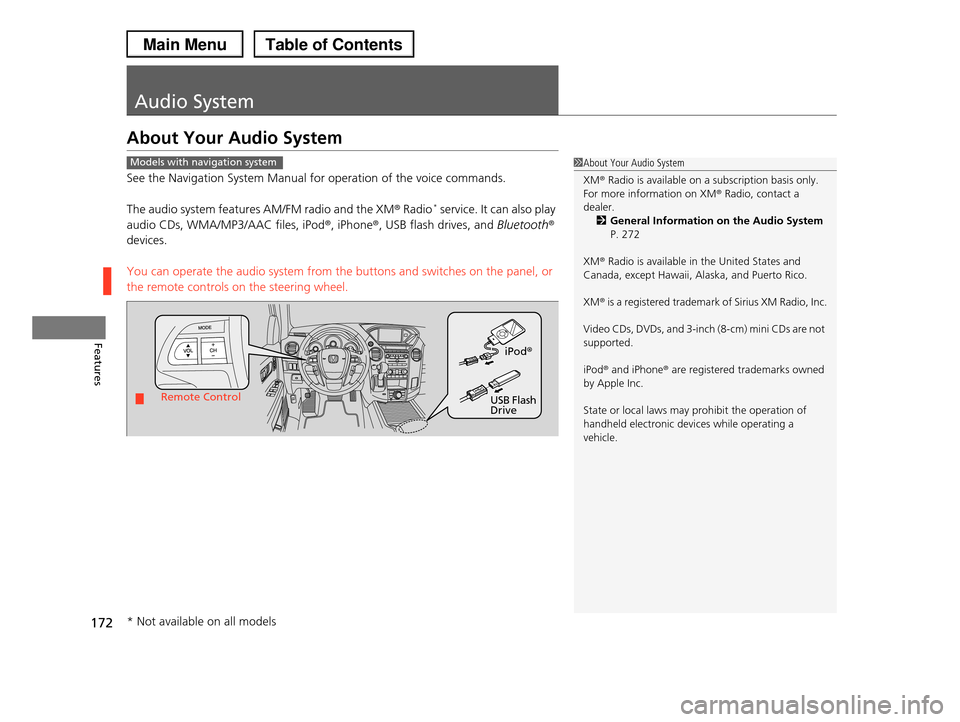
You can operate the audio system from the buttons and switches on the panel, or
the remote controls on the steering wheel.
1About Your Audio System
XM® Radio is available on a subscription basis only.
For more information on XM® Radio, contact a dealer.
2General Information on the Audio System
P. 272
XM® Radio is available in the United States and
Canada, except Hawaii, Alaska, and Puerto Rico.
XM® is a registered trademark of Sirius XM Radio, Inc.
Video CDs, DVDs, and 3-inch (8-cm) mini CDs are not
supported.
iPod® and iPhone® are registered trademarks owned by Apple Inc.
State or local laws may prohibit the operation of handheld electronic devices while operating a
vehicle.
Models with navigation system
Remote Control
iPod®
USB Flash Drive
* Not available on all models
Page 189 of 488
uuAudio System Basic OperationuPlaying the AM/FM Radio
188
Features
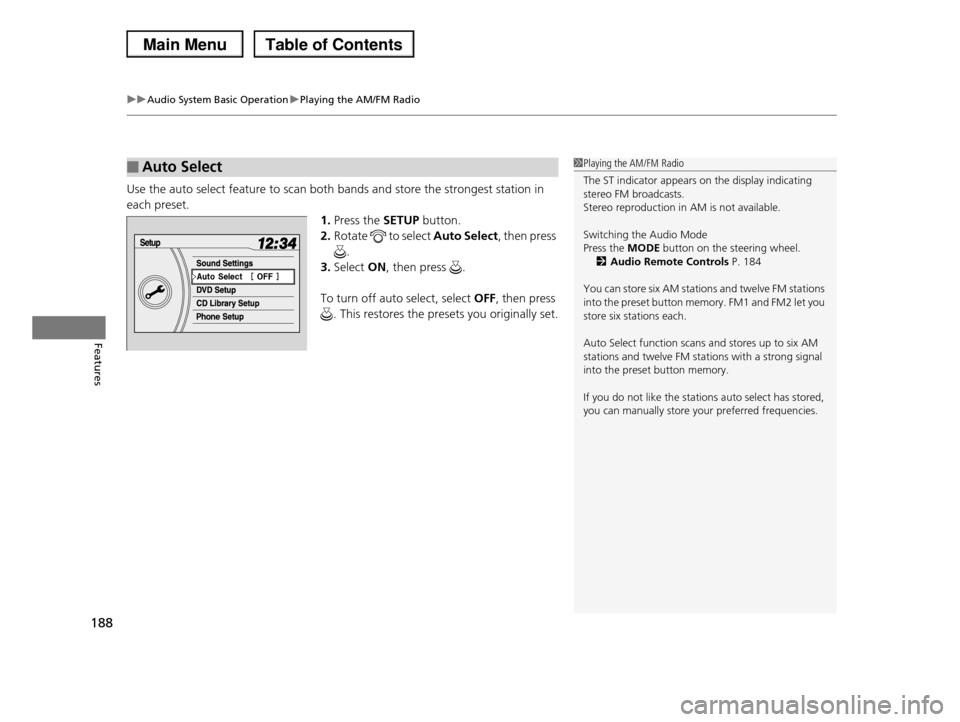
Use the auto select feature to scan both bands and store the strongest station in
each preset.
1.Press the SETUP button.
2.Rotate to select Auto Select, then press
.
3.Select ON, then press .
To turn off auto select, select OFF, then press
. This restores the presets you originally set.
■Auto Select1Playing the AM/FM Radio
The ST indicator appears on the display indicating stereo FM broadcasts.
Stereo reproduction in AM is not available.
Switching the Audio Mode
Press the MODE button on the steering wheel.
2Audio Remote Controls P. 184
You can store six AM stations and twelve FM stations
into the preset button memory. FM1 and FM2 let you store six stations each.
Auto Select function scans and stores up to six AM stations and twelve FM stations with a strong signal
into the preset button memory.
If you do not like the stations auto select has stored,
you can manually store your preferred frequencies.
Page 216 of 488
215
uuAudio System Basic OperationuPlaying Bluetooth® Audio
Features
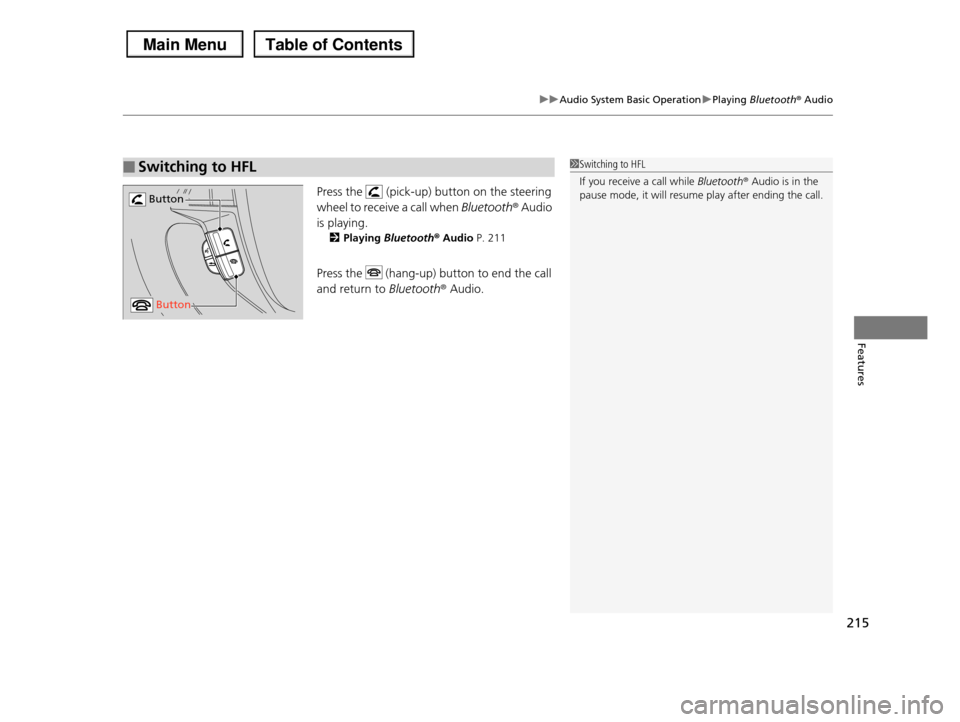
Press the (pick-up) button on the steering
wheel to receive a call when Bluetooth® Audio
is playing.
2Playing Bluetooth® Audio P. 211
Press the (hang-up) button to end the call
and return to Bluetooth® Audio.
■Switching to HFL1Switching to HFL
If you receive a call while Bluetooth® Audio is in the
pause mode, it will resume play after ending the call. Button
Button
Page 217 of 488
216
Features
Audio System Basic Operation
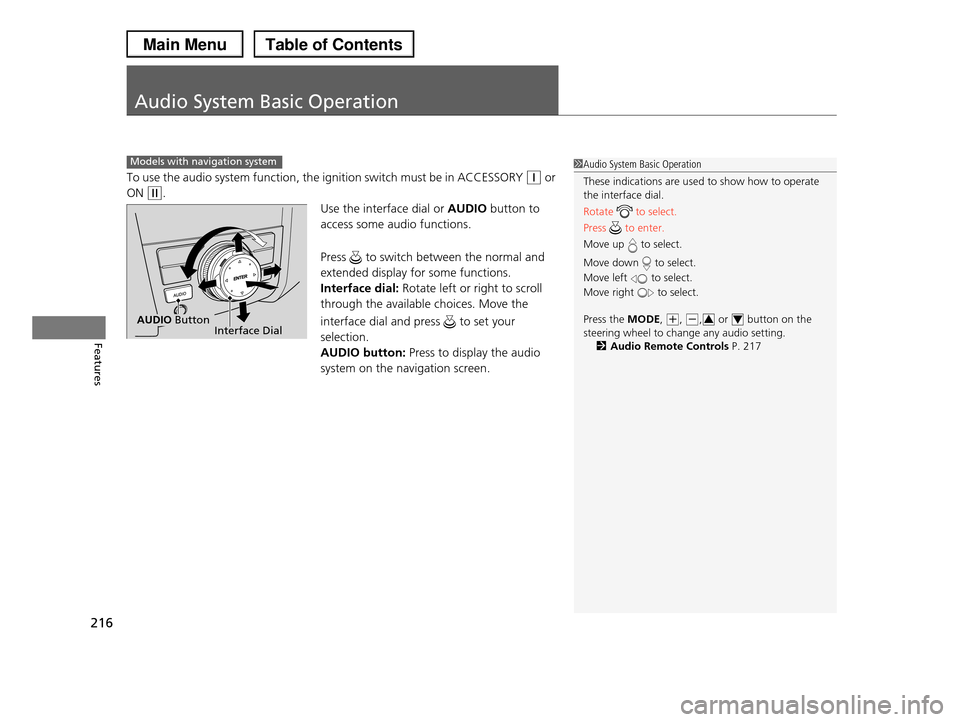
To use the audio system function, the ignition switch must be in ACCESSORY (q or
ON (w.
Use the interface dial or AUDIO button to
access some audio functions.
Press to switch between the normal and
extended display for some functions.
Interface dial: Rotate left or right to scroll
through the available choices. Move the
interface dial and press to set your
selection.
AUDIO button: Press to display the audio
system on the navigation screen.
Models with navigation system1Audio System Basic Operation
These indications are used to show how to operate the interface dial.
Rotate to select.
Press to enter.
Move up to select.
Move down to select.
Move left to select.
Move right to select.
Press the MODE, (+, (-, or button on the
steering wheel to change any audio setting.2Audio Remote Controls P. 217
34Interface DialAUDIO Button
Page 222 of 488
Continued221
uuAudio System Basic OperationuPlaying the AM/FM Radio
Features
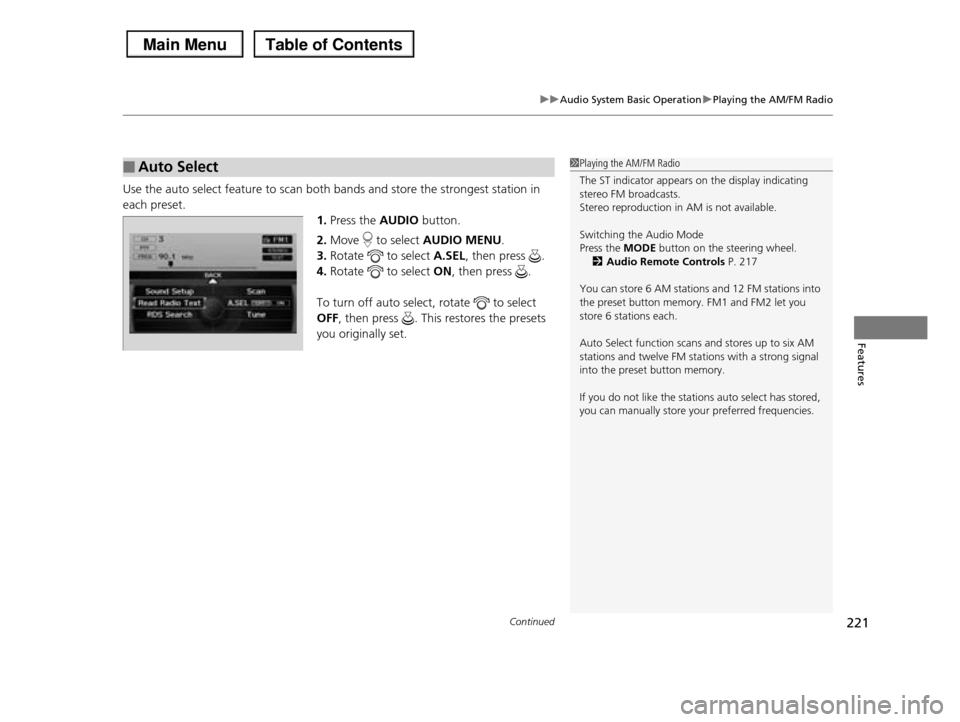
Use the auto select feature to scan both bands and store the strongest station in
each preset.
1.Press the AUDIO button.
2.Move to select AUDIO MENU.
3.Rotate to select A.SEL, then press .
4.Rotate to select ON, then press .
To turn off auto select, rotate to select
OFF, then press . This restores the presets
you originally set.
■Auto Select1Playing the AM/FM Radio
The ST indicator appears on the display indicating stereo FM broadcasts.
Stereo reproduction in AM is not available.
Switching the Audio Mode
Press the MODE button on the steering wheel.
2Audio Remote Controls P. 217
You can store 6 AM stations and 12 FM stations into
the preset button memory. FM1 and FM2 let you store 6 stations each.
Auto Select function scans and stores up to six AM stations and twelve FM stations with a strong signal
into the preset button memory.
If you do not like the stations auto select has stored,
you can manually store your preferred frequencies.
Page 251 of 488
uuAudio System Basic OperationuPlaying Bluetooth® Audio
250
Features
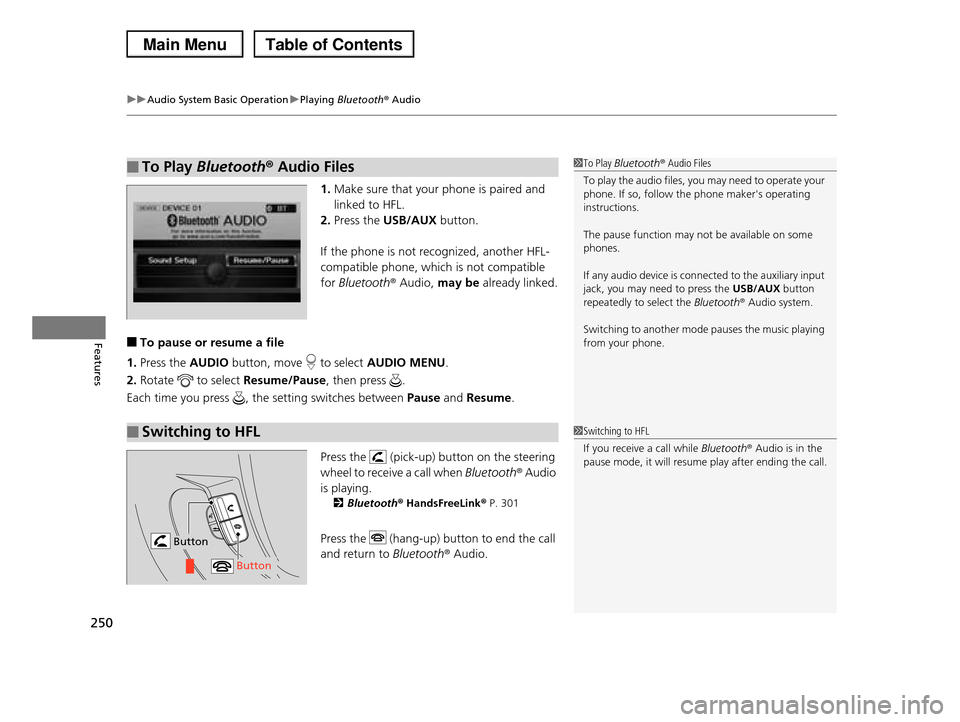
1.Make sure that your phone is paired and
linked to HFL.
2.Press the USB/AUX button.
If the phone is not recognized, another HFL-
compatible phone, which is not compatible
for Bluetooth® Audio, may be already linked.
■To pause or resume a file
1.Press the AUDIO button, move to select AUDIO MENU.
2.Rotate to select Resume/Pause, then press .
Each time you press , the setting switches between Pause and Resume.
Press the (pick-up) button on the steering
wheel to receive a call when Bluetooth® Audio
is playing.
2Bluetooth® HandsFreeLink® P. 301
Press the (hang-up) button to end the call
and return to Bluetooth® Audio.
■To Play Bluetooth® Audio Files1To Play Bluetooth® Audio Files
To play the audio files, you may need to operate your phone. If so, follow the phone maker's operating
instructions.
The pause function may not be available on some
phones.
If any audio device is connected to the auxiliary input
jack, you may need to press the USB/AUX button
repeatedly to select the Bluetooth® Audio system.
Switching to another mode pauses the music playing
from your phone.
■Switching to HFL1Switching to HFL
If you receive a call while Bluetooth® Audio is in the
pause mode, it will resume play after ending the call.
Button
Button
Page 279 of 488
278
Features
Bluetooth® HandsFreeLink®
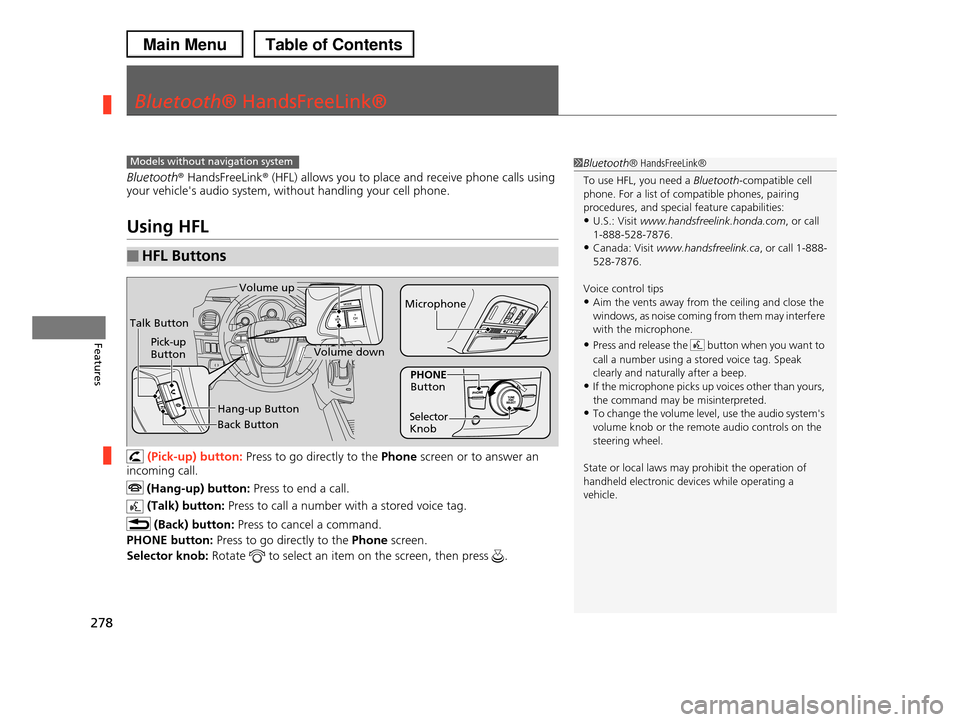
Bluetooth® HandsFreeLink® (HFL) allows you to place and receive phone calls using your vehicle's audio system, without handling your cell phone.
Using HFL
(Pick-up) button: Press to go directly to the Phone screen or to answer an
incoming call.
(Hang-up) button: Press to end a call.
(Talk) button: Press to call a number with a stored voice tag.
(Back) button: Press to cancel a command.
PHONE button: Press to go directly to the Phone screen.
Selector knob: Rotate to select an item on the screen, then press .
■HFL Buttons
1Bluetooth® HandsFreeLink®
To use HFL, you need a Bluetooth-compatible cell phone. For a list of compatible phones, pairing
procedures, and special feature capabilities:
•U.S.: Visit www.handsfreelink.honda.com, or call 1-888-528-7876.
•Canada: Visit www.handsfreelink.ca, or call 1-888-
528-7876.
Voice control tips
•Aim the vents away from the ceiling and close the windows, as noise coming from them may interfere
with the microphone.
•Press and release the button when you want to
call a number using a stored voice tag. Speak clearly and naturally after a beep.
•If the microphone picks up voices other than yours,
the command may be misinterpreted.•To change the volume level, use the audio system's
volume knob or the remote audio controls on the
steering wheel.
State or local laws may prohibit the operation of
handheld electronic devices while operating a vehicle.
Models without navigation system
Talk Button
Volume up
Microphone
Hang-up Button
Pick-up ButtonVolume down
Selector Knob
PHONE Button
Back Button
Page 302 of 488
301Continued
Features
Bluetooth® HandsFreeLink®
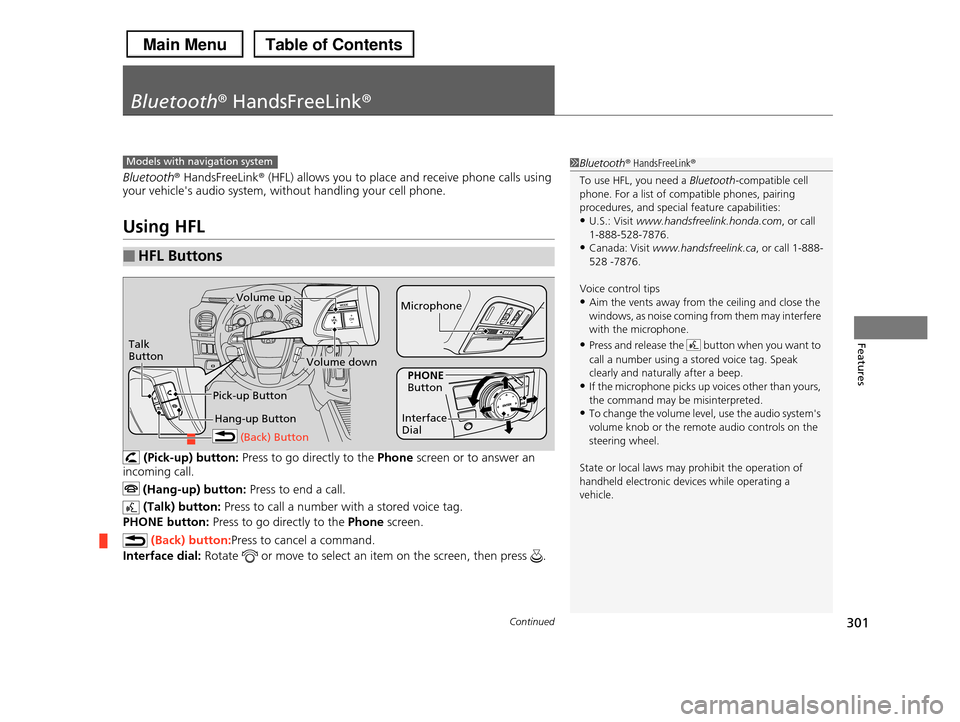
Bluetooth® HandsFreeLink® (HFL) allows you to place and receive phone calls using your vehicle's audio system, without handling your cell phone.
Using HFL
(Pick-up) button: Press to go directly to the Phone screen or to answer an
incoming call.
(Hang-up) button: Press to end a call.
(Talk) button: Press to call a number with a stored voice tag.
PHONE button: Press to go directly to the Phone screen.
(Back) button:Press to cancel a command.
Interface dial: Rotate or move to select an item on the screen, then press .
■HFL Buttons
1Bluetooth® HandsFreeLink®
To use HFL, you need a Bluetooth-compatible cell phone. For a list of compatible phones, pairing
procedures, and special feature capabilities:
•U.S.: Visit www.handsfreelink.honda.com, or call 1-888-528-7876.
•Canada: Visit www.handsfreelink.ca, or call 1-888-
528 -7876.
Voice control tips
•Aim the vents away from the ceiling and close the windows, as noise coming from them may interfere
with the microphone.
•Press and release the button when you want to
call a number using a stored voice tag. Speak clearly and naturally after a beep.
•If the microphone picks up voices other than yours,
the command may be misinterpreted.•To change the volume level, use the audio system's
volume knob or the remote audio controls on the
steering wheel.
State or local laws may prohibit the operation of
handheld electronic devices while operating a vehicle.
Models with navigation system
Talk Button
Volume upMicrophone
Hang-up Button
Pick-up Button
Volume down
Interface Dial
PHONE Button
(Back) Button