display HONDA PILOT 2013 2.G Repair Manual
[x] Cancel search | Manufacturer: HONDA, Model Year: 2013, Model line: PILOT, Model: HONDA PILOT 2013 2.GPages: 488, PDF Size: 10.18 MB
Page 205 of 488
204
uuAudio System Basic OperationuPlaying an iPod®
Features
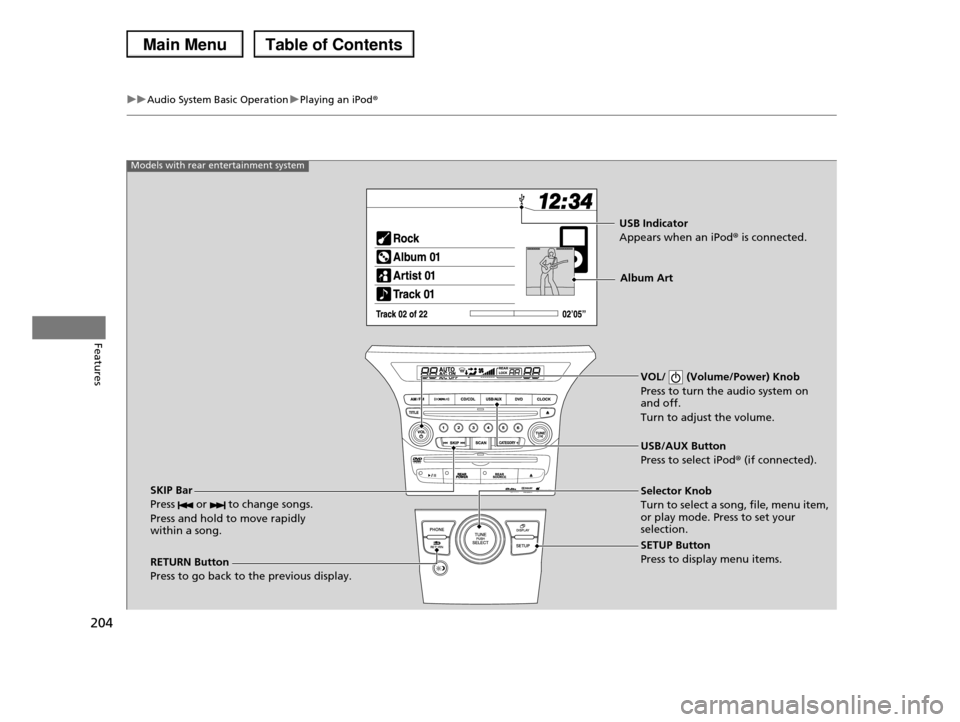
VOL/ (Volume/Power) Knob
Press to turn the audio system on and off.
Turn to adjust the volume.
RETURN Button
Press to go back to the previous display.
Selector Knob
Turn to select a song, file, menu item, or play mode. Press to set your selection.
SETUP Button
Press to display menu items.
USB/AUX Button
Press to select iPod® (if connected).
SKIP Bar
Press or to change songs.
Press and hold to move rapidly within a song.
Models with rear entertainment system
USB Indicator
Appears when an iPod® is connected.
Album Art
Page 206 of 488
Continued205
uuAudio System Basic OperationuPlaying an iPod®
Features
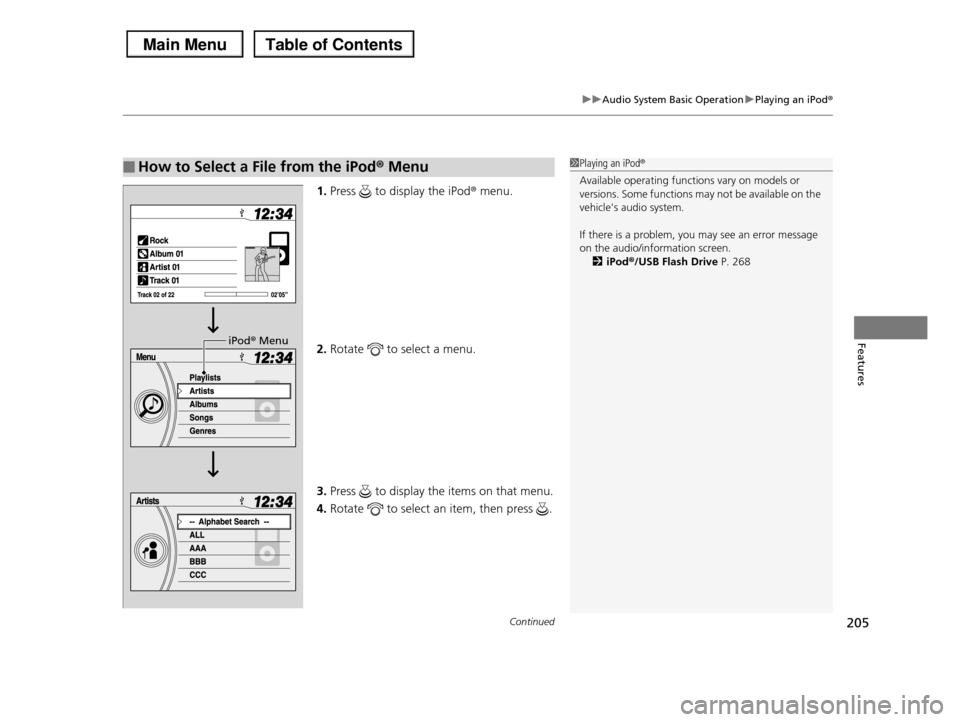
1.Press to display the iPod® menu.
2.Rotate to select a menu.
3.Press to display the items on that menu.
4.Rotate to select an item, then press .
■How to Select a File from the iPod® Menu1Playing an iPod®
Available operating functions vary on models or versions. Some functions may not be available on the
vehicle's audio system.
If there is a problem, you may see an error message
on the audio/information screen.
2iPod®/USB Flash Drive P. 268
iPod® Menu
Page 208 of 488
207
uuAudio System Basic OperationuPlaying a USB Flash Drive
Continued
Features
Playing a USB Flash Drive
Your audio system reads and plays sound files on a USB flash drive in either MP3,
WMA or AAC*1 format.
Connect your USB flash drive to the USB adapter cable, then press the USB/AUX
button.
2USB Adapter Cable P. 173
*1:Only AAC format files recorded with iTunes® are playable on this unit.
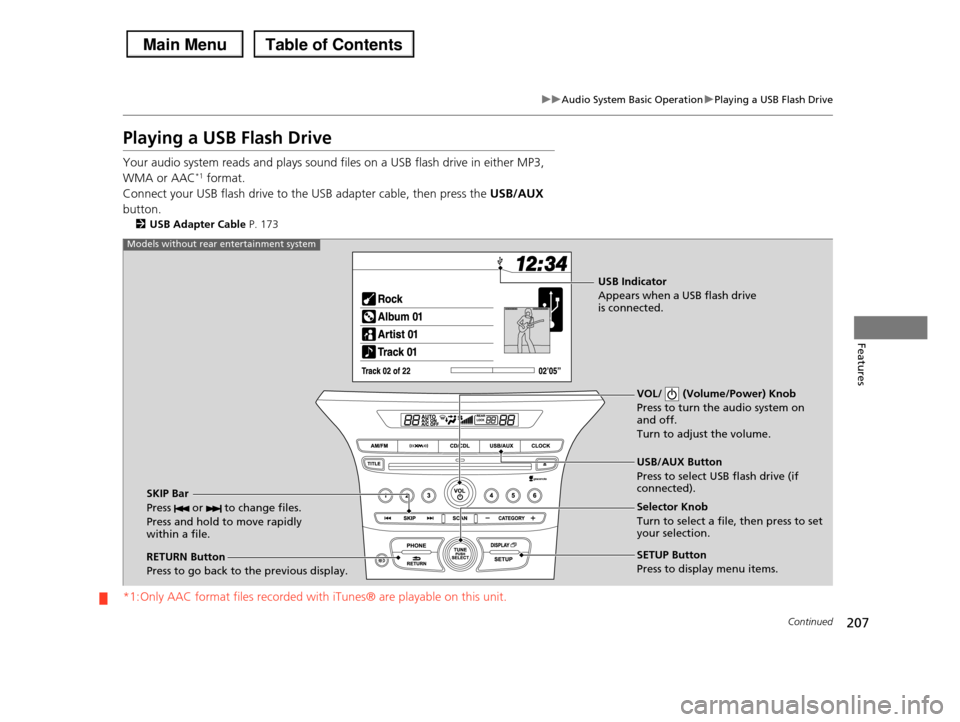
VOL/ (Volume/Power) Knob
Press to turn the audio system on and off.
Turn to adjust the volume.
RETURN Button
Press to go back to the previous display.
Selector Knob
Turn to select a file, then press to set your selection.
SETUP Button
Press to display menu items.
USB/AUX Button
Press to select USB flash drive (if connected).SKIP Bar
Press or to change files.
Press and hold to move rapidly within a file.
Models without rear entertainment system
USB Indicator
Appears when a USB flash drive is connected.
Page 209 of 488
208
uuAudio System Basic OperationuPlaying a USB Flash Drive
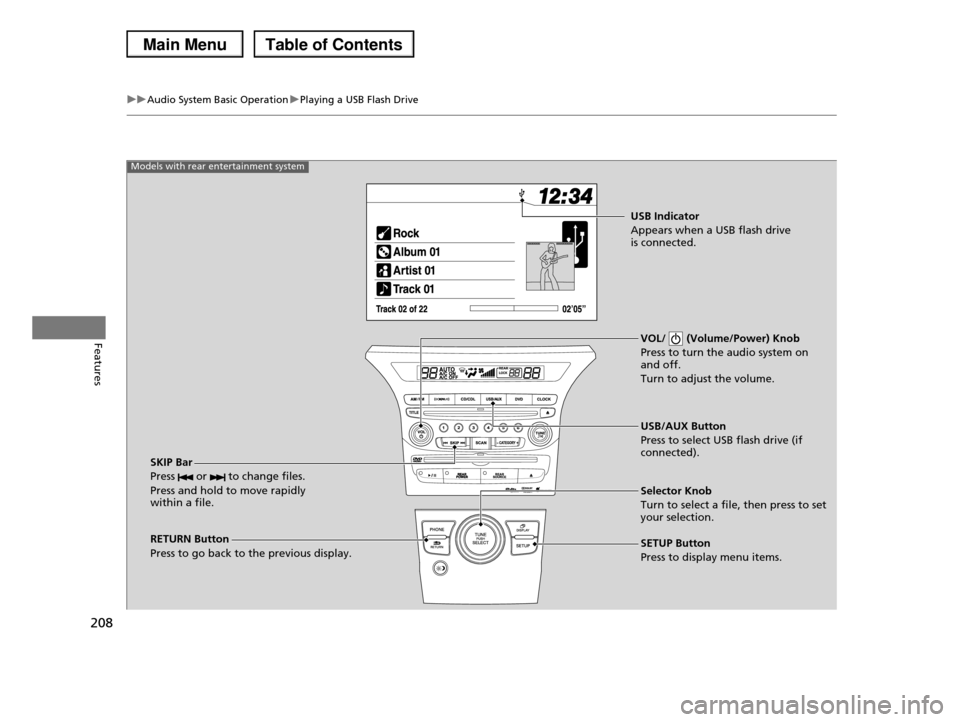
FeaturesVOL/ (Volume/Power) Knob
Press to turn the audio system on and off.
Turn to adjust the volume.
RETURN Button
Press to go back to the previous display.
Selector Knob
Turn to select a file, then press to set your selection.
SETUP Button
Press to display menu items.
USB/AUX Button
Press to select USB flash drive (if connected).SKIP Bar
Press or to change files.
Press and hold to move rapidly within a file.
Models with rear entertainment system
USB Indicator
Appears when a USB flash drive is connected.
Page 210 of 488
Continued209
uuAudio System Basic OperationuPlaying a USB Flash Drive
Features
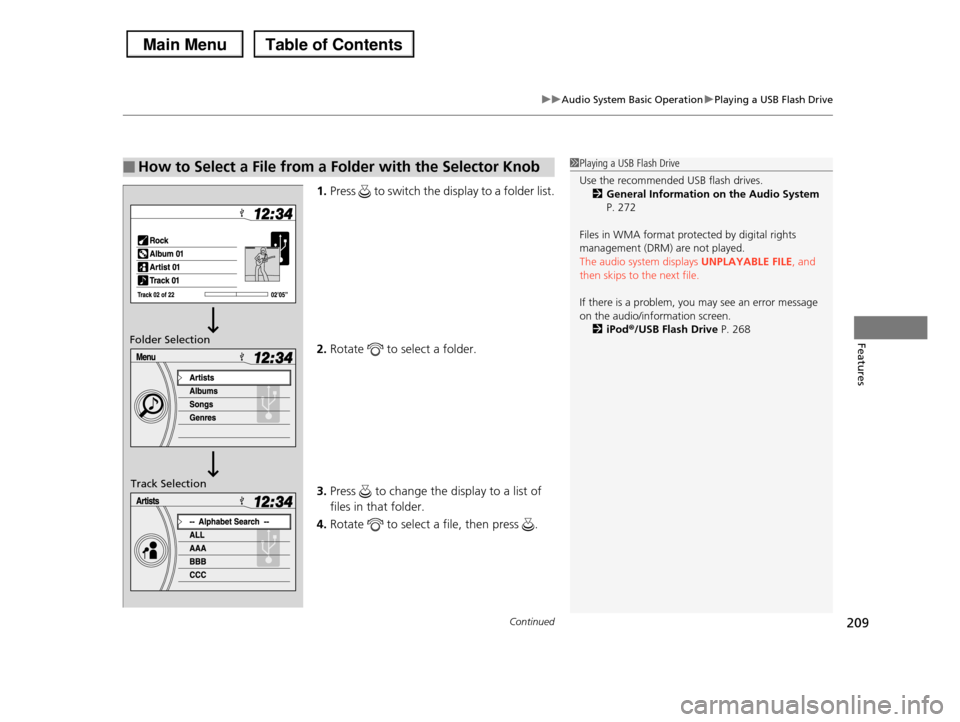
1.Press to switch the display to a folder list.
2.Rotate to select a folder.
3.Press to change the display to a list of
files in that folder.
4.Rotate to select a file, then press .
■How to Select a File from a Folder with the Selector Knob1Playing a USB Flash Drive
Use the recommended USB flash drives.2General Information on the Audio System
P. 272
Files in WMA format protected by digital rights
management (DRM) are not played.
The audio system displays UNPLAYABLE FILE, and then skips to the next file.
If there is a problem, you may see an error message on the audio/information screen.
2iPod®/USB Flash Drive P. 268Folder Selection
Track Selection
Page 212 of 488
211
uuAudio System Basic OperationuPlaying Bluetooth® Audio
Continued
Features
Playing Bluetooth® Audio
Your audio system allows you to listen to music from your Bluetooth®-compatible
phone.
This function is available when the phone is paired and linked to the vehicle's
Bluetooth® HandsFreeLink® (HFL) system.
2Phone Setup P. 305
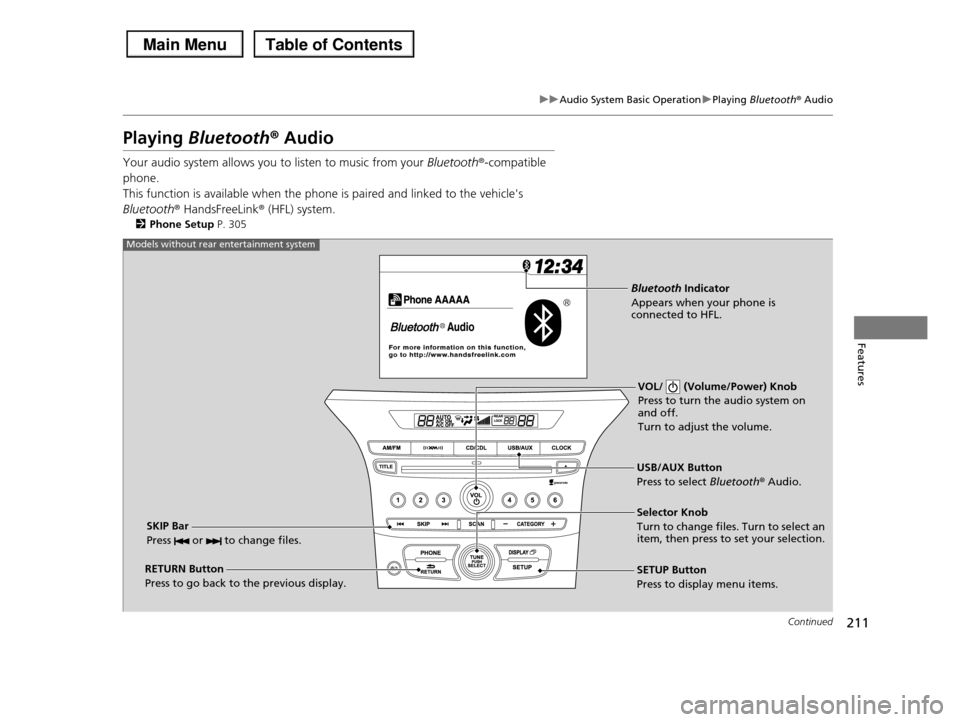
VOL/ (Volume/Power) Knob
Press to turn the audio system on and off.
Turn to adjust the volume.
RETURN Button
Press to go back to the previous display.
Selector Knob
Turn to change files. Turn to select an item, then press to set your selection.
SETUP Button
Press to display menu items.
USB/AUX Button
Press to select Bluetooth® Audio.
SKIP Bar
Press or to change files.
Models without rear entertainment system
Bluetooth Indicator
Appears when your phone is connected to HFL.
Page 213 of 488
212
uuAudio System Basic OperationuPlaying Bluetooth® Audio
Features
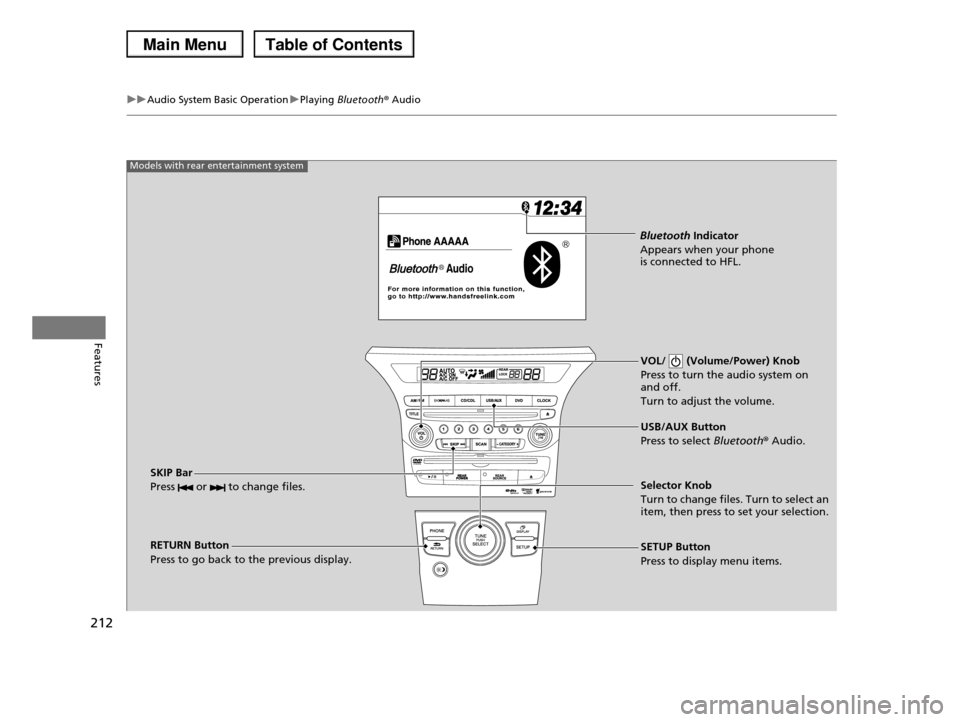
VOL/ (Volume/Power) Knob
Press to turn the audio system on and off.
Turn to adjust the volume.
RETURN Button
Press to go back to the previous display.
Selector Knob
Turn to change files. Turn to select an item, then press to set your selection.
SETUP Button
Press to display menu items.
USB/AUX Button
Press to select Bluetooth® Audio.
SKIP Bar
Press or to change files.
Models with rear entertainment system
Bluetooth Indicator
Appears when your phone is connected to HFL.
Page 217 of 488
216
Features
Audio System Basic Operation
To use the audio system function, the ignition switch must be in ACCESSORY (q or
ON (w.
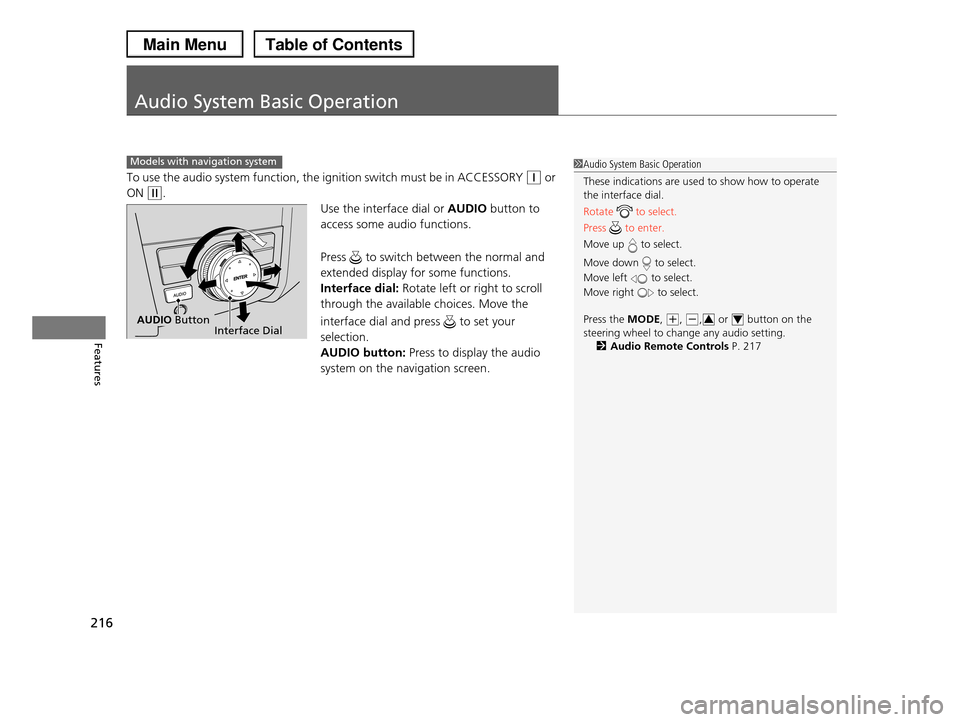
Use the interface dial or AUDIO button to
access some audio functions.
Press to switch between the normal and
extended display for some functions.
Interface dial: Rotate left or right to scroll
through the available choices. Move the
interface dial and press to set your
selection.
AUDIO button: Press to display the audio
system on the navigation screen.
Models with navigation system1Audio System Basic Operation
These indications are used to show how to operate the interface dial.
Rotate to select.
Press to enter.
Move up to select.
Move down to select.
Move left to select.
Move right to select.
Press the MODE, (+, (-, or button on the
steering wheel to change any audio setting.2Audio Remote Controls P. 217
34Interface DialAUDIO Button
Page 220 of 488
219
uuAudio System Basic OperationuPlaying the AM/FM Radio
Continued
Features
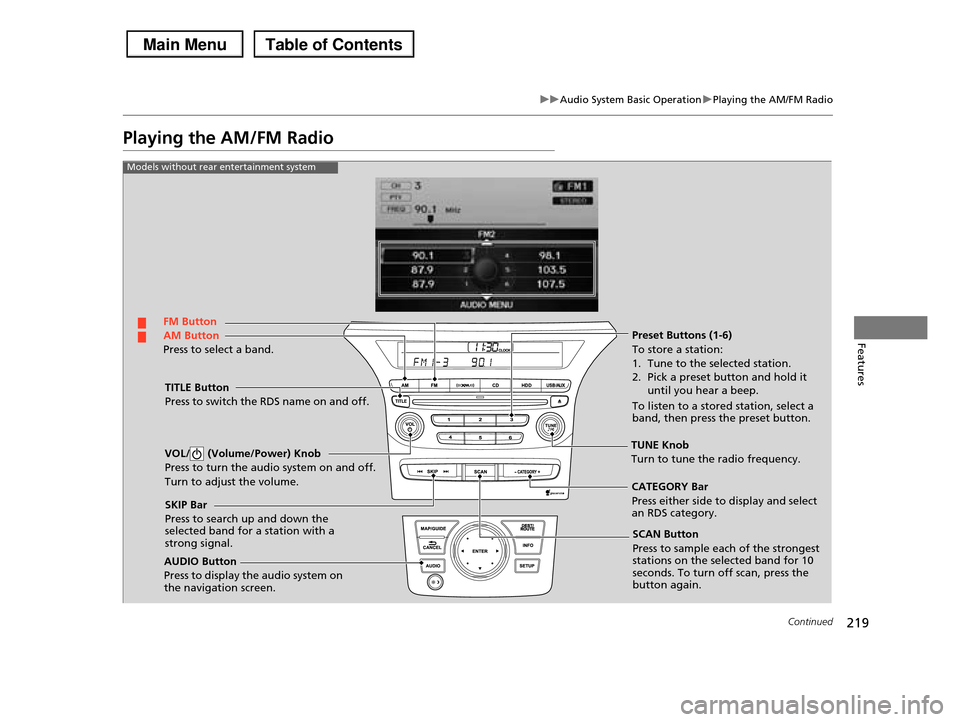
Playing the AM/FM Radio
FM Button
TITLE Button
Press to switch the RDS name on and off.
SCAN Button
Press to sample each of the strongest stations on the selected band for 10 seconds. To turn off scan, press the button again.
VOL/ (Volume/Power) Knob
Press to turn the audio system on and off.
Turn to adjust the volume.
Preset Buttons (1-6)
To store a station:
1. Tune to the selected station.
2. Pick a preset button and hold it
until you hear a beep.
To listen to a stored station, select a band, then press the preset button.
SKIP Bar
Press to search up and down the selected band for a station with a strong signal.
AUDIO Button
Press to display the audio system on the navigation screen.
AM Button
Press to select a band.
CATEGORY Bar
Press either side to display and select an RDS category.
Models without rear entertainment system
TUNE Knob
Turn to tune the radio frequency.
Page 221 of 488
220
uuAudio System Basic OperationuPlaying the AM/FM Radio
Features
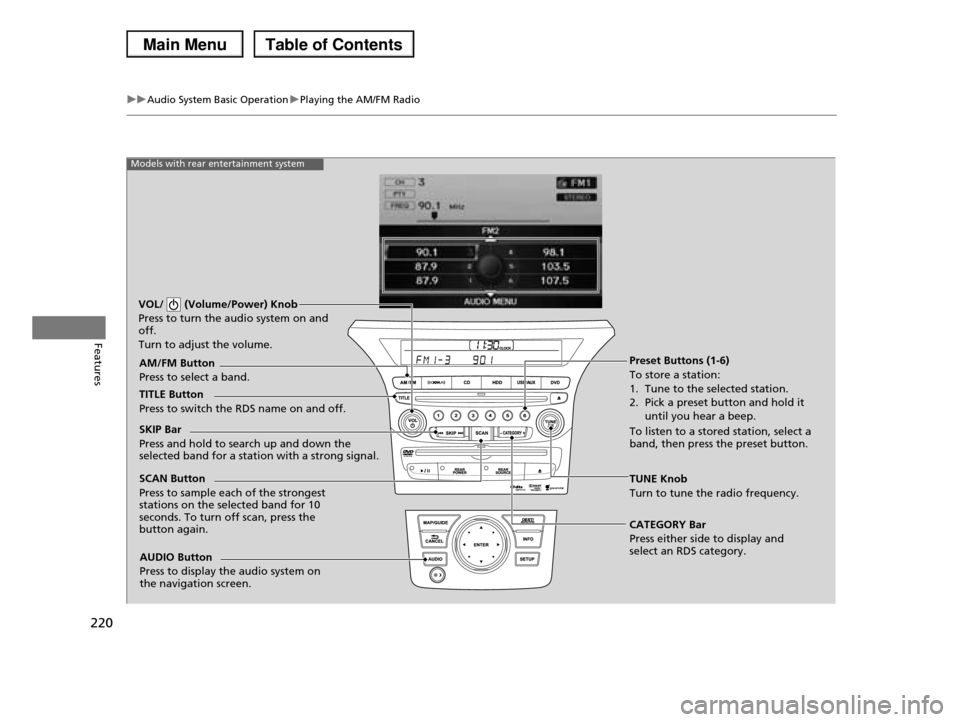
Models with rear entertainment system
TUNE Knob
Turn to tune the radio frequency.
SCAN Button
Press to sample each of the strongest stations on the selected band for 10 seconds. To turn off scan, press the button again.
VOL/ (Volume/Power) Knob
Press to turn the audio system on and off.
Turn to adjust the volume.
Preset Buttons (1-6)
To store a station:
1. Tune to the selected station.
2. Pick a preset button and hold it
until you hear a beep.
To listen to a stored station, select a band, then press the preset button.
SKIP Bar
Press and hold to search up and down the selected band for a station with a strong signal.
CATEGORY Bar
Press either side to display and select an RDS category.
TITLE Button
Press to switch the RDS name on and off.
AM/FM Button
Press to select a band.
AUDIO Button
Press to display the audio system on the navigation screen.