light HONDA PILOT 2014 2.G Service Manual
[x] Cancel search | Manufacturer: HONDA, Model Year: 2014, Model line: PILOT, Model: HONDA PILOT 2014 2.GPages: 488, PDF Size: 12.11 MB
Page 162 of 488
Continued161
uu Interior Lights/Interior Convenience Items u Interior Convenience Items
Controls
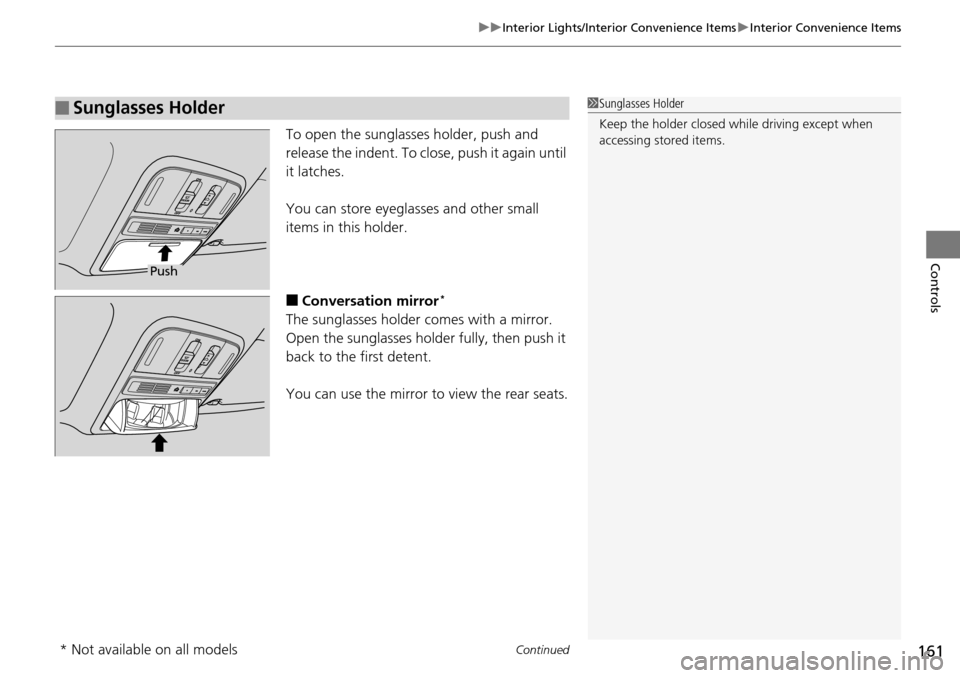
To open the sunglasses holder, push and
release the indent. To close, push it again until
it latches.
You can store eyeglasses and other small
items in this holder.
■Conversation mirror *
The sunglasses holder comes with a mirror.
Open the sunglasses holder fully, then push it
back to the first detent.
You can use the mirror to view the rear seats.
■Sunglasses Holder1Sunglasses Holder
Keep the holder closed wh ile driving except when
accessing stored items.
Push
* Not available on all models
Page 163 of 488
uu Interior Lights/Interior Convenience Items u Interior Convenience Items
162
Controls
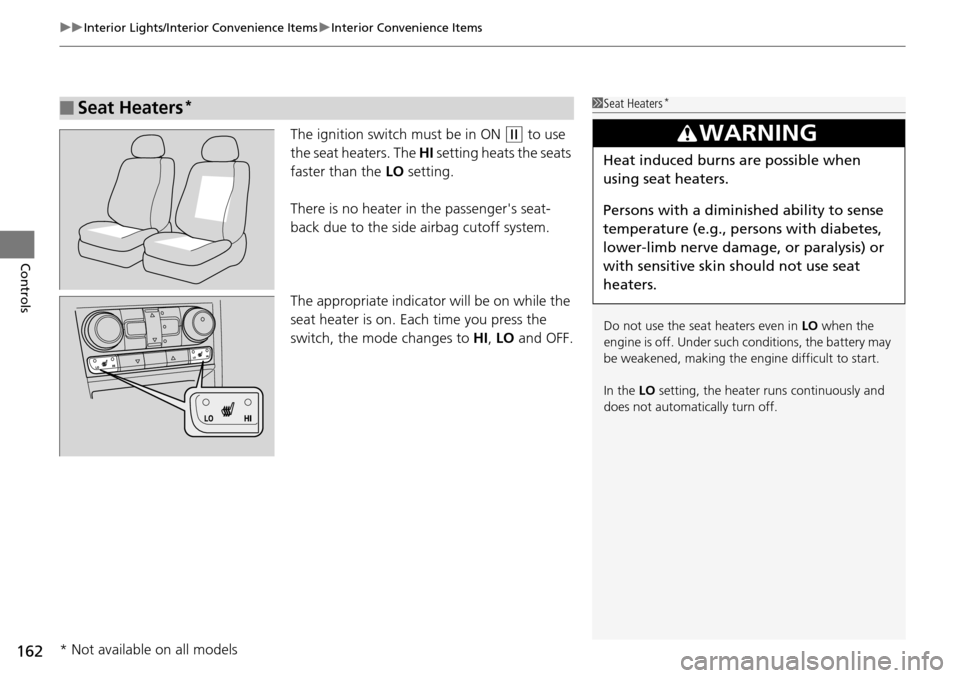
The ignition switch must be in ON (w
to use
the seat heaters. The HI setting heats the seats
faster than the LO setting.
There is no heater in the passenger's seat-
bac
k due to the side airbag cutoff system.
The appropriate indicator will be on while the
seat
heater is on. Each time you press the
switch, the mode changes to HI, LO and OFF.
■Seat Heaters *1Seat Heaters *
Do not use the seat heaters even in LO when the
engine is off. Under such conditions, the battery may
be weakened, making the engine difficult to start.
In the LO setting, the heater runs continuously and
does not automatically turn off.
3 WARNING
Heat induced burns are possible when
using seat heaters.
Persons with a diminished ability to sense
temperature (e.g., persons with diabetes,
lower-limb nerve damage, or paralysis) or
with sensitive skin should not use seat
heaters.
* Not available on all models
Page 164 of 488
163
uu Interior Lights/Interior Convenience Items u Interior Convenience Items
Continued
Controls
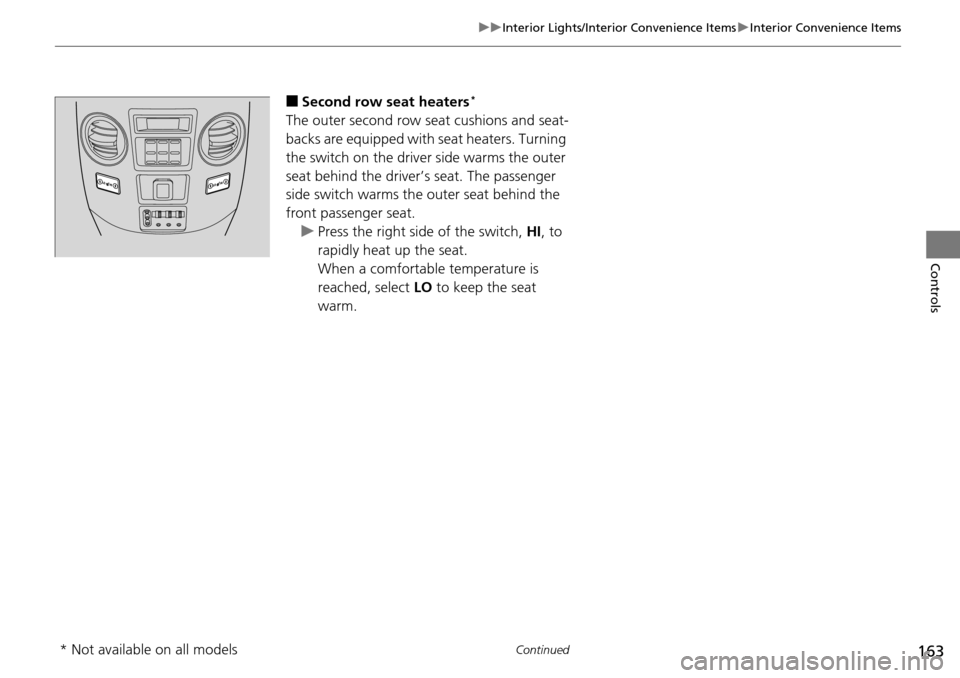
■Second row seat heaters *
The outer second row seat cushions and seat-
backs are equipped with seat heaters. Turning
the switch on the driver side warms the outer
seat behind the driver’s seat. The passenger
side switch warms the outer seat behind the
front passenger seat. u Press the
right side of the switch, HI, to
rapidly heat up the seat.
When a comfortable temperature is
reac
hed, select LO to keep the seat
warm.
* Not available on all models
Page 165 of 488
uu Interior Lights/Interior Convenience Items u Interior Convenience Items
164
Controls
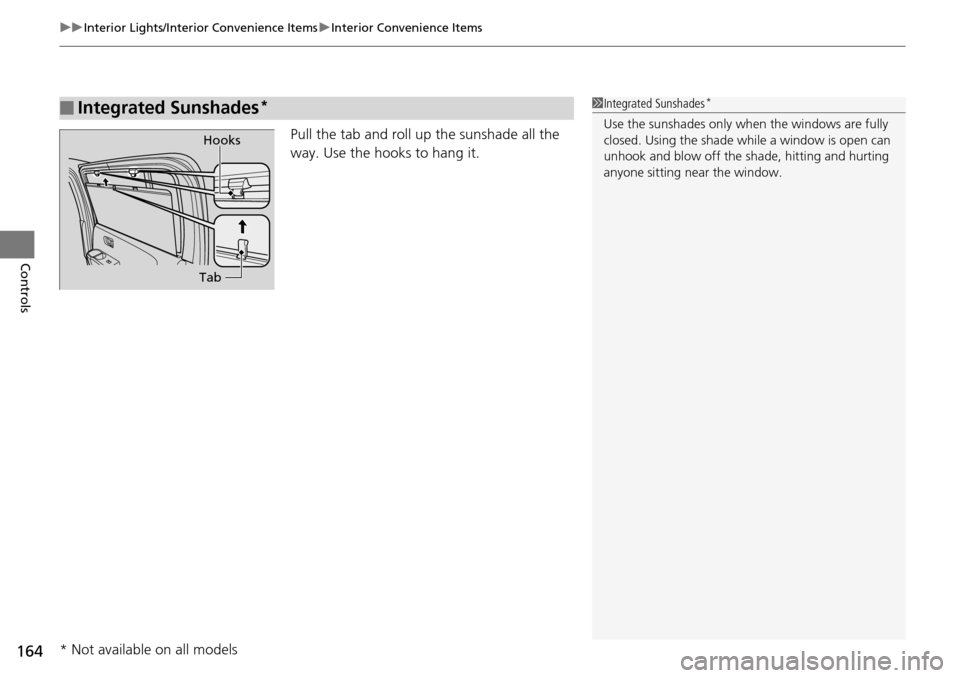
Pull the tab and roll up the sunshade all the
way. Use the hooks to hang it.
■Integrated Sunshades *1Integrated Sunshades *
Use the sunshades only when the windows are fully
closed. Using the shade while a window is open can
unhook and blow off the sh ade, hitting and hurting
anyone sitting near the window.
Hooks
Tab
* Not available on all models
Page 171 of 488
170
uu Climate Control System u Automatic Climate Control Sensors
Controls
Automatic Climate Control Sensors
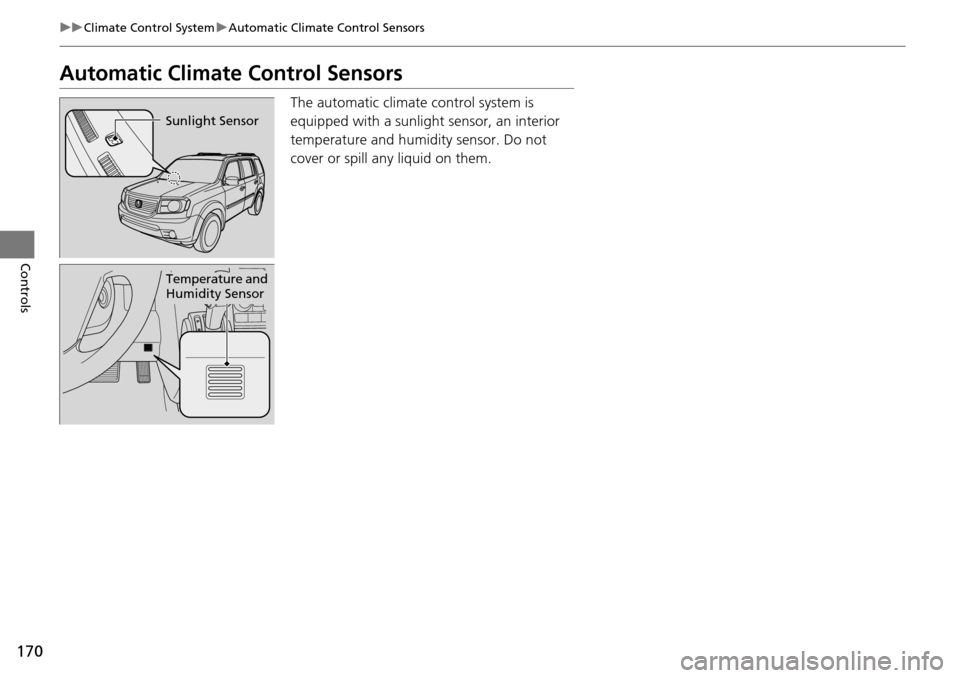
The automatic climate control system is
equipped with a sunlight sensor, an interior
temperature and humidity sensor. Do not
cover or spill any liquid on them.
Sunlight Sensor
Temperature and
Humidity Sensor
Page 174 of 488
173
uu Audio System u USB Adapter Cable
Features
USB Adapter Cable
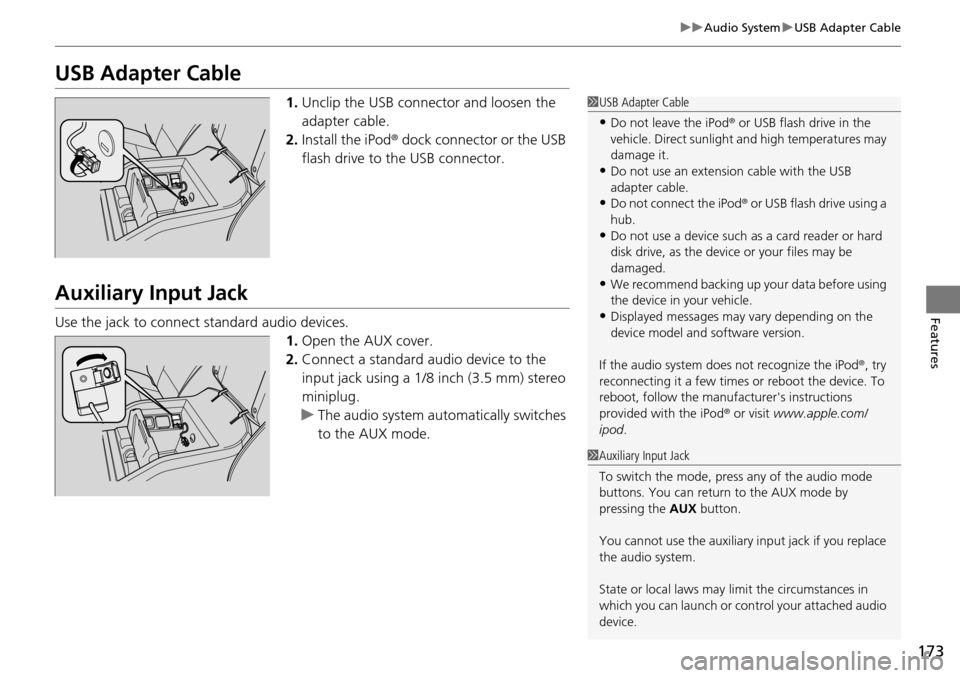
1. Unclip the USB connec tor and loosen the
adapter cable.
2. In
stall the iPod® dock connector or the USB
flash drive to the USB connector.
Auxiliary Input Jack
Use the jack to connect standard audio devices. 1.Open
the AUX cover.
2.Connect
a standard audio device to the
input jack using a 1/8 inch (3.5 mm) stereo
miniplug.
u The
audio system auto matically switches
to the AUX mode.
1 USB Adapter Cable
•Do not leave the iPod ® or USB flash drive in the
vehicle. Direct sunlight and high temperatures may
damage it.
•Do not use an extension cable with the USB
adapter cable.
•Do not connect the iPod ® or USB flash drive using a
hub.
•Do not use a device such as a card reader or hard
disk drive, as the device or your files may be
damaged.
•We recommend backing up yo ur data before using
the device in your vehicle.
•Displayed messages may vary depending on the
device model and software version.
If the audio system does not recognize the iPod®, try
reconnecting it a few times or reboot the device. To
reboot, follow the manufac turer's instructions
provided with the iPod ® or visit www.apple.com/
ipod .
1Auxiliary Input Jack
To switch the mode, pres s any of the audio mode
buttons. You can return to the AUX mode by
pressing the AUX button.
You cannot use the auxiliary input jack if you replace
the audio system.
State or local laws may li mit the circumstances in
which you can launch or cont rol your attached audio
device.
Page 254 of 488
253
uu Rear Entertainment System * u Operating the System
Continued
Features
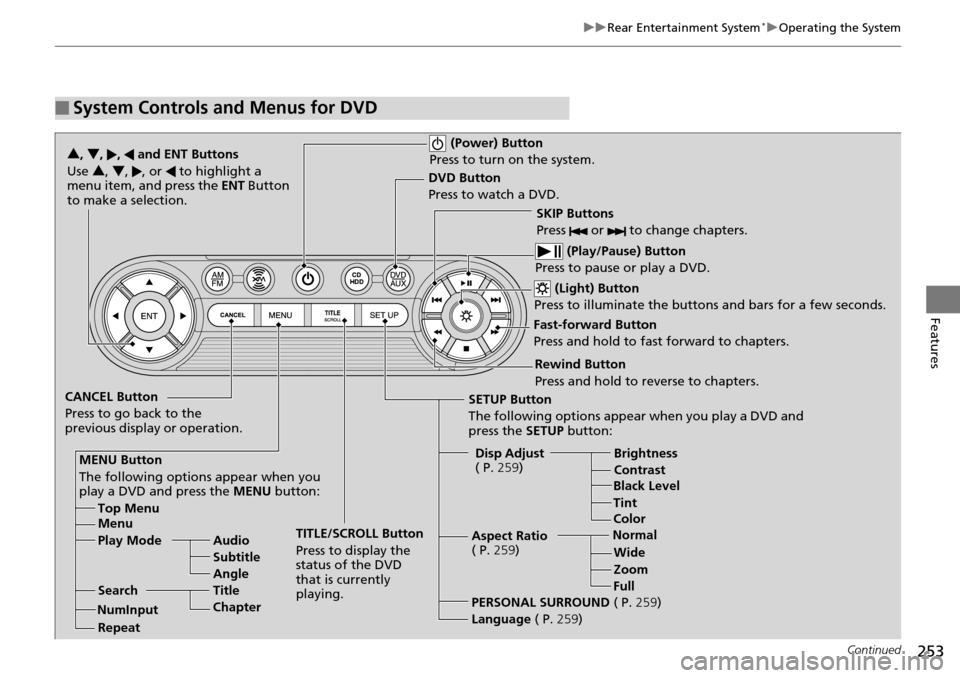
■System Controls and Menus for DVD
(Power) Button
Press to turn on the system.
DVD Button
Press to watch a DVD.
(Light) Button
Press to illuminate the buttons and bars for a few seconds.
SKIP Buttons
Press or to change chapters.
(Play/Pause) Button
Press to pause or play a DVD.
TITLE/SCROLL Button
Press to display the
status of the DVD
that is currently
playing.
MENU Button
The following options appear when you
play a DVD and press the
MENU button:
Top Menu
Menu
Play Mode Audio Subtitle
Angle
Search Title
Chapter
Repeat SETUP Button
The following options appear when you play a DVD and
press the
SETUP button:
Disp Adjust
( P. 259) Brightness
Contrast
Black Level
Color
CANCEL Button
Press to go back to the
previous display or operation. 3
, 4 , , and ENT Buttons
Use 3 , 4, , or to highlight a
menu item, and press the ENT Button
to make a selection.
Tint
Normal WideZoom
Full
Aspect Ratio
( P.
259)
PERSONAL SURROUND ( P. 259)
Language ( P. 259)
Rewind Button
Press and hold to reverse to chapters.
Fast-forward Button
Press and hold to fast forward to chapters.
NumInput
Page 258 of 488
257
uu Rear Entertainment System * u Operating the System
Continued
Features
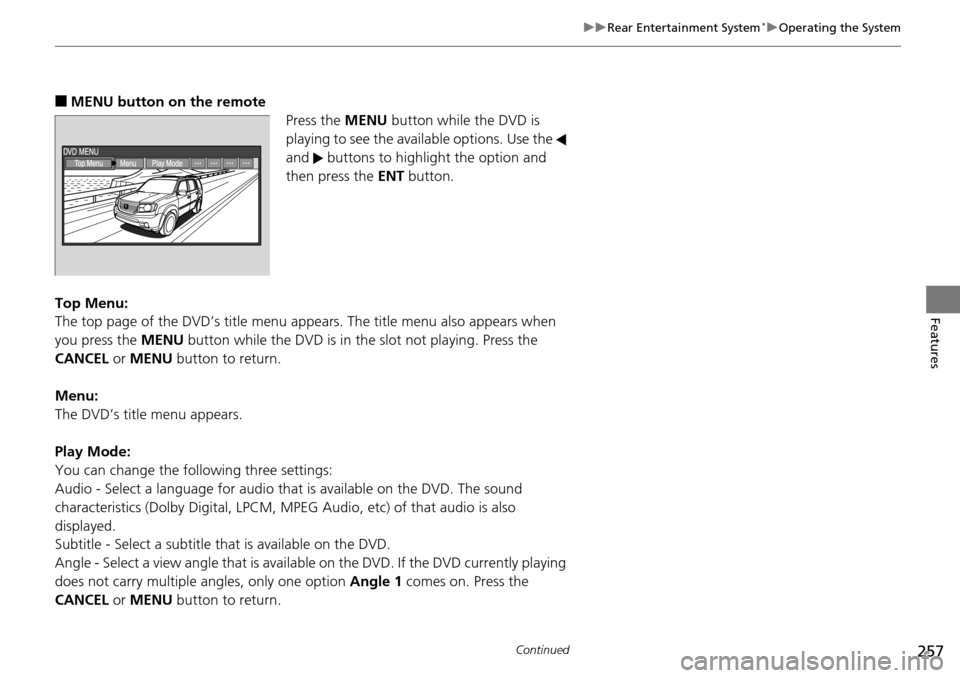
■MENU button on the remote
Press the ME
NU button while the DVD is
playing to see the avai lable options. Use the
and buttons to highlight the option and
then press the ENT bu
tton.
Top Menu:
The top page of the DVD’s title menu appears.
The title menu also appears when
you press the MENU button while the DVD is in the slot not playing. Press the
CANCEL or MENU button to return.
Menu:
The DVD’s title menu appears.
Play Mode:
You can change the following three settings:
Audio - Select a language for audio that is available on the DVD. The sound
charac
teristics (Dolby Digita l, LPCM, MPEG Audio, etc) of that audio is also
displayed.
Subtitle - Select a subtitle that is available on the DVD.
Angle - Select a view angle that is availabl e on the
DVD. If the DVD currently playing
does not carry multiple angles, only one option Angle 1 comes on. Press the
CANCEL or MENU button to return.
Page 259 of 488
258
uu Rear Entertainment System * u Operating the System
Features
Search:
You can search for a DVD segm ent from the following methods.
Title Search - Select the title you want to play.
Chapter Search - Select the chapter you want to play.
NumInput:
Enter a two digit number, if issued to the DV D, to find
the segment you want to start
to play.
1. Select Nu
mInput to go to the number input screen.
2. Use the 3, 4 , , and buttons to input numbers.
u If y
ou want to delete a number, select DEL.
3. The cursor automatically goes
to ENT after you input two digits. Press the ENT
button to enter.
Repeat:
Highlight this option and press the ENT
button to change the repeat mode from
chapter repeat and title repeat, to repeat off.
Page 260 of 488
Continued259
uu Rear Entertainment System * u Operating the System
Features
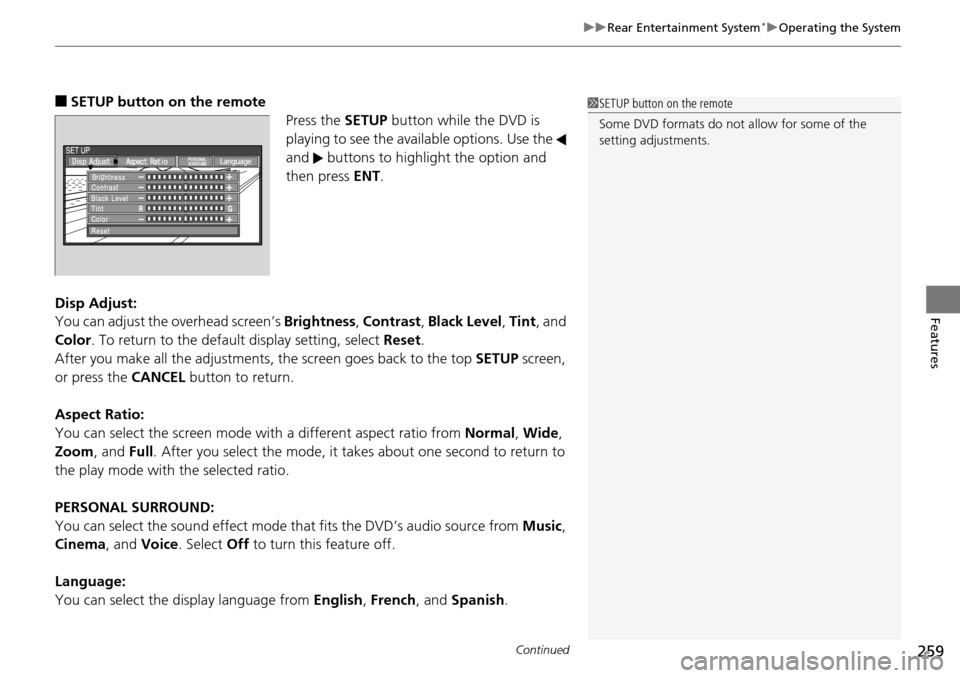
■SETUP button on the remote
Press the SE
TUP button while the DVD is
playing to see the avai lable options. Use the
and buttons to highlight the option and
then press ENT.
Disp Adjust:
You can adjust the overhe
ad screen’s Brightness , Contrast , Black Level , Tint , and
Color . To return to the default display setting, select Reset.
After you make all the adjustments, the screen goes back to the top SET
UP screen,
or press the CANCEL button to return.
Aspect Ratio:
You can select the screen mode wi th
a different aspect ratio from Normal, Wide ,
Zoom , and Full. After you select the mode, it t akes about one second to return to
the play mode with the selected ratio.
PERSONAL SURROUND:
You can select the sound effect mode th at
fits the DVD’s audio source from Music,
Cinema , and Voice . Select Off to turn this feature off.
Language:
You can select the display language from En
glish, French , and Spanish .
1SETUP button on the remote
Some DVD formats do not allow for some of the
setting adjustments.