air con HONDA PILOT 2014 2.G Workshop Manual
[x] Cancel search | Manufacturer: HONDA, Model Year: 2014, Model line: PILOT, Model: HONDA PILOT 2014 2.GPages: 488, PDF Size: 12.11 MB
Page 297 of 488
296
uu Bluetooth ® HandsFreeLink ® u HFL Menus
Features
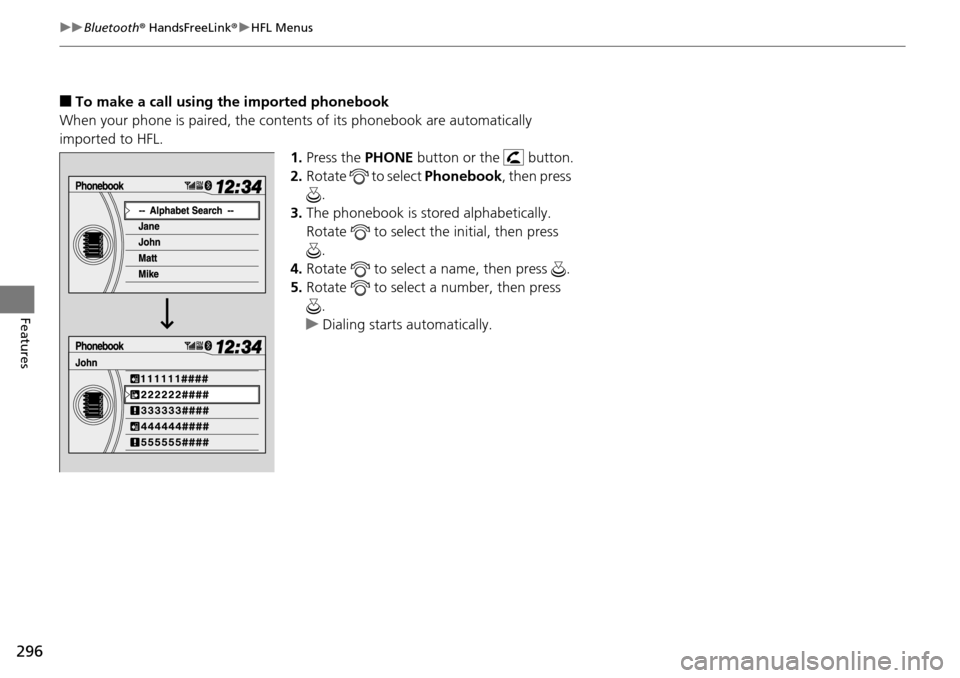
■To make a call using the imported phonebook
When your phone is paired, the contents of its phonebook are automatically
impo
rted to HFL.
1.Press the PH
ONE button or the button.
2. Ro
tate to select Phonebook , then press
.
3. The ph
onebook is stored alphabetically.
Rotate to select the initial, then press
.
4. Ro
tate to select a name, then press .
5. Ro
tate to select a number, then press
.
u Dialing sta
rts automatically.
Page 299 of 488
uu Bluetooth ® HandsFreeLink ® u HFL Menus
298
Features
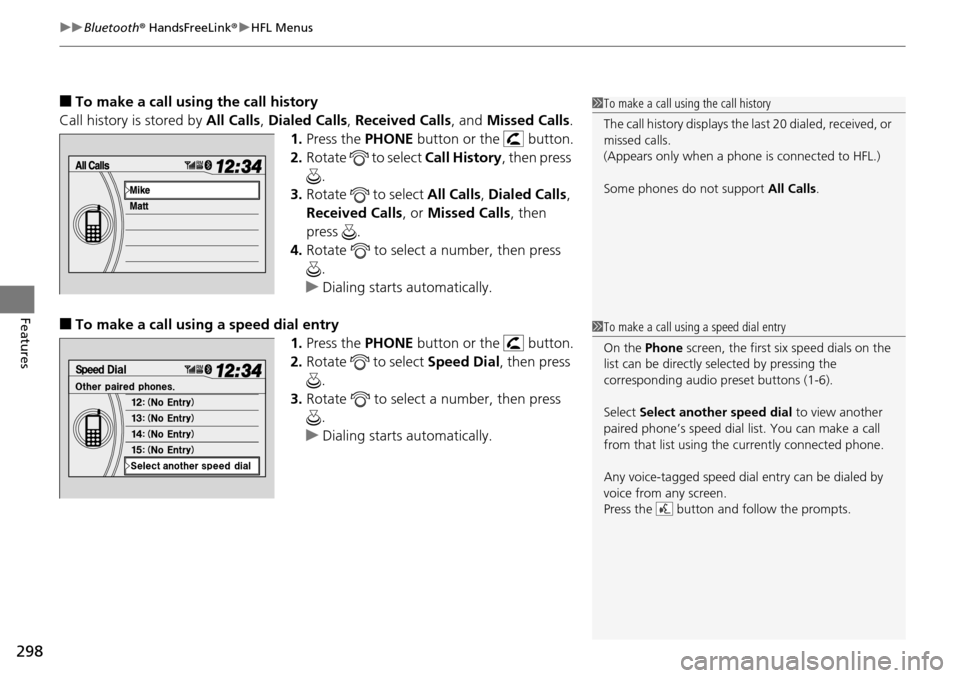
■To make a call usin g the call history
Call history is stored by All Ca
lls, Dialed Calls , Received Calls , and Missed Calls .
1. Press the PH
ONE button or the button.
2. Ro
tate to select Call History, then press
.
3. Ro
tate to select All Call s, Dialed Calls ,
Received Calls , or Mi
ssed Calls, then
press .
4. Ro
tate to select a number, then press
.
u Dialing sta
rts automatically.
■To make a call using a speed dial entry
1.Press the PH
ONE button or the button.
2. Ro
tate to select Speed Dial, then press
.
3. Ro
tate to select a number, then press
.
u Dialing sta
rts automatically.
1To make a call using the call history
The call history disp lays the last 20 dialed, received, or
missed calls.
(Appears only when a phone is connected to HFL.)
Some phones do not support All Calls.
1To make a call using a speed dial entry
On the Phone screen, the first six speed dials on the
list can be directly selected by pressing the
corresponding audio preset buttons (1-6).
Select Select another speed dial to view another
paired phone’s speed dial list. You can make a call
from that list using th e currently connected phone.
Any voice-tagged speed dial entry can be dialed by
voice from any screen.
Press the button and follow the prompts.
Page 302 of 488
301Continued
Features
Bluetooth® HandsFreeLink ®
Bluetooth® HandsFreeLink ® (HFL) allows you to place and receive phone calls using
your vehicle's audio system, without handling your cell phone.
Using HFL
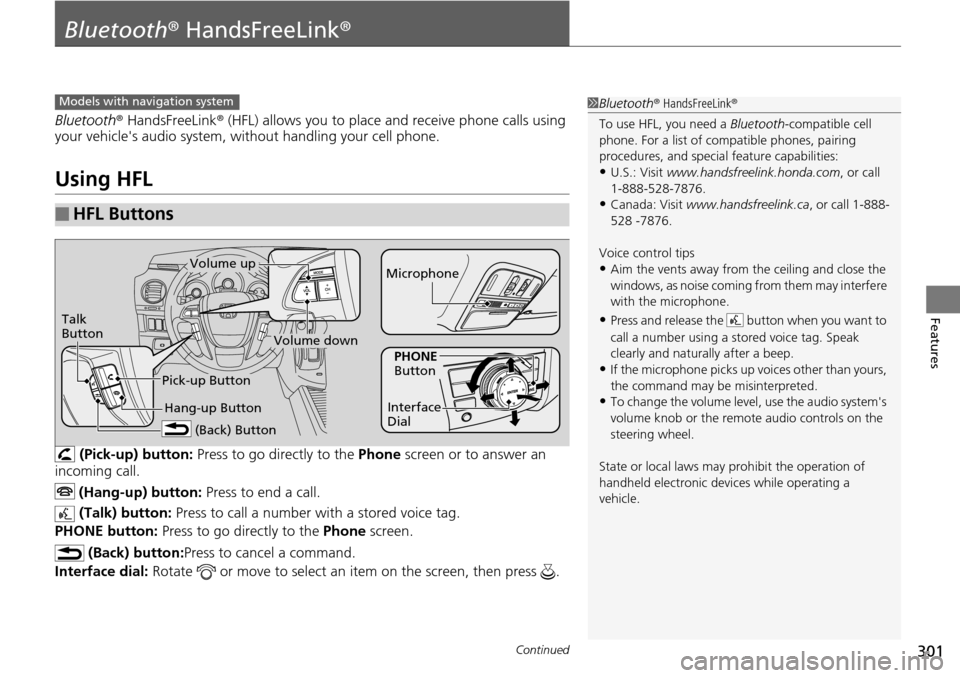
(Pick-up) button: Press to go directly to the Ph one screen or to answer an
incoming call.
(Hang-up) button: Press to end a call.
(Talk) button: Press to call a number with
a stored voice tag.
PHONE button: Press to go directly to the Ph
one screen.
(Back) button: Press to cancel a command.
Interface dial: Rotate or move to select an item on the screen, then press .
■HFL Buttons
1Bluetooth ® HandsFreeLink ®
To use HFL, you need a Bluetooth-compatible cell
phone. For a list of compatible phones, pairing
procedures, and special feature capabilities:
•U.S.: Visit www.handsfreelink.honda.com , or call
1-888-528-7876.
•Canada: Visit www.handsfreelink.ca , or call 1-888-
528 -7876.
Voice control tips
•Aim the vents away from the ceiling and close the
windows, as noise coming fr om them may interfere
with the microphone.
•Press and release the button when you want to
call a number using a st ored voice tag. Speak
clearly and naturally after a beep.
•If the microphone picks up vo ices other than yours,
the command may be misinterpreted.
•To change the volume level, use the audio system's
volume knob or the remote audio controls on the
steering wheel.
State or local laws may pr ohibit the operation of
handheld electronic devices while operating a
vehicle.
Models with navigation system
Talk
Button
Volume up Microphone
Hang-up Button
Pick-up Button
Volume down
Interface
Dial
PHONE
Button
(Back) Button
Page 304 of 488
303
uu Bluetooth ® HandsFreeLink ® u HFL Menus
Continued
Features
HFL Menus
The ignition switch mu st be in ACCESSORY (q
or ON (w
to use HFL.
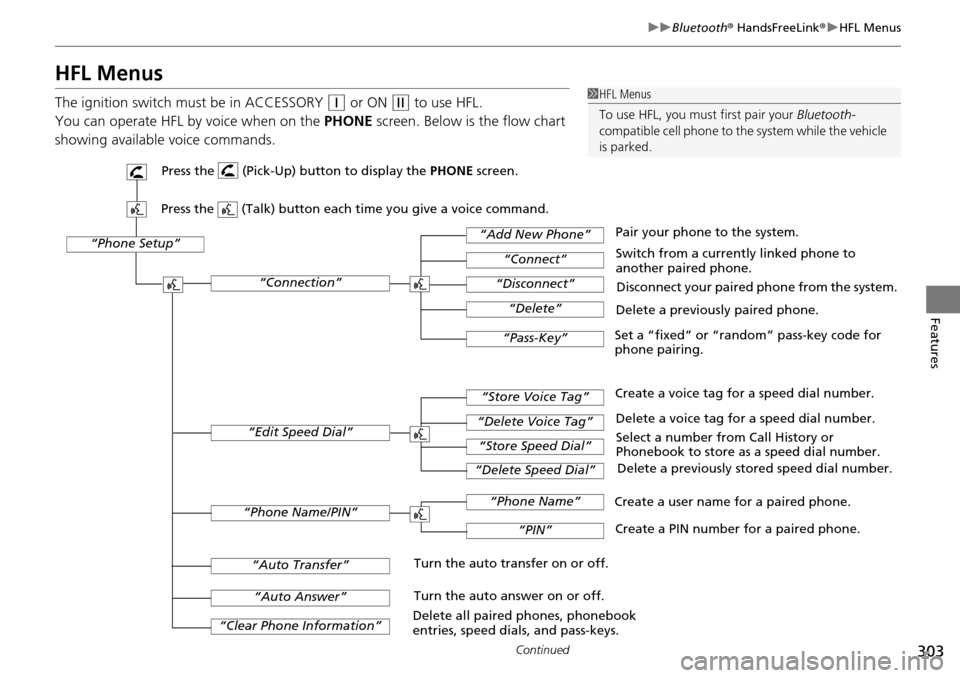
You can operate HFL by voice when on
the PHONE screen. Below is the flow chart
showing available voice commands.
1 HFL Menus
To use HFL, you must first pair your Bluetooth-
compatible cell phone to th e system while the vehicle
is parked.
“Phone Setup”
Delete a previously paired phone.
Switch from a currently linked phone to
another paired phone.
Pair your phone to the system.
Disconnect your paired phone from the system.
Set a “fixed” or “random” pass-key code for
phone pairing.
“Connection”
“Add New Phone”
“Connect”
“Disconnect”
“Delete”
“Pass-Key”
Delete a voice tag for a speed dial number.
Create a voice tag for a speed dial number.
Select a number from Call History or
Phonebook to store as a speed dial number. Delete a previously stored speed dial number.
“Edit Speed Dial”
“Store Voice Tag”
“Delete Voice Tag”
“Store Speed Dial”
“Delete Speed Dial”
Create a PIN number for a paired phone.
Create a user name for a paired phone.
“Phone Name/PIN”
“Phone Name”
“PIN”
“Clear Phone Information”
“Auto Answer”
“Auto Transfer”Turn the auto transfer on or off.
Turn the auto answer on or off.
Delete all paired phones, phonebook
entries, speed dials, and pass-keys.
Press the (Pick-Up) button to display the PHONE screen.
Press the (Talk) button each time you give a voice command.
Page 306 of 488
Continued305
uu Bluetooth ® HandsFreeLink ® u HFL Menus
Features
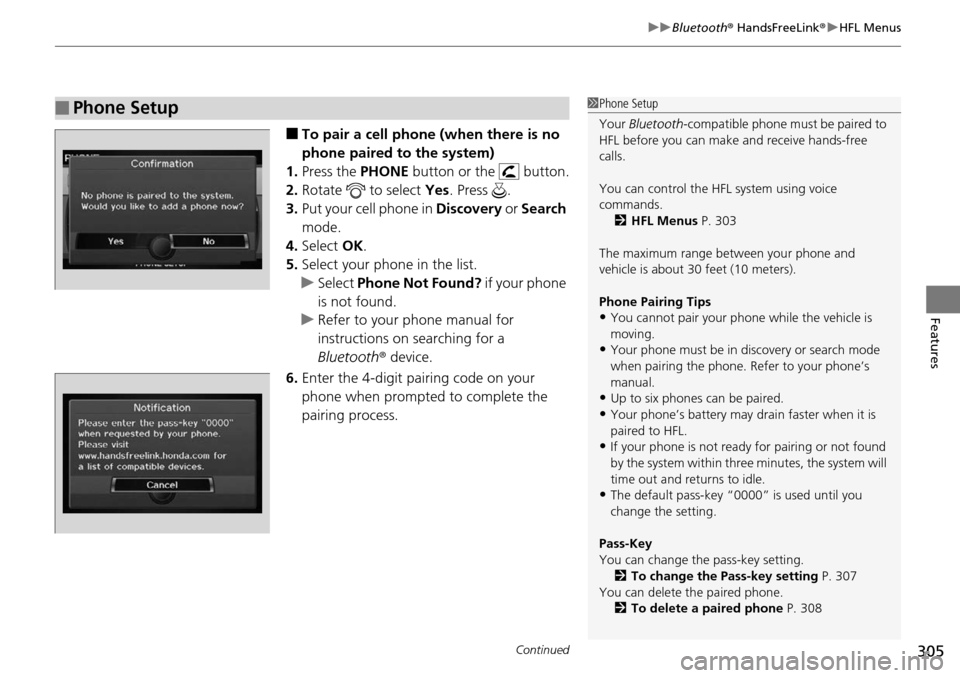
■To pair a cell phone (when there is no
phone paired to the system)
1. Press the PHONE b
utton or the button.
2. Ro
tate to select Yes. Press .
3. Put y
our cell phone in Discovery or Search
mode.
4. Select OK.
5. Select
your phone in the list.
u Select Ph
one Not Found? if your phone
is not found.
u R
efer to your phone manual for
instructions on searching for a
Bluetooth r device.
6. Enter th
e 4-digit pairing code on your
phone when prompted to complete the
pairing process.
■Phone Setup1Phone Setup
Your Bluetooth -compatible phone must be paired to
HFL before you can make and receive hands-free
calls.
You can control the HFL system using voice
commands. 2 HFL Menus P. 303
The maximum range be tween your phone and
vehicle is about 30 feet (10 meters).
Phone Pairing Tips
•You cannot pair your phone while the vehicle is
moving.
•Your phone must be in discovery or search mode
when pairing the phone. Refer to your phone’s
manual.
•Up to six phones can be paired.
•Your phone’s battery may dr ain faster when it is
paired to HFL.
•If your phone is not ready for pairing or not found
by the system within three minutes, the system will
time out and returns to idle.
•The default pass-key “0000” is used until you
change the setting.
Pass-Key
You can change the pass-key setting. 2 To change the Pass-key setting P. 307
You can delete the paired phone.
2 To delete a paired phone P. 308
Page 307 of 488
uu Bluetooth ® HandsFreeLink ® u HFL Menus
306
Features
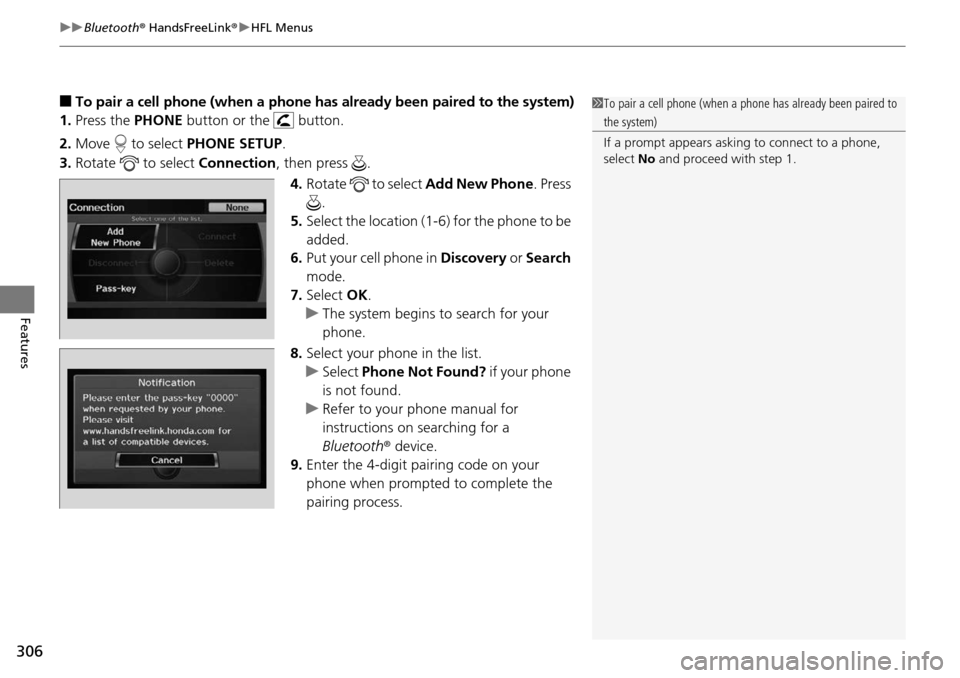
■To pair a cell phone (when a phone has al ready been paired to the system)
1. Press the PHONE bu
tton or the button.
2. Mo
ve to select PHON E SETUP.
3. Rotate
to select Co nnection, then press .
4. Ro
tate to select Ad d New Phone . Press
.
5. Select
the location (1-6) for the phone to be
added.
6. Put
your cell phone in Discovery or Search
mode.
7. Select OK.
u Th
e system begins to search for your
phone.
8. Selec
t your phone in the list.
u Se
lect Phone Not Found? if your phone
is not found.
u Refer to yo
ur phone manual for
instructions on searching for a
Bluetooth r device.
9. Enter the
4-digit pairing code on your
phone when prompted to complete the
pairing process.
1 To pair a cell phone (when a phone has already been paired to
the system)
If a prompt appears asking to connect to a phone,
select No and proceed with step 1.
Page 310 of 488
Continued309
uu Bluetooth ® HandsFreeLink ® u HFL Menus
Features
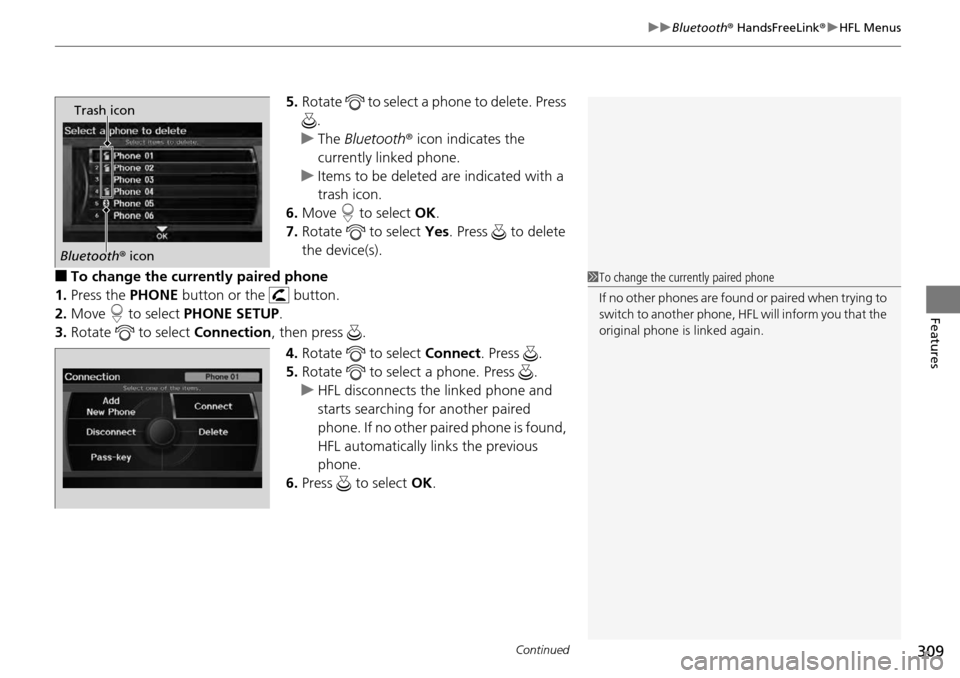
5. Rotate to select a phone to delete. Press
.
u The
Bluetooth r icon indicates the
currently linked phone.
u I
tems to be deleted are indicated with a
trash icon.
6. Move to select OK.
7. Ro
tate to select Yes. Pr ess to delete
the device(s).
■To change the currently paired phone
1. Press the PHONE button
or the button.
2. Mo
ve to select PHONE SE TUP.
3. Rota
te to select Co nnection, then press .
4. Ro
tate to select Connect . Press .
5. Ro
tate to select a phone. Press .
u HF
L disconnects the linked phone and
starts searching for another paired
phone. If no other paired phone is found,
HFL automatically links the previous
phone.
6. Press to select OK.
Trash icon
Bluetooth r icon
1 To change the currently paired phone
If no other phones are found or paired when trying to
switch to another phone, HFL will inform you that the
original phone is linked again.
Page 313 of 488
uu Bluetooth ® HandsFreeLink ® u HFL Menus
312
Features
All paired phones, phonebook entries, sp eed dials, and pass-keys are erased.
1.Press the PHONE button or the button.
2. Mo
ve to select PH ONE SETUP.
3. Rotate
to select Cle ar Phone Information , then press .
u I
f more than one phone is paired to the system, select the phone you want to
clear. The Bluetooth icon indicates the currently linked phone. Move to
select OK.
4. Rotate
to select Yes, then pr ess .
5. You will receive
a notification message on the screen. Rotate to select Ye s,
then press .
6. You will receive
a notification message on the screen. Rotate to finish.
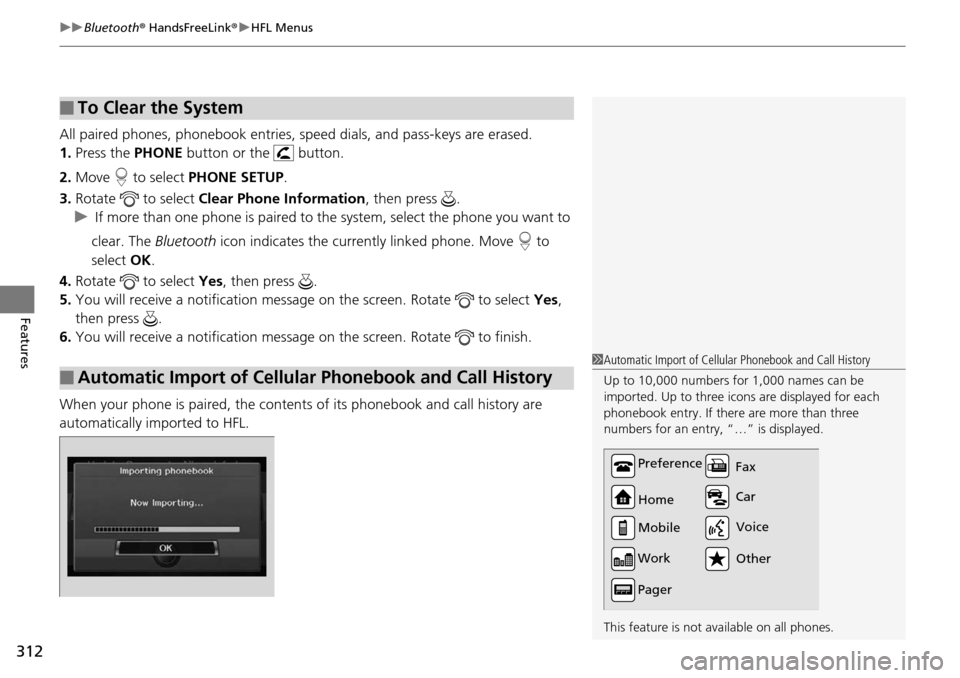
When your phone is paired, the contents of its phonebook and call history are
automatically importe
d to HFL.
■To Clear the System
■Automatic Import of Cellular Phonebook and Call History
1Automatic Import of Cellular Phonebook and Call History
Up to 10,000 numbers for 1,000 names can be
imported. Up to three icons are displayed for each
phonebook entry. If there are more than three
numbers for an entry, “…” is displayed.
This feature is not available on all phones.
Preference
Home
Mobile
Work
Pager Car Fax
Other Voice
Page 317 of 488
uu Bluetooth ® HandsFreeLink ® u HFL Menus
316
Features
You can make calls by inpu tting any phone number, or by using the imported
phonebook, call history, or speed dial entries.
■Making a Call1 Making a Call
You can control the HFL system using voice
commands.
2 HFL Menus P. 303
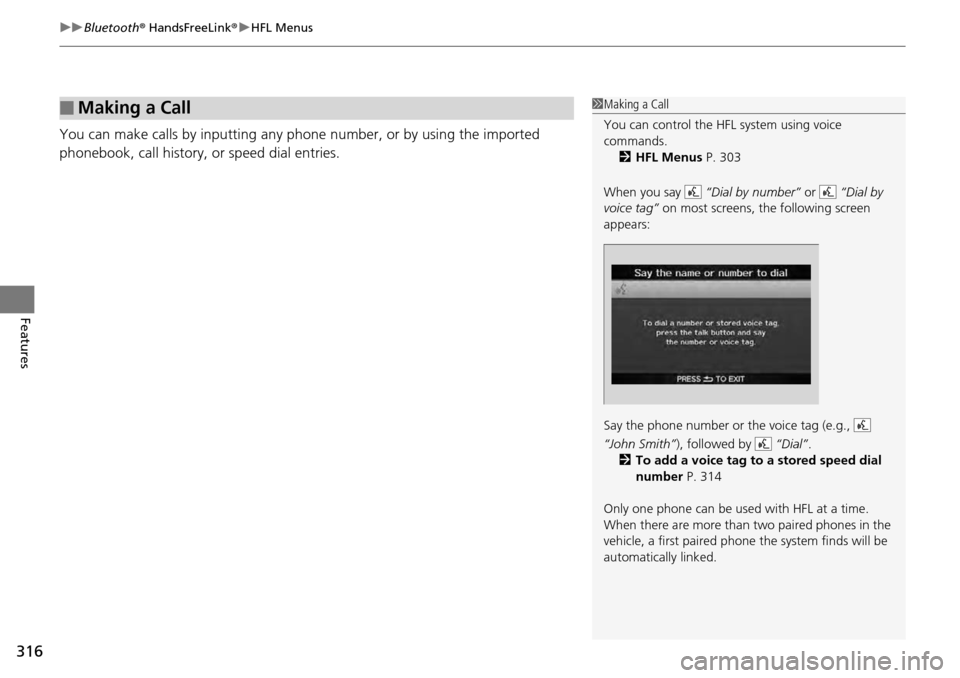
When you say “Dial by number” or “Dial by
voice tag” on most screens, the following screen
appears:
Say the phone number or the voice tag (e.g.,
“John Smith” ), followed by “Dial”.
2 To add a voice tag to a stored speed dial
number P. 314
Only one phone can be used with HFL at a time.
When there are more than two paired phones in the
vehicle, a first paired phone the system finds will be
automatically linked.
Page 318 of 488
Continued317
uu Bluetooth ® HandsFreeLink ® u HFL Menus
Features
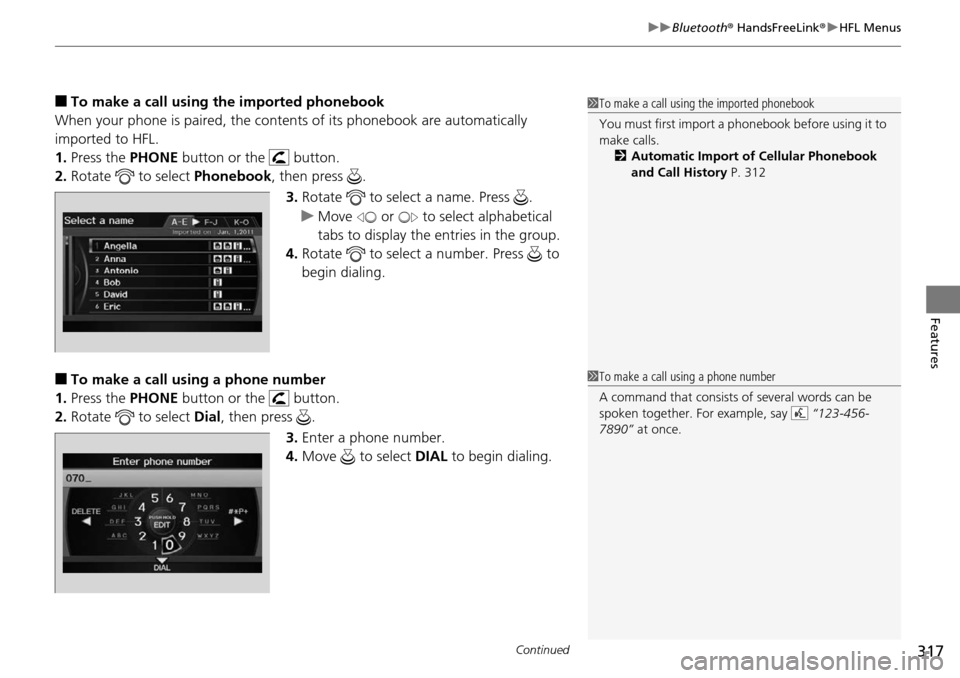
■To make a call using the imported phonebook
When your phone is paired, the contents of its phonebook are automatically
imported to HFL.
1. Press the PHONE button
or the button.
2. Rota
te to select Phonebook , then pr ess .
3. Ro
tate to select a name. Press .
u Mo
ve or to select alphabetical
tabs to display the entries in the group.
4. Ro
tate to select a number. Press to
begin dialing.
■To make a call using a phone number
1. Press the PHONE button
or the button.
2. Rota
te to select Dial, then press .
3. Enter
a phone number.
4.Move to select DIAL to
begin dialing.
1To make a call using the imported phonebook
You must first import a phonebook before using it to
make calls.
2 Automatic Import of Cellular Phonebook
and Call History P. 312
1To make a call using a phone number
A command that consists of several words can be
spoken together. For example, say “123-456-
7890” at once.