Cal e HONDA PILOT 2015 2.G Repair Manual
[x] Cancel search | Manufacturer: HONDA, Model Year: 2015, Model line: PILOT, Model: HONDA PILOT 2015 2.GPages: 488, PDF Size: 11.34 MB
Page 280 of 488
279
uuBluetooth ® HandsFreeLink ®u Using HFL
Features
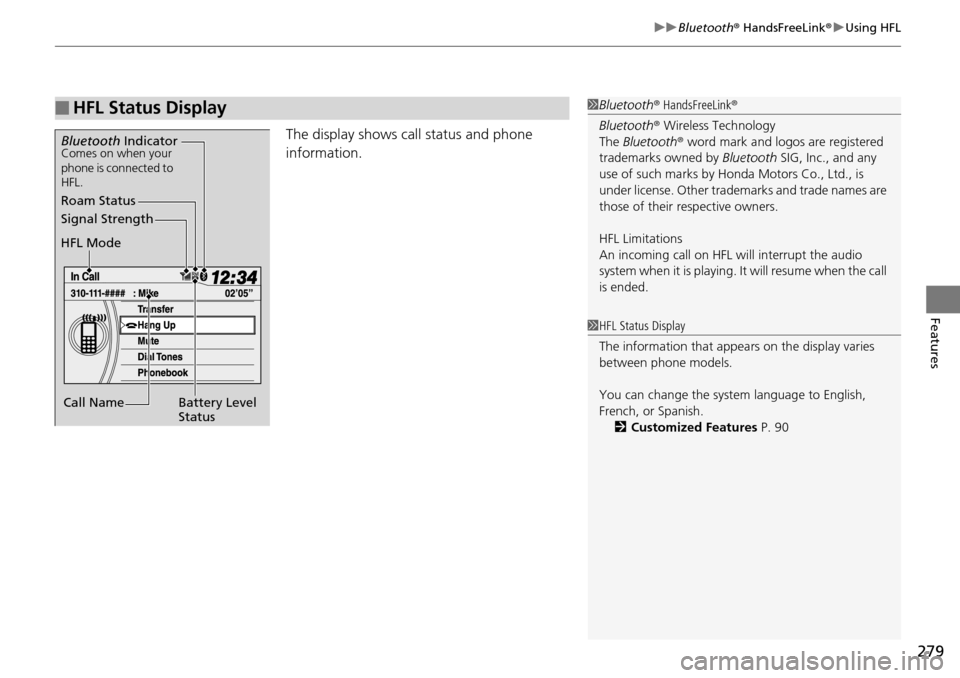
The display shows call status and phone
information.
■HFL Status Display1Bluetooth ® HandsFreeLink ®
Bluetooth ® Wireless Technology
The Bluetooth ® word mark and logos are registered
trademarks owned by Bluetooth SIG, Inc., and any
use of such marks by Honda Motors Co., Ltd., is
under license. Other tradem arks and trade names are
those of their respective owners.
HFL Limitations
An incoming call on HFL will interrupt the audio
s y s t e m wh e n it is p la y i n g . It wi ll r e s u m e w h en t h e c a l l
is ended.
Signal Strength
HFL Mode
Battery Level
Status
Roam Status
Call Name
Bluetooth IndicatorComes on when your
phone is connected to
HFL.
1HFL Status Display
The information that appe ars on the display varies
between phone models.
You can change the system language to English,
French, or Spanish. 2 Customized Features P. 90
Page 281 of 488
280
uuBluetooth ® HandsFreeLink ®u HFL Menus
Features
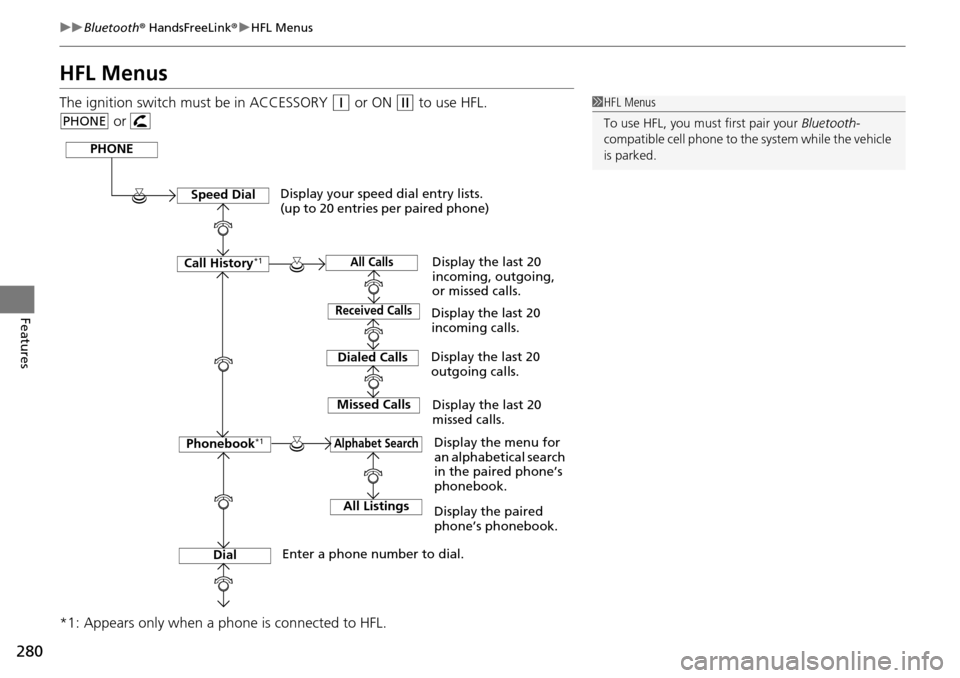
HFL Menus
The ignition switch must be in ACCESSORY (q or ON (w to use HFL.
or
*1: Appears only when a phone is connected to HFL.1 HFL Menus
To use HFL, you must first pair your Bluetooth-
compatible cell phone to th e system while the vehicle
is parked.
PHONE
PHONE
Speed Dial
Call History*1
Dialed Calls
Dial
Phonebook*1
Received Calls
Missed Calls
Display your speed dial entry lists.
(up to 20 entries per paired phone)
Display the menu for
an alphabetical search
in the paired phone’s
phonebook.
Enter a phone number to dial. Display the last 20
incoming calls.
Display the last 20
outgoing calls.
Display the last 20
missed calls.
All CallsDisplay the last 20
incoming, outgoing,
or missed calls.
Alphabet Search
All ListingsDisplay the paired
phone’s phonebook.
Page 283 of 488
282
uuBluetooth ® HandsFreeLink ®u HFL Menus
Features
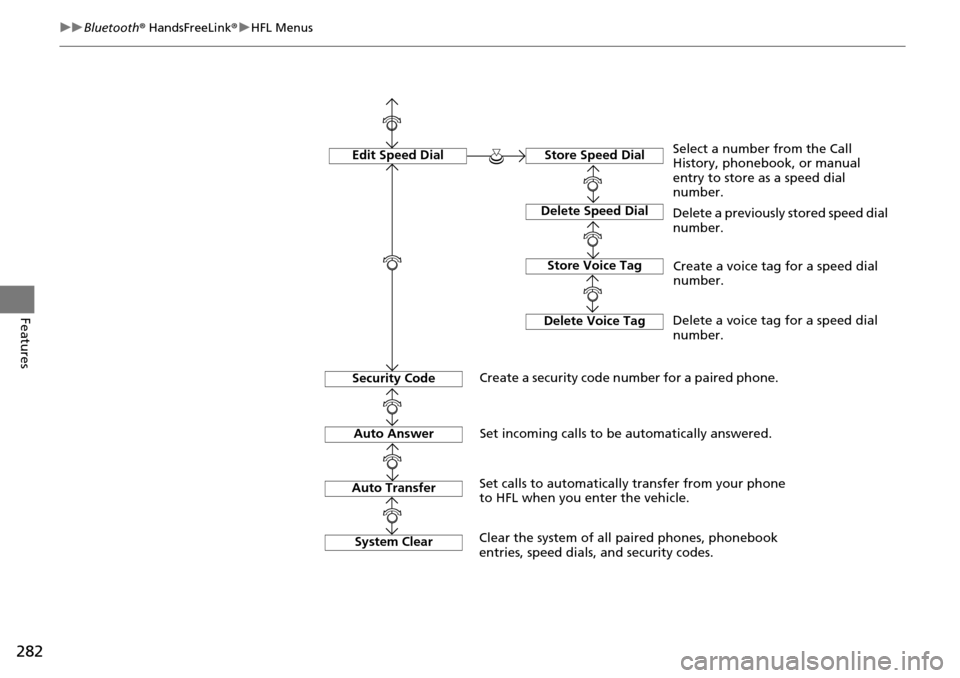
Edit Speed DialStore Speed Dial
Delete Speed Dial
Store Voice Tag
Delete Voice Tag
Select a number from the Call
History, phonebook, or manual
entry to store as a speed dial
number.
Delete a previously stored speed dial
number.
Create a voice tag for a speed dial
number.
Delete a voice tag for a speed dial
number.
Security Code
Create a security code number for a paired phone.
Auto Answer
Auto Transfer
Set incoming calls to be automatically answered.
Set calls to automatically transfer from your phone
to HFL when you enter the vehicle.
System Clear
Clear the system of all paired phones, phonebook
entries, speed dials, and security codes.
Page 284 of 488
Continued283
uuBluetooth ® HandsFreeLink ®u HFL Menus
Features
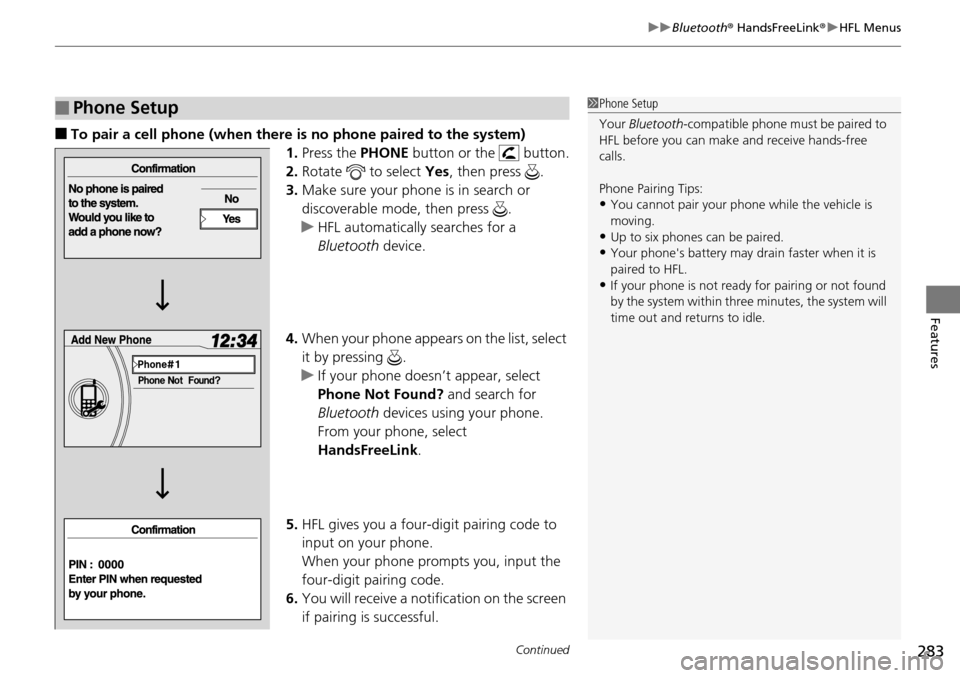
■To pair a cell phone (when there is no phone paired to the system)
1.Press the PHONE button or the button.
2. Rotate to select Yes, then press .
3. Make sure your phone is in search or
discoverable mode, then press .
u HFL automatically searches for a
Bluetooth device.
4. When your phone appears on the list, select
it by pressing .
u If your phone doesn’t appear, select
Phone Not Found? and search for
Bluetooth devices using your phone.
From your phone, select
HandsFreeLink .
5. HFL gives you a four-digit pairing code to
input on your phone.
When your phone prompts you, input the
four-digit pairing code.
6. You will receive a notif ication on the screen
if pairing is successful.
■Phone Setup1 Phone Setup
Your Bluetooth -compatible phone must be paired to
HFL before you can make and receive hands-free
calls.
Phone Pairing Tips:
•You cannot pair your phone while the vehicle is
moving.
•Up to six phones can be paired.
•Your phone's battery may dr ain faster when it is
paired to HFL.
•If your phone is not ready for pairing or not found
by the system within three minutes, the system will
time out and returns to idle.
Page 286 of 488
285
uuBluetooth ® HandsFreeLink ®u HFL Menus
Continued
Features
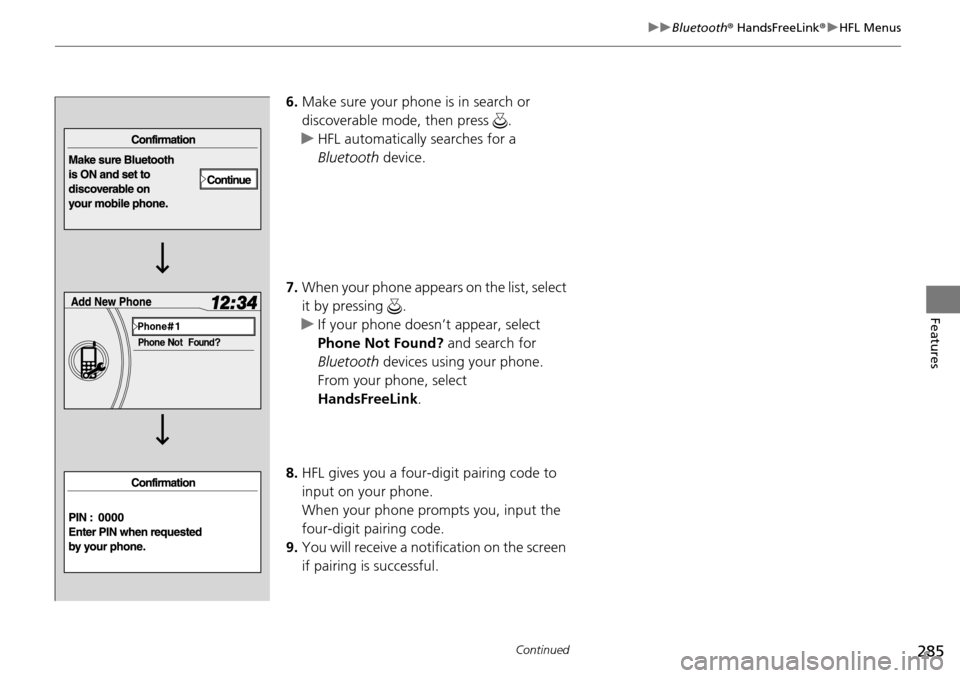
6. Make sure your phone is in search or
discoverable mode, then press .
u HFL automatically searches for a
Bluetooth device.
7. When your phone appears on the list, select
it by pressing .
u If your phone doesn’t appear, select
Phone Not Found? and search for
Bluetooth devices using your phone.
From your phone, select
HandsFreeLink .
8. HFL gives you a four-digit pairing code to
input on your phone.
When your phone prompts you, input the
four-digit pairing code.
9. You will receive a notif ication on the screen
if pairing is successful.
Page 290 of 488
289
uuBluetooth ® HandsFreeLink ®u HFL Menus
Continued
Features
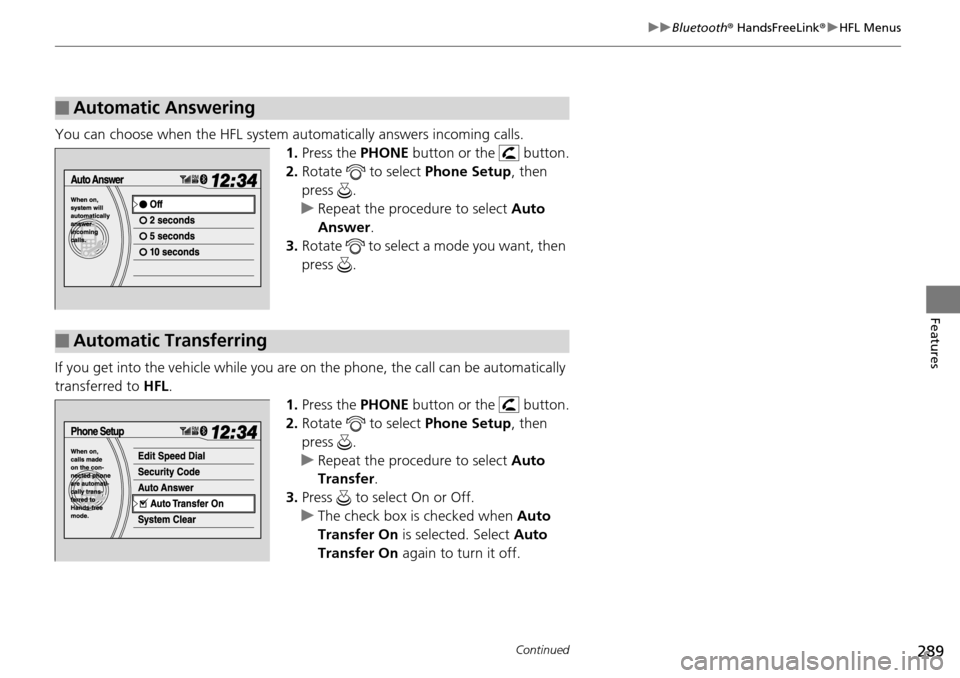
You can choose when the HFL system au tomatically answers incoming calls.
1. Press the PHONE button or the button.
2. Rotate to select Phone Setup, then
press .
u Repeat the procedure to select Auto
Answer .
3. Rotate to select a mode you want, then
press .
If you get into the vehicle while you are on the phone, the call can be automatically
transferred to HFL.
1.Press the PHONE button or the button.
2. Rotate to select Phone Setup, then
press .
u Repeat the procedure to select Auto
Transfer .
3. Press to select On or Off.
u The check box is checked when Auto
Transfer On is selected. Select Auto
Transfer On again to turn it off.
■Automatic Answering
■Automatic Transferring
Page 292 of 488
Continued291
uuBluetooth ® HandsFreeLink ®u HFL Menus
Features
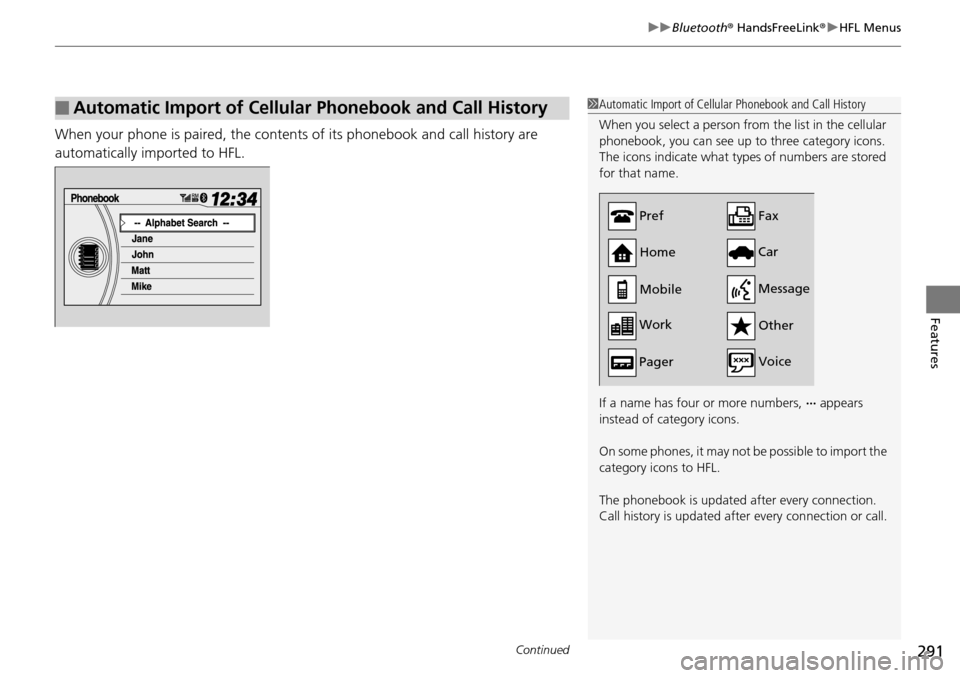
When your phone is paired, the contents of its phonebook and call history are
automatically imported to HFL.
■Automatic Import of Cellular Phonebook and Call History1Automatic Import of Cellular Phonebook and Call History
When you select a person from the list in the cellular
phonebook, you can see up to three category icons.
The icons indicate what types of numbers are stored
for that name.
If a name has four or more numbers, ∙∙∙ appears
instead of category icons.
On some phones, it may not be possible to import the
category icons to HFL.
The phonebook is updated after every connection.
Call history is updated after every connection or call.
Pref
Home
Mobile
Work
Pager Car
Fax
Message Other
Voice
Page 293 of 488
292
uuBluetooth ® HandsFreeLink ®u HFL Menus
Features
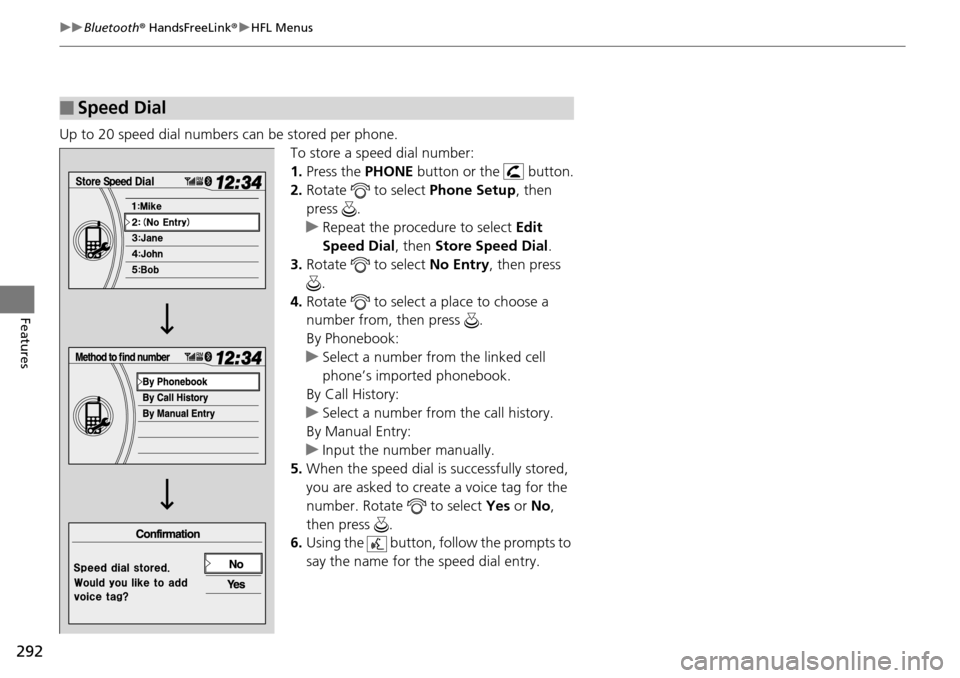
Up to 20 speed dial numbers can be stored per phone.
To store a speed dial number:
1.Press the PHONE button or the button.
2. Rotate to select Phone Setup, then
press .
u Repeat the procedure to select Edit
Speed Dial , then Store Speed Dial .
3. Rotate to select No Entry, then press
.
4. Rotate to select a place to choose a
number from, then press .
By Phonebook:
u Select a number from the linked cell
phone’s imported phonebook.
By Call History:
u Select a number from the call history.
By Manual Entry:
u Input the number manually.
5. When the speed dial is successfully stored,
you are asked to create a voice tag for the
number. Rotate to select Yes or No,
then press .
6. Using the button, fo llow the prompts to
say the name for the speed dial entry.
■Speed Dial
Page 296 of 488
Continued295
uuBluetooth ® HandsFreeLink ®u HFL Menus
Features
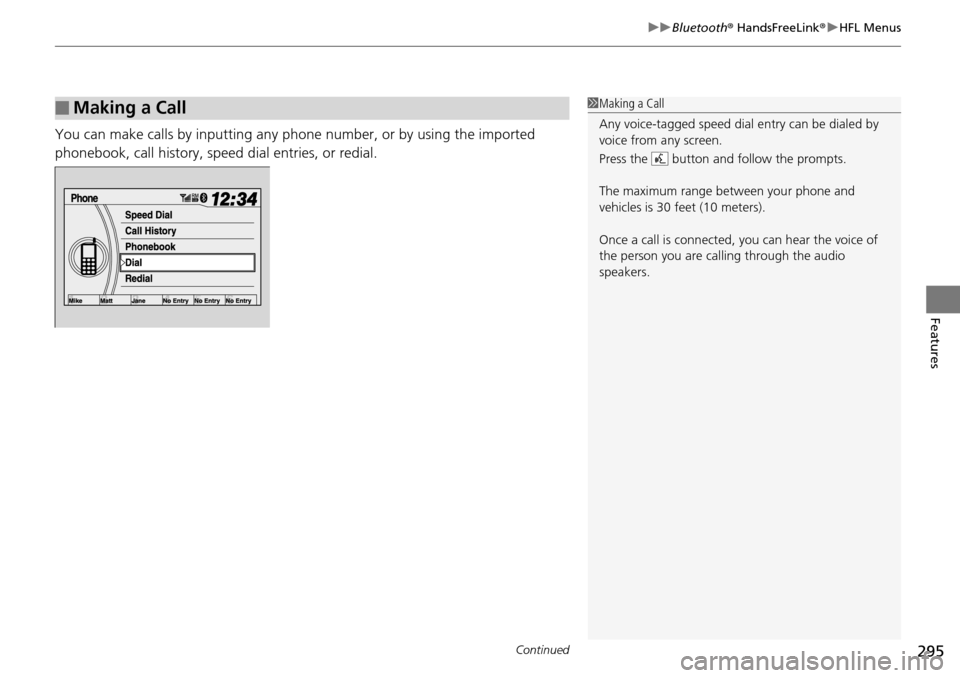
You can make calls by inputting any phone number, or by using the imported
phonebook, call history, speed dial entries, or redial.
■Making a Call1Making a Call
Any voice-tagged speed dial entry can be dialed by
voice from any screen.
Press the button and follow the prompts.
The maximum range be tween your phone and
vehicles is 30 fe et (10 meters).
Once a call is connected, you can hear the voice of
the person you are call ing through the audio
speakers.
Page 297 of 488
296
uuBluetooth ® HandsFreeLink ®u HFL Menus
Features
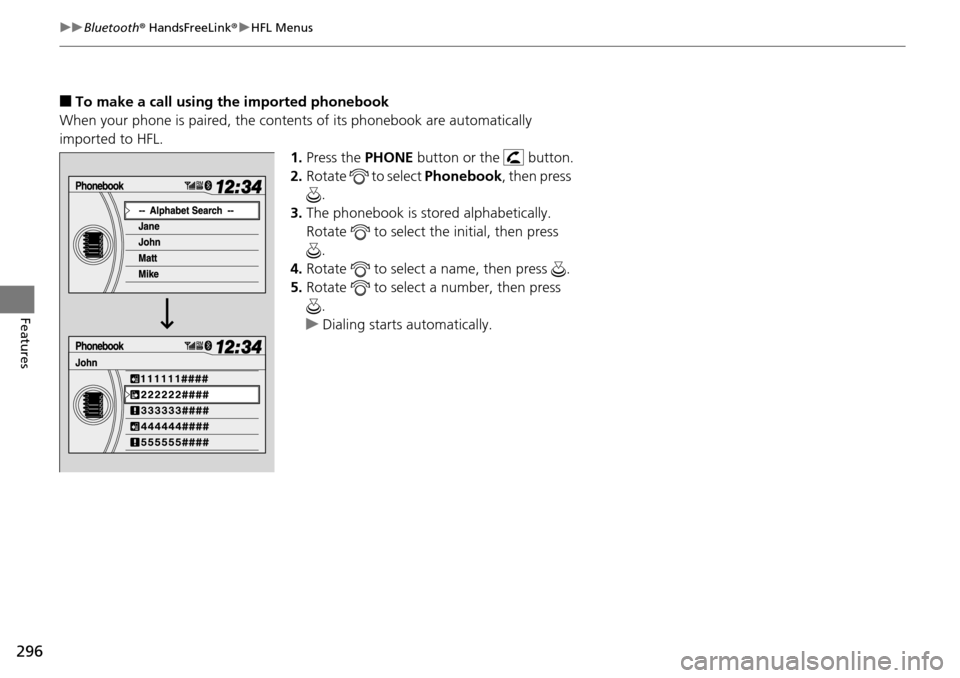
■To make a call using the imported phonebook
When your phone is paired, the conten ts of its phonebook are automatically
imported to HFL.
1.Press the PHONE button or the button.
2. Rotate to select Phonebook, then press
.
3. The phonebook is stor ed alphabetically.
Rotate to select the initial, then press .
4. Rotate to select a name, then press .
5. Rotate to select a number, then press
.
u Dialing starts automatically.