display HONDA PILOT 2016 3.G Navigation Manual
[x] Cancel search | Manufacturer: HONDA, Model Year: 2016, Model line: PILOT, Model: HONDA PILOT 2016 3.GPages: 145, PDF Size: 8.06 MB
Page 102 of 145
101
uuChanging Your Destination uEntering a New Destination from Trip Planner
Continued
Navigation
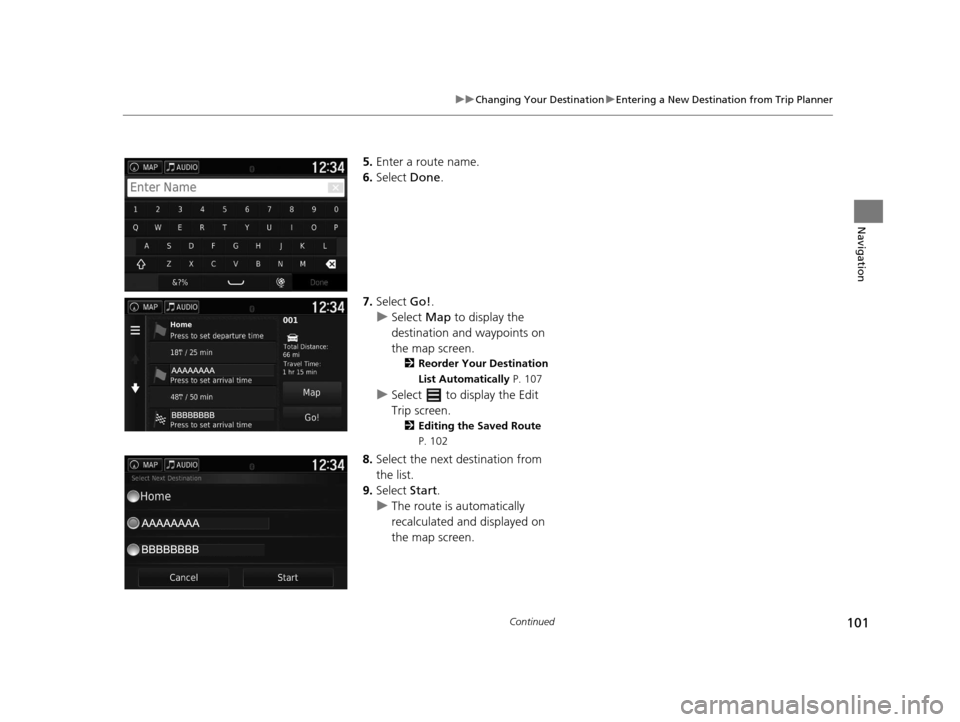
5. Enter a route name.
6. Select Done.
7. Select Go!.
u Select Map to display the
destination and waypoints on
the map screen.
2 Reorder Your Destination
List Automatically P. 107
uSelect to display the Edit
Trip screen.
2 Editing the Saved Route
P. 102
8.Select the next destination from
the list.
9. Select Start.
u The route is automatically
recalculated and displayed on
the map screen.
16 PILOT NAVI-31TG78000.book 101 ページ 2015年4月21日 火曜日 午前8時30分
Page 103 of 145
102
uuChanging Your Destination uEntering a New Destination from Trip Planner
Navigation
H u (Back) uApps uTrip Planner
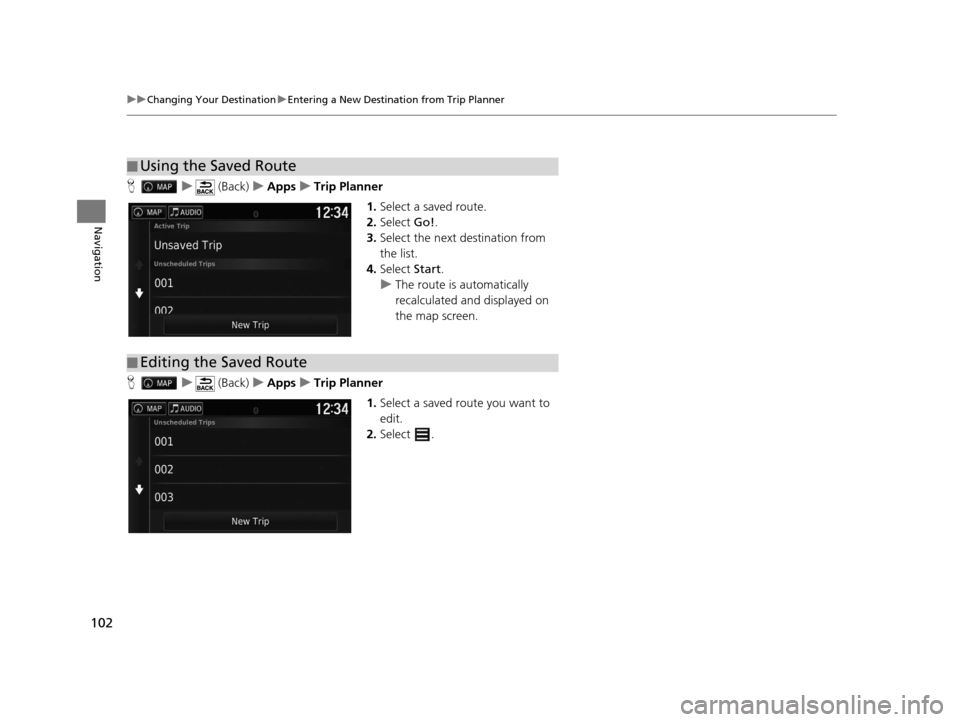
1.Select a saved route.
2. Select Go!.
3. Select the next destination from
the list.
4. Select Start.
u The route is automatically
recalculated and displayed on
the map screen.
H u (Back) uApps uTrip Planner
1.Select a saved route you want to
edit.
2. Select .
■Using the Saved Route
■Editing the Saved Route
16 PILOT NAVI-31TG78000.book 102 ページ 2015年4月21日 火曜日 午前8時30分
Page 105 of 145
104
uuChanging Your Destination uEditing the Destination List
Navigation
Editing the Destination List
You can use the trip planner to edit and sa ve a route with multiple destinations.
H u (Back) uApps uTrip Planner
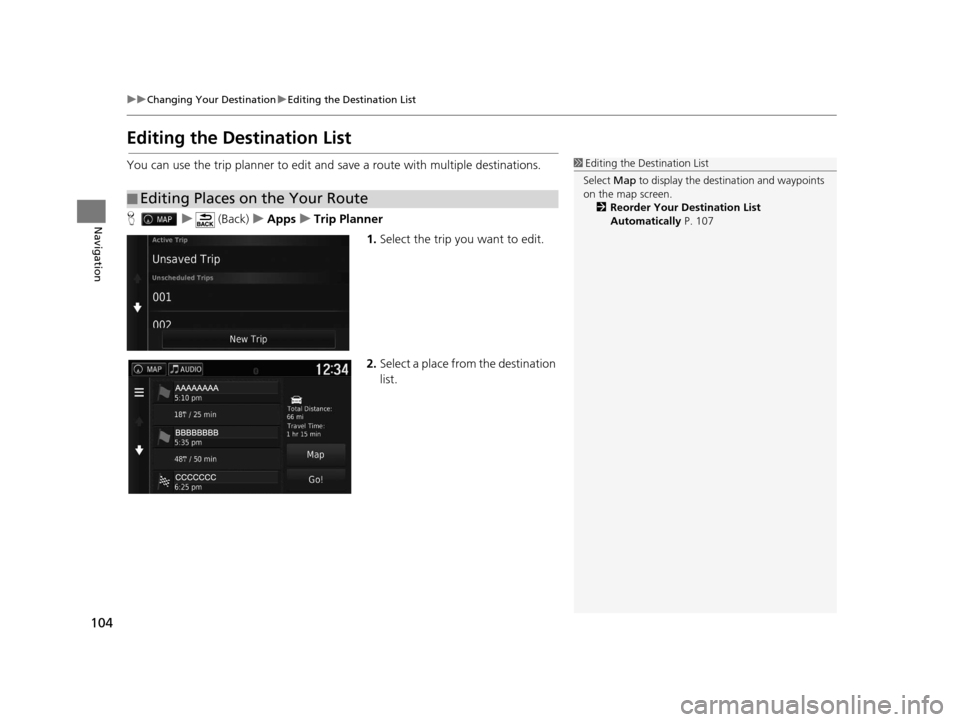
1.Select the trip you want to edit.
2. Select a place from the destination
list.
■Editing Places on the Your Route
1
Editing the Destination List
Select Map to display the dest ination and waypoints
on the map screen.
2 Reorder Your Destination List
Automatically P. 107
16 PILOT NAVI-31TG78000.book 104 ページ 2015年4月21日 火曜日 午前8時30分
Page 108 of 145
107
uuChanging Your Destination uEditing the Destination List
Continued
Navigation
H u (Back) uApps uTrip Planner (when en route)
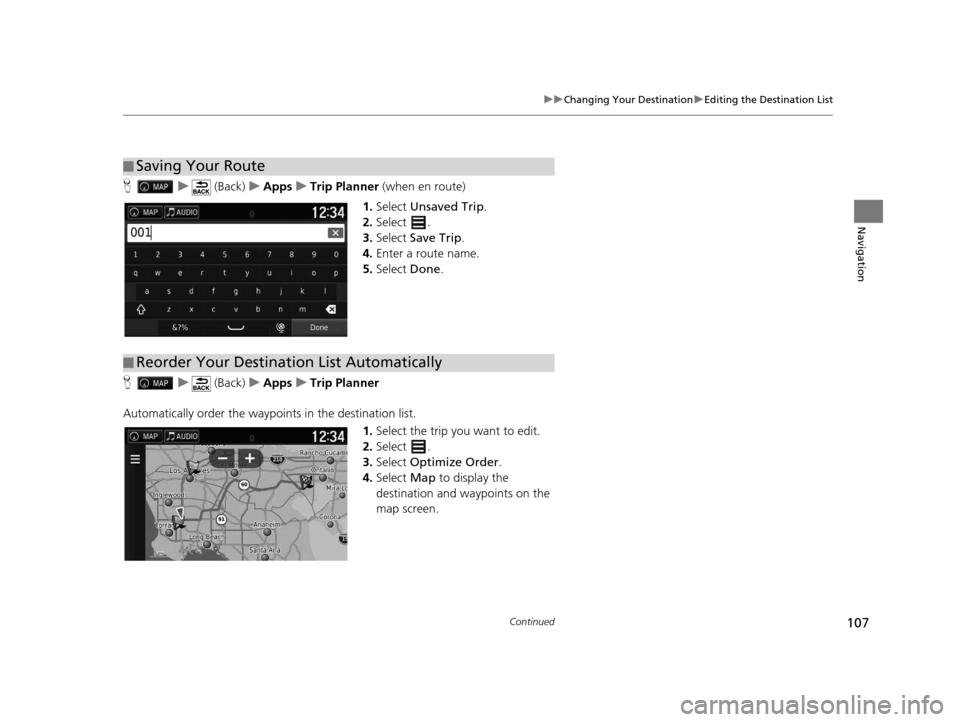
1. Select Unsaved Trip .
2. Select .
3. Select Save Trip .
4. Enter a route name.
5. Select Done.
H u (Back) uApps uTrip Planner
Automatically order the waypoi nts in the destination list.
1.Select the trip you want to edit.
2. Select .
3. Select Optimize Order .
4. Select Map to display the
destination and waypoints on the
map screen.
■ Saving Your Route
■Reorder Your Destination List Automatically
16 PILOT NAVI-31TG78000.book 107 ページ 2015年4月21日 火曜日 午前8時30分
Page 111 of 145
110
Other Features
About Apps Menu
Hu (Back) uApps
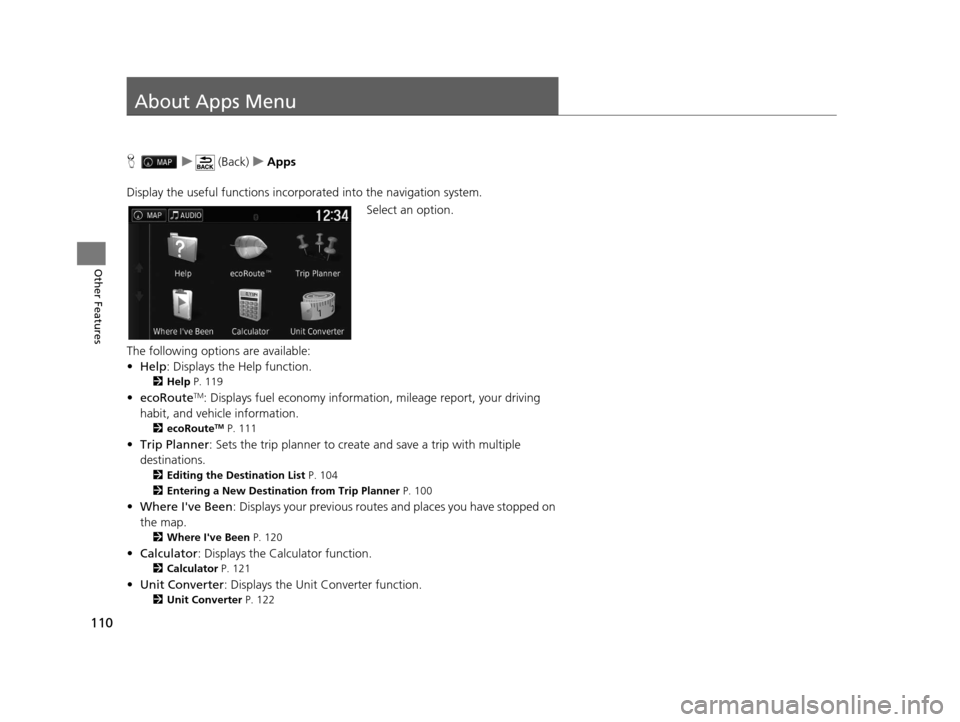
Display the useful functions incorpor ated into the navigation system.
Select an option.
The following options are available:
• Help : Displays the Help function.
2Help P. 119
•ecoRouteTM: Displays fuel econom y information, mileage report, your driving
habit, and vehicle information.
2 ecoRouteTM P. 111
•Trip Planner : Sets the trip planner to create and save a trip with multiple
destinations.
2 Editing the Destination List P. 104
2 Entering a New Destination from Trip Planner P. 100
•Where I've Been : Displays your previous routes and places you have stopped on
the map.
2 Where I've Been P. 120
•Calculator : Displays the Calculator function.
2Calculator P. 121
•Unit Converter : Displays the Unit Converter function.
2Unit Converter P. 122
16 PILOT NAVI-31TG78000.book 110 ページ 2015年4月21日 火曜日 午前8時30分
Page 112 of 145
111
Other Features
ecoRouteTM
Hu (Back) uApps uecoRouteTM
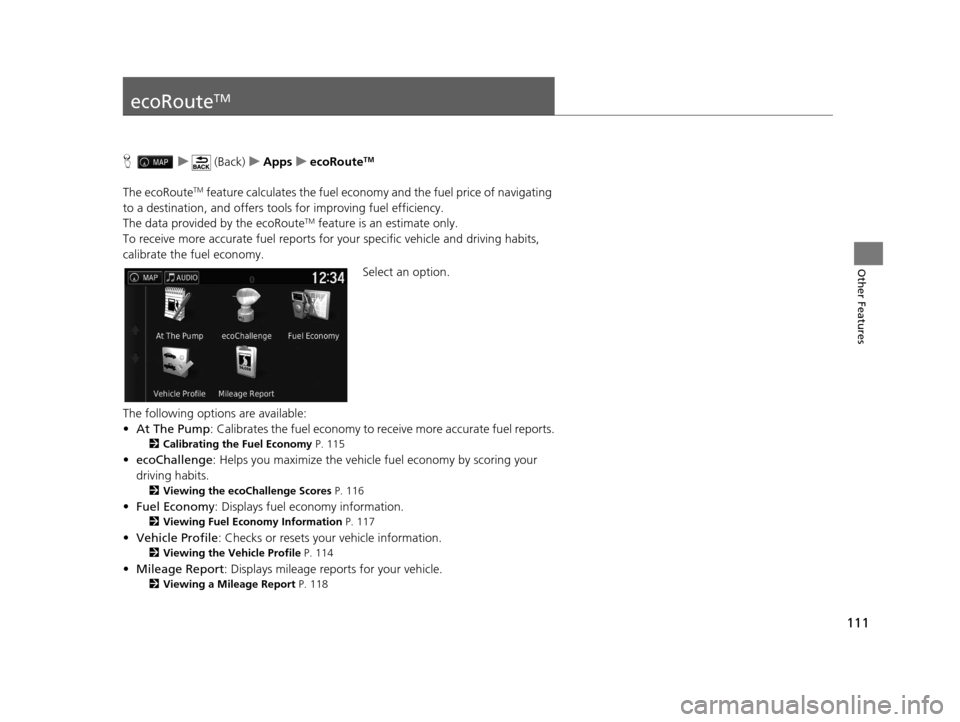
The ecoRouteTM feature calculates the fuel econom y and the fuel price of navigating
to a destination, and offers tool s for improving fuel efficiency.
The data provided by the ecoRoute
TM feature is an estimate only.
To receive more accurate fuel reports for your specific vehicle and driving habits,
calibrate the fuel economy.
Select an option.
The following options are available:
• At The Pump : Calibrates the fuel economy to re ceive more accurate fuel reports.
2Calibrating the Fuel Economy P. 115
•ecoChallenge : Helps you maximize the vehicle fuel economy by scoring your
driving habits.
2 Viewing the ecoChallenge Scores P. 116
•Fuel Economy : Displays fuel economy information.
2Viewing Fuel Economy Information P. 117
•Vehicle Profile : Checks or resets your vehicle information.
2Viewing the Vehicle Profile P. 114
•Mileage Report : Displays mileage repo rts for your vehicle.
2Viewing a Mileage Report P. 118
16 PILOT NAVI-31TG78000.book 111 ページ 2015年4月21日 火曜日 午前8時30分
Page 117 of 145
116
uuecoRouteTMuViewing the ecoChallenge Scores
Other Features
Viewing the ecoChallenge Scores
H u (Back) uApps uecoRouteTMuecoChallenge
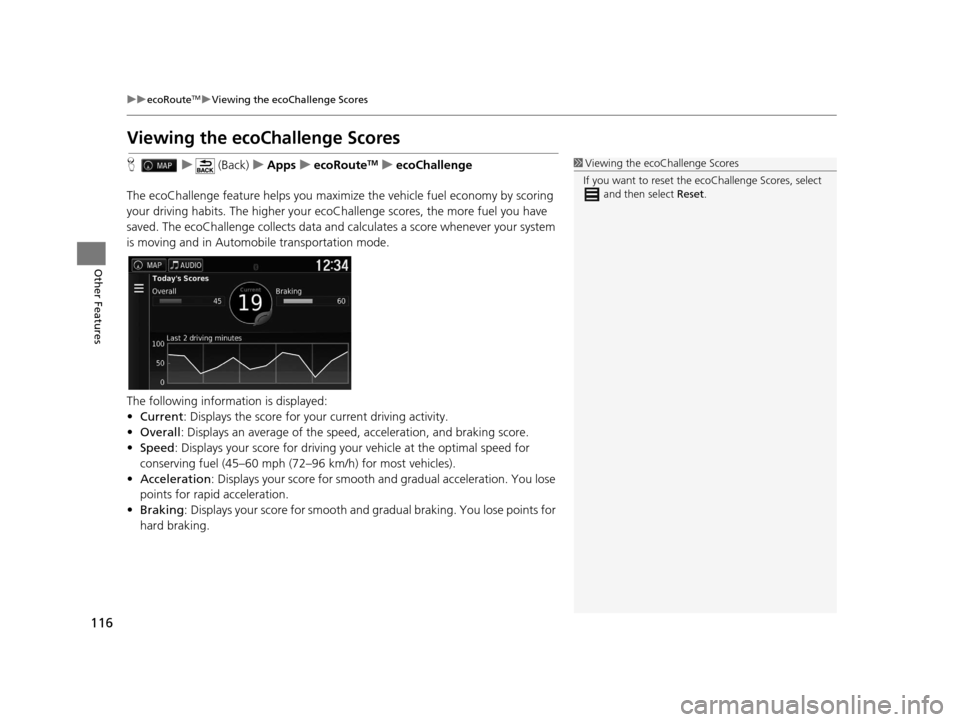
The ecoChallenge feature helps you maximize the vehicle fuel economy by scoring
your driving habits. The higher your ecoChallenge scores, the more fuel you have
saved. The ecoChallenge collects data and ca lculates a score whenever your system
is moving and in Automobile transportation mode.
The following information is displayed:
• Current : Displays the score for your current driving activity.
• Overall : Displays an average of the speed, acceleration, and braking score.
• Speed : Displays your score for driving yo ur vehicle at the optimal speed for
conserving fuel (45–60 mph (72–96 km/h) for most vehicles).
• Acceleration : Displays your score for smooth and gradual acceleration. You lose
points for rapid acceleration.
• Braking : Displays your score for smooth and gradual braking. You lose points for
hard braking.1 Viewing the ecoChallenge Scores
If you want to reset the ec oChallenge Scores, select
and then select Reset.
16 PILOT NAVI-31TG78000.book 116 ページ 2015年4月21日 火曜日 午前8時30分
Page 119 of 145
118
uuecoRouteTMuViewing a Mileage Report
Other Features
Viewing a Mileage Report
H u (Back) uApps uecoRouteTMuMileage Report
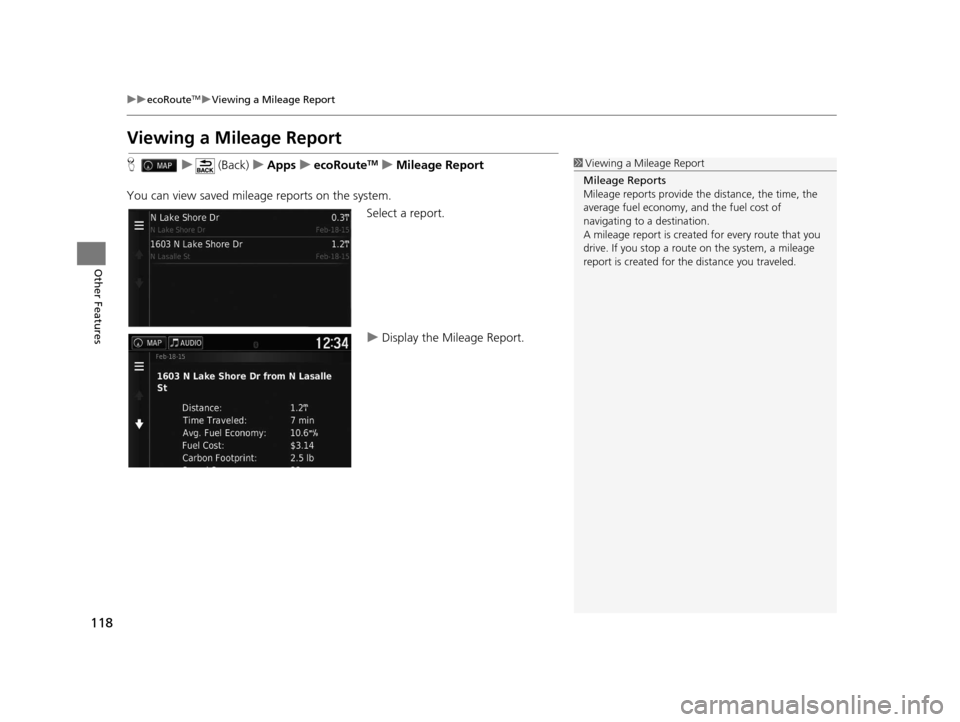
You can view saved mileage reports on the system. Select a report.
uDisplay the Mileage Report.1Viewing a Mileage Report
Mileage Reports
Mileage reports provide th e distance, the time, the
average fuel economy, and the fuel cost of
navigating to a destination.
A mileage report is created for every route that you
drive. If you stop a rout e on the system, a mileage
report is created for the distance you traveled.
16 PILOT NAVI-31TG78000.book 118 ページ 2015年4月21日 火曜日 午前8時30分
Page 120 of 145
119Continued
Other Features
Information Functions
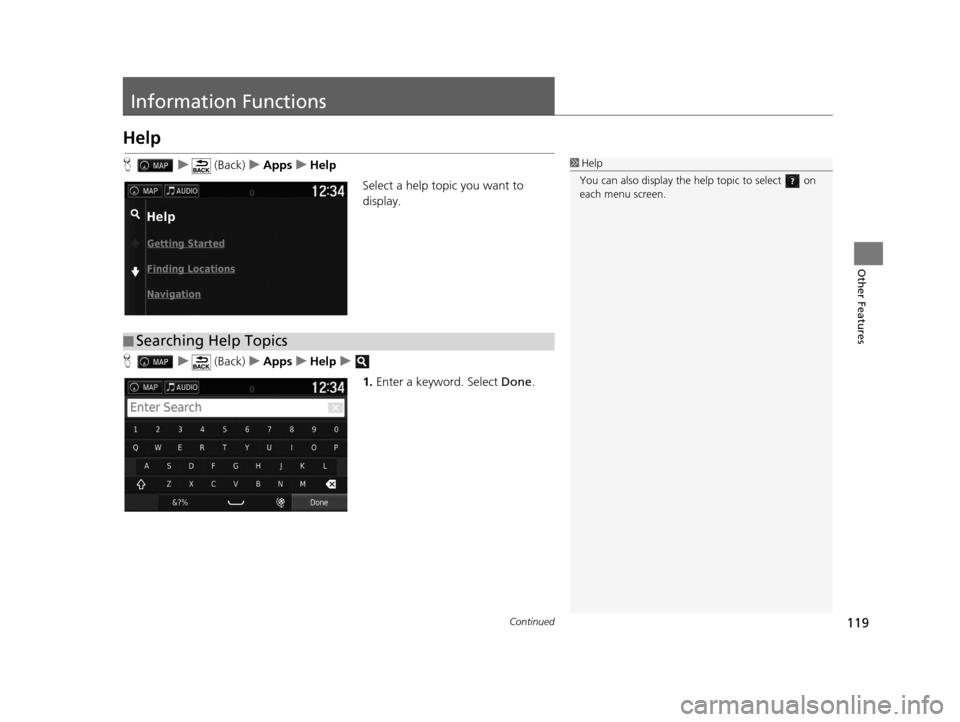
Help
Hu (Back) uApps uHelp
Select a help topic you want to
display.
H u (Back) uApps uHelp u
1.Enter a keyword. Select Done.1Help
You can also display the he lp topic to select on
each menu screen.
■ Searching Help Topics
16 PILOT NAVI-31TG78000.book 119 ページ 2015年4月21日 火曜日 午前8時30分
Page 124 of 145
123
uuInformation Functions uGPS Information
Other Features
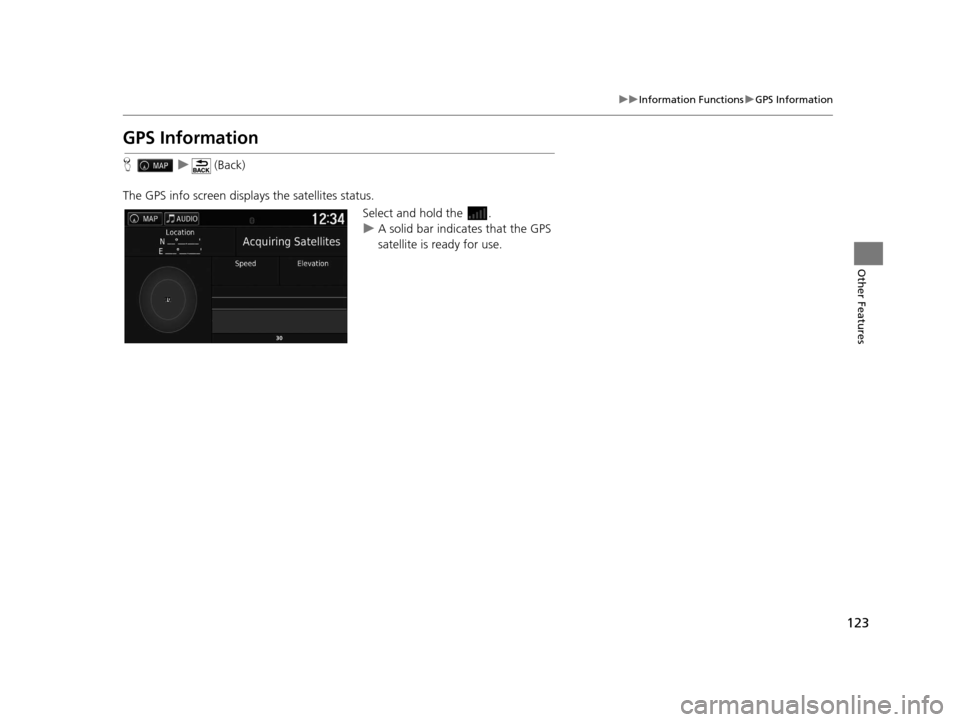
GPS Information
H u (Back)
The GPS info screen displays the satellites status. Select and hold the .
uA solid bar indicates that the GPS
satellite is ready for use.
16 PILOT NAVI-31TG78000.book 123 ページ 2015年4月21日 火曜日 午前8時30分