Delete Destination HONDA PILOT 2016 3.G Navigation Manual
[x] Cancel search | Manufacturer: HONDA, Model Year: 2016, Model line: PILOT, Model: HONDA PILOT 2016 3.GPages: 145, PDF Size: 8.06 MB
Page 52 of 145
51
uuOther Settings uDevice
Continued
System Setup
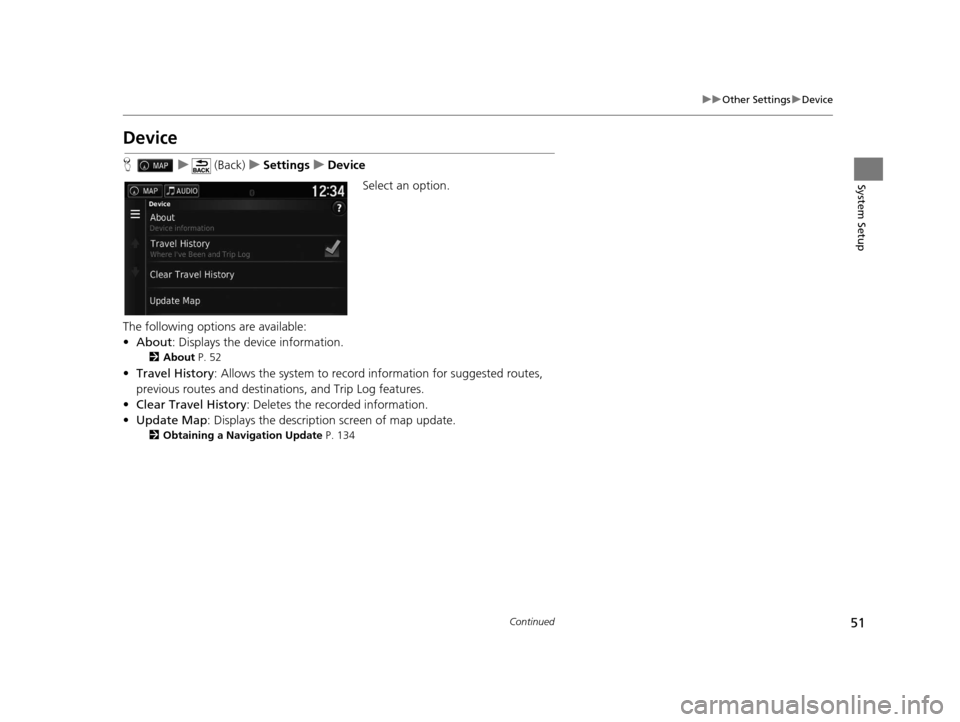
Device
H u (Back) uSettings uDevice
Select an option.
The following options are available:
• About : Displays the device information.
2About P. 52
•Travel History: Allows the system to record information for suggested routes,
previous routes and destinations, and Trip Log features.
• Clear Travel History: Deletes the recorded information.
• Update Map : Displays the description screen of map update.
2Obtaining a Navigation Update P. 134
16 PILOT NAVI-31TG78000.book 51 ページ 2015年4月21日 火曜日 午前8時30分
Page 59 of 145
uuEntering a Destination u
58
Navigation
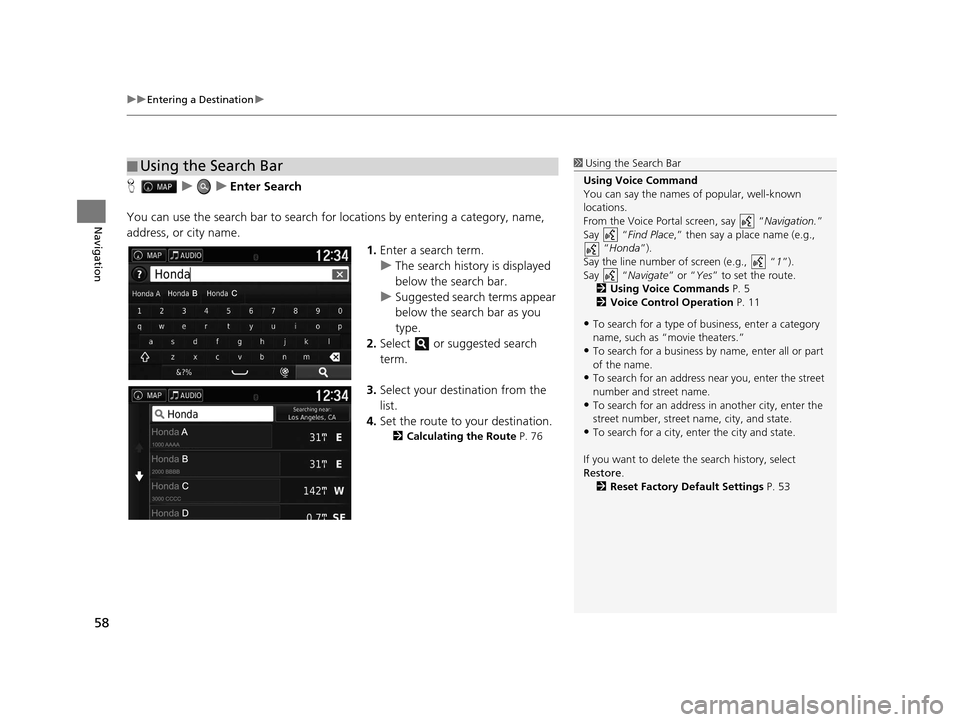
HuuEnter Search
You can use the search bar to search for locations by entering a category, name,
address, or city name.
1.Enter a search term.
u The search history is displayed
below the search bar.
u Suggested search terms appear
below the search bar as you
type.
2. Select or suggested search
term.
3. Select your destination from the
list.
4. Set the route to your destination.
2 Calculating the Route P. 76
■Using the Search Bar1
Using the Search Bar
Using Voice Command
You can say the names of popular, well-known
locations.
From the Voice Portal screen, say “ Navigation.”
Say “ Find Place ,” then say a place name (e.g.,
“Honda ”).
Say the line number of screen (e.g., “ 1”).
Say “ Navigate” or “Yes” to set the route.
2 Using Voice Commands P. 5
2 Voice Control Operation P. 11
•To search for a type of business, enter a category
name, such as “movie theaters.”
•To search for a business by name, enter all or part
of the name.
•To search for an address near you, enter the street
number and street name.
•To search for an address in another city, enter the
street number, street name, city, and state.
•To search for a city, enter the city and state.
If you want to delete th e search history, select
Restore .
2 Reset Factory Default Settings P. 53
16 PILOT NAVI-31TG78000.book 58 ページ 2015年4月21日 火曜日 午前8時30分
Page 62 of 145
61
uuEntering a Destination u
Navigation
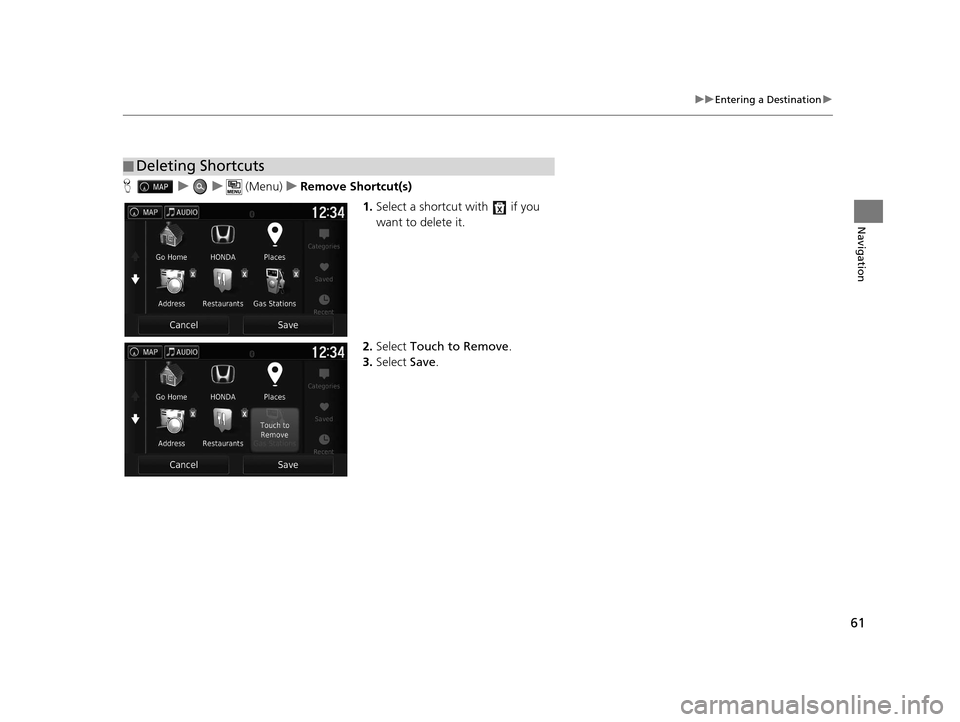
Huu (Menu)uRemove Shortcut(s)
1.Select a shortcut with if you
want to delete it.
2. Select Touch to Remove .
3. Select Save.
■Deleting Shortcuts
16 PILOT NAVI-31TG78000.book 61 ページ 2015年4月21日 火曜日 午前8時30分
Page 75 of 145
74
uuEntering a Destination uSaved
Navigation
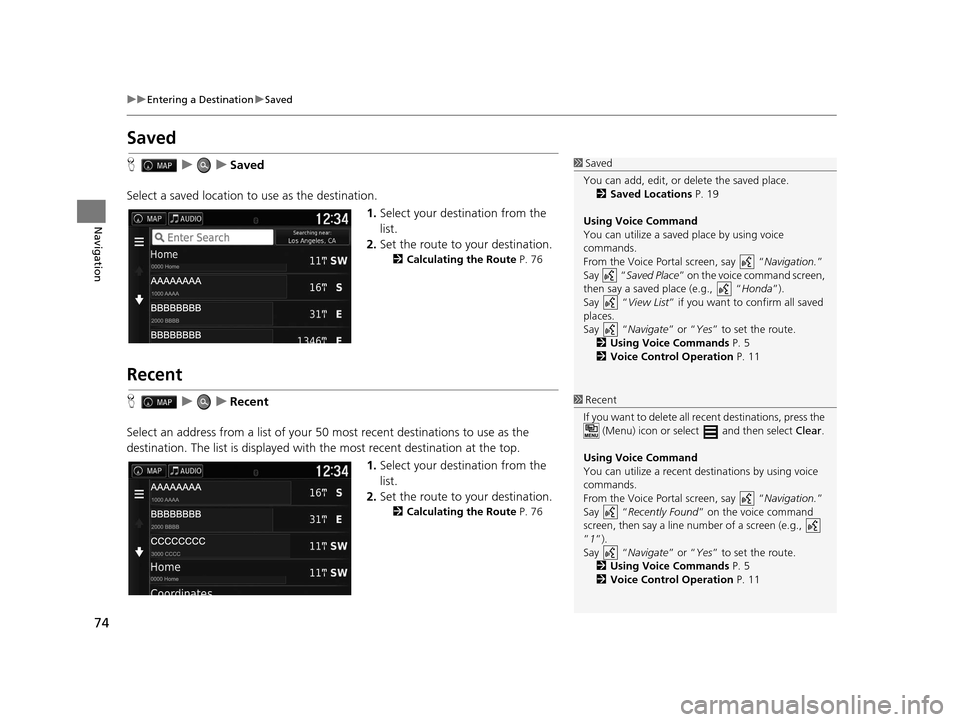
Saved
H uuSaved
Select a saved location to use as the destination.
1.Select your destination from the
list.
2. Set the route to your destination.
2 Calculating the Route P. 76
Recent
HuuRecent
Select an address from a list of your 50 most recent destinations to use as the
destination. The list is displayed with the most recent destination at the top.
1.Select your destination from the
list.
2. Set the route to your destination.
2 Calculating the Route P. 76
1Saved
You can add, edit, or delete the saved place. 2 Saved Locations P. 19
Using Voice Command
You can utilize a saved place by using voice
commands.
From the Voice Portal screen, say “ Navigation.”
Say “ Saved Place ” on the voice command screen,
then say a saved place (e.g., “ Honda”).
Say “ View List” if you want to confirm all saved
places.
Say “ Navigate” or “Yes” to set the route.
2 Using Voice Commands P. 5
2 Voice Control Operation P. 11
1Recent
If you want to delete all re cent destinations, press the
(Menu) icon or select and then select Clear.
Using Voice Command
You can utilize a recent de stinations by using voice
commands.
From the Voice Portal screen, say “ Navigation.”
Say “ Recently Found ” on the voice command
screen, then say a line num ber of a screen (e.g.,
”1”).
Say “ Navigate” or “Yes” to set the route.
2 Using Voice Commands P. 5
2 Voice Control Operation P. 11
16 PILOT NAVI-31TG78000.book 74 ページ 2015年4月21日 火曜日 午前8時30分
Page 83 of 145
uuDriving to Your Destination uViewing the Route
82
Navigation
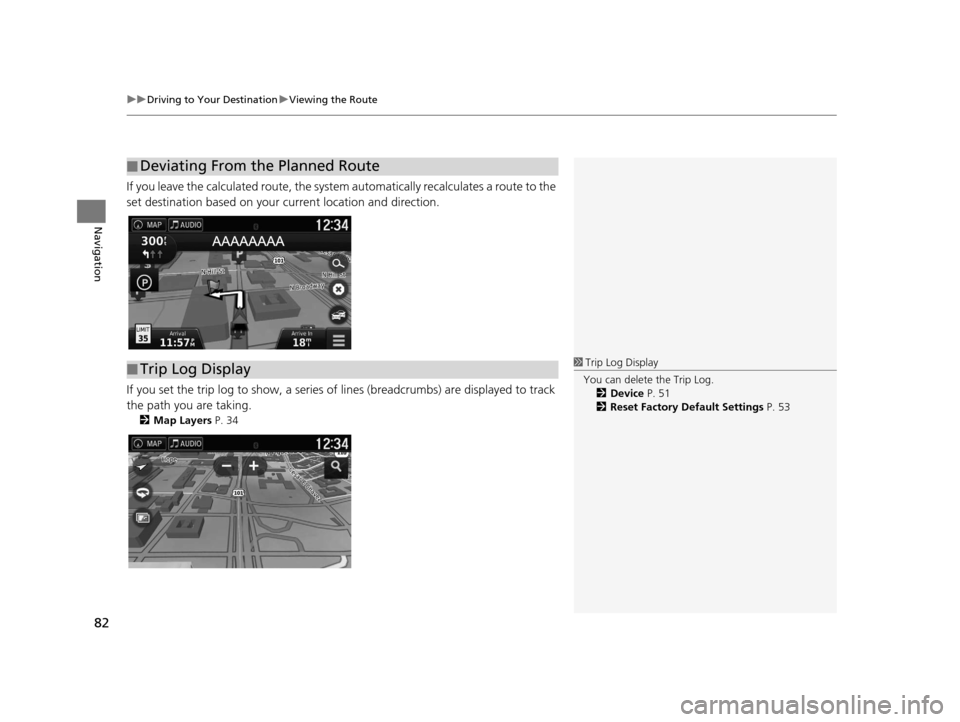
If you leave the calculated route, the system automatically recalculates a route to the
set destination based on your current location and direction.
If you set the trip log to show, a series of lines (breadcrumbs) are displayed to track
the path you are taking.
2 Map Layers P. 34
■Deviating From the Planned Route
■Trip Log Display1
Trip Log Display
You can delete the Trip Log. 2 Device P. 51
2 Reset Factory Default Settings P. 53
16 PILOT NAVI-31TG78000.book 82 ページ 2015年4月21日 火曜日 午前8時30分
Page 101 of 145
100
uuChanging Your Destination uEntering a New Destination from Trip Planner
Navigation
Entering a New Destination from Trip Planner
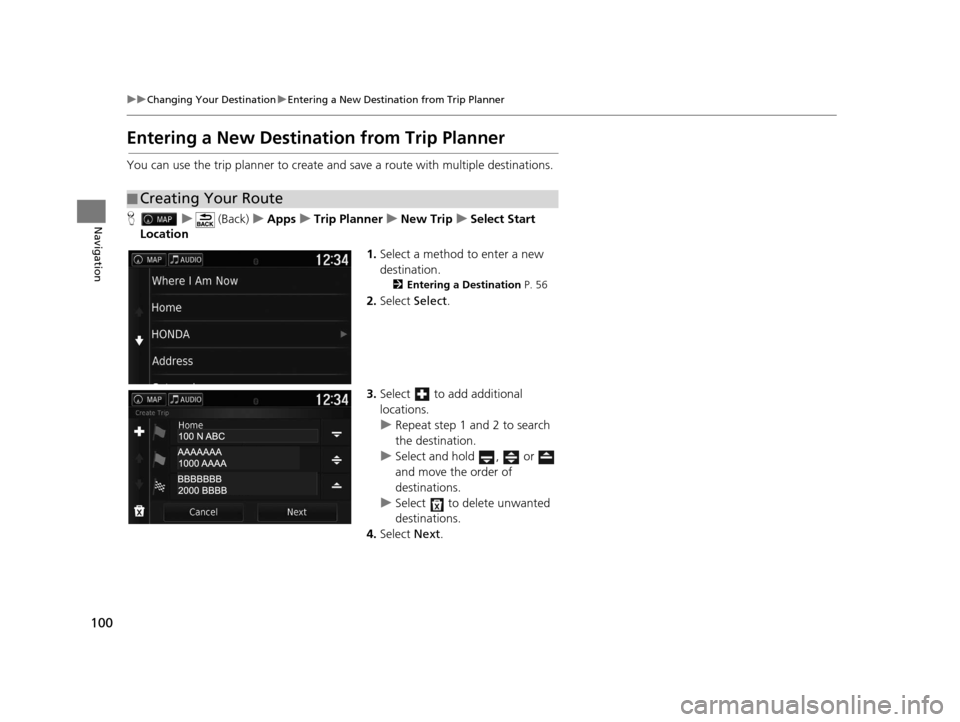
You can use the trip planner to create and save a route with multiple destinations.
H u (Back) uApps uTrip Planner uNew Trip uSelect Start
Location
1.Select a method to enter a new
destination.
2 Entering a Destination P. 56
2.Select Select.
3. Select to add additional
locations.
u Repeat step 1 and 2 to search
the destination.
u Select and hold , or
and move the order of
destinations.
u Select to delete unwanted
destinations.
4. Select Next.
■Creating Your Route
16 PILOT NAVI-31TG78000.book 100 ページ 2015年4月21日 火曜日 午前8時30分
Page 104 of 145
103
uuChanging Your Destination uEntering a New Destination from Trip Planner
Navigation
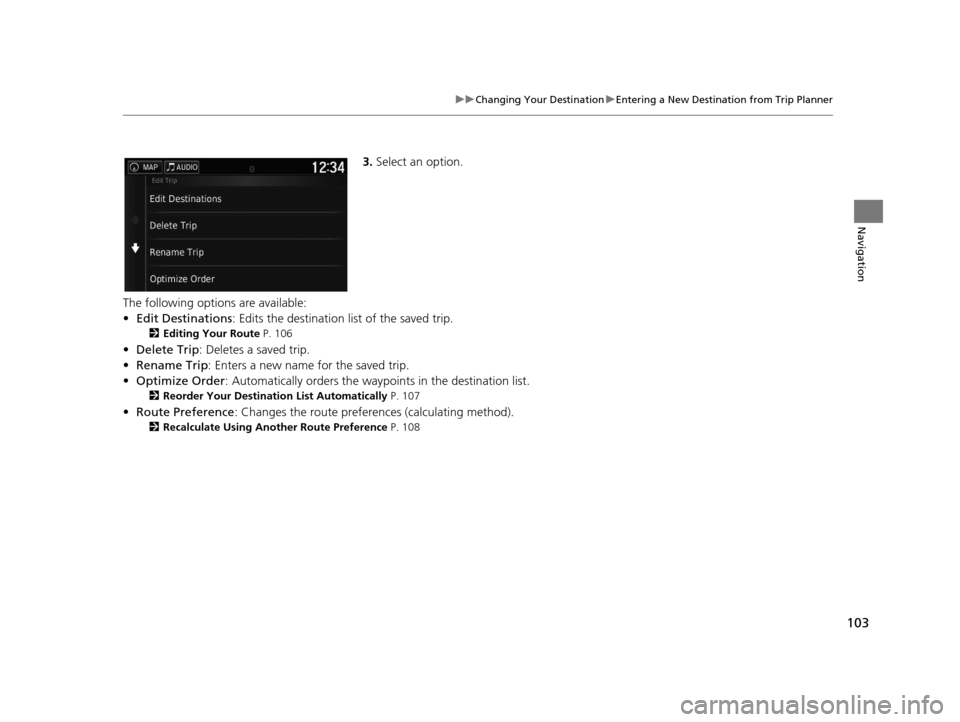
3. Select an option.
The following options are available:
• Edit Destinations : Edits the destination list of the saved trip.
2Editing Your Route P. 106
•Delete Trip : Deletes a saved trip.
• Rename Trip : Enters a new name for the saved trip.
• Optimize Order : Automatically orders the wayp oints in the destination list.
2Reorder Your Destination List Automatically P. 107
•Route Preference : Changes the route preferen ces (calculating method).
2Recalculate Using Another Route Preference P. 108
16 PILOT NAVI-31TG78000.book 103 ページ 2015年4月21日 火曜日 午前8時30分
Page 107 of 145
106
uuChanging Your Destination uEditing the Destination List
Navigation
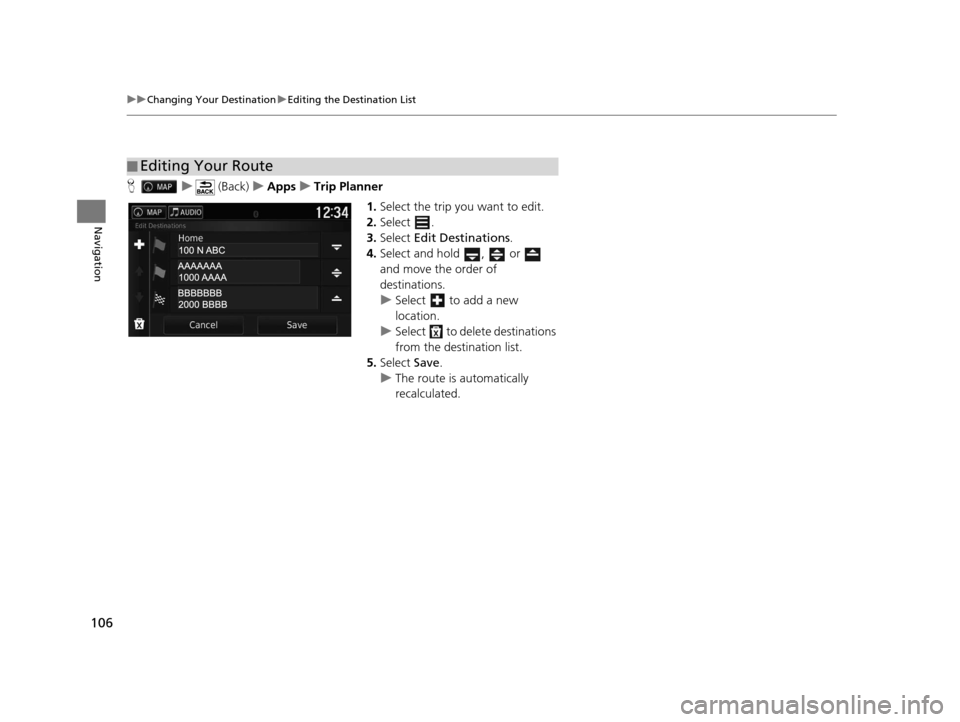
H u (Back) uApps uTrip Planner
1.Select the trip you want to edit.
2. Select .
3. Select Edit Destinations .
4. Select and hold , or
and move the order of
destinations.
u Select to add a new
location.
u Select to delete destinations
from the destination list.
5. Select Save.
u The route is automatically
recalculated.
■Editing Your Route
16 PILOT NAVI-31TG78000.book 106 ページ 2015年4月21日 火曜日 午前8時30分
Page 127 of 145
126
Troubleshooting
Troubleshooting
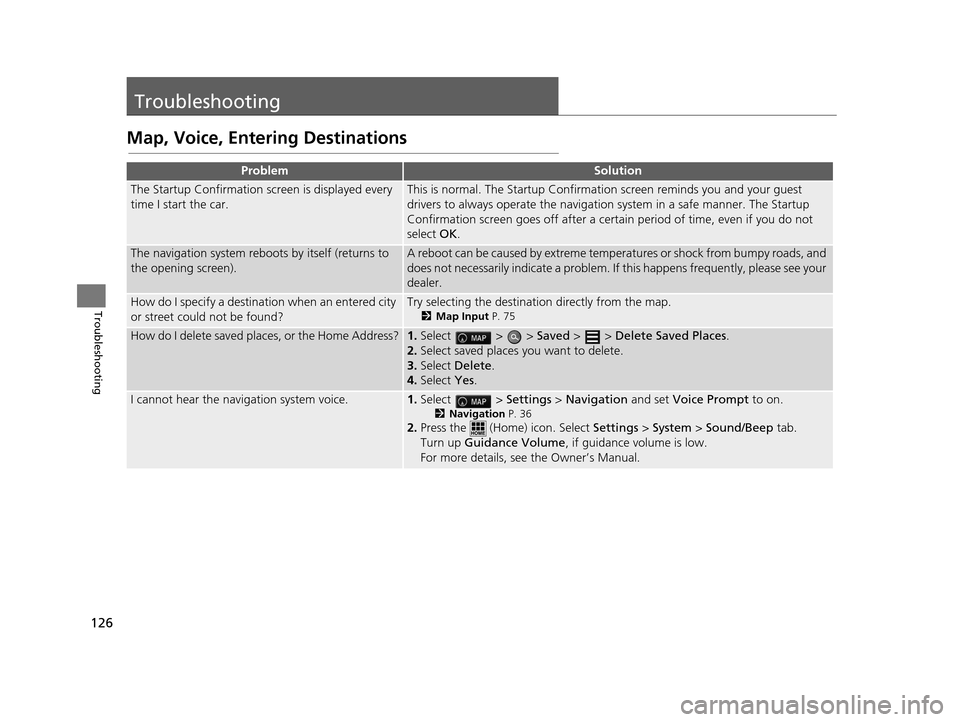
Map, Voice, Entering Destinations
ProblemSolution
The Startup Confirmation screen is displayed every
time I start the car.This is normal. The Startup Confirmation screen reminds you and your guest
drivers to always operate the navigation system in a safe manner. The Startup
Confirmation screen goes off after a certa in period of time, even if you do not
select OK.
The navigation system reboots by itself (returns to
the opening screen).A reboot can be caused by extreme temper atures or shock from bumpy roads, and
does not necessarily indicate a problem. If this happens frequently, please see your
dealer.
How do I specify a destinat ion when an entered city
or street could not be found?Try selecting the destination directly from the map.
2 Map Input P. 75
How do I delete saved places, or the Home Address?1.Select > > Saved > > Delete Saved Places .
2. Select saved places you want to delete.
3. Select Delete .
4. Select Yes.
I cannot hear the navigation system voice.1.Select > Settings > Navigation and set Voice Prompt to on.
2Navigation P. 36
2.Press the (Home) icon. Select Settings > System > Sound/Beep tab.
Turn up Guidance Volume , if guidance volume is low.
For more details, see the Owner’s Manual.
16 PILOT NAVI-31TG78000.book 126 ページ 2015年4月21日 火曜日 午前8時30分