start HONDA PILOT 2021 (in English) Workshop Manual
[x] Cancel search | Manufacturer: HONDA, Model Year: 2021, Model line: PILOT, Model: HONDA PILOT 2021Pages: 739, PDF Size: 44.86 MB
Page 234 of 739
uuClimate Control System uUsing Automatic Climate Control
232
Controls
■Switching between the recirc ulation and fresh air modes
Press the button and switch the mode depending on environmental conditions.
Recirculation Mode (indicator on): Recirculat es air from the vehicle’s interior through
the system.
Fresh Air Mode (indicator off): Maintains outside ventilation. Keep the system in
fresh air mode in normal situations.
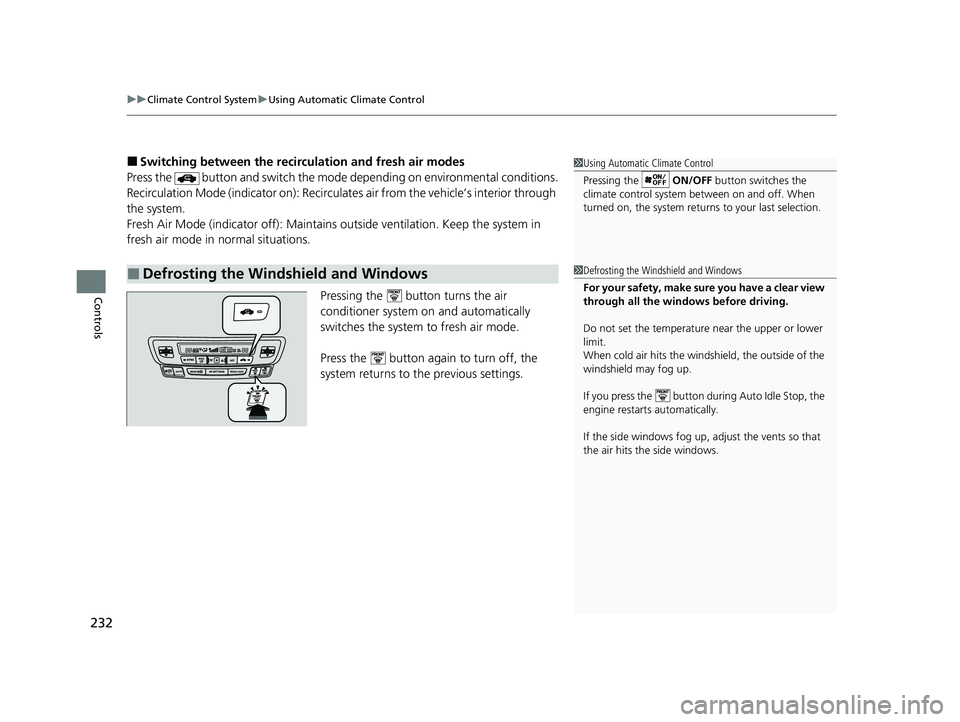
Pressing the button turns the air
conditioner system on and automatically
switches the system to fresh air mode.
Press the button again to turn off, the
system returns to the previous settings.
■Defrosting the Windshield and Windows
1 Using Automatic Climate Control
Pressing the ON/OFF button switches the
climate control system be tween on and off. When
turned on, the system returns to your last selection.
1 Defrosting the Windshield and Windows
For your safety, make sure you have a clear view
through all the windows before driving.
Do not set the temperatur e near the upper or lower
limit.
When cold air hits the windshield, the outside of the
windshield may fog up.
If you press the button during Auto Idle Stop, the
engine restarts automatically.
If the side windows fog up, adjust the vents so that
the air hits th e side windows.
21 PILOT-31TG76500.book 232 ページ 2020年3月18日 水曜日 午後4時38分
Page 275 of 739
Continued273
uuAudio System Basic Operation uAudio/Information Screen
Features
■To add app icons on the home screen
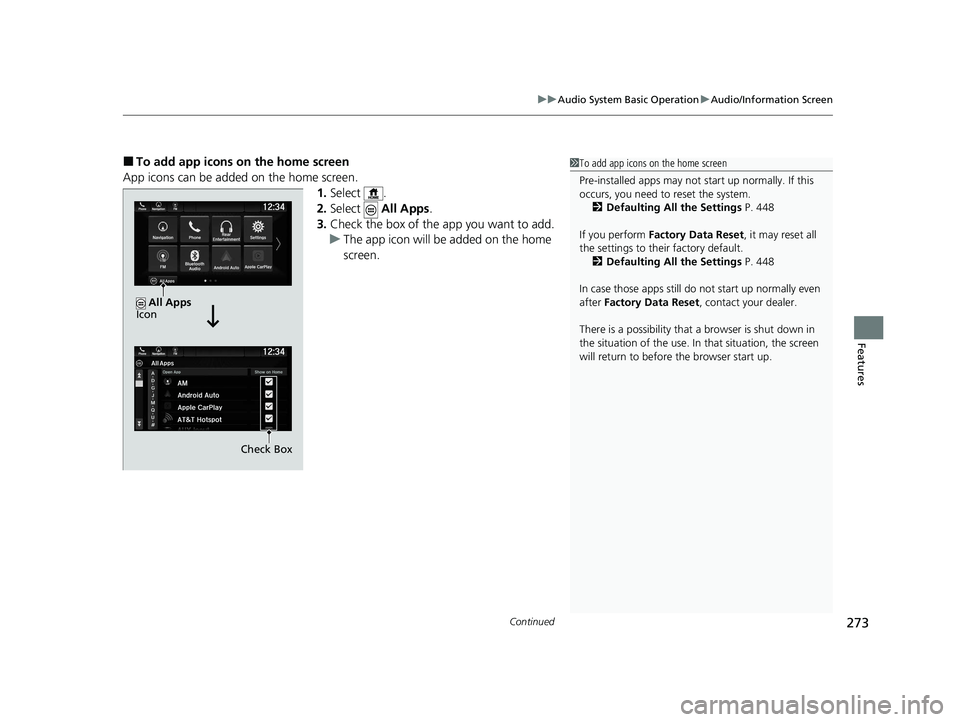
App icons can be added on the home screen. 1.Select .
2. Select All Apps.
3. Check the box of the app you want to add.
u The app icon will be added on the home
screen.1To add app icons on the home screen
Pre-installed apps may not start up normally. If this
occurs, you need to reset the system.
2 Defaulting All the Settings P. 448
If you perform Factory Data Reset , it may reset all
the settings to their factory default. 2 Defaulting All the Settings P. 448
In case those apps still do not start up normally even
after Factory Data Reset , contact your dealer.
There is a possibility that a browser is shut down in
the situation of the use. In that situation, the screen
will return to before the browser start up.
Check Box
All Apps
Icon
21 PILOT-31TG76500.book 273 ページ 2020年3月18日 水曜日 午後4時38分
Page 281 of 739
279
uuAudio System Basic Operation uAudio/Information Screen
Features
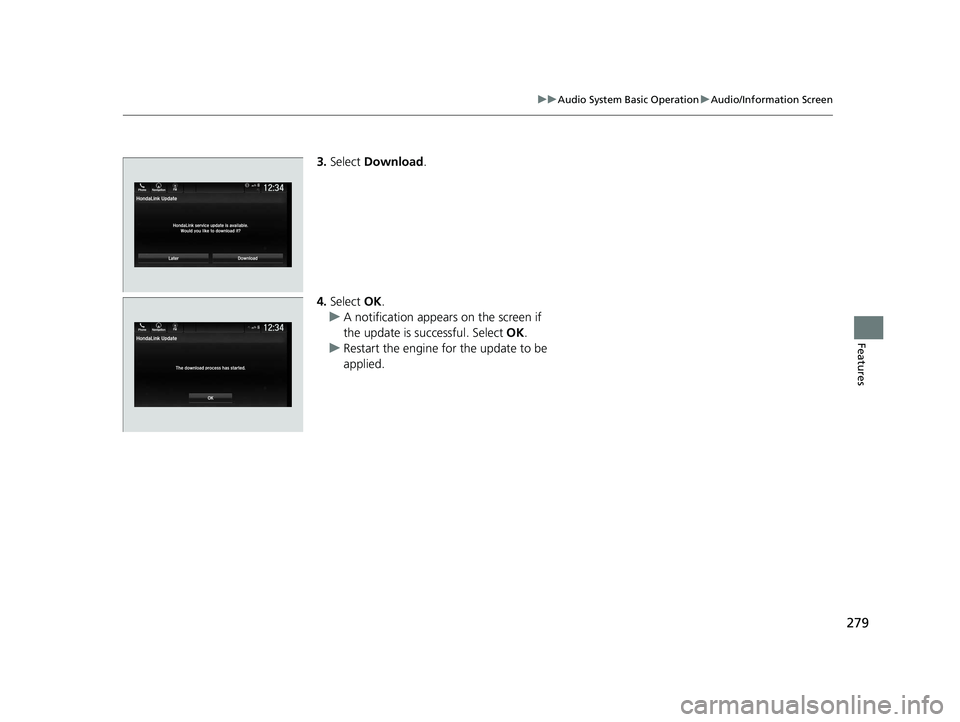
3. Select Download .
4. Select OK.
u A notification appears on the screen if
the update is su ccessful. Select OK.
u Restart the engine for the update to be
applied.
21 PILOT-31TG76500.book 279 ページ 2020年3月18日 水曜日 午後4時38分
Page 286 of 739
uuAudio System Basic Operation uSystem Updates
284
Features
■Download the update files from the server
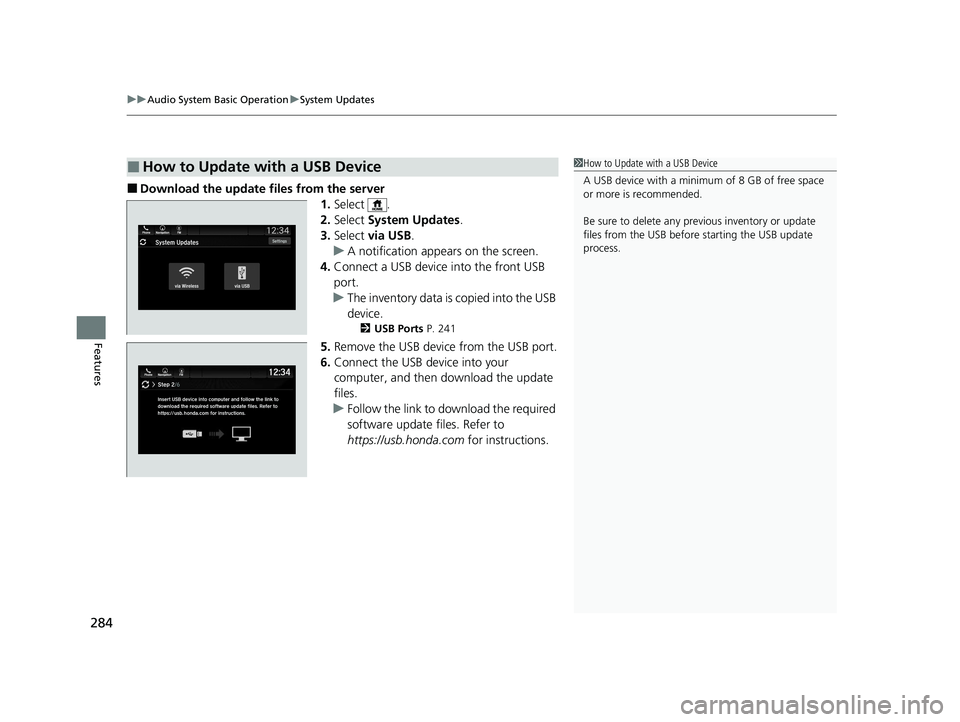
1.Select .
2. Select System Updates .
3. Select via USB .
u A notification appears on the screen.
4. Connect a USB device into the front USB
port.
u The inventory data is copied into the USB
device.
2 USB Ports P. 241
5.Remove the USB device from the USB port.
6. Connect the USB device into your
computer, and then download the update
files.
u Follow the link to download the required
software update files. Refer to
https://usb.honda.com for instructions.
■How to Update with a USB Device1How to Update with a USB Device
A USB device with a minimum of 8 GB of free space
or more is recommended.
Be sure to delete any pr evious inventory or update
files from the USB before starting the USB update
process.
21 PILOT-31TG76500.book 284 ページ 2020年3月18日 水曜日 午後4時38分
Page 305 of 739
Continued303
uuAudio System Basic Operation uPlaying SiriusXM ® Radio*
Features
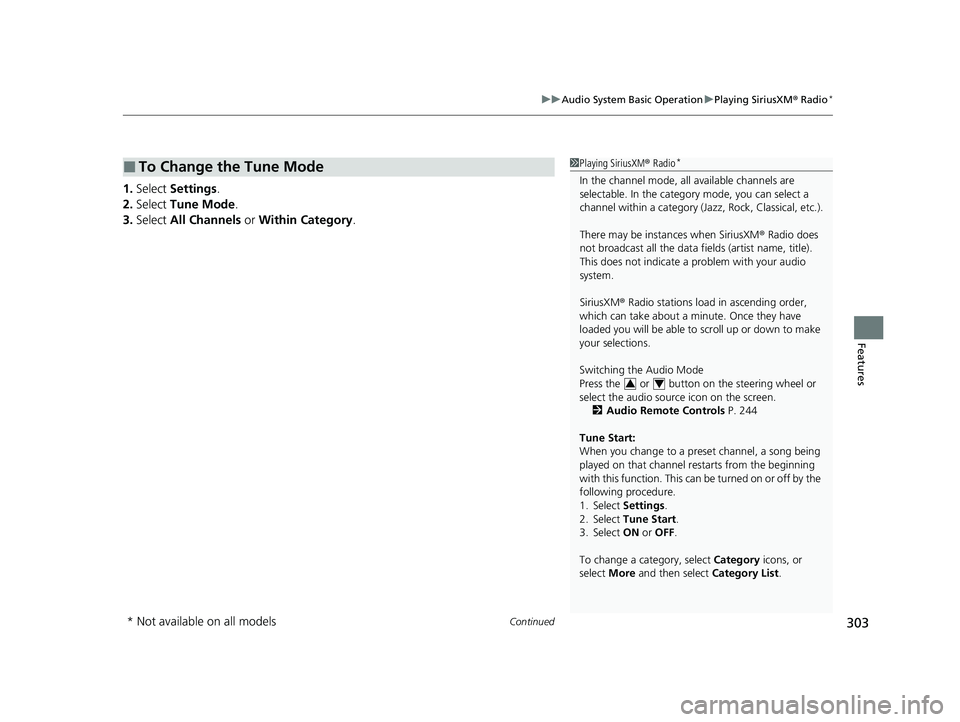
1. Select Settings .
2. Select Tune Mode .
3. Select All Channels or Within Category .
■To Change the Tune Mode1Playing SiriusXM ® Radio*
In the channel mode, all available channels are
selectable. In the categor y mode, you can select a
channel within a ca tegory (Jazz, Rock, Classical, etc.).
There may be instances when SiriusXM ® Radio does
not broadcast all the data fi elds (artist name, title).
This does not indicate a problem with your audio
system.
SiriusXM ® Radio stations load in ascending order,
which can take about a minute. Once they have
loaded you will be able to scroll up or down to make
your selections.
Switching the Audio Mode
Press the or button on the steering wheel or
select the audio source icon on the screen.
2 Audio Remote Controls P. 244
Tune Start:
When you change to a preset channel, a song being
played on that channel restarts from the beginning
with this function. This can be turned on or off by the
following procedure.
1. Select Settings .
2. Select Tune Start .
3. Select ON or OFF .
To change a category, select Category icons, or
select More and then select Category List.
34
* Not available on all models
21 PILOT-31TG76500.book 303 ページ 2020年3月18日 水曜日 午後4時38分
Page 308 of 739
uuAudio System Basic Operation uPlaying SiriusXM ® Radio*
306
Features
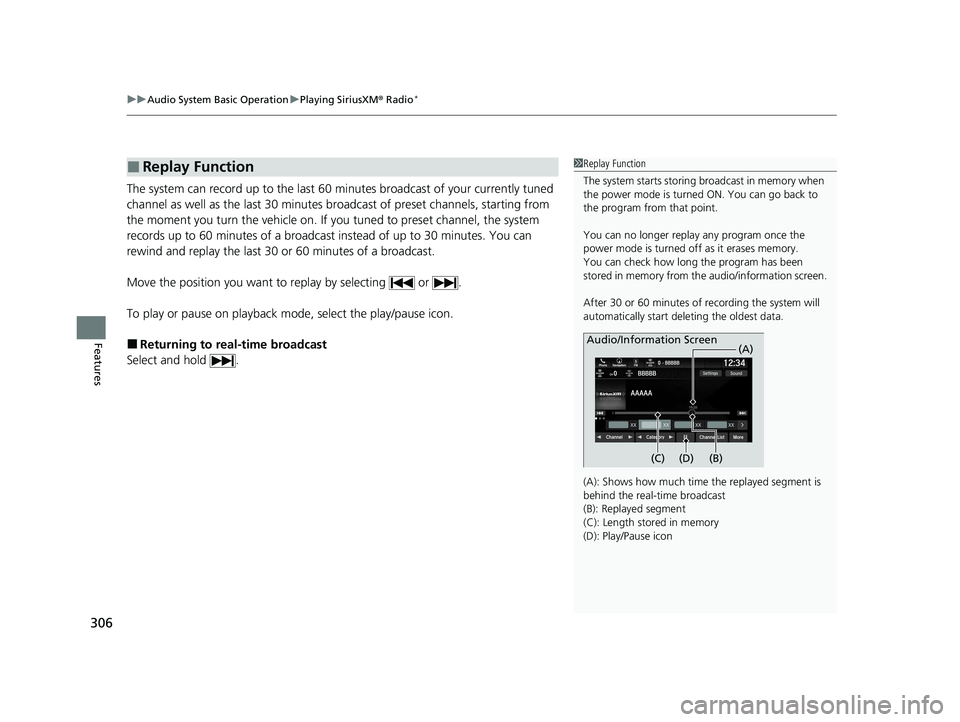
The system can record up to the last 60 minutes broadcast of your currently tuned
channel as well as the last 30 minutes br oadcast of preset channels, starting from
the moment you turn the vehicle on. If yo u tuned to preset channel, the system
records up to 60 minutes of a broadcast instead of up to 30 minutes. You can
rewind and replay the last 30 or 60 minutes of a broadcast.
Move the position you want to replay by selecting or .
To play or pause on playback m ode, select the play/pause icon.
■Returning to real-time broadcast
Select and hold .
■Replay Function1 Replay Function
The system starts storing broadcast in memory when
the power mode is turned ON. You can go back to
the program from that point.
You can no longer repl ay any program once the
power mode is turned off as it erases memory.
You can check how long the program has been
stored in memory from th e audio/information screen.
After 30 or 60 minutes of recording the system will
automatically start deleting the oldest data.
(A): Shows how much time the replayed segment is
behind the real-time broadcast
(B): Replayed segment
(C): Length stored in memory
(D): Play/Pause icon
Audio/Information Screen
(C) (B) (A)
(D)
21 PILOT-31TG76500.book 306 ページ 2020年3月18日 水曜日 午後4時38分
Page 311 of 739
Continued309
uuAudio System Basic Operation uPlaying SiriusXM ® Radio*
Features
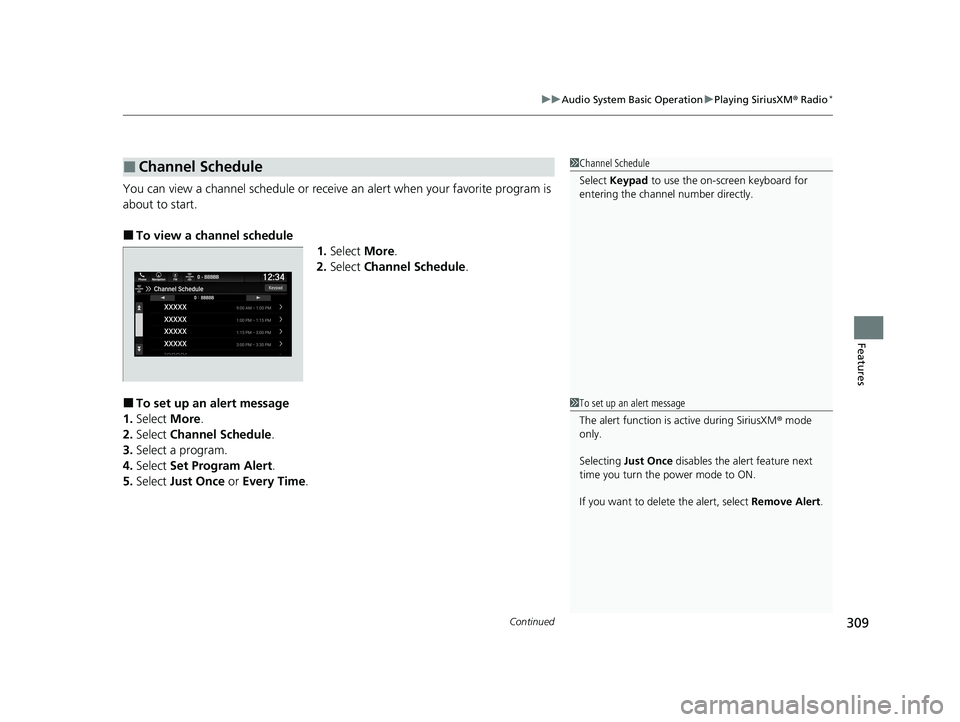
You can view a channel schedule or receive an alert when your favorite program is
about to start.
■To view a channel schedule 1.Select More.
2. Select Channel Schedule .
■To set up an alert message
1. Select More.
2. Select Channel Schedule .
3. Select a program.
4. Select Set Program Alert .
5. Select Just Once or Every Time .
■Channel Schedule1Channel Schedule
Select Keypad to use the on-screen keyboard for
entering the channel number directly.
1To set up an alert message
The alert function is active during SiriusXM ® mode
only.
Selecting Just Once disables the alert feature next
time you turn the power mode to ON.
If you want to delete the alert, select Remove Alert.
21 PILOT-31TG76500.book 309 ページ 2020年3月18日 水曜日 午後4時38分
Page 351 of 739
349
uuAudio Error Messages uAndroid/Apps
Features
Android/Apps
If an error occurs while using the audio system or apps, you may see the following
error messages. If you cannot clear the error message, contact a dealer.
*1:****part is variable characters, and will change depending upon where an error
occurs.
Error MessageSolution
Unfortunately, **** has
stopped.*1Error has occurred within app, select OK on the screen to close the app.
**** is not responding.
Would you like to close
it?
*1
App is not responding.
Select Wait if you can wait for a response from app a little longer. If it does not respond even if you keep
waiting, select OK to close the app and start it up. If the error message continues, perform Factory Data
Reset .
2Defaulting All the Settings P. 448
Models with Display Audio
21 PILOT-31TG76500.book 349 ページ 2020年3月18日 水曜日 午後4時38分
Page 384 of 739
382
uuBlu-ray/DVD Rear Entertainment System*uPlaying a DVD/Blu-rayTM
Features
Playing a DVD/Blu-rayTM
To play a DVD or Blu-rayTM, insert a DVD or Blu-rayTM into the lower slot of the front
audio system, and select Rear in the audio/information screen.
u The system automatically starts the DVD or Blu-ray
TM. DVD or Blu-rayTM is
available for the rear seat passenger only.
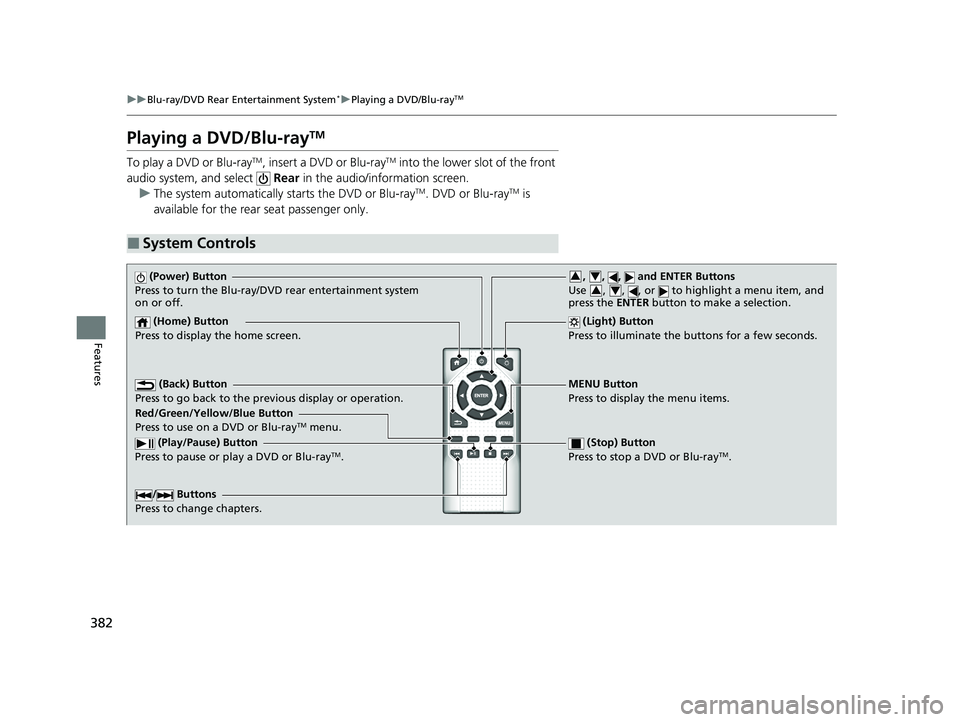
■System Controls
(Power) Button
Press to turn the Blu-ray/DVD rear entertainment system
on or off.
(Home) Button
Press to display the home screen. (Light) Button
Press to illuminate the buttons for a few seconds.
/ Buttons
Press to change chapters.
(Play/Pause) Button
Press to pause or play a DVD or Blu-rayTM.
(Stop) Button
Press to stop a DVD or Blu-rayTM.
MENU Button
Press to display the menu items.
Red/Green/Yellow/Blue Button
Press to use on a DVD or Blu-ray
TM menu.
(Back) Button
Press to go back to the pr evious display or operation.
, , , and ENTER Buttons
Use , , , or to highlight a menu item, and
press the ENTER button to make a selection.34
34
21 PILOT-31TG76500.book 382 ページ 2020年3月18日 水曜日 午後4時38分
Page 417 of 739
415
uuBlu-ray/DVD Rear Entertainment System*uPlayable Discs
Continued
Features
4. Contacts
There are two mailing lists related to FreeType:
• [email protected] Discusses general use and applications of FreeType, as well as future an d wanted dditions to the library and
distribution. If you are looking for support, start in this list if you haven't found anything to help you in the documentation .
• [email protected] Discusses bugs, as well as engine internals, design issues, specific licenses, porting, etc.
Our home page can be found at
http://www.freetype.org
libjpeg
this software is based in part on th e work of the Independent JPEG Group
Vera.ttf
Copyright (c) 2003 by Bitstream, Inc. All Rights Reserv ed. Bitstream Vera is a trademark of Bitstream, Inc.
Permission is hereby granted, free of charge , to any person obtaining a copy of the fonts accompanying this license (“Fonts”) a nd
associated documentation files (the “Font Software”), to repr oduce and distribute the Font Software, including without limitati on the
rights to use, copy, merge, publish, distribute, and/or sell copi es of the Font Software, and to permit persons to whom the Fon t Software
is furnished to do so, subject to the following conditions:
The above copyright and trademark notices a nd this permission notice shall be included in all copies of one or more of the Font Software
typefaces.
The Font Software may be modified, altered, or added to, and in particular the designs of glyphs or characters in the Fonts may be modified
and additional glyphs or characters may be added to the Fonts, on ly if the fonts are renamed to names not containing either the words
“Bitstream” or the word “Vera”.
21 PILOT-31TG76500.book 415 ページ 2020年3月18日 水曜日 午後4時38分