reset HONDA PILOT 2022 User Guide
[x] Cancel search | Manufacturer: HONDA, Model Year: 2022, Model line: PILOT, Model: HONDA PILOT 2022Pages: 737, PDF Size: 28.84 MB
Page 246 of 737
244
uuAudio System uAudio Remote Controls
Features
Audio Remote Controls
Allow you to operate the audio system while driving.
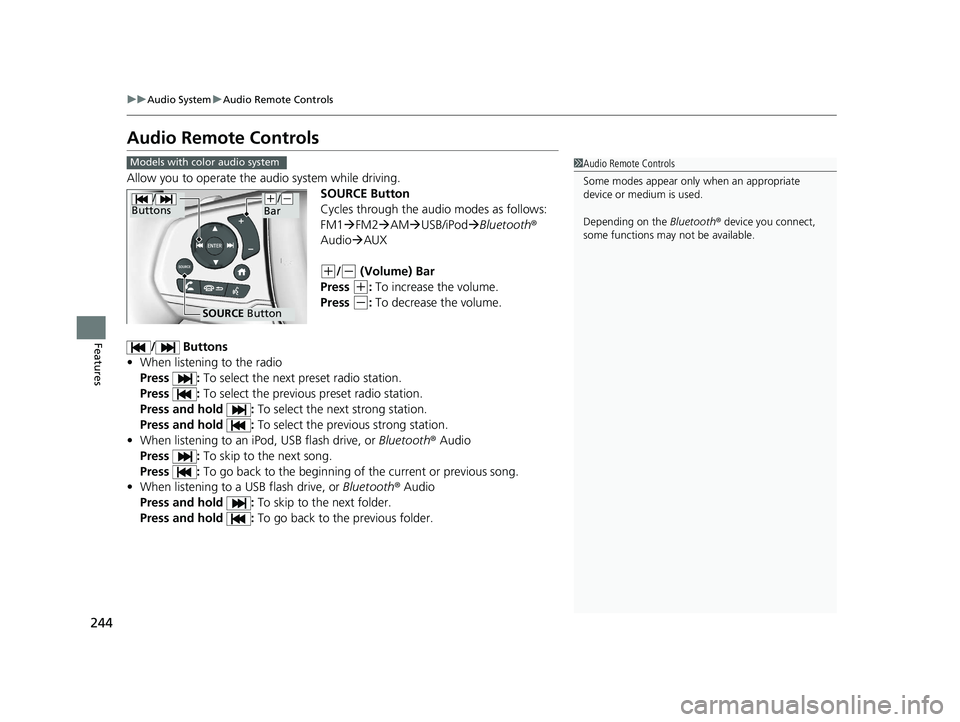
SOURCE Button
Cycles through the audio modes as follows:
FM1FM2 AM USB/iPod Bluetooth®
Audio AUX
(+/(- (Volume) Bar
Press
(+: To increase the volume.
Press
(-: To decrease the volume.
/ Buttons
• When listening to the radio
Press : To select the next preset radio station.
Press : To select the previous preset radio station.
Press and hold : To select the next strong station.
Press and hold : To select the previous strong station.
• When listening to an iPod, USB flash drive, or Bluetooth ® Audio
Press : To skip to the next song.
Press : To go back to the beginning of the current or previous song.
• When listening to a USB flash drive, or Bluetooth® Audio
Press and hold : To skip to the next folder.
Press and hold : To go back to the previous folder.
1Audio Remote Controls
Some modes appear only when an appropriate
device or medium is used.
Depending on the Bluetooth® device you connect,
some functions may not be available.Models with color audio system
/
Buttons
SOURCE Button
(+/(-
Bar
22 PILOT-31TG76600.book 244 ページ 2021年6月11日 金曜日 午後4時40分
Page 248 of 737
246
uuAudio System uAudio Remote Controls
Features
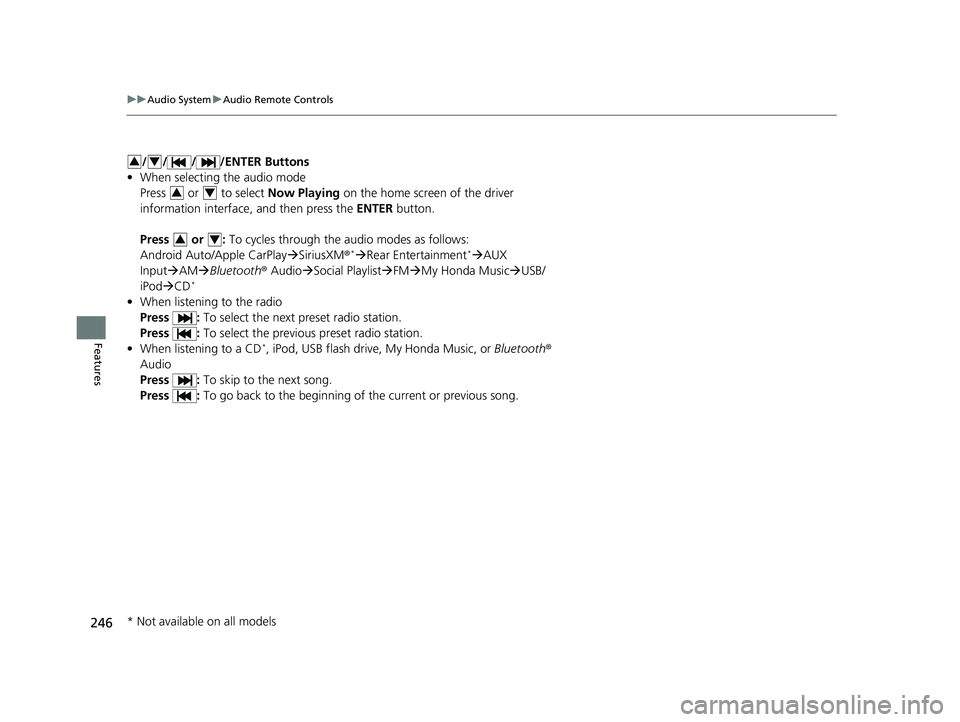
/ / / /ENTER Buttons
• When selecting the audio mode
Press or to select Now Playing on the home screen of the driver
information interface, and then press the ENTER button.
Press or : To cycles through the audio modes as follows:
Android Auto/Apple CarPlay SiriusXM ®
*Rear Entertainment*AUX
Input AM Bluetooth ® AudioSocial Playlist FM My Honda Music USB/
iPod CD
*
• When listening to the radio
Press : To select the next preset radio station.
Press : To select the previous preset radio station.
• When listening to a CD
*, iPod, USB flash drive, My Honda Music, or Bluetooth®
Audio
Press : To skip to the next song.
Press : To go back to the beginning of the current or previous song.
34
34
34
* Not available on all models
22 PILOT-31TG76600.book 246 ページ 2021年6月11日 金曜日 午後4時40分
Page 256 of 737
254
uuAudio System Basic Operation uPlaying AM/FM Radio
Features
Playing AM/FM Radio
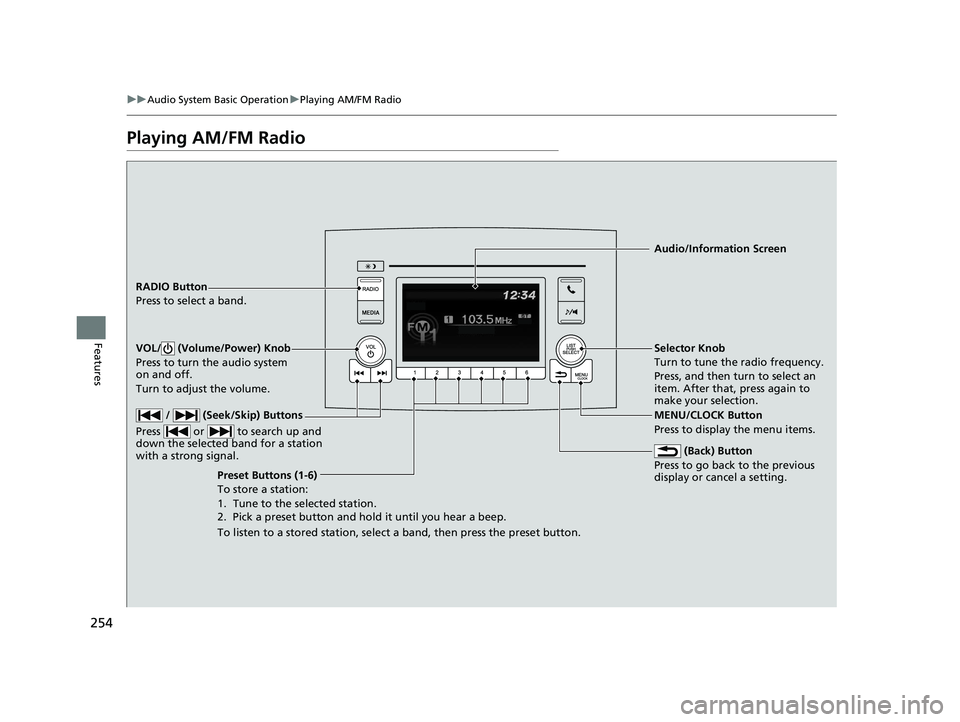
RADIO Button
Press to select a band.
(Back) Button
Press to go back to the previous
display or cancel a setting.
/ (Seek/Skip) Buttons
Press or to search up and
down the selected band for a station
with a strong signal.
VOL/ (Volume/Power) Knob
Press to turn the audio system
on and off.
Turn to adjust the volume.
Preset Buttons (1-6)
To store a station:
1. Tune to the selected station.
2. Pick a preset button and hold it until you hear a beep.
To listen to a stored station, select a band, then press the preset button. Selector Knob
Turn to tune the radio frequency.
Press, and then turn to select an
item. After that, press again to
make your selection.
MENU/CLOCK Button
Press to display the menu items. Audio/Information Screen
22 PILOT-31TG76600.book 254 ページ 2021年6月11日 金曜日 午後4時40分
Page 257 of 737
255
uuAudio System Basic Operation uPlaying AM/FM Radio
Features
Provides text data information related to your selected RDS capable FM station.
■To find an RDS station from Station List
1. Press while listening to an FM station.
2. Rotate to select the station, then press .
■Update List
Updates your available st ation list at any time.
1. Press while listening to an FM station.
2. Rotate to select Update List, then press .
■Radio text
Displays the radio text information of the selected RDS station.
1. Press the MENU/CLOCK button.
2. Rotate to select Settings, then press .
3. Rotate to select RDS Settings, then press .
4. Rotate to select Radio Text, then press .
■Scan
Samples each of the strongest stations on the selected band for 10 seconds.
1. Press the MENU/CLOCK button.
2. Rotate to select Scan, then press .
To turn off scan, press .
■Radio Data System (RDS)1 Playing AM/FM Radio
The ST indicator appears on the display indicating
stereo FM broadcasts.
Stereo reproduction in AM is not available.
You can store 6 AM stations and 12 FM stations into
reset button memory. FM1 and FM2 let you store 6
stations each.
Switching the Audio Mode
Press the SOURCE button on the steering wheel.
2 Audio Remote Controls P. 244
1Radio Data System (RDS)
When you select an RDS-capable FM station, the RDS
automatically turns on, and the frequency display
changes to the station name. However, when the
signals of that station become weak, the display
changes from the statio n name to the frequency.
22 PILOT-31TG76600.book 255 ページ 2021年6月11日 金曜日 午後4時40分
Page 264 of 737
262
uuAudio System Basic Operation uPlaying Bluetooth ® Audio
Features
Playing Bluetooth ® Audio
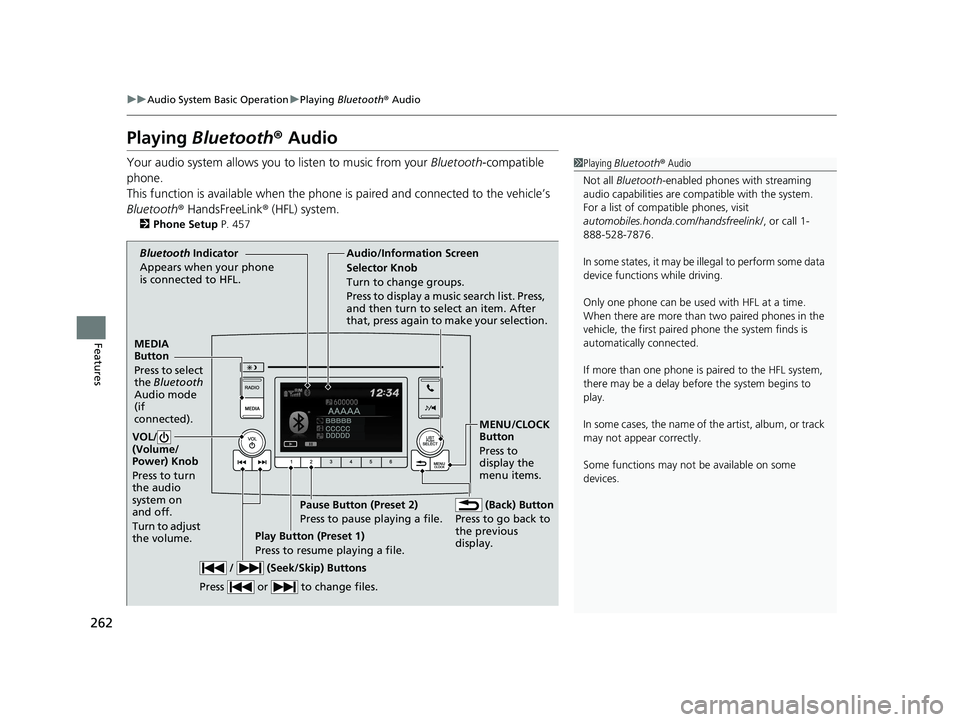
Your audio system allows you to listen to music from your Bluetooth-compatible
phone.
This function is available when the phone is paired and connected to the vehicle’s
Bluetooth ® HandsFreeLink ® (HFL) system.
2 Phone Setup P. 457
1Playing Bluetooth ® Audio
Not all Bluetooth -enabled phones with streaming
audio capabilities are compatible with the system.
For a list of compatible phones, visit
automobiles.honda.com /handsfreelink/, or call 1-
888-528-7876.
In some states, it may be il legal to perform some data
device functions while driving.
Only one phone can be used with HFL at a time.
When there are more than two paired phones in the
vehicle, the first paired phone the system finds is
automatically connected.
If more than one phone is paired to the HFL system,
there may be a delay before the system begins to
play.
In some cases, the name of the artist, album, or track
may not appear correctly.
Some functions may not be available on some
devices.
MEDIA
Button
Press to select
the Bluetooth
Audio mode
(if
connected).
VOL/
(Volume/
Power) Knob
Press to turn
the audio
system on
and off.
Turn to adjust
the volume.
MENU/CLOCK
Button
Press to
display the
menu items.
Audio/Information Screen
Bluetooth Ind icator
Ap pears wh
en your phone
is connected to HFL.
/ (Seek/Skip) Buttons
Press or to change files.
Play Button (Preset 1)
Press to resume playing a file. Pause Button (Preset 2)
Press to pause playing a file.
Selector Knob
Turn to change groups.
Press to display a music search list. Press,
and then turn to select an item. After
that, press again to make your selection.
(Back) Button
Press to go back to
the previous
display.
22 PILOT-31TG76600.book 262 ページ 2021年6月11日 金曜日 午後4時40分
Page 269 of 737
267
uuAudio System Basic Operation uAudio/Information Screen
Continued
Features
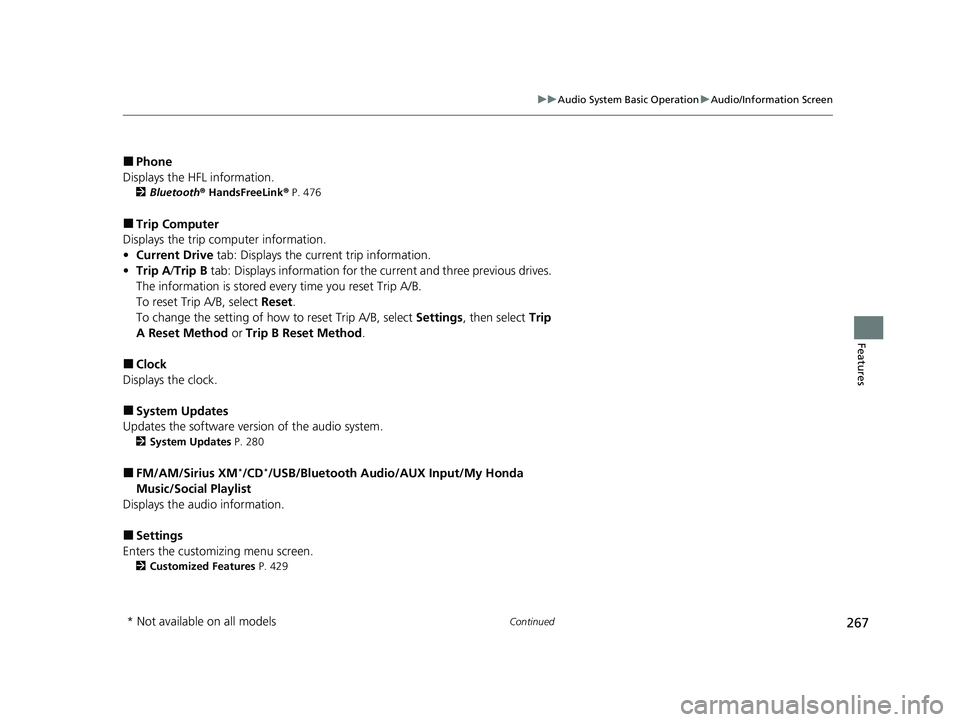
■Phone
Displays the HFL information.
2 Bluetooth ® HandsFreeLink ® P. 476
■Trip Computer
Displays the trip computer information.
• Current Drive tab: Displays the current trip information.
• Trip A /Trip B tab: Displays information for the current and three previous drives.
The information is stored ev ery time you reset Trip A/B.
To reset Trip A/B, select Reset.
To change the setting of how to reset Trip A/B, select Settings, then select Trip
A Reset Method or Trip B Reset Method .
■Clock
Displays the clock.
■System Updates
Updates the software version of the audio system.
2 System Updates P. 280
■FM/AM/Sirius XM*/CD*/USB/Bluetooth Audio/AUX Input/My Honda
Music/Social Playlist
Displays the audio information.
■Settings
Enters the customizing menu screen.
2 Customized Features P. 429
* Not available on all models
22 PILOT-31TG76600.book 267 ページ 2021年6月11日 金曜日 午後4時40分
Page 275 of 737
Continued273
uuAudio System Basic Operation uAudio/Information Screen
Features
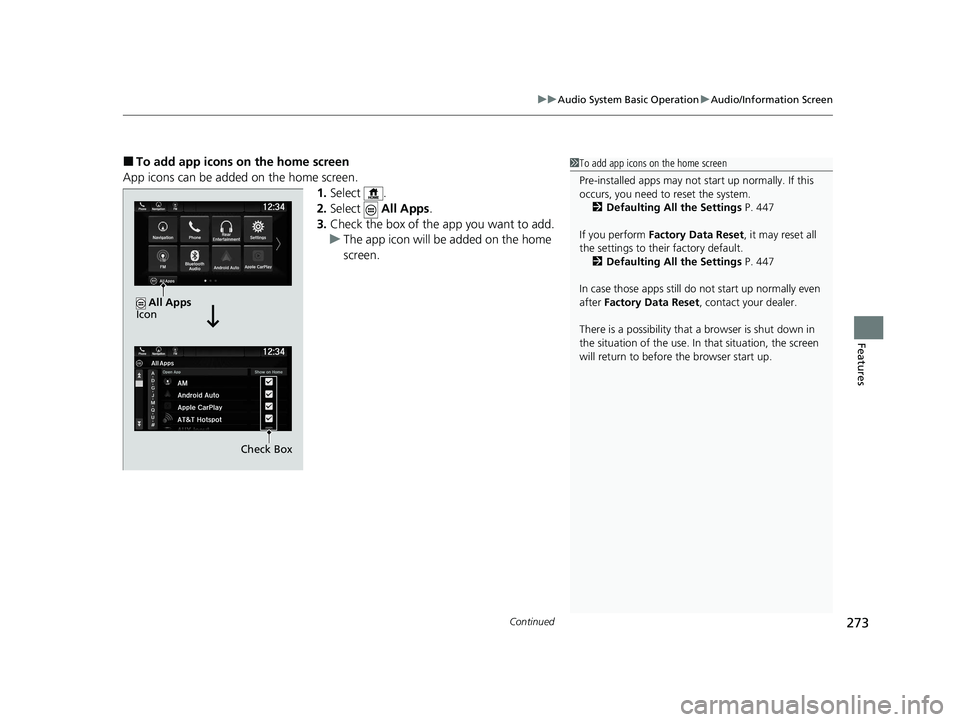
■To add app icons on the home screen
App icons can be added on the home screen. 1.Select .
2. Select All Apps.
3. Check the box of the app you want to add.
u The app icon will be added on the home
screen.1To add app icons on the home screen
Pre-installed apps may not start up normally. If this
occurs, you need to reset the system.
2 Defaulting All the Settings P. 447
If you perform Factory Data Reset , it may reset all
the settings to their factory default. 2 Defaulting All the Settings P. 447
In case those apps still do not start up normally even
after Factory Data Reset , contact your dealer.
There is a possibility that a browser is shut down in
the situation of the use. In that situation, the screen
will return to before the browser start up.
Check Box
All Apps
Icon
22 PILOT-31TG76600.book 273 ページ 2021年6月11日 金曜日 午後4時40分
Page 278 of 737
uuAudio System Basic Operation uAudio/Information Screen
276
Features
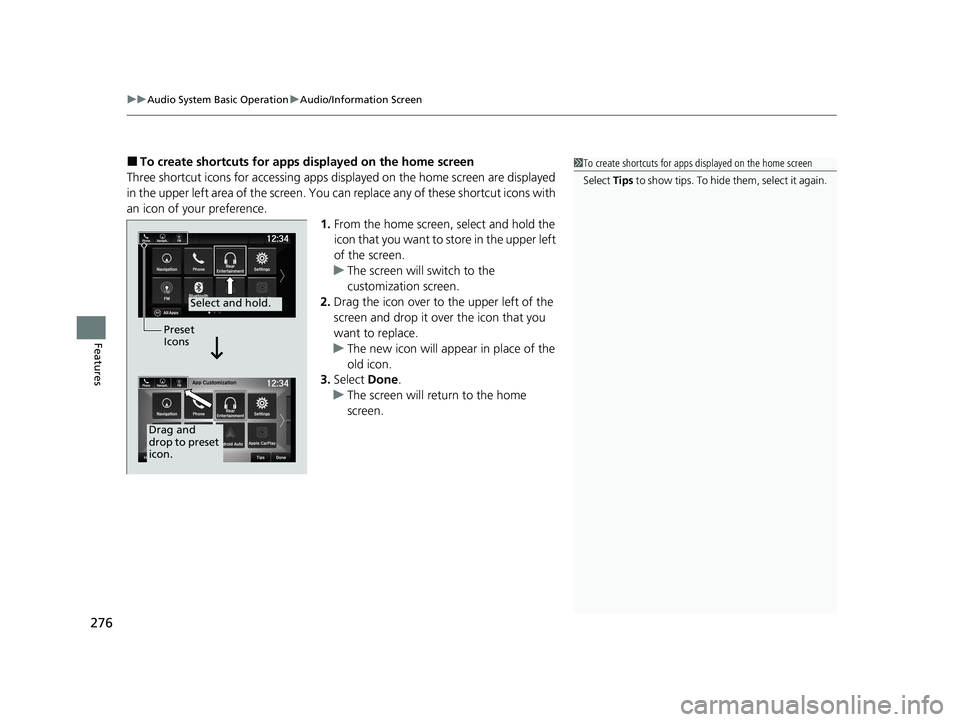
■To create shortcuts for apps displayed on the home screen
Three shortcut icons for accessing apps displayed on the home screen are displayed
in the upper left area of the screen. You can replace any of these shortcut icons with
an icon of your preference. 1.From the home screen, select and hold the
icon that you want to store in the upper left
of the screen.
u The screen will switch to the
customization screen.
2. Drag the icon over to the upper left of the
screen and drop it over the icon that you
want to replace.
u The new icon will appear in place of the
old icon.
3. Select Done.
u The screen will return to the home
screen.1To create shortcuts for apps displayed on the home screen
Select Tips to show tips. To hide them, select it again.
Select and hold.
Drag and
drop to preset
icon.Preset
Icons
22 PILOT-31TG76600.book 276 ページ 2021年6月11日 金曜日 午後4時40分
Page 294 of 737
292
uuAudio System Basic Operation uAdjusting the Sound
Features
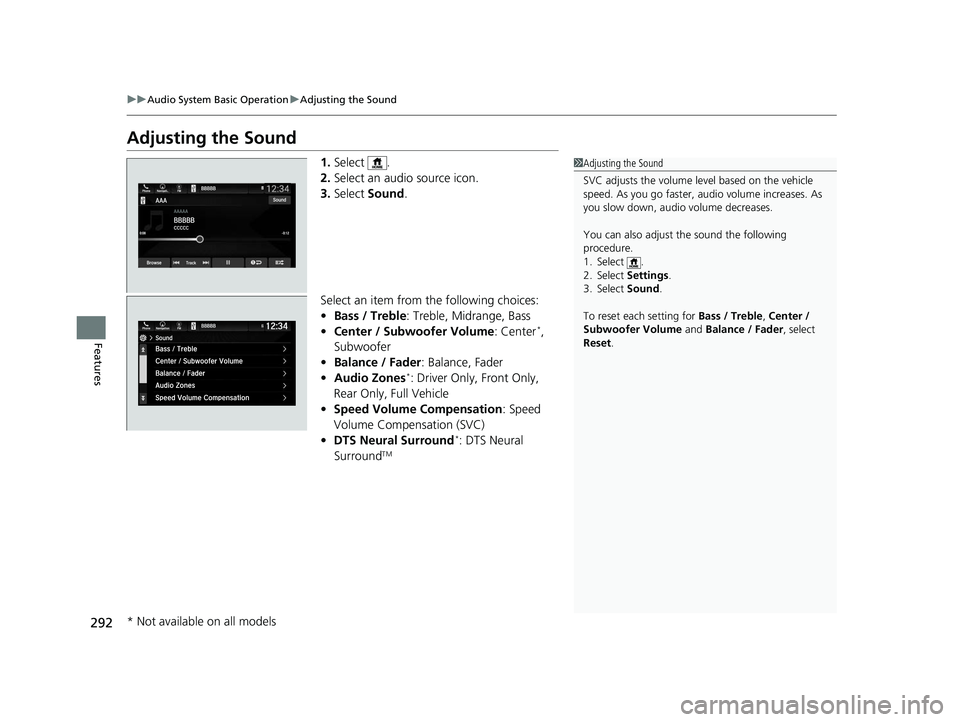
Adjusting the Sound
1. Select .
2. Select an audio source icon.
3. Select Sound.
Select an item from the following choices:
• Bass / Treble : Treble, Midrange, Bass
• Center / Subwoofer Volume : Center
*,
Subwoofer
• Balance / Fader : Balance, Fader
• Audio Zones
*: Driver Only, Front Only,
Rear Only, Full Vehicle
• Speed Volume Compensation : Speed
Volume Compensation (SVC)
• DTS Neural Surround
*: DTS Neural
SurroundTM
1 Adjusting the Sound
SVC adjusts the volume level based on the vehicle
speed. As you go faster, audio volume increases. As
you slow down, audi o volume decreases.
You can also adjust the sound the following
procedure.
1. Select .
2. Select Settings .
3. Select Sound .
To reset each setting for Bass / Treble , Center /
Subwoofer Volume and Balance / Fader , select
Reset .
* Not available on all models
22 PILOT-31TG76600.book 292 ページ 2021年6月11日 金曜日 午後4時40分
Page 295 of 737
293
uuAudio System Basic Operation uDisplay Setup
Continued
Features
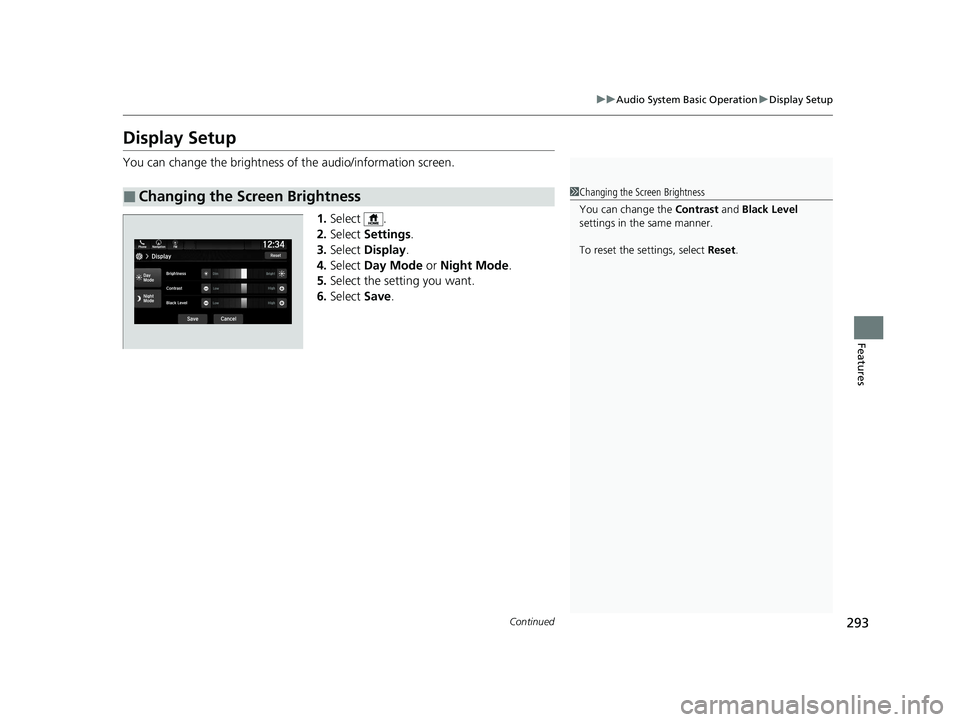
Display Setup
You can change the brightness of the audio/information screen.
1.Select .
2. Select Settings .
3. Select Display .
4. Select Day Mode or Night Mode .
5. Select the setting you want.
6. Select Save.
■Changing the Screen Brightness1Changing the Screen Brightness
You can change the Contrast and Black Level
settings in the same manner.
To reset the settings, select Reset.
22 PILOT-31TG76600.book 293 ページ 2021年6月11日 金曜日 午後4時40分