audio HONDA PILOT 2023 User Guide
[x] Cancel search | Manufacturer: HONDA, Model Year: 2023, Model line: PILOT, Model: HONDA PILOT 2023Pages: 814, PDF Size: 29.02 MB
Page 131 of 814
uuGauges and Displays uDriver Information Interface (A-type Meter)
130
Instrument Panel
■Trip meter
2 Trip meter P. 128
■Elapsed time
Shows the time elapsed since Trip A or Trip B was reset.
■Average speed
Shows the average speed in mph or km/h since Trip A or Trip B was reset.
Shows the current audio information.
2 Audio System Basic Operation P. 326
Shows the current phone information.
2Bluetooth ® HandsFreeLink ® P. 479
■Audio*
■Phone*
1 Elapsed time
You can change when to reset the elapsed time.
2 Settings
* P. 140
2 Customized Features P. 429
1Average speed
You can change when to reset the average speed.
2 Settings
* P. 140
2 Customized Features P. 429
* Not available on all models
23 PILOT-31T906000_03.book 130 ページ 2022年10月31日 月曜日 午前10時26分
Page 139 of 814
uuGauges and Displays uDriver Information Interface (A-type Meter)
138
Instrument Panel
2 Tachometer P. 122
■Speed/Distance Units
Enables you to show another unit on th e driver information interface and audio/
information screen and set the displayed m easurements to read in either miles and
mph or km and km/h.
Press and hold the left selector wheel when you select No content on the driver
information interface. Each ti me you do this, the unit will change from miles and
mph to km and km/h or vice versa. After this, a confirmation screen will appear for
a few seconds.
Press the left selector wheel when the Brightness screen is displayed.
When the power mode is in ON, you can use the left selector wheel to adjust
instrument panel brightness.
Brighten: Roll the left selector wheel up.
Dim: Roll the left selector wheel down.
Press the left selector wheel to exit.
■No Content
■Brightness
1 No Content
The tachometer can be tu rned on and off using the
driver information interf ace or audio/information
screen. 2 Settings
* P. 140
2 Customized Features P. 429
Even if you have turned off the tachometer on the
driver information interf ace or audio/information
screen, if No content is selected on the driver
information interface, it will change to a tachometer-
only display. 2 Switching the Display P. 125
1Brightness
The brightness of the gauge is automatically adjusted
depending on the ambient brightness.
•The brightness dims when the ambient light is
dark.
•The brightness brightens when the ambient light is
bright.
You can change the setting even when the ambient
lighting is bright, but the brightness of the gauge
won’t change.
* Not available on all models
23 PILOT-31T906000_03.book 138 ページ 2022年10月31日 月曜日 午前10時26分
Page 152 of 814
151
uuGauges and Displays uDriver Information Interface Left Side Area (B-type-Meter)
Continued
Instrument Panel
Driver Information Interface Left Side Area (B-type-
Meter)
Shows the current mode for audio and phone information, etc.
2Audio Remote Controls P. 296
2 Bluetooth ® HandsFreeLink ® P. 479
Shows the clock.
■Clock1 Clock
You can adjust the time manually and change the
clock display to show the 12 hour clock or 24 hour
clock. 2 Clock P. 176
You can choose whether the clock is displayed on the
driver information interface. 2 Customize Display P. 152
23 PILOT-31T906000_03.book 151 ページ 2022年10月31日 月曜日 午前10時26分
Page 153 of 814
uuGauges and Displays uDriver Information Interface Left Side Area (B-type-Meter)
152
Instrument Panel
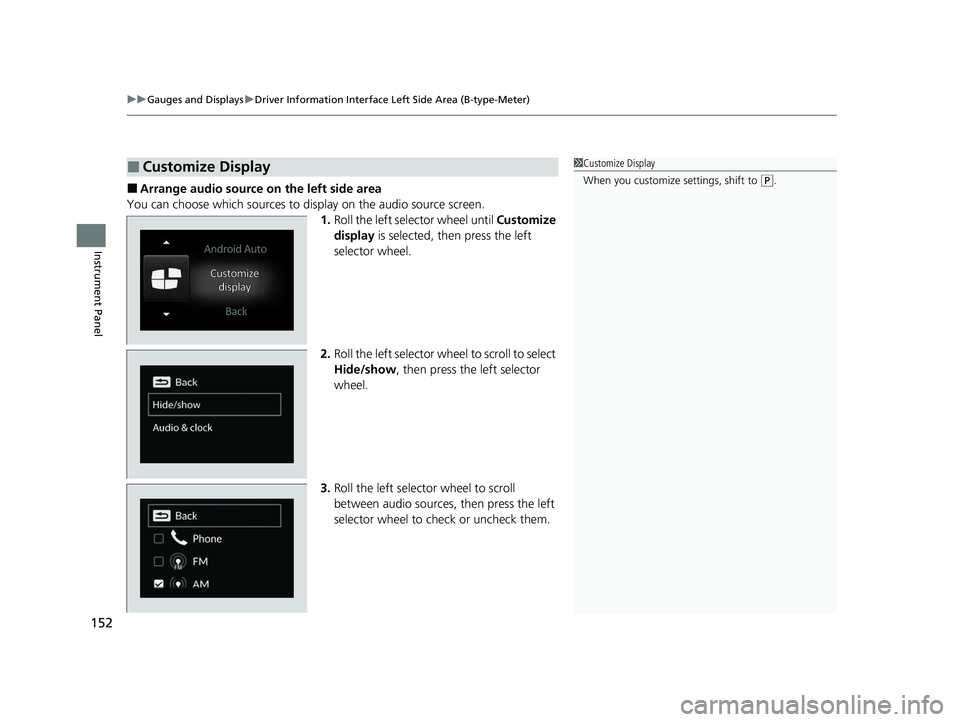
■Arrange audio source on the left side area
You can choose which sources to display on the audio source screen. 1.Roll the left selector wheel until Customize
display is selected, then press the left
selector wheel.
2. Roll the left selector wheel to scroll to select
Hide/show , then press the left selector
wheel.
3. Roll the left selector wheel to scroll
between audio sources, then press the left
selector wheel to check or uncheck them.
■Customize Display1 Customize Display
When you customize settings, shift to
(P.
23 PILOT-31T906000_03.book 152 ページ 2022年10月31日 月曜日 午前10時26分
Page 154 of 814
153
uuGauges and Displays uDriver Information Interface Left Side Area (B-type-Meter)
Instrument Panel
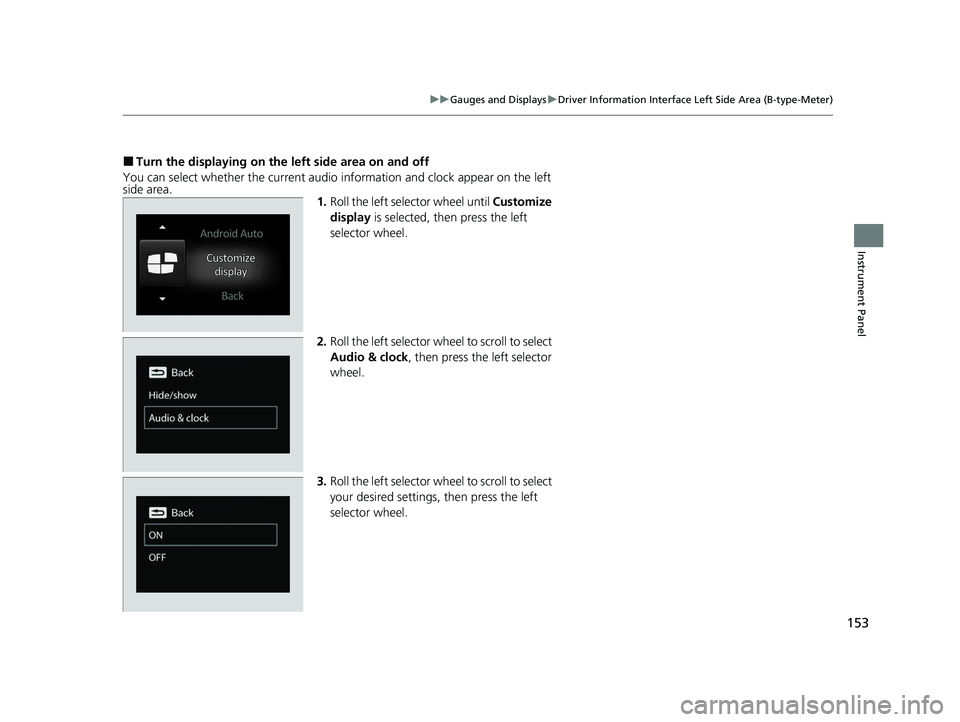
■Turn the displaying on the left side area on and off
You can select whether the current audio information and clock appear on the left
side area. 1.Roll the left selector wheel until Customize
display is selected, then press the left
selector wheel.
2. Roll the left selector wheel to scroll to select
Audio & clock, then press the left selector
wheel.
3. Roll the left selector wheel to scroll to select
your desired settings, then press the left
selector wheel.
23 PILOT-31T906000_03.book 153 ページ 2022年10月31日 月曜日 午前10時26分
Page 167 of 814
uuGauges and Displays uDriver Information Interface Ri ght Side Area (B-type-Meter)
166
Instrument Panel
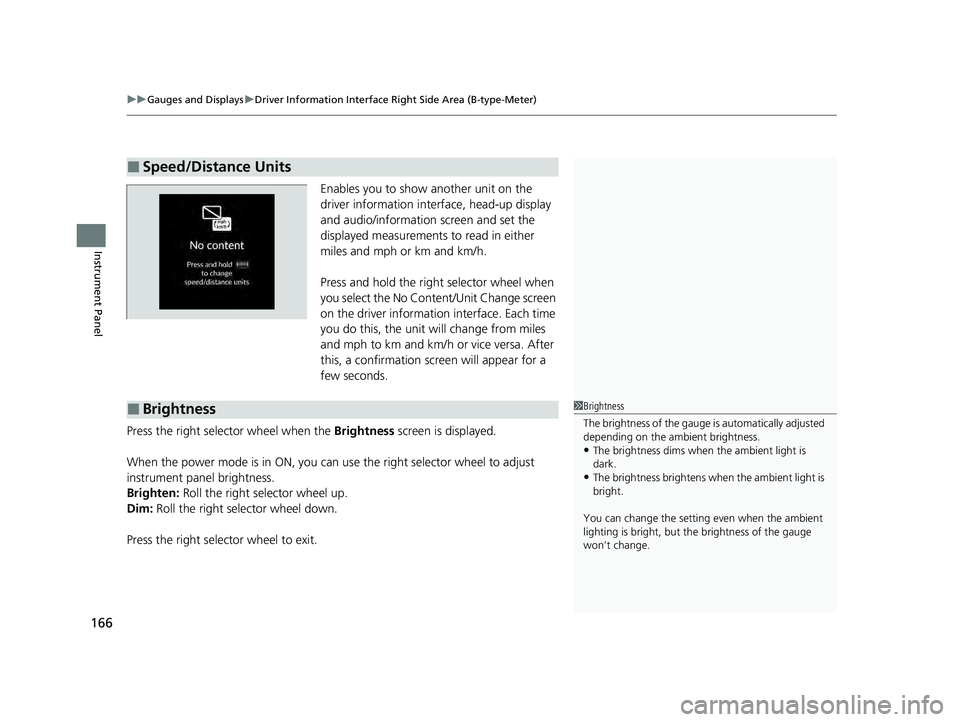
Enables you to show another unit on the
driver information interface, head-up display
and audio/information screen and set the
displayed measurements to read in either
miles and mph or km and km/h.
Press and hold the right selector wheel when
you select the No Content/Unit Change screen
on the driver information interface. Each time
you do this, the unit will change from miles
and mph to km and km/h or vice versa. After
this, a confirmation screen will appear for a
few seconds.
Press the right selector wheel when the Brightness screen is displayed.
When the power mode is in ON, you can use the right selector wheel to adjust
instrument panel brightness.
Brighten: Roll the right selector wheel up.
Dim: Roll the right selector wheel down.
Press the right selector wheel to exit.
■Speed/Distance Units
■Brightness1 Brightness
The brightness of the gauge is automatically adjusted
depending on the ambient brightness.
•The brightness dims when the ambient light is
dark.
•The brightness brightens when the ambient light is
bright.
You can change the setting even when the ambient
lighting is bright, but the brightness of the gauge
won’t change.
23 PILOT-31T906000_03.book 166 ページ 2022年10月31日 月曜日 午前10時26分
Page 174 of 814
173
uuGauges and Displays uHead-Up Display*
Instrument Panel
Shows your driving speed in mph or km/h.
Shows the current mode for ACC with Low Speed Follow, LKAS, and Traffic Jam
Assist.
2 Adaptive Cruise Control (ACC) with Low Speed Follow P. 590
2 Lane Keeping Assist System (LKAS) P. 612
2 Traffic Jam Assist P. 625
■Compass
Shows the compass screen.
■Turn-by-Turn Directions
When driving guidance is provided by the navigation system, Android Auto or Apple
CarPlay, turn-by-turn directions to your destination appear.
2Refer to the Navigation System Manual
2 Android AutoTM P. 392
2 Apple CarPlay P. 385
■Speedometer
■Current Mode for ACC with Low Speed Follow, LKAS, and
Traffic Jam Assist
■Navigation
1 Speedometer
Switch between mph and km/h by using the driver
information interface or the customized features on
the audio/information screen.
2 Speed/Distance Units P. 166
2 Customized Features P. 429
1Navigation
You can select whether th e turn-by-turn display
comes on during the route guidance. 2 Customized Features P. 429
Turn-by-turn directions may not be available for all
apps.
23 PILOT-31T906000_03.book 173 ページ 2022年10月31日 月曜日 午前10時26分
Page 177 of 814
176
Controls
Clock
Adjusting the Clock
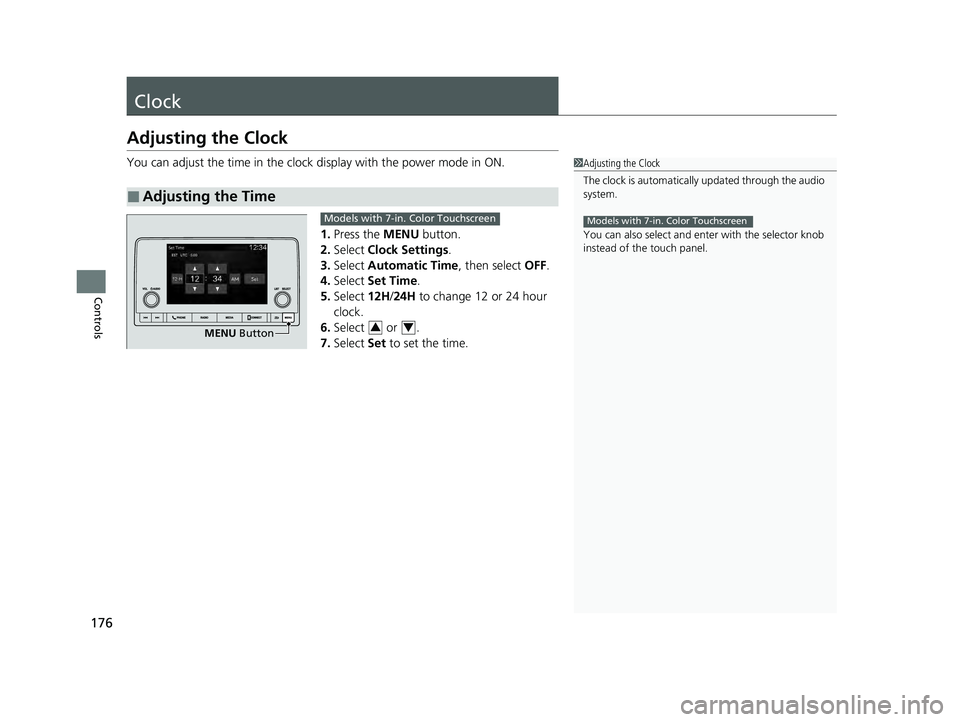
You can adjust the time in the clock display with the power mode in ON.
1. Press the MENU button.
2. Select Clock Settings .
3. Select Automatic Time , then select OFF.
4. Select Set Time.
5. Select 12H/24H to change 12 or 24 hour
clock.
6. Select or .
7. Select Set to set the time.
■Adjusting the Time
1Adjusting the Clock
The clock is automatically updated through the audio
system.
You can also select and en ter with the selector knob
instead of the touch panel.
Models with 7-in. Color Touchscreen
MENU Button
Models with 7-in. Color Touchscreen
34
23 PILOT-31T906000_03.book 176 ページ 2022年10月31日 月曜日 午前10時26分
Page 178 of 814
177
uuClock uAdjusting the Clock
Controls
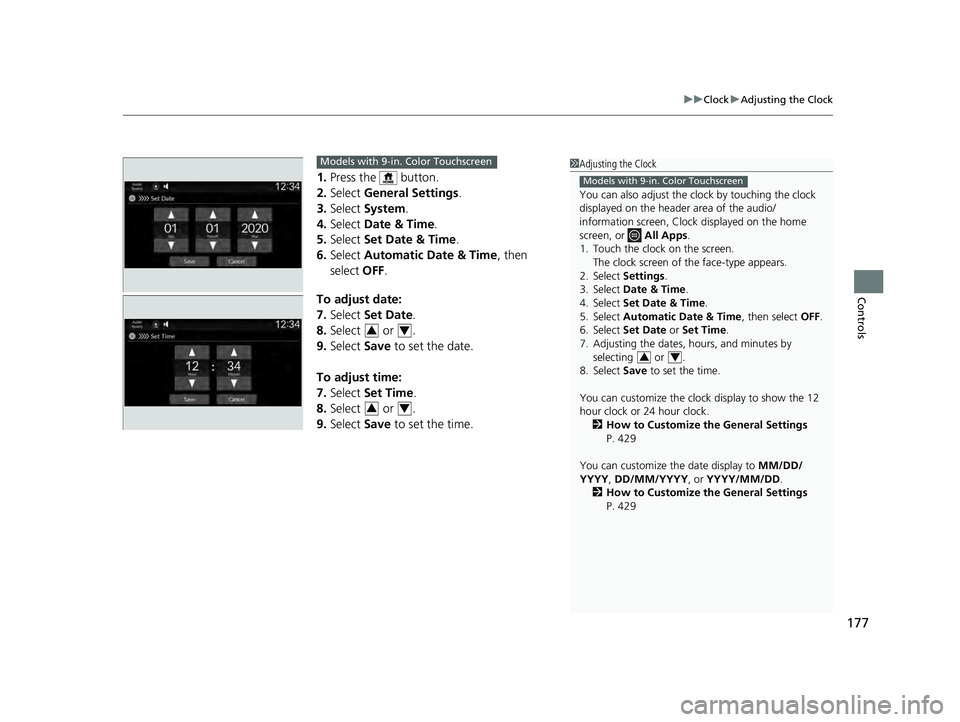
1. Press the button.
2. Select General Settings .
3. Select System.
4. Select Date & Time .
5. Select Set Date & Time .
6. Select Automatic Date & Time , then
select OFF.
To adjust date:
7. Select Set Date.
8. Select or .
9. Select Save to set the date.
To adjust time:
7. Select Set Time.
8. Select or .
9. Select Save to set the time.
1Adjusting the Clock
You can also adjust the clock by touching the clock
displayed on the header area of the audio/
information screen, Clock displayed on the home
screen, or All Apps.
1. Touch the clock on the screen. The clock screen of the face-type appears.
2. Select Settings .
3. Select Date & Time .
4. Select Set Date & Time .
5. Select Automatic Date & Time , then select OFF.
6. Select Set Date or Set Time.
7. Adjusting the dates, hours, and minutes by selecting or .
8. Select Save to set the time.
You can customize the clock display to show the 12
hour clock or 24 hour clock. 2 How to Customize the General Settings
P. 429
You can customize the date display to MM/DD/
YYYY , DD/MM/YYYY , or YYYY/MM/DD .
2 How to Customize the General Settings
P. 429
Models with 9-in. Color Touchscreen
34
Models with 9-in. Color Touchscreen
34
34
23 PILOT-31T906000_03.book 177 ページ 2022年10月31日 月曜日 午前10時26分
Page 184 of 814
Continued183
uuLocking and Unlocking the Doors uLocking/Unlocking the Doors from the Outside
Controls
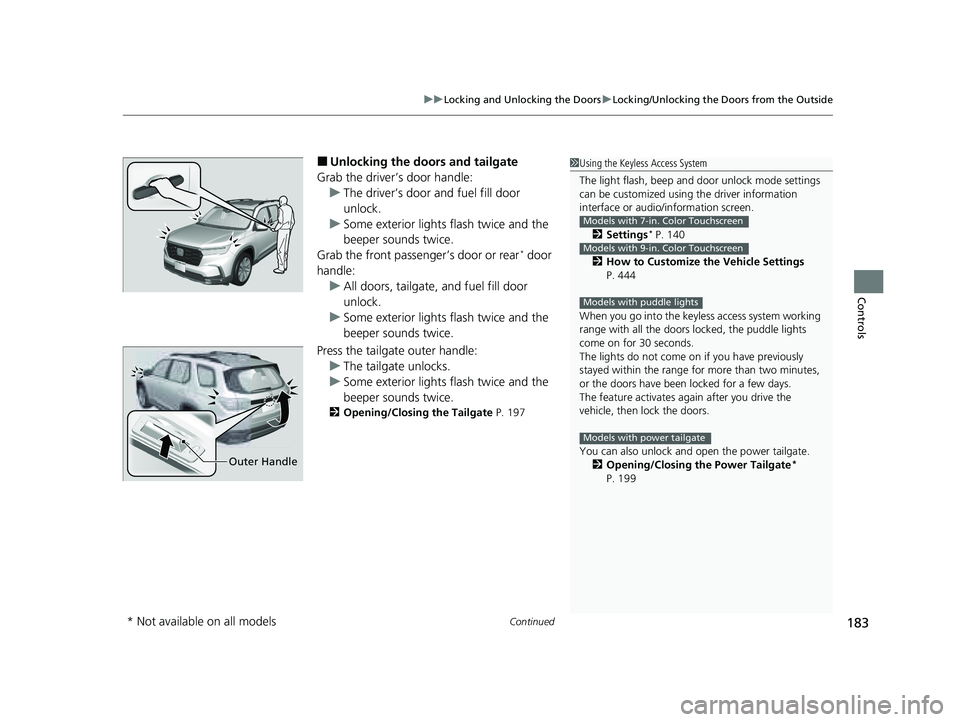
■Unlocking the doors and tailgate
Grab the driver’s door handle: u The driver’s door and fuel fill door
unlock.
u Some exterior lights flash twice and the
beeper sounds twice.
Grab the front passenger’s door or rear
* door
handle: u All doors, tailgate, and fuel fill door
unlock.
u Some exterior lights flash twice and the
beeper sounds twice.
Press the tailgate outer handle: u The tailgate unlocks.
u Some exterior lights flash twice and the
beeper sounds twice.
2 Opening/Closing the Tailgate P. 197
1Using the Keyless Access System
The light flash, beep and door unlock mode settings
can be customized using the driver information
interface or audio/ information screen.
2 Settings
* P. 140
2 How to Customize the Vehicle Settings
P. 444
When you go into the keyless access system working
range with all the doors locked, the puddle lights
come on for 30 seconds.
The lights do not come on if you have previously
stayed within the range for more than two minutes,
or the doors have been locked for a few days.
The feature activates again after you drive the
vehicle, then lock the doors.
You can also unlock and open the power tailgate.
2 Opening/Closing the Power Tailgate
*
P. 199
Models with 7-in. Color Touchscreen
Models with 9-in. Color Touchscreen
Models with puddle lights
Models with power tailgate
Outer Handle
* Not available on all models
23 PILOT-31T906000_03.book 183 ページ 2022年10月31日 月曜日 午前10時26分