phone HONDA PILOT 2023 User Guide
[x] Cancel search | Manufacturer: HONDA, Model Year: 2023, Model line: PILOT, Model: HONDA PILOT 2023Pages: 814, PDF Size: 29.02 MB
Page 191 of 814
uuLocking and Unlocking the Doors uLocking/Unlocking the Doors from the Outside
190
Controls
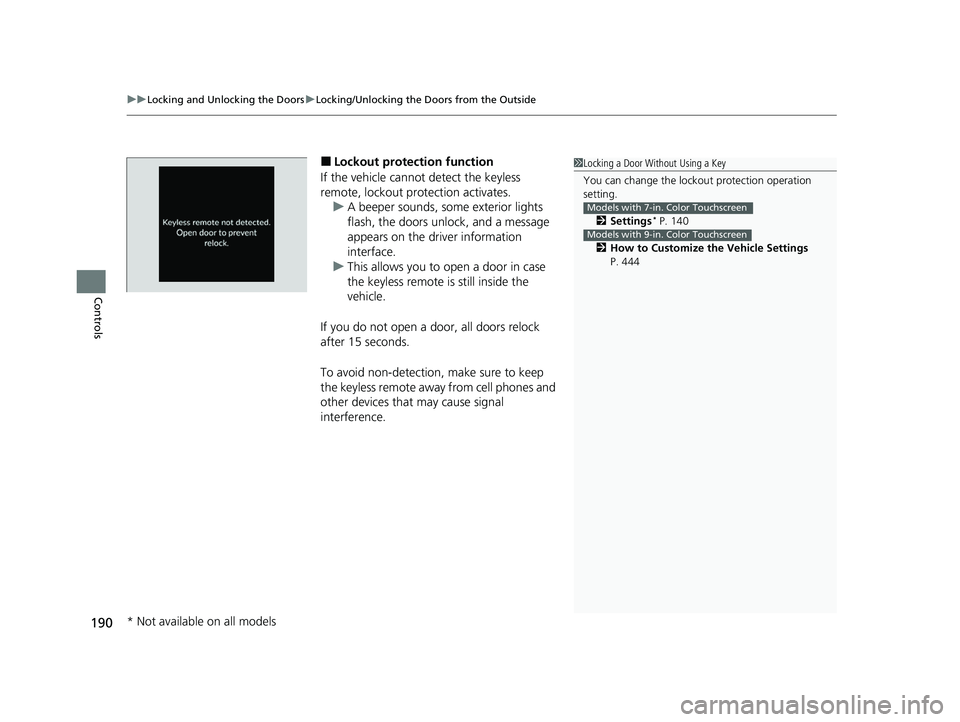
■Lockout protection function
If the vehicle cannot detect the keyless
remote, lockout protection activates. u A beeper sounds, some exterior lights
flash, the doors unlock, and a message
appears on the driver information
interface.
u This allows you to open a door in case
the keyless remote is still inside the
vehicle.
If you do not open a door, all doors relock
after 15 seconds.
To avoid non-detection, make sure to keep
the keyless remote away from cell phones and
other devices that may cause signal
interference.1 Locking a Door Without Using a Key
You can change the lockout protection operation
setting.
2 Settings
* P. 140
2 How to Customize the Vehicle Settings
P. 444
Models with 7-in. Color Touchscreen
Models with 9-in. Color Touchscreen
* Not available on all models
23 PILOT-31T906000_03.book 190 ページ 2022年10月31日 月曜日 午前10時26分
Page 235 of 814
uuOperating the Switches Around the Steering Wheel uDriving Position Memory System*
234
Controls
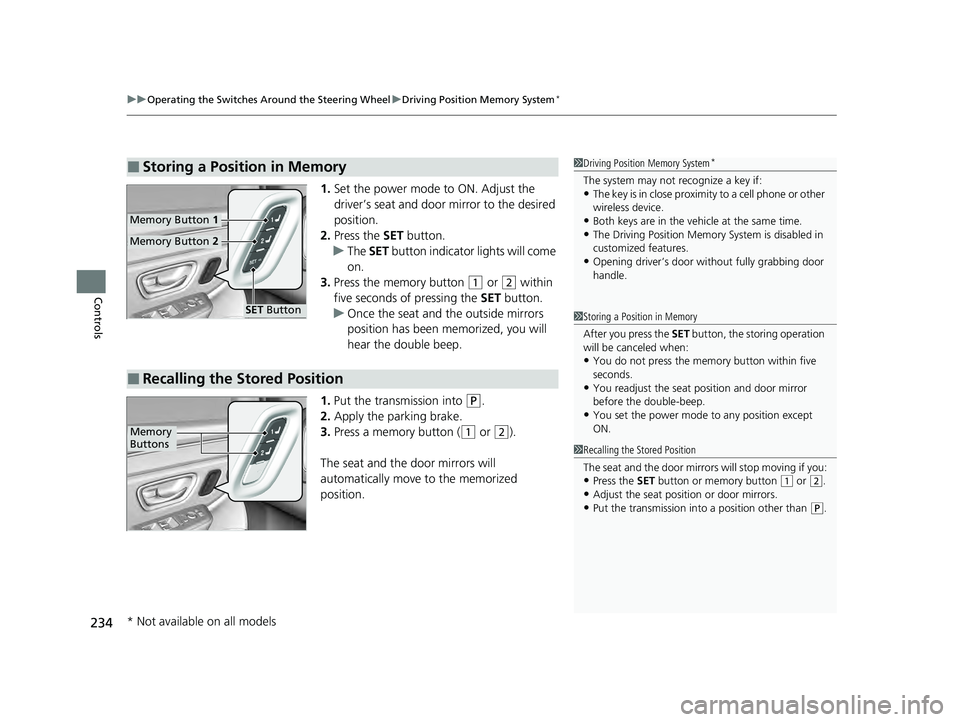
1. Set the power mode to ON. Adjust the
driver’s seat and door mirror to the desired
position.
2. Press the SET button.
u The SET button indicator lights will come
on.
3. Press the memory button
(1 or (2 within
five seconds of pressing the SET button.
u Once the seat and the outside mirrors
position has been memorized, you will
hear the double beep.
1. Put the transmission into
(P.
2. Apply the parking brake.
3. Press a memory button (
(1 or (2).
The seat and the door mirrors will
automatically move to the memorized
position.
■Storing a Position in Memory1 Driving Position Memory System*
The system may not recognize a key if:•The key is in close proximity to a cell phone or other
wireless device.
•Both keys are in the vehicle at the same time.•The Driving Position Memory System is disabled in
customized features.
•Opening driver’s door wi thout fully grabbing door
handle.
Memory Button 1
Memory Button 2
SET Button
■Recalling the Stored Position
1Storing a Position in Memory
After you press the SET button, the storing operation
will be canceled when:
•You do not press the memory button within five
seconds.
•You readjust the seat position and door mirror
before the double-beep.
•You set the power mode to any position except
ON.
1Recalling the Stored Position
The seat and the door mirrors will stop moving if you:
•Press the SET button or memory button (1 or (2.
•Adjust the seat position or door mirrors.•Put the transmission into a position other than (P.
Memory
Buttons
* Not available on all models
23 PILOT-31T906000_03.book 234 ページ 2022年10月31日 月曜日 午前10時26分
Page 292 of 814
291
Features
This chapter describes how to operate technology features.
Audio SystemAbout Your Audio System ................ 292
USB Ports ......................................... 293
Audio System Theft Protection ......... 295
Audio Remote Controls .................... 296
Audio System Basic Operation ........ 301
Adjusting the Sound ........................ 302
Display Setup ................................... 303
Playing AM/FM Radio ....................... 304
Playing an iPod ................................ 306
Playing a USB Flash Drive ................. 309
Playing Bluetooth ® Audio ................. 312
Siri Eyes Free .................................... 316
Models with 7-in. Color Touchscreen
Smartphone Voice Recognition ........ 317
Apple CarPlay .................................. 318
Android Auto
TM................................ 322
Audio System Basic Operation ........ 326
Start Up ........................................... 327
Audio/Information Screen ................ 328
System Updates ............................... 340
Adjusting the Sound ........................ 346
Display Setup ................................... 347
Voice Control Operation .................. 349
Playing AM/FM Radio ....................... 352
Playing SiriusXM ® Radio ................... 356
Playing an iPod ................................ 367
Playing a USB Flash Drive ................. 370Models with 9-in. Color Touchscreen
Playing Bluetooth ® Audio ................ 373
HondaLink ®..................................... 376
Smart Shortcuts ............................... 380
Wi-Fi Connection ............................. 383
AT&T Hotspot
*................................ 384
Apple CarPlay .................................. 385
Android Auto
TM............................... 392
Audio Error Messages ...................... 398
General Information on the Audio System.. 400Customized Features................ 421, 429
HomeLink ® Universal Transceiver*.. 456
Bluetooth® HandsFreeLink® ..... 459, 479
Refuel Recommend .......................... 498
CabinTalk ®
*....................................... 499
* Not available on all models
23 PILOT-31T906000_03.book 291 ページ 2022年10月31日 月曜日 午前10時26分
Page 293 of 814
292
Features
Audio System
About Your Audio System
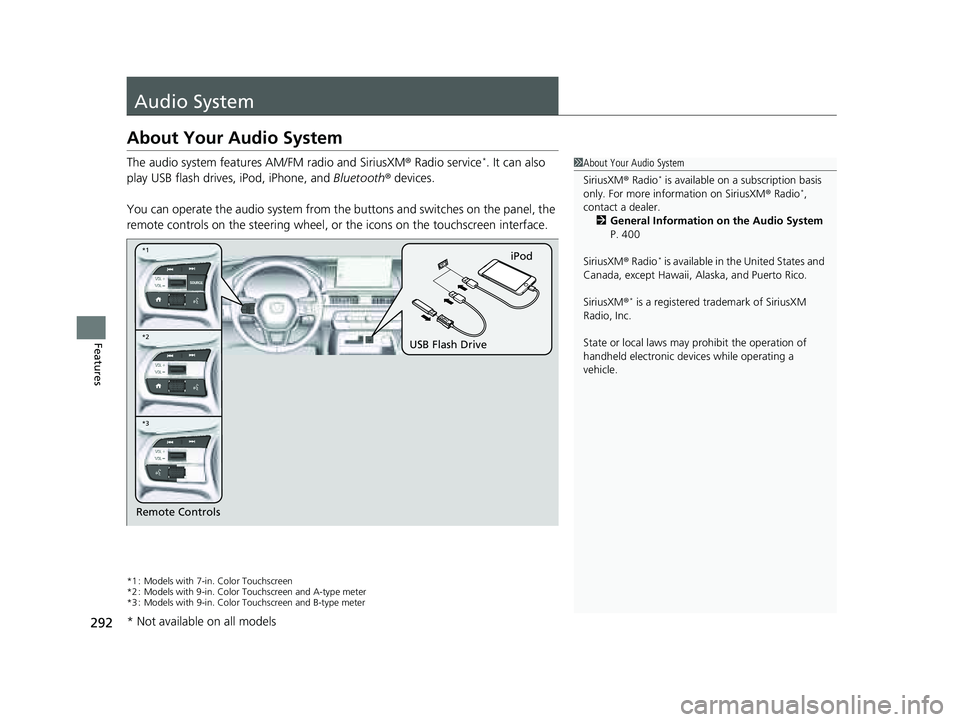
The audio system features AM/FM radio and SiriusXM® Radio service*. It can also
play USB flash drives, iPod, iPhone, and Bluetooth® devices.
You can operate the audio system from the buttons and switches on the panel, the
remote controls on the steering wheel, or the icons on the touchscreen interface.
*1 : Models with 7-in. Color Touchscreen
*2 : Models with 9-in. Color Touchscreen and A-type meter
*3 : Models with 9-in. Color Touchscreen and B-type meter
1 About Your Audio System
SiriusXM ® Radio
* is available on a subscription basis
only. For more information on SiriusXM ® Radio*,
contact a dealer.
2 General Information on the Audio System
P. 400
SiriusXM ® Radio
* is available in the United States and
Canada, except Ha waii, Alaska, and Puerto Rico.
SiriusXM ®
* is a registered tra demark of SiriusXM
Radio, Inc.
State or local laws may pr ohibit the operation of
handheld electronic devices while operating a
vehicle.
Remote Controls iPod
USB Flash Drive
*2 *1
*3
* Not available on all models
23 PILOT-31T906000_03.book 292 ページ 2022年10月31日 月曜日 午前10時26分
Page 294 of 814
293
uuAudio System uUSB Ports
Continued
Features
USB Ports
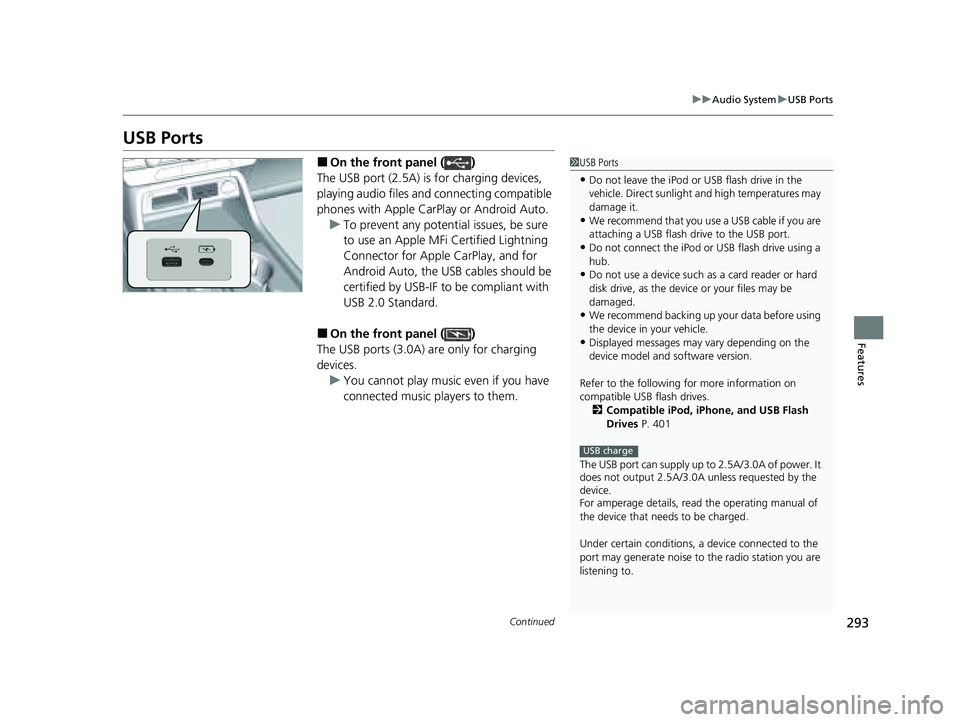
■On the front panel ( )
The USB port (2.5A) is for charging devices,
playing audio files and connecting compatible
phones with Apple CarPlay or Android Auto. u To prevent any potenti al issues, be sure
to use an Apple MFi Certified Lightning
Connector for Apple CarPlay, and for
Android Auto, the USB cables should be
certified by USB-IF to be compliant with
USB 2.0 Standard.
■On the front panel ( )
The USB ports (3.0A) are only for charging
devices. u You cannot play music even if you have
connected music players to them.
1USB Ports
•Do not leave the iPod or USB flash drive in the
vehicle. Direct sunlight and high temperatures may
damage it.
•We recommend that you us e a USB cable if you are
attaching a USB flash drive to the USB port.
•Do not connect the iPod or USB flash drive using a
hub.
•Do not use a device such as a card reader or hard
disk drive, as the device or your files may be
damaged.
•We recommend backing up yo ur data before using
the device in your vehicle.
•Displayed messages may vary depending on the
device model and software version.
Refer to the following for more information on
compatible USB flash drives. 2 Compatible iPod, iPhone, and USB Flash
Drives P. 401
The USB port can supply up to 2.5A/3.0A of power. It
does not output 2.5A/3.0A unless requested by the
device.
For amperage details, read the operating manual of
the device that ne eds to be charged.
Under certain condi tions, a device connected to the
port may generate noise to the radio station you are
listening to.
USB charge
23 PILOT-31T906000_03.book 293 ページ 2022年10月31日 月曜日 午前10時26分
Page 297 of 814
296
uuAudio System uAudio Remote Controls
Features
Audio Remote Controls
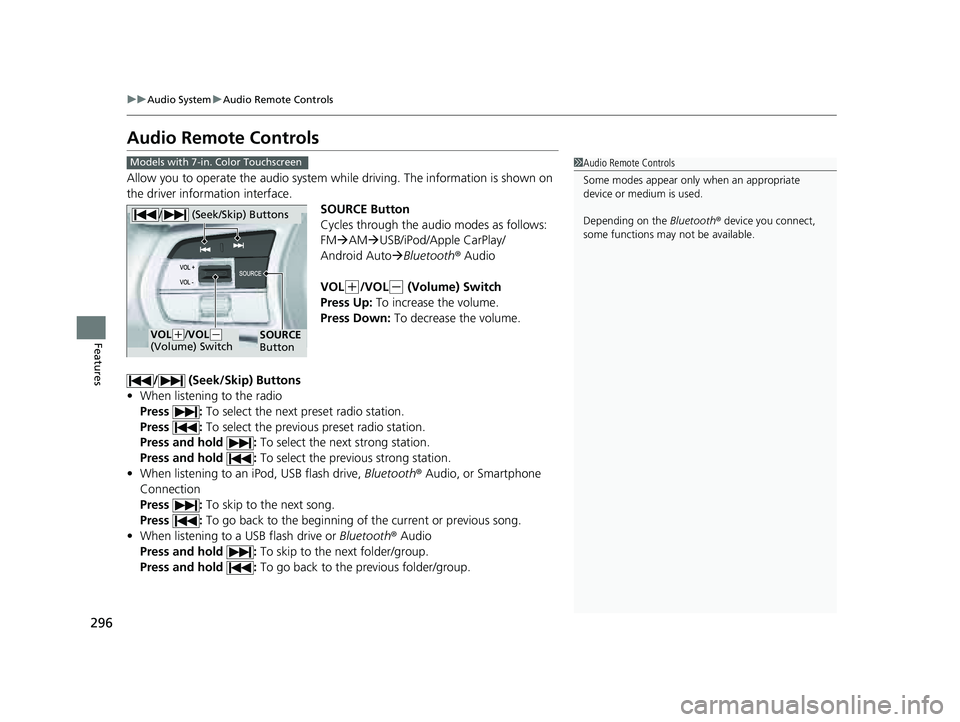
Allow you to operate the audio system wh ile driving. The information is shown on
the driver information interface.
SOURCE Button
Cycles through the audio modes as follows:
FMAM USB/iPod/Apple CarPlay/
Android Auto Bluetooth ® Audio
VOL
(+/VOL(- (Volume) Switch
Press Up: To increase the volume.
Press Down: To decrease the volume.
/ (Seek/Skip) Buttons
• When listening to the radio
Press : To select the next preset radio station.
Press : To select the previous preset radio station.
Press and hold : To select the next strong station.
Press and hold : To select the previous strong station.
• When listening to an iPod, USB flash drive, Bluetooth® Audio, or Smartphone
Connection
Press : To skip to the next song.
Press : To go back to the beginning of the current or previous song.
• When listening to a USB flash drive or Bluetooth® Audio
Press and hold : To skip to the next folder/group.
Press and hold : To go back to the previous folder/group.
1Audio Remote Controls
Some modes appear only when an appropriate
device or medium is used.
Depending on the Bluetooth® device you connect,
some functions may not be available.Models with 7-in. Color Touchscreen
/ (Seek/Skip) Buttons
SOURCE
ButtonVOL( +/VOL(-
(Volume) Switch
23 PILOT-31T906000_03.book 296 ページ 2022年10月31日 月曜日 午前10時26分
Page 299 of 814
298
uuAudio System uAudio Remote Controls
Features
/ (Seek/Skip) Buttons
• When listening to the radio
Press : To select the next preset radio station.
Press : To select the previous preset radio station.
Press and hold : To select the next strong station.
Press and hold : To select the previous strong station.
• When listening to an iPod, USB flash drive, Bluetooth® Audio, or Smartphone
Connection
Press : To skip to the next song.
Press : To go back to the beginning of the current or previous song.
• When listening to a USB flash drive
Press and hold : To skip to the next folder.
Press and hold : To go back to the previous folder.
23 PILOT-31T906000_03.book 298 ページ 2022年10月31日 月曜日 午前10時26分
Page 301 of 814
300
uuAudio System uAudio Remote Controls
Features
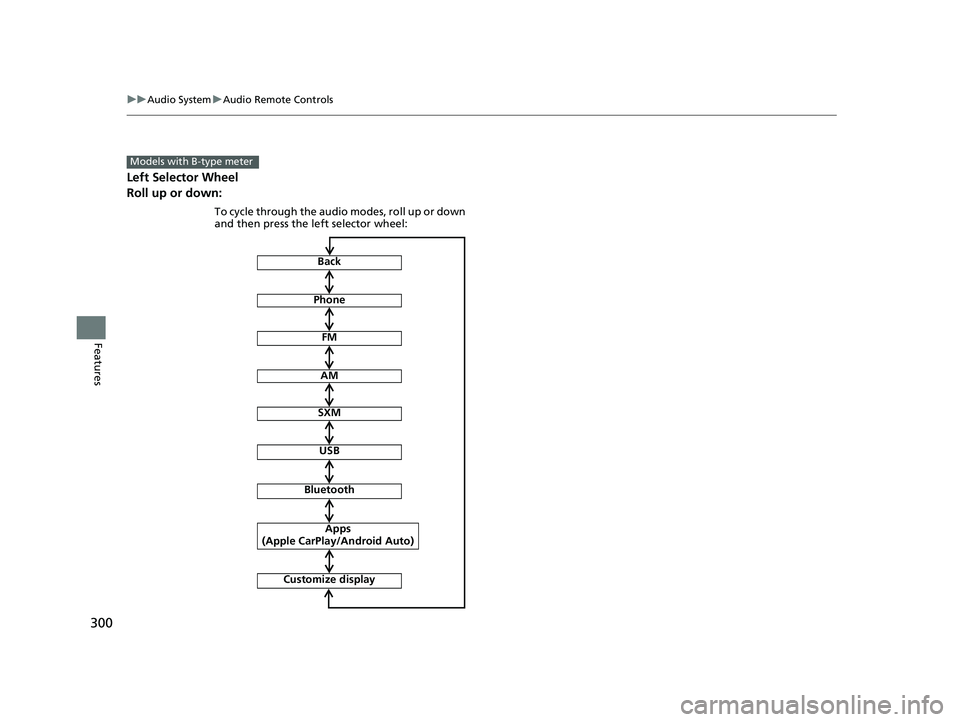
Left Selector Wheel
Roll up or down:
Models with B-type meter
FM
AM
SXM
USB
Bluetooth
Apps
(Apple CarPlay/Android Auto)
To cycle through the audio modes, roll up or down
and then press the left selector wheel:
Back
Phone
Customize display
23 PILOT-31T906000_03.book 300 ページ 2022年10月31日 月曜日 午前10時26分
Page 311 of 814
uuAudio System Basic Operation uPlaying a USB Flash Drive
310
Features
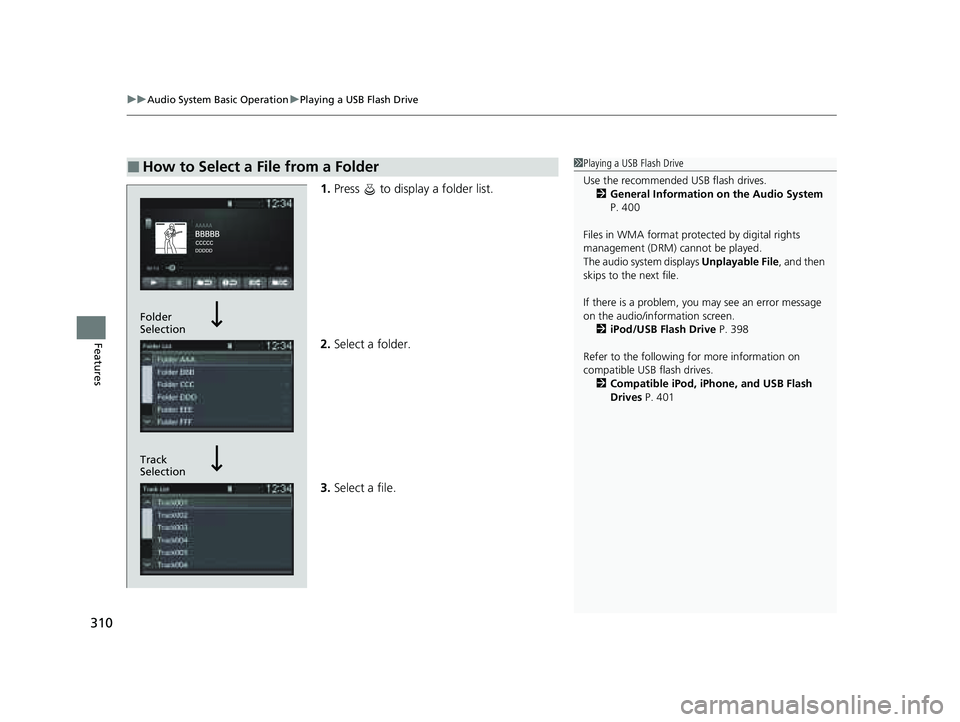
1. Press to display a folder list.
2. Select a folder.
3. Select a file.
■How to Select a File from a Folder1Playing a USB Flash Drive
Use the recommended USB flash drives.
2 General Information on the Audio System
P. 400
Files in WMA format prot ected by digital rights
management (DRM) cannot be played.
The audio system displays Unplayable File, and then
skips to the next file.
If there is a problem, you may see an error message
on the audio/information screen.
2 iPod/USB Flash Drive P. 398
Refer to the following for more information on
compatible USB flash drives. 2 Compatible iPod, iPhone, and USB Flash
Drives P. 401
Track
Selection Folder
Selection
23 PILOT-31T906000_03.book 310 ページ 2022年10月31日 月曜日 午前10時26分
Page 313 of 814
312
uuAudio System Basic Operation uPlaying Bluetooth ® Audio
Features
Playing Bluetooth ® Audio
Your audio system allows you to listen to music from your Bluetooth-compatible
phone.
This function is available when the phone is paired and connected to the vehicle’s
Bluetooth ® HandsFreeLink ® (HFL) system.
2 Phone Setup P. 464
1Playing Bluetooth ® Audio
Not all Bluetooth -enabled phones with streaming
audio capabilities are compatible with the system.
For a list of compatible phones:
•U.S.: Visit automobiles.honda.com/handsfreelink/ ,
or call 1-888-528-7876.
•Canada: For more info rmation on smartphone
compatibility, call 1-855-490-7351.
In some states, it may be il legal to perform some data
device functions while driving.
Only one phone can be used with HFL at a time.
When there is more than one paired phone in the
vehicle, the system automatically connects to the
prioritized phone. You can a ssign priority to a phone
in the Bluetooth Settings menu.
2 HFL Menus P. 462
To change the searched phone manually, select Go
to Device List .
In some cases, the name of the artist, album, or track
may not appear correctly.
Some functions may not be available on some devices.
If a phone is currently conne cted via Apple CarPlay or
Android Auto, Bluetooth® Audio from that phone is
unavailable. However, a se cond previously paired
phone can stream Bluetooth® Audio by selecting
Audio from the Bluetooth® device list.
2 Phone Setup P. 464
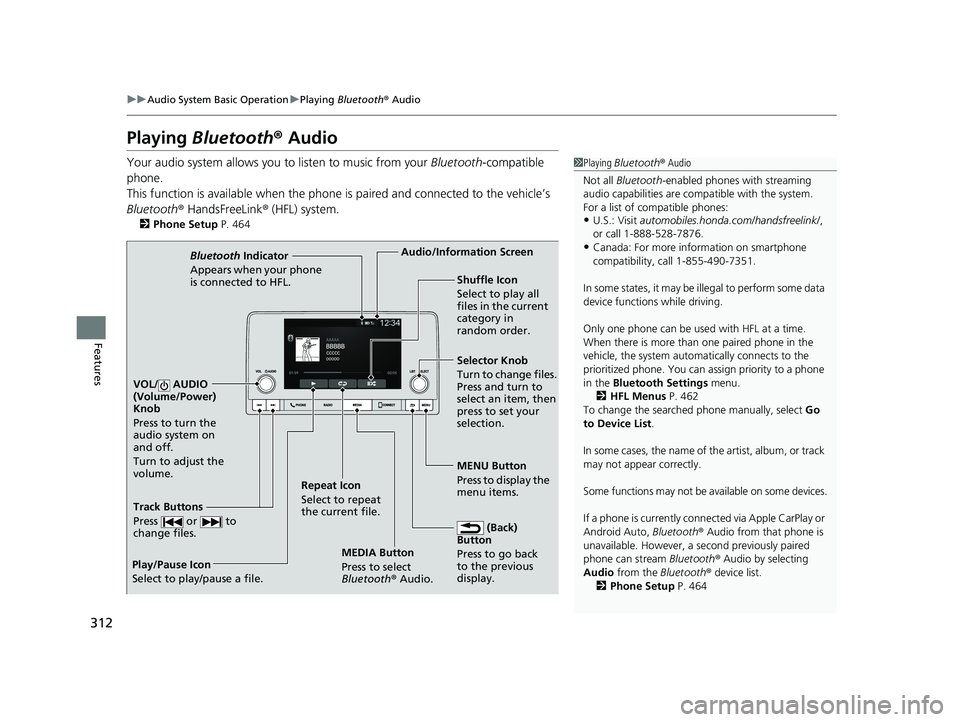
MEDIA Button
Press to select
Bluetooth® Audio.
VOL/ AUDIO
(Volume/Power)
Knob
Press to turn the
audio system on
and off.
Turn to adjust the
volume.
MENU Button
Press to display the
menu items.
Audio/Information Screen
Bluetooth Indicator
Appears when your pho
ne
is connected to HFL.
Track Buttons
Press or to
change files.
Repeat Icon
Select to repeat
the current file. Shuffle Icon
Select to play all
files in the current
category in
random order.
Selector Knob
Turn to change files.
Press and turn to
select an item, then
press to set your
selection.
(Back)
Button
Press to go back
to t h
e
previous
display.
Play/Pause Icon
Select to play/pause a file.
23 PILOT-31T906000_03.book 312 ページ 2022年10月31日 月曜日 午前10時26分