wheel HONDA PILOT 2023 Owner's Manual
[x] Cancel search | Manufacturer: HONDA, Model Year: 2023, Model line: PILOT, Model: HONDA PILOT 2023Pages: 814, PDF Size: 29.02 MB
Page 134 of 814
133
uuGauges and Displays uDriver Information Interface (A-type Meter)
Continued
Instrument Panel
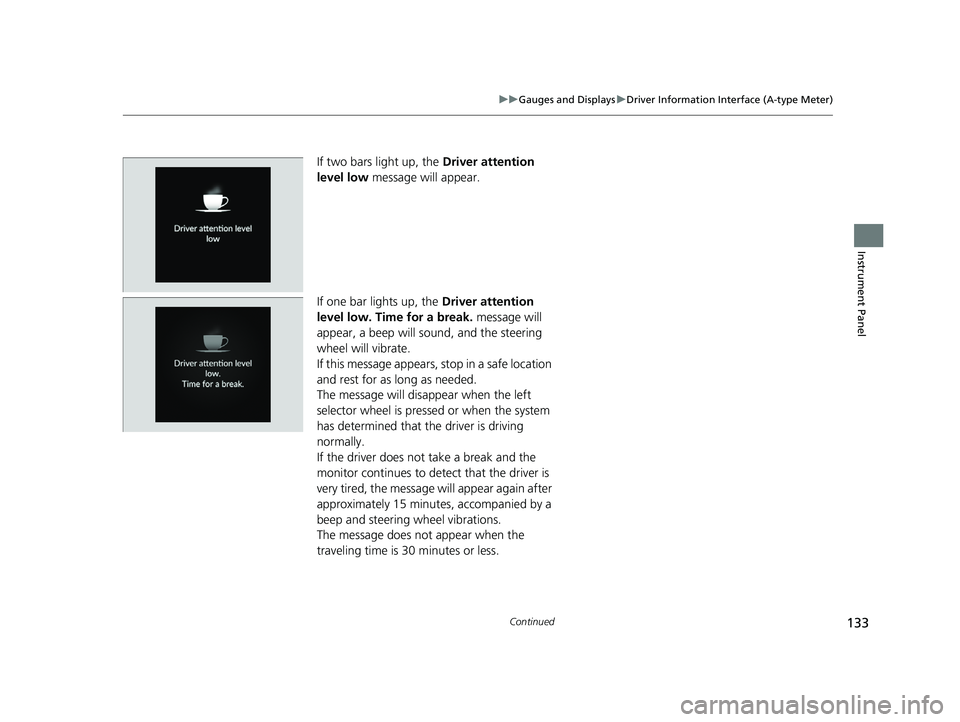
If two bars light up, the Driver attention
level low message will appear.
If one bar lights up, the Driver attention
level low. Time for a break. message will
appear, a beep will sound, and the steering
wheel will vibrate.
If this message appears, stop in a safe location
and rest for as long as needed.
The message will disappear when the left
selector wheel is presse d or when the system
has determined that the driver is driving
normally.
If the driver does not take a break and the
monitor continues to detect that the driver is
very tired, the message will appear again after
approximately 15 minutes, accompanied by a
beep and steering wheel vibrations.
The message does not appear when the
traveling time is 30 minutes or less.
23 PILOT-31T906000_03.book 133 ページ 2022年10月31日 月曜日 午前10時26分
Page 136 of 814
Continued135
uuGauges and Displays uDriver Information Interface (A-type Meter)
Instrument Panel
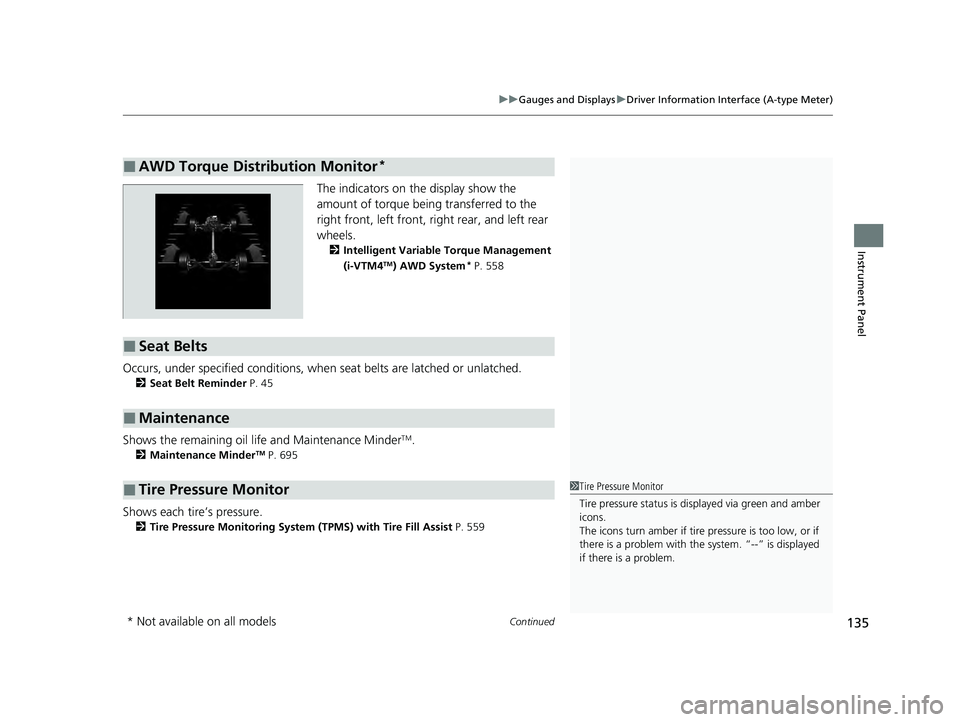
The indicators on the display show the
amount of torque being transferred to the
right front, left front, right rear, and left rear
wheels.
2 Intelligent Variable Torque Management
(i-VTM4TM) AWD System* P. 558
Occurs, under specified conditions, when seat belts are latched or unlatched.
2Seat Belt Reminder P. 45
Shows the remaining oil life and Maintenance MinderTM.
2Maintenance MinderTM P. 695
Shows each tire’s pressure.
2Tire Pressure Monitoring System (TPMS) with Tire Fill Assist P. 559
■AWD Torque Distribution Monitor*
■Seat Belts
■Maintenance
■Tire Pressure Monitor1Tire Pressure Monitor
Tire pressure status is di splayed via green and amber
icons.
The icons turn amber if tire pressure is too low, or if
there is a problem with the system. “--” is displayed
if there is a problem.
* Not available on all models
23 PILOT-31T906000_03.book 135 ページ 2022年10月31日 月曜日 午前10時26分
Page 137 of 814
uuGauges and Displays uDriver Information Interface (A-type Meter)
136
Instrument Panel
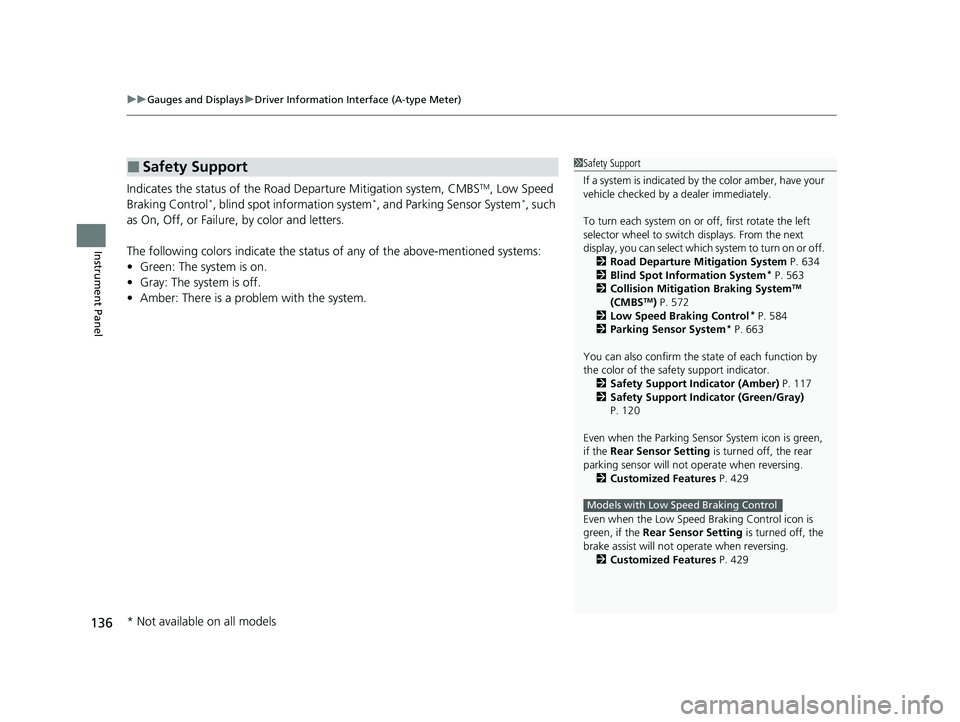
Indicates the status of the Road Departure Mitigation system, CMBSTM, Low Speed
Braking Control*, blind spot information system*, and Parking Sensor System*, such
as On, Off, or Failure, by color and letters.
The following colors indica te the status of any of the above-mentioned systems:
• Green: The system is on.
• Gray: The system is off.
• Amber: There is a probl em with the system.
■Safety Support1Safety Support
If a system is indicated by the color amber, have your
vehicle checked by a dealer immediately.
To turn each system on or off, first rotate the left
selector wheel to switch displays. From the next
display, you can select which system to turn on or off. 2 Road Departure Mitigation System P. 634
2 Blind Spot Information System
* P. 563
2 Collision Mitigation Braking SystemTM
(CMBSTM) P. 572
2 Low Speed Braking Control* P. 584
2 Parking Sensor System* P. 663
You can also confirm the st ate of each function by
the color of the safe ty support indicator.
2 Safety Support Indicator (Amber) P. 117
2 Safety Support Indicator (Green/Gray)
P. 120
Even when the Parking Sensor System icon is green,
if the Rear Sensor Setting is turned off, the rear
parking sensor will not operate when reversing. 2 Customized Features P. 429
Even when the Low Speed Braking Control icon is
green, if the Rear Sensor Setting is turned off, the
brake assist will not operate when reversing.
2 Customized Features P. 429
Models with Low Speed Braking Control
* Not available on all models
23 PILOT-31T906000_03.book 136 ページ 2022年10月31日 月曜日 午前10時26分
Page 139 of 814
uuGauges and Displays uDriver Information Interface (A-type Meter)
138
Instrument Panel
2 Tachometer P. 122
■Speed/Distance Units
Enables you to show another unit on th e driver information interface and audio/
information screen and set the displayed m easurements to read in either miles and
mph or km and km/h.
Press and hold the left selector wheel when you select No content on the driver
information interface. Each ti me you do this, the unit will change from miles and
mph to km and km/h or vice versa. After this, a confirmation screen will appear for
a few seconds.
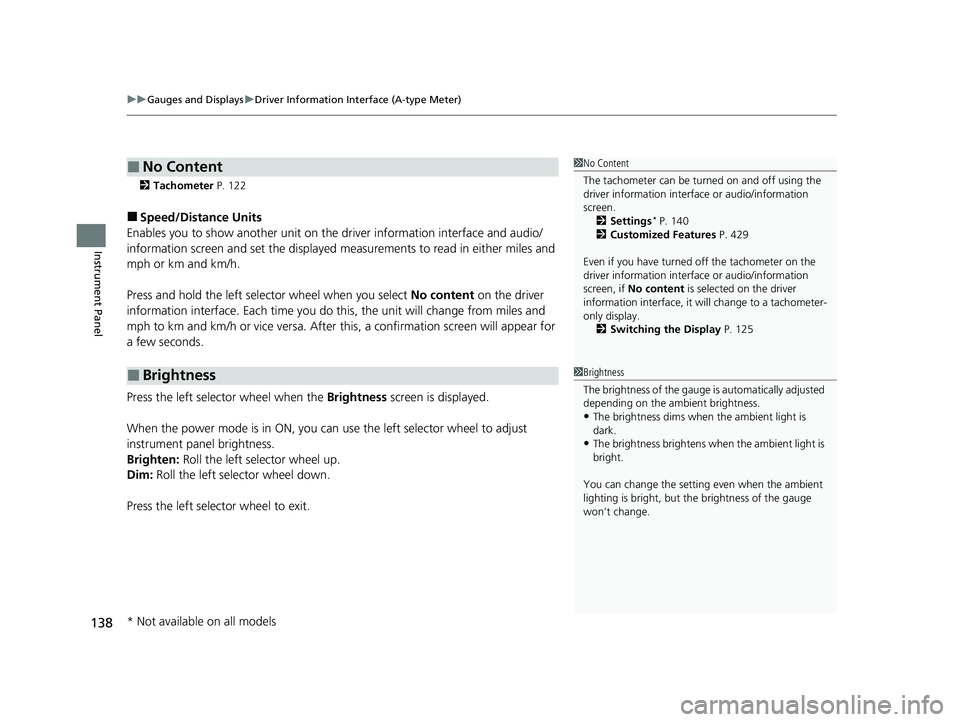
Press the left selector wheel when the Brightness screen is displayed.
When the power mode is in ON, you can use the left selector wheel to adjust
instrument panel brightness.
Brighten: Roll the left selector wheel up.
Dim: Roll the left selector wheel down.
Press the left selector wheel to exit.
■No Content
■Brightness
1 No Content
The tachometer can be tu rned on and off using the
driver information interf ace or audio/information
screen. 2 Settings
* P. 140
2 Customized Features P. 429
Even if you have turned off the tachometer on the
driver information interf ace or audio/information
screen, if No content is selected on the driver
information interface, it will change to a tachometer-
only display. 2 Switching the Display P. 125
1Brightness
The brightness of the gauge is automatically adjusted
depending on the ambient brightness.
•The brightness dims when the ambient light is
dark.
•The brightness brightens when the ambient light is
bright.
You can change the setting even when the ambient
lighting is bright, but the brightness of the gauge
won’t change.
* Not available on all models
23 PILOT-31T906000_03.book 138 ページ 2022年10月31日 月曜日 午前10時26分
Page 140 of 814
Continued139
uuGauges and Displays uDriver Information Interface (A-type Meter)
Instrument Panel
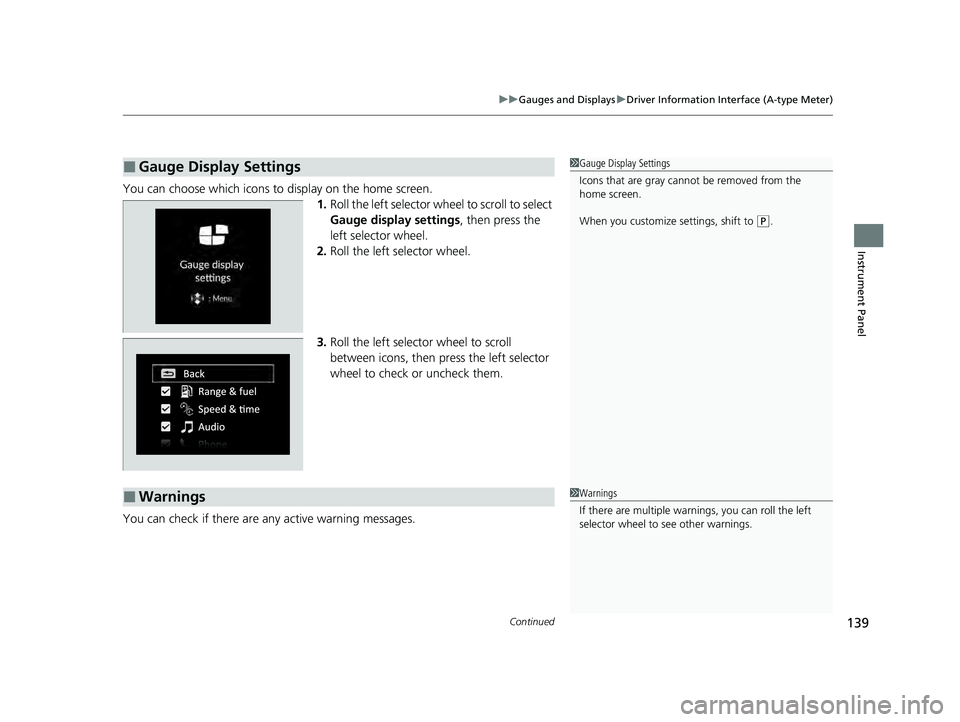
You can choose which icons to display on the home screen.
1.Roll the left selector wheel to scroll to select
Gauge display settings , then press the
left selector wheel.
2. Roll the left selector wheel.
3. Roll the left selector wheel to scroll
between icons, then press the left selector
wheel to check or uncheck them.
You can check if there are any active warning messages.
■Gauge Display Settings1 Gauge Display Settings
Icons that are gray cannot be removed from the
home screen.
When you customize settings, shift to
(P.
■Warnings1 Warnings
If there are multiple warnings, you can roll the left
selector wheel to see other warnings.
23 PILOT-31T906000_03.book 139 ページ 2022年10月31日 月曜日 午前10時26分
Page 141 of 814
uuGauges and Displays uDriver Information Interface (A-type Meter)
140
Instrument Panel
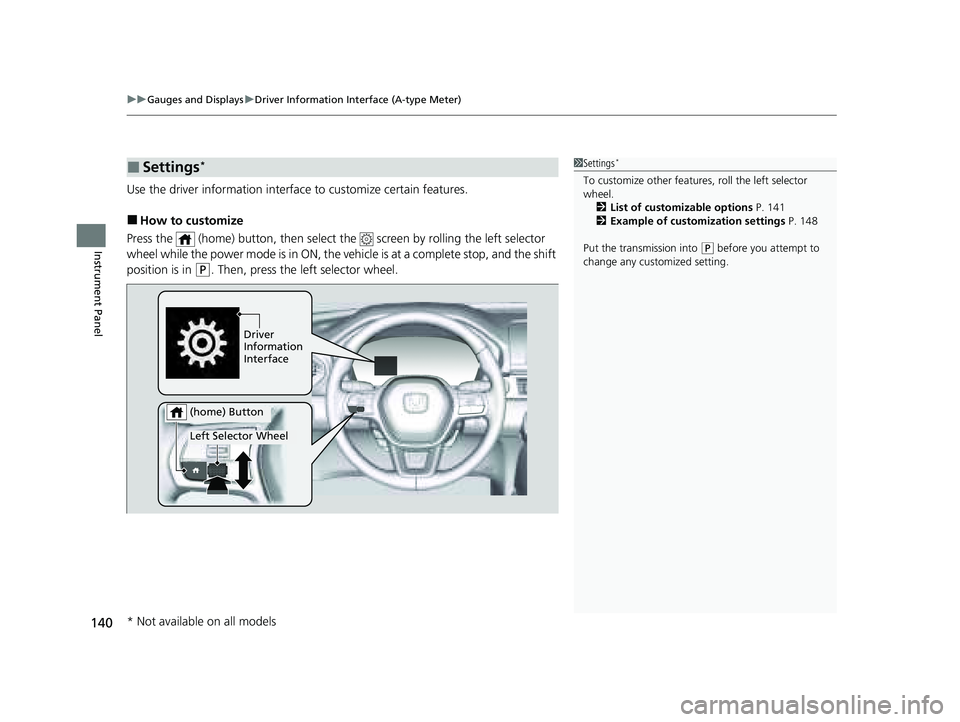
Use the driver information interfac e to customize certain features.
■How to customize
Press the (home) button, then select th e screen by rolling the left selector
wheel while the power mode is in ON, the ve hicle is at a complete stop, and the shift
position is in
(P. Then, press the left selector wheel.
■Settings*1 Settings*
To customize other features , roll the left selector
wheel. 2 List of customizable options P. 141
2 Example of customization settings P. 148
Put the transmission into
( P before you attempt to
change any customized setting.
Driver
Information
Interface
Left Selector Wheel
(home) Button
* Not available on all models
23 PILOT-31T906000_03.book 140 ページ 2022年10月31日 月曜日 午前10時26分
Page 149 of 814
148
uuGauges and Displays uDriver Information Interface (A-type Meter)
Instrument Panel
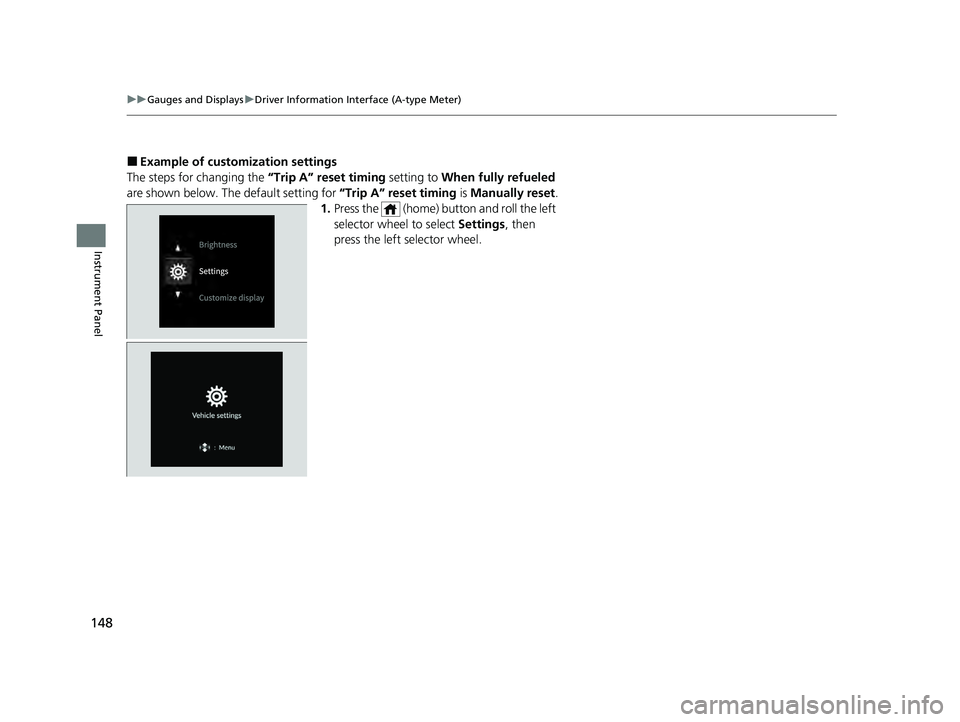
■Example of customization settings
The steps for changing the “Trip A” reset timing setting to When fully refueled
are shown below. The default setting for “Trip A” reset timing is Manually reset.
1. Press the (home) button and roll the left
selector wheel to select Settings, then
press the left selector wheel.
23 PILOT-31T906000_03.book 148 ページ 2022年10月31日 月曜日 午前10時26分
Page 150 of 814
149
uuGauges and Displays uDriver Information Interface (A-type Meter)
Continued
Instrument Panel
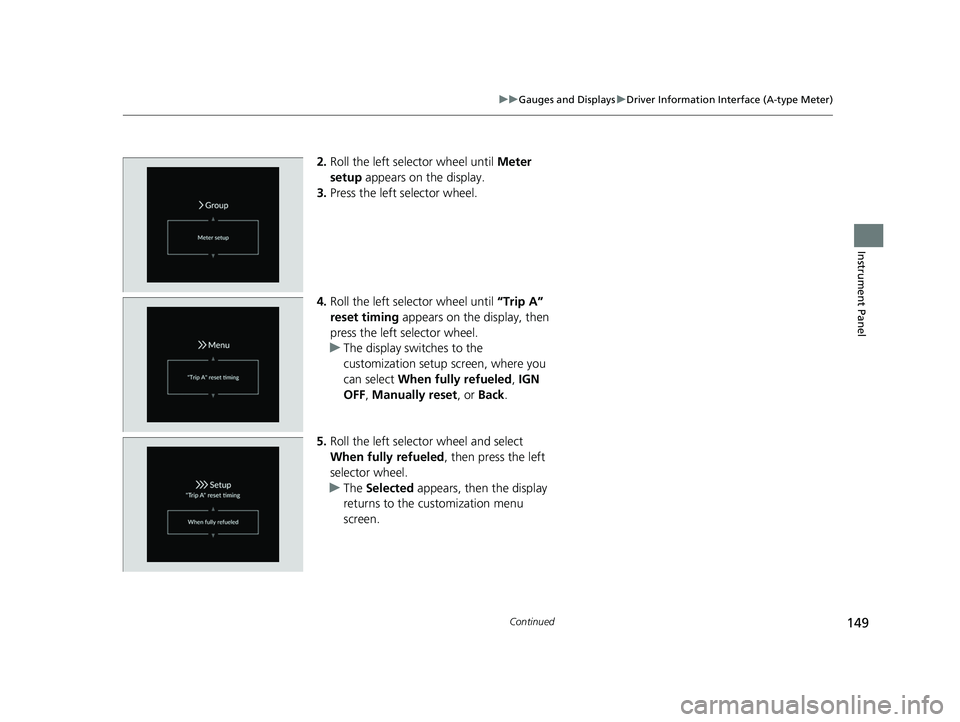
2. Roll the left selector wheel until Meter
setup appears on the display.
3. Press the left selector wheel.
4. Roll the left selector wheel until “Trip A”
reset timing appears on the display, then
press the left selector wheel.
u The display swit ches to the
customization setup screen, where you
can select When fully refueled , IGN
OFF , Manually reset , or Back .
5. Roll the left selector wheel and select
When fully refueled , then press the left
selector wheel.
u The Selected appears, then the display
returns to the customization menu
screen.
23 PILOT-31T906000_03.book 149 ページ 2022年10月31日 月曜日 午前10時26分
Page 151 of 814
150
uuGauges and Displays uDriver Information Interface (A-type Meter)
Instrument Panel
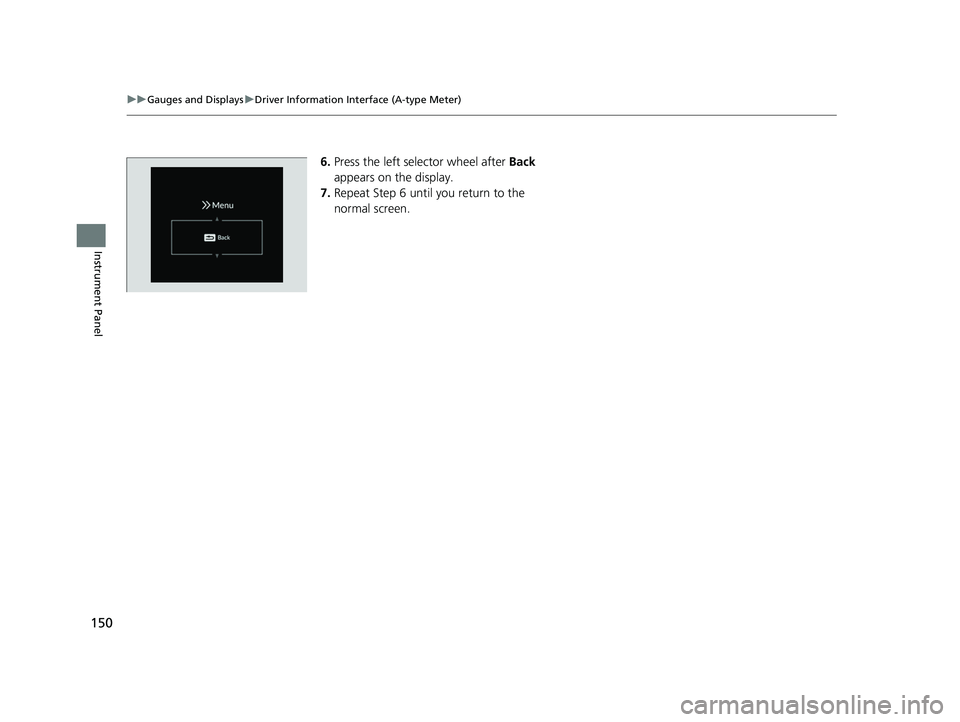
6. Press the left selector wheel after Back
appears on the display.
7. Repeat Step 6 until you return to the
normal screen.
23 PILOT-31T906000_03.book 150 ページ 2022年10月31日 月曜日 午前10時26分
Page 153 of 814
uuGauges and Displays uDriver Information Interface Left Side Area (B-type-Meter)
152
Instrument Panel
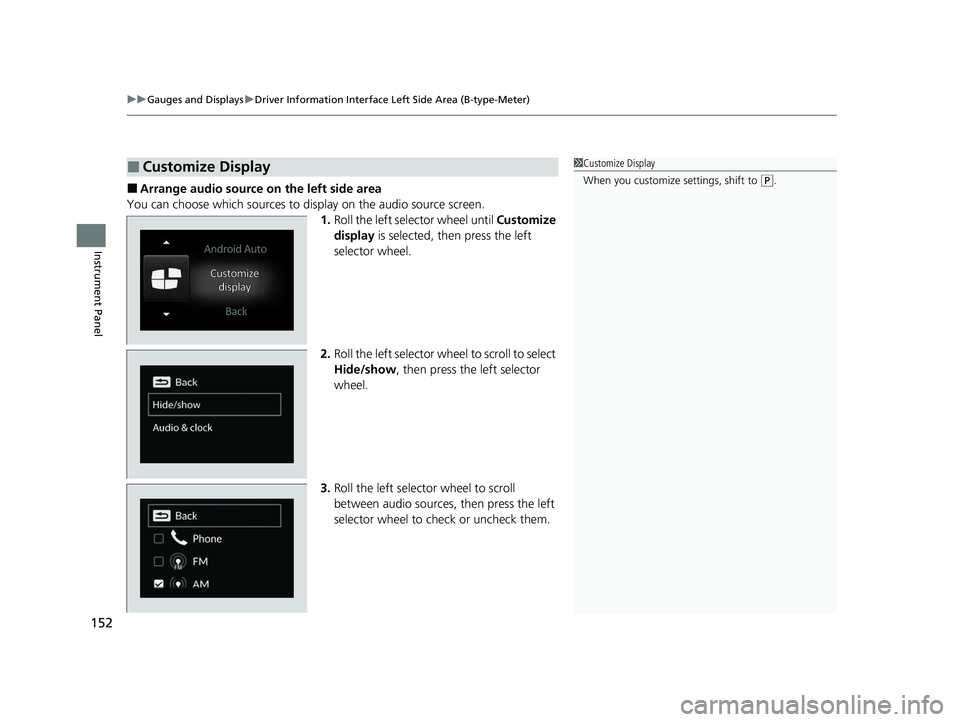
■Arrange audio source on the left side area
You can choose which sources to display on the audio source screen. 1.Roll the left selector wheel until Customize
display is selected, then press the left
selector wheel.
2. Roll the left selector wheel to scroll to select
Hide/show , then press the left selector
wheel.
3. Roll the left selector wheel to scroll
between audio sources, then press the left
selector wheel to check or uncheck them.
■Customize Display1 Customize Display
When you customize settings, shift to
(P.
23 PILOT-31T906000_03.book 152 ページ 2022年10月31日 月曜日 午前10時26分