phone HONDA RIDGELINE 2009 1.G Navigation Manual
[x] Cancel search | Manufacturer: HONDA, Model Year: 2009, Model line: RIDGELINE, Model: HONDA RIDGELINE 2009 1.GPages: 149, PDF Size: 4.83 MB
Page 124 of 149
124Navigation System
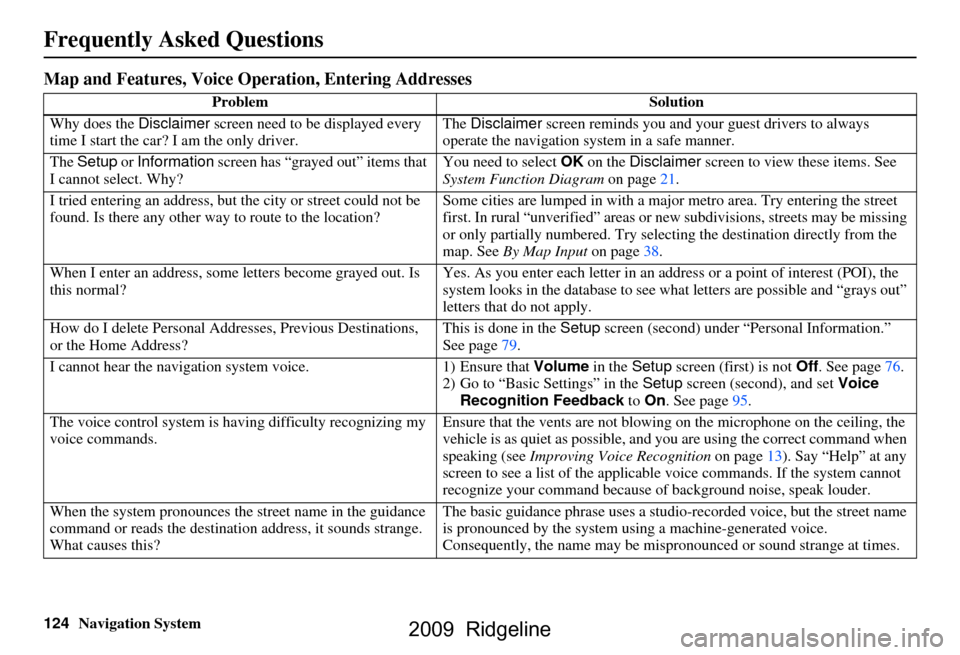
Frequently Asked Questions
Map and Features, Voice Operation, Entering Addresses
Problem Solution
Why does the Disclaimer screen need to be displayed every
time I start the car? I am the only driver. The
Disclaimer screen reminds you and your guest drivers to always
operate the navigation sy stem in a safe manner.
The Setup or Information screen has “grayed out” items that
I cannot select. Why? You need to select
OK on the Disclaimer screen to view these items. See
System Function Diagram on page21.
I tried entering an address, but th e city or street could not be
found. Is there any other way to route to the location? Some cities are lumped in with a major metro area. Try entering the street
first. In rural “unverified” areas or ne
w subdivisions, streets may be missing
or only partially numbered. Try selecting the destin ation directly from the
map. See By Map Input on page38.
When I enter an address, some letters become grayed out. Is
this normal? Yes. As you enter each letter in an addr
ess or a point of interest (POI), the
system looks in the databa se to see what letters are possible and “grays out”
letters that do not apply.
How do I delete Personal Addre sses, Previous Destinations,
or the Home Address? This is done in the
Setup screen (second) under “P ersonal Information.”
See page
79.
I cannot hear the navigation system voice. 1) Ensure that Volume in the Setup screen (first) is not Off. See page
76.
2) Go to “Basic Settings” in the Setup screen (second), and set Voice
Recognition Feedback to On . See page
95.
The voice control system is ha ving difficulty recognizing my
voice commands. Ensure that the vents are not blowi
ng on the microphone on the ceiling, the
vehicle is as quiet as possible, and you are using the correct command when
speaking (see Improving Voice Recognition on page
13). Say “Help” at any
screen to see a list of the applicable voice commands. If the system cannot
recognize your command because of background noise, speak louder.
When the system pronounces the street name in the guidance
command or reads the destinati on address, it sounds strange.
What causes this? The basic guidance phrase uses a studio
-recorded voice, but the street name
is pronounced by the system us ing a machine-generated voice.
Consequently, the name may be misp ronounced or sound strange at times.
2009 Ridgeline
Page 125 of 149
Navigation System125
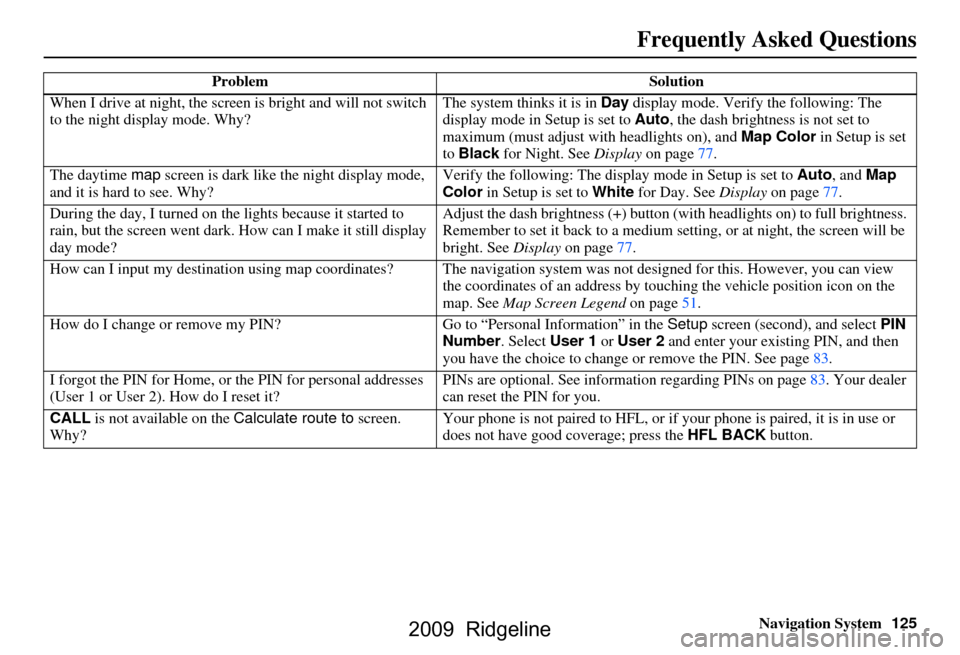
When I drive at night, the screen
is bright and will not switch
to the night display mode. Why? The system thinks it is in
Day display mode. Verify the following: The
display mode in Setup is set to Auto, the dash brightness is not set to
maximum (must adjust with headlights on), and Map Color in Setup is set
to Black for Night. See Display on page77.
The daytime map screen is dark like the night display mode,
and it is hard to see. Why? Verify the following: The disp
lay mode in Setup is set to Auto, and Map
Color in Setup is set to White for Day. See Display on page77.
During the day, I turned on the lights because it started to
rain, but the screen went dark. How can I make it still display
day mode? Adjust the dash brightness (+) button
(with headlights on) to full brightness.
Remember to set it back to a medium set ting, or at night, the screen will be
bright. See Display on page77.
How can I input my destination using map coordinates? The navigation system was not designed for this. However, you can view
the coordinates of an address by touching the vehicle position icon on the
map. See Map Screen Legend on page51.
How do I change or remove my PIN? Go to “Personal Information” in the Setup screen (second) , and select PIN
Number . Select User 1 or User 2 and enter your existing PIN, and then
you have the choice to change or remove the PIN. See page83.
I forgot the PIN for Home, or the PIN for personal addresses
(User 1 or User 2). How do I reset it? PINs are optional. See information regarding PINs on page83. Your dealer
can reset the PIN for you.
CALL is not available on the Calculate route to screen.
Why? Your phone is not paired to HFL, or if your phone is paired, it is in use or
does not have good coverage; press the
HFL BACK button.
Problem
Solution
Frequently Asked Questions
2009 Ridgeline
Page 126 of 149
126Navigation System
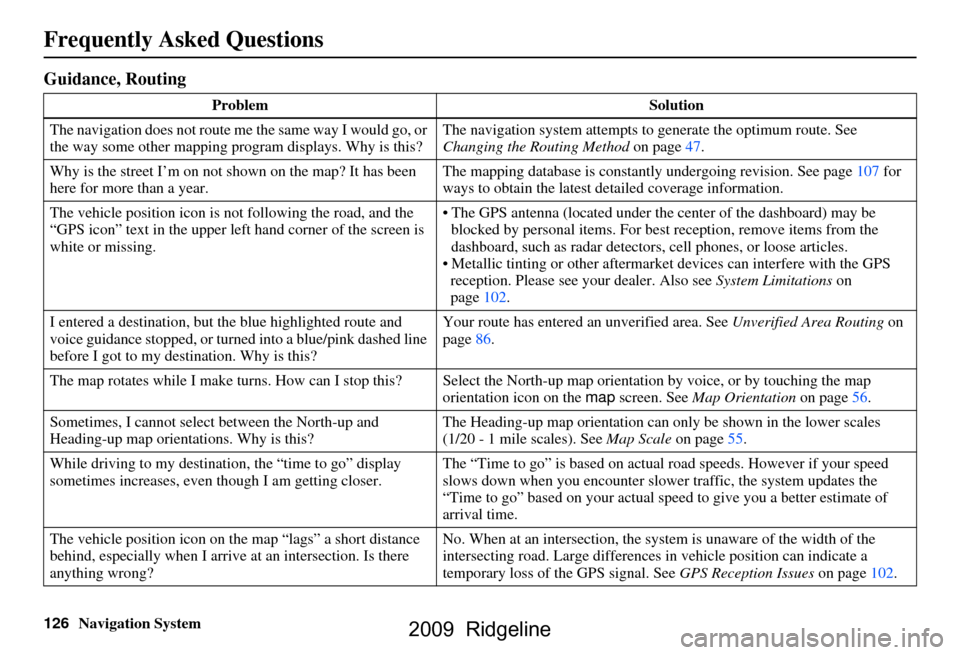
Frequently Asked Questions
Guidance, Routing
ProblemSolution
The navigation does not route me the same way I would go, or
the way some other mapping program displays. Why is this? The navigation system attempts to
generate the optimum route. See
Changing the Routing Method on page47.
Why is the street I’m on not shown on the map? It has been
here for more than a year. The mapping database is
constantly undergoing revision. See page107 for
ways to obtain the latest de tailed coverage information.
The vehicle position icon is not following the road, and the
“GPS icon” text in the upper left hand corner of the screen is
white or missing. The GPS antenna (located under the center of the dashboard) may be
blocked by personal items. For best reception, remove items from the
dashboard, such as radar detector s, cell phones, or loose articles.
Metallic tinting or other aftermarke t devices can interfere with the GPS
reception. Please see your dealer. Also see System Limitations on
page102.
I entered a destination, but th e blue highlighted route and
voice guidance stopped, or turned into a blue/pink dashed line
before I got to my dest ination. Why is this? Your route has entered
an unverified area. See Unverified Area Routing on
page86.
The map rotates while I make turns. How can I stop this? Select the North-up map orientation by voice, or by touching the map
orientation icon on the map screen. See Map Orientation on page56.
Sometimes, I cannot select between the North-up and
Heading-up map orienta tions. Why is this? The Heading-up map orient
ation can only be shown in the lower scales
(1/20 - 1 mile scales). See Map Scale on page55.
While driving to my destinati on, the “time to go” display
sometimes increases, even though I am getting closer. The “Time to go” is based on actual
road speeds. However if your speed
slows down when you encounter slower traffic, the system updates the
“Time to go” based on your actual spee d to give you a better estimate of
arrival time.
The vehicle position icon on the map “lags” a short distance
behind, especially when I arrive at an intersection. Is there
anything wrong? No. When at an intersection, the syst
em is unaware of the width of the
intersecting road. Large differences in vehicle position can indicate a
temporary loss of the GPS signal. See GPS Reception Issues on page102.
2009 Ridgeline
Page 133 of 149
Navigation System133
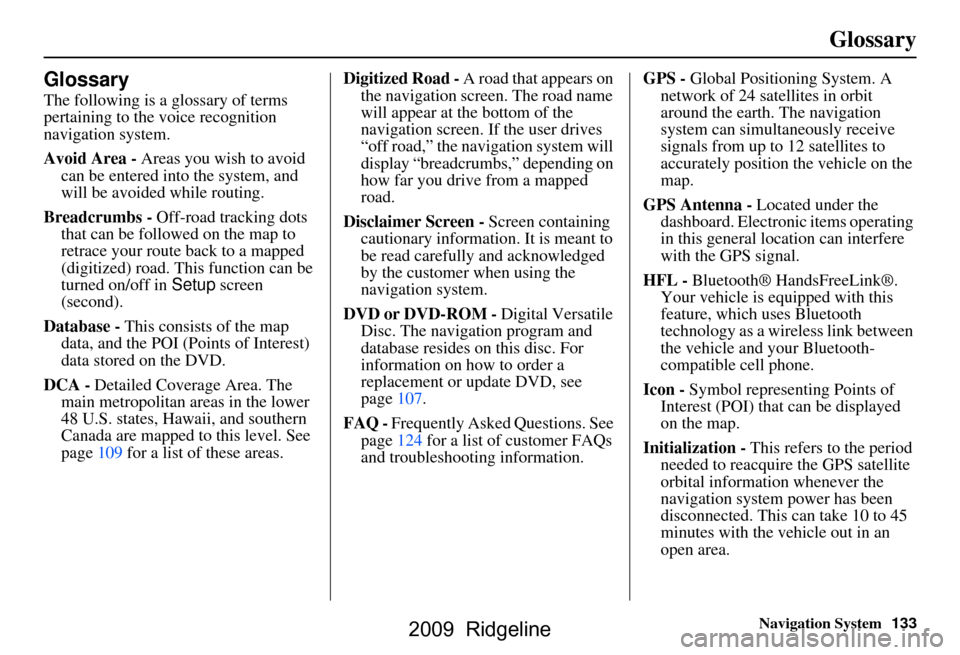
Glossary
Glossary
The following is a glossary of terms
pertaining to the voice recognition
navigation system.
Avoid Area - Areas you wish to avoid
can be entered into the system, and
will be avoided while routing.
Breadcrumbs - Off-road tracking dots
that can be followe d on the map to
retrace your route back to a mapped
(digitized) road. This function can be
turned on/off in Setup screen
(second).
Database - This consists of the map
data, and the POI (Points of Interest)
data stored on the DVD.
DCA - Detailed Coverage Area. The
main metropolitan areas in the lower
48 U.S. states, Hawaii, and southern
Canada are mapped to this level. See
page109 for a list of these areas. Digitized Road -
A road that appears on
the navigation screen. The road name
will appear at the bottom of the
navigation screen. If the user drives
“off road,” the navigation system will
display “breadcrumbs,” depending on
how far you drive from a mapped
road.
Disclaimer Screen - Screen containing
cautionary information. It is meant to
be read carefully and acknowledged
by the customer when using the
navigation system.
DVD or DVD-ROM - Digital Versatile
Disc. The navigation program and
database resides on this disc. For
information on how to order a
replacement or update DVD, see
page107.
FAQ - Frequently Asked Questions. See
page124 for a list of customer FAQs
and troubleshootin g information. GPS -
Global Positioning System. A
network of 24 satellites in orbit
around the earth. The navigation
system can simultaneously receive
signals from up to 12 satellites to
accurately position the vehicle on the
map.
GPS Antenna - Located under the
dashboard. Electronic items operating
in this general location can interfere
with the GPS signal.
HFL - Bluetooth® HandsFreeLink®.
Your vehicle is equipped with this
feature, which uses Bluetooth
technology as a wireless link between
the vehicle and your Bluetooth-
compatible cell phone.
Icon - Symbol representing Points of
Interest (POI) that can be displayed
on the map.
Initialization - This refers to the period
needed to reacquire the GPS satellite
orbital information whenever the
navigation system power has been
disconnected. This can take 10 to 45
minutes with the vehicle out in an
open area.
2009 Ridgeline
Page 134 of 149
134Navigation System
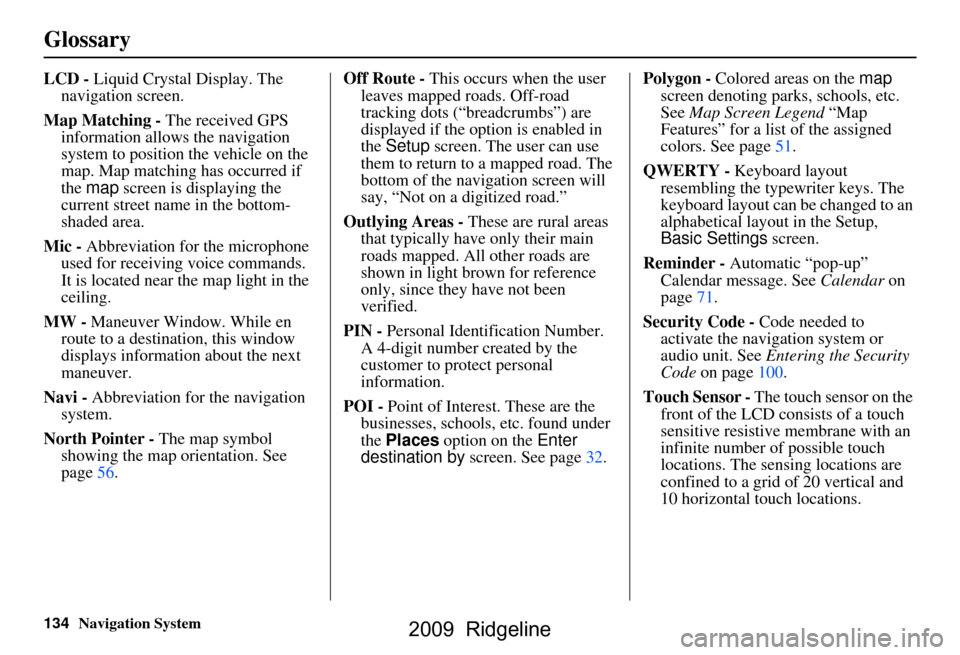
Glossary
LCD - Liquid Crystal Display. The
navigation screen.
Map Matching - The received GPS information allows the navigation
system to position the vehicle on the
map. Map matching has occurred if
the map screen is displaying the
current street name in the bottom-
shaded area.
Mic - Abbreviation for the microphone
used for receiving voice commands.
It is located near the map light in the
ceiling.
MW - Maneuver Window. While en
route to a destination, this window
displays informatio n about the next
maneuver.
Navi - Abbreviation for the navigation
system.
North Pointer - The map symbol showing the map orientation. See
page56. Off Route -
This occurs when the user
leaves mapped roads. Off-road
tracking dots (“breadcrumbs”) are
displayed if the option is enabled in
the Setup screen. The user can use
them to return to a mapped road. The
bottom of the navigation screen will
say, “Not on a digitized road.”
Outlying Areas - These are rural areas
that typically have only their main
roads mapped. All other roads are
shown in light brown for reference
only, since they have not been
verified.
PIN - Personal Identification Number.
A 4-digit number created by the
customer to protect personal
information.
POI - Point of Interest. These are the
businesses, schools, etc. found under
the Places option on the Enter
destination by screen. See page32. Polygon - Colored areas on the
map
screen denoting parks, schools, etc.
See Map Screen Legend “Map
Features” for a list of the assigned
colors. See page51.
QWERTY - Keyboard layout
resembling the typewriter keys. The
keyboard layout can be changed to an
alphabetical layout in the Setup,
Basic Settings screen.
Reminder - Automatic “pop-up”
Calendar message. See Calendar on
page71.
Security Code - Code needed to
activate the navigation system or
audio unit. See Entering the Security
Code on page100.
Touch Sensor - The touch sensor on the
front of the LCD consists of a touch
sensitive resistive membrane with an
infinite number of possible touch
locations. The sensing locations are
confined to a grid of 20 vertical and
10 horizontal touch locations.
2009 Ridgeline
Page 135 of 149
Navigation System135
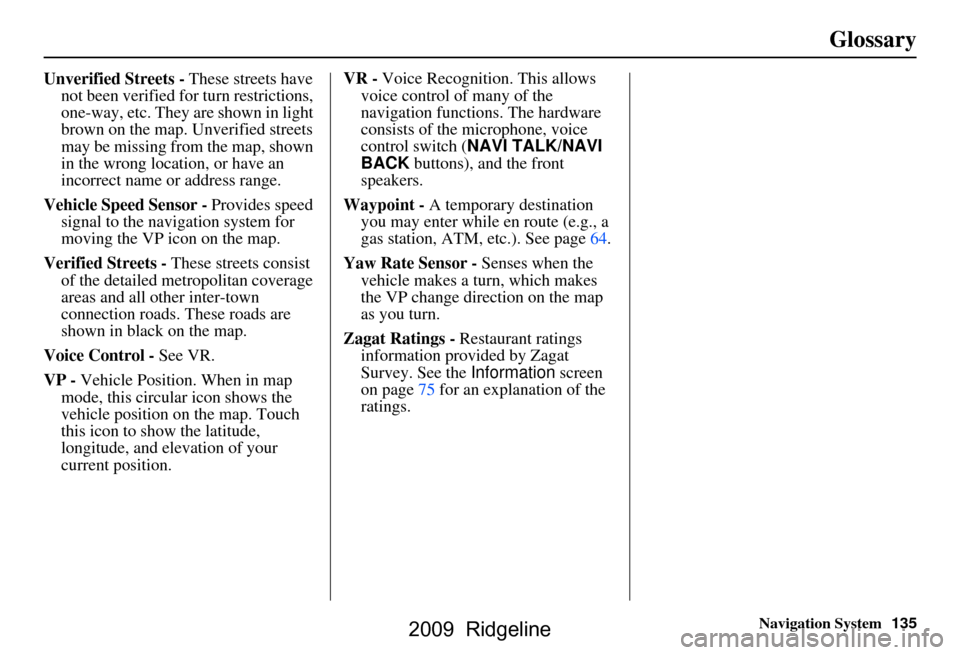
Glossary
Unverified Streets - These streets have
not been verified for turn restrictions,
one-way, etc. They are shown in light
brown on the map. Unverified streets
may be missing from the map, shown
in the wrong location, or have an
incorrect name or address range.
Vehicle Speed Sensor - Provides speed
signal to the navigation system for
moving the VP icon on the map.
Verified Streets - These streets consist
of the detailed metropolitan coverage
areas and all other inter-town
connection roads. These roads are
shown in black on the map.
Voice Control - See VR.
VP - Vehicle Position. When in map
mode, this circular icon shows the
vehicle position on the map. Touch
this icon to show the latitude,
longitude, and elevation of your
current position. VR -
Voice Recognition. This allows
voice control of many of the
navigation functions. The hardware
consists of the microphone, voice
control switch ( NAVI TALK/NAVI
BACK buttons), and the front
speakers.
Waypoint - A temporary destination
you may enter while en route (e.g., a
gas station, ATM, etc.). See page64.
Yaw Rate Sensor - Senses when the
vehicle makes a turn, which makes
the VP change direction on the map
as you turn.
Zagat Ratings - Restaurant ratings information prov ided by Zagat
Survey. See the Information screen
on page75 for an explanation of the
ratings.
2009 Ridgeline
Page 141 of 149
Navigation System141
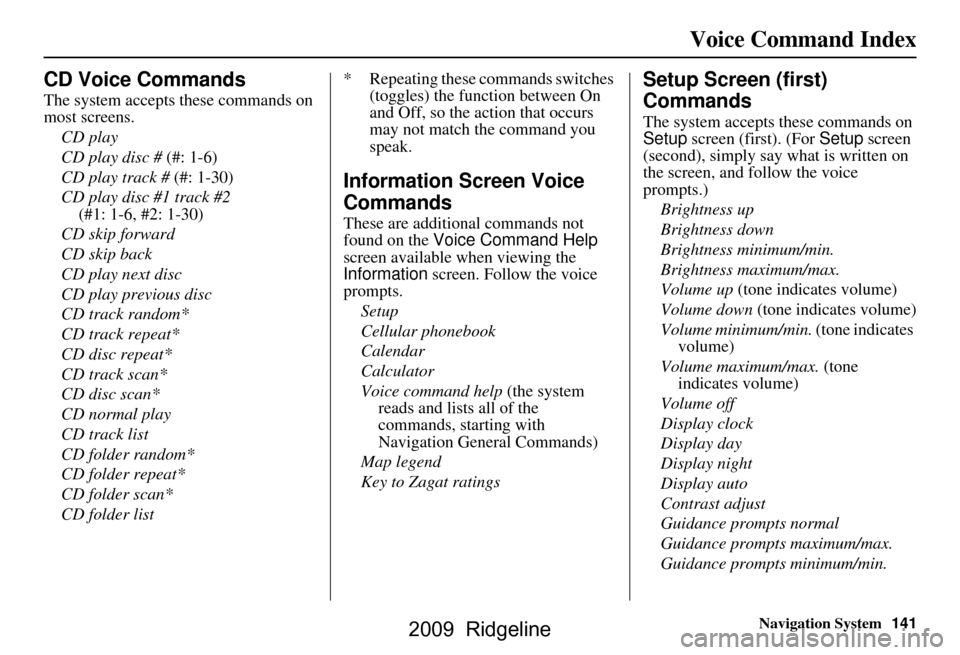
Voice Command Index
CD Voice Commands
The system accepts these commands on
most screens.
CD play
CD play disc # (#: 1-6)
CD play track # (#: 1-30)
CD play disc #1 track #2
(#1: 1-6, #2: 1-30)
CD skip forward
CD skip back
CD play next disc
CD play previous disc
CD track random*
CD track repeat*
CD disc repeat*
CD track scan*
CD disc scan*
CD normal play
CD track list
CD folder random*
CD folder repeat*
CD folder scan*
CD folder list * Repeating these commands switches
(toggles) the function between On
and Off, so the action that occurs
may not match the command you
speak.
Information Screen Voice
Commands
These are additional commands not
found on the Voice Command Help
screen available when viewing the
Information screen. Follow the voice
prompts.
Setup
Cellular phonebook
Calendar
Calculator
Voice command help (the system
reads and lists all of the
commands, starting with
Navigation General Commands)
Map legend
Key to Zagat ratings
Setup Screen (first)
Commands
The system accepts these commands on
Setup screen (first). (For Setup screen
(second), simply say what is written on
the screen, and follow the voice
prompts.)
Brightness up
Brightness down
Brightness minimum/min.
Brightness maximum/max.
Volume up (tone indicates volume)
Volume down (tone indicates volume)
Volume minimum/min. (tone indicates
volume)
Volume maximum/max. (tone indicates volume)
Volume off
Display clock
Display day
Display night
Display auto
Contrast adjust
Guidance prompts normal
Guidance prompts maximum/max.
Guidance prompts minimum/min.
2009 Ridgeline
Page 144 of 149
144Navigation System
Index
A
Accessing the Address Book List
..... 80
ADD TO Today’s
Destinations
........................... 43, 46
Adding Destinations to the List........43
Address..............................22, 23, 81
Address Book.....................22, 44, 79
Address Book PIN.......................... 83
Advanced............................ ...........34
Alaska (Operation)........................122
Auto Daylight Saving Time.............96
Auto Service................................... 33
Auto Time Zone by GPS.................97
Avoid Streets.................................. 66
B
Back to Current Route
..................... 67
Banking.......................................... 33
Basic Settings.................................95
Bluetooth® HandsFreeLink ®..........18
Breadcrumbs.......................19, 61, 93
Brightness...................................... 76
By Address.....................................23
By Address Book............................44
By Go Home................................... 45
By Intersection................................27
By Map Input................................. 38
By Places....................................... 32
By Previous Destinations................41
By Today’s Destinations................. 42
C
Calculator
.... .................................. 72
Calendar.................................. 17, 71
CALL...................................... 18, 46
CANCEL button............................11
Cancel Current Route..................... 67
Category............................32, 44, 82
CD Voice Commands...................141
Cellular Phonebook........................ 70
Change Method.............................. 47
Change State............................ 23, 28
Changing the DVD.......................108
Changing the Route........................ 64
Changing the Routing Method........47
Changing Your Destination............. 67
City................................... 23, 28, 39
City Vicinity............................34, 36
Climate Control Commands..........139
Clock Adjustment.......................... 96
Clock Screen........................... 17, 78
Clock Settings..........................17, 78
Clock Type.............................. 17, 78
Color............................................. 98
Community....................................33
Continental USA............................41
Contrast......................................... 78
Convert (Unit)................................73
Correct Vehicle Position................. 94
Coverage Areas.............. .............. 109
Current Location...................... 20, 62
Current Position....................... 38, 81
Current Street................................... 6
Customer Assistance.................... 106
D
Database Limitations
.................... 104
Daylight Saving Time (DST)
Selection
..................................... 97
Delete Previous Destination............84
Destination........................22, 46, 67
Destination Icon............................. 57
Destination Map............................. 49
Detailed Coverage Areas.............. 109
Detour........................................... 66
Direct Route..................................47
Direction List.................................53
Display.......................................... 77
Driving to Your Destination............46
E
Easy Route
.................................... 47
2009 Ridgeline
Page 145 of 149
Navigation System145
Index
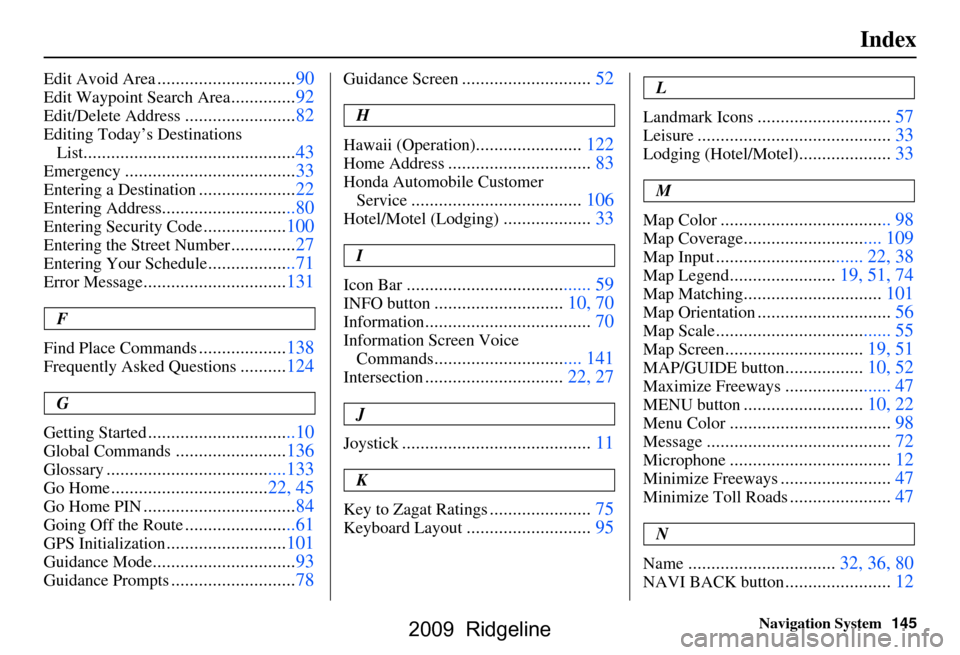
Edit Avoid Area..............................90
Edit Waypoint Search Area..............92
Edit/Delete Address........................82
Editing Today’s Destinations
List
..............................................43
Emergency.....................................33
Entering a Destination.....................22
Entering Address.............................80
Entering Security Code..................100
Entering the Street Number..............27
Entering Your Schedule...................71
Error Message...............................131
F
Find Place Commands
...................138
Frequently Asked Questions..........124
G
Getting Started
................................10
Global Commands........................136
Glossary.......................................133
Go Home..................................22, 45
Go Home PIN.................................84
Going Off the Route........................61
GPS Initialization..........................101
Guidance Mode...............................93
Guidance Prompts...........................78
Guidance Screen............................52
H
Hawaii (Operation)
.......................122
Home Address...............................83
Honda Automobile Customer Service
.....................................106
Hotel/Motel (Lodging)...................33
I
Icon Bar
........................................59
INFO button............................10, 70
Information....................................70
Information Screen Voice Commands
................................141
Intersection..............................22, 27
J
Joystick
.........................................11
K
Key to Zagat Ratings
......................75
Keyboard Layout...........................95
L
Landmark Icons
.............................57
Leisure..........................................33
Lodging (Hotel/Motel)....................33
M
Map Color
.....................................98
Map Coverage..............................109
Map Input................................22, 38
Map Legend.......................19, 51, 74
Map Matching..............................101
Map Orientation.............................56
Map Scale......................................55
Map Screen..............................19, 51
MAP/GUIDE button.................10, 52
Maximize Freeways.......................47
MENU button..........................10, 22
Menu Color...................................98
Message........................................72
Microphone...................................12
Minimize Freeways........................47
Minimize Toll Roads......................47
N
Name
................................32, 36, 80
NAVI BACK button.......................12
2009 Ridgeline
Page 146 of 149
146Navigation System
Index
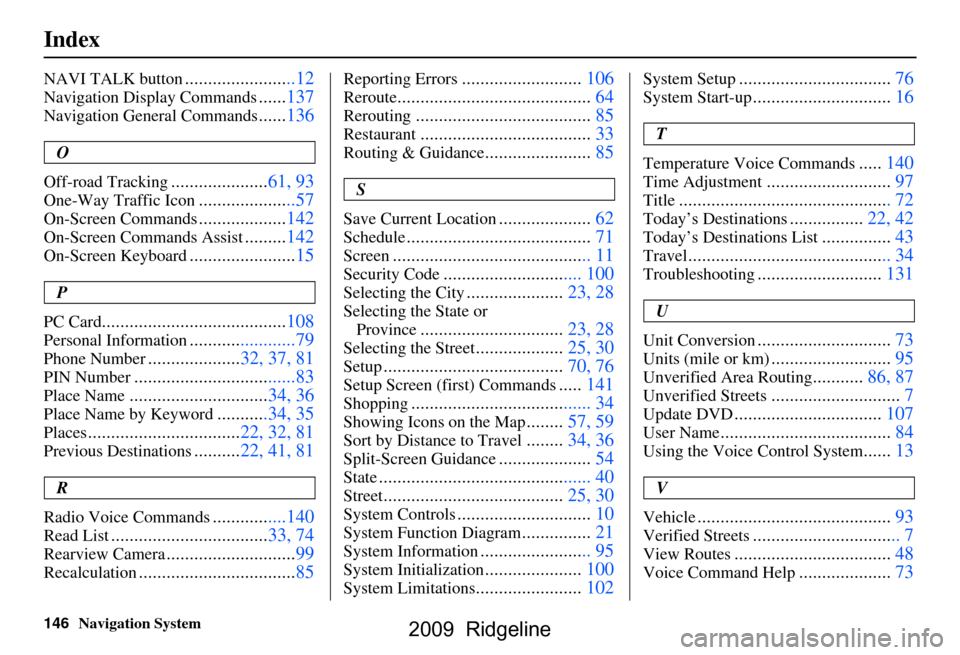
NAVI TALK button........................12
Navigation Display Commands......137
Navigation General Commands......136
O
Off-road Tracking
..................... 61, 93
One-Way Traffic Icon.....................57
On-Screen Commands................... 142
On-Screen Commands Assist.........142
On-Screen Keyboard....................... 15
P
PC Card
........................................ 108
Personal Information.......................79
Phone Number....................32, 37, 81
PIN Number........................ ...........83
Place Name.............................. 34, 36
Place Name by Keyword...........34, 35
Places................................. 22, 32, 81
Previous Destinations..........22, 41, 81
R
Radio Voice Commands
....... .........140
Read List.................................. 33, 74
Rearview Camera............................99
Recalculation.................................. 85
Reporting Errors..........................106
Reroute.......................................... 64
Rerouting......................................85
Restaurant.....................................33
Routing & Guidance.......................85
S
Save Current Location
.................... 62
Schedule........................................ 71
Screen........................................... 11
Security Code.............................. 100
Selecting the City..................... 23, 28
Selecting the State or
Province
............................... 23, 28
Selecting the Street...................25, 30
Setup....................................... 70, 76
Setup Screen (first) Commands.....141
Shopping....................................... 34
Showing Icons on the Map........ 57, 59
Sort by Distance to Travel........34, 36
Split-Screen Guidance.................... 54
State.............................................. 40
Street....................................... 25, 30
System Controls.............................10
System Function Diagram...............21
System Information........................ 95
System Initialization..................... 100
System Limitations....................... 102
System Setup................................. 76
System Start-up..............................16
T
Temperature Voice Commands
..... 140
Time Adjustment........................... 97
Title.............................. ................ 72
Today’s Destinations................22, 42
Today’s Destinations List...............43
Travel............................ ................ 34
Troubleshooting...........................131
U
Unit Conversion
............................. 73
Units (mile or km)..........................95
Unverified Area Routing........... 86, 87
Unverified Streets............................7
Update DVD................................ 107
User Name..................................... 84
Using the Voice Control System......13
V
Vehicle
.......................................... 93
Verified Streets................................ 7
View Routes.................................. 48
Voice Command Help....................73
2009 Ridgeline