change wheel HONDA RIDGELINE 2017 2.G User Guide
[x] Cancel search | Manufacturer: HONDA, Model Year: 2017, Model line: RIDGELINE, Model: HONDA RIDGELINE 2017 2.GPages: 606, PDF Size: 13.21 MB
Page 153 of 606
152
uuOperating the Switches Around the Steering Wheel uWipers and Washers
Controls
Wipers and Washers
The windshield wipers and washers can be
used when the power mode is in ON.
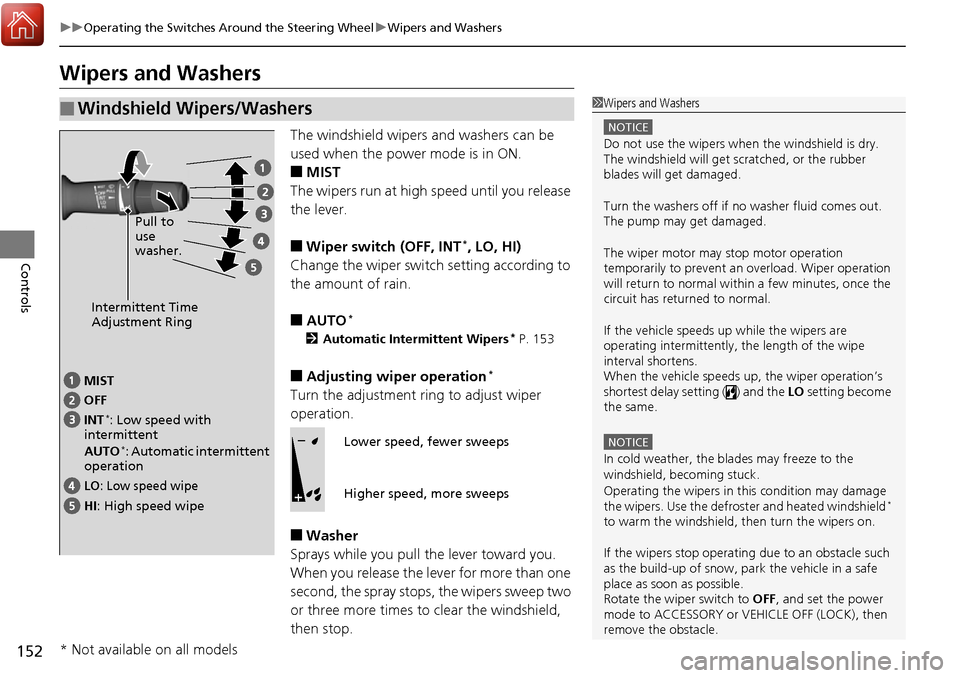
■MIST
The wipers run at high speed until you release
the lever.
■Wiper switch (OFF, INT*, LO, HI)
Change the wiper switch setting according to
the amount of rain.
■AUTO*
2 Automatic Intermittent Wipers* P. 153
■Adjusting wiper operation*
Turn the adjustment ri ng to adjust wiper
operation.
■Washer
Sprays while you pull the lever toward you.
When you release the lever for more than one
second, the spray stops, the wipers sweep two
or three more times to clear the windshield,
then stop.
■Windshield Wipers/Washers1 Wipers and Washers
NOTICE
Do not use the wipers when the windshield is dry.
The windshield will get sc ratched, or the rubber
blades will get damaged.
Turn the washers off if no washer fluid comes out.
The pump may get damaged.
The wiper motor may stop motor operation
temporarily to prevent an overload. Wiper operation
will return to normal within a few minutes, once the
circuit has returned to normal.
If the vehicle speeds up while the wipers are
operating intermittently, the length of the wipe
interval shortens.
When the vehicle speeds up, the wiper operation’s
shortest delay setting ( ) and the LO setting become
the same.
NOTICE
In cold weather, the blades may freeze to the
windshield, becoming stuck.
Operating the wipers in th is condition may damage
the wipers. Use the defrost er and heated windshield
*
to warm the windshield, then turn the wipers on.
If the wipers st op operating due to an obstacle such
as the build-up of snow, pa rk the vehicle in a safe
place as soon as possible.
Rotate the wiper switch to OFF, and set the power
mode to ACCESSORY or VEHICLE OFF (LOCK), then
remove the obstacle.
Intermittent Time
Adjustment Ring
MIST
INT
*: Low speed with
intermittent
AUTO
*: Automatic intermittent
operation OFF
LO: Low speed wipe
HI: High speed wipe Pull to
use
washer.
Lower speed, fewer sweeps
Higher speed, more sweeps
* Not available on all models
Page 205 of 606
204
Features
Audio System Basic Operation
To use the audio system, the power mode must be in ACCESSORY or ON.
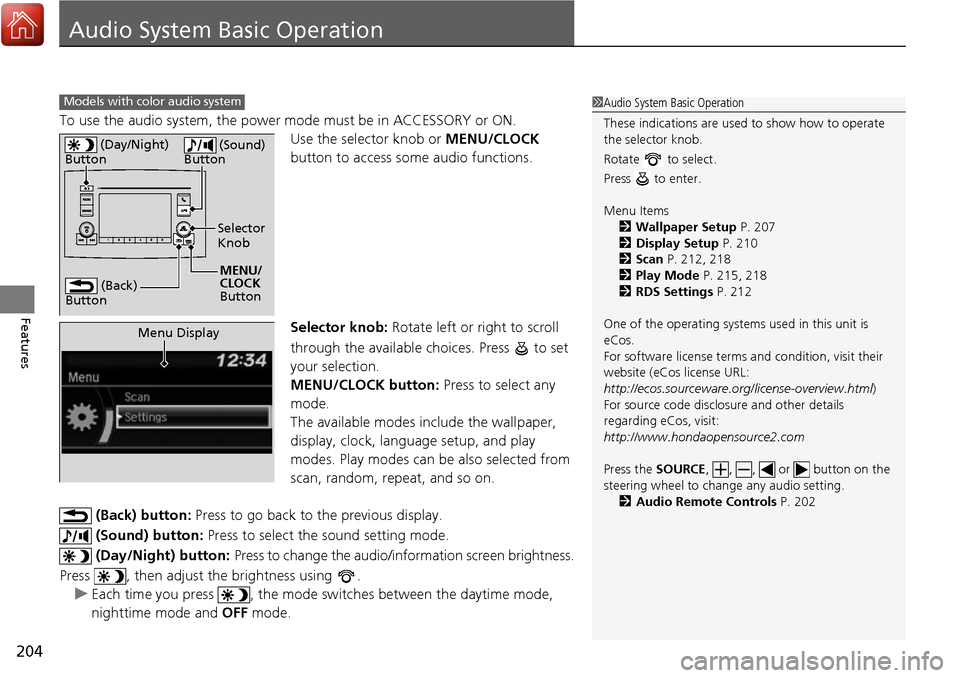
Use the selector knob or MENU/CLOCK
button to access some audio functions.
Selector knob: Rotate left or right to scroll
through the available ch oices. Press to set
your selection.
MENU/CLOCK button: Press to select any
mode.
The available modes include the wallpaper,
display, clock, langu age setup, and play
modes. Play modes can be also selected from
scan, random, repeat, and so on.
(Back) button: Press to go back to the previous display.
(Sound) button: Press to select the sound setting mode.
(Day/Night) button: Press to change the audio/information screen brightness.
Press , then adjust th e brightness using .
u Each time you press , the mode switches between the daytime mode,
nighttime mode and OFF mode.
Models with color audio system1Audio System Basic Operation
These indications are used to show how to operate
the selector knob.
Rotate to select.
Press to enter.
Menu Items 2 Wallpaper Setup P. 207
2 Display Setup P. 210
2 Scan P. 212, 218
2 Play Mode P. 215, 218
2 RDS Settings P. 212
One of the operating system s used in this unit is
eCos.
For software license terms and condition, visit their
website (eCos license URL:
http://ecos.sourceware.org/license-overview.html )
For source code disclo sure and other details
regarding eCos, visit:
http://www.hondaopensource2.com
Press the SOURCE, , , or button on the
steering wheel to cha nge any audio setting.
2 Audio Remote Controls P. 202
(Back)
Button
Selector
Knob
MENU/
CLOCK
Button
(Day/Night)
Button
(Sound)
Button
Menu Display
Page 213 of 606
uuAudio System Basic Operation uPlaying AM/FM Radio
212
Features
Provides text data information related to your selected RDS capable FM station.
■To find an RDS station from Station List
1. Press while listening to an FM station.
2. Rotate to select the station, then press .
■Update List
Updates your available station list at any time.
1. Press while listening to an FM station.
2. Rotate to select Update List, then press .
■Radio text
Displays the radio text informat ion of the selected RDS station.
1. Press the MENU/CLOCK button.
2. Rotate to select Settings, then press .
3. Rotate to select RDS Settings, then press .
4. Rotate to select Radio Text, then press .
■Scan
Samples each of the strongest stations on the selected band for 10 seconds.
1. Press the MENU/CLOCK button.
2. Rotate to select Scan, then press .
To turn off scan, press .
■Radio Data System (RDS)1 Playing AM/FM Radio
The ST indicator appears on the display indicating
stereo FM broadcasts.
Stereo reproduction in AM is not available.
You can store 6 AM stations and 12 FM stations into
reset button memory. FM1 and FM2 let you store 6
stations each.
Switching the Audio Mode
Press the SOURCE button on the steering wheel.
2 Audio Remote Controls P. 202
1Radio Data System (RDS)
When you select an RDS-capable FM station, the RDS
automatically turns on, and the frequency display
changes to the station name. However, when the
signals of that station become weak, the display
changes from the statio n name to the frequency.
Page 253 of 606
uuAudio System Basic Operation uPlaying SiriusXM ® Radio*
252
Features
1. Select .
2. Select Tune Mode .
3. Select Channel Mode or Category Mode .
■To Change the Tune Mode1Playing SiriusXM ® Radio*
In the channel mode, all available channels are
selectable. In the categor y mode, you can select a
channel within a ca tegory (Jazz, Rock, Classical, etc.).
There may be instances when SiriusXM ® Radio does
not broadcast all the data fi elds (artist name, title).
This does not indicate a problem with your audio
system.
SiriusXM ® Radio stations load in ascending order,
which can take about a minute. Once they have
loaded you will be able to scroll up or down to make
your selections.
Switching the Audio Mode
Press the SOURCE button on the steering wheel or
select SOURCE on the screen.
2 Audio Remote Controls P. 202
Tune Start:
When you change to a preset channel, a song being
played on that channel restarts from the beginning
with this function. This can be turned on or off from
the Audio settings screen.
2 Customized Features P. 309
* Not available on all models
Page 284 of 606
283
uuAudio System Basic Operation uSiri Eyes Free
Features
Siri Eyes Free
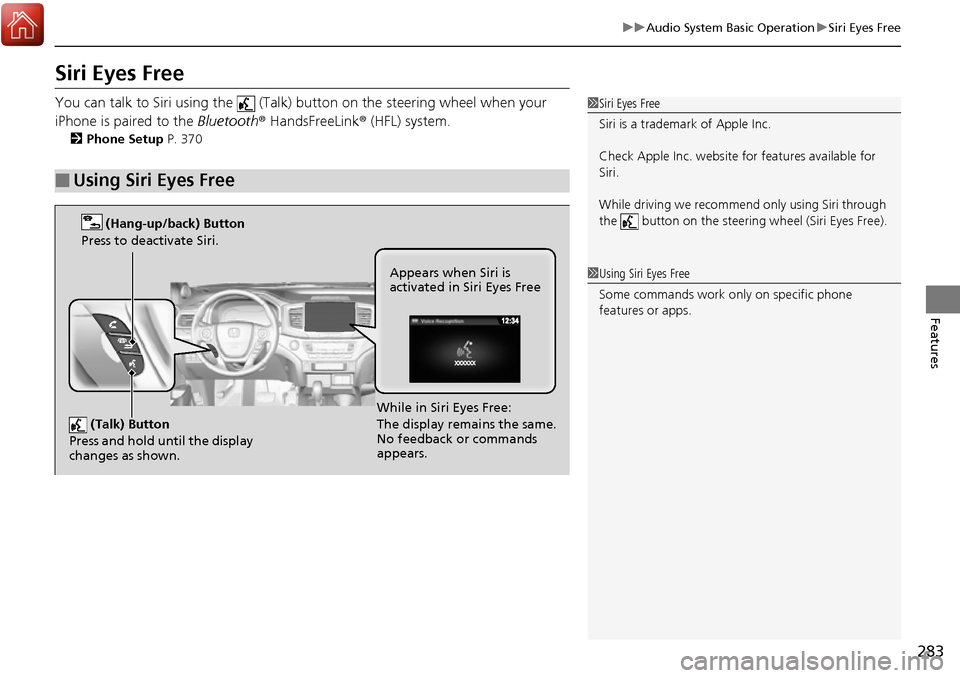
You can talk to Siri using the (Talk) button on the steering wheel when your
iPhone is paired to the Bluetooth® HandsFreeLink ® (HFL) system.
2Phone Setup P. 370
■Using Siri Eyes Free
1Siri Eyes Free
Siri is a trademark of Apple Inc.
Check Apple Inc. website for features available for
Siri.
While driving we recomme nd only using Siri through
the button on the steering wheel (Siri Eyes Free).
1 Using Siri Eyes Free
Some commands work only on specific phone
features or apps.
(Talk) Button
Press and hold until the display
changes as shown.
(Hang-up/back) Button
Press to deactivate Siri.
While in Siri Eyes Free:
The display remains the same.
No feedback or commands
appears. Appears when Siri is
activated in Siri Eyes Free
Page 338 of 606
337Continued
Features
Bluetooth® HandsFreeLink ®
Bluetooth® HandsFreeLink ® (HFL) allows you to place and receive phone calls using
your vehicle’s audio system, without handling your cell phone.
Using HFL
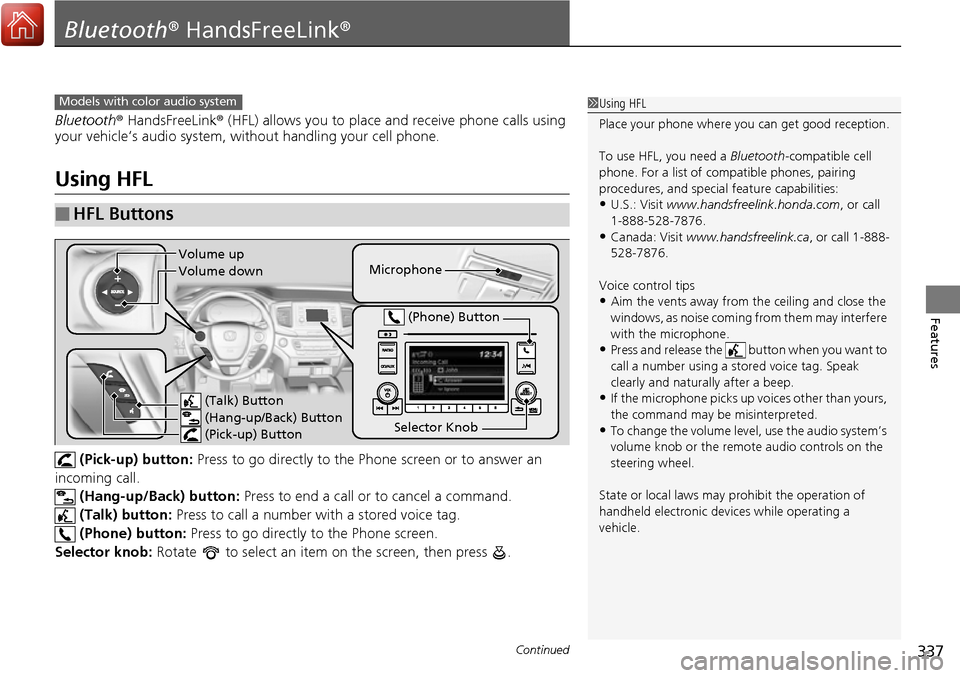
(Pick-up) button: Press to go directly to the Phone screen or to answer an
incoming call. (Hang-up/Back) button: Press to end a call or to cancel a command.
(Talk) button: Press to call a number with a stored voice tag.
(Phone) button: Press to go directly to the Phone screen.
Selector knob: Rotate to select an item on the screen, then press .
■HFL Buttons
1Using HFL
Place your phone where y ou can get good reception.
To use HFL, you need a Bluetooth-compatible cell
phone. For a list of compatible phones, pairing
procedures, and special feature capabilities:
•U.S.: Visit www.handsfreelink.honda.com , or call
1-888-528-7876.
•Canada: Visit www.handsfreelink.ca , or call 1-888-
528-7876.
Voice control tips
•Aim the vents away from the ceiling and close the
windows, as noise coming fr om them may interfere
with the microphone.
•Press and release the button when you want to
call a number using a st ored voice tag. Speak
clearly and naturally after a beep.
•If the microphone picks up vo ices other than yours,
the command may be misinterpreted.
•To change the volume level, use the audio system’s
volume knob or the remote audio controls on the
steering wheel.
State or local laws may pr ohibit the operation of
handheld electronic devi ces while operating a
vehicle.
Models with color audio system
Microphone
(Talk) Button
(Hang-up/Back) Button
(Pick-up) Button
Selector Knob (Phone) Button
Volume up
Volume down
Page 363 of 606
362
Features
Bluetooth® HandsFreeLink ®
Bluetooth® HandsFreeLink ® (HFL) allows you to place and receive phone calls using
your vehicle’s audio system, without handling your cell phone.
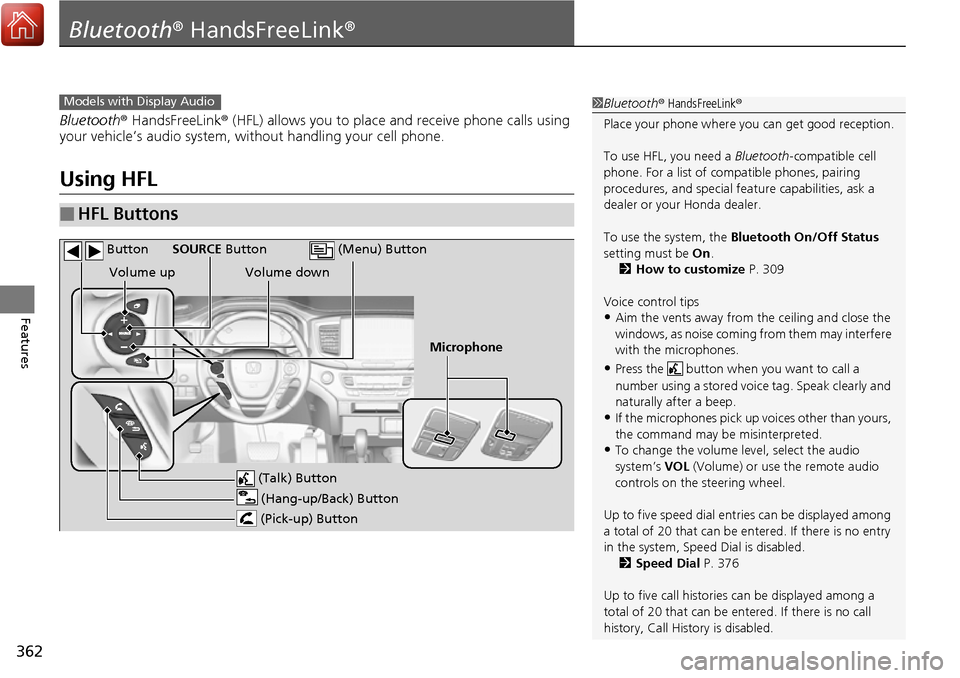
Using HFL
■HFL Buttons
1 Bluetooth ® HandsFreeLink ®
Place your phone where y ou can get good reception.
To use HFL, you need a Bluetooth-compatible cell
phone. For a list of compatible phones, pairing
procedures, and special fe ature capabilities, ask a
dealer or your Honda dealer.
To use the system, the Bluetooth On/Off Status
setting must be On.
2 How to customize P. 309
Voice control tips
•Aim the vents away from the ceiling and close the
windows, as noise coming fr om them may interfere
with the microphones.
•Press the button when you want to call a
number using a stored voic e tag. Speak clearly and
naturally after a beep.
•If the microphones pick up vo ices other than yours,
the command may be misinterpreted.
•To change the volume level, select the audio
system’s VOL (Volume) or use the remote audio
controls on the steering wheel.
Up to five speed dial entries can be displayed among
a total of 20 that can be en tered. If there is no entry
in the system, Speed Dial is disabled.
2 Speed Dial P. 376
Up to five call historie s can be displayed among a
total of 20 that can be entered. If there is no call
history, Call History is disabled.
Models with Display Audio
(Talk) Button
Volume up
Microphone
(Hang-up/Back) Button
(Pick-up) Button
Volume down
SOURCE Button
(Menu) Button
Button
Page 425 of 606
424
uuWhen Driving uPrecautions While Driving
Driving
Precautions While Driving
Utility vehicles have a significantly higher ro llover rate than other types of vehicles.
To prevent rollovers or loss of control:
• Take corners at slower speeds than yo u would with a passenger vehicle.
• Avoid sharp turns and abrupt maneuvers whenever possible.
• Do not modify your vehicle in any way that you would raise the center of gravity.
• Do not carry heavy cargo on the roof.
Never carry more than 165 lbs (75 kg) of cargo on the roof rack (Honda accessory).
Avoid driving in deep water and on flooded roads. This can damage the engine,
driveline, or cause electrical component failure.
If there is a strong impact with something un der the vehicle, stop in a safe location.
Check the underside of the vehicle for damage or any fluid leaks.
■Driving Guidelines for Your Utility Vehicle
■In Rain
■Other Precautions
1 Precautions While Driving
NOTICE
Do not change the shift lever while pressing the
accelerator pedal. You could damage the
transmission.
NOTICE
If you repeatedly turn the steering wheel at an
extremely low speed, or hold the steering wheel in
the full left or right position for a while, the system
heats up. The system goes into a protective mode,
and limits its performa nce. The steering wheel
becomes harder and harder to operate. Once the
system cools down, the EPS system is restored.
Repeated operation under these conditions can
eventually damage the system.
If the power mode is set to ACCESSORY or VEHICLE
OFF (LOCK) while driving, the engine will shut down
and all steering and brake pow er assist functions will
stop, making it difficult to control the vehicle.
Do not put the shift lever in
( N, as you will lose
engine braking (and acce leration) performance.
During the first 600 miles (1,000 km) of operation,
avoid sudden acceleration or full throttle operation so
as not to damage the engine or powertrain.
Avoid hard braking for the first 200 miles (300 km).
You should also follow this when the brake pads are
replaced.
Page 455 of 606
454
uuWhen Driving uLane Keeping Assist System (LKAS)*
Driving
Lane Keeping Assist System (LKAS)*
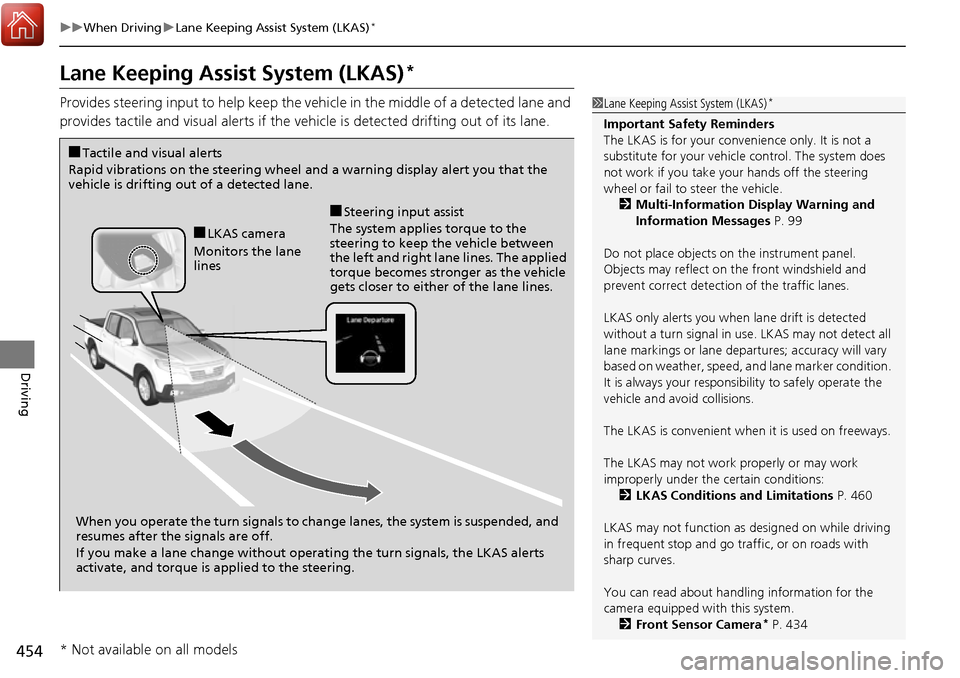
Provides steering input to help keep the vehicle in the middle of a detected lane and
provides tactile and visual alerts if the ve hicle is detected drifting out of its lane.1Lane Keeping Assist System (LKAS)*
Important Safety Reminders
The LKAS is for your convenience only. It is not a
substitute for your vehicl e control. The system does
not work if you take y our hands off the steering
wheel or fail to steer the vehicle.
2 Multi-Information Display Warning and
Information Messages P. 99
Do not place objects on the instrument panel.
Objects may reflect on th e front windshield and
prevent correct detectio n of the traffic lanes.
LKAS only alerts you when lane drift is detected
without a turn signal in use. LKAS may not detect all
lane markings or lane departures; a ccuracy will vary
based on weather, speed, an d lane marker condition.
It is always your responsibility to safely operate the
vehicle and avoid collisions.
The LKAS is convenient when it is used on freeways.
The LKAS may not work properly or may work
improperly under the certain conditions: 2 LKAS Conditions and Limitations P. 460
LKAS may not function as designed on while driving
in frequent stop and go traf fic, or on roads with
sharp curves.
You can read about handling information for the
camera equipped with this system. 2 Front Sensor Camera
* P. 434
When you operate the turn signals to chan ge lanes, the system is suspended, and
resumes after the signals are off.
If you make a lane change without operat ing the turn signals, the LKAS alerts
activate, and torque is applied to the steering.
■LKAS camera
Monitors the lane
lines
■Tactile and visual alerts
Rapid vibrations on the steering wheel and a warning display alert you that the
vehicle is drifting out of a detected lane.
■Steering input assist
The system applies torque to the
steering to keep the vehicle between
the left and right lane lines. The applied
torque becomes stronger as the vehicle
gets closer to either of the lane lines.
* Not available on all models
Page 464 of 606
463
uuWhen Driving uVehicle Stability Assist (VSA ®), aka Electronic Stability Control (ESC), System
Driving
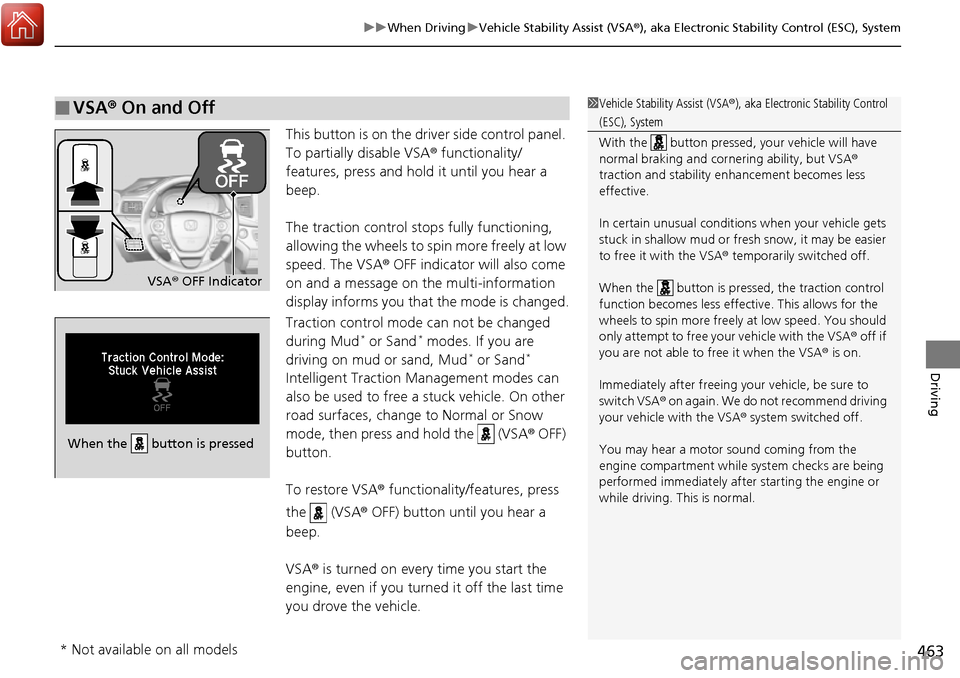
This button is on the driver side control panel.
To partially disable VSA ® functionality/
features, press and hold it until you hear a
beep.
The traction control stop s fully functioning,
allowing the wheels to spin more freely at low
speed. The VSA ® OFF indicator will also come
on and a message on the multi-information
display informs you that the mode is changed.
Traction control mode can not be changed
during Mud
* or Sand* modes. If you are
driving on mud or sand, Mud* or Sand*
Intelligent Traction Management modes can
also be used to free a stuck vehicle. On other
road surfaces, change to Normal or Snow
mode, then press and hold the (VSA ® OFF)
button.
To restore VSA ® functionality/features, press
the (VSA ® OFF) button until you hear a
beep.
VSA ® is turned on every time you start the
engine, even if you turned it off the last time
you drove the vehicle.
■VSA ® On and Off1 Vehicle Stability Assist (VSA ®), aka Electronic Stability Control
(ESC), System
With the button pressed, your vehicle will have
normal braking and corn ering ability, but VSA®
traction and stability enhancement becomes less
effective.
In certain unusual conditions when your vehicle gets
stuck in shallow mud or fr esh snow, it may be easier
to free it with the VSA ® temporarily switched off.
When the button is pressed, the traction control
function becomes less effective. This allows for the
wheels to spin more freely at low speed. You should
only attempt to free your vehicle with the VSA ® off if
you are not able to free it when the VSA ® is on.
Immediately after freeing your vehicle, be sure to
switch VSA ® on again. We do not recommend driving
your vehicle with the VSA ® system switched off.
You may hear a motor sound coming from the
engine compartment while system checks are being
performed immediately after starting the engine or
while driving. This is normal.
VSA ® OFF Indicator
When the button is pressed
* Not available on all models