phone HONDA RIDGELINE 2017 2.G Owner's Manual
[x] Cancel search | Manufacturer: HONDA, Model Year: 2017, Model line: RIDGELINE, Model: HONDA RIDGELINE 2017 2.GPages: 606, PDF Size: 13.21 MB
Page 269 of 606
268
uuAudio System Basic Operation uSong By VoiceTM (SBV)
Features
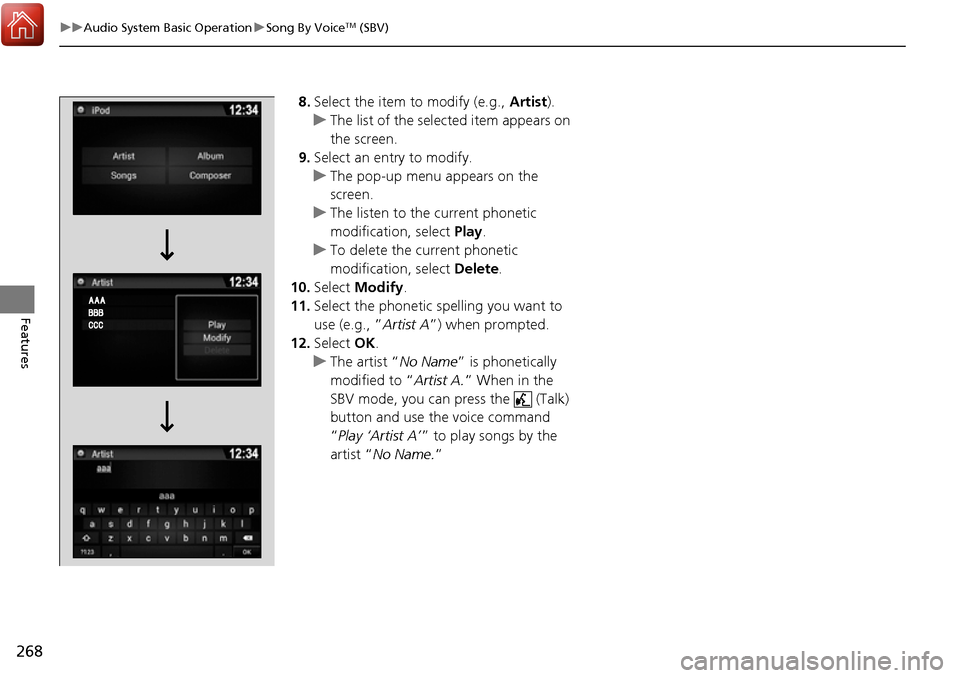
8. Select the item to modify (e.g., Artist).
u The list of the selected item appears on
the screen.
9. Select an entry to modify.
u The pop-up menu appears on the
screen.
u The listen to the current phonetic
modification, select Play.
u To delete the current phonetic
modification, select Delete.
10. Select Modify .
11. Select the phonetic spelling you want to
use (e.g., ”Artist A ”) when prompted.
12. Select OK.
u The artist “ No Name” is phonetically
modified to “ Artist A.” When in the
SBV mode, you can press the (Talk)
button and use the voice command
“ Play ‘Artist A’ ” to play songs by the
artist “ No Name.”
Page 270 of 606
269
uuAudio System Basic Operation uPlaying Pandora ®
Continued
Features
Playing Pandora ®
Your audio system allows you to listen to music from the Pandora ® app on a
compatible smartphone.
This function is available when the phone is paired an d connected to the vehicle’s
Bluetooth ® HandsFreeLink ® (HFL) system, or with an iPhone, you can connect using
your USB cable to the USB port.
2 Phone Setup P. 370
2 USB Port(s) P. 199
U.S. models
1Playing Pandora ®
Pandora ®, the Pandora logo, and the Pandora trade
dress are trademarks or registered trademarks of
Pandora Media, Inc., used with permission. Pandora
is only available in certai n countries. Visit the Pandora
website for more information.
To find out if your phone is compatible with this
feature, visit www.handsfreelink.honda.com , or call
1-888-528-7876.
To use this service in your vehicle, the Pandora ® app
must first be installed on your phone. Visit
www.pandora.com for more information.
Pandora ® is free, personalized radio that plays music
and comedy you’ll love. Just start with the name of
one of your favorite arti sts, songs, comedians or
composers and Pandora ® will create a custom station
that plays similar tracks. Pandora® also features
hundreds of genre stations ranging from Dubstep to
Smooth Jazz to Power Workout.
If you cannot operate Pandora ® through the audio
system, it may be streaming through Bluetooth®
Audio. Make sure Pandora ® mode on your audio
system is selected.
If your phone is connecte d to Android Auto, Pandora
will be available only through the Android Auto
interface. Visit the Android Auto website to check
compatibility.
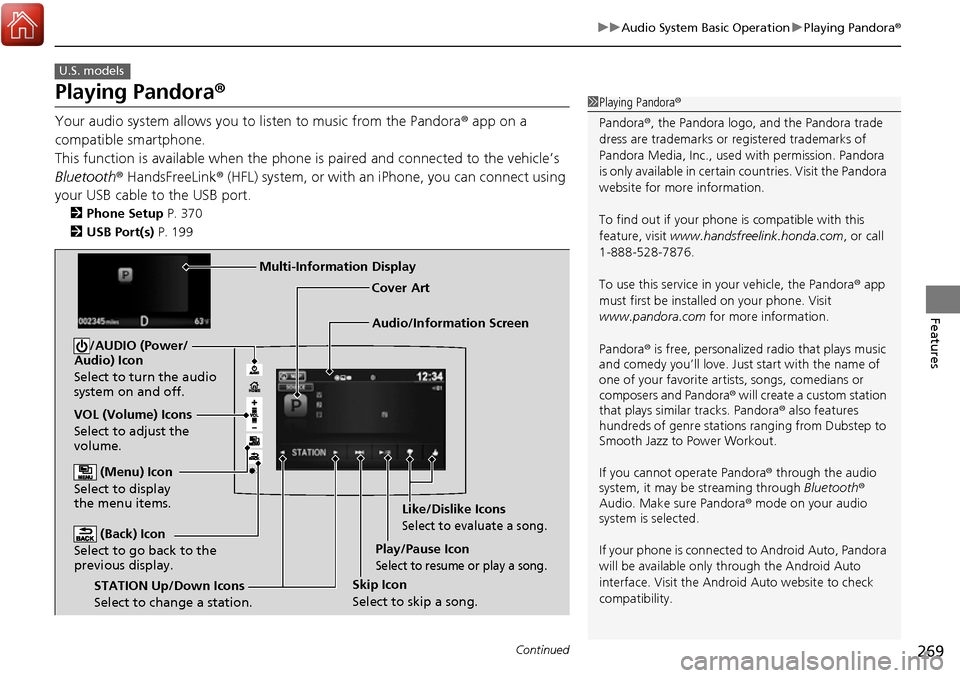
Audio/Information Screen Cover Art
VOL (Volume) Icons
Select to adjust the
volume. (Back) Icon
Select to go back to the
previous display.
/AUDIO (Power/
Audio) Icon
Select to turn the audio
system on and off.
(Menu) Icon
Select to display
the menu items.
Play/Pause Icon
Select to resume or play a song.
STATION Up/Down Icons
Select to change a station. Skip Icon
Select to skip a song.Like/Dislike Icons
Select to evaluate a song.
Multi-Information Display
Page 275 of 606
274
uuAudio System Basic Operation uPlaying Bluetooth ® Audio
Features
Playing Bluetooth® Audio
Your audio system allows you to listen to music from your Bluetooth-compatible
phone.
This function is available when the phone is paired and connected to the vehicle’s
Bluetooth ® HandsFreeLink ® (HFL) system.
2 Phone Setup P. 370
*1:Depending on the Bluetooth® device you connect, some or all of the lists may not
be displayed.
1 Playing Bluetooth ® Audio
Not all Bluetooth -enabled phones with streaming
audio capabilities are compatible.
To check if your phone is compatible, visit
http://www.handsfr eelink.com/Honda/.
It may be illegal to perform some data device
functions while driving.
Only one phone can be used with HFL at a time.
When there are more than two paired phones in the
vehicle, the first paired phone the system finds is
automatically connected.
The connected phone for Bluetooth® Audio can be
different.
If more than one phone is paired to the HFL system,
there may be a delay before the system begins to
play.
In some cases, the name of the artist, album, or track
may not appear correctly.
Some functions may not be available on some
devices.
If a phone is currently conne cted via Apple CarPlay or
Android Auto, Bluetooth® Audio from that phone
will be unavailable. Howe ver, you can have a second
previously paired phone stream Bluetooth® Audio by
selecting Connect from Bluetooth Device List.
2 Phone Setup P. 370
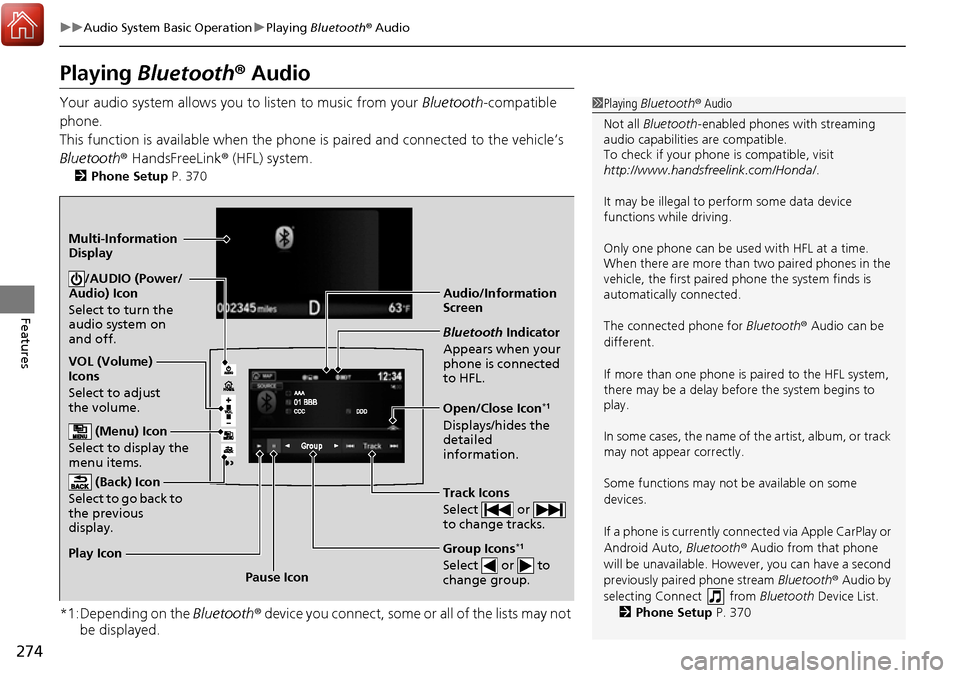
Audio/Information
Screen
VOL (Volume)
Icons
Select to adjust
the volume.
(Back) Icon
Select to go back to
the previous
display./AUDIO (Power/
Audio) Icon
Select to turn the
audio system on
and off.
(Menu) Icon
Select to display the
menu items.
Group Icons*1
Select or to
change group.Pause Icon
Play Icon
Bluetooth
Indicator
Appears when your
phone is connected
to HFL.
Track Icons
Select or
to change tracks.
Open/Close Icon*1
Displays/hides the
detailed
information.
Multi-Information
Display
Page 276 of 606
275
uuAudio System Basic Operation uPlaying Bluetooth ® Audio
Features
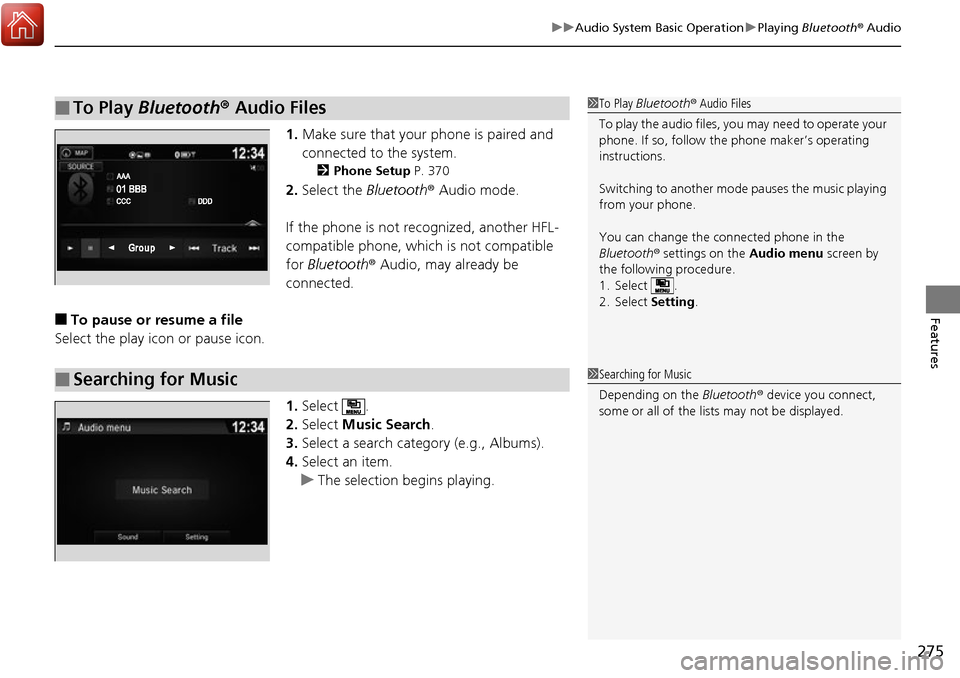
1. Make sure that your phone is paired and
connected to the system.
2 Phone Setup P. 370
2.Select the Bluetooth® Audio mode.
If the phone is not recognized, another HFL-
compatible phone, which is not compatible
for Bluetooth ® Audio, may already be
connected.
■To pause or resume a file
Select the play icon or pause icon.
1.Select .
2. Select Music Search.
3. Select a search catego ry (e.g., Albums).
4. Select an item.
u The selection begins playing.
■To Play Bluetooth ® Audio Files1 To Play Bluetooth ® Audio Files
To play the audio files, y ou may need to operate your
phone. If so, follow the phone maker’s operating
instructions.
Switching to another mode pauses the music playing
from your phone.
You can change the connected phone in the
Bluetooth ® settings on the Audio menu screen by
the following procedure.
1. Select .
2. Select Setting .
■Searching for Music1Searching for Music
Depending on the Bluetooth® device you connect,
some or all of the list s may not be displayed.
Page 277 of 606
276
uuAudio System Basic Operation uHondaLink ®
Features
HondaLink ®
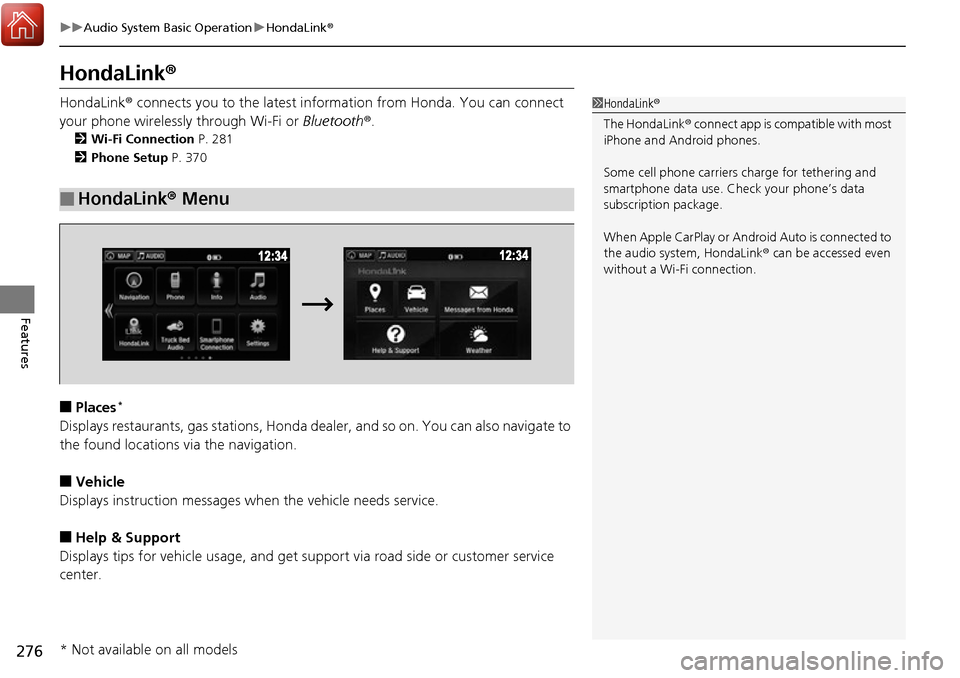
HondaLink® connects you to the latest information from Honda. You can connect
your phone wirelessly through Wi-Fi or Bluetooth®.
2Wi-Fi Connection P. 281
2 Phone Setup P. 370
■Places*
Displays restaurants, gas stations, Honda dealer, and so on. You can also navigate to
the found locations via the navigation.
■Vehicle
Displays instruction messages wh en the vehicle needs service.
■Help & Support
Displays tips for vehicle usage, and get support via road side or customer service
center.
■HondaLink® Menu
1HondaLink ®
The HondaLink ® connect app is compatible with most
iPhone and Android phones.
Some cell phone carriers charge for tethering and
smartphone data use. Check your phone’s data
subscription package.
When Apple CarPlay or Android Auto is connected to
the audio system, HondaLink® can be accessed even
without a Wi-Fi connection.
* Not available on all models
Page 282 of 606
281
uuAudio System Basic Operation uWi-Fi Connection
Continued
Features
Wi-Fi Connection
You can connect the Display Audio to the Internet using Wi-Fi and browse websites
or use online services on the audio/information screen. If your phone has cell
hotspot capabilities, the system can be tethered to the phone. Use the following
steps to setup.
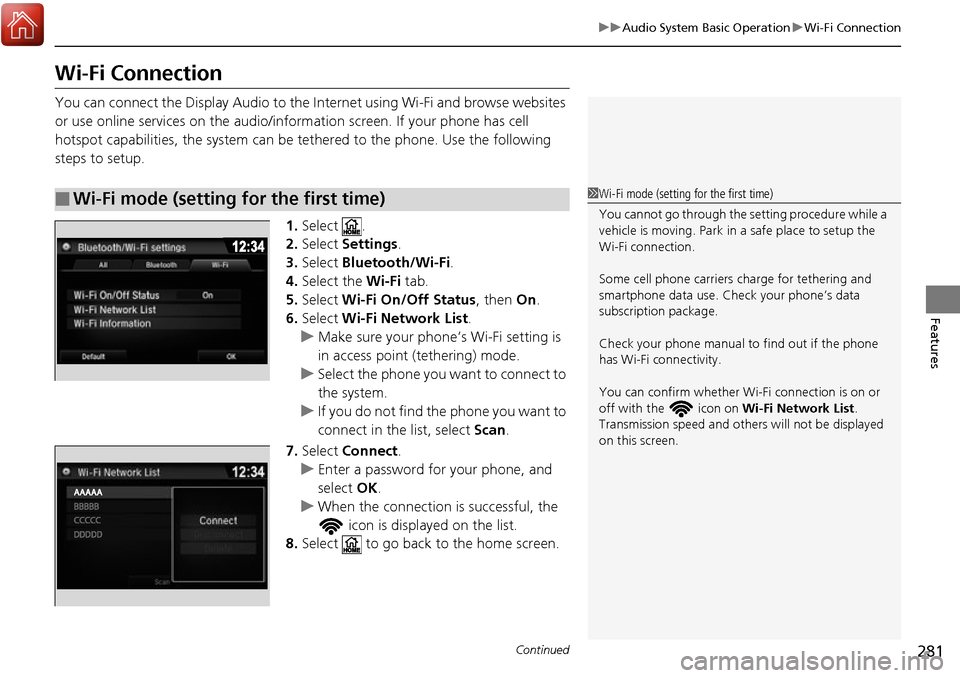
1.Select .
2. Select Settings .
3. Select Bluetooth/Wi-Fi .
4. Select the Wi-Fi tab.
5. Select Wi-Fi On/Off Status , then On.
6. Select Wi-Fi Network List .
u Make sure your phone’ s Wi-Fi setting is
in access point (tethering) mode.
u Select the phone you want to connect to
the system.
u If you do not find the phone you want to
connect in the list, select Scan .
7. Select Connect .
u Enter a password for your phone, and
select OK .
u When the connection is successful, the
icon is displayed on the list.
8. Select to go back to the home screen.
■Wi-Fi mode (setting for the first time)1Wi-Fi mode (setting for the first time)
You cannot go through the setting procedure while a
vehicle is moving. Park in a safe place to setup the
Wi-Fi connection.
Some cell phone carriers charge for tethering and
smartphone data use. Check your phone’s data
subscription package.
Check your phone manual to find out if the phone
has Wi-Fi connectivity.
You can confirm whether Wi -Fi connection is on or
off with the icon on Wi-Fi Network List.
Transmission speed and others will not be displayed
on this screen.
Page 283 of 606
uuAudio System Basic Operation uWi-Fi Connection
282
Features
Make sure your phone’s Wi-Fi setting is in access point (tethering) mode.
■Wi-Fi mode (after the initial setting has been made)1Wi-Fi mode (after the initial setting has been made)
You may need to go through an initial setup for Wi-Fi
connection again afte r you boot your phone.
iPhone users
Page 284 of 606
283
uuAudio System Basic Operation uSiri Eyes Free
Features
Siri Eyes Free
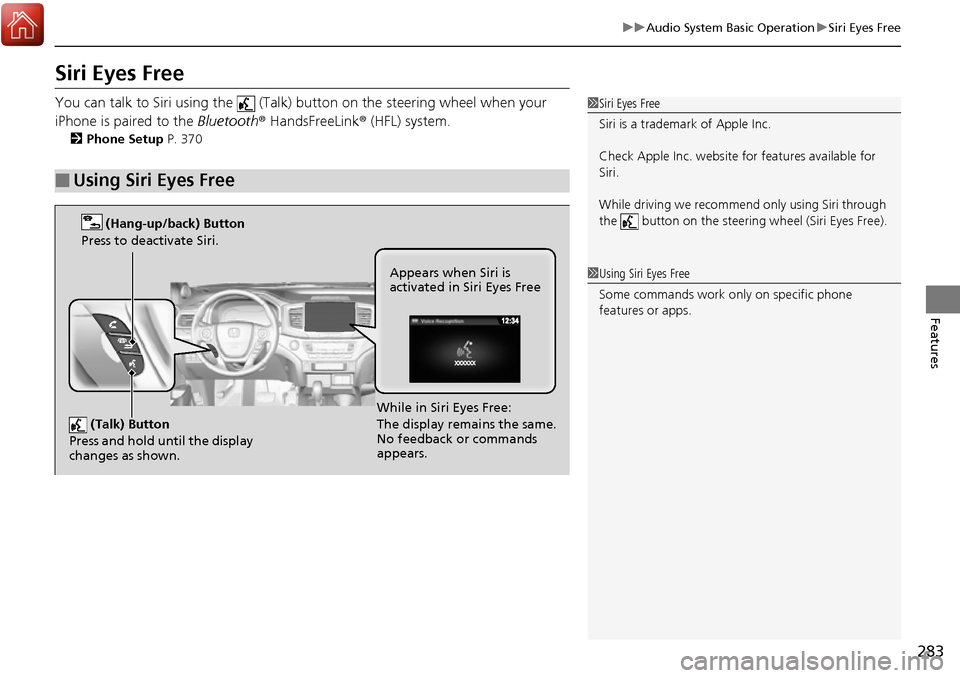
You can talk to Siri using the (Talk) button on the steering wheel when your
iPhone is paired to the Bluetooth® HandsFreeLink ® (HFL) system.
2Phone Setup P. 370
■Using Siri Eyes Free
1Siri Eyes Free
Siri is a trademark of Apple Inc.
Check Apple Inc. website for features available for
Siri.
While driving we recomme nd only using Siri through
the button on the steering wheel (Siri Eyes Free).
1 Using Siri Eyes Free
Some commands work only on specific phone
features or apps.
(Talk) Button
Press and hold until the display
changes as shown.
(Hang-up/back) Button
Press to deactivate Siri.
While in Siri Eyes Free:
The display remains the same.
No feedback or commands
appears. Appears when Siri is
activated in Siri Eyes Free
Page 285 of 606
284
uuAudio System Basic Operation uApple CarPlay
Features
Apple CarPlay
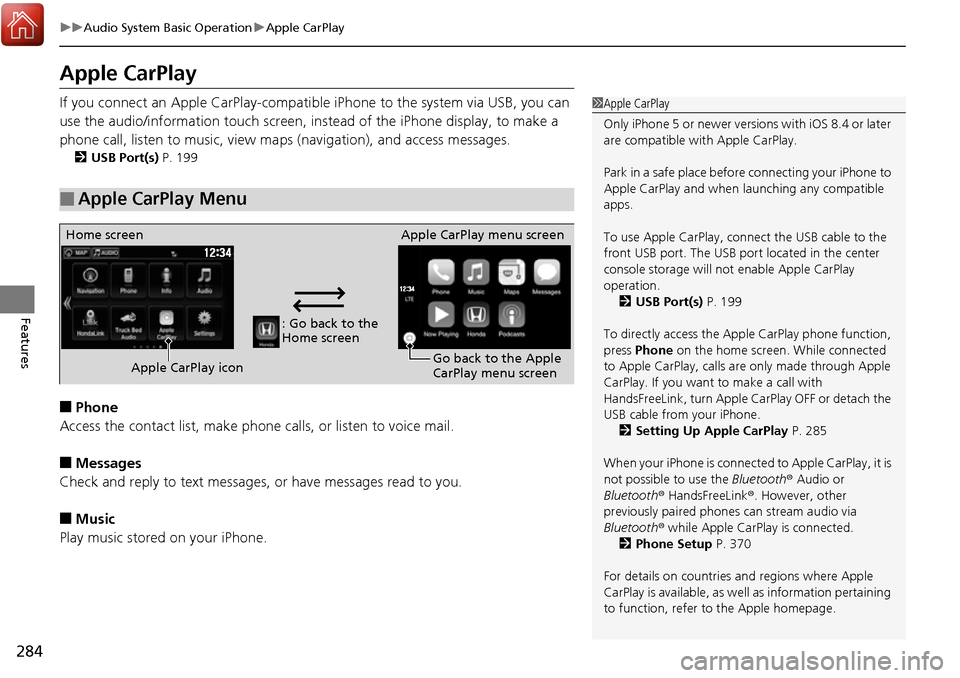
If you connect an Apple CarPlay-compatible iPhone to the system via USB, you can
use the audio/information t ouch screen, instead of the iPhone display, to make a
phone call, listen to music, view ma ps (navigation), and access messages.
2USB Port(s) P. 199
■Phone
Access the contact list, make phon e calls, or listen to voice mail.
■Messages
Check and reply to text messages, or have messages read to you.
■Music
Play music stored on your iPhone.
■Apple CarPlay Menu
1 Apple CarPlay
Only iPhone 5 or newer versions with iOS 8.4 or later
are compatible with Apple CarPlay.
Park in a safe place before connecting your iPhone to
Apple CarPlay and when launching any compatible
apps.
To use Apple CarPlay, connect the USB cable to the
front USB port. The USB por t located in the center
console storage will not enable Apple CarPlay
operation.
2 USB Port(s) P. 199
To directly access the Apple CarPlay phone function,
press Phone on the home screen. While connected
to Apple CarPlay, calls are only made through Apple
CarPlay. If you want to make a call with
HandsFreeLink, turn Apple CarPlay OFF or detach the
USB cable from your iPhone. 2 Setting Up Apple CarPlay P. 285
When your iPhone is connected to Apple CarPlay, it is
not possible to use the Bluetooth ® Audio or
Bluetooth ® HandsFreeLink ®. However, other
previously paired phones can stream audio via
Bluetooth ® while Apple CarPlay is connected.
2 Phone Setup P. 370
For details on c ountries and regions where Apple
CarPlay is available, as well as information pertaining
to function, refer to the Apple homepage.
: Go back to the
Home screen
Home screen
Apple CarPlay icon Apple CarPlay menu screen
Go back to the Apple
CarPlay menu screen
Page 286 of 606
Continued285
uuAudio System Basic Operation uApple CarPlay
Features
■Maps
Display Apple CarPlay map and use the navigation function just as you would on
your iPhone.
Only one navigation system (pre-installed navigation or Apple CarPlay) can give
directions at a time. When you are using one system, directions to any prior
destination set on the other system will be canceled, and the system you are
currently using will direct you to your destination.
After you have connected your iPhone to the system via USB, use the following
procedure to set up Apple CarPlay. Us e of Apple CarPlay will result in the
transmission of certain user and vehicle in formation (such as vehicle location, speed,
and status) to your iPhone to enhance th e Apple CarPlay experience. You will need
to consent to the sharing of this in formation on the Display Audio Screen.
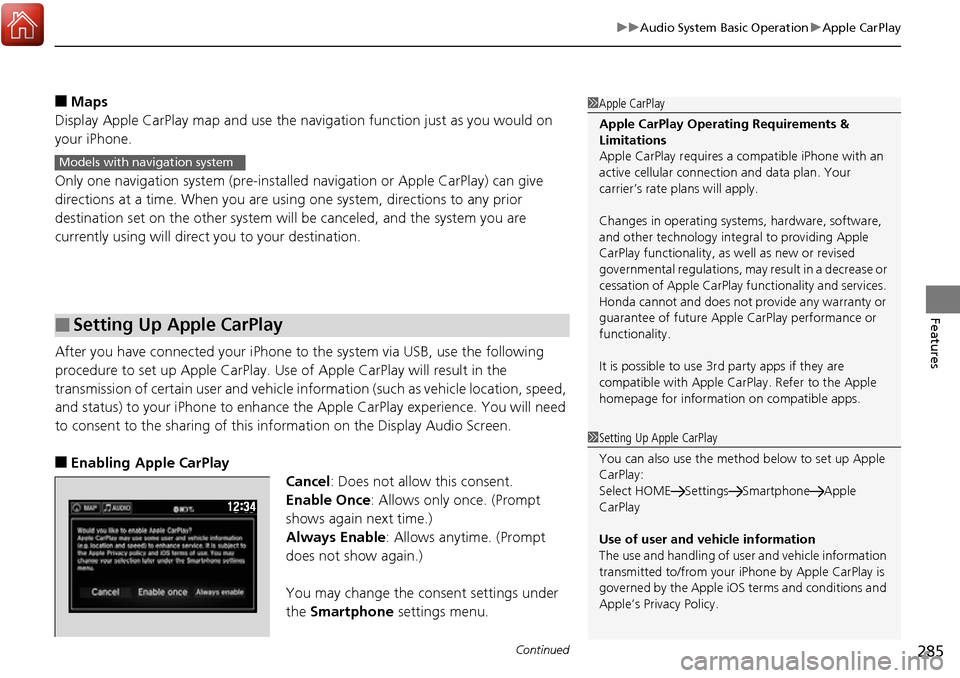
■Enabling Apple CarPlay
Cancel: Does not allow this consent.
Enable Once: Allows only once. (Prompt
shows again next time.)
Always Enable: Allows anytime. (Prompt
does not show again.)
You may change the consent settings under
the Smartphone settings menu.
■Setting Up Apple CarPlay
1Apple CarPlay
Apple CarPlay Operating Requirements &
Limitations
Apple CarPlay requires a co mpatible iPhone with an
active cellular connecti on and data plan. Your
carrier’s rate plans will apply.
Changes in operating system s, hardware, software,
and other technology integr al to providing Apple
CarPlay functionality, as well as new or revised
governmental regulations, may result in a decrease or
cessation of Apple CarPlay functionality and services.
Honda cannot and does not provide any warranty or
guarantee of future Appl e CarPlay performance or
functionality.
It is possible to use 3r d party apps if they are
compatible with Apple CarPlay. Refer to the Apple
homepage for information on compatible apps.
Models with navigation system
1 Setting Up Apple CarPlay
You can also use the method below to set up Apple
CarPlay:
Select HOME Settings Smartphone Apple
CarPlay
Use of user and vehicle information
The use and handling of user and vehicle information
transmitted to/from your iP hone by Apple CarPlay is
governed by the Apple iOS terms and conditions and
Apple’s Privacy Policy.