phone HONDA RIDGELINE 2017 2.G Service Manual
[x] Cancel search | Manufacturer: HONDA, Model Year: 2017, Model line: RIDGELINE, Model: HONDA RIDGELINE 2017 2.GPages: 606, PDF Size: 13.21 MB
Page 317 of 606
316
uuCustomized Features u
Features
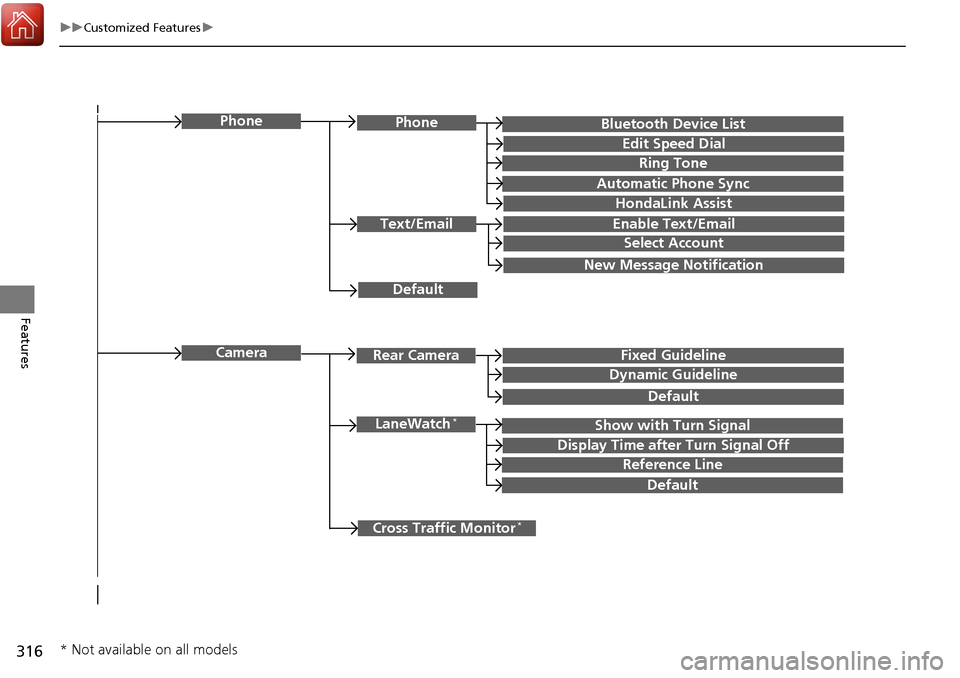
Bluetooth Device List
Default
PhonePhone
Edit Speed Dial
Ring Tone
Automatic Phone Sync
HondaLink Assist
Text/EmailEnable Text/Email
Select Account
New Message Notification
Cross Traffic Monitor*
Camera
Show with Turn SignalLaneWatch*
Display Time after Turn Signal Off
Reference Line
Default
Rear CameraFixed Guideline
Dynamic Guideline
Default
* Not available on all models
Page 318 of 606
317
uuCustomized Features u
Continued
Features
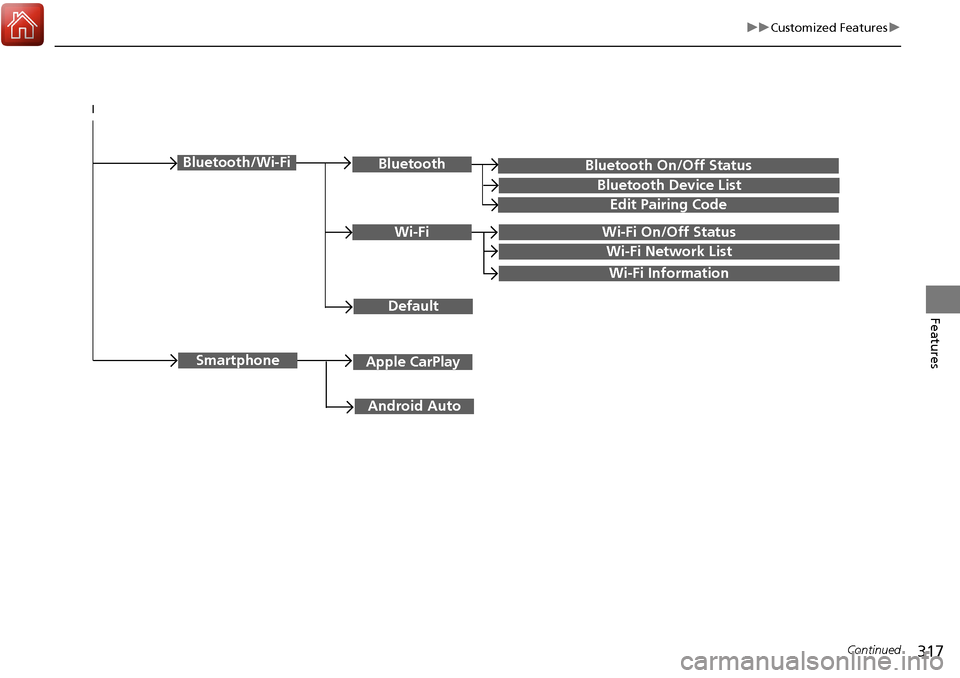
Bluetooth On/Off Status
Default
Bluetooth/Wi-FiBluetooth
Bluetooth Device List
Edit Pairing Code
Wi-FiWi-Fi On/Off Status
Wi-Fi Network List
Wi-Fi Information
Android Auto
SmartphoneApple CarPlay
Page 320 of 606
319
uuCustomized Features u
Continued
Features
*1:Default SettingSetup
Group Customizable Features Descri
ption Selectable Settings
SystemVoice
Recog
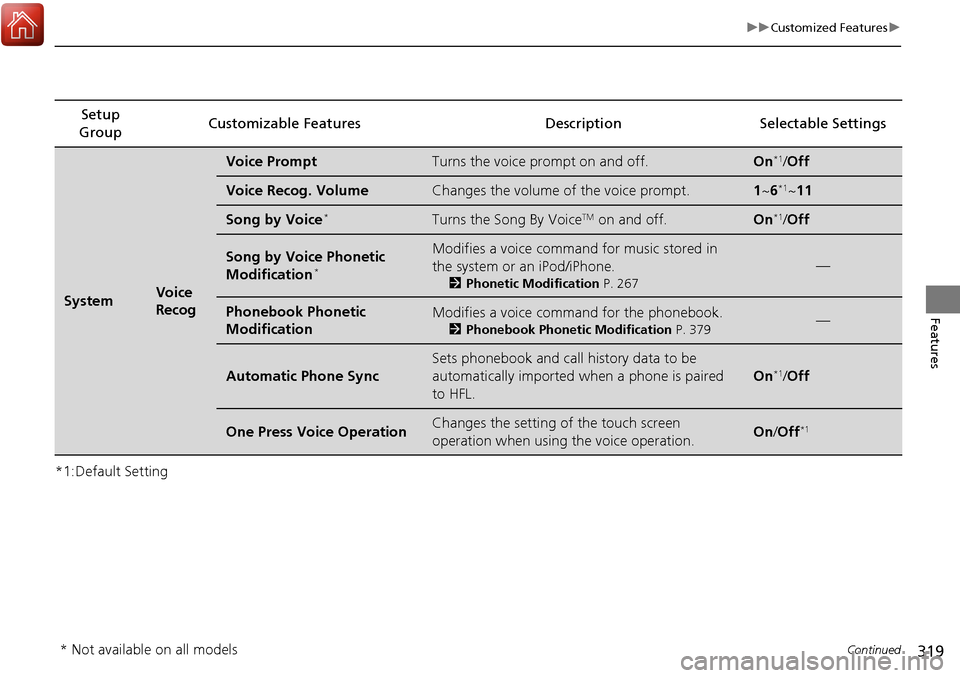
Voice PromptTurns the voice prompt on and off.On*1/Off
Voice Recog. VolumeChanges the volume of the voice prompt.1 ~6*1~11
Song by Voice*Turns the Song By VoiceTM on and off.On*1/Off
Song by Voice Phonetic
Modification*
Modifies a voice command for music stored in
the system or an iPod/iPhone.
2 Phonetic Modification P. 267
—
Phonebook Phonetic
ModificationModifies a voice command for the phonebook.
2Phonebook Phonetic Modification P. 379—
Automatic Phone Sync
Sets phonebook and call history data to be
automatically imported when a phone is paired
to HFL.
On*1/Off
One Press Voice OperationChanges the setting of the touch screen
operation when using the voice operation.On/Off*1
* Not available on all models
Page 328 of 606
327
uuCustomized Features u
Continued
Features
*1:Default SettingSetup
Group Customizable Features Description Selectable Settings
Audio
Common
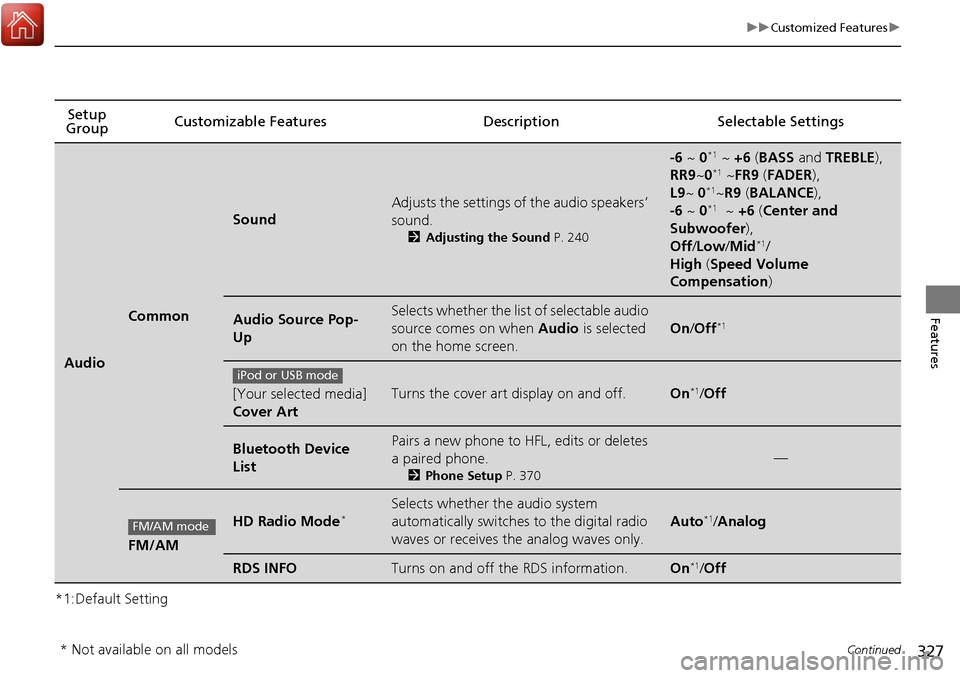
Sound
Adjusts the settings of
the audio speakers’
sound.
2 Adjusting the Sound P. 240
-6 ~ 0*1 ~ +6 (BASS and TREBLE ),
RR9 ~0*1 ~FR9 (FADER ),
L9 ~ 0*1~R9 (BALANCE ),
-6 ~ 0*1 ~ +6 (Center and
Subwoofer ),
Off /Low /Mid
*1/
High (Speed Volume
Compensation )
Audio Source Pop-
UpSelects whether the list of selectable audio
source comes on when Audio is selected
on the home screen.
On /Off*1
[Your selected media]
Cover ArtTurns the cover art display on and off.On*1/Off
Bluetooth Device
ListPairs a new phone to HFL, edits or deletes
a paired phone.
2 Phone Setup P. 370
—
FM/AM
HD Radio Mode*Selects whether the audio system
automatically switches to the digital radio
waves or receives the analog waves only.
Auto*1/Analog
RDS INFOTurns on and off the RDS information.On*1/ Off
iPod or USB mode
FM/AM mode
* Not available on all models
Page 331 of 606
330
uuCustomized Features u
Features
*1:Default SettingSetup
Group Customizable Features Description Selectable Settings
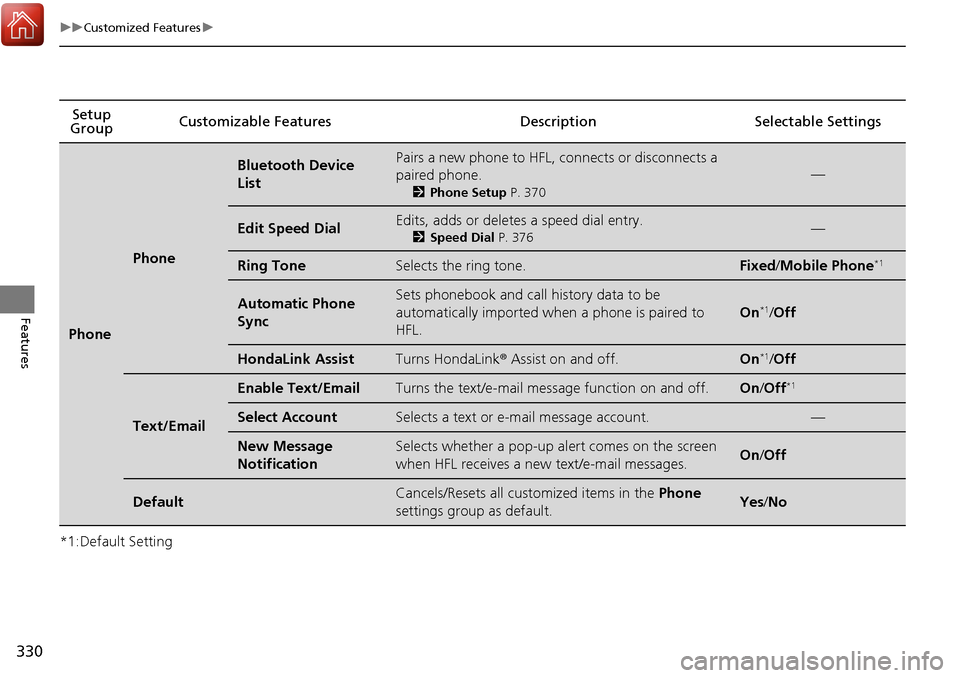
Phone
Phone
Bluetooth Device
ListPairs a new phone to HFL, connects or disconnects a
paired phone.
2
Phone Setup P. 370
—
Edit Speed DialEdits, adds or deletes a speed dial entry.
2Speed Dial P. 376—
Ring ToneSelects the ring tone.Fixed /Mobile Phone*1
Automatic Phone
SyncSets phonebook and call history data to be
automatically imported when a phone is paired to
HFL.
On*1/ Off
HondaLink AssistTurns HondaLink ® Assist on and off.On*1/Off
Text/Email
Enable Text/EmailTurns the text/e-mail mess age function on and off.On/Off*1
Select AccountSelects a text or e-mail message account.—
New Message
NotificationSelects whether a pop-up al ert comes on the screen
when HFL receives a new text/e-mail messages.On /Off
DefaultCancels/Resets all cust omized items in the Phone
settings group as default.Yes /No
Page 333 of 606
332
uuCustomized Features u
Features
*1:Default SettingSetup
Group Customizable Featur
es Description Sel ectable Settings
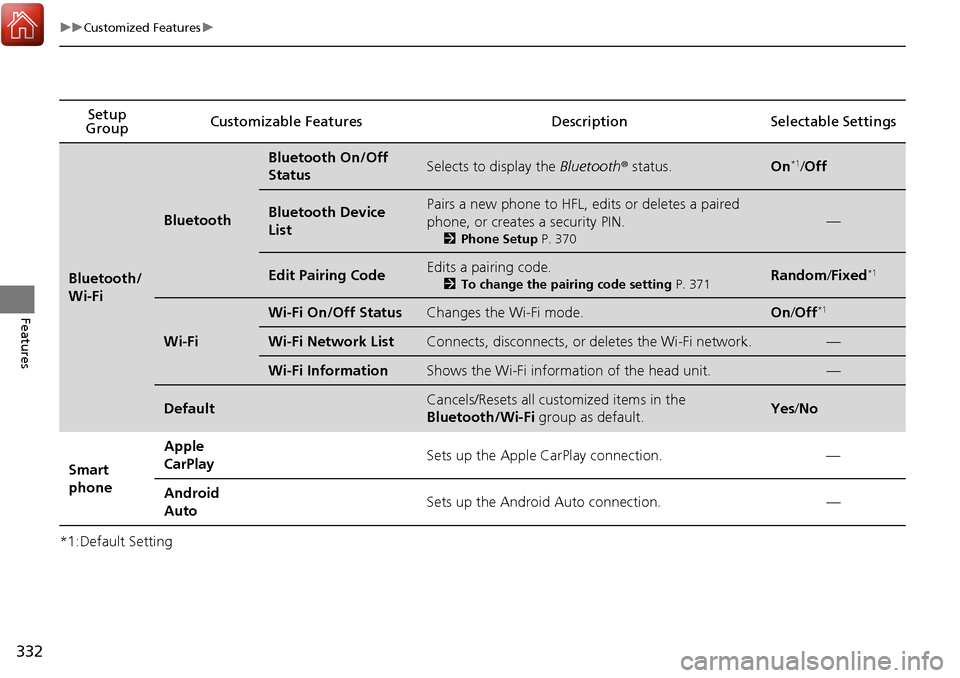
Bluetooth/
Wi-Fi
Bluetooth
Bluetooth On/Off
StatusSelects to display the Bluetooth® status.On*1/Off
Bluetooth Device
ListPairs a new phone to HFL, edits or deletes a paired
phone, or creates a security PIN.
2 Phone Setup P. 370
—
Edit Pairing CodeEdits a pairing code.
2To change the pairing code setting P. 371Random/Fixed*1
Wi-Fi
Wi-Fi On/Off StatusChanges the Wi-Fi mode.On /Off*1
Wi-Fi Network ListConnects, disconnects, or deletes the Wi-Fi network.—
Wi-Fi InformationShows the Wi-Fi informat ion of the head unit.—
DefaultCancels/Resets all customized items in the
Bluetooth/Wi-Fi group as default.Yes/No
Smart
phone Apple
CarPlay
Sets up the Apple CarPlay connection. —
Android
Auto Sets up the Android Auto connection. —
Page 338 of 606
337Continued
Features
Bluetooth® HandsFreeLink ®
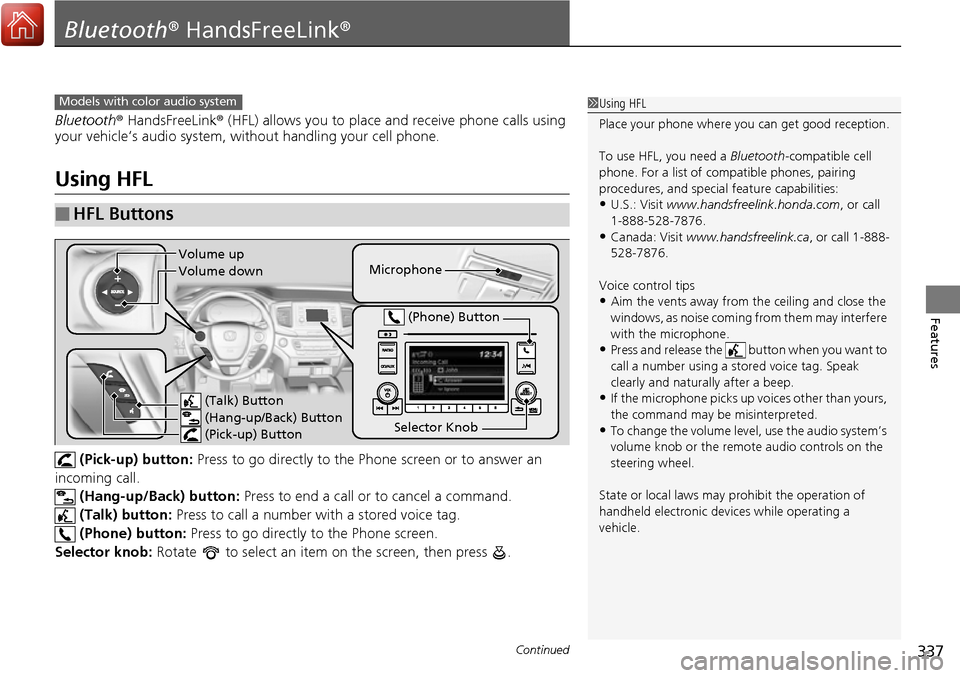
Bluetooth® HandsFreeLink ® (HFL) allows you to place and receive phone calls using
your vehicle’s audio system, without handling your cell phone.
Using HFL
(Pick-up) button: Press to go directly to the Phone screen or to answer an
incoming call. (Hang-up/Back) button: Press to end a call or to cancel a command.
(Talk) button: Press to call a number with a stored voice tag.
(Phone) button: Press to go directly to the Phone screen.
Selector knob: Rotate to select an item on the screen, then press .
■HFL Buttons
1Using HFL
Place your phone where y ou can get good reception.
To use HFL, you need a Bluetooth-compatible cell
phone. For a list of compatible phones, pairing
procedures, and special feature capabilities:
•U.S.: Visit www.handsfreelink.honda.com , or call
1-888-528-7876.
•Canada: Visit www.handsfreelink.ca , or call 1-888-
528-7876.
Voice control tips
•Aim the vents away from the ceiling and close the
windows, as noise coming fr om them may interfere
with the microphone.
•Press and release the button when you want to
call a number using a st ored voice tag. Speak
clearly and naturally after a beep.
•If the microphone picks up vo ices other than yours,
the command may be misinterpreted.
•To change the volume level, use the audio system’s
volume knob or the remote audio controls on the
steering wheel.
State or local laws may pr ohibit the operation of
handheld electronic devi ces while operating a
vehicle.
Models with color audio system
Microphone
(Talk) Button
(Hang-up/Back) Button
(Pick-up) Button
Selector Knob (Phone) Button
Volume up
Volume down
Page 339 of 606
uuBluetooth ® HandsFreeLink ®u Using HFL
338
Features
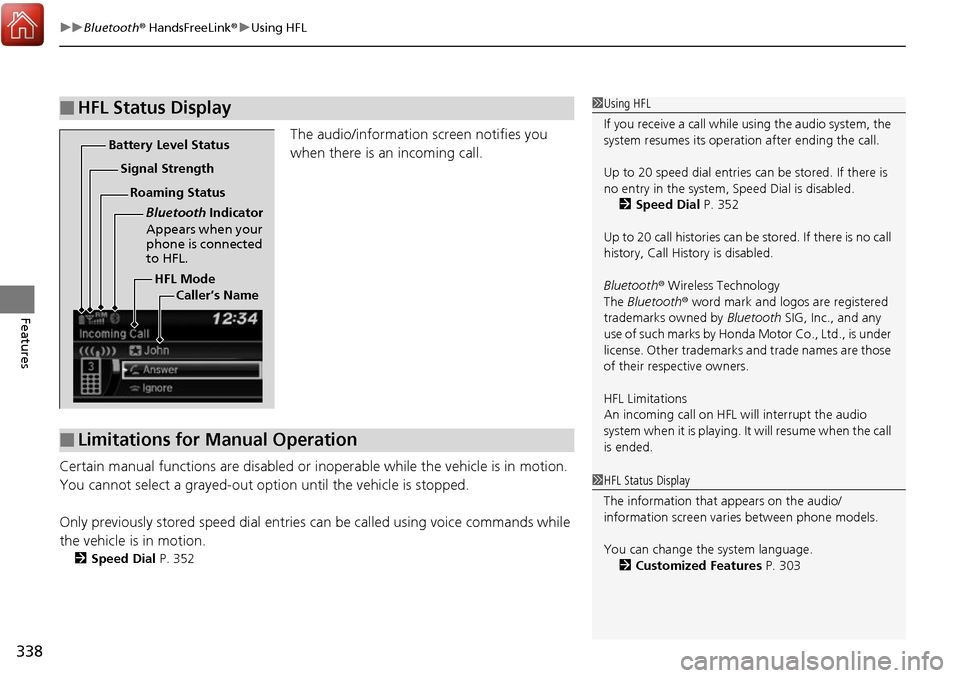
The audio/information screen notifies you
when there is an incoming call.
Certain manual functions are disabled or i noperable while the vehicle is in motion.
You cannot select a grayed-out option until the vehicle is stopped.
Only previously stored speed dial entries can be called using voice commands while
the vehicle is in motion.
2 Speed Dial P. 352
■HFL Status Display1Using HFL
If you receive a call while using the audio system, the
system resumes its operati on after ending the call.
Up to 20 speed dial entries can be stored. If there is
no entry in the system, Speed Dial is disabled. 2 Speed Dial P. 352
Up to 20 call histories can be stored. If there is no call
history, Call History is disabled.
Bluetooth ® Wireless Technology
The Bluetooth ® word mark and logos are registered
trademarks owned by Bluetooth SIG, Inc., and any
use of such marks by Honda Motor Co., Ltd., is under
license. Other trademarks and trade names are those
of their respective owners.
HFL Limitations
An incoming call on HFL will interrupt the audio
s y s te m wh e n it is p la y i n g . It wi ll re s u m e w h en t h e c a l l
is ended.
HFL Mode
Battery Level Status
Signal Strength
Bluetooth Indicator
Appears when your
phone is connected
to HFL.
Roaming Status
Caller’s Name
■Limitations for Manual Operation
1HFL Status Display
The information that appears on the audio/
information screen vari es between phone models.
You can change the system language. 2 Customized Features P. 303
Page 340 of 606
339
uuBluetooth ® HandsFreeLink ®u HFL Menus
Continued
Features
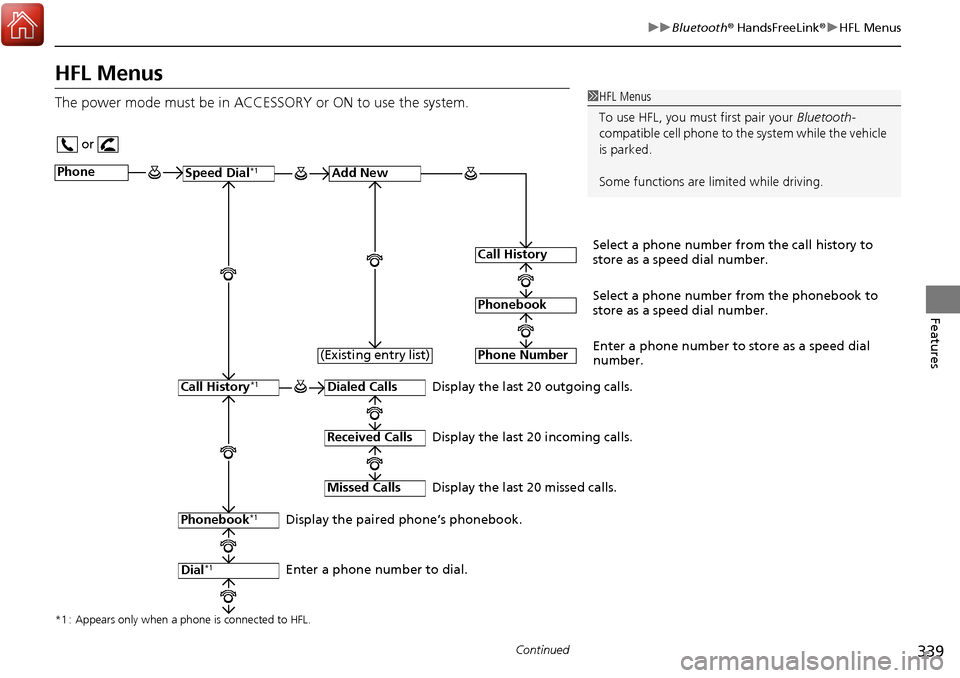
HFL Menus
The power mode must be in ACCESSO RY or ON to use the system.1HFL Menus
To use HFL, you must first pair your Bluetooth-
compatible cell phone to th e system while the vehicle
is parked.
Some functions are li mited while driving.
or
Display the last 20 outgoing calls.
Display the last 20 incoming calls.
Display the last 20 missed calls.
*1 : Appears only when a phone is connected to HFL.
PhoneSpeed Dial*1Add New
Select a phone number from the call history to
store as a speed dial number.
Call History
PhonebookSelect a phone number from the phonebook to
store as a speed dial number.
Phone Number
Enter a phone number to store as a speed dial
number.
Dialed Calls
Received Calls
Missed Calls
Phonebook*1
Dial*1
Call History*1
Display the paired phone’s phonebook.
Enter a phone number to dial. (Existing entry list)
Page 341 of 606
340
uuBluetooth ® HandsFreeLink ®u HFL Menus
Features
*1 : Appears only when a phone is connected to HFL.
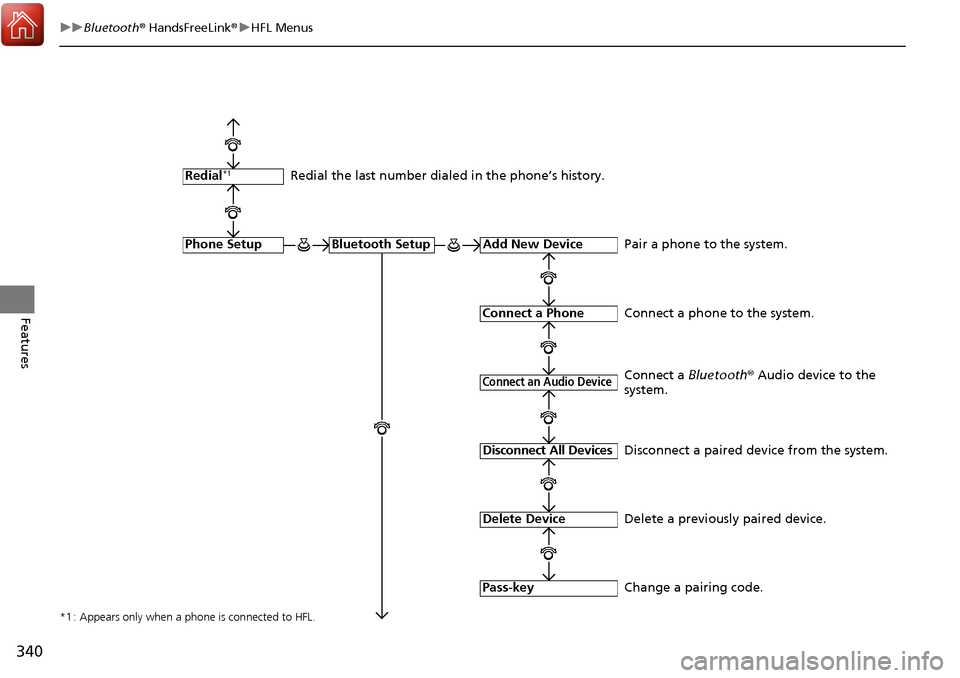
Redial the last number dialed in the phone’s history.
Add New Device
Connect a Phone
Connect an Audio Device
Bluetooth SetupPhone Setup
Redial*1
Pair a phone to the system.
Connect a phone to the system.
Change a pairing code.
Disconnect All Devices
Delete Device
Pass-key
Disconnect a paired device from the system.
Delete a previously paired device. Connect a
Bluetooth® Audio device to the
system.