remote control HONDA RIDGELINE 2017 2.G Owner's Manual
[x] Cancel search | Manufacturer: HONDA, Model Year: 2017, Model line: RIDGELINE, Model: HONDA RIDGELINE 2017 2.GPages: 606, PDF Size: 13.21 MB
Page 141 of 606
140
Controls
Operating the Switches Around the Steering Wheel
ENGINE START/STOP Button
*1:Canadian models
*2:U.S. models
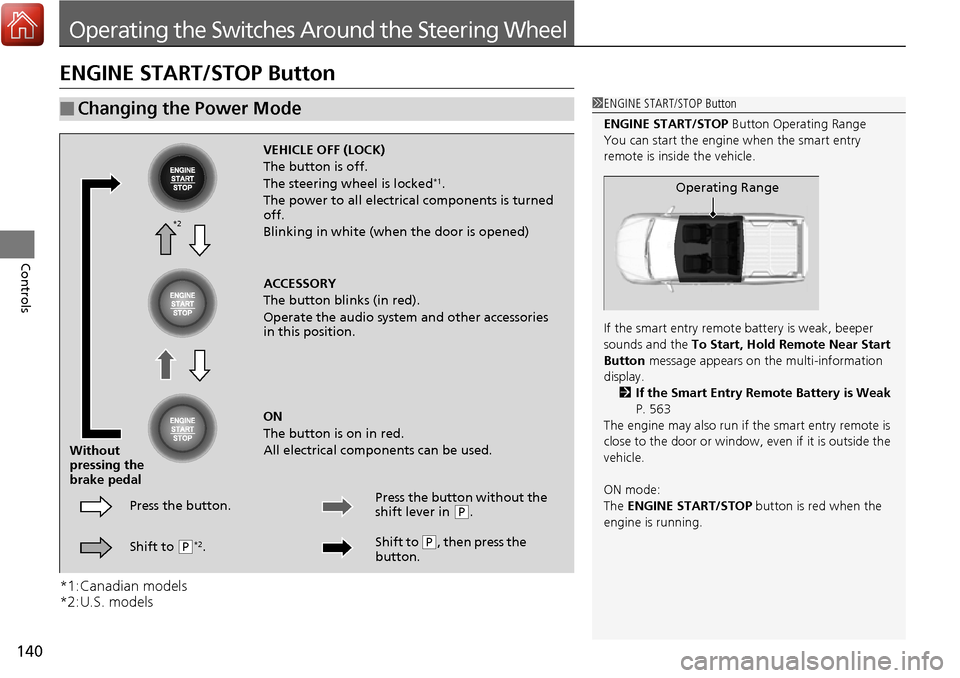
■Changing the Power Mode1ENGINE START/STOP Button
ENGINE START/STOP Button Operating Range
You can start the engine when the smart entry
remote is inside the vehicle.
If the smart entry remote battery is weak, beeper
sounds and the To Start, Hold Remote Near Start
Button message appears on the multi-information
display. 2 If the Smart Entry Remote Battery is Weak
P. 563
The engine may also run if the smart entry remote is
close to the door or window, ev en if it is outside the
vehicle.
ON mode:
The ENGINE START/STOP button is red when the
engine is running.
Operating Range
VEHICLE OFF (LOCK)
The button is off.
The steering wheel is locked
*1.
The power to all electrical components is turned
off.
Blinking in white (when the door is opened)
ACCESSORY
The button blinks (in red).
Operate the audio system and other accessories
in this position.
ON
The button is on in red.
All electrical components can be used.
Press the button.
Without
pressing the
brake pedal
Shift to
(P*2. Press the button without the
shift lever in
(
P.
Shift to
( P, then press the
button.
*2
Page 142 of 606
Continued141
uuOperating the Switches Around the Steering Wheel uENGINE START/STOP Button
Controls
If you leave the vehicle for 30 to 60 minutes with the shift lever in (P and the power
mode in ACCESSORY, the vehicle automati cally goes into the mode similar to
VEHICLE OFF (LOCK) to avoid draining the battery.
When in this mode:
The steering wheel does not lock.
You cannot lock or unlock doors with th e remote transmitter or the smart entry
system.
Press the ENGINE START/STOP button to switch the mode to VEHICLE OFF (LOCK).
If you open the driver’s door when the power mode is set to ACCESSORY, a warning
beep sounds.
■Automatic Power Off
■Power Mode Reminder
1 ENGINE START/STOP Button
If the power mode does not change from VEHICLE
OFF to ACCESSORY, press the ENGINE START/STOP
button while moving the st eering wheel left and
right. The steering wheel will unlock, allowing the
mode to change.
Do not leave the power mode in ACCESSORY or ON
when you get out.
Canadian models
Canadian models
Page 143 of 606
uuOperating the Switches Around the Steering Wheel uENGINE START/STOP Button
142
Controls
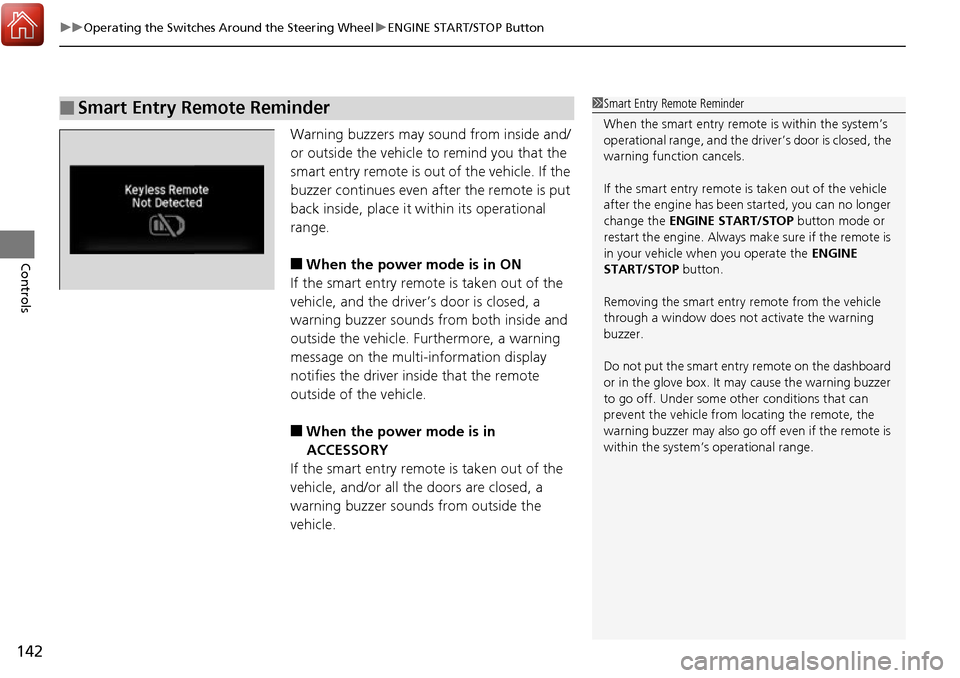
Warning buzzers may sound from inside and/
or outside the vehicle to remind you that the
smart entry remote is out of the vehicle. If the
buzzer continues even after the remote is put
back inside, place it within its operational
range.
■When the power mode is in ON
If the smart entry remote is taken out of the
vehicle, and the driver’s door is closed, a
warning buzzer sounds from both inside and
outside the vehicle. Furthermore, a warning
message on the multi-information display
notifies the driver inside that the remote
outside of the vehicle.
■When the power mode is in
ACCESSORY
If the smart entry remote is taken out of the
vehicle, and/or all the doors are closed, a
warning buzzer sounds from outside the
vehicle.
■Smart Entry Remote Reminder1 Smart Entry Remote Reminder
When the smart entry remote is within the system’s
operational range, and the driv er’s door is closed, the
warning function cancels.
If the smart entry remote is taken out of the vehicle
after the engine has been started, you can no longer
change the ENGINE START/STOP button mode or
restart the engine. Always make sure if the remote is
in your vehicle when you operate the ENGINE
START/STOP button.
Removing the smart entry remote from the vehicle
through a window does not activate the warning
buzzer.
Do not put the smart entr y remote on the dashboard
or in the glove box. It may cause the warning buzzer
to go off. Under some other conditions that can
prevent the vehicle from locating the remote, the
warning buzzer may al so go off even if the remote is
within the system’s operational range.
Page 147 of 606
uuOperating the Switches Around the Steering Wheel uLight Switches
146
Controls
The headlights automatically co me on when the wipers are used several times within
a certain number of intervals wi th the headlight switch in AUTO.
The headlights automatically go off a few minutes later if the wipers are stopped.
The headlights, all other exterior lights, an d the instrument panel lights turn off 15
seconds after you set the power mode to VE HICLE OFF (LOCK), take the remote with
you, and close the driver’s door.
If you set the power mode to VEHICLE OFF (LOCK) with the headlight switch on, but
do not open the door, the li ghts turn off after 10 minutes (three minutes, if the
switch is in the AUTO position).
The lights turn on again when you unlock or open the driver’s door. If you unlock
the door, but do not open it within 15 seconds, the lights go off. If you open the
driver’s door, you will hear a lights on reminder chime.
■Headlight Integration with Wiper
■Automatic Lighting Off Feature
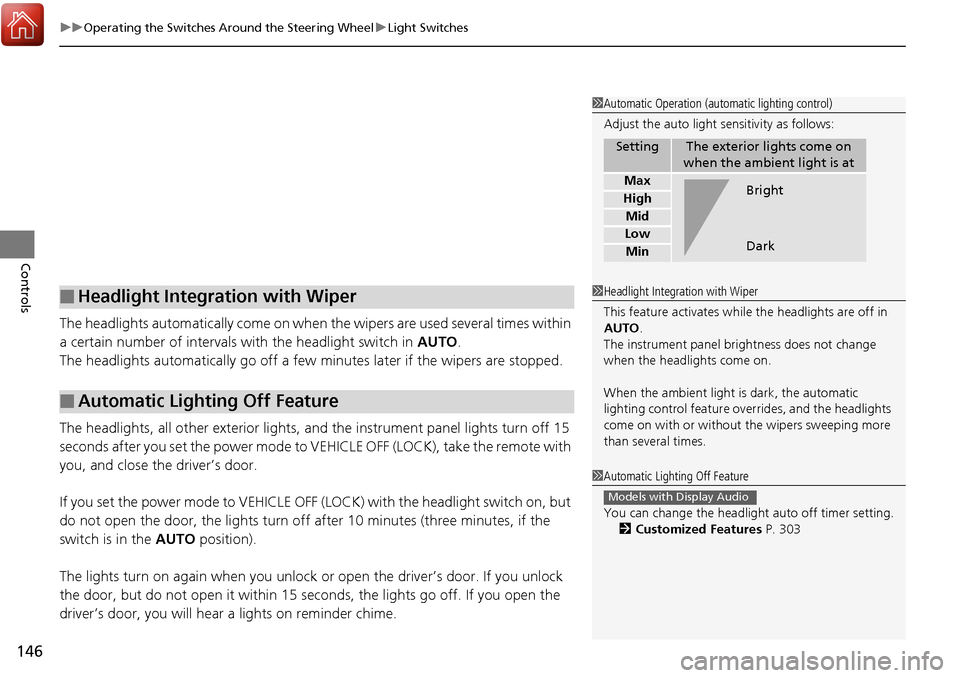
1Automatic Operation (aut omatic lighting control)
Adjust the auto light sensitivity as follows:
SettingThe exterior lights come on
when the ambient light is at
Max
High
Mid
Low
Min
Bright
Dark
1 Headlight Integration with Wiper
This feature activates while the headlights are off in
AUTO .
The instrument panel br ightness does not change
when the headlights come on.
When the ambient light is dark, the automatic
lighting control feature over rides, and the headlights
come on with or without the wipers sweeping more
than several times.
1 Automatic Lighting Off Feature
You can change the headlight auto off timer setting.
2 Customized Features P. 303
Models with Display Audio
Page 157 of 606
156
uuOperating the Switches Around the Steering Wheel uDriving Position Memory System*
Controls
Driving Position Memory System*
You can store two driver’s seat (except for power lumbar) and door mirror positions
with the driving position memory system.
When you unlock and open the driver’s do or with a remote transmitter or smart
entry system, the seat and door mirrors adju st automatically to one of the two preset
positions.
When you enter the vehicle, the multi-in formation display briefly shows you which
remote transmitter you used to unlock the vehicle.
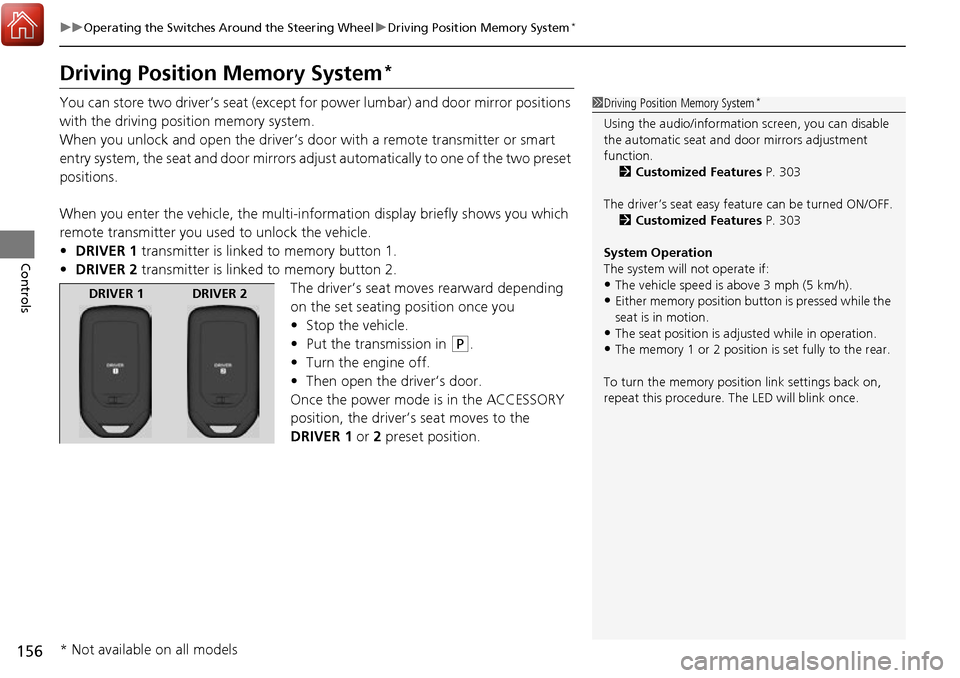
• DRIVER 1 transmitter is linked to memory button 1.
• DRIVER 2 transmitter is linked to memory button 2.
The driver’s seat moves rearward depending
on the set seating position once you
•Stop the vehicle.
• Put the transmission in
(P.
• Turn the engine off.
• Then open the driver’s door.
Once the power mode is in the ACCESSORY
position, the driver’s seat moves to the
DRIVER 1 or 2 preset position.
1Driving Position Memory System*
Using the audio/informati on screen, you can disable
the automatic seat and d oor mirrors adjustment
function. 2 Customized Features P. 303
The driver’s seat easy feature can be turned ON/OFF. 2 Customized Features P. 303
System Operation
The system will not operate if:
•The vehicle speed is above 3 mph (5 km/h).
•Either memory position button is pressed while the
seat is in motion.
•The seat position is adju sted while in operation.
•The memory 1 or 2 position is set fully to the rear.
To turn the memory positi on link settings back on,
repeat this procedure. The LED will blink once.
DRIVER 1 DRIVER 2
* Not available on all models
Page 198 of 606
197
Features
This chapter describes how to operate technology features.
Audio SystemAbout Your Audio System ................ 198
USB Port(s) ....................................... 199
Auxiliary Input Jack .......................... 200
Audio System Theft Protection ......... 201
Audio Remote Controls .................... 202
Audio System Basic Operation ........ 204
Audio/Information Screen ................ 205
Adjusting the Sound ........................ 209
Display Setup ................................... 210
Playing AM/FM Radio ....................... 211
Playing an iPod ................................ 213
Playing a USB Flash Drive ................. 216
Playing Bluetooth ® Audio ................. 219
Models with color audio system
Audio System Basic Operation ........ 222
Audio/Information Screen ................ 223
Adjusting the Sound ........................ 240
Display Setup ................................... 241
Voice Control Operation .................. 243
Playing AM/FM Radio ....................... 247
Playing SiriusXM ® Radio
*................. 251
Playing a CD .................................... 259
Playing an iPod ................................ 262
Song By Voice
TM (SBV) ...................... 265
Playing Pandora ®............................. 269
Models with Display Audio
Canadian models
Models with navigation system
U.S. models
Playing a USB Flash Drive ................. 271
Playing Bluetooth ® Audio ................ 274
HondaLink ®..................................... 276
Wi-Fi Connection ............................. 281
Siri Eyes Free .................................... 283
Apple CarPlay .................................. 284
Android Auto .................................. 287
Truck Bed Audio System
*................. 291
Audio Error Messages ...................... 292
General Information on the Audio
System ............................................. 296
Customized Features ........................ 303
HomeLink ® Universal Transceiver
*... 334
Bluetooth ® HandsFreeLink® ..... 337, 362
* Not available on all models
Page 199 of 606
198
Features
Audio System
About Your Audio System
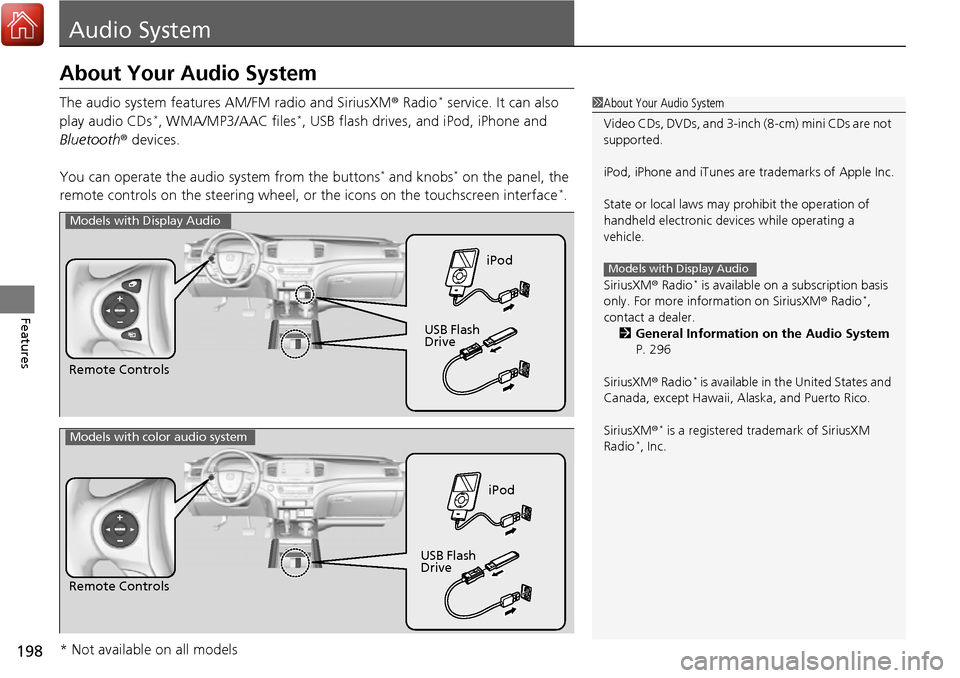
The audio system features AM/FM radio and SiriusXM® Radio* service. It can also
play audio CDs*, WMA/MP3/AAC files*, USB flash drives, and iPod, iPhone and
Bluetooth ® devices.
You can operate the audi o system from the buttons
* and knobs* on the panel, the
remote controls on the steering wheel, or the icons on the touchscreen interface*.
1 About Your Audio System
Video CDs, DVDs, and 3-inch (8-cm) mini CDs are not
supported.
iPod, iPhone and iTunes are trademarks of Apple Inc.
State or local laws may pr ohibit the operation of
handheld electronic devi ces while operating a
vehicle.
SiriusXM ® Radio
* is available on a subscription basis
only. For more information on SiriusXM ® Radio*,
contact a dealer. 2 General Information on the Audio System
P. 296
SiriusXM ® Radio
* is available in the United States and
Canada, except Ha waii, Alaska, and Puerto Rico.
SiriusXM ®
* is a registered trademark of SiriusXM
Radio*, Inc.
Models with Display Audio
Remote Controls iPod
USB Flash
Drive
Models with Display Audio
Remote Controls iPod
USB Flash
Drive
Models with color audio system
* Not available on all models
Page 203 of 606
202
uuAudio System uAudio Remote Controls
Features
Audio Remote Controls
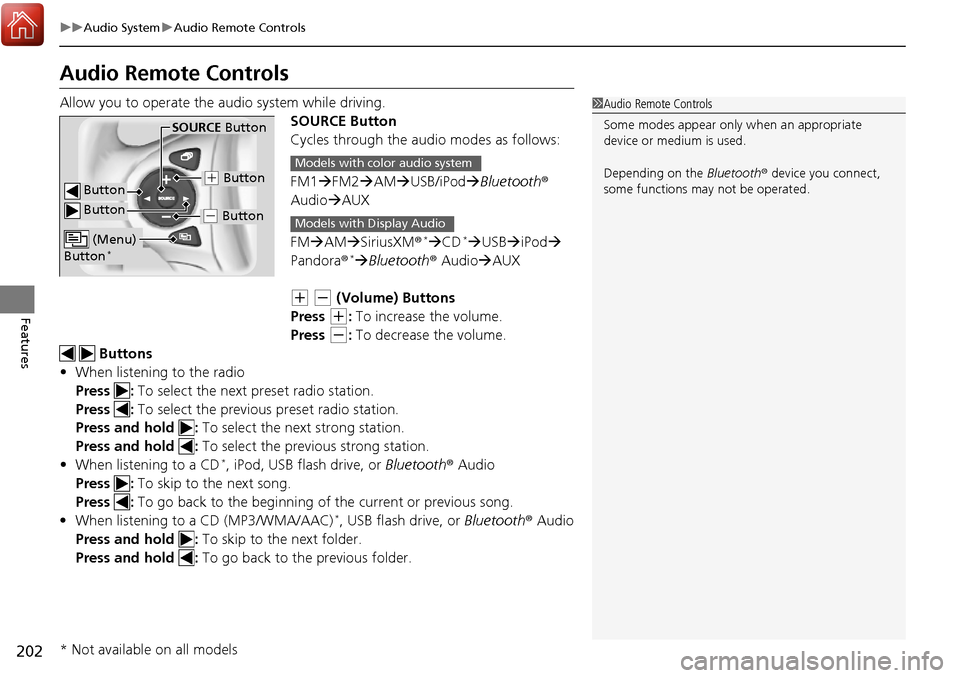
Allow you to operate the a udio system while driving.
SOURCE Button
Cycles through the audio modes as follows:
FM1FM2 AM USB/iPod Bluetooth®
Audio AUX
FM AM SiriusXM ®
*CD* USB iPod
Pandora®* Bluetooth ® Audio AUX
(+ (- (Volume) Buttons
Press
(+: To increase the volume.
Press
(-: To decrease the volume.
Buttons
• When listening to the radio
Press : To select the next preset radio station.
Press : To select the previous preset radio station.
Press and hold : To select the next strong station.
Press and hold : To select the previous strong station.
• When listening to a CD
*, iPod, USB flash drive, or Bluetooth® Audio
Press : To skip to the next song.
Press : To go back to the beginning of the current or previous song.
• When listening to a CD (MP3/WMA/AAC)
*, USB flash drive, or Bluetooth ® Audio
Press and hold : To skip to the next folder.
Press and hold : To go back to the previous folder.
1Audio Remote Controls
Some modes appear only when an appropriate
device or medium is used.
Depending on the Bluetooth® device you connect,
some functions ma y not be operated.
Button
SOURCE Button
Button
(+ Button
(- Button
(Menu)
Button*
Models with color audio system
Models with Display Audio
* Not available on all models
Page 204 of 606
203
uuAudio System uAudio Remote Controls
Features
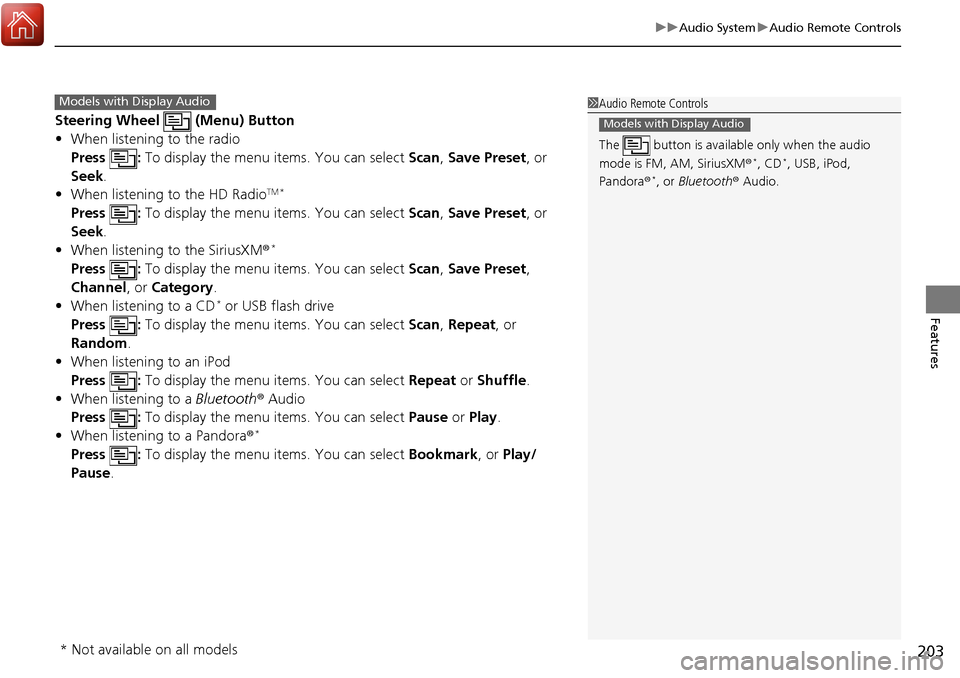
Steering Wheel (Menu) Button
• When listening to the radio
Press : To display the menu items. You can select Scan, Save Preset, or
Seek.
• When listening to the HD Radio
TM *
Press : To display the menu items. You can select Scan, Save Preset, or
Seek.
• When listening to the SiriusXM ®
*
Press : To display the menu items. You can select Scan, Save Preset,
Channel , or Category.
• When listening to a CD
* or USB flash drive
Press : To display the menu items. You can select Scan, Repeat, or
Random .
• When listening to an iPod
Press : To display the menu items. You can select Repeat or Shuffle.
• When listening to a Bluetooth® Audio
Press : To display the menu items. You can select Pause or Play.
• When listening to a Pandora ®
*
Press : To display the menu items. You can select Bookmark, or Play/
Pause .
1Audio Remote Controls
The button is availabl e only when the audio
mode is FM, AM, SiriusXM ®
*, CD*, USB, iPod,
Pandora ®*, or Bluetooth ® Audio.
Models with Display Audio
Models with Display Audio
* Not available on all models
Page 205 of 606
204
Features
Audio System Basic Operation
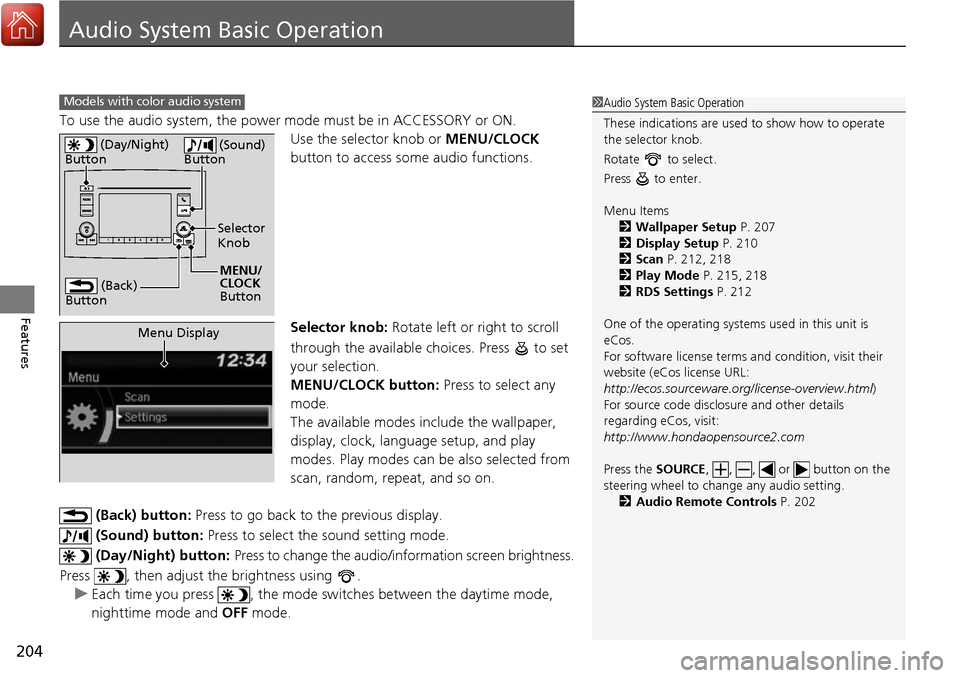
To use the audio system, the power mode must be in ACCESSORY or ON.
Use the selector knob or MENU/CLOCK
button to access some audio functions.
Selector knob: Rotate left or right to scroll
through the available ch oices. Press to set
your selection.
MENU/CLOCK button: Press to select any
mode.
The available modes include the wallpaper,
display, clock, langu age setup, and play
modes. Play modes can be also selected from
scan, random, repeat, and so on.
(Back) button: Press to go back to the previous display.
(Sound) button: Press to select the sound setting mode.
(Day/Night) button: Press to change the audio/information screen brightness.
Press , then adjust th e brightness using .
u Each time you press , the mode switches between the daytime mode,
nighttime mode and OFF mode.
Models with color audio system1Audio System Basic Operation
These indications are used to show how to operate
the selector knob.
Rotate to select.
Press to enter.
Menu Items 2 Wallpaper Setup P. 207
2 Display Setup P. 210
2 Scan P. 212, 218
2 Play Mode P. 215, 218
2 RDS Settings P. 212
One of the operating system s used in this unit is
eCos.
For software license terms and condition, visit their
website (eCos license URL:
http://ecos.sourceware.org/license-overview.html )
For source code disclo sure and other details
regarding eCos, visit:
http://www.hondaopensource2.com
Press the SOURCE, , , or button on the
steering wheel to cha nge any audio setting.
2 Audio Remote Controls P. 202
(Back)
Button
Selector
Knob
MENU/
CLOCK
Button
(Day/Night)
Button
(Sound)
Button
Menu Display