reset HONDA RIDGELINE 2017 2.G Owner's Manual
[x] Cancel search | Manufacturer: HONDA, Model Year: 2017, Model line: RIDGELINE, Model: HONDA RIDGELINE 2017 2.GPages: 606, PDF Size: 13.21 MB
Page 254 of 606
Continued253
uuAudio System Basic Operation uPlaying SiriusXM ® Radio*
Features
To store a channel:
1. Tune to the selected channel.
2. Select and hold the preset number for the station you want to store.
3. Select Replace .
You can also store a channel by the following procedure.
1. Tune to the selected channel.
2. Select the open/close icon to display a list.
3. Select the Preset tab.
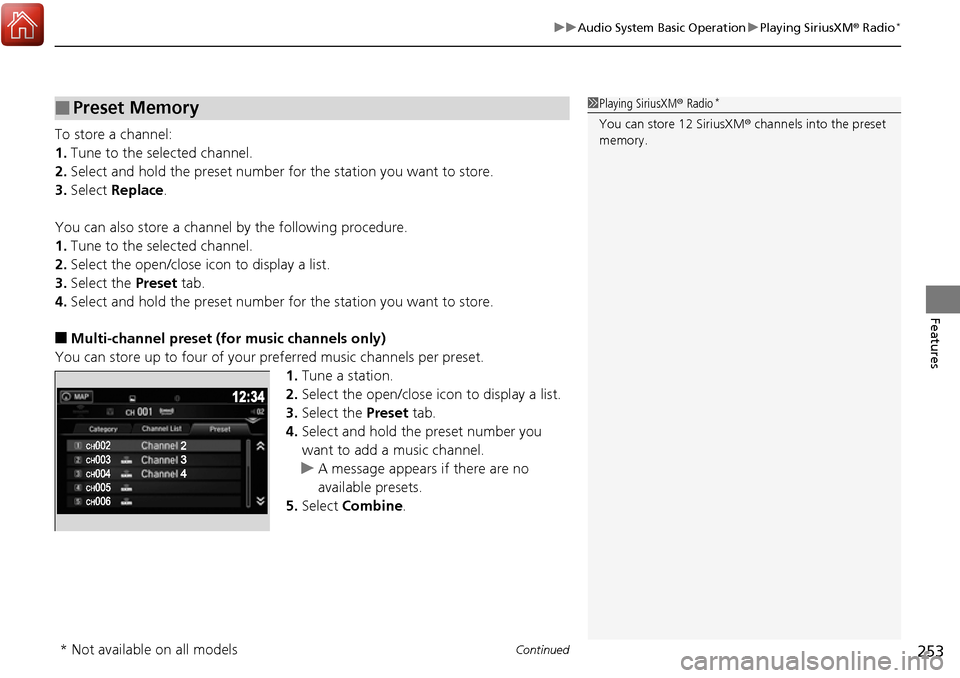
4. Select and hold the preset number for the station you want to store.
■Multi-channel preset (for music channels only)
You can store up to four of your preferred music channels per preset. 1.Tune a station.
2. Select the open/close icon to display a list.
3. Select the Preset tab.
4. Select and hold the preset number you
want to add a music channel.
u A message appears if there are no
available presets.
5. Select Combine .
■Preset Memory1Playing SiriusXM ® Radio*
You can store 12 SiriusXM ® channels into the preset
memory.
* Not available on all models
Page 256 of 606
Continued255
uuAudio System Basic Operation uPlaying SiriusXM ® Radio*
Features
The system can record up to the last 60 minutes broadcast of your currently tuned
channel as well as the last 30 minutes broadcast of preset channels, starting from
the moment you turn the vehicle on. If y ou tuned to preset channel, the system
records up to 60 minutes of a broadcast instead of up to 30 minutes. You can
rewind and replay the last 30 or 60 minutes of a broadcast.
1. Select .
2. Select Playback Position .
3. Move the gauge to the position you want to replay.
To play or pause on playback mode:
1. Select .
2. Select Play/Pause .
■Returning to real-time broadcast
1. Select .
2. Select Play Live Broadcast .
■Replay Function1Replay Function
The system starts storing broadcast in memory when
the power mode is turned ON. You can go back to
the program from that point.
You can no longer repl ay any program once the
power mode is turned off as it erases memory.
You can check how long the program has been
stored in memory from th e audio/information screen.
After 30 or 60 minutes of recording the system will
automatically start deleting the oldest data.
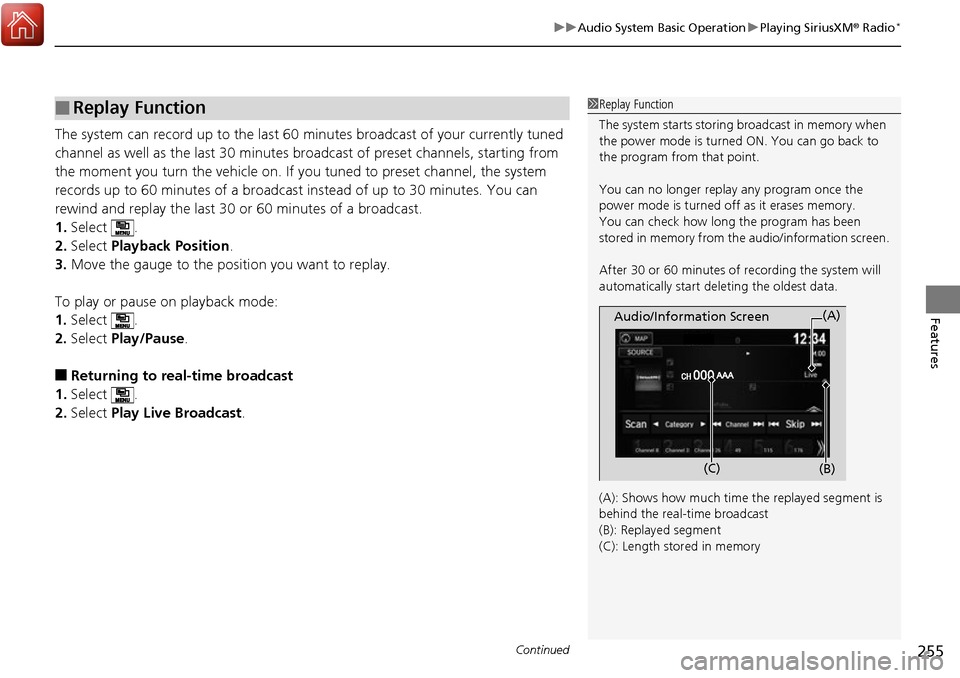
(A): Shows how much time the replayed segment is
behind the real-time broadcast
(B): Replayed segment
(C): Length stored in memory
Audio/Information Screen
(C) (B)(A)
Page 259 of 606
uuAudio System Basic Operation uPlaying SiriusXM ® Radio*
258
Features
Sample each channel on the selected mode for 10 seconds.
1. Select Scan.
2. Select Scan Channels .
u You can select the desired channel by songs using Scan Songs In Presets .
To turn off scan, select Cancel.
■Scan1Scan
The “Scan Songs in Preset s” function is based on
TuneScan
TM technology of SiriusXM ®.
The “Featured Channels ” function is based on
Featured Favorites
TM technology of SiriusXM ®.
TuneScan
TM and Featured FavoritesTM are registered
trademarks of SiriusXM ® Radio, Inc.
Page 296 of 606
295
uuAudio Error Messages uAndroid/Apps
Features
Android/Apps
If an error occurs while using the audio system or apps, you may see the following
error messages. If you cannot clear the error message, contact a dealer.
*1:****part is variable characters, and will change depending upon where an error
occurs.
Error MessageSolution
Unfortunately, **** has
stopped.*1Error has occurred within app, select OK on the screen to close the app.
**** is not responding.
Would you like to close
it?
*1
App is not responding.
Select Wait if you can wait for a response from app a little longer. If it does not respond even if you keep
waiting, select OK to close the app and start it up. If the error message continues, perform Factory Data
Reset .
2Defaulting All the Settings P. 333
Models with Display Audio
Page 309 of 606
308
uuCustomized Features u
Features
*1:Default Setting
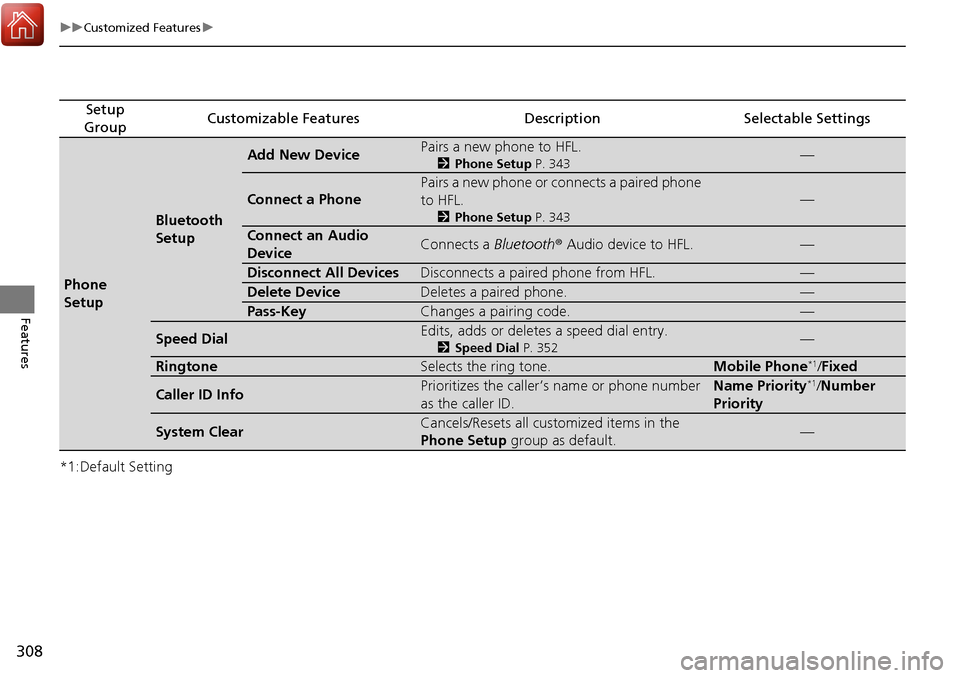
Setup
GroupCustomizable FeaturesDescriptionSelectable Settings
Phone
Setup
Bluetooth
Setup
Add New DevicePairs a new phone to HFL.
2 Phone Setup P. 343—
Connect a Phone
Pairs a new phone or connects a paired phone
to HFL.
2Phone Setup P. 343
—
Connect an Audio
DeviceConnects a Bluetooth® Audio device to HFL.—
Disconnect All DevicesDisconnects a paired phone from HFL.—
Delete DeviceDeletes a paired phone.—
Pass-KeyChanges a pairing code.—
Speed DialEdits, adds or deletes a speed dial entry.
2Speed Dial P. 352—
RingtoneSelects the ring tone.Mobile Phone*1/Fixed
Caller ID InfoPrioritizes the caller’s name or phone number
as the caller ID.Name Priority*1/Number
Priority
System ClearCancels/Resets all customized items in the
Phone Setup group as default.—
Page 312 of 606
311
uuCustomized Features u
Continued
Features
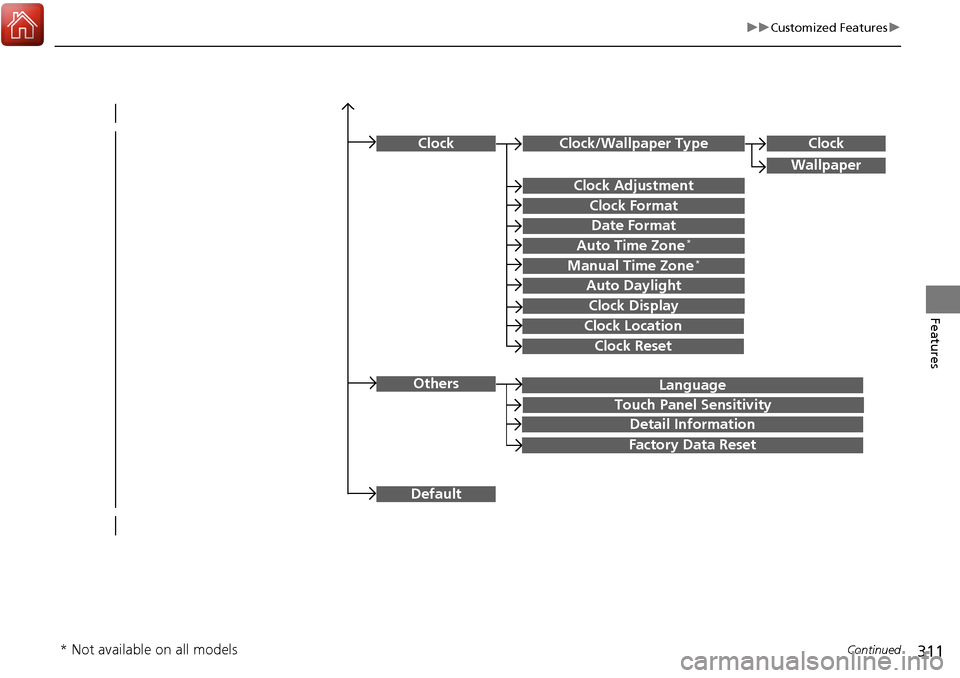
Language
Default
Others
Clock/Wallpaper Type
Date Format
Clock Adjustment
ClockClock
Wallpaper
Manual Time Zone*
Auto Daylight
Clock Display
Touch Panel Sensitivity
Clock Format
Auto Time Zone*
Detail Information
Factory Data Reset
Clock Reset
Clock Location
* Not available on all models
Page 313 of 606
312
uuCustomized Features u
Features
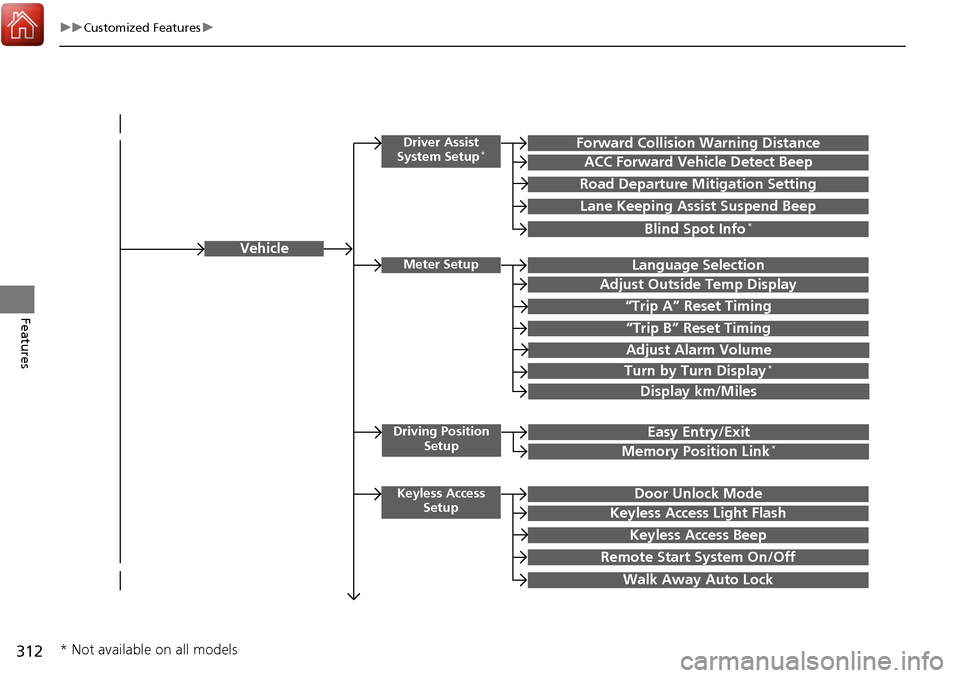
Vehicle
Driver Assist
System Setup*Forward Collision Warning Distance
ACC Forward Vehicle Detect Beep
Road Departure Mi tigation Setting
Lane Keeping Assist Suspend Beep
Blind Spot Info*
Meter SetupLanguage Selection
Adjust Outside Temp Display
“Trip A” Reset Timing
“Trip B” Reset Timing
Adjust Alarm Volume
Turn by Turn Display*
Display km/Miles
Driving Position
SetupEasy Entry/Exit
Memory Position Link*
Keyless Access SetupDoor Unlock Mode
Keyless Access Light Flash
Keyless Access Beep
Remote Start System On/Off
Walk Away Auto Lock
* Not available on all models
Page 314 of 606
313
uuCustomized Features u
Continued
Features
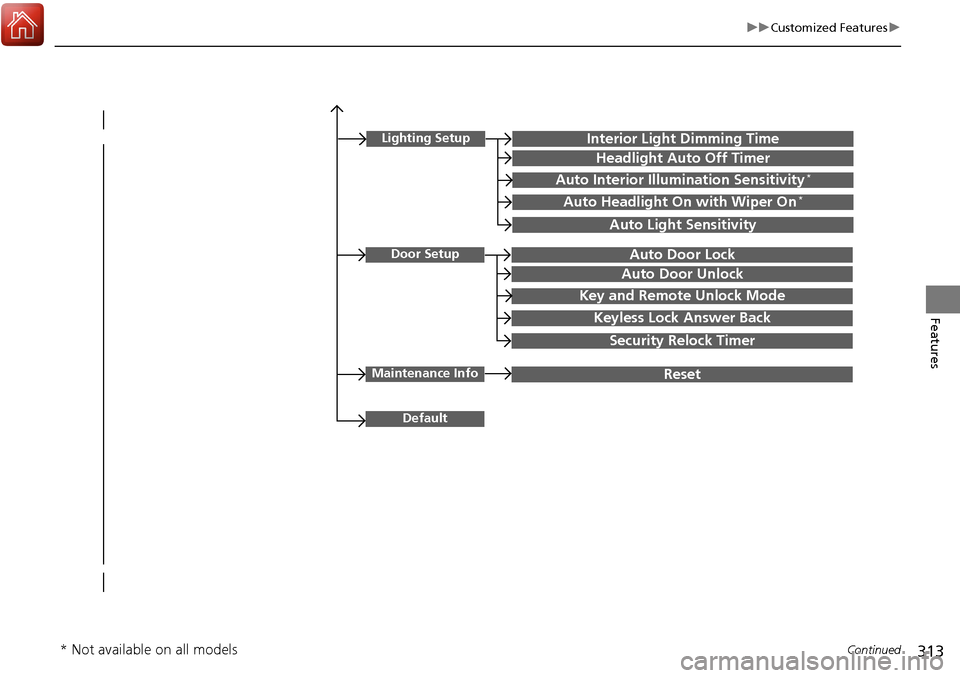
Lighting SetupInterior Light Dimming Time
Headlight Auto Off Timer
Auto Interior Illumination Sensitivity*
Auto Headlight On with Wiper On*
Auto Light Sensitivity
Door SetupAuto Door Lock
Auto Door Unlock
Key and Remote Unlock Mode
Keyless Lock Answer Back
Security Relock Timer
Maintenance Info
Default
Reset
* Not available on all models
Page 316 of 606
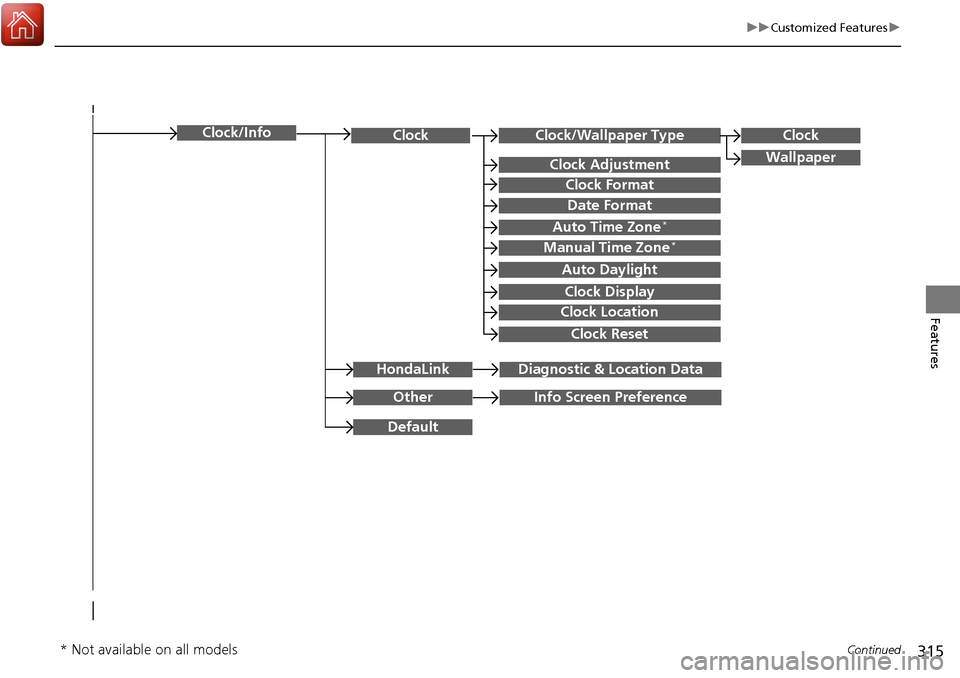
315
uuCustomized Features u
Continued
Features
Clock/Wallpaper TypeClockClock
WallpaperClock Adjustment
Clock Format
Date Format
Auto Time Zone*
Manual Time Zone*
Auto Daylight
Clock Display
Clock Location
Clock Reset
OtherInfo Screen Preference
Default
Clock/Info
HondaLinkDiagnostic & Location Data
* Not available on all models
Page 322 of 606
321
uuCustomized Features u
Continued
Features
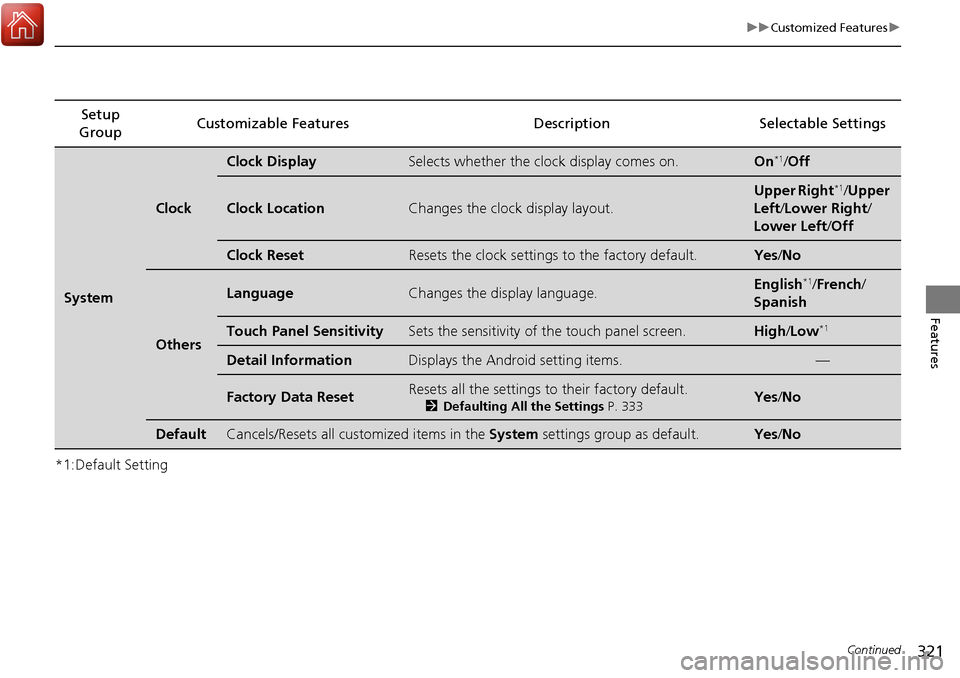
*1:Default SettingSetup
Group Customizable Features Description Selectable Settings
System
Clock
Clock DisplaySelects whether the clock display comes on.On*1/
Off
Clock LocationChanges the clock display layout.
Upper Right*1/Upper
Left/ Lower Right/
Lower Left /Off
Clock ResetResets the clock settings to the factory default.Yes /No
Others
LanguageChanges the display language.English*1/French /
Spanish
Touch Panel SensitivitySets the sensitivity of the touch panel screen.High/Low*1
Detail InformationDisplays the Android setting items.—
Factory Data ResetResets all the settings to their factory default.
2 Defaulting All the Settings P. 333Yes /No
DefaultCancels/Resets all customized items in the System settings group as default.Yes/No