USB port HONDA RIDGELINE 2017 2.G Quick Guide
[x] Cancel search | Manufacturer: HONDA, Model Year: 2017, Model line: RIDGELINE, Model: HONDA RIDGELINE 2017 2.GPages: 85, PDF Size: 8.35 MB
Page 3 of 85
TABLE OF CONTENTS
INTRODUCTION
This Owner’s Guide is intended to help you quickly get acquainted with your 2017
Honda Ridgeline. It provides basic information and instructions on technology and
convenience features, as well as emergency procedures and how to get ass\
istance.
This guide is for vehicles sold in the United States and Canada. It cove\
rs all models, so you may find descriptions of features and equipment that are not in yo\
ur vehicle. Images throughout this guide are from U.S. vehicles and represent features and \
equipment that
are available on some, but not all, models.
This guide is not intended to be a substitute for the Owner’s Manual. The Owner Information CD enclosed in your glove box kit includes the Owner’s Manual, Navigation Manual, and vehicle and tire warranties in electronic format. This infor\
mation can be
viewed on a computer (PC or Mac platform) and saved or printed for you\
r reference.
You can also visit owners.honda.com (U.S.) or myhonda.ca (Canada) to view the complete and most current information.
If you are the first registered owner of your vehicle, you may request\
a complimentary printed copy of the Owner’s Manual, Navigation Manual, or Vehicle Warranty within the first six months of vehicle purchase. To request a copy, visit owners.honda.com and
create or log in to your account. In Canada, please request a copy from \
your Honda dealer.
American Honda Motor Company strives to be proactive in protecting our e\
nvironment and natural resources. By using electronic delivery for a considerable p\
ortion of the information typically found in a vehicle Owner’s Manual, we are further reducing our
impact on the environment.
Honda Automobile Customer Service
Your authorized Honda dealer should be able to answer any questions you h\
ave about your vehicle. However, if you are dissatisfi ed with the information you receive, you can
call Honda Automobile Customer Service (see page 157).
Call (800) 999-1009 (U.S.) or (888) 946-6329 (Canada)
Honda Roadside Assistance
24-hour emergency road service is available to you in the United States \
and Canada throughout your 3-year/36,000-mile warranty term. Services include jump starting,
flat tire and lockout assistance, towing, and more (limitations apply\
).
Call (866) 864-5211 (U.S.) or (800) 465-7587 (Canada)
VISUAL INDEX .............................................................. 1
Steering Wheel and Nearby Controls ................... 1
Dashboard and Nearby Controls ............................ 3
PHONE PAIRING QUICK START
................................. 4
HANDS-FREE PHONE QUICK START
........................ 5
VOICE RECOGNITION QUICK START
........................ 6
SAFETY INFORMATION
.............................................. 7
Important Safety Information .................................. 7
Seat Belts ................................................................... 9
Airbags ...................................................................... 12
Child Safety .............................................................. 18
Safety Label Locations ........................................... 25
Reporting Safety Defects....................................... 25
INSTRUMENT PANEL
................................................ 26
Malfunction Indicators .......................................... 26
Condition Indicators ............................................... 28
On/Off Indicators ..................................................... 29
Multi-Information Display (MID).......................... 30
VEHICLE CONTROLS
.................................................. 31
Using the Remote Transmitter .............................. 31
Smart Entry System ................................................. 32
Tailgate and Trunk Operation ............................... 33
In-Bed Conveniences ............................................. 34
Door Operation ........................................................ 35
Power Window Operation .................................... 36
Power Moonroof Operation* ................................ 37
Interior and Exterior Lights ................................... 38
One-Touch Turn Signal .......................................... 39
Auto High Beam System* ...................................... 40
Wiper Operation ...................................................... 41
Adjusting the Seats ................................................ 43
Rear Seats ................................................................ 46
Driving Position Memory System* ...................... 47
Adjusting the Steering Wheel .............................. 47
Adjusting the Mirrors ............................................. 48
Homelink® Garage Opener* .................................. 49
Air Conditioning System* ..................................... 50
Climate Control System* ...................................... 51
Seat Heaters* .......................................................... 53
Customized Features .............................................. 54
Setting the Clock. .................................................... 55AUDIO AND CONNECTIVITY
....................................
56
Color Audio System ................................................ 60
FM/AM Radio ........................................................ 61
iPod® ...................................................................... 62
USB Flash Drive .................................................... 63
Bluetooth® Audio .................................................. 64
Touchscreen Operation ......................................... 65
HondaLink® ........................................................... 67
Wi-Fi Connection .................................................. 68
Apple CarPlay® ........................................................................\
....................... 69
Android Auto™ .....................................................70
FM/AM Radio ....................................................... 72
SiriusXM® Radio* ................................................. 73
Compact Disc (CD)* ............................................ 74
iPod® ...................................................................... 75
USB Flash Drive .................................................... 76
Bluetooth® Audio ................................................. 77
Pandora®* ............................................................. 78
Truck Bed Audio System* ................................... 79
BLUETOOTH
® HANDSFREELINK® (HFL) ................. 80
Color Audio System ................................................ 80
Basic HFL Operation ............................................ 80
Pairing a Phone .................................................... 81
Making a Call ........................................................ 82
Touchscreen ............................................................ 83
Basic HFL Operation ............................................ 83
Pairing a Phone .................................................... 85
Making a Call ........................................................ 86
HondaLink Assist .................................................. 87
SMS Text Messaging and E-Mail* .................... 88
Siri™ Eyes Free ...................................................... 89
NAVIGATION*
............................................................. 90
Entering a Destination ........................................... 92
Routing ...................................................................... 95
*if equipped
Page 5 of 85
VISUAL INDEX
2 || 3
V
ISUAL INDEX
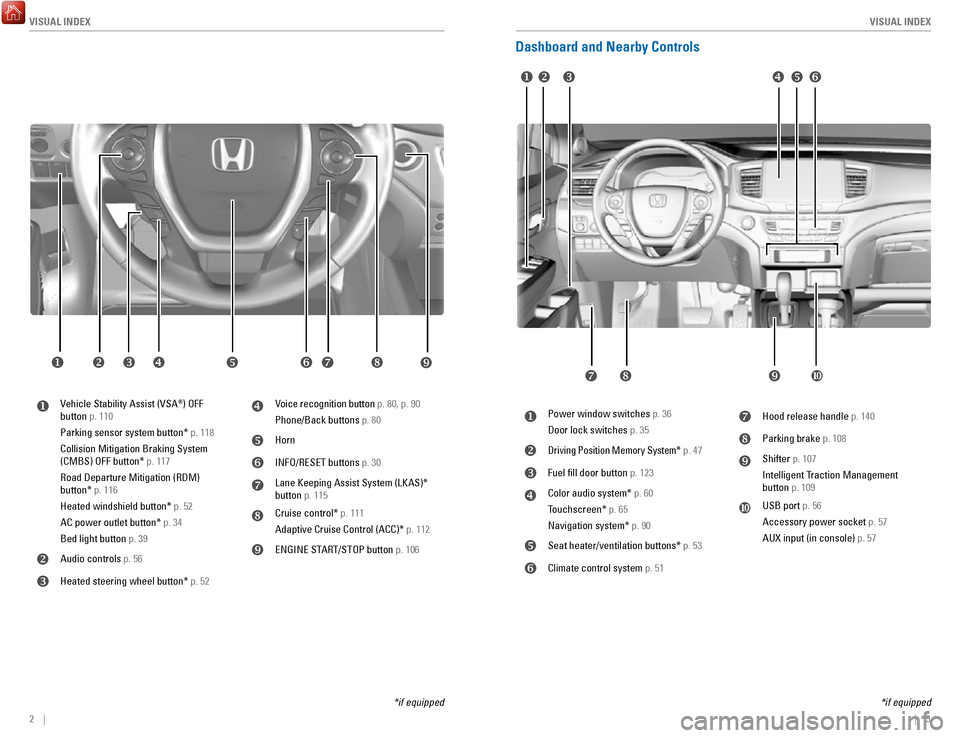
Dashboard and Nearby Controls
u v w x y z
uVehicle Stability Assist (VSA®) OFF
button p. 110
Parking sensor system button* p. 118
Collision Mitigation Braking System
(CMBS) OFF button* p. 117
Road Departure Mitigation (RDM)
button* p. 116
Heated windshield button* p. 52
AC power outlet button* p. 34
Bed light button p. 39
vAudio controls p. 56
wHeated steering wheel button* p. 52
xVoice recognition button p. 80, p. 90
Phone/Back buttons p. 80
yHorn
zINFO/RESET buttons p. 30
Lane Keeping Assist System (LKAS)*
button p. 115
Cruise control* p. 111
Adaptive Cruise Control (ACC)* p. 112
}ENGINE START/STOP button p. 106
uPower window switches p. 36
Door lock switches p. 35
vDriving Position Memory System* p. 47
wFuel fill door button p. 123
xColor audio system* p. 60
Touchscreen* p. 65
Navigation system* p. 90
ySeat heater/ventilation buttons* p. 53
zClimate control system p. 51
Hood release handle p. 140
Parking brake p. 108
}Shifter p. 107
Intelligent Traction Management
button p. 109
~USB port p. 56
Accessory power socket p. 57
AUX input (in console) p. 57
u v w x y z
} ~
*if equipped *if equipped
}
Page 32 of 85
AUDIO AND CONNECTIVITY
56 || 57
A
UDIO AND CONNECTIVITY
AUDIO AND CONNECTIVITY
Learn how to operate the vehicle’s audio system.
Basic Audio Operation
Connect audio devices and operate buttons and displays for the audio sys\
tem.
n
USB Port
Connect a USB flash drive or other audio device, such as an iPod or iP\
hone. Install
the flash drive or cable connector to the USB port.
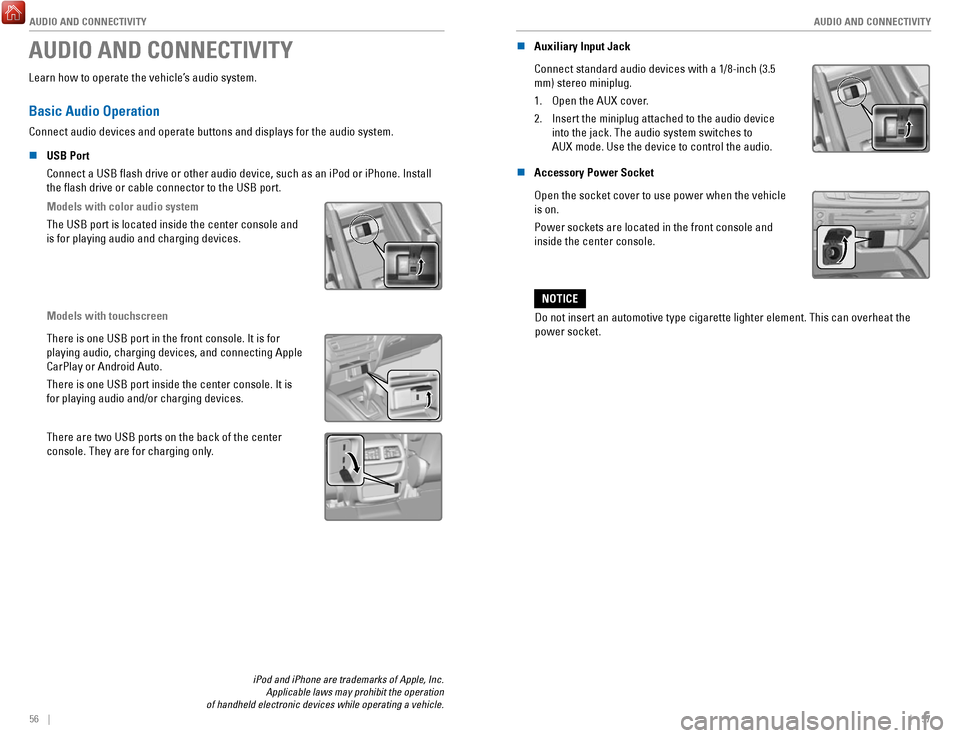
Models with color audio system
The USB port is located inside the center console and
is for playing audio and charging devices.
Models with touchscreen
There is one USB port in the front console. It is for
playing audio, charging devices, and connecting Apple
CarPlay or Android Auto.
There is one USB port inside the center console. It is
for playing audio and/or charging devices.
There are two USB ports on the back of the center
console. They are for charging only.
iPod and iPhone are trademarks of Apple, Inc.
Applicable laws may prohibit the operation
of handheld electronic devices while operating a vehicle.
n Auxiliary Input Jack
Connect standard audio devices with a 1/8-inch (3.5
mm) stereo miniplug.
1.
Open the AUX cover.
2.
Insert the miniplug attached to the audio device
into the jack. The audio system switches to
AUX
mode. Use the device to control the audio.
n Accessory Power Socket
Open the socket cover to use power when the vehicle
is on.
Power sockets are located in the front console and
inside the center console.
Do not insert an automotive type cigarette lighter element. This can ove\
rheat the
power socket.
NOTICE
Page 38 of 85

AUDIO AND CONNECTIVITY
68 || 69
A
UDIO AND CONNECTIVITY
Models with touchscreen
Wi-Fi Connection
You can connect the audio system to the internet using Wi-Fi and use onli\
ne services
through the touchscreen. If your compatible phone has hotspot capabiliti\
es, the system
can be tethered to the phone. Follow the steps below to set up Wi-Fi whe\
n the vehicle is
stopped. Standard data rates apply with your phone service provider.
1.
From the Home screen, select Settings.
2.
Select Bluetooth/Wi-Fi. Select the Wi-Fi tab.
3.
Select Wi-Fi On/Off Status, and select On.
4.
Select Wi-Fi Network List. Make sure your phone’s
Wi-Fi setting is in access point (tethering) mode.
5.
Select the network you want to connect to the system.
If the phone you want to connect does not appear,
select Scan.
6.
Select Connect.
7.
Enter a password for your phone. Select OK.
The Wi-Fi symbol is displayed on the list when
connection is successful.
Models with touchscreen
Apple CarPlay®
Connect an Apple CarPlay-compatible iPhone to the system. You can use the
touchscreen to make a phone call, listen to music, and more. Visit the A\
pple CarPlay
website for more information.
Park in a safe place before connecting your iPhone and launching any com\
patible apps.
1.
Connect the iPhone to the USB port (see page
56).
2.
Apple CarPlay requires you to send vehicle
information to Honda. Select Enable Once, Always
Enable, or Cancel. Your phone may prompt you to
allow access for CarPlay to be launched.
3.
From the HOME screen, select Apple CarPlay.
HOME screen
Apple CarPlay
4. Select a menu option.
Phone: Access your contacts, make phone calls,
or listen to voicemail. While connected to Apple
CarPlay, calls can only be made through Apple
CarPlay, not through Bluetooth
HandsFreeLink.
Music: Play music stored on your iPhone.
Maps: View a map and operate navigation. You
can only use Apple CarPlay or the pre-installed
navigation system to set a destination with routing
guidance.
Messages: View and reply to text messages, or
have messages read to you aloud by the system. Apple CarPlay menu
Return
to HOME
screen
Return to Apple CarPlay menu screen
Once connected, press and hold the Talk button on the steering wheel to operate the
system using voice commands with Siri® Eyes Free (see page 89).
Depending on use, Apple CarPlay can share certain vehicle information (\
e.g., vehicle location,
speed, and other operating conditions) with the connected iPhone. See A\
pple’s privacy policy for
details regarding Apple’s use and handling of data uploaded by CarPlay. Use of CarPlay is at user’s
own risk, and is subject to agreement to the CarPlay terms of use, which\
are included as part of
the Apple iOS terms of use. CarPlay vehicle integration is provided “\
as is,” and Honda cannot
guarantee CarPlay operability or functionality now or in the future due \
to, among other conditions,
changes in CarPlay software/Apple iOS, service interruptions, or incompa\
tibility or obsolesce of
vehicle-integrated hardware or software. See dealer for details. Only us\
e CarPlay when conditions
allow you to do so safely. See your Owner’s Manual on the Owner Information CD or at owners.
honda.com (U.S.) or myhonda.ca (Canada) for further license and warr\
anty terms.
Page 39 of 85
AUDIO AND CONNECTIVITY
70 || 71
A
UDIO AND CONNECTIVITY
Models with touchcreen
Android Auto™
Connect a compatible Android phone to the system. You can use the touchscreen to
make a phone call, listen to music, and more. Visit the Android Auto web\
site for more
information.
Park in a safe place before connecting your iPhone and
launching any compatible apps.
1.
Download the Android Auto app to your phone.
2.
Connect the phone to the USB port (see page 56).
The phone is automatically paired. A tutorial also
appears.
3.
From the HOME screen, select Android Auto.
4.
Android Auto requires you to send vehicle
information to Honda. Select Enable Once, Always
Enable, or Cancel.
HOME screen
Android Auto icon
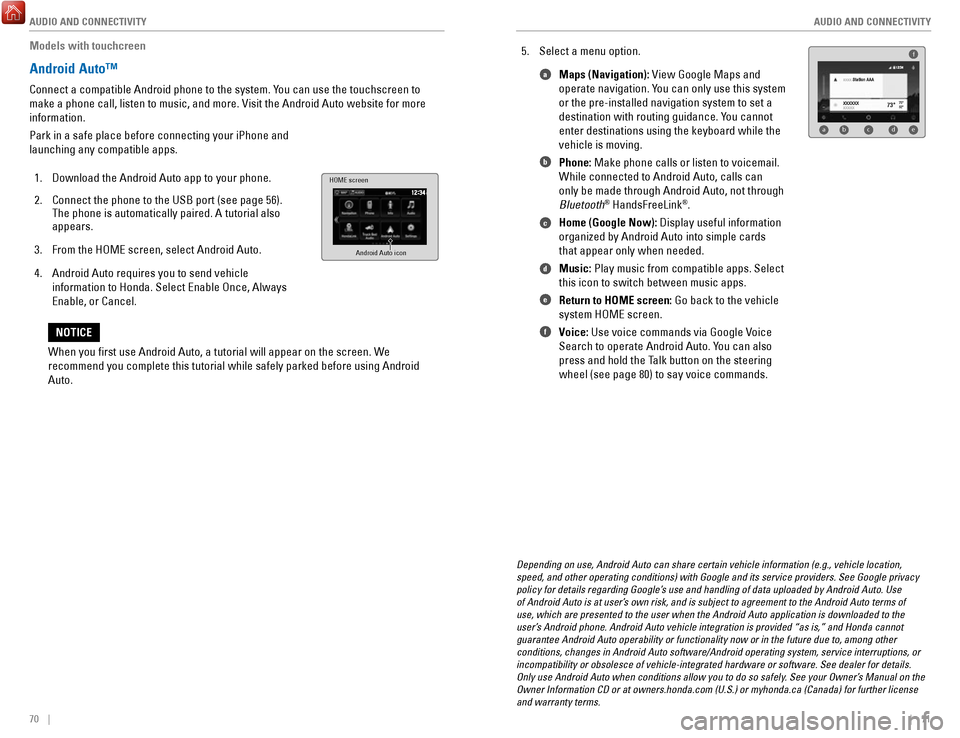
5. Select a menu option. Maps (Navigation): View Google Maps and
operate navigation. You can only use this system
or the pre-installed navigation system to set a
destination with routing guidance. You cannot
enter destinations using the keyboard while the
vehicle is moving.
Phone: Make phone calls or listen to voicemail.
While connected to Android Auto, calls can
only be made through Android Auto, not through
Bluetooth
® HandsFreeLink®.
Home (Google Now): Display useful information
organized by Android Auto into simple cards
that appear only when needed.
Music: Play music from compatible apps. Select
this icon to switch between music apps.
Return to HOME screen: Go back to the vehicle
system HOME screen.
Voice: Use voice commands via Google Voice
Search to operate Android Auto. You can also
press and hold the Talk button on the steering
wheel (see page 80) to say voice commands.
f
ab cde
a
b
c
d
e
f
Depending on use, Android Auto can share certain vehicle information (e\
.g., vehicle location,
speed, and other operating conditions) with Google and its service prov\
iders. See Google privacy
policy for details regarding Google’s use and handling of data uploaded by Android Auto. Use
of Android Auto is at user’s own risk, and is subject to agreement to the Android Auto terms of
use, which are presented to the user when the Android Auto application i\
s downloaded to the
user’s Android phone. Android Auto vehicle integration is provided “as is,\
” and Honda cannot
guarantee Android Auto operability or functionality now or in the future\
due to, among other
conditions, changes in Android Auto software/Android operating system, s\
ervice interruptions, or
incompatibility or obsolesce of vehicle-integrated hardware or software.\
See dealer for details.
Only use Android Auto when conditions allow you to do so safely. See your Owner’s Manual on the
Owner Information CD or at owners.honda.com (U.S.) or myhonda.ca (Can\
ada) for further license
and warranty terms.
When you first use Android Auto, a tutorial will appear on the screen.\
We
recommend you complete this tutorial while safely parked before using An\
droid
Auto.
NOTICE
Page 41 of 85
AUDIO AND CONNECTIVITY
74 || 75
A
UDIO AND CONNECTIVITY
Models with touchscreen
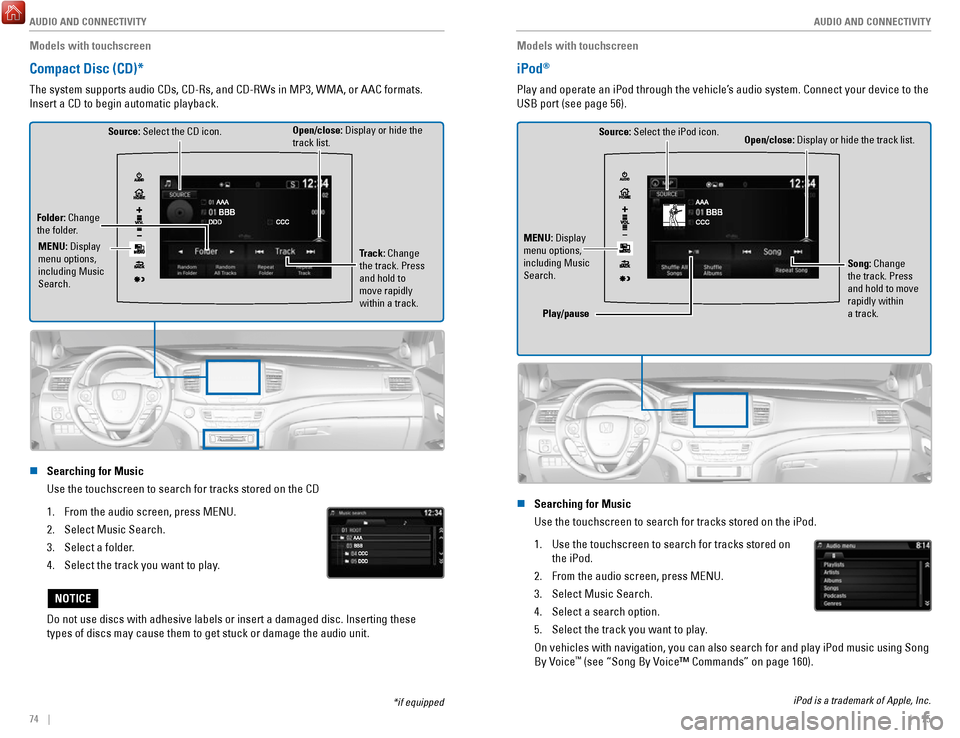
Compact Disc (CD)*
The system supports audio CDs, CD-Rs, and CD-RWs in MP3, WMA, or AAC formats.
Insert a CD to begin automatic playback.
Source: Select the CD icon.
Folder: Change
the folder. Open/close: Display or hide the
track list.
Track: Change
the track. Press
and hold to
move rapidly
within a track.
MENU: Display
menu options,
including Music
Search.
n Searching for Music
Use the touchscreen to search for tracks stored on the CD
1.
From the audio screen, press MENU.
2.
Select Music Search.
3.
Select a folder.
4.
Select the track you want to play.
Do not use discs with adhesive labels or insert a damaged disc. Insertin\
g these
types of discs may cause them to get stuck or damage the audio unit.
NOTICE
*if equipped
Models with touchscreen
iPod®
Play and operate an iPod through the vehicle’s audio system. Connect your device to the
USB port (see page 56).
Source: Select the iPod icon. Open/close: Display or hide the track list.
MENU: Display
menu options,
including Music
Search. Song: Change
the track. Press
and hold to move
rapidly within
a track.
Play/pause
n Searching for Music
Use the touchscreen to search for tracks stored on the iPod.
1.
Use the touchscreen to search for tracks stored on
the iPod.
2.
From the audio screen, press MENU.
3.
Select Music Search.
4.
Select a search option.
5.
Select the track you want to play.
On vehicles with navigation, you can also search for and play iPod music using Song
By Voice™ (see “Song By Voice™ Commands” on page 160).
iPod is a trademark of Apple, Inc.
Page 42 of 85
AUDIO AND CONNECTIVITY
76 || 77
A
UDIO AND CONNECTIVITY
Models with touchscreen
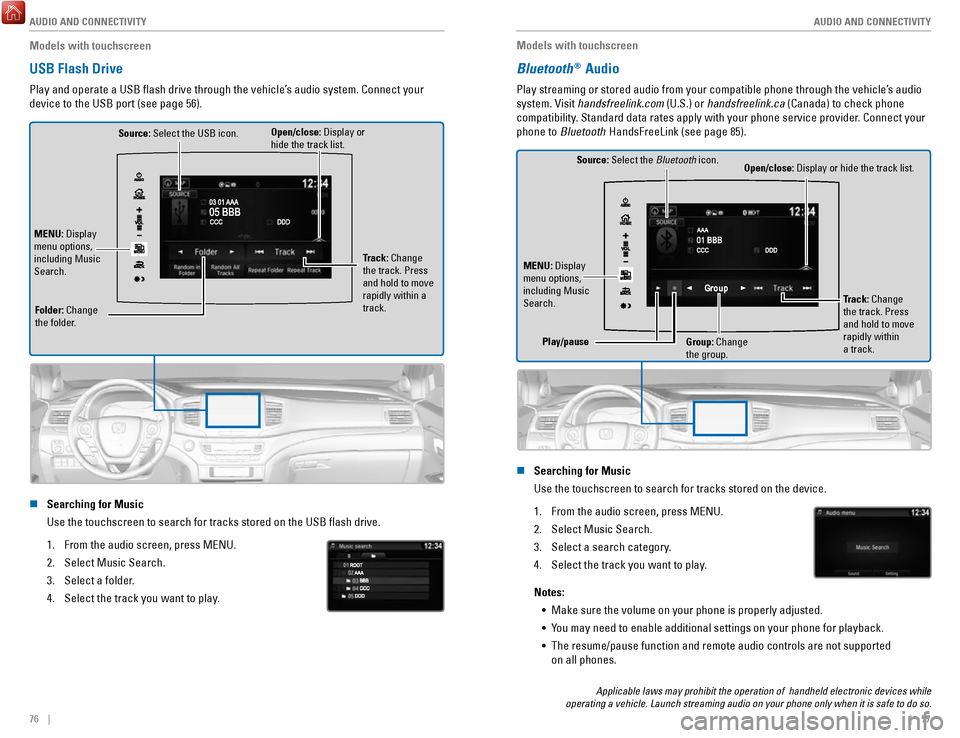
USB Flash Drive
Play and operate a USB flash drive through the vehicle’s audio system. Connect your
device to the USB port (see page 56).
Source: Select the USB icon.
Folder: Change
the folder. Open/close: Display or
hide the track list.
MENU: Display
menu options,
including Music
Search. Track: Change
the track. Press
and hold to move
rapidly within a
track.
n Searching for Music
Use the touchscreen to search for tracks stored on the USB flash drive\
.
1.
From the audio screen, press MENU.
2.
Select Music Search.
3.
Select a folder.
4.
Select the track you want to play.
Models with touchscreen
Bluetooth® Audio
Play streaming or stored audio from your compatible phone through the ve\
hicle’s audio
system. Visit handsfreelink.com (U.S.) or handsfreelink.ca (Canada) to check phone
compatibility. Standard data rates apply with your phone service provider. Connect your
phone to Bluetooth HandsFreeLink (see page 85).
Source: Select the Bluetooth icon.
Open/close: Display or hide the track list.
MENU: Display
menu options,
including Music
Search. Track: Change
the track. Press
and hold to move
rapidly within
a track.
Play/pause
Group: Change
the group.
n Searching for Music
Use the touchscreen to search for tracks stored on the device.
1.
From the audio screen, press MENU.
2.
Select Music Search.
3.
Select a search category.
4.
Select the track you want to play.
Notes: •
Make sure the volume on your phone is properly adjusted.
•
You may need to enable additional settings on your phone for playback.
•
The resume/pause function and remote audio controls are not supported
on all phones.
Applicable laws may prohibit the operation of handheld electronic devic\
es while
operating a vehicle. Launch streaming audio on your phone only when it i\
s safe to do so.
Page 43 of 85

AUDIO AND CONNECTIVITY
78 || 79
A
UDIO AND CONNECTIVITY
Models with touchscreen
Pandora®*
Play and operate Pandora from your compatible phone through the vehicle’\
s audio
system. Visit handsfreelink.com to check phone compatibility. Standard data rates apply
with your phone service provider. Available in the U.S. only.
Connect your phone when the vehicle is stopped.
For iPhone:
•
Connect via Bluetooth HandsFreeLink (see page 85) or USB port
(see page 56).
•
A pop-up may appear on your phone requesting you to allow access for Pan\
dora
to be launched.
•
If you cannot operate Pandora through the audio system, it may be stream\
ing
through Bluetooth Audio. Make sure Pandora is selected on the audio system.
•
If Pandora still does not operate, try rebooting the phone and reconnect\
ing the
cable if necessary.
For other compatible smartphones: •
Connect via Bluetooth HandsFreeLink (see page 85).
Source: Select the Pandora icon.
Station: Change
the station. Skip: Go to the
next song.
MENU: Display
menu options,
including the
Station List.
Dislike/Like song
Play/Pause
*If equipped. Applicable laws may prohibit the operation of handheld ele\
ctronic devices while operating a vehicle. Launch streaming audio on your phone only when it i\
s safe to do so.
Models with touchscreen
Truck Bed Audio System*
Send audio system content to outside the vehicle by using the truck bed \
liner as a
speaker.
From the Home screen, select Truck Bed Audio.
Select On or Off.
n Using Truck Bed Audio
•
To start Truck Bed Audio:
à the vehicle must be in Park.
àthe ignition must be in Accessory or ON.
•
Once started, the system will work in any power mode.
•
The display screen will sleep to preserve power.
•
The system will cancel:
à if the vehicle moves at 10 mph (16 km/h) or faster.
àif the battery charge drops below the needs of the engine starter.
*if equipped
Page 71 of 85

HANDLING THE UNEXPECTED
134 || 135
H
ANDLING THE UNEXPECTED
Fuse Locations
If any electrical devices are not working, turn the vehicle off and chec\
k to see if any
applicable fuse is blown. Fuse locations are shown on the fuse box cover\
. Locate the
fuse in question by the fuse number and box cover number.
n
Engine Compartment Fuse Box A
Located under the hood on the passenger’s side.
Push the tabs to open the box.
Tab
Circuit ProtectedAmps
1
(70 A)*1AC INVERTER70
A*2RR BLOWER30 A*1(30 A)*2VSA MTR40 A
VSA FSR20 AMAIN FAN30 A*1(30 A)*2MAIN FUSE 150 A
2
SUB FAN30 A
WIP MTR30 AWASHER20 A
(20 A)(30 A)FR BLOWER 40 AAUDIO AMP(30 A)
RR DEF30 A*1(30 A)*2(40 A)
(30 A)*1RR DEF30 A*2(20 A)
3
*1RR BLOWER30 A*2*1(30 A)*2*1(30 A)*2*1MAIN FAN
4 SMALL 30
A
*2
STOP 10
A*110 A*25
6 STOP
SMALL 10
A*110 A*27
8 L H/L LO
10 A*1IGPS9 7.5
A*2
10 R H/L LO
10 A*1L H/L LO
11 10
A
*2IGPS7.5 A*1R H/L LO
12 10
A
*2INJECTO R2 0 A*1IG COIL15 A*2
13H/L LO MAIN20 A*1DBW14 15
A*2USB15 A
AmpsCircuit Protecte d
15
*1:Models without the AC power outlet
*2:Models with the AC power outle t
(15 A)*1
16 10
A
*215 A*115 A*217(20 A)
18(20 A)
1920 A
20 7.5 A
2115 A*1
22 15
A*215 A
2315 A*120 A*2
24 15
A*120 A*22520 A
26 10
A*115 A*22728 (10 A)10
A
2920 A
Circuit Protecte dAmpsFR FOG
BACK UP HAZARD
MAIN RL Y
AS P/SEAT (REC) AS P/SEAT (SLI) ACM
MG CLUTCH MAIN RL Y
HAZARD FI SUB
IG COIL
INJECTOR DBW
H/L LO MAIN
SMALL/STOP MAIN BACK UPFR FOG
H/STEERING WHEEL HORN
RADIO
n Engine Compartment Fuse Box B
Located under the hood near the brake fluid
reservoir. Push the tabs to open the box.
Circuit Protected Amps
1
ST CUT140 A4WD (20 A)IG MAIN30 AIG MAIN230 A
F/B MAIN 260 AF/B MAIN60 A
EPS60 A
23TRL E-BRAKE(20 A)
4 7.5 A
BM S
5H/L HI MAIN6 20
A(7.5 A)
7
8 (7.5 A)
20 A9(20 A)
10 10 A
11TRL CHARGE
+B TRL HAZARD
+B TRL BACKUP
CTR ACC SOCKE T
TRAILER SMAL L
ACC/IG2_MAIN (20 A)
12131415FR DE-ICER(15 A)16RR _HTD SEAT(20 A)17STRLD7.5 A
Tab
n Interior Fuse Box
Located under the dashboard.
AmpsCircuit Protected
120 A
220 A
37.5 A
420 A
520 A620 A715 A
87.5 A
97.5 A
1010 A
1120 A
12(20 A)
1320 A
1420 A
15(20 A)
167.5 A
17(20 A)
187.5 A
19DR REAR DOOR UNLOCK10 A
2010 A
21
DR P/W
DOOR LOCK SMAR T
AS P/W
FR ACC SOCKET FUEL PUMP ACG
FRONT WIPER ABS/VSA SRS
REAR LEFT P/W BACK P/W
REAR RIGHT P/ W
S/R FUEL LID
DR P/SEAT (REC) CARGO LT
FR SEAT HEATER INTR LT
7.5 A
227.5 A
237.5 A
247.5 A
257.5 A
AS SIDE DOOR UNLOCK
DRL
KEY LOCK A/C
IG1a FEED BACK
INST PANEL LIGHTS
26(7.5 A)277.5 A2810 A297.5 A30317.5 A327.5 A3310 A3410 A3510 A36(20 A)3710 A3810 A397.5 A407.5 A4110 A42
Circuit ProtectedAmpsLUMBAR SUPPORT
PARKING LIGHTS OPTIONMETER
MISS SOL SRS
AS SIDE DOOR LOCK DR DOOR LOCK
DR DOOR UNLOCK DR P/SEAT (SLIDE) RIGHT H/L HILEFT H/L HI
IG1b FEED BACK ACC
DR REAR DOOR LOCK
AmpsCircuit Protected
120 A
220 A
37.5 A
420 A
520 A620 A715 A
87.5 A
97.5 A
1010 A
1120 A
12(20 A)
1320 A
1420 A
15(20 A)
167.5 A
17(20 A)
187.5 A
19DR REAR DOOR UNLOCK10 A
2010 A
21
DR P/W
DOOR LOCK SMAR T
AS P/W
FR ACC SOCKET FUEL PUMP ACG
FRONT WIPER ABS/VSA SRS
REAR LEFT P/W BACK P/W
REAR RIGHT P/ W
S/R FUEL LID
DR P/SEAT (REC) CARGO LT
FR SEAT HEATER INTR LT
7.5 A
227.5 A
237.5 A
247.5 A
257.5 A
AS SIDE DOOR UNLOCK
DRL
KEY LOCK A/C
IG1a FEED BACK
INST PANEL LIGHTS
26(7.5 A)277.5 A2810 A297.5 A30317.5 A327.5 A3310 A3410 A3510 A36(20 A)3710 A3810 A397.5 A407.5 A4110 A42
Circuit ProtectedAmpsLUMBAR SUPPORT
PARKING LIGHTS OPTIONMETER
MISS SOL SRS
AS SIDE DOOR LOCK DR DOOR LOCK
DR DOOR UNLOCK DR P/SEAT (SLIDE) RIGHT H/L HILEFT H/L HI
IG1b FEED BACK ACC
DR REAR DOOR LOCK
Fuse label Fuse box
Page 84 of 85

VOICE COMMAND INDEX
160 || 161
INDEX
n Audio Commands*
The system accepts these commands on most screens. Audio volume levels c\
annot
be controlled using voice commands.
FM/AM Radio Commands •
Audio on**
•
Audio off**
•
Radio FM
•
Radio AM
•
Radio tune to # FM (#: frequency,
e.g., 95.5)
•
Radio tune to # AM (#: frequency,
e.g., 1020)
•
Radio FM preset # (#: 1 to 12)
•
Radio AM preset # (#: 1 to 6)
SiriusXM Radio Commands •
Radio SXM
•
SXM channel # (#: 0 to 255)
•
SXM channel (channel name)
•
Radio SXM preset # (#: 1 to 12)
Pandora Commands (U.S. only) •
Pandora
•
Pandora play Disc (CD) Commands
*1
• Disc
•
Disc play
•
Disc play track # (#: 1 to 30)
USB Commands •
USB
•
USB play
•
USB play track # (#: 1 to 30)
iPod Commands •
iPod
•
iPod play
•
iPod play track # (#: 1-30)
Bluetooth Audio Commands •
Bluetooth audio play (may not
work on all phones)
AUX Commands •
Aux audio play
•
Music search
•
List album (specify album)
•
List artist (specify artist)
•
List composer (specify composer)
•
List genre (specify genre)
•
List playlist (specify playlist)
•
Play album (specify album)
•
Play artist (specify artist)
•
Play composer (specify composer) •
Play genre (specify genre)
•
Play playlist (specify playlist)
•
Play song (specify song)
•
What/Who am I listening to?
•
Who is this?
•
What’s playing?
•
Who’s playing?
•
What album is this?
Song By Voice
™ Commands
Available for tracks stored on an iPod or USB device.
*models with navigation *1 if equipped
**These commands toggle the function on and off, so the command may not match your intended action.
INDEX
Airbags................................................................ 12–17Advanced airbags ................................................ 12
Airbag care ............................................................ 17
Airbag system components ................................ 16
Airbag System Indicators ................................... 14
Front Airbags ......................................................... 12
Side airbags .......................................................... 13
Side-curtain airbags ............................................ 13
Android Auto ............................................................ 70
Apple CarPlay .......................................................... 69
Audio operation ................................................. 56–77
Android Auto ......................................................... 70
Apple CarPlay ....................................................... 69
Auxiliary input jack (AUX) ................................... 57
Bluetooth audio .............................................. 64, 77
Compact Disc ........................................................ 74
FM/AM radio ................................................... 61, 72
iPod ................................................................... 62, 75
MENU button ................................................... 74–79
Pandora .................................................................. 78
SiriusXM Radio ..................................................... 73
Song by Voice ..................................................... 160
Sound ..................................................................... 59
SOURCE ............................................................ 72–79
Steering-wheel controls ..................................... 58
Truck Bed Audio ................................................... 79
USB flash drive ............................................... 63, 76
USB port ................................................................. 56
Braking Anti-Lock Brake System (ABS)
........................ 108
Brake Assist System .......................................... 108
Collision Mitigation Braking System (CMBS) 117
Foot brake ............................................................ 108
Parking brake ...................................................... 108
Brightness control .................................................. 38
Carbon monoxide ...................................................... 8
Cargo lights .............................................................. 39
Child safety......................................................... 18–24 Childproof door locks
........................................... 35
Child seat Child seat with lap/shoulder belt
.................... 22
Child seat with tether ........................................ 23
LATCH-compatible ............................................. 21
Selecting a child seat ....................................... 20
Climate control .................................................. 50–53
Heated seats ......................................................... 53
Heated steering wheel ........................................ 52
Heated windshield ............................................... 52
Clock........................................................................\
.. 55 Contact us
.............................................................. 157
Cruise control ................................................ 111–113
Adaptive Cruise Control .................................... 112
Customized features ............................................... 54
Doors ........................................................................\
. 35Front-door inner handle
......................................
35
Lock tab .................................................................. 35
Master door-lock switch ..................................... 35
Engine Emergency engine stop
..................................... 128
Engine compartment cover .............................. 141
ENGINE START/STOP ................................ 106, 128
Floor mats ................................................................. 46
Forward Collision Warning (FCW) ...................... 117
Frequently-asked questions ................................ 156
Fuel Fuel information
.................................................. 122
Refueling ...................................................... 123–124
Fuses ............................................................... 134–136
Changing .............................................................. 136
Location ............................................................... 134
Gear selection ............................................... 107–109
Shifting ................................................................. 107
HandsFreeLink ................................................... 80–89
Dialing .............................................................. 82, 86
E-mail ...................................................................... 88
Making a call ................................................... 82, 86
Pairing a phone ............................................... 81, 85
Phonebook ....................................................... 82, 86
Siri Eyes-Free ........................................................ 89
SMS text messaging ............................................ 88
Speed dial ........................................................ 82, 87
Steering-wheel controls ............................... 80, 83
TALK button ........................................................... 84
Voice prompt ................................................... 86, 87
Headlights .......................................................... 39–40
Headlight-wiper integration ............................... 41
High beams ...................................................... 39–40
HomeLink .................................................................. 49
HondaLink................................................................. 67 Assist
...................................................................... 87
Immobilizer ............................................................... 28
INFO button .............................................................. 30
Instrument panel indicators ............................ 26–29
Jump starting ......................................................... 126
Keyless Access System ......................................... 32
Lane Keeping Assist System (LKAS).................. 115
LaneWatch
............................................................. 114
Lights ................................................................... 38–39
Cargo area lights .................................................. 39
Exterior lights ........................................................ 39
Fog lights ................................................................ 39
Interior lights ......................................................... 38
Light bulbs ........................................................... 154
Maintenance.................................................. 137–152 Battery
.................................................................. 145
Brake fluid ........................................................... 145
Engine oil ..................................................... 142–143
Maintenance Minder ................................. 138–139