radio HONDA RIDGELINE 2022 User Guide
[x] Cancel search | Manufacturer: HONDA, Model Year: 2022, Model line: RIDGELINE, Model: HONDA RIDGELINE 2022Pages: 598, PDF Size: 12.42 MB
Page 235 of 598
233
uuAudio System Basic Operation uVoice Control Operation
Continued
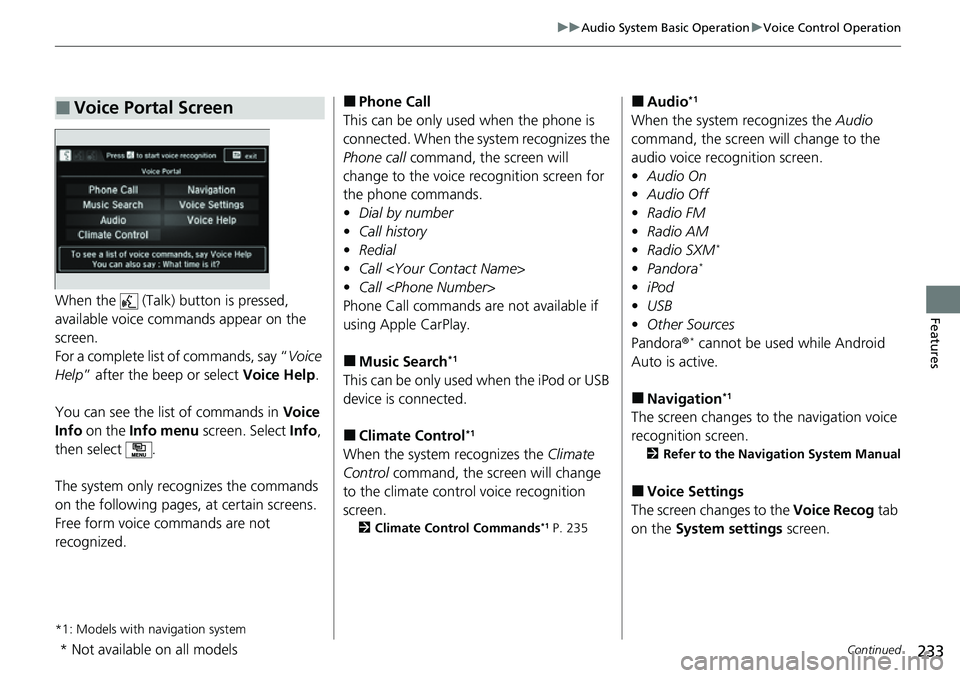
FeaturesWhen the (Talk) button is pressed,
available voice comma nds appear on the
screen.
For a complete list of commands, say “ Voice
Help ” after the beep or select Voice Help.
You can see the list of commands in Voice
Info on the Info menu screen. Select Info,
then select .
The system only recognizes the commands
on the following pages, at certain screens.
Free form voice commands are not
recognized.
*1: Models with navigation system
■Voice Portal Screen■Phone Call
This can be only used when the phone is
connected. When the sy stem recognizes the
Phone call command, the screen will
change to the voice re cognition screen for
the phone commands.
• Dial by number
• Call history
• Redial
• Call
• Call
Phone Call commands are not available if
using Apple CarPlay.
■Music Search*1
This can be only used when the iPod or USB
device is connected.
■Climate Control*1
When the system recognizes the Climate
Control command, the screen will change
to the climate con trol voice recognition
screen.
2 Climate Control Commands*1 P. 235
■Audio*1
When the system recognizes the Audio
command, the screen will change to the
audio voice recognition screen.
• Audio On
• Audio Off
• Radio FM
• Radio AM
• Radio SXM
*
•Pandora*
•iPod
• USB
• Other Sources
Pandora ®
* cannot be used while Android
Auto is active.
■Navigation*1
The screen changes to the navigation voice
recognition screen.
2 Refer to the Navigation System Manual
■Voice Settings
The screen changes to the Voice Recog tab
on the System settings screen.
* Not available on all models
Page 236 of 598
234
uuAudio System Basic Operation uVoice Control Operation
Features
■Voice Help
You can see a list of the available
commands on the screen.
• Useful Commands
*
•Phone Commands
• Audio Commands*
•Climate Control Commands*
•On Screen Commands
• Music Search Commands*
•General Commands*
•Voice Settings
• Getting Started
• All Commands
The system accepts th ese commands on the
voice portal top screen.
• Call
• Call
• What time is it?
• What is today’s date?
*1: Models with navigation system
■Useful Commands
The system accepts these commands on the
dedicated screen for the voice recognition
of the phone.
• Call by Number
• Call by Name
• Call
• Call
The system accepts these commands on the
dedicated screen for the voice recognition
of the audio.
■Radio FM Commands
• Radio tune to <87.7-107.9> FM
• Radio tune to <87.7 -107.9> HD <1-8>
FM
• Radio FM preset <1-12>
■Radio AM Commands
• Radio tune to <530-1710> AM
• Radio AM preset <1-6>
■Radio SXM Commands*
•SXM channel <1-999>
• SXM channel
• Radio SXM preset <1-12>
■Phone Commands
■Audio Commands*1
■Pandora Commands*
•Pandora play
■iPod Commands
• iPod play
• iPod play track <1-30>
• Music Search
• What album is this?
• What am I listening to?
■USB Commands
• USB play
• USB play track <1-30>
• Music Search
• What album is this?
• What am I listening to?
■Bluetooth ® audio Commands
• Bluetooth ® audio play
NOTE:
Bluetooth ® Audio commands may not work
on some phones or Bluetooth ® Audio
devices.
■AUX-Audio commands
• AUX audio play
* Not available on all models
Page 238 of 598
236
uuAudio System Basic Operation uPlaying AM/FM Radio
Features
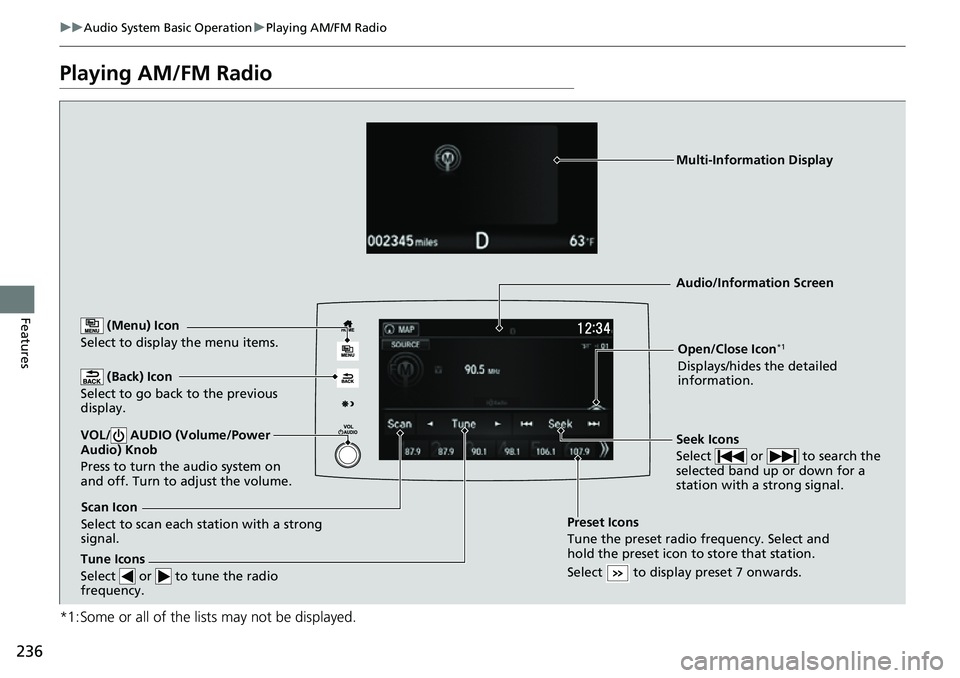
Playing AM/FM Radio
*1:Some or all of the lists may not be displayed.
(Back) Icon
Select to go back to the previous
display.
Seek Icons
Select or to search the
selected band up or down for a
station with a strong signal.VOL/ AUDIO (Volume/Power
Audio) Knob
Press to turn the audio system on
and off. Turn to adjust the volume.
Open/Close Icon*1
Displays/hides the detailed
information.
(Menu) Icon
Select to display the menu items.
Tune Icons
Select or to tune the radio
frequency.
Audio/Information Screen
Scan Icon
Select to scan each station with a strong
signal. Preset Icons
Tune the preset radio frequency. Select and
hold the preset icon to store that station.
Select to display preset 7 onwards.
Multi-Information Display
Page 239 of 598
Continued237
uuAudio System Basic Operation uPlaying AM/FM Radio
Features
To store a station:
1. Tune to the selected station.
2. Select and hold the preset number for the station you want to store.
You can also store a preset station by the following procedure.
1. Tune to the selected station.
2. Select the open/close icon to display a list.
3. Select the Preset tab.
4. Select and hold the preset number for the station you want to store.
Lists the strongest stations on the selected band.
1. Select the open/close icon to display a list.
2. Select the Station List tab.
3. Select the station.
■Manual update
Updates your available st ation list at any time.
1. Select the open/close icon to display a list.
2. Select the Station List tab.
3. Select Refresh .
Samples each of the strongest stations on th e selected band for 10 seconds. To turn
off scan, select Cancel or .
■Preset Memory
■Station List
■Scan
1Preset Memory
The ST indicator appears on the display indicating
stereo FM broadcasts.
Stereo reproduction in AM is not available.
Switching the Audio Mode
Press the SOURCE button on the steering wheel or
select SOURCE on the screen.
2 Audio Remote Controls P. 209
You can store 6 AM stations and 12 FM stations into
preset memory.
HD Radio Technology manufactured under license
from iBiquity Digi tal Corporation. U.S. and Foreign
Patents. For patents, see http://dts.com/patents. HD
Radio, Artist Experience, and the HD, HD Radio, and
“ARC” logos are registered trademarks or
trademarks of iBiquity Di gital Corporation in the
United States and/ or other countries.
Models with HD RadioTM
Page 240 of 598
uuAudio System Basic Operation uPlaying AM/FM Radio
238
Features
Displays the subchannel list when an HD RadioTM station is selected while listening to
an FM station.
1. Select .
2. Select HD Radio Subchannel .
3. Select the channel number.
Provides text data information related to your selected RDS-capable FM station.
■To find an RDS station from Station List
1. Select the open/close icon to display a list while listening to an FM station.
2. Select the Station List tab.
3. Select the station.
■Manual update
Updates your available station list at any time.
1. Select the open/close icon to display a list while listening to an FM station.
2. Select the Station List tab.
3. Select Refresh .
■Radio text
Displays the radio text informat ion of the selected RDS station.
1. Select .
2. Select View Radio Text .
■HD Subchannel
■Radio Data System (RDS)
Models with HD RadioTM
1Radio Data System (RDS)
When you select an RDS-capable FM station, the RDS
automatically turns on, and the frequency display
changes to the station name. However, when the
signals of that station become weak, the display
changes from the statio n name to the frequency.
Page 241 of 598
239
uuAudio System Basic Operation uPlaying SiriusXM ® Radio*
Continued
Features
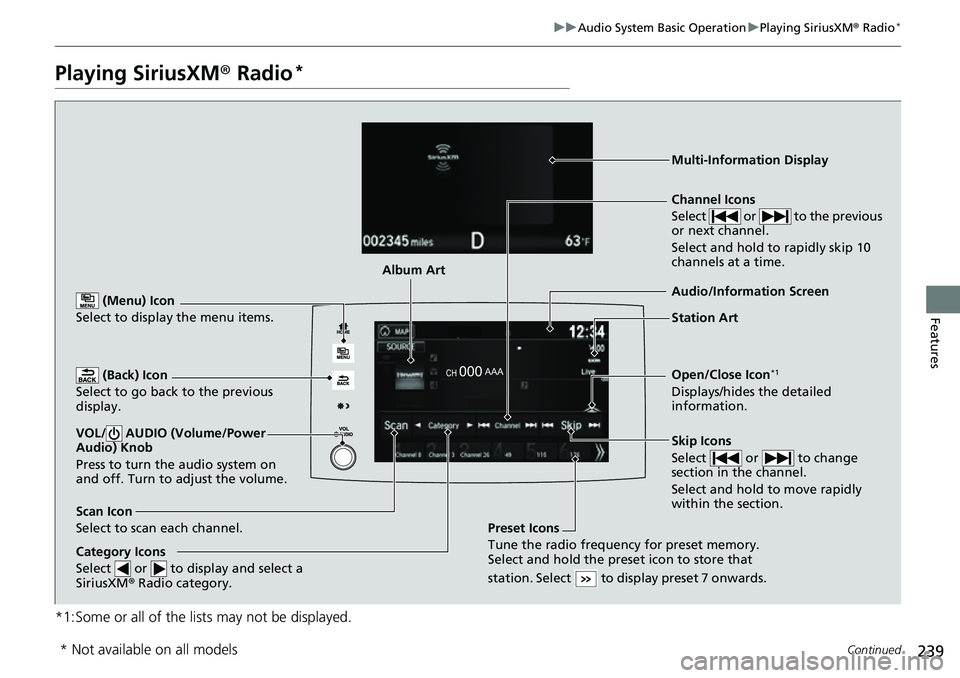
Playing SiriusXM® Radio*
*1:Some or all of the lists may not be displayed.
(Back) Icon
Select to go back to the previous
display.
Channel Icons
Select or to the previous
or next channel.
Select and hold to rapidly skip 10
channels at a time.
VOL/ AUDIO (Volume/Power
Audio) Knob
Press to turn the audio system on
and off. Turn to adjust the volume.
Open/Close Icon*1
Displays/hides the detailed
information.
(Menu) Icon
Select to display the menu items.
Category Icons
Select or to display and select a
SiriusXM ® Radio category.
Audio/Information Screen
Scan Icon
Select to scan each channel. Preset Icons
Tune the radio frequency for preset memory.
Select and hold the preset icon to store that
station. Select to display preset 7 onwards.
Skip Icons
Select or to change
section in the channel.
Select and hold to move rapidly
within the section.
Multi-Information Display
Album Art
Station Art
* Not available on all models
Page 242 of 598
uuAudio System Basic Operation uPlaying SiriusXM ® Radio*
240
Features
1. Select .
2. Select Tune Mode .
3. Select Channel Mode or Category Mode .
■To Change the Tune Mode1Playing SiriusXM ® Radio*
In the channel mode, all available channels are
selectable. In the categor y mode, you can select a
channel within a ca tegory (Jazz, Rock, Classical, etc.).
There may be instances when SiriusXM ® Radio does
not broadcast all the data fi elds (artist name, title).
This does not indicate a problem with your audio
system.
SiriusXM ® Radio stations load in ascending order,
which can take about a minute. Once they have
loaded you will be able to scroll up or down to make
your selections.
Switching the Audio Mode
Press the SOURCE button on the steering wheel or
select SOURCE on the screen.
2 Audio Remote Controls P. 209
Tune Start:
When you change to a preset channel, a song being
played on that channel restarts from the beginning
with this function. This can be turned on or off from
the Audio settings screen.
2 Customized Features P. 298
* Not available on all models
Page 243 of 598
Continued241
uuAudio System Basic Operation uPlaying SiriusXM ® Radio*
Features
To store a channelY
1. Tune to the selected channel.
2. Select and hold the preset number for the station you want to store.
3. Select Replace .
You can also store a channel by the following procedure.
1. Tune to the selected channel.
2. Select the open/close icon to display a list.
3. Select the Preset tab.
4. Select and hold the preset number for the station you want to store.
■Multi-channel preset (for music channels only)
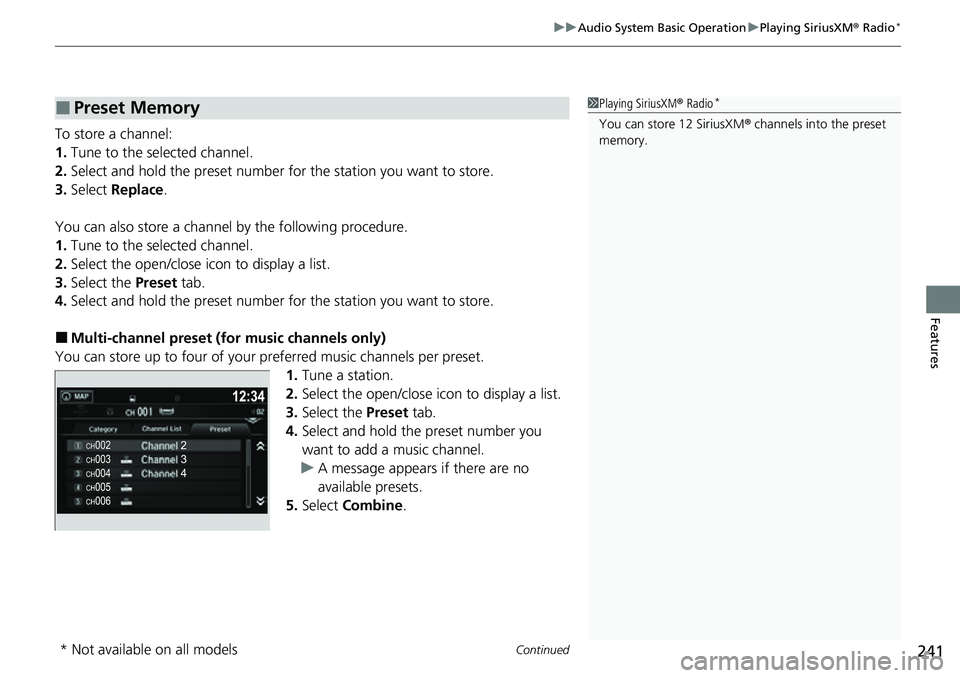
You can store up to four of your preferred music channels per preset.
1.Tune a station.
2. Select the open/close icon to display a list.
3. Select the Preset tab.
4. Select and hold the preset number you
want to add a music channel.
u A message appears if there are no
available presets.
5. Select Combine .
■Preset Memory1Playing SiriusXM ® Radio*
You can store 12 SiriusXM ® channels into the preset
memory.
* Not available on all models
Page 244 of 598
uuAudio System Basic Operation uPlaying SiriusXM ® Radio*
242
Features
Suggested channel listing received from SiriusXM ® can be displayed and selected.
1. Select the open/close icon to display a channel list.
2. Select the Channel List tab.
3. Select the featured channel list title you want to listen to.
u The selected channel list of the title is displayed.
4. Select the channel.
■Listening to Featured Channels1Listening to Featured Channels
Up to three featured channels by SiriusXM ® can be
displayed.
Featured channel lists are at the top of the channel
list.
Page 245 of 598
Continued243
uuAudio System Basic Operation uPlaying SiriusXM ® Radio*
Features
The system can record up to the last 60 minutes broadcast of your currently tuned
channel as well as the last 30 minutes broadcast of preset channels, starting from
the moment you turn the vehicle on. If y ou tuned to preset channel, the system
records up to 60 minutes of a broadcast instead of up to 30 minutes. You can
rewind and replay the last 30 or 60 minutes of a broadcastM
1. Select .
2. Select Playback Position .
3. Move the gauge to the position you want to replay.
The following items are availa ble on the pop-up screen:
(Skip Down): Skips to the previously st ored channel. Select and hold to fast-
rewind the current selection. (Skip Up): Skips to the next channe l. Select and hold to fast-forward the
current selection. (15sec Back): Select to skip back 15 seconds in the current selection. Select and
hold to fast-rewind th e current selection.
(15sec Skip): Select to skip forward 15 seconds in the current selection. Select
and hold to fast-forward the current selection.
u Select OK to close the pop-up menu. Replay in playback mode continues.
To play or pause on playback mode:
1. Select .
2. Select Play/Pause .
■Returning to real-time broadcast
1. Select .
2. Select Play Live Broadcast .
■Replay Function1Replay Function
The system starts storing broadcast in memory when
the power mode is turned ON. You can go back to
the program from that point.
You can no longer repl ay any program once the
power mode is turned off as it erases memory.
You can check how long the program has been
stored in memory from th e audio/information screen.
After 30 or 60 minutes of recording the system will
automatically start deleting the oldest data.
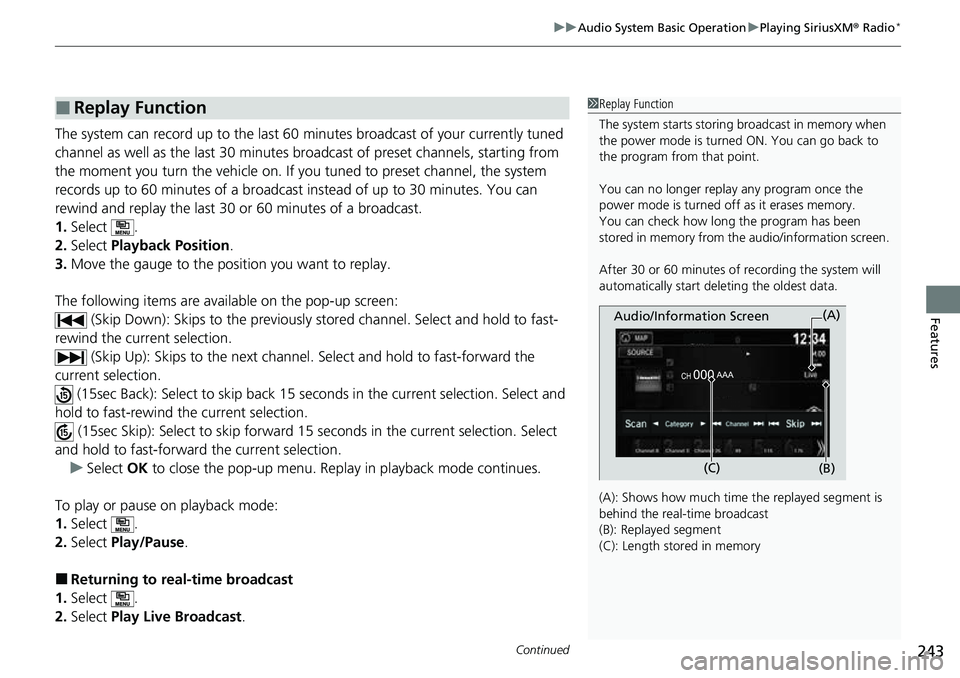
(A): Shows how much time the replayed segment is
behind the real-time broadcast
(B): Replayed segment
(C): Length stored in memory
Audio/Information Screen
(C) (B)(A)