transmission HONDA RIDGELINE 2023 User Guide
[x] Cancel search | Manufacturer: HONDA, Model Year: 2023, Model line: RIDGELINE, Model: HONDA RIDGELINE 2023Pages: 598, PDF Size: 12.34 MB
Page 148 of 598
uuOperating the Switches Around the Steering Wheel uENGINE START/STOP Button
146
Controls
If you leave the vehicle for 30 to 60 minutes with the transmission in (P and the
power mode in ACCESSORY, the vehicle auto matically goes into the mode similar to
VEHICLE OFF (LOCK) to avoid draining the battery.
When in this mode:
The steering wheel does not lock.
You cannot lock or unlock doors with th e remote transmitter or the keyless access
system.
Press the ENGINE START/STOP button to switch the mode to VEHICLE OFF (LOCK).
If you open the driver’s door when the power mode is set to ACCESSORY, a warning
beep sounds.
■Automatic Power Off
■Power Mode Reminder
1 ENGINE START/STOP Button
If the power mode does not change from VEHICLE
OFF to ACCESSORY, press the ENGINE START/STOP
button while moving the st eering wheel left and
right. The steering wheel will unlock, allowing the
mode to change.
Do not leave the power mode in ACCESSORY or ON
when you get out.
Canadian models
Canadian models
Page 151 of 598
149
uuOperating the Switches Around the Steering Wheel uLight Switches
Continued
Controls
Light Switches
Rotating the light switch turns the lights on
and off, regardless of the power mode
setting.
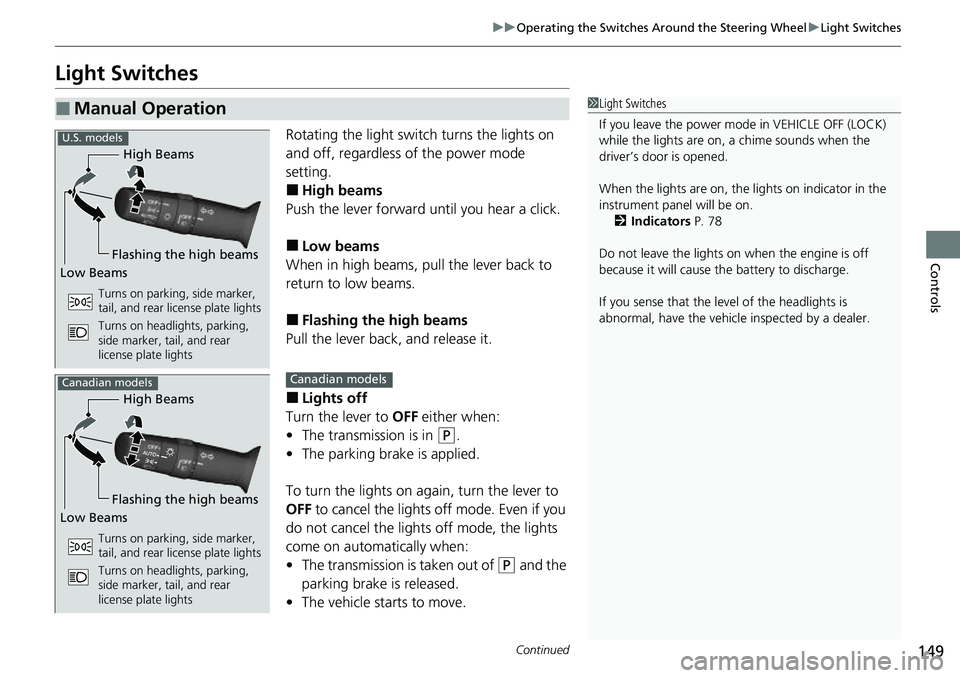
■High beams
Push the lever forward until you hear a click.
■Low beams
When in high beams, pull the lever back to
return to low beams.
■Flashing the high beams
Pull the lever back, and release it.
■Lights off
Turn the lever to OFF either when:
• The transmission is in
(P.
• The parking brake is applied.
To turn the light s on again, turn the lever to
OFF to cancel the lights off mode. Even if you
do not cancel the lights off mode, the lights
come on automatically when:
• The transmission is taken out of
(P and the
parking brake is released.
• The vehicle starts to move.
■Manual Operation1Light Switches
If you leave the power mode in VEHICLE OFF (LOCK)
while the lights are on, a chime sounds when the
driver’s door is opened.
When the lights are on, the lights on indicator in the
instrument pane l will be on.
2 Indicators P. 78
Do not leave the lights on when the engine is off
because it will cause the battery to discharge.
If you sense that the le vel of the headlights is
abnormal, have the vehicl e inspected by a dealer.
High Beams
Flashing the high beams
Low Beams
Turns on parking, side marker,
tail, and rear license plate lights
Turns on headlights, parking,
side marker, tail, and rear
license plate lights
U.S. models
High Beams
Flashing the high beams
Low Beams
Turns on parking, side marker,
tail, and rear license plate lights
Turns on headlights, parking,
side marker, tail, and rear
license plate lights
Canadian modelsCanadian models
Page 163 of 598
161
uuOperating the Switches Around the Steering Wheel uDriving Position Memory System*
Continued
Controls
Driving Position Memory System*
You can store two driver’s seat (except for power lumbar) and door mirror positions
with the driving position memory system.
When you unlock and open the driver’s door with a remote transmitter or keyless
access system, the seat and door mirrors adjust automatically to one of the two
preset positions.
When you enter the vehicle, the multi-in formation display briefly shows you which
remote transmitter you used to unlock the vehicle.
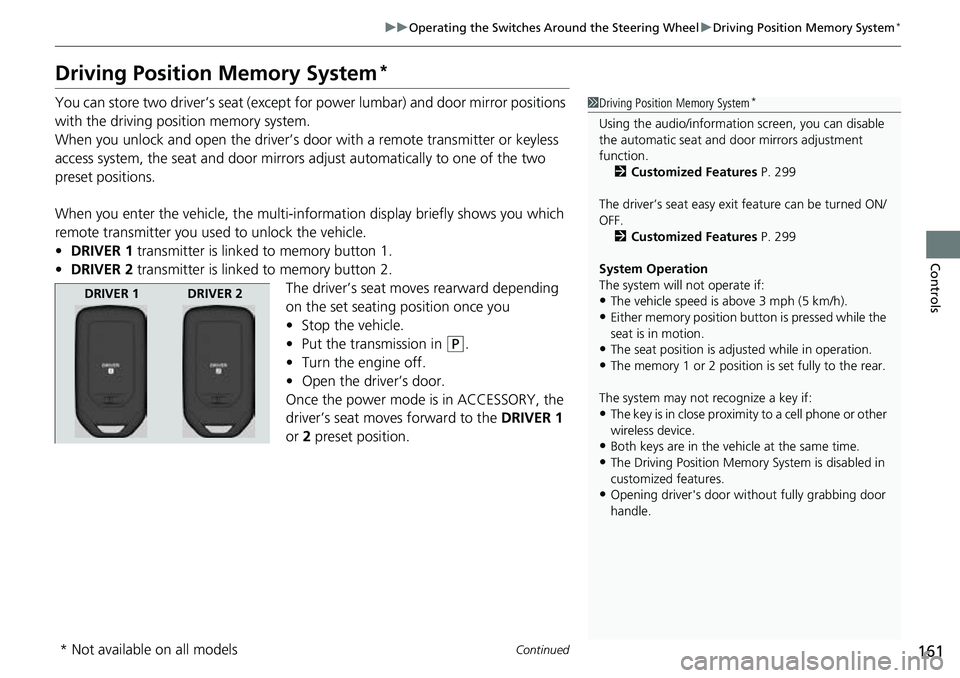
• DRIVER 1 transmitter is linked to memory button 1.
• DRIVER 2 transmitter is linked to memory button 2.
The driver’s seat moves rearward depending
on the set seating position once you
•Stop the vehicle.
• Put the transmission in
(P.
• Turn the engine off.
• Open the driv er’s door.
Once the power mode is in ACCESSORY, the
driver’s seat moves forward to the DRIVER 1
or 2 preset position.
1 Driving Position Memory System*
Using the audio/informati on screen, you can disable
the automatic seat and d oor mirrors adjustment
function. 2 Customized Features P. 299
The driver’s seat easy exit feature can be turned ON/
OFF. 2 Customized Features P. 299
System Operation
The system will not operate if:
•The vehicle speed is above 3 mph (5 km/h).•Either memory position button is pressed while the
seat is in motion.
•The seat position is adju sted while in operation.•The memory 1 or 2 position is set fully to the rear.
The system may not recognize a key if:
•The key is in close proximity to a cell phone or other
wireless device.
•Both keys are in the vehicle at the same time.•The Driving Position Memory System is disabled in
customized features.
•Opening driver's door wi thout fully grabbing door
handle.
DRIVER 1 DRIVER 2
* Not available on all models
Page 164 of 598
uuOperating the Switches Around the Steering Wheel uDriving Position Memory System*
162
Controls
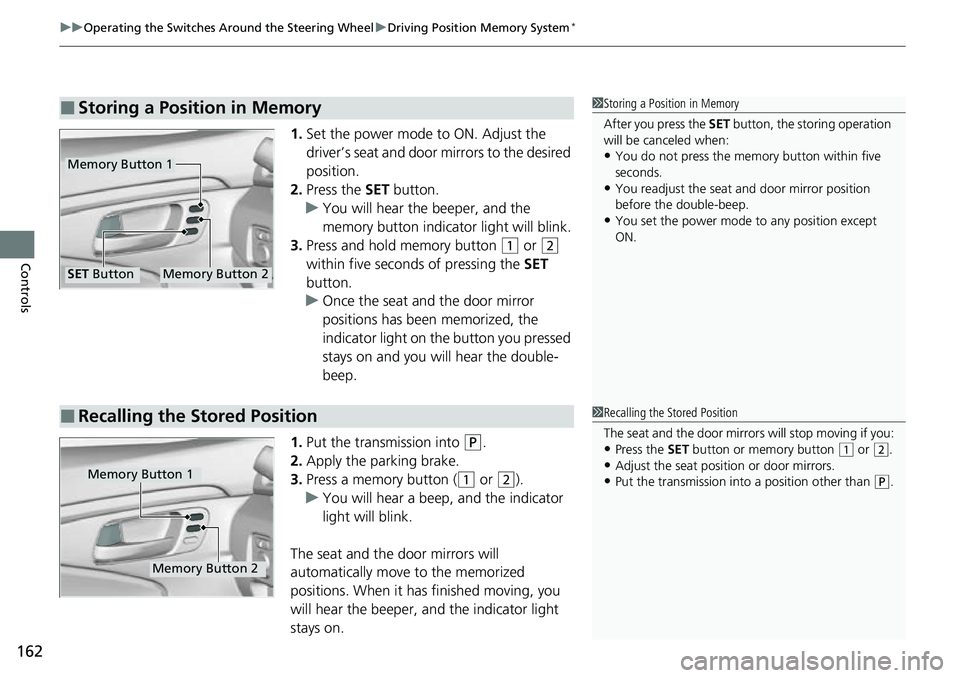
1. Set the power mode to ON. Adjust the
driver’s seat and door mirrors to the desired
position.
2. Press the SET button.
u You will hear the beeper, and the
memory button indicator light will blink.
3. Press and hold memory button
(1 or (2
within five seconds of pressing the SET
button.
u Once the seat and the door mirror
positions has been memorized, the
indicator light on the button you pressed
stays on and you will hear the double-
beep.
1. Put the transmission into
(P.
2. Apply the parking brake.
3. Press a memory button (
(1 or (2).
u You will hear a beep, and the indicator
light will blink.
The seat and the door mirrors will
automatically move to the memorized
positions. When it has finished moving, you
will hear the beeper, an d the indicator light
stays on.
■Storing a Position in Memory1 Storing a Position in Memory
After you press the SET button, the storing operation
will be canceled when:
•You do not press the memory button within five
seconds.
•You readjust the seat and door mirror position
before the double-beep.
•You set the power mode to any position except
ON.
Memory Button 1
Memory Button 2SET Button
■Recalling the Stored Position1Recalling the Stored Position
The seat and the door mirrors will stop moving if you:
•Press the SET button or memory button (1 or (2.
•Adjust the seat position or door mirrors.•Put the transmission into a position other than (P.Memory Button 1
Memory Button 2
Page 166 of 598
164
Controls
Mirrors
Interior Rearview Mirror
Adjust the angle of the rearview mirror when you are sitting in the correct driving
position.
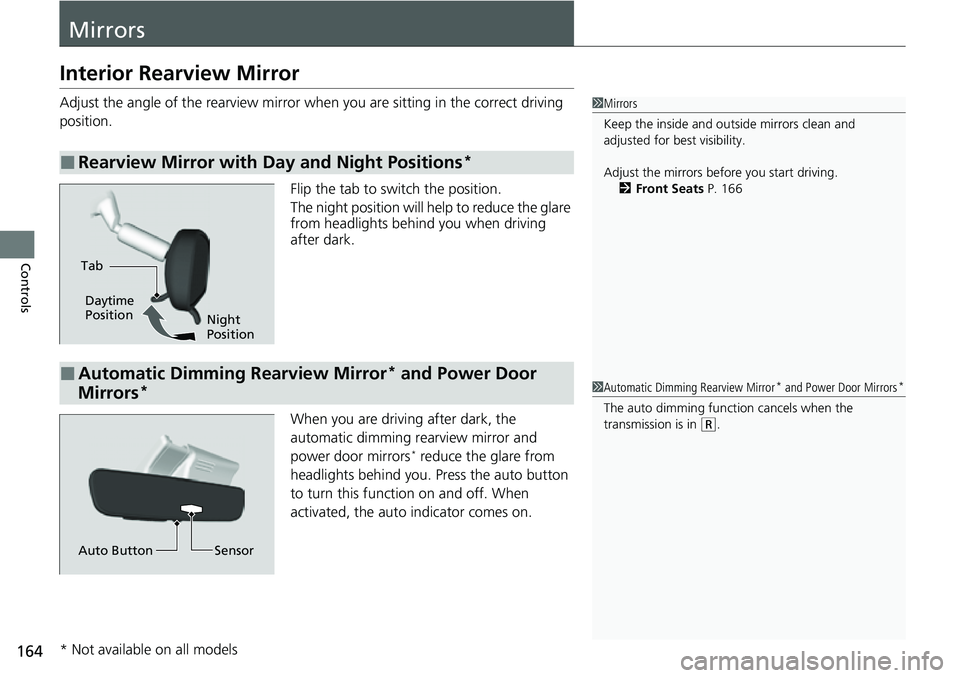
Flip the tab to switch the position.
The night position will help to reduce the glare
from headlights behind you when driving
after dark.
When you are driving after dark, the
automatic dimming rearview mirror and
power door mirrors
* reduce the glare from
headlights behind you. Press the auto button
to turn this function on and off. When
activated, the auto indicator comes on.
■Rearview Mirror with Day and Night Positions*
1 Mirrors
Keep the inside and out side mirrors clean and
adjusted for best visibility.
Adjust the mirrors before you start driving. 2 Front Seats P. 166
Tab
Daytime
Position
Night
Position
■Automatic Dimming Rearview Mirror* and Power Door
Mirrors*1 Automatic Dimming Rearview Mirror* and Power Door Mirrors*
The auto dimming function cancels when the
transmission is in
(R.
Sensor
Auto Button
* Not available on all models
Page 167 of 598
165
uuMirrors uPower Door Mirrors
Controls
Power Door Mirrors
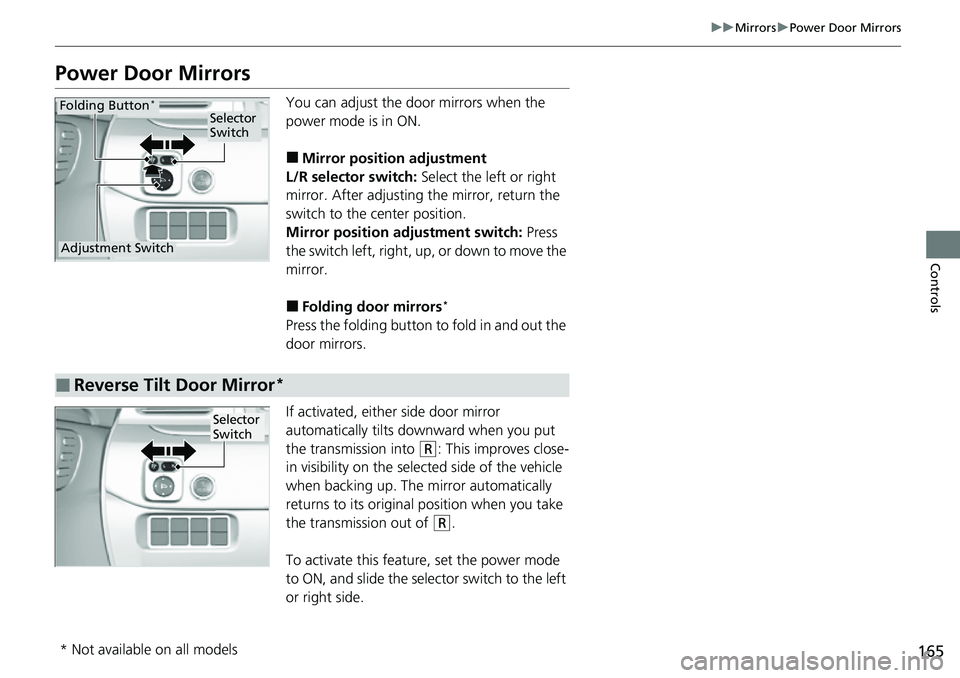
You can adjust the door mirrors when the
power mode is in ON.
■Mirror position adjustment
L/R selector switch: Select the left or right
mirror. After adjusting the mirror, return the
switch to the center position.
Mirror positi on adjustment switch: Press
the switch left, right, up, or down to move the
mirror.
■Folding door mirrors*
Press the folding button to fold in and out the
door mirrors.
If activated, either side door mirror
automatically tilts do wnward when you put
the transmission into
(R: This improves close-
in visibility on the selected side of the vehicle
when backing up. The mirror automatically
returns to its original position when you take
the transmission out of
(R.
To activate this feature, set the power mode
to ON, and slide the sele ctor switch to the left
or right side.
Selector
Switch
Adjustment Switch
Folding Button*
■Reverse Tilt Door Mirror*
Selector
Switch
* Not available on all models
Page 194 of 598
uuInterior/Exterior Convenience Items uIn-Bed Convenience Items
192
Controls
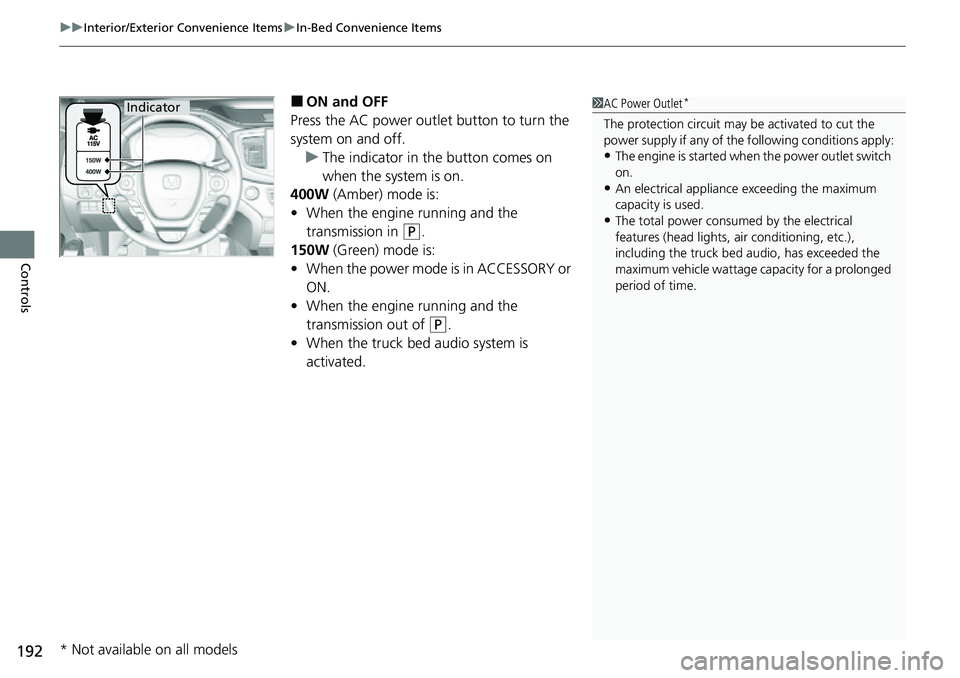
■ON and OFF
Press the AC power outlet button to turn the
system on and off. u The indicator in the button comes on
when the system is on.
400W (Amber) mode is:
• When the engine running and the
transmission in
(P.
150W (Green) mode is:
• When the power mode is in ACCESSORY or
ON.
• When the engine running and the
transmission out of
(P.
• When the truck bed audio system is
activated.
1AC Power Outlet*
The protection circuit may be activated to cut the
power supply if any of th e following conditions apply:
•The engine is started when the power outlet switch
on.
•An electrical appliance exceeding the maximum
capacity is used.
•The total power consumed by the electrical
features (head lights, air conditioning, etc.),
including the truck bed a udio, has exceeded the
maximum vehicle wattage ca pacity for a prolonged
period of time.
Indicator
* Not available on all models
Page 195 of 598
Continued193
uuInterior/Exterior Convenience Items uIn-Bed Convenience Items
Controls
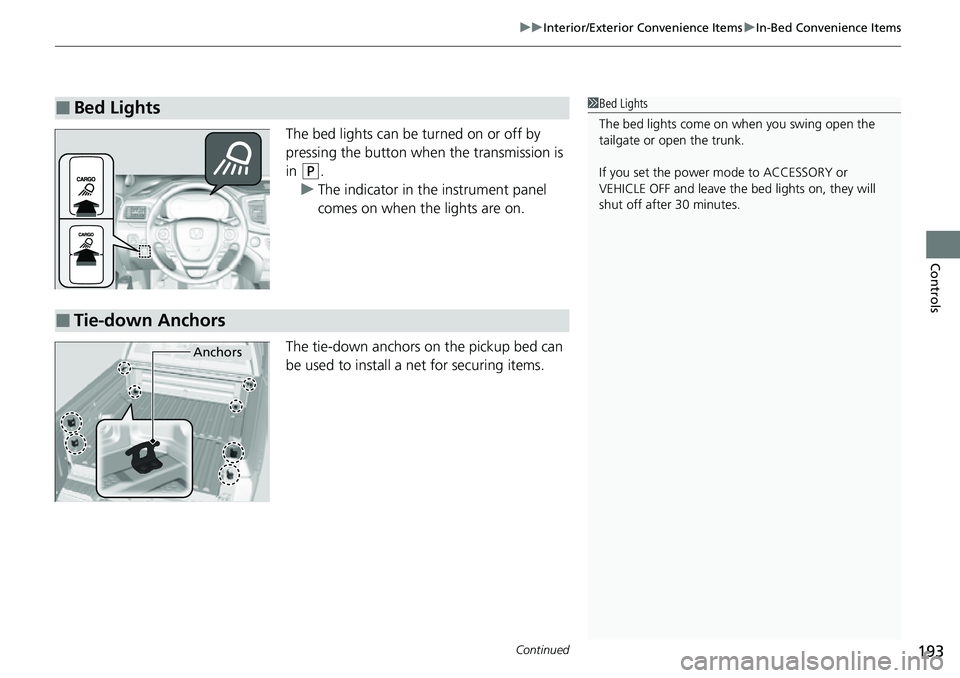
The bed lights can be turned on or off by
pressing the button when the transmission is
in
(P.
u The indicator in the instrument panel
comes on when the lights are on.
The tie-down anchors on the pickup bed can
be used to install a net for securing items.
■Bed Lights1Bed Lights
The bed lights come on when you swing open the
tailgate or open the trunk.
If you set the power mode to ACCESSORY or
VEHICLE OFF and leave the bed lights on, they will
shut off after 30 minutes.
■Tie-down Anchors
Anchors
Page 268 of 598
266
uuAudio System Basic Operation uWi-Fi Connection
Features
Wi-Fi Connection
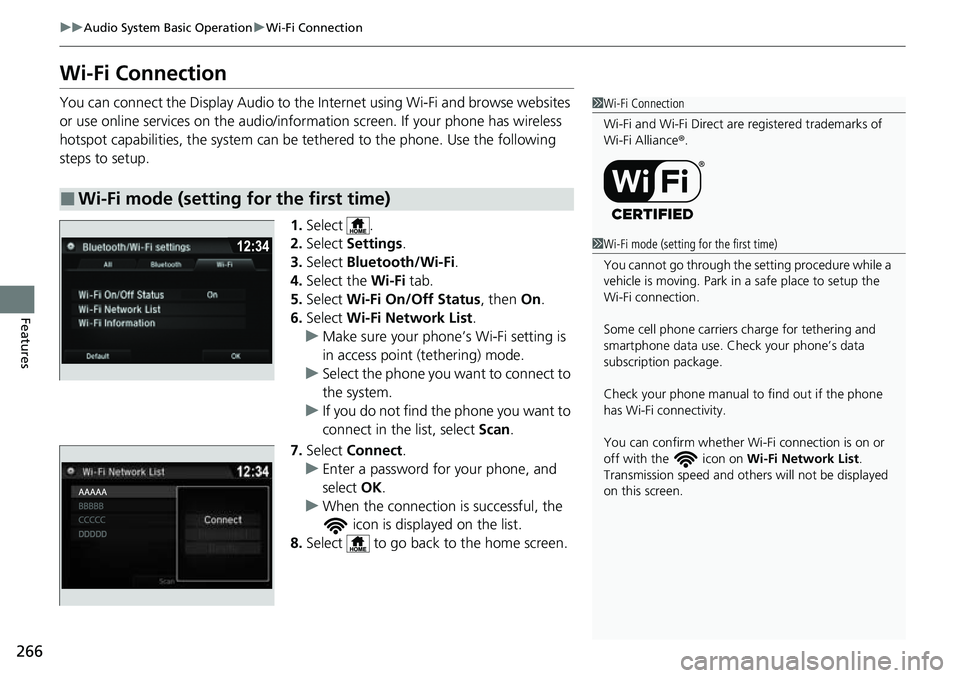
You can connect the Display Audio to the Internet using Wi-Fi and browse websites
or use online services on the audio/information screen. If your phone has wireless
hotspot capabilities, the system can be tethered to the phone. Use the following
steps to setup.
1.Select .
2. Select Settings .
3. Select Bluetooth/Wi-Fi .
4. Select the Wi-Fi tab.
5. Select Wi-Fi On/Off Status , then On.
6. Select Wi-Fi Network List .
u Make sure your phone’s Wi-Fi setting is
in access point (tethering) mode.
u Select the phone you want to connect to
the system.
u If you do not find the phone you want to
connect in the list, select Scan.
7. Select Connect .
u Enter a password for your phone, and
select OK.
u When the connection is successful, the
icon is displayed on the list.
8. Select to go back to the home screen.
■Wi-Fi mode (setting for the first time)
1Wi-Fi Connection
Wi-Fi and Wi-Fi Direct are registered trademarks of
Wi-Fi Alliance ®.
1 Wi-Fi mode (setting for the first time)
You cannot go through the se tting procedure while a
vehicle is moving. Park in a safe place to setup the
Wi-Fi connection.
Some cell phone carriers charge for tethering and
smartphone data use. Check your phone’s data
subscription package.
Check your phone manual to find out if the phone
has Wi-Fi connectivity.
You can confirm whether Wi -Fi connection is on or
off with the icon on Wi-Fi Network List.
Transmission speed and others will not be displayed
on this screen.
Page 273 of 598
Continued271
uuAudio System Basic Operation uApple CarPlay
Features
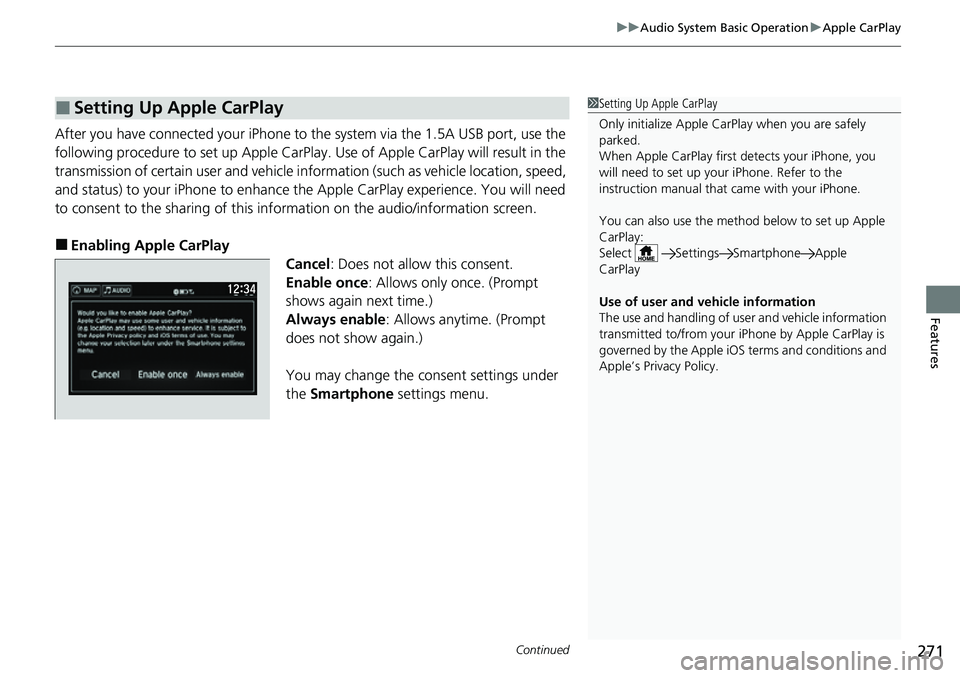
After you have connected your iPhone to the system via the 1.5A USB port, use the
following procedure to set up Apple CarPlay. Use of Apple CarPlay will result in the
transmission of certain user and vehicle information (such as vehicle location, speed,
and status) to your iPhone to enhance the Apple CarPlay experience. You will need
to consent to the sharing of this in formation on the audio/information screen.
■Enabling Apple CarPlay
Cancel: Does not allow this consent.
Enable once : Allows only once. (Prompt
shows again next time.)
Always enable: Allows anytime. (Prompt
does not show again.)
You may change the consent settings under
the Smartphone settings menu.
■Setting Up Apple CarPlay1Setting Up Apple CarPlay
Only initialize Apple CarPlay when you are safely
parked.
When Apple CarPlay first detects your iPhone, you
will need to set up your iPhone. Refer to the
instruction manual that came with your iPhone.
You can also use the method below to set up Apple
CarPlay:
Select Settings Smartphone Apple
CarPlay
Use of user and vehicle information
The use and handling of user and vehicle information
transmitted to/from your iP hone by Apple CarPlay is
governed by the Apple iOS terms and conditions and
Apple’s Privacy Policy.