home HONDA RIDGELINE 2023 Owner's Manual
[x] Cancel search | Manufacturer: HONDA, Model Year: 2023, Model line: RIDGELINE, Model: HONDA RIDGELINE 2023Pages: 598, PDF Size: 12.34 MB
Page 277 of 598
Continued275
uuAudio System Basic Operation uAndroid AutoTM
Features
■ Exit
Select the Exit icon to go back to the home screen.
■
You can check Android notifications.
■
Operate Android Auto with your voice.
When you connect an Android phone to the unit via USB, Android Auto is
automatically initiated.
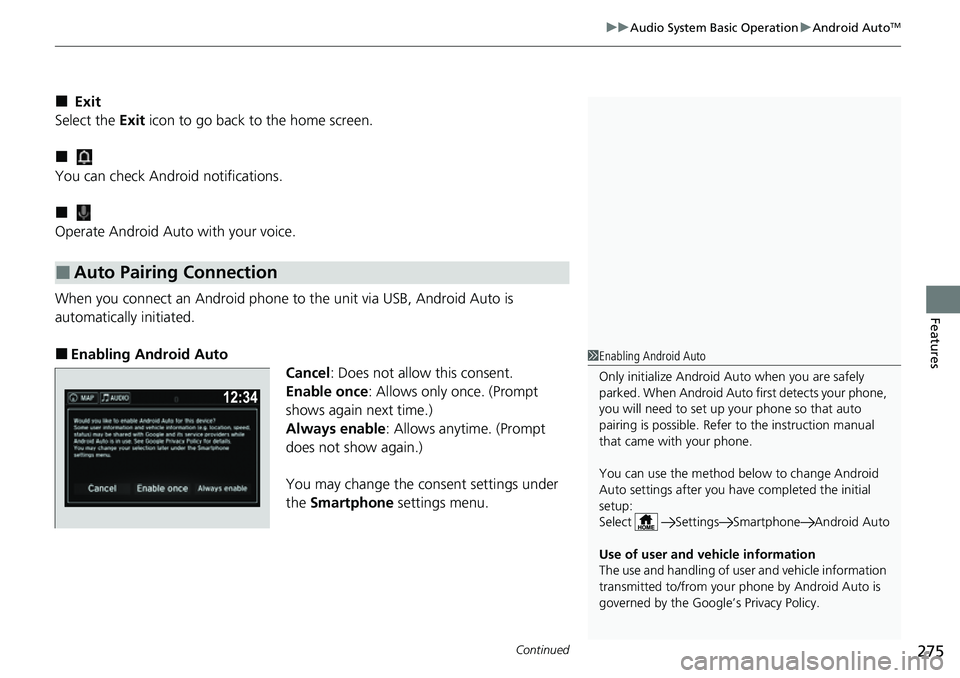
■Enabling Android Auto Cancel: Does not allow this consent.
Enable once : Allows only once. (Prompt
shows again next time.)
Always enable: Allows anytime. (Prompt
does not show again.)
You may change the consent settings under
the Smartphone settings menu.
■Auto Pairing Connection
1Enabling Android Auto
Only initialize Android Auto when you are safely
parked. When Android Auto first detects your phone,
you will need to set up your phone so that auto
pairing is possibl e. Refer to the instruction manual
that came with your phone.
You can use the method below to change Android
Auto settings after you ha ve completed the initial
setup:
Select Settings Sm artphone Android Auto
Use of user and vehicle information
The use and handling of user and vehicle information
transmitted to/from your phone by Android Auto is
governed by the Google’s Privacy Policy.
Page 278 of 598
uuAudio System Basic Operation uAndroid AutoTM
276
Features
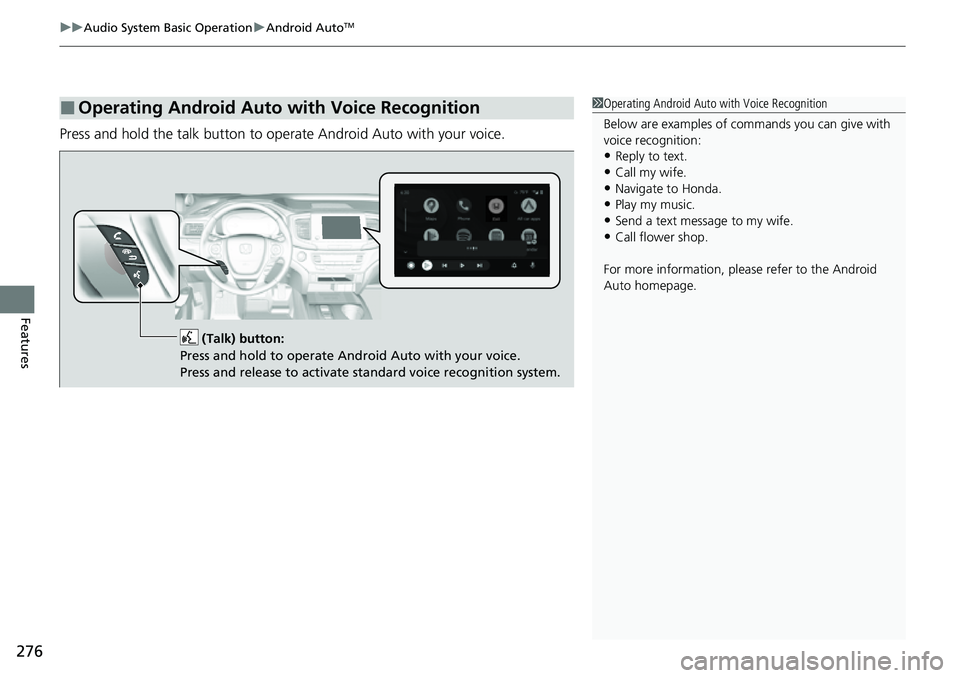
Press and hold the talk button to op erate Android Auto with your voice.
■Operating Android Auto with Voice Recognition1Operating Android Auto with Voice Recognition
Below are examples of co mmands you can give with
voice recognition:
•Reply to text.
•Call my wife.•Navigate to Honda.
•Play my music.
•Send a text message to my wife.•Call flower shop.
For more information, please refer to the Android
Auto homepage.
(Talk) button:
Press and hold to operate Android Auto with your voice.
Press and release to activate standard voice recognition system.
Page 319 of 598
317
uuCustomized Features u
Continued
Features
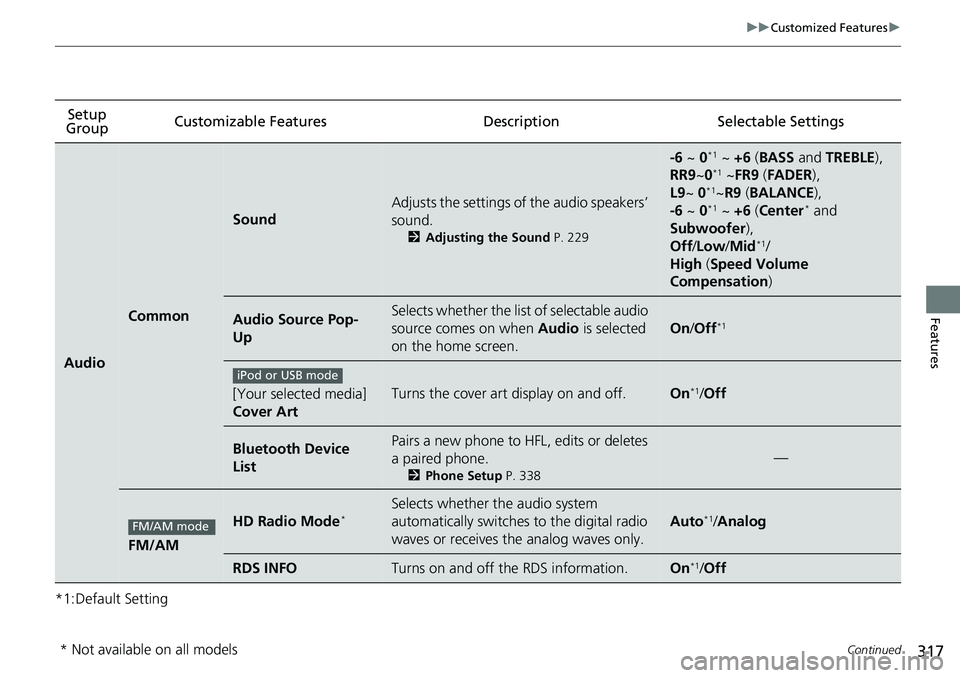
*1:Default SettingSetup
Group Customizable Features Description Selectable Settings
Audio
Common
Sound
Adjusts the settings of the audio speakers’
sound.
2
Adjusting the Sound P. 229
-6 ~ 0*1 ~ +6 (BASS and TREBLE ),
RR9 ~0*1 ~FR9 (FADER ),
L9 ~ 0*1~R9 (BALANCE ),
-6 ~ 0*1 ~ +6 (Center* and
Subwoofer ),
Off /Low /Mid
*1/
High (Speed Volume
Compensation )
Audio Source Pop-
UpSelects whether the list of selectable audio
source comes on when Audio is selected
on the home screen.
On /Off*1
[Your selected media]
Cover ArtTurns the cover art display on and off.On*1/Off
Bluetooth Device
ListPairs a new phone to HFL, edits or deletes
a paired phone.
2 Phone Setup P. 338
—
FM/AM
HD Radio Mode*Selects whether the audio system
automatically switches to the digital radio
waves or receives the analog waves only.
Auto*1/Analog
RDS INFOTurns on and off the RDS information.On*1/ Off
iPod or USB mode
FM/AM mode
* Not available on all models
Page 326 of 598
324
Features
HomeLink® Universal Transceiver
The HomeLink ® Universal Transceiver can be pr ogrammed to operate up to three
remote controlled devices around your home , such as garage doors, lighting, or
home security systems.
Refer to the safety information that came wi th your garage door opener to test that
the safety features are functioning properly. If you do not have the safety
information, contac t the manufacturer.
Before programming HomeLink, make sure th at people and objects are out of the
way of the garage or gate to prevent potential injury or damage.
When programming a garage door opener, park just outside the garage door’s path.
■Important Safety Precautions
1HomeLink ® Universal Transceiver
Before programming HomeLi nk to operate a garage
door opener, confirm that the opener has an external
entrapment protection system , such as an “electronic
eye,” or other safety and reverse stop features. If it
does not, HomeLink may not be able to operate it.
Page 327 of 598
325
uuHomeLink ® Universal Transceiver uTraining HomeLink
Continued
Features
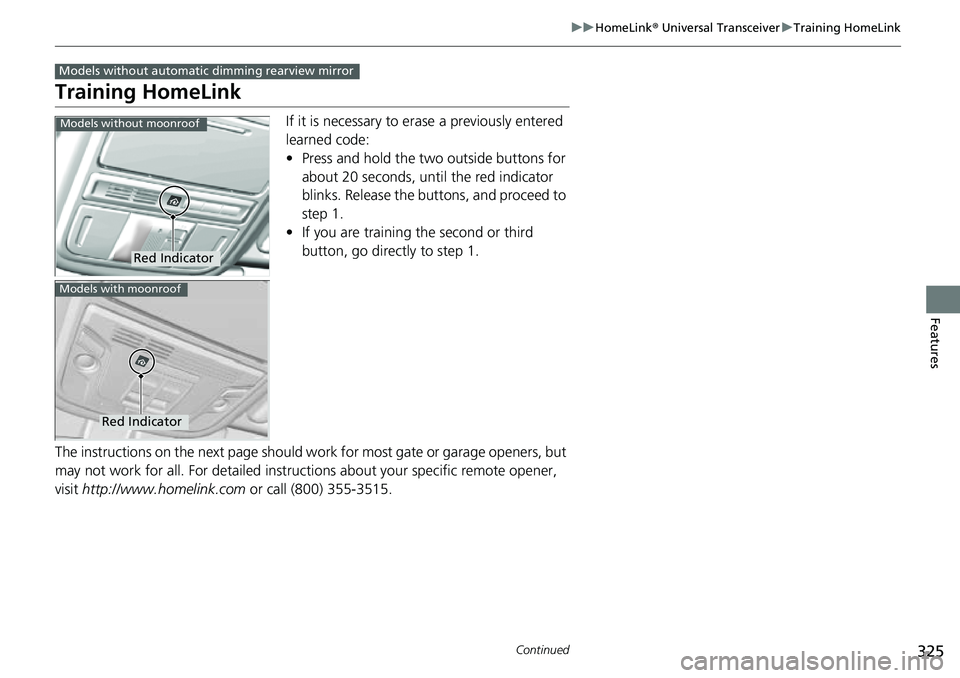
Training HomeLink
If it is necessary to er ase a previously entered
learned code:
• Press and hold the two outside buttons for
about 20 seconds, until the red indicator
blinks. Release the bu ttons, and proceed to
step 1.
• If you are training the second or third
button, go directly to step 1.
The instructions on the next page should work for most gate or garage openers, but
may not work for all. For detailed instructions about your specific remote opener,
visit http://www.homelink.com or call (800) 355-3515.
Models without automatic dimming rearview mirror
Red Indicator
Models without moonroof
Red Indicator
Models with moonroof
Page 328 of 598
uuHomeLink ® Universal Transceiver uTraining HomeLink
326
Features
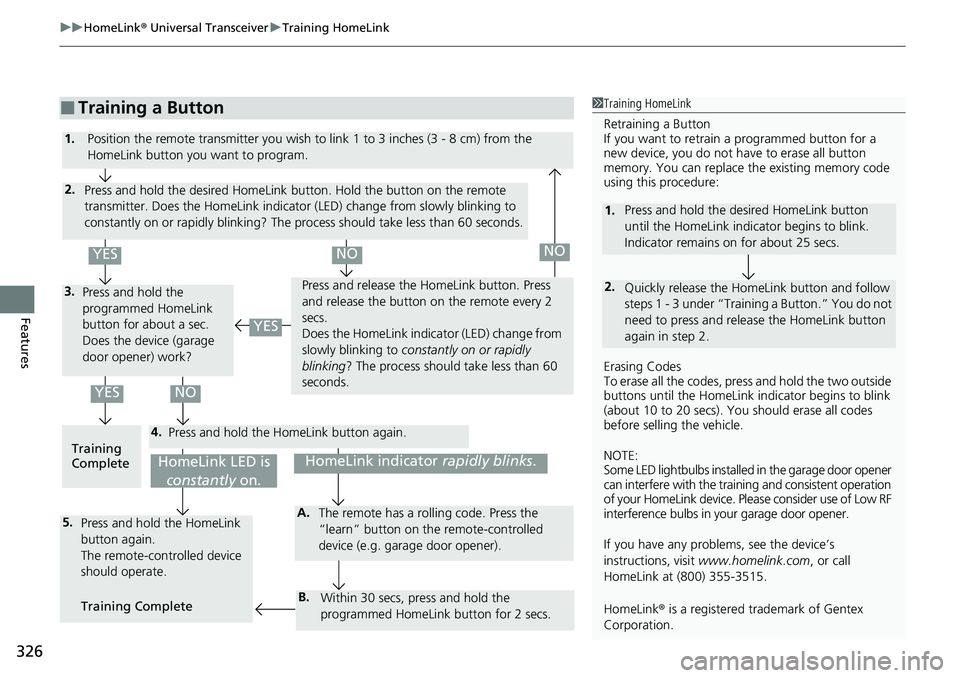
■Training a Button1Training HomeLink
Retraining a Button
If you want to retrain a programmed button for a
new device, you do not ha ve to erase all button
memory. You can replace the existing memory code
using this procedure:
Erasing Codes
To erase all the codes, press and hold the two outside
buttons until the HomeLink i ndicator begins to blink
(about 10 to 20 secs). You should erase all codes
before selling the vehicle.
NOTE:
Some LED lightbulbs installed in the garage door opener
can interfere with the traini ng and consistent operation
of your HomeLink device. Pl ease consider use of Low RF
interference bulbs in your garage door opener.
If you have any problems, see the device’s
instructions, visit www.homelink.com , or call
HomeLink at (800) 355-3515.
HomeLink® is a registered tra demark of Gentex
Corporation.
2.
1. Press and hold the desired HomeLink button
until the HomeLink indi
cator begins to blink.
Indicator remains on for about 25 secs.
Quickly release the Home Link button and follow
steps 1 - 3 under “Training a Button.” You do not
need to press and rel ease the HomeLink button
again in step 2.
4.
3.
2.
5.A.
B.
1. Position the remote transmitter you wish to link 1 to 3 inches (3 - 8 cm) from the
HomeLink button you want to program.
Press and hold the desired HomeLink button. Hold the button on the remote
transmitter. Does the HomeLink indicato r (LED) change from slowly blinking to
constantly on or rapidly blinking? The process should take less than 60 seconds.
Press and hold the
programmed HomeLink
button for about a sec.
Does the device (garage
door opener) work? Press and release the Ho
meLink button. Press
and release the button on the remote every 2
secs.
Does the HomeLink indica tor (LED) change from
slowly blinking to constantly on or rapidly
blinking ? The process should take less than 60
seconds.
Training
Complete Press and hold the HomeLink button again.
Press and hold the HomeLink
button again.
The remote-controlled device
should operate.
Training Complete The remote has a ro
lling code. Press the
“learn” button on the remote-controlled
device (e.g. garage door opener).
Within 30 secs, press and hold the
programmed HomeLink button for 2 secs.
HomeLink indicator rapidly blinks.HomeLink LED is
constantly on.
YESNO
YES
YESNONO
Page 329 of 598
327
uuHomeLink ® Universal Transceiver uTraining HomeLink
Continued
Features
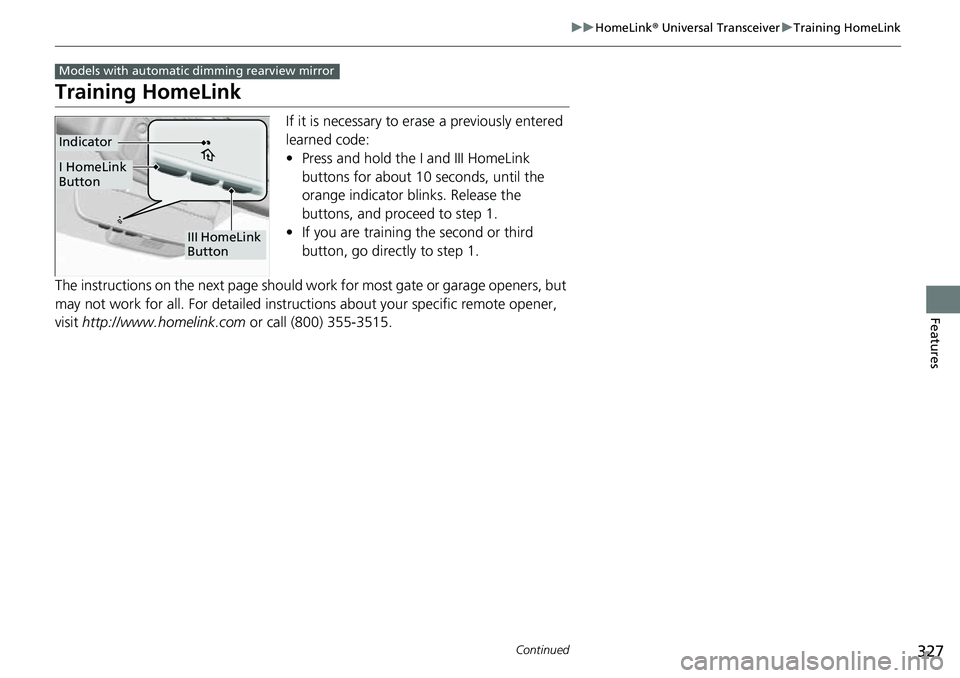
Training HomeLink
If it is necessary to er ase a previously entered
learned code:
• Press and hold the I and III HomeLink
buttons for about 10 seconds, until the
orange indicator blinks. Release the
buttons, and proceed to step 1.
• If you are training the second or third
button, go directly to step 1.
The instructions on the next page should work for most gate or garage openers, but
may not work for all. For detailed instructions about your specific remote opener,
visit http://www.homelink.com or call (800) 355-3515.
Models with automatic dimming rearview mirror
III HomeLink
Button
Indicator
I HomeLink
Button
Page 330 of 598
uuHomeLink ® Universal Transceiver uTraining HomeLink
328
Features
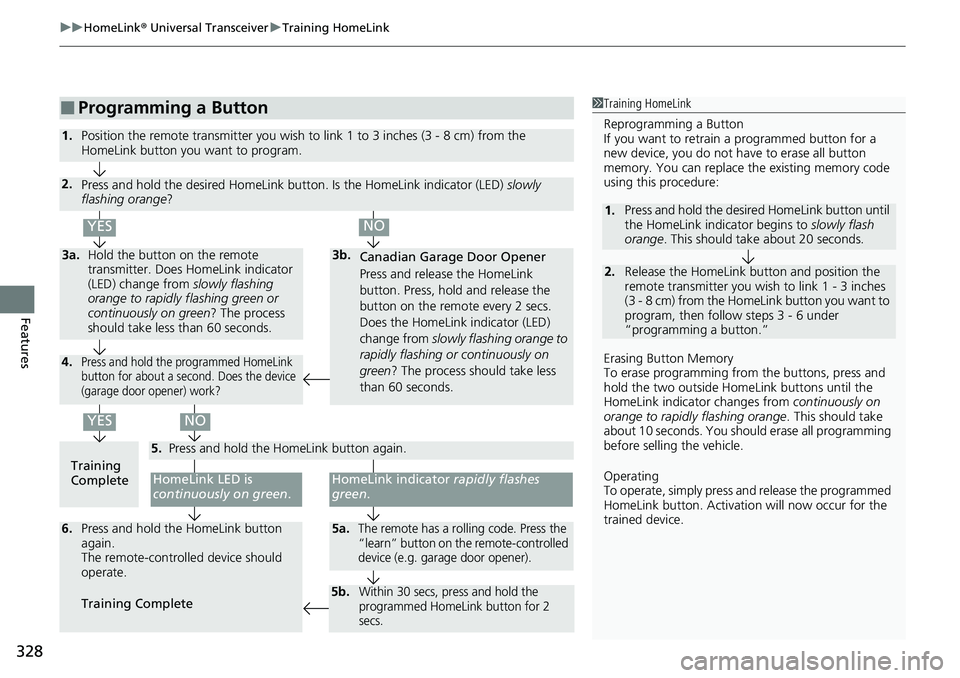
■Programming a Button1Training HomeLink
Reprogramming a Button
If you want to retrain a programmed button for a
new device, you do not ha ve to erase all button
memory. You can replace the existing memory code
using this procedure:
Erasing Button Memory
To erase programming from the buttons, press and
hold the two outside Home Link buttons until the
HomeLink indicator changes from continuously on
orange to rapidly flashing orange . This should take
about 10 seconds. You should erase all programming
before selling the vehicle.
Operating
To operate, simply press and release the programmed
HomeLink button. Activati on will now occur for the
trained device.
2.
1. Press and hold the desired HomeLink button until
the HomeLink indi
cator begins to slowly flash
orange . This should take about 20 seconds.
Release the HomeLink button and position the
remote transmitter you wish to link 1 - 3 inches
(3 - 8 cm) from the Home Link button you want to
program, then follow steps 3 - 6 under
“programming a button.”
Training
CompleteHomeLink LED is
continuously on green .
YES
YES
1.Position the remote transmitter you wish to link 1 to 3 inches (3 - 8 cm) from the
HomeLink button you want to program.
3b.
Canadian Garage Door Opener
Press and release the HomeLink
button. Press, hold and release the
button on the remote every 2 secs.
Does the HomeLink indicator (LED)
change from slowly flashing orange to
rapidly flashing or continuously on
green ? The process should take less
than 60 seconds.
NO
2. Press and hold the desired HomeLink butt on. Is the HomeLink indicator (LED) slowly
flashing orange ?
NO
3a.Hold the button on the remote
transmitter. Does HomeLink indicator
(LED) change from slowly flashing
orange to rapidly flashing green or
continuously on green? The process
should take less than 60 seconds.
5. Press and hold the HomeLink button again.
HomeLink indicator rapidly flashes
green .
5a.The remote has a rolling code. Press the
“learn” button on the remote-controlled
device (e.g. garage door opener).6.Press and hold the HomeLink button
again.
The remote-controll ed device should
operate.
Training Complete
5b.Within 30 secs, press and hold the
programmed HomeLink button for 2
secs.
4.Press and hold the programmed HomeLink
button for about a second. Does the device
(garage door opener) work?
Page 331 of 598
329
uuHomeLink ® Universal Transceiver uTraining HomeLink
Features
1Training HomeLink
NOTE:
Some LED lightbulbs instal led in the garage door
opener can interfere with th e training and consistent
operation of your HomeLink device. Please consider
use of Low RF interference bulbs in your garage door
opener.
Questions
For questions or comments, visit
www.HomeLink.com , www.youtube.com/
HomeLinkGentex , or by calling the HomeLink Hotline
(North America only) at (800) 355-3515.
HomeLink is a registered trademark of Gentex
Corporation.
Page 345 of 598
Continued343
uuBluetooth ® HandsFreeLink ®u HFL Menus
Features
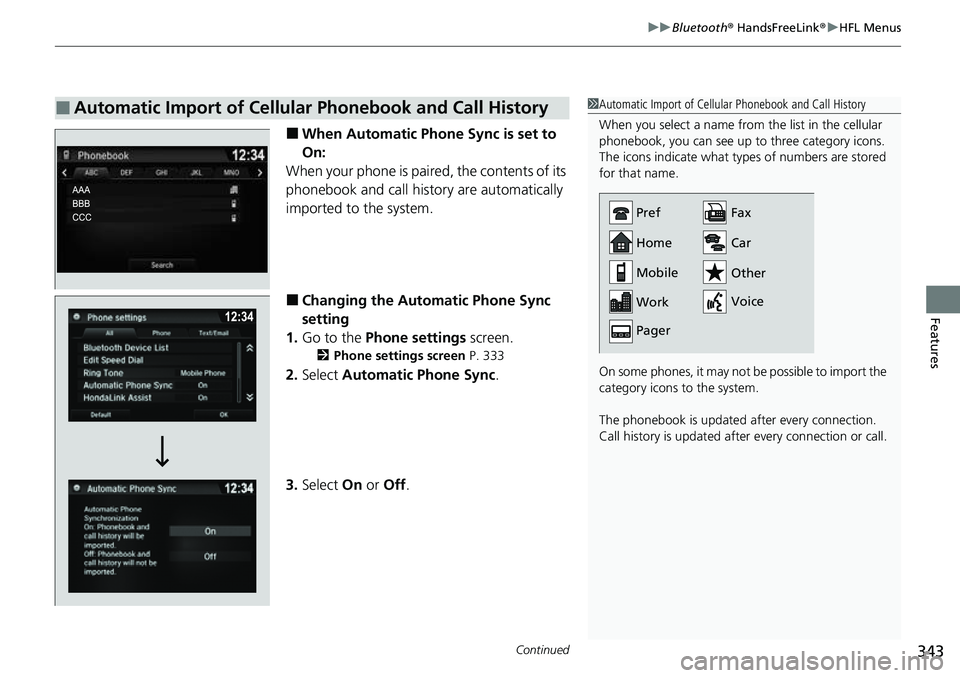
■When Automatic Phone Sync is set to
On:
When your phone is paired, the contents of its
phonebook and call history are automatically
imported to the system.
■Changing the Automatic Phone Sync
setting
1. Go to the Phone settings screen.
2Phone settings screen P. 333
2.Select Automatic Phone Sync .
3. Select On or Off .
■Automatic Import of Cellular Phonebook and Call History1Automatic Import of Cellular Phonebook and Call History
When you select a name from the list in the cellular
phonebook, you can see up to three category icons.
The icons indicate what types of numbers are stored
for that name.
On some phones, it may no t be possible to import the
category icons to the system.
The phonebook is updated after every connection.
Call history is updated after every connection or call.
Home
Mobile
Work
PagerFax
Car
Other
Voice
Pref