home HONDA RIDGELINE 2023 User Guide
[x] Cancel search | Manufacturer: HONDA, Model Year: 2023, Model line: RIDGELINE, Model: HONDA RIDGELINE 2023Pages: 598, PDF Size: 12.34 MB
Page 221 of 598
Continued219
uuAudio System Basic Operation uAudio/Information Screen
Features
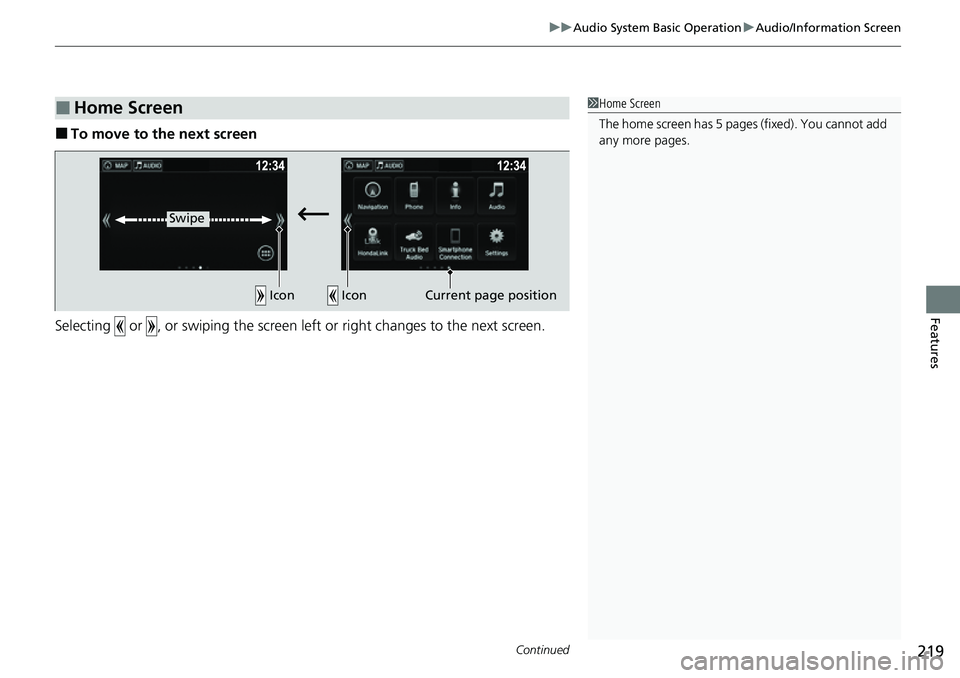
■To move to the next screen
Selecting or , or swiping the screen left or right changes to the next screen.
■Home Screen1Home Screen
The home screen has 5 pages (fixed). You cannot add
any more pages.
Swipe
Icon
IconCurrent page position
Page 222 of 598
uuAudio System Basic Operation uAudio/Information Screen
220
Features
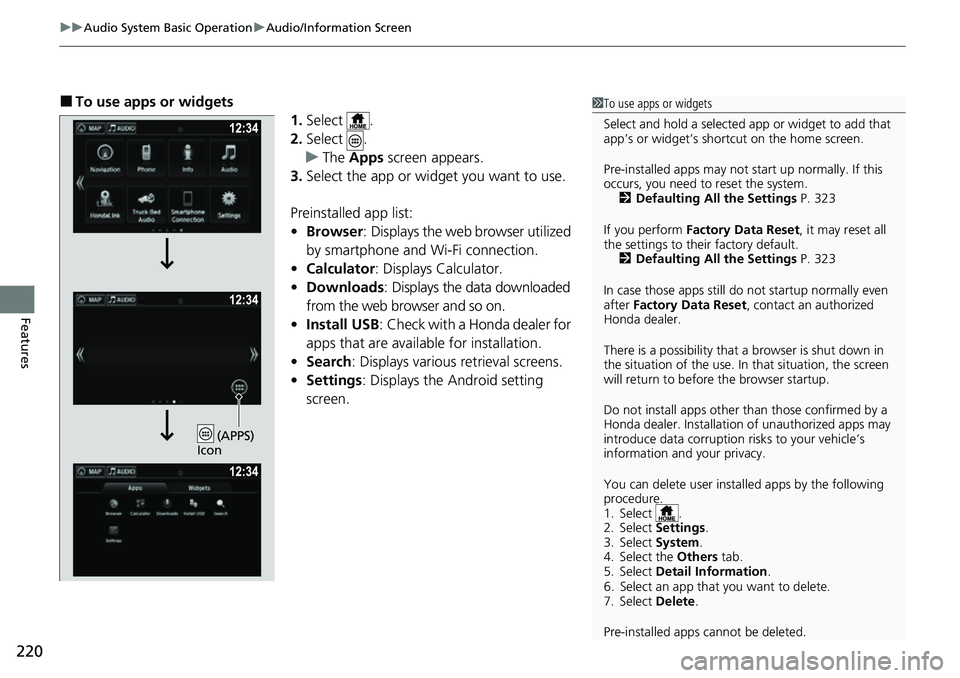
■To use apps or widgets
1.Select .
2. Select .
u The Apps screen appears.
3. Select the app or widget you want to use.
Preinstalled app list:
• Browser : Displays the web browser utilized
by smartphone and Wi-Fi connection.
• Calculator : Displays Calculator.
• Downloads : Displays the data downloaded
from the web browser and so on.
• Install USB : Check with a Honda dealer for
apps that are available for installation.
• Search : Displays various retrieval screens.
• Settings : Displays the Android setting
screen.1 To use apps or widgets
Select and hold a selected app or widget to add that
app’s or widget’s shortcut on the home screen.
Pre-installed apps may not start up normally. If this
occurs, you need to reset the system. 2 Defaulting All the Settings P. 323
If you perform Factory Data Reset , it may reset all
the settings to their factory default. 2 Defaulting All the Settings P. 323
In case those apps still do not startup normally even
after Factory Data Reset , contact an authorized
Honda dealer.
There is a possibility that a browser is shut down in
the situation of the use. In that situation, the screen
will return to before the browser startup.
Do not install apps other than those confirmed by a
Honda dealer. Installation of unauthorized apps may
introduce data corruption risks to your vehicle’s
information and your privacy.
You can delete user installed apps by the following
procedure.
1. Select .
2. Select Settings .
3. Select System .
4. Select the Others tab.
5. Select Detail Information .
6. Select an app that you want to delete.
7. Select Delete .
Pre-installed apps cannot be deleted.
(APPS)
Icon
Page 223 of 598
221
uuAudio System Basic Operation uAudio/Information Screen
Continued
Features
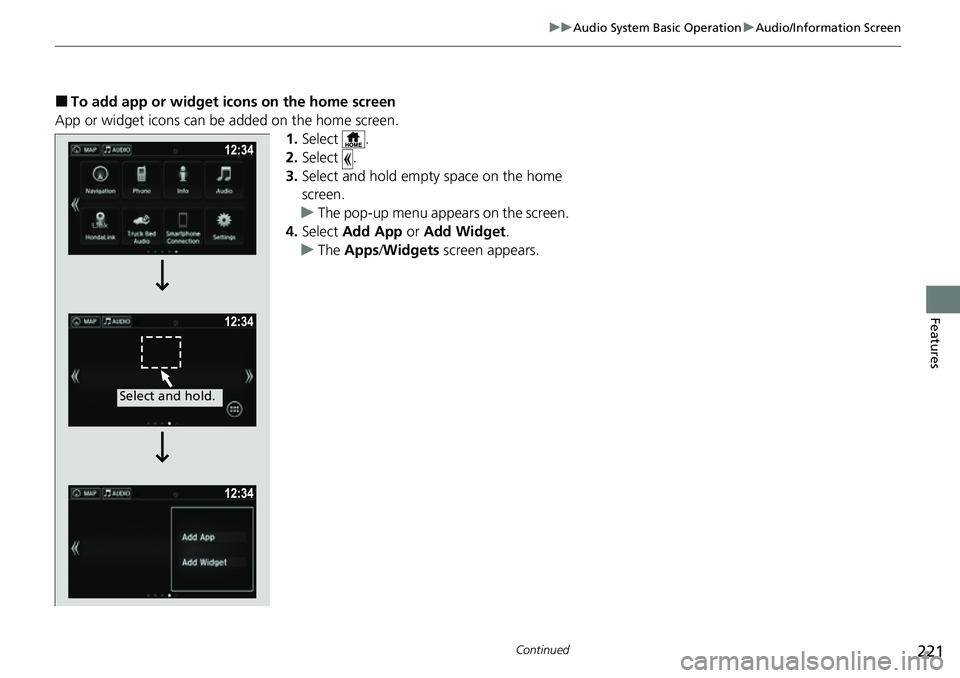
■To add app or widget icons on the home screen
App or widget icons can be added on the home screen. 1.Select .
2. Select .
3. Select and hold empty space on the home
screen.
u The pop-up menu appears on the screen.
4. Select Add App or Add Widget .
u The Apps /Widgets screen appears.
Select and hold.
Page 224 of 598
222
uuAudio System Basic Operation uAudio/Information Screen
Features
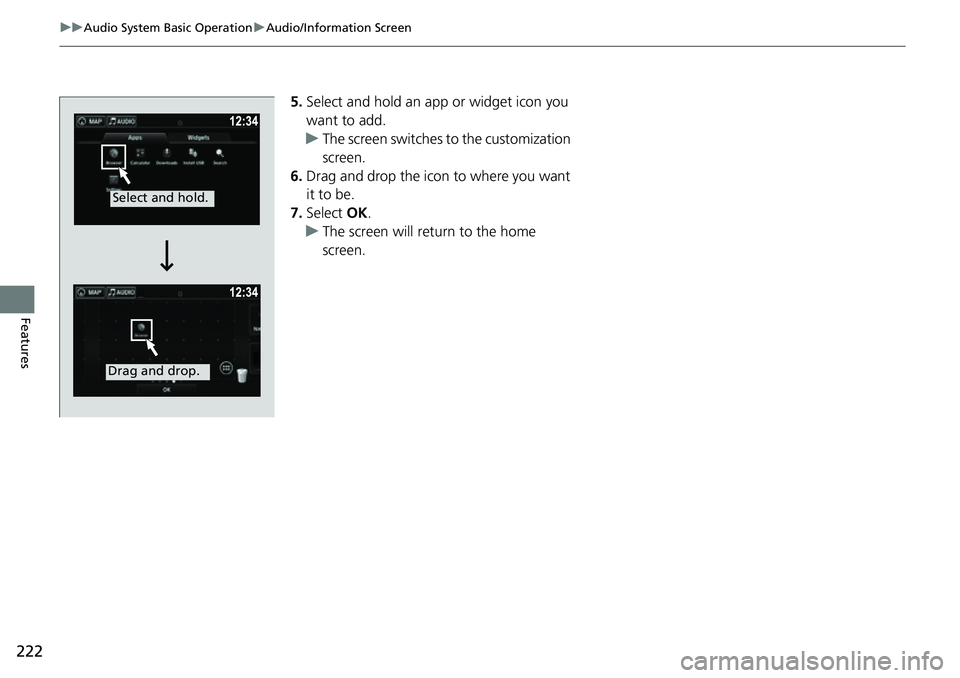
5. Select and hold an a pp or widget icon you
want to add.
u The screen switches to the customization
screen.
6. Drag and drop the icon to where you want
it to be.
7. Select OK.
u The screen will return to the home
screen.
Select and hold.
Drag and drop.
Page 225 of 598
223
uuAudio System Basic Operation uAudio/Information Screen
Continued
Features
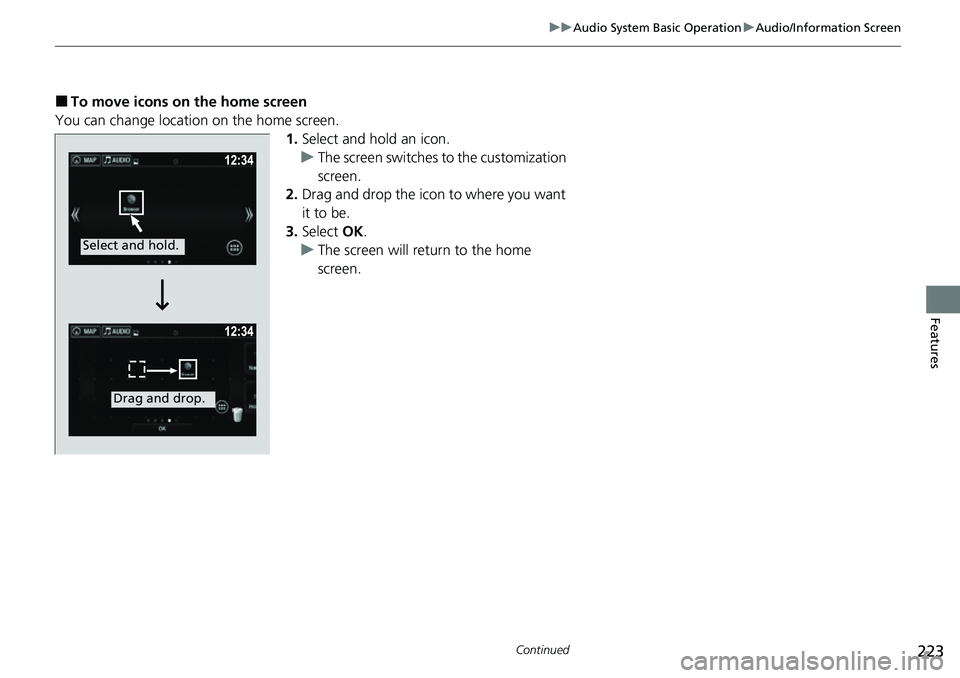
■To move icons on the home screen
You can change location on the home screen. 1.Select and hold an icon.
u The screen switches to the customization
screen.
2. Drag and drop the icon to where you want
it to be.
3. Select OK.
u The screen will return to the home
screen.
Select and hold.
Drag and drop.
Page 226 of 598
uuAudio System Basic Operation uAudio/Information Screen
224
Features
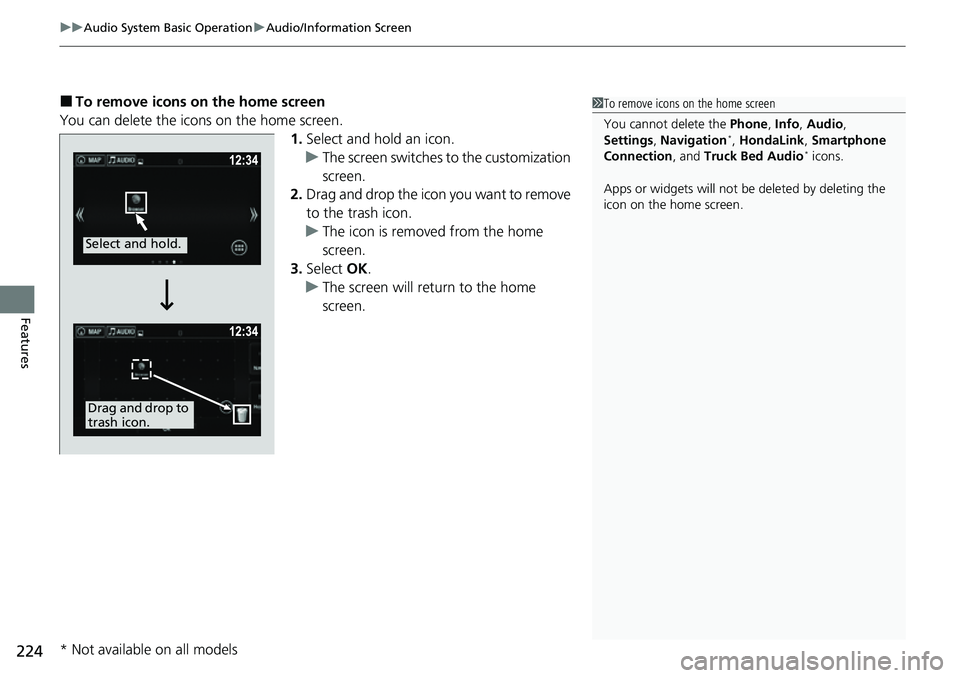
■To remove icons on the home screen
You can delete the icons on the home screen. 1.Select and hold an icon.
u The screen switches to the customization
screen.
2. Drag and drop the icon you want to remove
to the trash icon.
u The icon is removed from the home
screen.
3. Select OK.
u The screen will return to the home
screen.1To remove icons on the home screen
You cannot delete the Phone, Info, Audio ,
Settings , Navigation
*, HondaLink , Smartphone
Connection , and Truck Bed Audio* icons.
Apps or widgets will not be deleted by deleting the
icon on the home screen.
Select and hold.
Drag and drop to
trash icon.
* Not available on all models
Page 268 of 598
266
uuAudio System Basic Operation uWi-Fi Connection
Features
Wi-Fi Connection
You can connect the Display Audio to the Internet using Wi-Fi and browse websites
or use online services on the audio/information screen. If your phone has wireless
hotspot capabilities, the system can be tethered to the phone. Use the following
steps to setup.
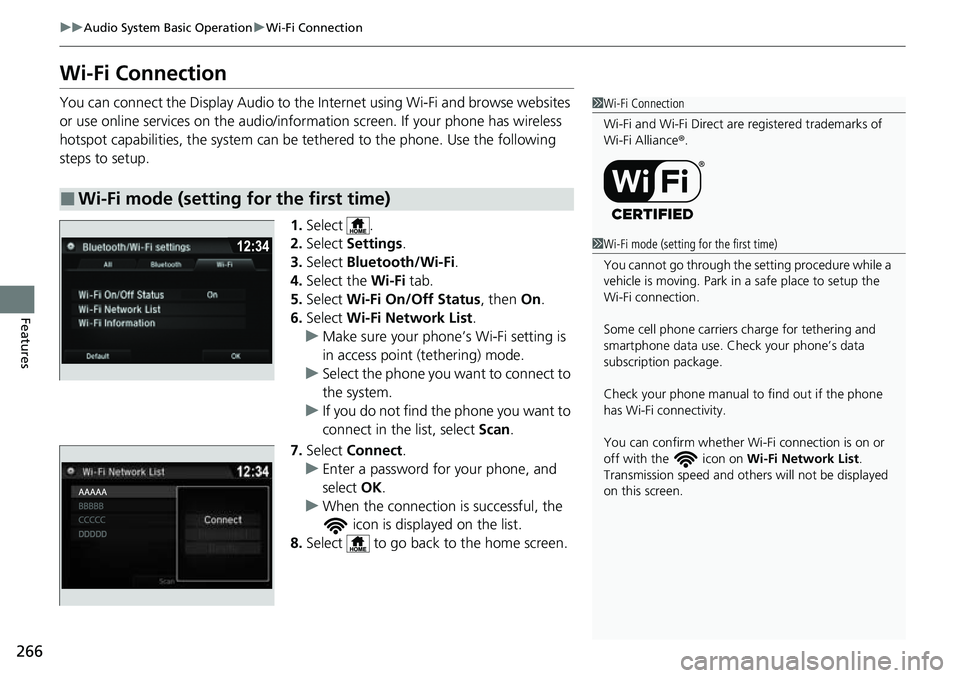
1.Select .
2. Select Settings .
3. Select Bluetooth/Wi-Fi .
4. Select the Wi-Fi tab.
5. Select Wi-Fi On/Off Status , then On.
6. Select Wi-Fi Network List .
u Make sure your phone’s Wi-Fi setting is
in access point (tethering) mode.
u Select the phone you want to connect to
the system.
u If you do not find the phone you want to
connect in the list, select Scan.
7. Select Connect .
u Enter a password for your phone, and
select OK.
u When the connection is successful, the
icon is displayed on the list.
8. Select to go back to the home screen.
■Wi-Fi mode (setting for the first time)
1Wi-Fi Connection
Wi-Fi and Wi-Fi Direct are registered trademarks of
Wi-Fi Alliance ®.
1 Wi-Fi mode (setting for the first time)
You cannot go through the se tting procedure while a
vehicle is moving. Park in a safe place to setup the
Wi-Fi connection.
Some cell phone carriers charge for tethering and
smartphone data use. Check your phone’s data
subscription package.
Check your phone manual to find out if the phone
has Wi-Fi connectivity.
You can confirm whether Wi -Fi connection is on or
off with the icon on Wi-Fi Network List.
Transmission speed and others will not be displayed
on this screen.
Page 271 of 598
269
uuAudio System Basic Operation uApple CarPlay
Continued
Features
Apple CarPlay
If you connect an Apple CarPlay-compatible iPhone to the system via the 1.5A USB
port, you can use the audio/information screen, instead of the iPhone display, to
make a phone call, listen to music, view maps (navigation), and access messages.
2USB Ports P. 205
■Phone
Access the contact list, make phone ca lls, or listen to voice mail.
■Messages
Check and reply to text messages, or have messages read to you.
■Music
Play music stored on your iPhone.
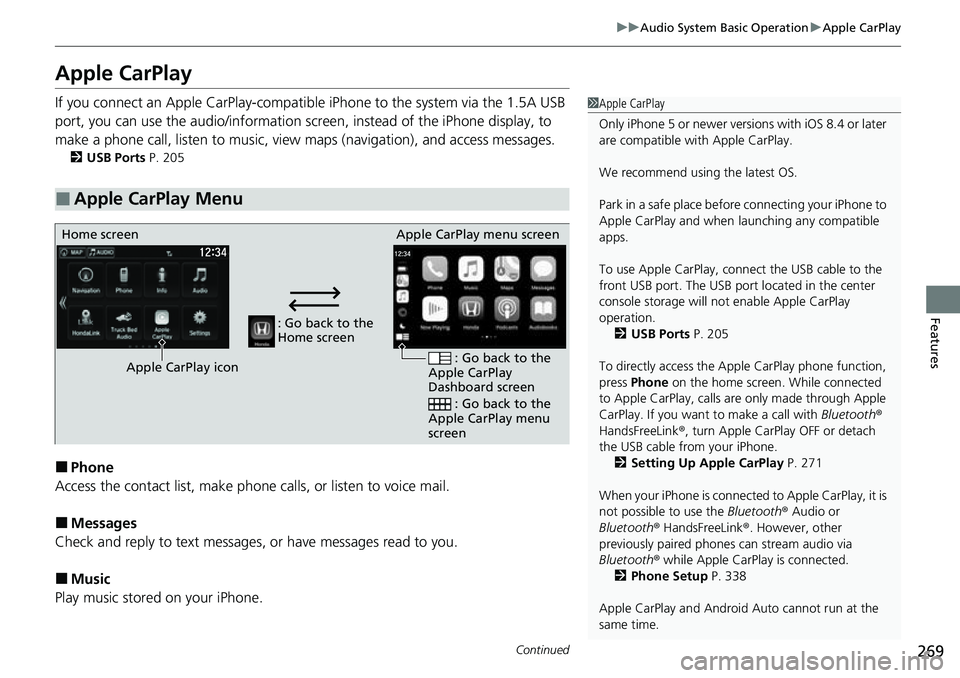
■Apple CarPlay Menu
1 Apple CarPlay
Only iPhone 5 or newer versi ons with iOS 8.4 or later
are compatible with Apple CarPlay.
We recommend using the latest OS.
Park in a safe place before connecting your iPhone to
Apple CarPlay and when launching any compatible
apps.
To use Apple CarPlay, connect the USB cable to the
front USB port. The USB por t located in the center
console storage will not enable Apple CarPlay
operation. 2 USB Ports P. 205
To directly access the Appl e CarPlay phone function,
press Phone on the home screen. While connected
to Apple CarPlay, calls are only made through Apple
CarPlay. If you want to make a call with Bluetooth®
HandsFreeLink ®, turn Apple CarPlay OFF or detach
the USB cable from your iPhone. 2 Setting Up Apple CarPlay P. 271
When your iPhone is connected to Apple CarPlay, it is
not possible to use the Bluetooth® Audio or
Bluetooth ® HandsFreeLink ®. However, other
previously paired phones can stream audio via
Bluetooth ® while Apple CarPlay is connected.
2 Phone Setup P. 338
Apple CarPlay and Android Auto cannot run at the
same time.
: Go back to the
Home screen
Home screen
Apple CarPlay icon Apple CarPlay menu screen
: Go back to the
Apple CarPlay
Dashboard screen
: Go back to the
Apple CarPlay menu
screen
Page 272 of 598
uuAudio System Basic Operation uApple CarPlay
270
Features
■Maps
Display Apple Maps and use the navigation function just as you would on your
iPhone.
Only one navigation system (pre-installed navigation or Apple CarPlay) can give
directions at a time. When you are using one system, directions to any prior
destination set on the other system will be canceled, and the system you are
currently using will direct you to your destination.1 Apple CarPlay
For details on c ountries and regions where Apple
CarPlay is available, as well as information pertaining
to function, refer to the Apple homepage.
Apple CarPlay Operating Requirements &
Limitations
Apple CarPlay requi res a compatible iPhone with an
active cellular connecti on and data plan. Your
carrier’s rate plans will apply.
Changes in operating systems, hardware, software,
and other technology integral to providing Apple
CarPlay functionality, as well as new or revised
governmental regulations, may result in a decrease or
cessation of Apple CarPlay functionality and services.
Honda cannot and does not pr ovide any warranty or
guarantee of future Appl e CarPlay performance or
functionality.
It is possible to use 3r d party apps if they are
compatible with Apple CarPlay. Refer to the Apple
homepage for information on compatible apps.
Models with navigation system
Page 276 of 598
uuAudio System Basic Operation uAndroid AutoTM
274
Features
■Maps
Display Google Maps and use the navigation function just as you would with your
Android phone. When the vehicle is in mo tion, it is not possible to make keyboard
entries. Stop the vehicle in a safe location to undertake a search or provide other
inputs.
Only one navigation system (pre-installe d navigation or Android Auto) can give
directions at a time. When you are using one system, directions to any prior
destination set on the other system will be canceled, and the system you are
currently using will direct you to your destination.
The audio/information screen shows you turn -by-turn driving directions to your
destination.
■ Phone
Make and receive phone calls as well as listen to voicemail.
■ (Android Auto Home)
Display useful information organized by Andr oid Auto into simple cards that appear
just when they’re needed.
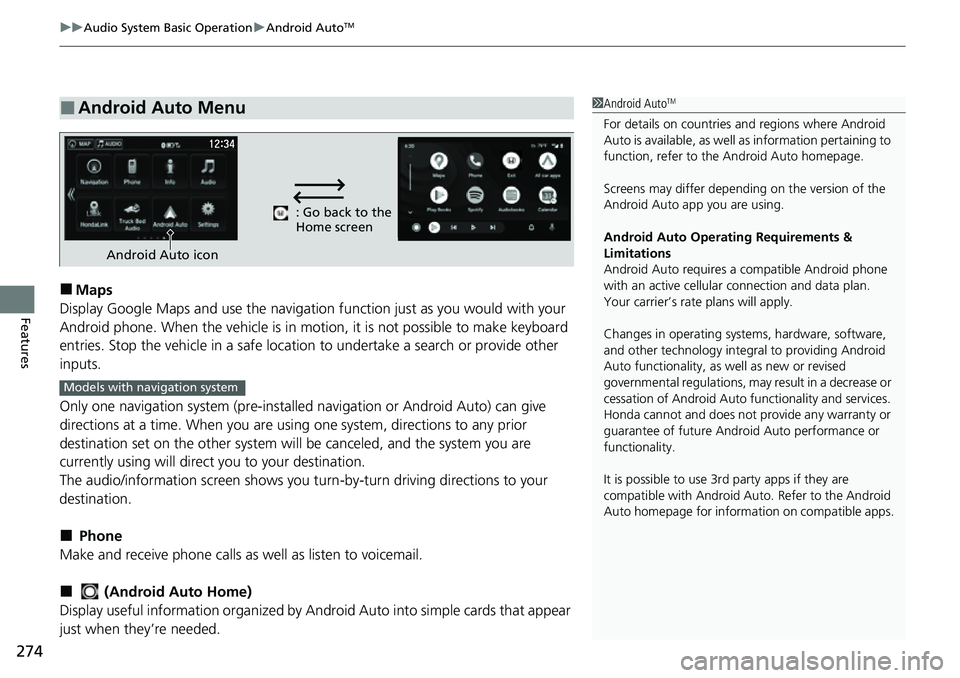
■Android Auto Menu1 Android AutoTM
For details on c ountries and regions where Android
Auto is available, as well as information pertaining to
function, refer to the Android Auto homepage.
Screens may differ depending on the version of the
Android Auto app you are using.
Android Auto Operating Requirements &
Limitations
Android Auto requires a compatible Android phone
with an active cellular connection and data plan.
Your carrier’s rate plans will apply.
Changes in operating systems, hardware, software,
and other technology integral to providing Android
Auto functionality, as well as new or revised
governmental regulations, may result in a decrease or
cessation of Android Auto functionality and services.
Honda cannot and does not pr ovide any warranty or
guarantee of future Android Auto performance or
functionality.
It is possible to use 3r d party apps if they are
compatible with Android Auto. Refer to the Android
Auto homepage for informat ion on compatible apps.
: Go back to the
Home screen
Android Auto icon
Models with navigation system