audio HUMMER H2 2006 Owner's Manual
[x] Cancel search | Manufacturer: HUMMER, Model Year: 2006, Model line: H2, Model: HUMMER H2 2006Pages: 502, PDF Size: 3.35 MB
Page 221 of 502

XM™ Radio Messages
Radio Display
MessageCondition Action Required
XL (Explicit
Language Channels)XL on the radio display,
after the channel name,
indicates content with
explicit language.These channels, or any others, can be blocked at a
customer’s request, by calling 1-800-852-XMXM (9696).
Updating Updating
encryption codeThe encryption code in the receiver is being updated, and
no action is required. This process should take no longer
than 30 seconds.
No Signal Loss of signal The system is functioning correctly, but the vehicle is in a
location that is blocking the XM signal. When you move into
an open area, the signal should return.
Loading XM Acquiring channel audio
(after 4 second delay)The audio system is acquiring and processing audio and
text data. No action is needed. This message should
disappear shortly.
CH Off Air Channel not in service This channel is not currently in service. Tune to
another channel.
CH Unavail Channel no
longer availableThis previously assigned channel is no longer assigned.
Tune to another station. If this station was one of the
presets, choose another station for that preset button.
No Info Artist Name/Feature
not availableNo artist information is available at this time on this channel.
The system is working properly.
No Info Song/Program Title not
availableNo song title information is available at this time on this
channel. The system is working properly.
3-81
Page 223 of 502
Playing a CD
If the ignition or radio is turned off, with a CD in the
player, it will stay in the player. When the ignition
or radio is turned on, the CD will start playing where it
stopped, if it was the last selected audio source.
When a CD is inserted, the CD symbol will appear on
the CD. As each new track starts to play, the track
number will appear on the display.
The CD player can play the smaller 3 inch (8 cm) single
CDs with an adapter ring. Full-size CDs and the
smaller CDs are loaded in the same manner.
If playing a CD-R, the sound quality may be reduced
due to CD-R quality, the method of recording, the quality
of the music that has been recorded, and the way the
CD-R has been handled. There may be an increase
in skipping, difficulty in nding tracks, and/or difficulty in
loading and ejecting. If these problems occur, check
the bottom surface of the CD. If the surface of the CD is
damaged, such as cracked, broken, or scratched, the
CD will not play properly. If the surface of the CD
is soiled, seeCare of Your CDs and DVDs on
page 3-113for more information.
If there is no apparent damage, try a known good CD.Do not add any label to a CD, it could get caught in the
CD player. If a CD is recorded on a personal computer
and a description label is needed, try labeling the top of
the recorded CD with a marking pen instead.
Notice:If you add any label to a CD, insert more
than one CD into the slot at a time, or attempt
to play scratched or damaged CDs, you could
damage the CD player. When using the CD player,
use only CDs in good condition without any
label, load one CD at a time, and keep the CD player
and the loading slot free of foreign materials,
liquids, and debris.
If an error appears on the display, see “CD Messages”
later in this section.
LOAD:Press this button to load CDs into the CD
player. This CD player will hold up to six CDs.
To insert one CD, do the following:
1. Turn the ignition on.
2. Press and release the LOAD button.
3. Wait for the indicator light, located to the right of the
slot, to turn green.
4. Load a CD. Insert the CD partway into the slot,
label side up. The player will pull the CD in.
3-83
Page 229 of 502
Before You Drive
The RSE system will play DVD, CD, and MP3 discs. You
can also connect an auxiliary device to the RSE system
to play games, watch videos, view photos, etc.
Notice:Normal operation for the RSE system may
be limited under extreme temperatures. Using
the RSE system during extreme temperatures may
cause damage to the system. Wait until the inside of
the vehicle is at a safe temperature range of
32°-140°F (0°-60°C) before using the system.
Headphones
Wireless Headphones
The RSE system may include two sets of wireless
headphones. Each headphone will have an L marked
on the left-side, for the left ear and an R marked on the
right-side, for the right ear. The L and R marks are to
show how the headphones should be worn.
OFF/ON (Power):The wireless headphones have an
OFF/ON power switch located on the left of the
earpiece. To use the headphones, turn the switch to
ON. An indicator light on the right earpiece of the
headphones will illuminate. If the light does not
illuminate, the batteries may need to be replaced. See
“Battery Replacement” later in this section. Switch
the headphones to OFF when not in use.The headphones will shut off automatically to save the
battery power if the RSE system is shut off or if the
headphones are out of range of the transmitter window
for more than three minutes. The transmitter window
is located on the bottom edge of the monitor. If
you move too far forward or step out of the vehicle,
the headphones will lose the audio signal.
Channel Selector:The wireless headphones have a
channel selector switch located on the right earpiece.
The channel selector switches between Channel A and
Channel B. Since each monitor has the capability to
function as two independent sources through auxiliary
input, it is necessary to transmit audio signals on
separate channels. The driver’s side monitor is
designated as Channel A, and the passenger’s side as
Channel B. The Headphone channel selector switch
must be set to the appropriate channel according to the
monitor being viewed. When the head restraint
monitor is initially turned on the message, “To listen
to this monitor tune your headphones to channel A
(or B)” will be displayed for ve seconds then disappear.
3-89
Page 230 of 502

VOL0(Volume):To adjust the volume on the
wireless headphones, use the volume control.
Notice:Do not store the headphones in heat or
direct sunlight. This could damage the headphones
and repairs will not be covered by your warranty.
Keep the headphones stored in a cool, dry place.
If there is a decreased audio signal during CD, MP3, or
DVD play, there may be a soft hissing noise through
the speakers and/or headphones. If the hissing sound in
the wireless headphones seem excessive, make sure
that the headphone batteries are fully charged. A
small amount of hissing is normal.
Battery Replacement
To change the batteries, do the following:
1. Press down on the left earpiece and slide the
battery compartment panel down to expose the
battery compartment.2. Replace the two AAA batteries in the compartment.
Make sure that they are installed correctly using the
diagram on the inside of the battery compartment.
3. Slide the battery compartment panel back and
then down until the panel closes into the
headphone ear piece.
If the headphones are to be stored for a long period of
time, remove the batteries, and keep them in a cool,
dry place.
Wired Headphones
There is a headphone jack on the left lower side of the
video screen. Use this jack with universal wired
headphones. To adjust the volume, do the following:
1. Plug the headphone into the corresponding
jack, located on the bottom left of the video screen,
next to the auxiliary jack.
2. Press the up or down arrow buttons on the monitor
to increase or to decrease the volume.
3-90
Page 231 of 502
Audio Output
Audio from the DVD player or auxiliary devices can be
heard through the vehicle speakers or the wireless/wired
headphones. The FM Modulator control has to be set
to one of eight frequencies in order for these devices to
be heard through the vehicle’s speakers. See “FM
Modulator Control” later in this section.
Vehicle Speakers
Only one audio source can be heard through the
vehicle’s speakers at a time. The audio source to be
reproduced is specied by the A/V source selected on
the driver’s side head restraint monitor.
The RSE system or an auxiliary device can be heard
through all of the vehicle’s speakers when a DVD
or auxiliary device is playing and the radio is tuned
to one of eight frequencies selected on the FM
Modulator controller.
To turn the RSE system audio output to the vehicle’s
speakers, on or off, press the POWER button on the FM
Modulator Controller. The audio from the RSE system
can be heard through the wireless/wired headphones
and the vehicle’s speakers at the same time. The
volume on the radio may vary when switching between
the radio, CD, DVD, MP3, or an auxiliary device.
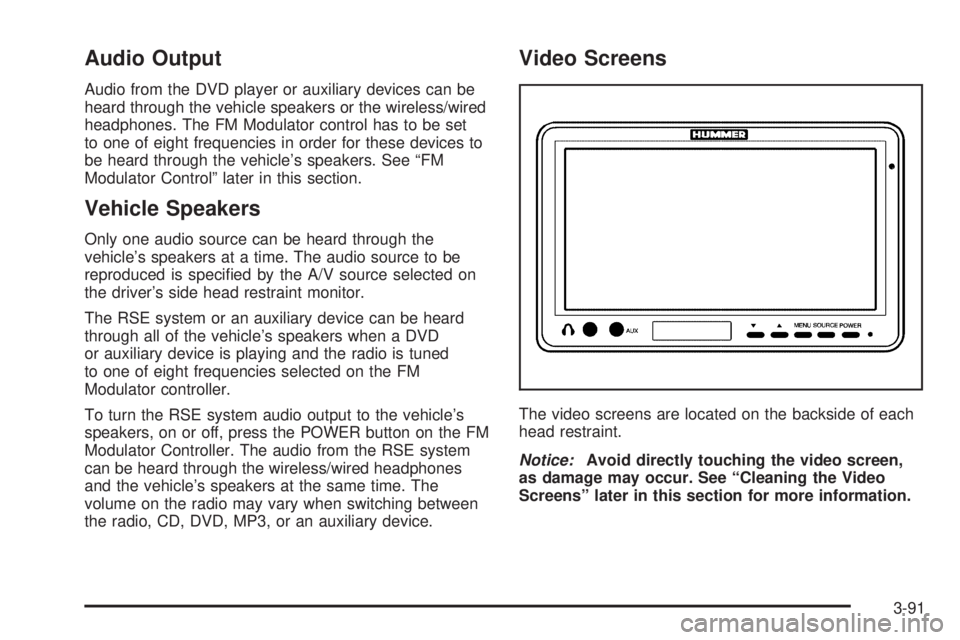
Video Screens
The video screens are located on the backside of each
head restraint.
Notice:Avoid directly touching the video screen,
as damage may occur. See “Cleaning the Video
Screens” later in this section for more information.
3-91
Page 232 of 502
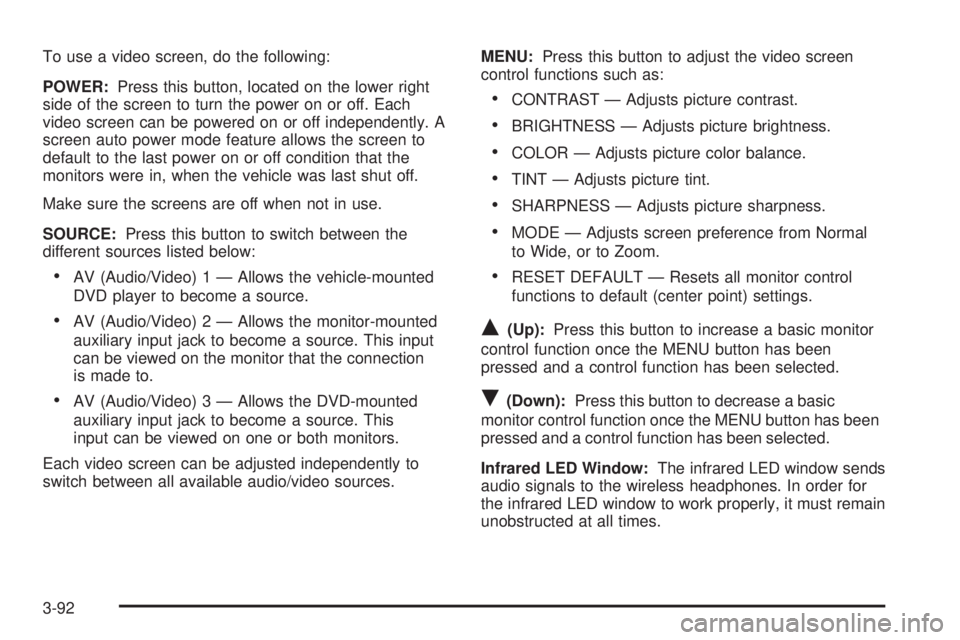
To use a video screen, do the following:
POWER:Press this button, located on the lower right
side of the screen to turn the power on or off. Each
video screen can be powered on or off independently. A
screen auto power mode feature allows the screen to
default to the last power on or off condition that the
monitors were in, when the vehicle was last shut off.
Make sure the screens are off when not in use.
SOURCE:Press this button to switch between the
different sources listed below:
AV (Audio/Video) 1 — Allows the vehicle-mounted
DVD player to become a source.
AV (Audio/Video) 2 — Allows the monitor-mounted
auxiliary input jack to become a source. This input
can be viewed on the monitor that the connection
is made to.
AV (Audio/Video) 3 — Allows the DVD-mounted
auxiliary input jack to become a source. This
input can be viewed on one or both monitors.
Each video screen can be adjusted independently to
switch between all available audio/video sources.MENU:Press this button to adjust the video screen
control functions such as:
CONTRAST — Adjusts picture contrast.
BRIGHTNESS — Adjusts picture brightness.
COLOR — Adjusts picture color balance.
TINT — Adjusts picture tint.
SHARPNESS — Adjusts picture sharpness.
MODE — Adjusts screen preference from Normal
to Wide, or to Zoom.
RESET DEFAULT — Resets all monitor control
functions to default (center point) settings.
Q(Up):Press this button to increase a basic monitor
control function once the MENU button has been
pressed and a control function has been selected.
R(Down):Press this button to decrease a basic
monitor control function once the MENU button has been
pressed and a control function has been selected.
Infrared LED Window:The infrared LED window sends
audio signals to the wireless headphones. In order for
the infrared LED window to work properly, it must remain
unobstructed at all times.
3-92
Page 233 of 502
AUX (Auxiliary):The monitor-mounted auxiliary input
jack is an AV 2 input jack. This auxiliary input jack allows
viewing of auxiliary sources such as portable DVD
units, game stations, video cameras, etc., on each
individual monitor. The sources connected to these
inputs cannot be shared between the monitors.
Press the SOURCE button on either monitor, or the
SEL button on the system remote control to select the
desired auxiliary source. See “SOURCE” under
Video Screens earlier in this section.
X(Wired Headphone Jack):This type of headphone
jack is used with universal wired headphones. The
wired headphone volume is adjusted using the up and
down arrow buttons. See “Wired Headphones” earlier in
this section.
Infrared Remote Sensor:The infrared remote sensor
receives light signals from the system’s remote
control. This type of sensor works as a line-of-sight
signal as the transmitted signals are received. In order
for the sensor to work properly, it must remain
unobstructed at all times.
DVD Player
The DVD player is located in the center console.
The DVD player can be controlled by the buttons on the
DVD player or by the buttons on the remote control.
See “Remote Control” later in this section for more
information.
The RSE system DVD player is only compatible with
DVDs of the appropriate region code for the country
where the vehicle was sold. The DVD region code is
printed on the jacket of most DVDs.
DVDs, Standard audio CDs, CD-R, CD-RW, enhanced
CDs, video CDs, and CD-ROM with MP3 media are
supported by this DVD player. DVD+R, DVD+RW, and
copy protected CDs may or may not be supported by the
DVD player. The DVD player does not support
DVD-RAM, DVD-ROM, DVD-R, DVD-R/W, and DVD
audio media. An error message will appear on the display
if this type of media is inserted into the DVD player.
If an error message appears on the video screen, see
“DVD Messages” later in this section.
3-93
Page 234 of 502

DVD Player Buttons
AV INPUT (Audio/Video Input Jack):The audio/video
input jack allows viewing of auxiliary sources such as
portable DVD players, game stations, or video cameras,
on each monitor individually.
POWER:Press this button to turn the DVD player on
and off.
X(Eject):Press this button to eject the disc. If the
ejected disc is partially left in the DVD player, the
disc will not reload until it is pushed back into the player.
PLAY:Press this button to start playback of a disc. On
DVDs and video CDs with playback control (PBC), menu
screens may appear automatically. It may be necessary
to press the PLAY button again to begin playing.There is a play position memory feature for DVD and
video CD only. If the DVD player is turned off and then
turned back on, the DVD player will resume playback
from the same point it stopped. The play position memory
is erased if the disc is removed.
STOP:Press this button to stop playing, rewinding, or
fast forwarding a disc. The disc position will be
automatically stored in memory.
There is a pre-stop feature for DVD and video CD only.
This feature will allow the disc to resume playback from
the position where it was stopped. Press the STOP
button once during disc playback and the stop icon will
appear on the DVD startup screen. This icon will
disappear after a few seconds. Press the STOP button a
second time, or eject the disc, to cancel the pre-stop
feature and to clear the disc position memory.
Playing a Disc
To play a disc, insert the disc partially into the loading
slot. The DVD player will automatically draw the
disc in and playback will start. Make sure the disc is
inserted with the printed side up. If the disc is inserted
wrong, the DVD player will automatically eject that
disc and display No Disc, on the video screen. Once the
playback begins, Loading will display on the screen
along with a disc indicator.
3-94
Page 236 of 502
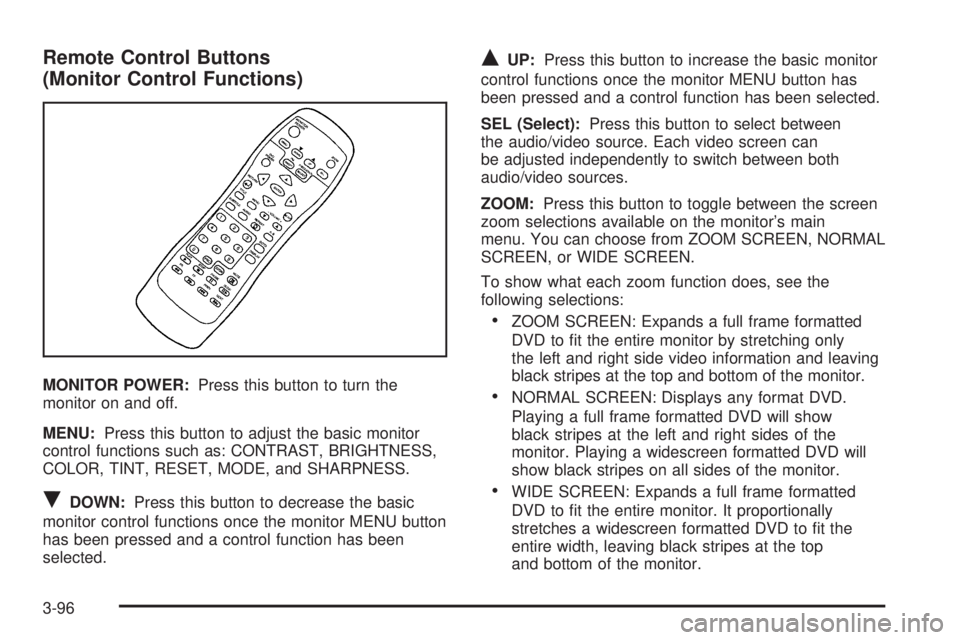
Remote Control Buttons
(Monitor Control Functions)
MONITOR POWER:Press this button to turn the
monitor on and off.
MENU:Press this button to adjust the basic monitor
control functions such as: CONTRAST, BRIGHTNESS,
COLOR, TINT, RESET, MODE, and SHARPNESS.
RDOWN:Press this button to decrease the basic
monitor control functions once the monitor MENU button
has been pressed and a control function has been
selected.
QUP:Press this button to increase the basic monitor
control functions once the monitor MENU button has
been pressed and a control function has been selected.
SEL (Select):Press this button to select between
the audio/video source. Each video screen can
be adjusted independently to switch between both
audio/video sources.
ZOOM:Press this button to toggle between the screen
zoom selections available on the monitor’s main
menu. You can choose from ZOOM SCREEN, NORMAL
SCREEN, or WIDE SCREEN.
To show what each zoom function does, see the
following selections:
ZOOM SCREEN: Expands a full frame formatted
DVD to t the entire monitor by stretching only
the left and right side video information and leaving
black stripes at the top and bottom of the monitor.
NORMAL SCREEN: Displays any format DVD.
Playing a full frame formatted DVD will show
black stripes at the left and right sides of the
monitor. Playing a widescreen formatted DVD will
show black stripes on all sides of the monitor.
WIDE SCREEN: Expands a full frame formatted
DVD to t the entire monitor. It proportionally
stretches a widescreen formatted DVD to t the
entire width, leaving black stripes at the top
and bottom of the monitor.
3-96
Page 237 of 502
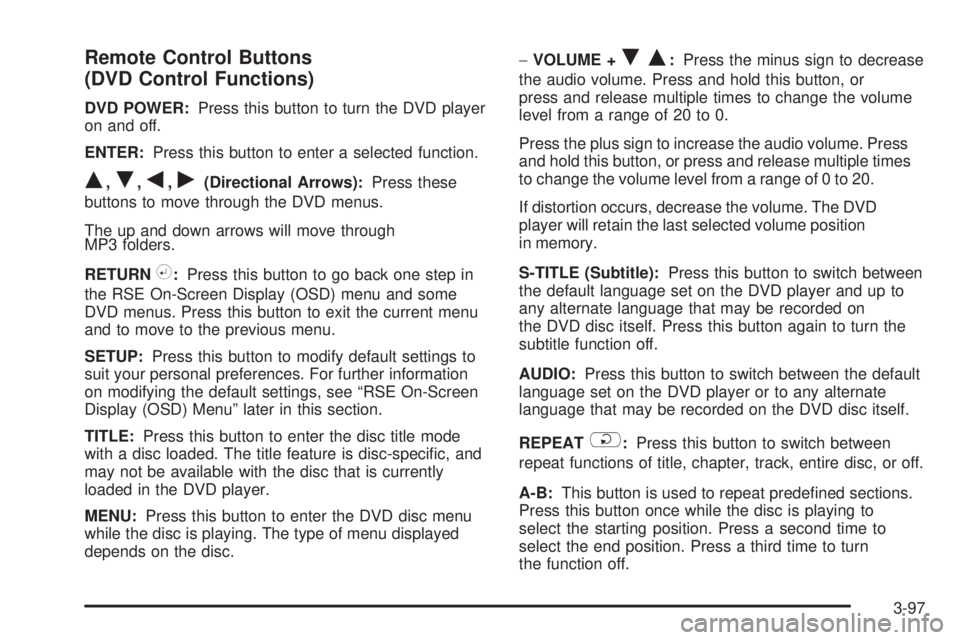
Remote Control Buttons
(DVD Control Functions)
DVD POWER:Press this button to turn the DVD player
on and off.
ENTER:Press this button to enter a selected function.
Q,R,q,r(Directional Arrows):Press these
buttons to move through the DVD menus.
The up and down arrows will move through
MP3 folders.
RETURN
%:Press this button to go back one step in
the RSE On-Screen Display (OSD) menu and some
DVD menus. Press this button to exit the current menu
and to move to the previous menu.
SETUP:Press this button to modify default settings to
suit your personal preferences. For further information
on modifying the default settings, see “RSE On-Screen
Display (OSD) Menu” later in this section.
TITLE:Press this button to enter the disc title mode
with a disc loaded. The title feature is disc-specic, and
may not be available with the disc that is currently
loaded in the DVD player.
MENU:Press this button to enter the DVD disc menu
while the disc is playing. The type of menu displayed
depends on the disc.−VOLUME +
RQ:Press the minus sign to decrease
the audio volume. Press and hold this button, or
press and release multiple times to change the volume
level from a range of 20 to 0.
Press the plus sign to increase the audio volume. Press
and hold this button, or press and release multiple times
to change the volume level from a range of 0 to 20.
If distortion occurs, decrease the volume. The DVD
player will retain the last selected volume position
in memory.
S-TITLE (Subtitle):Press this button to switch between
the default language set on the DVD player and up to
any alternate language that may be recorded on
the DVD disc itself. Press this button again to turn the
subtitle function off.
AUDIO:Press this button to switch between the default
language set on the DVD player or to any alternate
language that may be recorded on the DVD disc itself.
REPEAT
$:Press this button to switch between
repeat functions of title, chapter, track, entire disc, or off.
A-B:This button is used to repeat predened sections.
Press this button once while the disc is playing to
select the starting position. Press a second time to
select the end position. Press a third time to turn
the function off.
3-97