audio HUMMER H2 2006 Owner's Guide
[x] Cancel search | Manufacturer: HUMMER, Model Year: 2006, Model line: H2, Model: HUMMER H2 2006Pages: 502, PDF Size: 3.35 MB
Page 238 of 502

GOTO:Press this button to access scenes directly by
entering the time/title/chapter.
DISPLAY:Press this button to switch between display
functions of elapsed/remaining time, full information,
or off.
ZOOM:Press this button to zoom in on video images
during play or pause modes. Pressing and releasing
this button multiple times will increase the image size
in sequence, at 1, 2, or 3 times of normal size, or
ZOOM OFF.
In zoom modes, the direction arrow buttons can be used
to change the zoomed monitor viewing area.
MUTE
>:Press this button to mute the audio
sound output.
PLAY
r:Press this button to start playback of
the DVD.
STOP
c:Press this button to stop playback of
the DVD.
PAUSE
j:Press this button to pause a viewed image.
SLOW
p:Press this button to review in slow motion
during play or pause. Pressing and releasing this button
multiple times will decrease the review speed in
sequence at 1/2, 1/4, or 1/8 times of normal speed.FR/FF
r[(Fast Rewind/Fast Forward):Press
the left arrow to fast rewind the DVD. Pressing and
releasing this button multiple times will increase
the rewind speed in sequence at 2, 4, 8, 16, and
32 times of normal speed. To stop rewinding, press the
STOP button. This button may not work when the
DVD is playing the copyright information or the previews.
Press the right arrow to fast forward the DVD during
play or pause. Pressing and releasing this button
multiple times will increase the forward direction speed
in sequence at 2, 4, 8, 16, and 32 times of normal
speed. To stop fast forwarding, press the STOP button.
This button may not work when the DVD is playing
the copyright information or the previews.
PREV
g(Previous):Press this button to return to
the beginning of the current playing chapter or
track. Press this button again to return to the previous
chapter or track. While playback is in pause mode, press
and release this button multiple times to return to the
previous scenes one by one.
NEXT
l:Press this button to advance to the
beginning of the next chapter or track. While playback is
in pause mode, press and release this button multiple
times to advance the scenes one by one.
3-98
Page 239 of 502
Numeric Keys:The numbered buttons located on the
lower left side of the remote control are numeric
digits assigned to menu options. To use the numeric
buttons, follow the menu instructions by pressing
the number that has been assigned to the option that
you prefer.
PBC (Playback Control):Press this button to turn
video CD playback control on or off.
Battery Replacement
To change the remote control batteries, do the following:
1. Slide the battery door, located on the back of the
remote control, down.
2. Replace the two AAA batteries in the compartment.
Make sure that they are installed correctly, using
the diagram on the inside of the battery
compartment.
3. Close the battery door.
If the remote control is to be stored for a long period of
time, remove the batteries and keep them in a cool,
dry place.
Using the RSE On-Screen Display
(OSD) Menu
To use the RSE OSD menu when using the DVD player
or an auxiliary device, do the following:
1. Press the SETUP button on the remote control to
access the general setup menu, see “Remote
Control” earlier in this section.
2. Once this menu is on the screen, press the
directional arrows and then the ENTER button
to navigate the screen.
This menu will let you select default preferences for
language, video, audio, and ratings.
Not all DVDs support all of the feature defaults in
the setup menus. If a feature is not supported,
the defaults will be provided by the DVD media.
The default language selection will apply to all
future DVDs.
3. Press the RETURN button on the remote control to
exit this menu, or wait for the menu to time out.
3-99
Page 241 of 502
If both MP3 and JPEG les are recorded on a disc, the
player will offer a choice of which to play rst. If no
choice is made within 10 seconds, the MP3 les will play
automatically. The previous menu can be accessed at
any time by pressing TITLE.
Displaying Disc and Video CD Disc Status
For displaying a disc status, press DISPLAY on the
remote control to show the total elapsed time and
current chapter elapsed time.
For displaying a video CD disc status, press DISPLAY
on the remote control to show the total elapsed time
and current track elapsed time.
Displaying DVD Player Default Settings
To display the DVD player default settings, do the
following:
1. Press the SETUP button on the remote control to
display Language, Video, Audio, and Rating in the
default setup menu.
2. Press the left and right directional arrows on the
remote control to select any one of the options on
the default setup menu and then press ENTER.
3. Press the up and down directional arrows on the
remote control to select one of the preference
choices and then press ENTER.Language:The on-screen display (OSD) language,
subtitle language, audio language, and DVD menu
language can be set according to personal preference.
The OSD can also be switched on or off. The factory
default language set is English.
For the language setup, select one of ve choices from
the display:
OSD Menu
Subtitle
Audio
DVD Menu
Default
Video:Picture shape and video format can be set
according to personal preferences. The TV shape can
be set to t different types of monitors, 4:3 Letterbox,
4:3 Pan-Scan, 16:9 Wide Screen. The factory default TV
shape is 4:3 Letterbox.
The video format, used by the DVD player can be set to
NTSC, PAL, or Auto. The NTSC is a standard format
for North America and there is no need to change
this setting. The factory default video setting is Auto.
3-101
Page 242 of 502
For the Video setup, select one of the four choices from
the display menu:
TV Shape
4:3 LB
TV System
Auto
Audio:The type of audio that is output to the vehicle’s
speakers for each type of audio programmed process
can be set according to personal preferences.
For the Audio setup, select on of the four choices from
the display menu:
DOLBY Digital
DTS
MP3/WMA
CD/VCD
It is recommended by your supplier not to make any
changes to the Audio setup menu. If you do not have a
full understanding of how the audio programmed
process works, you could affect the audio quality in an
unfavorable way.
Rating:The Rating can be set according to personal
preference. These settings restrict movie viewing
for children of a certain age level.For the Rating setup, select any one of the available
settings from the display menu:
Kid Safe
G
PG_13
PG_R
R
NC_17
Adult
Access to the ratings menu can be locked with a
password entered through the numerical keypad. To
lock a selected password, enter a four-digit password
and press ENTER. To unlock, select password,
and enter the same four-digit password, then
press ENTER.
Rating setting remains in memory until changed
manually or by default reset. If the password is lost, it
may be reset using the Reset On function in the
Language section of the setup menu.
Once a rating preference has been set to restrict movie
viewing for children of a certain age, make sure the
DVD being viewed, is rated. If the DVD being viewed
has not been rated, playback will not be restricted even
though the rating preference has been set.
3-102
Page 243 of 502
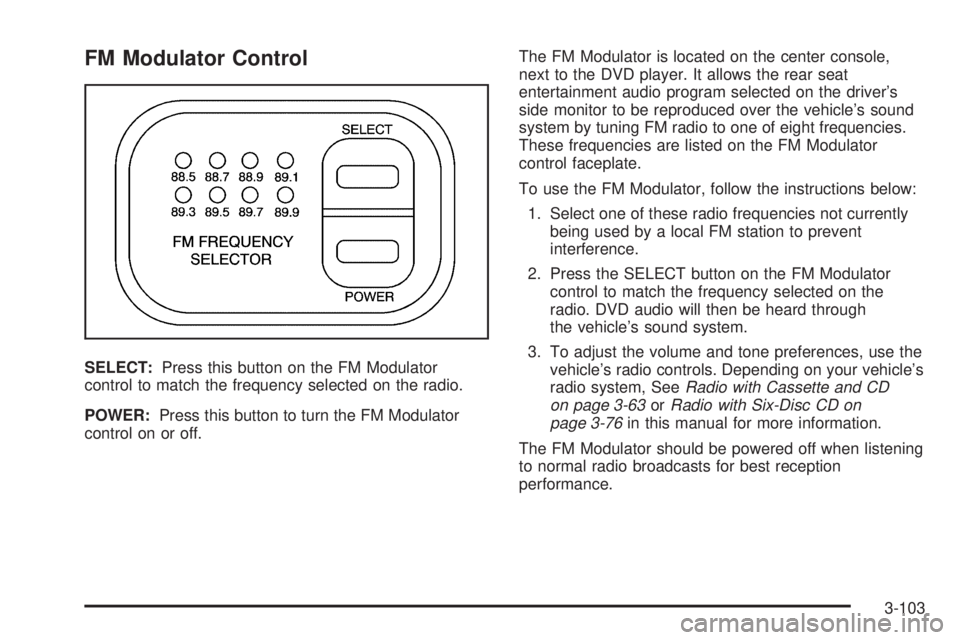
FM Modulator Control
SELECT:Press this button on the FM Modulator
control to match the frequency selected on the radio.
POWER:Press this button to turn the FM Modulator
control on or off.The FM Modulator is located on the center console,
next to the DVD player. It allows the rear seat
entertainment audio program selected on the driver’s
side monitor to be reproduced over the vehicle’s sound
system by tuning FM radio to one of eight frequencies.
These frequencies are listed on the FM Modulator
control faceplate.
To use the FM Modulator, follow the instructions below:
1. Select one of these radio frequencies not currently
being used by a local FM station to prevent
interference.
2. Press the SELECT button on the FM Modulator
control to match the frequency selected on the
radio. DVD audio will then be heard through
the vehicle’s sound system.
3. To adjust the volume and tone preferences, use the
vehicle’s radio controls. Depending on your vehicle’s
radio system, SeeRadio with Cassette and CD
on page 3-63orRadio with Six-Disc CD on
page 3-76in this manual for more information.
The FM Modulator should be powered off when listening
to normal radio broadcasts for best reception
performance.
3-103
Page 244 of 502

Tips and Troubleshooting Chart
Problem Recommended Action
Unit does not operate.
Turn the key to the
on position.
Press the power on
from the remote.
Fuse blown, replace
with a fuse of the
same capacity.
Turn the monitor’s
power on.
Consult with your
dealership.
No picture is produced.
Playback does not start.
Switch to the
appropriate
audio/video source.
Check if the disc is
loaded with the label
side facing up.
Clean the disc.
Check for the disc
compatibility.
Press MENU to turn
the menu off.
Problem Recommended Action
Picture is unclear
or noisy.
During fast-forward or
fast-reverse, the
picture can be slightly
distorted. This is a
normal situation.
Consult with
your dealership.
Image sometimes
stumbles or freezes.
Clean or replace the
disc if it is scratched.
Load a known
good disc.
Black and white monitor,
blank monitor, or frozen
monitor.
Overheating. Turn the
system power off and
then turn the power
back on again. If the
display still does not
appear normal, leave
the power off until
the temperature
decreases and
then turn power
back on again.
3-104
Page 245 of 502
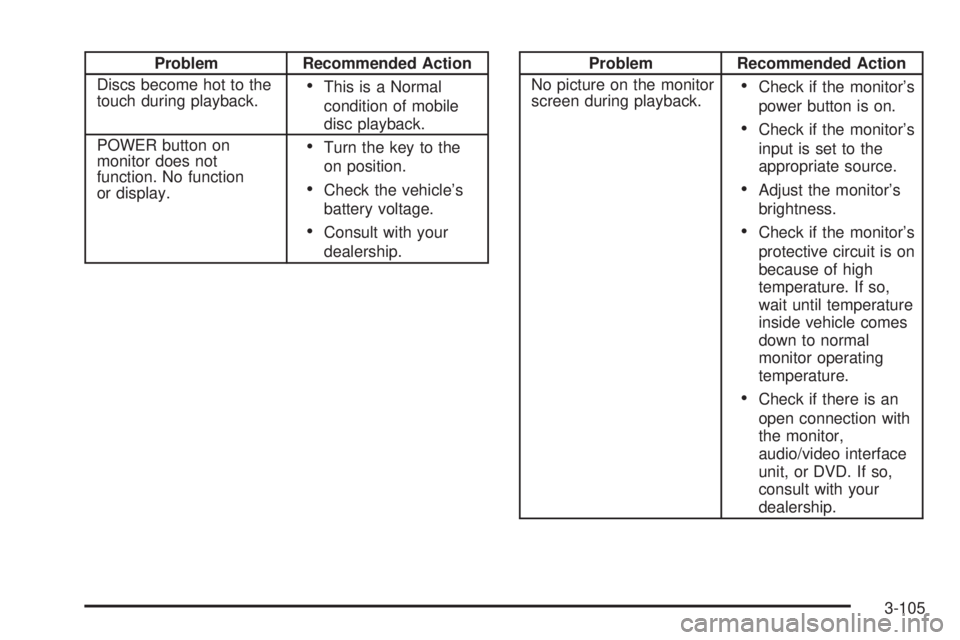
Problem Recommended Action
Discs become hot to the
touch during playback.
This is a Normal
condition of mobile
disc playback.
POWER button on
monitor does not
function. No function
or display.
Turn the key to the
on position.
Check the vehicle’s
battery voltage.
Consult with your
dealership.
Problem Recommended Action
No picture on the monitor
screen during playback.
Check if the monitor’s
power button is on.
Check if the monitor’s
input is set to the
appropriate source.
Adjust the monitor’s
brightness.
Check if the monitor’s
protective circuit is on
because of high
temperature. If so,
wait until temperature
inside vehicle comes
down to normal
monitor operating
temperature.
Check if there is an
open connection with
the monitor,
audio/video interface
unit, or DVD. If so,
consult with your
dealership.
3-105
Page 246 of 502

Problem Recommended Action
The fast forward, fast
reverse, previous,
and next functions
do not work.
Some commands that
do one thing for
DVDs will not always
work or perform the
same function for
audio, audio discs, or
games. These
functions may also be
disabled when the
DVD is playing the
copyright information
or the previews.
Picture color is poor.
Spots or dotted
lines/stripes appear.
Set brightness/
color/tint controls to
the proper settings.
Change the location
of the vehicle. Poor
picture color can be
caused by neon
signs, high-voltage
power lines, CB
transmitter, and
neighboring vehicle’s
ignition plugs, cell
phones, etc.
Problem Recommended Action
No remote control
operation or unstable
operation.
Remove any obstacle
between the system
remote control and
the remote sensor on
the monitor.
Replace batteries
with new ones.
Make sure the
batteries are
inserted correctly.
No rear seat
entertainment audio
sound from vehicle radio.
Turn on the POWER
to the radio, turn up
the volume.
Turn on the POWER
to the FM Modulator.
Tune FM Modulator
and vehicle radio to
the same FM
frequency.
Make sure the
driver’s side monitor
is switched to on.
3-106
Page 247 of 502
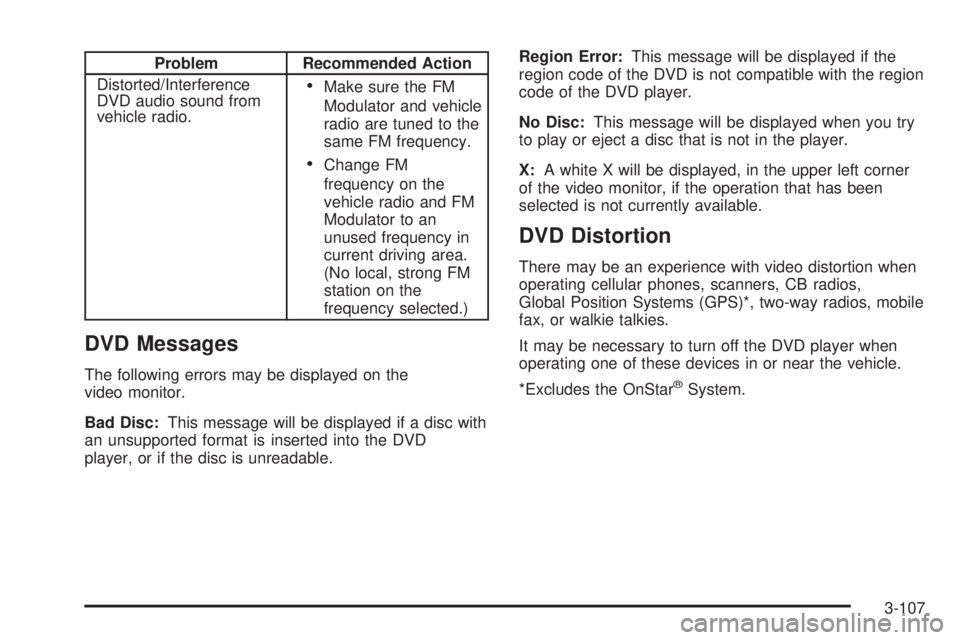
Problem Recommended Action
Distorted/Interference
DVD audio sound from
vehicle radio.
Make sure the FM
Modulator and vehicle
radio are tuned to the
same FM frequency.
Change FM
frequency on the
vehicle radio and FM
Modulator to an
unused frequency in
current driving area.
(No local, strong FM
station on the
frequency selected.)
DVD Messages
The following errors may be displayed on the
video monitor.
Bad Disc:This message will be displayed if a disc with
an unsupported format is inserted into the DVD
player, or if the disc is unreadable.Region Error:This message will be displayed if the
region code of the DVD is not compatible with the region
code of the DVD player.
No Disc:This message will be displayed when you try
to play or eject a disc that is not in the player.
X:A white X will be displayed, in the upper left corner
of the video monitor, if the operation that has been
selected is not currently available.
DVD Distortion
There may be an experience with video distortion when
operating cellular phones, scanners, CB radios,
Global Position Systems (GPS)*, two-way radios, mobile
fax, or walkie talkies.
It may be necessary to turn off the DVD player when
operating one of these devices in or near the vehicle.
*Excludes the OnStar
®System.
3-107
Page 248 of 502
Cleaning the Video Screens
The video display screens are made of a specially
coated glass and can be scratched or damaged
by abrasive products, solvents, or ammonia-based
window cleaners. Occasionally take a soft, lint-free,
cotton cloth that has been slightly dampened with warm
water and wrung out completely. Dry the screens by
wiping with a clean dry cotton cloth.
Cleaning the Components
Use care when directly touching or cleaning the
components such as the DVD player and the discs that
are used for your viewing entertainment, as damage
may result. SeeCare of the CD and DVD Player
on page 3-113andCare of Your CDs and DVDs on
page 3-113in this manual for more information.
Rear Seat Audio (RSA)
This feature allows rear seat passengers to listen to any
of the sources: radio, cassette tapes, or CDs. However,
the rear seat passengers can only control the sources
that the front seat passengers are not listening to.
For example, rear seat passengers may listen to and
control cassette tapes or CDs through the headphones
while the driver listens to the radio through the front
speakers. The rear seat passengers have control of the
volume for each set of headphones.The front seat audio controls always have priority over
the RSA controls. If the front seat passengers switch the
source for the main radio to a remote source, the RSA will
not be able to control the source. You can operate the
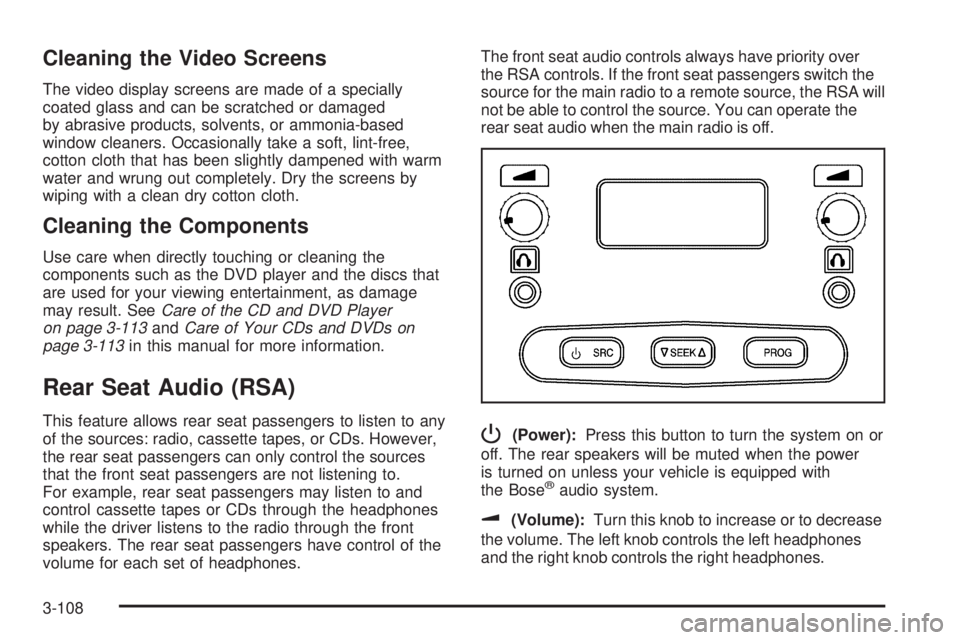
rear seat audio when the main radio is off.P(Power):Press this button to turn the system on or
off. The rear speakers will be muted when the power
is turned on unless your vehicle is equipped with
the Bose
®audio system.
u(Volume):Turn this knob to increase or to decrease
the volume. The left knob controls the left headphones
and the right knob controls the right headphones.
3-108