phone HUMMER H2 2008 User Guide
[x] Cancel search | Manufacturer: HUMMER, Model Year: 2008, Model line: H2, Model: HUMMER H2 2008Pages: 504, PDF Size: 7.12 MB
Page 257 of 504
If the foam ear pads attached to the headphones
become worn or damaged, the pads can be replaced
separately from the headphone set. Refer to your
dealer/retailer for more information.
Battery Replacement
To change the batteries on the headphones, do the
following:
1. Turn the screw to loosen the battery door located
on the left side of the headphones. Slide the
battery door open.
2. Replace the two batteries in the compartment.
Make sure that they are installed correctly,
using the diagram on the inside of the battery
compartment.
3. Replace the battery door and tighten the door
screw.
If the headphones are to be stored for a long period of
time, remove the batteries and keep them in a cool,
dry place.
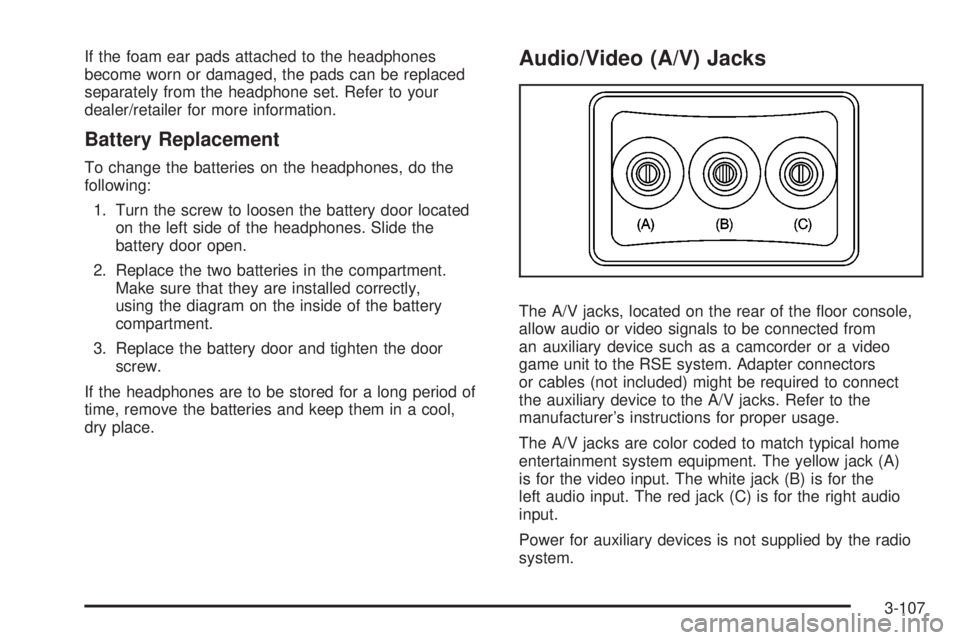
Audio/Video (A/V) Jacks
The A/V jacks, located on the rear of the oor console,
allow audio or video signals to be connected from
an auxiliary device such as a camcorder or a video
game unit to the RSE system. Adapter connectors
or cables (not included) might be required to connect
the auxiliary device to the A/V jacks. Refer to the
manufacturer’s instructions for proper usage.
The A/V jacks are color coded to match typical home
entertainment system equipment. The yellow jack (A)
is for the video input. The white jack (B) is for the
left audio input. The red jack (C) is for the right audio
input.
Power for auxiliary devices is not supplied by the radio
system.
3-107
Page 258 of 504
To use the auxiliary inputs of the RSE system, connect
an external auxiliary device to the color-coded A/V jacks
and turn both the auxiliary device and the video screen
power on. If the video screen is in the DVD player mode,
pressing the AUX (auxiliary) button on the remote control
switches the video screen from the DVD player mode to
the auxiliary device. The radio can listen to the audio of
the connected auxiliary device by sourcing to auxiliary.
SeeRadio(s) (MP3) on page 3-75for more information.
How to Change the RSE Video Screen
Settings
The screen display mode (normal, full, and zoom),
screen brightness, and setup menu language can be
changed from the on screen setup menu. To change any
feature, do the following:
1. Press the
z(display menu) button on the remote
control.
2. Use the remote control
n,q,p,o(navigation)
arrows and the enter button to use the setup menu.
3. Press the
zbutton again to remove the setup
menu from the screen.
Audio Output
Audio from the DVD player or auxiliary inputs can be
heard through the following possible sources:
Wireless Headphones
Vehicle Speakers
Vehicle wired headphone jacks on the rear seat
audio system, if your vehicle has this feature.
The RSE system always transmits the audio signal to
the wireless headphones, if there is audio available.
See “Headphones” earlier in this section for more
information.
The DVD player is capable of outputting audio to the
wired headphone jacks on the RSA system, if your
vehicle has this feature. The DVD player can be
selected as an audio source on the RSA system.
SeeRear Seat Audio (RSA) on page 3-114for more
information.
When a device is connected to the A/V jacks, or the
radio’s auxiliary input jack, if your vehicle has this feature,
the rear seat passengers are able to hear audio from
the auxiliary device through the wireless or wired
headphones. The front seat passengers are able to
listen to playback from this device through the vehicle
speakers by selecting AUX as the source on the radio.
3-108
Page 259 of 504
Video Screen
The video screen is located in the overhead console.
To use the video screen, do the following:
1. Push the release button located on the overhead
console.
2. Move the screen to the desired position.
When the video screen is not in use, push it up into its
locked position.
If a DVD is playing and the screen is raised to its locked
position, the screen remains on. This is normal, and
the DVD continues to play through the previous audio
source. Use the remote control power button or eject the
disc to turn off the screen.
The overhead console contains the infrared transmitters
for the wireless headphones and the infrared receivers
for the remote control. They are located at the rear
of the console.
Notice:Avoid directly touching the video screen,
as damage may occur. See “Cleaning the Video
Screen” later in this section for more information.
Remote Control
To use the remote control, aim it at the transmitter
window at the rear of the RSE overhead console and
press the desired button. Direct sunlight or very bright
light could affect the ability of the RSE transmitter to
receive signals from the remote control. If the remote
control does not seem to be working, the batteries might
need to be replaced. See “Battery Replacement” later in
this section. Objects blocking the line of sight could also
affect the function of the remote control.
If a CD or DVD is in the Radio DVD slot, the remote
control power button can be used to turn on the video
screen display and start the disc. The radio can also
turn on the video screen display. SeeRadio(s) (MP3)
on page 3-75for more information.
Notice:Storing the remote control in a hot area or
in direct sunlight can damage it, and the repairs
will not be covered by your warranty. Storage
in extreme cold can weaken the batteries. Keep
the remote control stored in a cool, dry place.
If the remote control becomes lost or damaged, a
new universal remote control can be purchased. If this
happens, make sure the universal remote control uses a
code set of Toshiba
®.
3-109
Page 263 of 504
Problem Recommended Action
The auxiliary source is
running but there is no
picture or sound.Check that the RSE video
screen is in the auxiliary
source mode.
Check the auxiliary input
connections at both
devices.
Sometimes the wireless
headphone audio cuts out
or buzzes.Check for obstructions,
low batteries, reception
range, and interference
from cellular telephone
towers or by using your
cellular telephone in the
vehicle.
Check that the
headphones are on
correctly using the L (left)
and R (right) on the
headphones.
I lost the remote and/or
the headphones.See your dealer/retailer
for assistance.
The DVD is playing, but
there is no picture or
sound.Check that the RSE video
screen is sourced to the
DVD player.DVD Display Error Messages
The DVD display error message depends on the radio
that is in the vehicle. The video screen can display
one of the following:
Disc Load/Eject Error:This message displays when
there are disc load or eject problems.
Disc Format Error:This message displays, if the disc
is inserted with the disc label wrong side up, or if
the disc is damaged.
Disc Region Error:This message displays, if the disc
is not from a correct region.
No Disc Inserted:This message displays, if no disc is
present when
ZEJECT or DVD AUX is pressed
on the radio.
DVD Distortion
Video distortion can occur when operating cellular
phones, scanners, CB radios, Global Position Systems
(GPS)*, two-way radios, mobile fax, or walkie talkies.
It might be necessary to turn off the DVD player when
operating one of these devices in or near the vehicle.
*Excludes the OnStar
®System.
3-113
Page 264 of 504
Cleaning the RSE Overhead Console
When cleaning the RSE overhead console surface,
use only a clean cloth dampened with clean water.
Cleaning the Video Screen
When cleaning the video screen, use only a clean cloth
dampened with clean water. Use care when directly
touching or cleaning the screen, as damage could result.
Rear Seat Audio (RSA)
This feature allows rear seat passengers to listen to and
control any of the music sources: radio, CDs, DVDs,
or other auxiliary sources. However, the rear seat
passengers can only control the music sources the front
seat passengers are not listening to (except on some
radios where dual control is allowed). For example, rearseat passengers can control and listen to a CD through
the headphones, while the driver listens to the radio
through the speakers. The rear seat passengers have
control of the volume for each set of wired headphones.
You can operate the RSA functions even when the
main radio is off. The front audio system will display
the headphone icon when the RSA is on, and will
disappear from the display when it is off.
Audio can be heard through wired headphones
(not included) plugged into the jacks on the RSA.
If your vehicle has this feature, audio can also be
heard on Channel 2 of the wireless headphones.
To listen to an iPod or portable audio device through
the RSA, attach the iPod or portable audio device to
the front auxiliary input (if available), on the front audio
system. Turn the iPod on, then choose the front
auxiliary input with the RSA SRCE button.
3-114
Page 265 of 504

P(Power):Press thePbutton to turn RSA on
and off.
Volume:Turn this knob to increase or to decrease
the volume of the wired headphones. The left knob
controls the left headphones and the right knob controls
the right headphones.
SRCE (Source):Press this button to switch between
the radio (AM/FM), XM™ (if equipped), CD, and if
your vehicle has these features, DVD, front auxiliary,
and rear auxiliary.
©¨(Seek):When listening to FM, AM, or XM™
(if equipped), press the left
©or right¨seek arrow
to go to the next or the previous station or channels and
stay there. This function is inactive, with some radios,
if the front seat passengers are listening to the radio.
Press and hold either the left
©or right¨seek
arrow until the display ashes, to tune to an individual
station. The display stops ashing after the buttons
have not been pushed for more than two seconds.
This function is inactive, with some radios, if the front
seat passengers are listening to the radio.
While listening to a disc, press the
©seek arrow
to go back to the start of the current track or chapter
(if more than ten seconds have played). Press the
right
¨seek arrow to go to the next track or chapter
on the disc. This function is inactive, with some radios,
if the front seat passengers are listening to the radio.
When a DVD video menu is being displayed, press
either the left
©or right¨seek arrow to perform
a cursor up or down on the menu. Hold either the
left
©or right¨seek arrow to perform a cursor
left or right on the menu. Rear Seat Audio with Rear Climate Control shown
3-115
Page 266 of 504
PROG (Program):Press this button to go to the
next preset radio station or channel set on the main
radio. This function is inactive, with some radios, if
the front seat passengers are listening to the radio.
When a CD or DVD audio disc is playing, press
this button to go to the beginning of the CD or DVD
audio. This function is inactive, with some radios, if
the front seat passengers are listening to the disc.
When a disc is playing in the CD or DVD changer, press
this button to select the next disc, if multiple discs are
loaded. This function is inactive, with some radios, if the
front seat passengers are listening to the disc.
When a DVD video menu is being displayed, press the
PROG button to perform the menu function, Enter.
Theft-Deterrent Feature
THEFTLOCK®is designed to discourage theft of your
vehicle’s radio. The feature works automatically by
learning a portion of the Vehicle Identication Number
(VIN). If the radio is moved to a different vehicle, it does
not operate and LOC, LOCK, or LOCKED could display.
With THEFTLOCK
®activated, the radio does not
operate if stolen.
Audio Steering Wheel Controls
Vehicles with audio
steering wheel controls
could differ depending on
your vehicle’s options.
Some audio controls can
be adjusted at the steering
wheel. They include the
following:
xw(Next/Previous):Press the down or up arrow to
go to the next or to the previous radio station stored
as a favorite.
When a CD/DVD is playing, press either arrow to go to
the next or previous track or chapter.
g(Mute/Voice Recognition):Press and release this
button to silence the vehicle speakers only. The audio of
the wireless and wired headphones, if your vehicle has
these features, does not mute. Press and release this
button again, to turn the sound on.
3-116
Page 267 of 504
If your vehicle has the navigation system, press and hold
this button for longer than one second to initiate voice
recognition. See “Voice Recognition” in the Navigation
System manual for more information.
If your vehicle has OnStar
®, press and hold this button
for longer than one second to interact with the OnStar®
system. If your vehicle also has the navigation system,
press and hold this button for longer than one second
to initiate voice recognition and say “OnStar” to enter
OnStar
®mode. See theOnStar®System on page 2-53
in this manual for more information.
SRCE (Source):Press this button to switch between
the radio (AM, FM), XM™ (if equipped), CD, and if your
vehicle has these features, DVD, front auxiliary, and
rear auxiliary.
+
e−e(Volume):Press the plus or minus volume
button to increase or to decrease the radio volume.
¨(Seek):Press the seek arrow to go to the next radio
station while in AM, FM, or XM™ (if equipped). Press
the seek arrow to go to the next track or chapter while
sourced to the CD or DVD slot. Press the seek arrow to
go to the next disc while sourced to a CD player, if
multiple discs are loaded.
Radio Reception
Frequency interference and static can occur during
normal radio reception if items such as cell phone
chargers, vehicle convenience accessories, and external
electronic devices are plugged into the accessory power
outlet. If there is interference or static, unplug the item
from the accessory power outlet.
AM
The range for most AM stations is greater than for FM,
especially at night. The longer range can cause station
frequencies to interfere with each other. For better radio
reception, most AM radio stations boost the power levels
during the day, and then reduce these levels during the
night. Static can also occur when things like storms and
power lines interfere with radio reception. When this
happens, try reducing the treble on your radio.
FM Stereo
FM stereo gives the best sound, but FM signals only
reach about 10 to 40 miles (16 to 65 km). Tall buildings
or hills can interfere with FM signals, causing the
sound to fade in and out.
3-117
Page 281 of 504
While driving on a surface with reduced traction,
try your best to avoid sudden steering, acceleration,
or braking, including reducing vehicle speed by shifting
to a lower gear. Any sudden changes could cause
the tires to slide. You might not realize the surface
is slippery until your vehicle is skidding. Learn to
recognize warning clues — such as enough water,
ice, or packed snow on the road to make a mirrored
surface — and slow down when you have any doubt.
Remember: Any Antilock Brake System (ABS) helps
avoid only the braking skid.
Off-Road Driving
This off-road guide is meant to provide advice for when
you drive your vehicle off paved roads. Also, see
Braking on page 4-3.
The airbag system is designed to work properly under a
wide range of conditions, including off-road usage.
Observe safe driving speeds, especially on rough
terrain. As always, wear your safety belt.
Off-road driving can be great fun. But it does have
some denite hazards. The greatest of these is
the terrain itself.“Off-roading” means you have left the great North
American road system behind. Traffic lanes are not
marked. Curves are not banked. There are no
road signs. Surfaces can be slippery, rough, uphill or
downhill. In short, you have gone right back to nature.
Off-road driving involves some new skills. And that
is why it is very important that you read this guide.
You will nd many driving tips and suggestions. These
will help make your off-road driving safer and more
enjoyable.
Before You Go Off-Roading
There are some things to do before you go out. For
example, be sure to have all necessary maintenance
and service work done. Check to make sure all
underbody shields are properly attached. Remove any
removable side steps. SeeAssist Steps on page 4-32.
Make sure any equipment you may need — rst aid
kit, cell phone, ashlight, etc. — is securely stored in the
vehicle. Be sure you read all the information about
your four-wheel-drive vehicle in this manual. Is there
enough fuel? Is the spare tire fully inated? Are the uid
levels up where they should be? What are the local
laws that apply to off-roading where you will be driving?
If you do not know, you should check with law
enforcement people in the area. Will you be on
someone’s private land? If so, be sure to get the
necessary permission.
4-13
Page 343 of 504
Filling the Tank
{CAUTION:
Fuel vapor burns violently and a fuel re can
cause bad injuries. To help avoid injuries to
you and others, read and follow all the
instructions on the pump island. Turn off your
engine when you are refueling. Do not smoke
if you are near fuel or refueling your vehicle.
Do not use cellular phones. Keep sparks,
ames, and smoking materials away from fuel.
Do not leave the fuel pump unattended when
refueling your vehicle. This is against the law
in some places. Do not re-enter the vehicle
while pumping fuel. Keep children away from
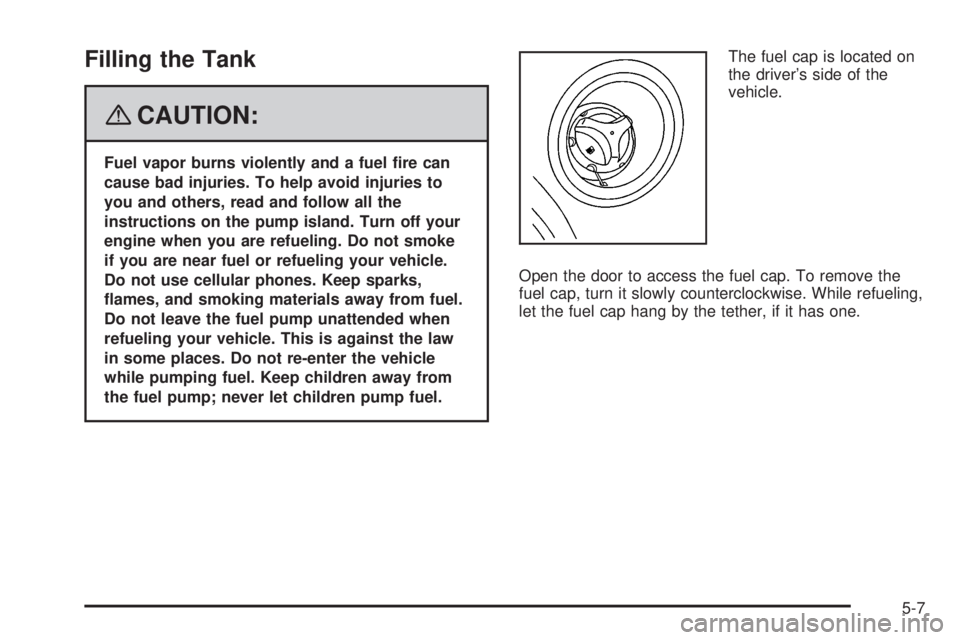
the fuel pump; never let children pump fuel.The fuel cap is located on
the driver’s side of the
vehicle.
Open the door to access the fuel cap. To remove the
fuel cap, turn it slowly counterclockwise. While refueling,
let the fuel cap hang by the tether, if it has one.
5-7