light HUMMER H2 2008 Owner's Guide
[x] Cancel search | Manufacturer: HUMMER, Model Year: 2008, Model line: H2, Model: HUMMER H2 2008Pages: 504, PDF Size: 7.12 MB
Page 138 of 504
How OnStar Service Works
Your vehicle’s OnStar system has the capability of
recording and transmitting vehicle information.
This information is automatically sent to an OnStar
Call Center at the time of an OnStar button press,
Emergency button press or if your airbags or AACN
system deploys. The vehicle information usually includes
your GPS location and, in the event of a crash,
additional information regarding the accident that your
vehicle has been involved in (e.g. the direction from
which your vehicle was hit). When you use the Virtual
Advisor feature of OnStar Hands-Free Calling, your
vehicle also sends OnStar your GPS location so that we
can provide you with location-based services.
OnStar service cannot work unless your vehicle is in a
place where OnStar has an agreement with a wireless
service provider for service in that area. OnStar
service also cannot work unless you are in a place
where the wireless service provider OnStar has hired for
that area has coverage, network capacity and reception
when the service is needed, and technology that is
compatible with the OnStar service. Not all services are
available everywhere, particularly in remote or
enclosed areas, or at all times.Location information about your vehicle is only available
if the GPS satellite signals are unobstructed and
available.
Your vehicle must have a working electrical system
(including adequate battery power) for the OnStar
equipment to operate. There are other problems OnStar
cannot control that may prevent OnStar from providing
OnStar service to you at any particular time or place.
Some examples are damage to important parts of your
vehicle in an accident, hills, tall buildings, tunnels,
weather or wireless phone network congestion.
Your Responsibility
Increase the radio volume if you cannot hear the OnStar
advisor. If the light next to the OnStar buttons is red,
this means that your system is not functioning properly
and should be checked by your dealer/retailer. If the
light appears clear (no light is appearing), your OnStar
subscription has expired. You can always press the
OnStar button to conrm that your OnStar equipment
is active.
2-56
Page 139 of 504
Universal Home Remote System
The Universal Home Remote System provides a way to
replace up to three hand-held radio-frequency (RF)
transmitters used to activate devices such as garage
door openers, security systems, and home lighting.
This device complies with Part 15 of the FCC Rules.
Operation is subject to the following two conditions:
1. This device may not cause harmful interference.
2. This device must accept any interference received,
including interference that may cause undesired
operation.
The FCC Grant of Equipment Authorization Certicate
number is KOBGTV06A.
This device complies with RSS-210 of Industry Canada.
Operation is subject to the following two conditions:
1. This device may not cause interference.
2. This device must accept any interference received,
including interference that may cause undesired
operation of the device.
The Canadian Registration ID number is 3521A-GTV06A.
Changes or modications to this system by other than
an authorized service facility could void authorization to
use this equipment.
Universal Home Remote System
Operation (With Three Round LED)
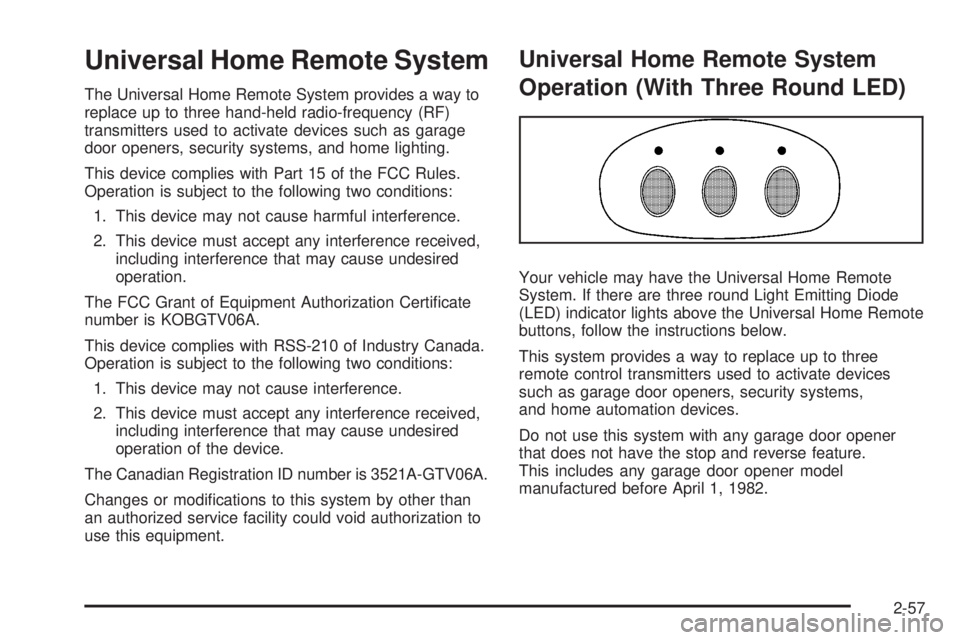
Your vehicle may have the Universal Home Remote
System. If there are three round Light Emitting Diode
(LED) indicator lights above the Universal Home Remote
buttons, follow the instructions below.
This system provides a way to replace up to three
remote control transmitters used to activate devices
such as garage door openers, security systems,
and home automation devices.
Do not use this system with any garage door opener
that does not have the stop and reverse feature.
This includes any garage door opener model
manufactured before April 1, 1982.
2-57
Page 141 of 504
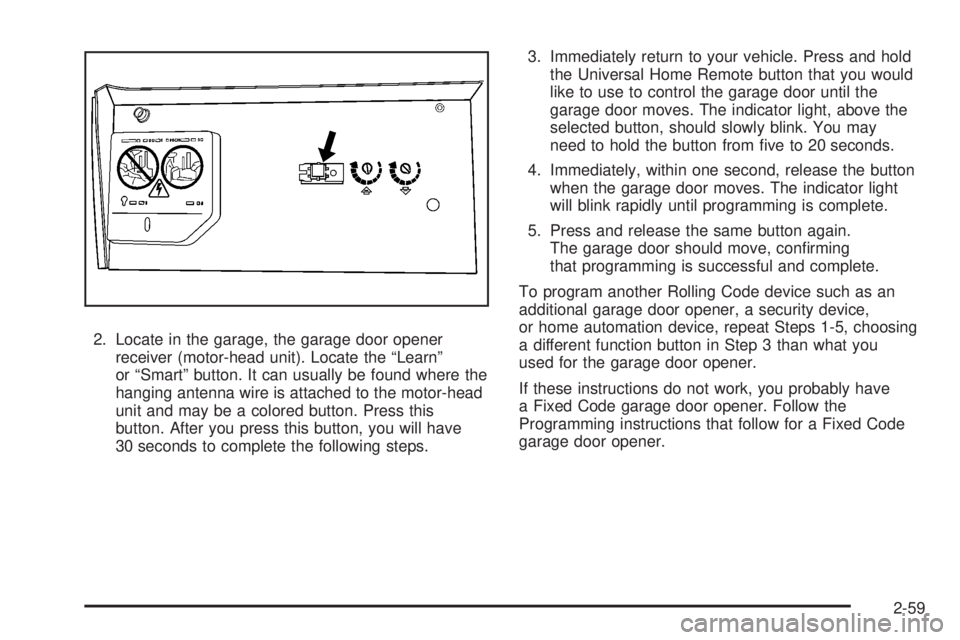
2. Locate in the garage, the garage door opener
receiver (motor-head unit). Locate the “Learn”
or “Smart” button. It can usually be found where the
hanging antenna wire is attached to the motor-head
unit and may be a colored button. Press this
button. After you press this button, you will have
30 seconds to complete the following steps.3. Immediately return to your vehicle. Press and hold
the Universal Home Remote button that you would
like to use to control the garage door until the
garage door moves. The indicator light, above the
selected button, should slowly blink. You may
need to hold the button from ve to 20 seconds.
4. Immediately, within one second, release the button
when the garage door moves. The indicator light
will blink rapidly until programming is complete.
5. Press and release the same button again.
The garage door should move, conrming
that programming is successful and complete.
To program another Rolling Code device such as an
additional garage door opener, a security device,
or home automation device, repeat Steps 1-5, choosing
a different function button in Step 3 than what you
used for the garage door opener.
If these instructions do not work, you probably have
a Fixed Code garage door opener. Follow the
Programming instructions that follow for a Fixed Code
garage door opener.
2-59
Page 144 of 504
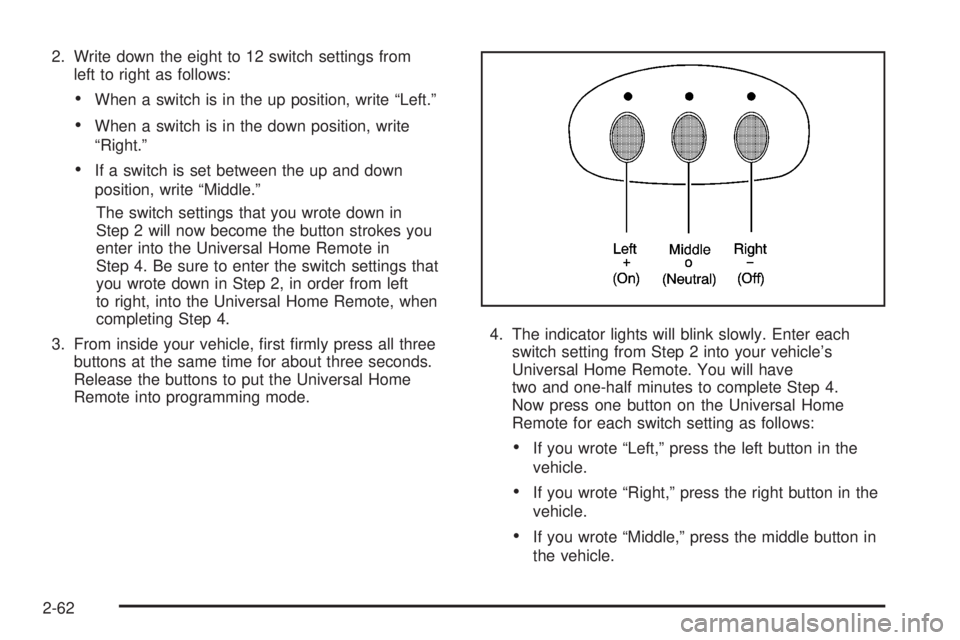
2. Write down the eight to 12 switch settings from
left to right as follows:
When a switch is in the up position, write “Left.”
When a switch is in the down position, write
“Right.”
If a switch is set between the up and down
position, write “Middle.”
The switch settings that you wrote down in
Step 2 will now become the button strokes you
enter into the Universal Home Remote in
Step 4. Be sure to enter the switch settings that
you wrote down in Step 2, in order from left
to right, into the Universal Home Remote, when
completing Step 4.
3. From inside your vehicle, rst rmly press all three
buttons at the same time for about three seconds.
Release the buttons to put the Universal Home
Remote into programming mode.4. The indicator lights will blink slowly. Enter each
switch setting from Step 2 into your vehicle’s
Universal Home Remote. You will have
two and one-half minutes to complete Step 4.
Now press one button on the Universal Home
Remote for each switch setting as follows:
If you wrote “Left,” press the left button in the
vehicle.
If you wrote “Right,” press the right button in the
vehicle.
If you wrote “Middle,” press the middle button in
the vehicle.
2-62
Page 145 of 504
5. After entering all of the switch positions, again,
rmly press and release all three buttons at the
same time. The indicator lights will turn on.
6. Press and hold the button you would like to use to
control the garage door until the garage door
moves. The indicator light above the selected button
should slowly blink. You may need to hold the
button from ve to 55 seconds.
7. Immediately release the button when the garage
door moves. The indicator light will blink rapidly
until programming is complete.
8. Press and release the same button again.
The garage door should move, conrming
that programming is successful and complete.
To program another Fixed Code device such as an
additional garage door opener, a security device,
or home automation device, repeat Steps 1-8, choosing
a different button in Step 6 than what you used for
the garage door opener.
Using Universal Home Remote
Press and hold the appropriate button for at least
half of a second. The indicator light will come on while
the signal is being transmitted.
Reprogramming Universal Home
Remote Buttons
You can reprogram any of the three buttons by repeating
the instructions.
Erasing Universal Home Remote
Buttons
You should erase the programmed buttons when you
sell or terminate your lease.
To erase either Rolling Code or Fixed Code on the
Universal Home Remote device:
1. Press and hold the two outside buttons at the same
time for approximately 20 seconds, until the
indicator lights, located directly above the buttons,
begin to blink rapidly.
2. Once the indicator lights begin to blink, release both
buttons. The codes from all buttons will be erased.
For help or information on the Universal Home Remote
System, call the customer assistance phone number
underCustomer Assistance Offices on page 7-5.
2-63
Page 151 of 504
Instrument Panel Overview...............................3-4
Hazard Warning Flashers................................3-6
Other Warning Devices...................................3-6
Horn.............................................................3-6
Tilt Wheel.....................................................3-6
Turn Signal/Multifunction Lever.........................3-7
Turn and Lane-Change Signals........................3-8
Headlamp High/Low-Beam Changer..................3-8
Flash-to-Pass.................................................3-9
Windshield Wipers..........................................3-9
Windshield Washer.......................................3-10
Rear Window Wiper/Washer...........................3-11
Cruise Control..............................................3-12
Exterior Lamps.............................................3-15
Headlamps on Reminder................................3-17
Daytime Running Lamps (DRL).......................3-17
Automatic Headlamp System..........................3-18
Instrument Panel Brightness...........................3-18
Dome Lamps...............................................3-19
Dome Lamp Override....................................3-19
Entry/Exit Lighting.........................................3-19
Reading Lamps............................................3-19
Battery Run-Down Protection..........................3-19
Accessory Power Outlet(s).............................3-20
Ashtray(s) and Cigarette Lighter......................3-21
Analog Clock...............................................3-21Climate Controls............................................3-22
Dual Automatic Climate Control System...........3-22
Outlet Adjustment.........................................3-29
Rear Air Conditioning and Heating System
and Electronic Climate Controls...................3-29
Warning Lights, Gages, and Indicators............3-31
Instrument Panel Cluster................................3-32
Speedometer and Odometer...........................3-33
Trip Odometer
..............................................3-33
Tachometer.................................................3-33
Safety Belt Reminders...................................3-33
Airbag Readiness Light..................................3-34
Airbag Off Light............................................3-35
Charging System Light..................................3-37
Voltmeter Gage............................................3-37
Brake System Warning Light..........................3-38
Antilock Brake System Warning Light...............3-39
StabiliTrak
®Indicator Light..............................3-40
Engine Coolant Temperature Gage..................3-40
Tire Pressure Light.......................................3-41
Malfunction Indicator Lamp.............................3-42
Oil Pressure Gage........................................3-45
Oil Pressure Light.........................................3-46
Security Light...............................................3-46
Cruise Control Light......................................3-46
Section 3 Instrument Panel
3-1
Page 152 of 504
Highbeam On Light.......................................3-47
Tow/Haul Mode Light....................................3-47
Fuel Gage...................................................3-47
Low Fuel Warning Light.................................3-48
Driver Information Center (DIC).......................3-49
DIC Operation and Displays
(Using DIC Buttons)...................................3-49
DIC Operation and Displays
(Using Trip Odometer Reset Stem)..............3-54
DIC Warnings and Messages.........................3-56
DIC Vehicle Customization (With DIC Buttons) . . .3-63
Audio System(s).............................................3-72
Setting the Clock..........................................3-73
Radio(s) (MP3).............................................3-75Using an MP3 (Radio with Six-Disc Player)......3-94
Using an MP3 (Radio with CD and
DVD Player).............................................3-98
XM Radio Messages...................................3-103
Navigation/Radio System..............................3-104
Rear Seat Entertainment (RSE) System.........3-105
Rear Seat Audio (RSA)................................3-114
Theft-Deterrent Feature................................3-116
Audio Steering Wheel Controls......................3-116
Radio Reception.........................................3-117
Fixed Mast Antenna....................................3-118
XM™ Satellite Radio Antenna System............3-118
Section 3 Instrument Panel
3-2
Page 158 of 504
Turn and Lane-Change Signals
The turn signal has two upward (for right) and
two downward (for left) positions. These positions
allow you to signal a turn or a lane change.
To signal a turn, move the lever all the way up
or down. When the turn is nished, the lever will
return automatically.
To signal a lane change, raise or lower the lever for
less than one second until the arrow starts to ash.
This will cause the turn signals to automatically
ash three times. It will ash six times if the tow-haul
mode is active. Holding the turn signal lever for
more than one second will cause the turn signals to
ash until you release the lever. The lever will return
by itself when it is released.
An arrow on the instrument
panel cluster will ash
in the direction of the turn
or lane change.
As you signal a turn or a lane change, if the arrows
ash more quickly than normal, a signal bulb may
be burned out and other drivers will not see your
turn signal.If a bulb is burned out, replace it to help avoid an
accident. If the arrows do not go on at all when you
signal a turn, check for burned-out bulbs and a blown
fuse. SeeInstrument Panel Fuse Block on page 5-111
andUnderhood Fuse Block on page 5-113.
Turn Signal On Chime
If your turn signal is left on for more than 3/4 of a mile
(1.2 km), a chime will sound at each ash of the turn
signal and the message TURN SIGNAL ON will also
appear in the DIC. SeeDIC Warnings and Messages on
page 3-56. To turn the chime and message off, move the
turn signal lever to the off position.
Headlamp High/Low-Beam Changer
53(Headlamp High/Low Beam Changer):
To change the headlamps from low to high beam,
push the lever toward the instrument panel. To return
to low-beam headlamps, pull the multifunction lever
toward you. Then release it.
When the high beams are
on, this indicator light on
the instrument panel
cluster will also be on.
3-8
Page 159 of 504

Flash-to-Pass
This feature lets you use your high-beam headlamps to
signal a driver in front of you that you want to pass.
It works even if your headlamps are in the automatic
position.
To use it, pull the turn signal lever toward you, then
release it.
If your headlamps are in the automatic position or on
low beam, your high-beam headlamps will turn on.
They will stay on as long as you hold the lever
toward you. The high-beam indicator on the instrument
panel cluster will come on. Release the lever to
return to normal operation.
Windshield Wipers
You control the windshield wipers by turning the band
with the wiper symbol on it.
8(Mist):For a single wiping cycle, turn the band to
mist. Hold it there until the wipers start. Then let go.
The wipers will stop after one wipe. If you want
more wipes, hold the band on mist longer.
6(Delay):You can set the wiper speed for a long or
short delay between wipes. This can be very useful
in light rain or snow. Turn the band to choose the delay
time. The closer to the top of the lever, the shorter
the delay.
6(Low Speed):For steady wiping at low speed,
turn the band away from you to the rst solid band past
the delay settings.
1(High Speed):For high-speed wiping, turn the
band further, to the second solid band past the
delay settings.
9(Off):To stop the wipers, move the band to off.
Be sure to clear ice and snow from the wiper blades
before using them. If they are frozen to the windshield,
carefully loosen or thaw them. If your blades do
become worn or damaged, get new blades or blade
inserts.
3-9
Page 162 of 504
Cruise Control
{CAUTION:
Cruise control can be dangerous where you
cannot drive safely at a steady speed. So, do
not use your cruise control on winding roads
or in heavy traffic.
Cruise control can be dangerous on slippery
roads. On such roads, fast changes in tire
traction can cause excessive wheel slip,
and you could lose control. Do not use
cruise control on slippery roads.
With cruise control, a speed of about 25 mph (40 km/h)
or more can be maintained without keeping your foot
on the accelerator. This can really help on long
trips. Cruise control does not work at speeds
below about 25 mph (40 km/h).
When you apply your brakes, cruise control is turned off.If your vehicle has the StabiliTrak
®system or Traction
Control system (TCS) and begins to limit wheel spin
while you are using cruise control, the cruise control will
automatically disengage. SeeStabiliTrak
®System on
page 4-7orTraction Control System (TCS) on page 4-5.
When road conditions allow you to safely use it again,
you can turn the cruise control back on.
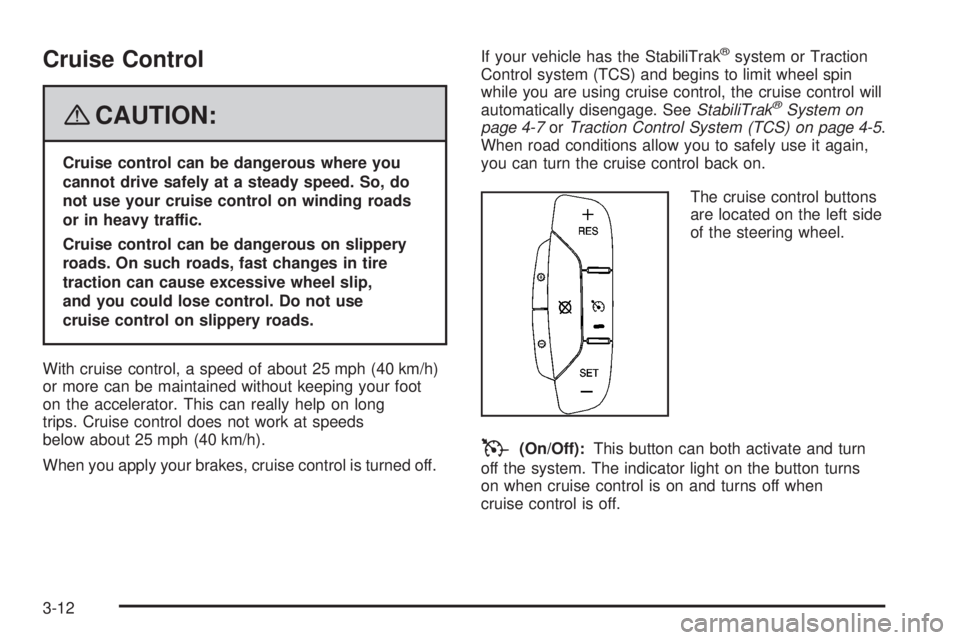
The cruise control buttons
are located on the left side
of the steering wheel.
T(On/Off):This button can both activate and turn
off the system. The indicator light on the button turns
on when cruise control is on and turns off when
cruise control is off.
3-12