steering HUMMER H2 2009 Owner's Manual
[x] Cancel search | Manufacturer: HUMMER, Model Year: 2009, Model line: H2, Model: HUMMER H2 2009Pages: 524, PDF Size: 3.1 MB
Page 170 of 524
Reducing Speed While Using Cruise
Control
To reduce the vehicle’s speed while using cruise
control:
Press and hold the SET– button on the steering
wheel until the desired lower speed is reached,
then release it.
To slow down in small amounts, press the
SET– button on the steering wheel briey. Each time
this is done, the vehicle goes about 1 mph (1.6 km/h)
slower.
Passing Another Vehicle While Using
Cruise Control
Use the accelerator pedal to increase the vehicle’s
speed. When you take your foot off the pedal, the
vehicle will slow down to the previously set cruise speed.
Using Cruise Control on Hills
How well the cruise control will work on hills depends
upon the vehicle’s speed, load, and the steepness of the
hills. When going up steep hills, you might have to step
on the accelerator pedal to maintain the vehicle’s speed.
When going downhill, you might have to brake or shift to
a lower gear to keep the vehicle’s speed down. When the
brakes are applied the cruise control turns off.
Ending Cruise Control
There are three ways to end cruise control:
Step lightly on the brake pedal.
Press the[button on the steering wheel.
Press theTbutton on the steering wheel.
Erasing Speed Memory
The cruise control set speed memory is erased when
the cruise control or the ignition is turned off.
3-14
Page 171 of 524
Exterior Lamps
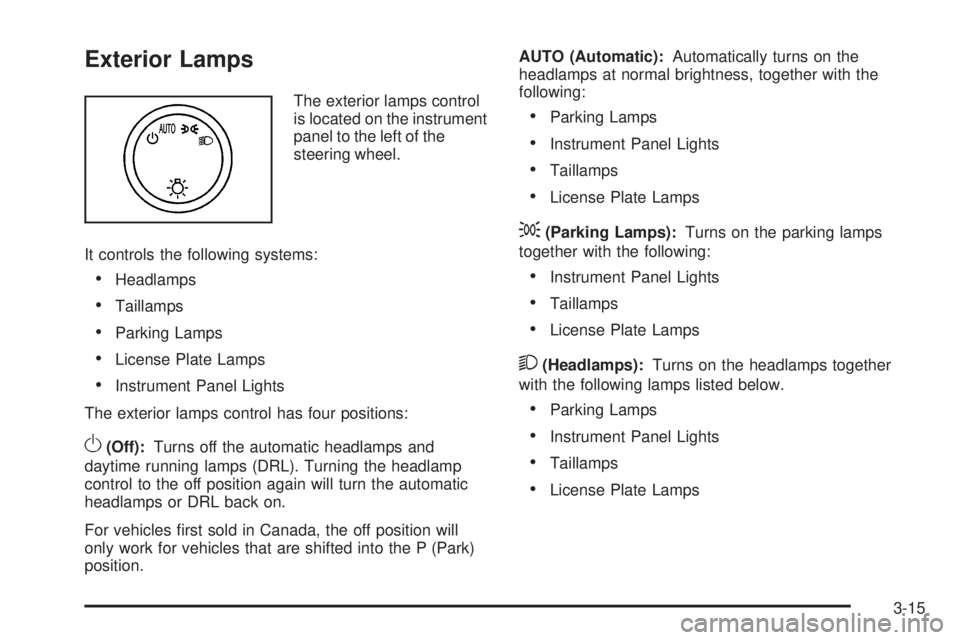
The exterior lamps control
is located on the instrument
panel to the left of the
steering wheel.
It controls the following systems:
Headlamps
Taillamps
Parking Lamps
License Plate Lamps
Instrument Panel Lights
The exterior lamps control has four positions:
O(Off):Turns off the automatic headlamps and
daytime running lamps (DRL). Turning the headlamp
control to the off position again will turn the automatic
headlamps or DRL back on.
For vehicles rst sold in Canada, the off position will
only work for vehicles that are shifted into the P (Park)
position.AUTO (Automatic):Automatically turns on the
headlamps at normal brightness, together with the
following:
Parking Lamps
Instrument Panel Lights
Taillamps
License Plate Lamps
;(Parking Lamps):Turns on the parking lamps
together with the following:
Instrument Panel Lights
Taillamps
License Plate Lamps
2(Headlamps):Turns on the headlamps together
with the following lamps listed below.
Parking Lamps
Instrument Panel Lights
Taillamps
License Plate Lamps
3-15
Page 203 of 524

DIC Operation and Displays
(Using DIC Buttons)
The DIC has different displays which can be accessed
by pressing the DIC buttons located on the instrument
panel, next to the steering wheel.
The DIC displays trip, fuel, and vehicle system
information, and warning messages if a system
problem is detected.
The DIC also allows some features to be customized.
SeeDIC Vehicle Customization on page 3-64for
more information.
You can also use the trip odometer reset stem to view
some of the DIC displays. See″DIC Operation and
Displays (Using Trip Odometer Reset Stem)″later in
this section.
DIC Buttons
The buttons are
the trip/fuel, vehicle
information, customization,
and set/reset buttons.
The button functions are
detailed in the following
pages.
3(Trip/Fuel):Press this button to display the
odometer, trip odometer, fuel range, average economy,
fuel used, timer, and transmission temperature. The
compass and outside air temperature will also be shown
in the display. The temperature will be shown in °F or °C
depending on the units selected.
3-47
Page 226 of 524
EASY EXIT RECALL
If your vehicle has this feature, it allows you to select
your preference for the automatic easy exit seat feature.
SeeMemory Seat and Mirrors on page 1-6for more
information.
Press the customization button until EASY EXIT
RECALL appears on the DIC display. Press the set/reset
button once to access the settings for this feature.
Then press the customization button to scroll through
the following settings:
DOOR BUTTON ONLY:No automatic seat exit recall
will occur. The recall will only occur after pressing
the easy exit seat button.
BUTTON & KEY OUT (default):If the features are
enabled through the EASY EXIT SETUP menu,
the driver’s seat will move back, and if the vehicle has
the power tilt wheel steering feature, the power steering
column will move up when the key is removed from
the ignition or after pressing the easy exit seat button.
The automatic easy exit seat movement will only
occur one time after the key is removed from the
ignition. If the automatic movement has already
occurred, and you put the key back in the ignition and
remove it again, the seat and steering column will stay in
the original exit position, unless a memory recall took
place prior to removing the key again.NO CHANGE:No change will be made to this feature.
The current setting will remain.
To select a setting, press the set/reset button while the
desired setting is displayed on the DIC.
EASY EXIT SETUP
If your vehicle has this feature, it allows you to select
which areas will recall with the automatic easy exit seat
feature. It also allows you to turn off the automatic easy
exit feature. SeeMemory Seat and Mirrors on page 1-6
and “EASY EXIT RECALL” earlier for more information.
Press the customization button until EASY EXIT SETUP
appears on the DIC display. Press the set/reset button
once to access the settings for this feature. Then press
the menu up/down button to scroll through the following
settings:
OFF:No automatic seat exit will recall.
SEAT ONLY:The driver’s seat will recall.
TILT ONLY:The steering wheel tilt feature will recall.
ALL (default):The driver’s seat and the steering wheel
tilt feature will recall.
NO CHANGE:No change will be made to this feature.
The current setting will remain.
To select a setting, press the set/reset button while the
desired setting is displayed on the DIC.
3-70
Page 235 of 524
Storing a Radio Station as a Favorite
Drivers are encouraged to set up their radio station
favorites while the vehicle is parked. Tune to favorite
stations using the presets, favorites button, and
steering wheel controls, if the vehicle has this feature.
SeeDefensive Driving on page 4-2.
FAV (Favorites):A maximum of 36 stations can be
programmed as favorites using the six pushbuttons
positioned below the radio station frequency labels and
by using the radio favorites page button (FAV button).
Press the FAV button to go through up to six pages
of favorites, each having six favorite stations available
per page. Each page of favorites can contain any
combination of AM, FM, or XM (if equipped) stations.
The balance/fade and tone settings that were previously
adjusted, are stored with the favorite stations.
To store a station as a favorite, perform the following
steps:
1. Tune to the desired radio station.
2. Press the FAV button to display the page where the
station is to be stored.3. Press and hold one of the six pushbuttons until a
beep sounds. When that pushbutton is pressed
and released, the station that was set, returns.
4. Repeat the steps for each pushbutton radio station
to store as a favorite.
The number of favorites pages can be setup using
the MENU button. To setup the number of favorites
pages, perform the following steps:
1. Press the MENU button to display the radio
setup menu.
2. Press the pushbutton located below the FAV 1-6
label.
3. Select the desired number of favorites pages
by pressing the pushbutton located below the
displayed page numbers.
4. Press the FAV button, or let the menu time out,
to return to the original main radio screen showing
the radio station frequency labels and to begin
the process of programming favorites for the chosen
amount of numbered pages.
3-79
Page 263 of 524

Navigation/Radio System
For vehicles with a navigation radio system, see the
separate Navigation System manual.
Bluetooth®
Vehicles with a Bluetooth system can use a Bluetooth
capable cell phone with a Hands Free Prole to make and
receive phone calls. The system can be used while the
key is in ON/RUN or ACC/ACCESSORY position. The
range of the Bluetooth system can be up to 30 ft. (9.1 m).
Not all phones support all functions, and not all phones
are guaranteed to work with the in-vehicle Bluetooth
system. See gm.com/bluetooth for more information
on compatible phones.
Voice Recognition
The Bluetooth system uses voice recognition to interpret
voice commands to dial phone numbers and name tags.
Noise:Keep interior noise levels to a minimum.
The system may not recognize voice commands if
there is too much background noise.
When to Speak:A short tone sounds after the system
responds indicating when it is waiting for a voice
command. Wait until the tone and then speak.
How to Speak:Speak clearly in a calm and natural
voice.
Audio System
When using the in-vehicle Bluetooth system, sound
comes through the vehicle’s front audio system speakers
and overrides the audio system. Use the audio system
volume knob, during a call, to change the volume level.
The adjusted volume level remains in memory for later
calls. To prevent missed calls, a minimum volume level
is used if the volume is turned down too low.
Bluetooth Controls
Use the buttons located on the steering wheel to
operate the in-vehicle Bluetooth system. SeeAudio
Steering Wheel Controls on page 3-129for more
information.
bg(Push To Talk):Press to answer incoming calls,
to conrm system information, and to start speech
recognition.
cx(Phone On Hook):Press to end a call, reject a
call, or to cancel an operation.
3-107
Page 285 of 524
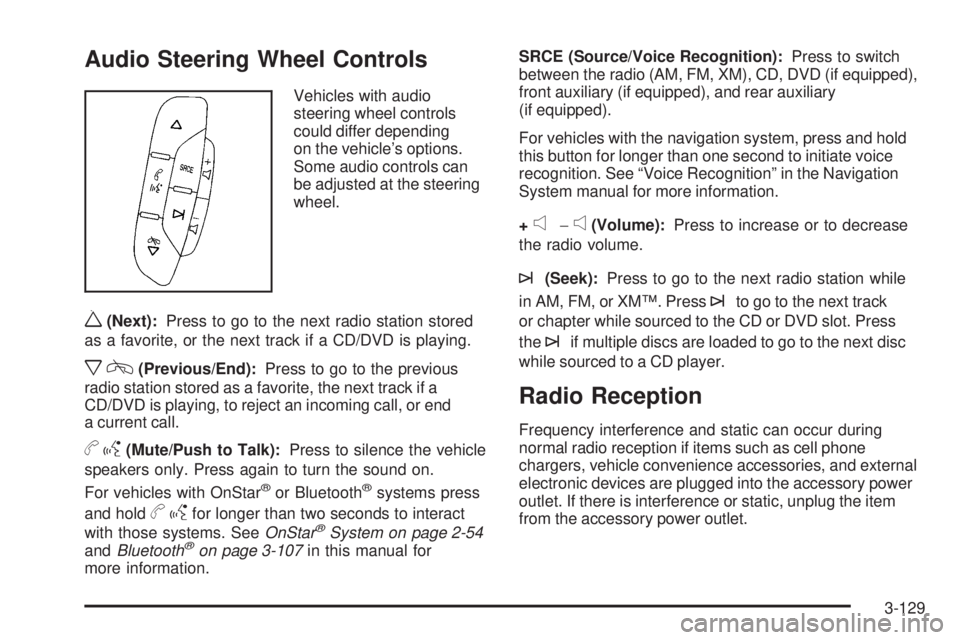
Audio Steering Wheel Controls
Vehicles with audio
steering wheel controls
could differ depending
on the vehicle’s options.
Some audio controls can
be adjusted at the steering
wheel.
w(Next):Press to go to the next radio station stored
as a favorite, or the next track if a CD/DVD is playing.
xc(Previous/End):Press to go to the previous
radio station stored as a favorite, the next track if a
CD/DVD is playing, to reject an incoming call, or end
a current call.
bg(Mute/Push to Talk):Press to silence the vehicle
speakers only. Press again to turn the sound on.
For vehicles with OnStar
®or Bluetooth®systems press
and hold
bgfor longer than two seconds to interact
with those systems. SeeOnStar®System on page 2-54
andBluetooth®on page 3-107in this manual for
more information.SRCE (Source/Voice Recognition):Press to switch
between the radio (AM, FM, XM), CD, DVD (if equipped),
front auxiliary (if equipped), and rear auxiliary
(if equipped).
For vehicles with the navigation system, press and hold
this button for longer than one second to initiate voice
recognition. See “Voice Recognition” in the Navigation
System manual for more information.
+
e−e(Volume):Press to increase or to decrease
the radio volume.
¨(Seek):Press to go to the next radio station while
in AM, FM, or XM™. Press
¨to go to the next track
or chapter while sourced to the CD or DVD slot. Press
the
¨if multiple discs are loaded to go to the next disc
while sourced to a CD player.
Radio Reception
Frequency interference and static can occur during
normal radio reception if items such as cell phone
chargers, vehicle convenience accessories, and external
electronic devices are plugged into the accessory power
outlet. If there is interference or static, unplug the item
from the accessory power outlet.
3-129
Page 287 of 524
Your Driving, the Road, and the Vehicle............4-2
Driving for Better Fuel Economy.......................4-2
Defensive Driving...........................................4-2
Drunk Driving.................................................4-3
Control of a Vehicle........................................4-3
Braking.........................................................4-4
Antilock Brake System (ABS)...........................4-5
Braking in Emergencies...................................4-6
StabiliTrak
®System........................................4-6
Traction Control System (TCS).........................4-9
Locking Rear Axle........................................4-10
Steering......................................................4-11
Off-Road Recovery.......................................4-13
Passing.......................................................4-13
Loss of Control.............................................4-13
Off-Road Driving...........................................4-15
Assist Steps.................................................4-33
Driving at Night............................................4-33
Driving in Rain and on Wet Roads..................4-34
Before Leaving on a Long Trip.......................4-35Highway Hypnosis........................................4-35
Hill and Mountain Roads................................4-36
Winter Driving..............................................4-37
If Your Vehicle is Stuck in Sand, Mud,
Ice, or Snow.............................................4-39
Rocking Your Vehicle to Get It Out.................4-40
Recovery Loops...........................................4-40
First Aid Kit and Tool Kit...............................4-42
Front Mounted Receiver.................................4-43
Power Winch Platform...................................4-43
Loading the Vehicle......................................4-44
Towing..........................................................4-50
Towing Your Vehicle.....................................4-50
Recreational Vehicle Towing...........................4-50
Selectable Extended Rear Ride Height.............4-52
Electronically Controlled Air Suspension
System....................................................4-53
Towing a Trailer...........................................4-55
Trailer Recommendations...............................4-68
Section 4 Driving Your Vehicle
4-1
Page 289 of 524
Drunk Driving
{CAUTION:
Drinking and then driving is very dangerous. Your
reexes, perceptions, attentiveness, and judgment
can be affected by even a small amount of alcohol.
You can have a serious — or even fatal — collision
if you drive after drinking. Do not drink and drive or
ride with a driver who has been drinking. Ride home
in a cab; or if you are with a group, designate a
driver who will not drink.
Death and injury associated with drinking and driving is
a global tragedy.
Alcohol affects four things that anyone needs to drive a
vehicle: judgment, muscular coordination, vision, and
attentiveness.
Police records show that almost 40 percent of all motor
vehicle-related deaths involve alcohol. In most cases,
these deaths are the result of someone who was drinking
and driving. In recent years, more than 17,000 annual
motor vehicle-related deaths have been associated with
the use of alcohol, with about 250,000 people injured.For persons under 21, it is against the law in every
U.S. state to drink alcohol. There are good medical,
psychological, and developmental reasons for
these laws.
The obvious way to eliminate the leading highway
safety problem is for people never to drink alcohol and
then drive.
Medical research shows that alcohol in a person’s
system can make crash injuries worse, especially
injuries to the brain, spinal cord, or heart. This means
that when anyone who has been drinking — driver
or passenger — is in a crash, that person’s chance of
being killed or permanently disabled is higher than if the
person had not been drinking.
Control of a Vehicle
The following three systems help to control the vehicle
while driving — brakes, steering, and accelerator. At
times, as when driving on snow or ice, it is easy to ask
more of those control systems than the tires and road can
provide. Meaning, you can lose control of the vehicle.
SeeTraction Control System (TCS) on page 4-9.
Adding non-dealer/non-retailer accessories can affect
vehicle performance. SeeAccessories and Modifications
on page 5-3.
4-3
Page 292 of 524

Using ABS
Do not pump the brakes. Just hold the brake pedal
down rmly and let antilock work. The brakes might
vibrate or some noise might be heard, but this is normal.
Braking in Emergencies
ABS allows the driver to steer and brake at the same
time. In many emergencies, steering can help more than
even the very best braking.
StabiliTrak®System
The vehicle has the StabiliTrak system which combines
antilock brake, traction and stability control systems
and helps the driver maintain directional control of the
vehicle in most driving conditions.
When the vehicle is started and begins to move, the
system performs several diagnostic checks to insure
there are no problems. The system may be heard or felt
while it is working. This is normal and does not mean
there is a problem with the vehicle. The system should
initialize before the vehicle reaches 20 mph (32 km/h).
In some cases, it may take approximately two miles of
driving before the system initializes.If the system fails to turn on or activate, the StabiliTrak
light along with one of the following messages will be
displayed on the Driver Information Center (DIC):
TRACTION CONTROL OFF, SERVICE TRACTION
CONTROL, STABILITRAK OFF, SERVICE
STABILITRAK. If these DIC messages appear, make
sure the StabiliTrak system has not been turned off using
the StabiliTrak on/off button. If this clears the message(s),
the vehicle does not need servicing. If this does not
clear the message(s), then turn the vehicle off, wait
15 seconds, and then turn it back on again to reset the
system. If any of these messages still appear on the
Driver Information Center (DIC), the vehicle should be
taken in for service. For more information on the DIC
messages, seeDriver Information Center (DIC) on
page 3-46.
The StabiliTrak light will
ash on the instrument
panel cluster when the
system is both on and
activated.
The system may be heard or felt while it is working; this
is normal.
4-6