radio HUMMER H3 2010 Owner's Manual
[x] Cancel search | Manufacturer: HUMMER, Model Year: 2010, Model line: H3, Model: HUMMER H3 2010Pages: 410, PDF Size: 2.24 MB
Page 160 of 410
7-6 Infotainment System
Satellite Radio
XM™Satellite Radio Service
For vehicles with XM, it is a satellite
radio service that is based in the
48 contiguous United States and
10 Canadian provinces. XM Satellite
Radio has a wide variety of
programming and commercial-free
music, coast-to-coast, and in
digital-quality sound. A service
fee is required to receive the XM
service. For more information,
contact XM at xmradio.com or
call 1-800-929-2100 in the
U.S. and xmradio.ca or call
1-877-438-9677 in Canada.
4(Information): Press to display
additional information current XM
station when
4is shown on the
display. When the complete
message has shown,
4disappears
from the display. The last message
can be viewed until a new message
is received or the station is
changed.
.Parts of the message appear
every three seconds if the entire
message cannot be shown on
the display at once.
.Press and release4to manually
scroll through the message.
.When4is pressed and a
message is not available from
the station, NO INFO is shown
on the display.
Finding a Station
BAND: Press to select FM1, FM2,
AM, XM1, or XM2.
Manual Tuning
Single CD Radio:
e(Tune): Turn to select a radio
station.
Six-Disc CD Radio:
DISP: Turn to select a radio station.
Automatic Tuning
1-6 (Preset Pushbuttons): Press
to select preset stations.
tSEEKu: Press and release to
go to the previous or next station
and stay there. The radio only stops
at stations with a strong signal.
Press and hold to scan stations or
preset stations.
Page 161 of 410
Infotainment System 7-7
To scan stations:
1. Press and hold
torufor more
than two seconds. SC or SCAN
displays and the radio beeps
once. The radio goes to a
station, plays for a few seconds,
then goes to the next station.
2. Press
toruagain or one of
the pushbuttons to stop
scanning presets.
To scan preset stations:
1. Press and hold
torufor more
than four seconds. PSC or
PSCN displays and the radio
beeps twice. The radio goes to a
preset station, plays for a few
seconds, then goes to the next
preset station.
2. Press
toruagain or one of
the pushbuttons to stop
scanning presets. Finding a Category (CAT) Station
To select an XM station by category
for the Single CD Radio:
1. Press CAT to select a
category mode.
2. Press CAT repeatedly to change the category.
3. Press
toruto select the
first station in the category.
4. To go to another station in the selected category:
.Press CAT once if the
category is displayed.
.Press CAT twice if the
category is not displayed.
5. Press CAT to exit program type select mode. If CAT times out
and is no longer on the display,
go back to Step 1.
If the desired program type cannot
be found, NONE or NOT FOUND
displays and the radio returns to the
previous station. To select an XM station by category
for the Six-Disc CD Radio:
1. Press CAT to select a
category mode.
2. Turn
eto select a category.
3. Press
toruto select the
first station in the category.
4. Press
toruto go to another
station within the category if
category is displayed. If CAT
times out and is no longer on the
display, go back to Step 1.
5. Press CAT to exit program type select mode.
If the desired program type cannot
be found, NONE or NOT FOUND
displays and the radio returns to the
previous station.
Page 162 of 410
7-8 Infotainment System
Setting Preset Stations
Up to 30 stations (six FM1, six FM2,
and six AM, six XM1 and six XM2)
and equalization settings for each
station can be programmed on the
six numbered pushbuttons.
To program presets:
1. Turn the radio on.
2. Press BAND to select FM1,FM2, AM, or XM1 or XM2.
3. Tune in the desired station.
4. Press AUTO EQ to select the equalization.
5. Press and hold one of the six numbered pushbuttons until
the radio beeps once.
6. Repeat the steps for each pushbutton.XM Messages
XL (Explicit Language
Channels): These channels, or any
others, can be blocked by calling
1-800-852-XMXM (9696).
Updating: The encryption code in
the receiver is being updated, and
no action is required. This process
should take no longer than
30 seconds.
No Signal: The system is
functioning correctly, but the vehicle
is in a location that is blocking the
XM signal. When the vehicle is
moved into an open area, the signal
should return.
Loading XM: The audio system is
acquiring and processing audio and
text data. No action is needed. This
message should disappear shortly.
CH Off Air: This channel is not
currently in service. Tune in to
another channel.
CH Unauth: This channel is
blocked or cannot be received with
your XM Subscription package. CH Unavail:
This previously
assigned channel is no longer
assigned. Tune to another station.
If this station was one of the
presets, choose another station for
that preset button.
No Info: No artist, song title,
category, or text information is
available at this time on this
channel. The system is working
properly.
Not Found: There are no channels
available for the selected category.
The system is working properly.
XM Locked: The XM receiver in
the vehicle may have previously
been in another vehicle. For security
purposes, XM receivers cannot be
swapped between vehicles. If this
message is received after having
the vehicle serviced, check with
your dealer.
Radio ID: If tuned to channel 0, this
message will alternate with the XM
Radio 8 digit radio ID label. This
label is needed to activate the
service.
Page 163 of 410
Infotainment System 7-9
Unknown:If this message is
received when tuned to channel 0,
there may be a receiver fault.
Consult with your dealer.
Chk XMRcvr: If this message does
not clear within a short period of
time, the receiver may have a fault.
Consult with your dealer.
Radio Reception
Frequency interference and static
can occur during normal radio
reception if items such as cell phone
chargers, vehicle convenience
accessories, and external electronic
devices are plugged into the
accessory power outlet. If there is
interference or static, unplug the
item from the accessory power
outlet.
AM
The range for most AM stations is
greater than for FM, especially at
night. The longer range can cause
station frequencies to interfere with
each other. For better radio
reception, most AM radio stations
boost the power levels during the
day, and then reduce these levels
during the night. Static can also
occur when things like storms and
power lines interfere with radio
reception. When this happens, try
reducing the treble on the radio.
FM Stereo
FM signals only reach about
16 to 65 km (10 to 40 mile). Although
the radio has a built-in electronic
circuit that automatically works to
reduce interference, some static
can occur, especially around tall
buildings or hills, causing the sound
to fade in and out.
XM™ Satellite Radio Service
XM Satellite Radio Service gives
digital radio reception from
coast-to-coast in the 48 contiguous
United States, and in Canada. Just
as with FM, tall buildings or hills can
interfere with satellite radio signals,
causing the sound to fade in and
out. In addition, traveling or standing
under heavy foliage, bridges,
garages, or tunnels may cause loss
of the XM signal for a period of time.
Cellular Phone Usage
Cellular phone usage may cause
interference with the vehicle's radio.
This interference may occur when
making or receiving phone calls,
charging the phone's battery,
or simply having the phone on.
This interference causes an
increased level of static while
listening to the radio. If static is
received while listening to the radio,
unplug the cellular phone and turn
it off.
Page 164 of 410
7-10 Infotainment System
Fixed Mast Antenna
The fixed mast antenna can
withstand most car washes without
being damaged as long as it is
securely attached to the base.
If the mast becomes slightly bent,
straighten it out by hand. If the mast
is badly bent, replace it.
Occasionally check to make sure
the antenna is tightened to its base.
If tightening is required, tighten
by hand until fully seated plus
one quarter turn.
Satellite Radio Antenna
The XM Satellite Radio antenna is
located on the roof of the vehicle.
Keep the antenna clear of
obstructions for clear radio
reception.
If the vehicle has a sunroof, the
performance of the XM system may
be affected if the sunroof is open.
Audio Players
CD Player
The CD player can play smaller
8 cm (3 in) single CDs with an
adapter ring.
A CD in the player it stays in the
player when the ignition is turned
off. When the ignition or radio is
turned on, the CD starts to play
where it stopped, if it was the last
selected audio source.
Care of CDs
Store CDs in their original cases or
other protective cases and away
from direct sunlight and dust. The
CD player scans the bottom of
the disc. If the bottom of a CD is
damaged it may not play properly or
at all. Do not touch the bottom of a
CD while handling it. Pick up CDs
by grasping the outer edges or the
edge of the hole and the outer edge.
If the surface of a CD is dirty, take
a soft, lint free cloth or dampen a
clean, soft cloth in a mild, neutraldetergent solution mixed with water,
and clean it. Make sure the wiping
process starts from the center to
the edge.
Care of the CD Player
Do not add labels to a CD, it could
get caught in the CD player. Use a
marking pen to write on the top of
the CD if a description is needed.
Do not use CD lens cleaners, they
could damage the CD player.
Notice:
If a label is added to a
CD, or more than one CD is
inserted into the slot at a time,
or an attempt is made to play
scratched or damaged CDs, the
CD player could be damaged.
While using the CD player, use
only CDs in good condition
without any label, load one CD at
a time, and keep the CD player
and the loading slot free of
foreign materials, liquids, and
debris.
If an error displays, see “CD
Messages” later in this section.
Page 165 of 410

Infotainment System 7-11
Loading and Ejecting CDs
Single CD Radio
To load a CD:
.To Insert a CD with the ignition
on, insert the CD partway into
the slot, label side up, until the
player pulls the CD in. The CD
begins playing automatically.
.To insert a CD with the ignition
off, press the
Z(Eject) button
or the DISP knob first.
The CD symbol displays when a CD
is inserted, and the track number
displays just before the track starts
to play.
Z(Eject): Press to eject a CD.
Eject can be used with either the
ignition or radio off.
Six-Disc CD Radio
To load CDs:
LOAD: Press to load CDs into the
CD player. To insert one CD:
1. Turn the ignition on.
2. Press and release the LOAD
button.
3. Wait for the indicator light to turn green.
4. Insert the CD partway into the slot, label side up, until the
player pulls the CD in. The CD
begins playing automatically.
To insert multiple CDs:
1. Turn the ignition on.
2. Press and hold the LOAD button for two seconds. The radio
beeps once, the indicator light
flashes, and MULTI LOAD #
displays.
3. Load a CD once INSERT CD # displays and the light stops
flashing and turns green. Insert
the CD partway into the slot,
label side up, until the player
pulls the CD in.
4. Repeat step 3 to load the remaining CDs. To load more than one CD but
less than six, complete Steps 1
through 3. When finished loading
CDs, press the LOAD button to
cancel the loading function. The
last CD loaded begins playing
automatically.
Z(Eject):
Press to eject CD(s).
Press and release
Zto eject the
CD that is currently playing.
To eject multiple CDs:
1. Press and hold
Zfor
five seconds. A beep sounds
and the indicator light begins to
flash and EJECT ALL displays.
2. Remove the CD when REMOVE CD # displays and the light
stops flashing.
Once the CD is removed, the
indicator light begins flashing
again and another CD ejects.
To stop ejecting the CDs,
press LOAD or
Z.
Page 166 of 410
7-12 Infotainment System
The CD is automatically pulled
back into the player if the CD is not
removed after 25 seconds. Pushing
a CD back into the player, before
the 25 second time period is
complete causes the player to
sense an error and the CD player
tries to eject the CD several times
before stopping.
Pressing
Zrepeatedly after trying
to push a CD in manually causes
the CD players 25-second eject
timer to reset. Wait for the timer to
expire before pressing
Zagain.
Playing CDs
Single CD Radio
B(CD): Press to play a CD while
listening to the radio.
1
r(Previous): Press to go to the
start of the current track after more
than eight seconds have played.
Press or hold 1
rmore than once
to continue moving backward
through the CD. 2
[(Next):
Press to go to the next
track. Press or hold 2
[more than
once to continue moving forward
through the CD.
4
y(Random): Press to hear
the tracks in random order.
Press 4
yagain to turn off
random play.
tSEEKu: Press to go to the
start of the current or the previous
track. Press uto go to the start of
the next track. To continue moving
backward or forward through the
tracks press and hold
toru,
or press multiple times.
Six-Disc CD Radio
B(CD): Press to play a CD while
listening to the radio.
r(Reverse): Press to reverse
within the track.
[(Fast Forward): Press to fast
forward within the track.
tSEEKu: Press tto go to the
start of the current track, if more
than ten seconds have played.
Press uto go to the next track.
To continue moving backward or
forward through the tracks press
and hold
toru, or press multiple
times.
Press and hold
torufor more
than two seconds until SCAN
displays and a beep sounds to
scan one CD. The radio goes to
the next track, plays for 10 seconds,
then goes to the next track.
Press
toruagain, to stop
scanning.
Press and hold
torufor more
than four seconds until ALL CD
SCAN displays and a beep sounds
to scan all loaded CDs. Use this
feature to listen to 10 seconds of
the first track of each loaded CD.
Press
toruagain, to stop
scanning.
Page 168 of 410
7-14 Infotainment System
To delete the entire song list:
1. Press
Rto turn song list on.
S-LIST displays.
2. Press and hold
Rfor more than
four seconds. One beep sounds
and S-LIST EMPTY displays to
confirm that the song list has
been deleted.
If a CD is ejected, and the song list
contains saved tracks from that CD,
those tracks are automatically
deleted from the song list. Any
tracks saved to the song list again
are added to the bottom of the list.
To end song list mode, press
the
Rbutton. One beep sounds
and S-LIST is removed from the
display.
CD Messages
CHECK CD: If this message
displays and/or the CD comes out,
it could be for one of the following
reasons:
.The CD player is very hot. When
the temperature returns to
normal, the CD should play.
.The road is very rough. When
the road becomes smoother, the
CD should play.
.The CD is dirty, scratched, wet,
or upside down.
.The air is very humid. Wait about
an hour and try again.
.The format of the CD might not
be compatible.
.A problem may have occurred
while burning the CD.
.The label could be caught in the
CD player.
If the CD is not playing correctly, for
any other reason, try a known
good CD.
If any error occurs repeatedly or
if an error cannot be corrected,
contact your dealer. If the radio
displays an error message, write it
down and provide it to your dealer
when reporting the problem.
Page 179 of 410
Infotainment System 7-25
3. Say the number to send.
.If the system clearly
recognizes the number it
responds with“OK, Sending
Number” and the dial tones
are sent and the call
continues.
.If the system is not sure it
recognized the number
properly, it responds “Dial
Number, Please say yes or
no?” followed by a tone.
If the number is correct, say
“Yes”. The system responds
with “OK, Sending Number”
and the dial tones are sent
and the call continues.
Sending a Stored Name Tag
During a Call
1. Press and release
g. The
system responds with “Ready”
followed by a tone.
2. Say “Send name tag.” The
system responds with “Say
a name tag to send tones”
followed by a tone. 3. Say the name tag to send.
.If the system clearly
recognizes the name tag it
responds with
“OK, Sending
tones are sent and the call
continues.
.If the system is not sure it
recognized the name tag
properly, it responds “Dial
yes or no?” followed by a
tone. If the name tag is
correct, say “Yes”. The
system responds with “OK,
Sending
the dial tones are sent and
the call continues.
Clearing the System
Unless information is deleted out of
the in‐vehicle Bluetooth system, it
will be retained indefinitely. This
includes all saved name tags in the
phonebook and phone pairing
information. For information on how
to delete this information, see the
above sections on Deleting a Paired
Phone and Deleting Name Tags.
Other Information
The Bluetooth®word mark and
logos are owned by the Bluetooth®
SIG, Inc. and any use of such marks
by General Motors is under license.
Other trademarks and trade names
are those of their respective owners.
See Radio Frequency Statement
on
page 13‑16for FCC information.
Page 305 of 410
Vehicle Care 10-39
Fuses and Circuit
Breakers
The wiring circuits in your vehicle
are protected from short circuits by
a combination of fuses and circuit
breakers. This greatly reduces the
chance of fires caused by electrical
problems.
Look at the silver-colored band
inside the fuse. If the band is broken
or melted, replace the fuse. Be sure
you replace a bad fuse with a new
one of the identical size and rating.
If you ever have a problem on the
road and do not have a spare fuse,
you can borrow one that has the
same amperage. Just pick some
feature of your vehicle that you can
get along without—like the radio
or cigarette lighter —and use its
fuse, if it is the correct amperage.
Replace it as soon as you can.
Engine Compartment
Fuse Block
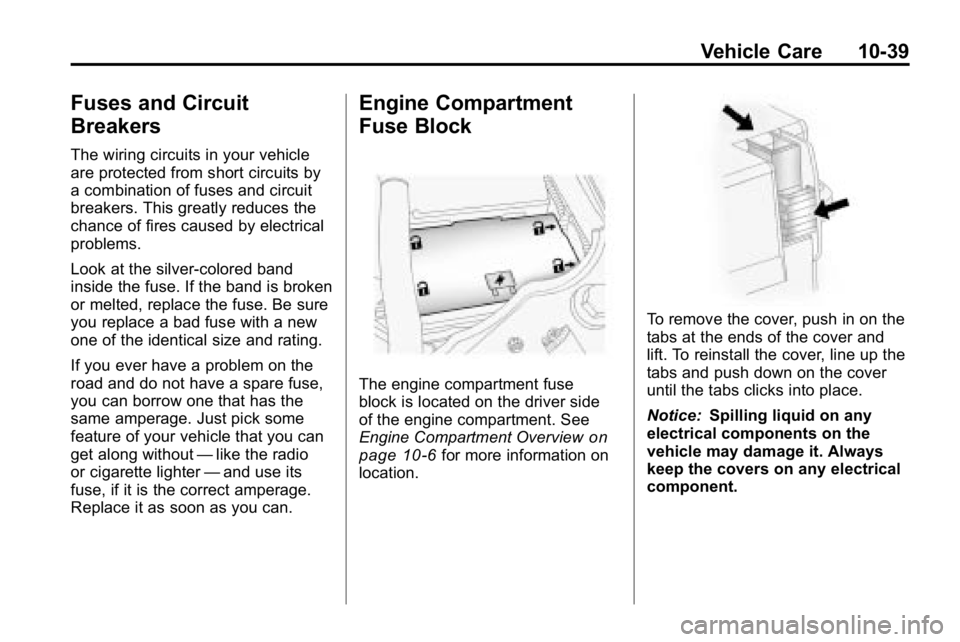
The engine compartment fuse
block is located on the driver side
of the engine compartment. See
Engine Compartment Overview
on
page 10‑6for more information on
location.
To remove the cover, push in on the
tabs at the ends of the cover and
lift. To reinstall the cover, line up the
tabs and push down on the cover
until the tabs clicks into place.
Notice: Spilling liquid on any
electrical components on the
vehicle may damage it. Always
keep the covers on any electrical
component.