buttons HUMMER H3 2010 Owners Manual
[x] Cancel search | Manufacturer: HUMMER, Model Year: 2010, Model line: H3, Model: HUMMER H3 2010Pages: 410, PDF Size: 2.24 MB
Page 16 of 410
1-12 In Brief
Climate Controls
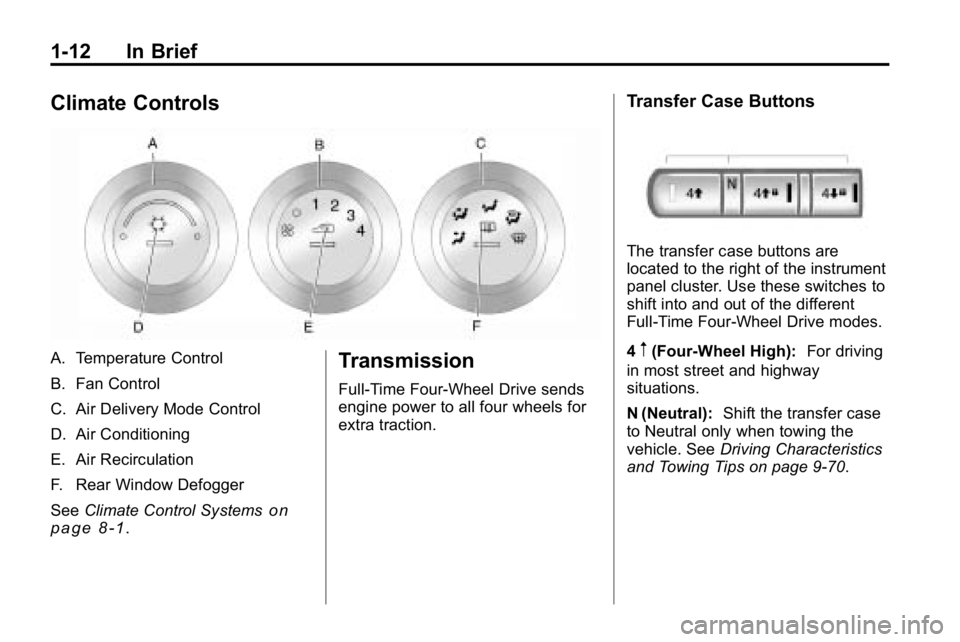
A. Temperature Control
B. Fan Control
C. Air Delivery Mode Control
D. Air Conditioning
E. Air Recirculation
F. Rear Window Defogger
SeeClimate Control Systems
on
page 8‑1.
Transmission
Full-Time Four-Wheel Drive sends
engine power to all four wheels for
extra traction.
Transfer Case Buttons
The transfer case buttons are
located to the right of the instrument
panel cluster. Use these switches to
shift into and out of the different
Full-Time Four-Wheel Drive modes.
4
m(Four-Wheel High): For driving
in most street and highway
situations.
N (Neutral): Shift the transfer case
to Neutral only when towing the
vehicle. See Driving Characteristics
and Towing Tips on page 9‑70.
Page 17 of 410
In Brief 1-13
4m Q(Four-Wheel-High Lock):
When extra traction is needed in
most off-road situations.
4
n Q(Four-Wheel-Low Lock):
Delivers extra torque to all
four wheels. Used for extreme
off-road conditions. See Four-Wheel
Drive on page 9‑46.
Vehicle Features
Radio(s)
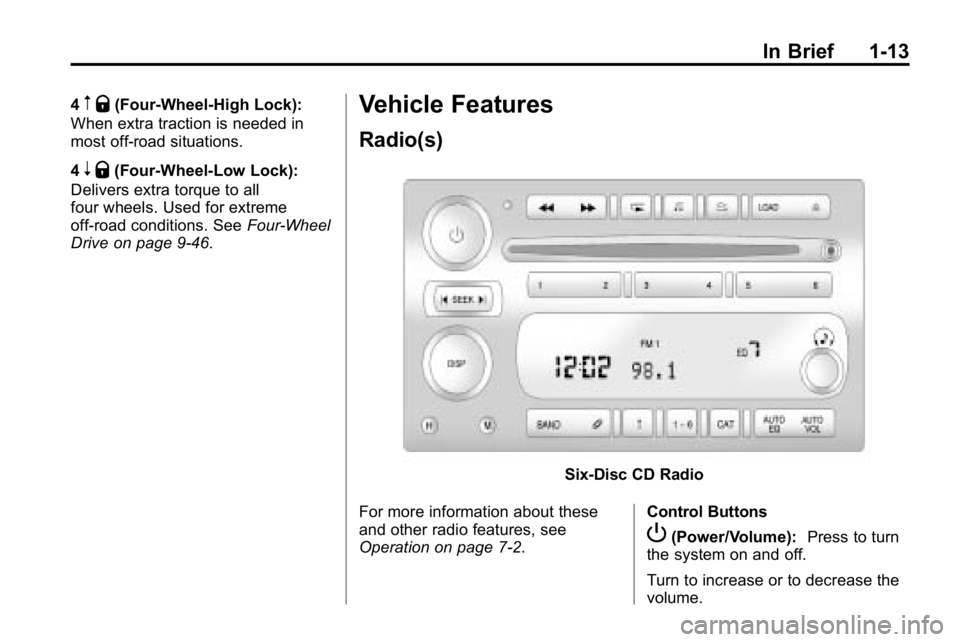
Six-Disc CD Radio
For more information about these
and other radio features, see
Operation on page 7‑2. Control Buttons
P(Power/Volume):
Press to turn
the system on and off.
Turn to increase or to decrease the
volume.
Page 18 of 410
1-14 In Brief
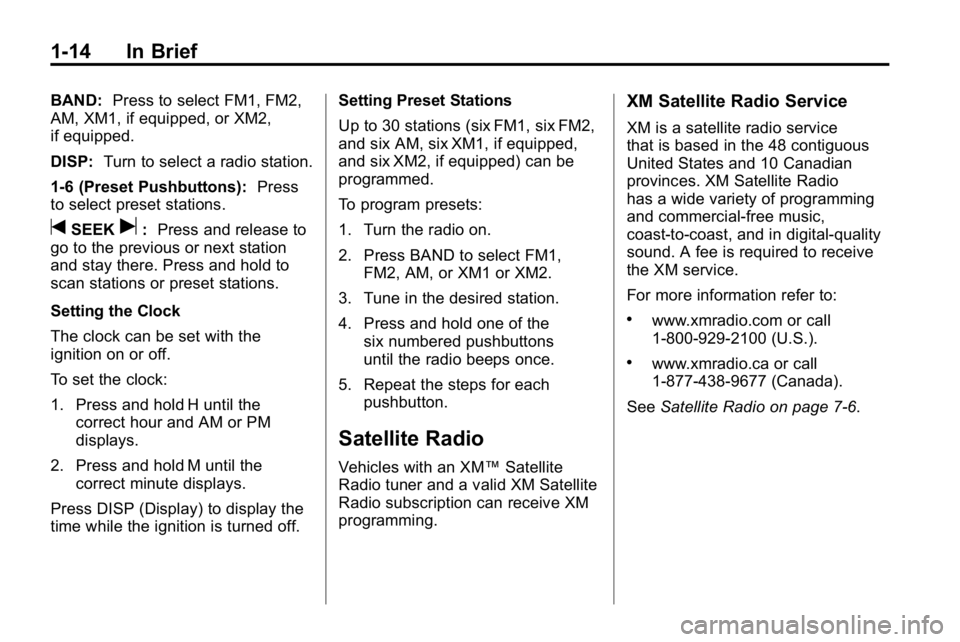
BAND:Press to select FM1, FM2,
AM, XM1, if equipped, or XM2,
if equipped.
DISP: Turn to select a radio station.
1-6 (Preset Pushbuttons): Press
to select preset stations.
tSEEKu: Press and release to
go to the previous or next station
and stay there. Press and hold to
scan stations or preset stations.
Setting the Clock
The clock can be set with the
ignition on or off.
To set the clock:
1. Press and hold H until the correct hour and AM or PM
displays.
2. Press and hold M until the correct minute displays.
Press DISP (Display) to display the
time while the ignition is turned off. Setting Preset Stations
Up to 30 stations (six FM1, six FM2,
and six AM, six XM1, if equipped,
and six XM2, if equipped) can be
programmed.
To program presets:
1. Turn the radio on.
2. Press BAND to select FM1,
FM2, AM, or XM1 or XM2.
3. Tune in the desired station.
4. Press and hold one of the six numbered pushbuttons
until the radio beeps once.
5. Repeat the steps for each pushbutton.
Satellite Radio
Vehicles with an XM™ Satellite
Radio tuner and a valid XM Satellite
Radio subscription can receive XM
programming.
XM Satellite Radio Service
XM is a satellite radio service
that is based in the 48 contiguous
United States and 10 Canadian
provinces. XM Satellite Radio
has a wide variety of programming
and commercial-free music,
coast-to-coast, and in digital-quality
sound. A fee is required to receive
the XM service.
For more information refer to:
.www.xmradio.com or call
1-800-929-2100 (U.S.).
.www.xmradio.ca or call
1-877-438-9677 (Canada).
See Satellite Radio on page 7‑6.
Page 25 of 410
In Brief 1-21
The vehicle must have a working
electrical system, including
adequate battery power, for the
OnStar equipment to operate. There
are other problems OnStar cannot
control that may prevent OnStar
from providing OnStar service at
any particular time or place. Some
examples are damage to important
parts of the vehicle in a crash, hills,
tall buildings, tunnels, weather or
wireless phone network congestion.Additional OnStar Controls
The vehicle may have a button,
located on the driver side of the
instrument panel near the headlamp
controls, that can be used to interact
with OnStar.
Use this button to dial numbers into
voicemail systems or to dial phone
number extensions. See the OnStar
Owner's Guide for more information.
Your Responsibility
Increase the volume of the radio if
the OnStar advisor cannot be heard.
If the light next to the OnStar
buttons is red, the system may
not be functioning properly.
Press
Qand request a vehicle
diagnostic. If the light appears clear
(no light is appearing), your OnStar
subscription has expired and all
services have been deactivated.
Press
Qto confirm that the OnStar
equipment is active.
Page 40 of 410

2-14 Keys, Doors and Windows
Interior Mirrors
Automatic Dimming
Rearview Mirror
The vehicle has an automatic
dimming rearview mirror with a
compass and temperature display.
Vehicles with OnStar
®have
three additional control buttons
for the OnStar
®system. See your
dealer for more information about
OnStar
®and how to subscribe to it.
See the OnStar®owner guide for
more information about the services
OnStar
®provides.
z(On/Off): Press to turn the
dimming feature on or off.
The vehicle may also have a Rear
Vision Camera (RVC). See Rear
Vision Camera (RVC)
on page 9‑60for more information.
Automatic Dimming Mirror
Operation
Automatic dimming reduces the
glare from the headlamps of the
vehicle behind you. The dimming
feature comes on and the indicator
light illuminates each time the
ignition is turned to start.
Temperature Display
To adjust between Fahrenheit and
Celsius:
.Presszfor approximately
four seconds to toggle the
display from F (Fahrenheit)
to C (Celsius) to OFF. Release
the button after the display has
toggled to the next state.
The temperature display will
remain in its current state each
time the ignition goes through its
cycle.
.At start up, if the vehicle has
been off for less than two and
a half hours, and the last stored
temperature was less than
the current temperature, the
sensor will increase 1°F every
two minutes until the correct
temperature is displayed.
.If the vehicle has been off more
than two and a half hours, or
the last stored temperature
is greater than the current
temperature, the current
temperature immediately
displays.
.If the temperature is 37°F (3°C)
or lower, ICE will flash on the
temperature display. This display
will flash every two seconds for a
period of one minute.
If an abnormal temperature reading
is displayed for an extended period
of time, see your dealer. Under
certain circumstances, a delay in
updating the temperature is normal.
Page 118 of 410

5-4 Instruments and Controls
Compass Calibration
The compass may need to be
calibrated if CAL is not displayed
and the compass requires
calibration. Press and hold
Ountil
CAL displays in the compass
window, then release the button.
The compass is now in
calibration mode.
.Drive the vehicle in circles
at less than 8 km/h (5 mph)
until CAL is no longer displayed
in the compass window. Then
continue to drive to make sure
all eight directions are available.
.Drive the vehicle under normal
operating conditions.
Compass Variance
The mirror is set to zone eight.
If you do not live in zone eight or
drive out of the area, the compass
variance needs to be changed to
the appropriate zone. To adjust for compass variance:
1. Find your current location and
variance zone number on the
following zone map.
2. Press and holdOfor
six seconds until ZONE
displays. Release the button.
The compass is now in
zone mode. 3. Keep pressing
Ountil the
desired zone number displays.
Release the button. After
four seconds, the new zone
number locks in and the
compass display returns.
Clock
The clock can be set with the
ignition on or off. Use the H and
M buttons located on the lower left
side of the radio.
To set the clock:
1. Press and hold H until the correct hour and AM or PM
displays.
2. Press and hold M until the correct minute displays.
Press DISP (Display) to display the
time while the ignition is turned off.
Page 134 of 410
5-20 Instruments and Controls
3. To view the next availablemode, press and hold the reset
stem until the mode appears.
Release the reset stem and
press and hold again to view
the next mode.
4. Once the desired mode is shown on the DIC display, briefly press
the reset stem to set your
choice. The DIC display then
clears.
The following are the available
modes:
Lock 1 (default): On vehicles with
an automatic transmission, this
mode locks all of the doors when
the vehicle is shifted out of P (Park)
and unlocks all of the doors when
the vehicle is shifted into P (Park).
On vehicles with a manual
transmission, this mode locks all of
the doors when the vehicle speed is
greater than 24 km/h (15 mph) and
unlocks all of the doors when the
key is removed from the ignition. Lock 2:
On vehicles with an
automatic transmission, this mode
locks all of the doors when the
vehicle is shifted out of P (Park) and
unlocks the driver's door when the
vehicle is shifted into P (Park).
On vehicles with a manual
transmission, this mode locks all of
the doors when the vehicle speed is
greater than 24 km/h (15 mph) and
unlocks the driver's door when the
key is removed from the ignition.
Lock 3: On vehicles with an
automatic transmission, this mode
locks all of the doors when the
vehicle is shifted out of P (Park).
The doors will not automatically
unlock.
On vehicles with a manual
transmission, this mode locks all of
the doors when the vehicle speed is
greater than 24 km/h (15 mph). The
doors will not automatically unlock.Remote Keyless Entry (RKE)
Feedback
This feature allows you to program
the Remote Keyless Entry (RKE)
feedback to a preferred setting.
To set your choice for this feature:
1. With the engine off, turn the key to LOCK/OFF. Do not remove
the key from the ignition.
2. Press and hold the lock and unlock buttons on the RKE
transmitter at the same time.
Hold both buttons until the DIC
display shows the current RKE
feedback mode.
3. To view the next available mode, press and hold the reset
stem until the mode appears.
Release the reset stem and
press and hold again to view
the next mode.
4. Once the desired mode is shown on the DIC display, briefly press
the reset stem to set your
choice. The DIC display then
clears.
Page 135 of 410
Instruments and Controls 5-21
The following are the available
modes:
RFA 1 (default):This mode flashes
the parking lamps when you press
the lock or unlock buttons on the
RKE transmitter.
RFA 2: This mode flashes the
parking lamps and sounds the horn
when you press the lock button on
the RKE transmitter. This mode also
flashes the parking lamps when you
press the unlock button on the RKE
transmitter.
RFA 3: This mode flashes the
parking lamps and sounds the horn
when you press the lock or unlock
buttons on the RKE transmitter.
RFA 4: This mode disables RKE
feedback. There will be no feedback
when you press the lock or unlock
buttons on the RKE transmitter.Vehicle Messages
Messages are displayed on the
DIC to notify the driver that the
status of the vehicle has changed
and that some action may be
needed by the driver to correct
the condition. Multiple messages
may appear one after another.
The messages are displayed for
several seconds each.
Some messages may not require
immediate action, but you should
press and release the trip odometer
reset stem to acknowledge that
you received the messages and to
clear them from the display. Each
message must be acknowledged
individually.
Some messages cannot be cleared
from the DIC display because they
are more urgent. These messages
require action before they can be
cleared. You should take any
messages that appear on the display seriously and remember that
clearing the messages only makes
the messages disappear, not correct
the problem.
The following are the possible
messages that can be displayed
and some information about them.
Battery Voltage and
Charging Messages
SERVICE CHARG (Charge)
SYS (System)
This message displays if there is a
problem with the battery charging
system. Under certain conditions,
the battery warning light may also
turn on in the instrument panel
cluster. See
Charging System Light
on page 5‑11. The battery will not
be charging at an optimal rate and
the vehicle will lose the ability to
enter the fuel economy mode.
Page 140 of 410
5-26 Instruments and Controls
Universal Remote
System
SeeRadio Frequency Statementon
page 13‑16for information
regarding Part 15 of the Federal
Communications Commission (FCC)
Rules and RSS-210/211 of Industry
and Science Canada.
The FCC Grant of Equipment
Authorization Certificate number is
CB2SAHL3.
The Canadian Registration ID
number is 2791021849A.
Universal Remote System
Programming
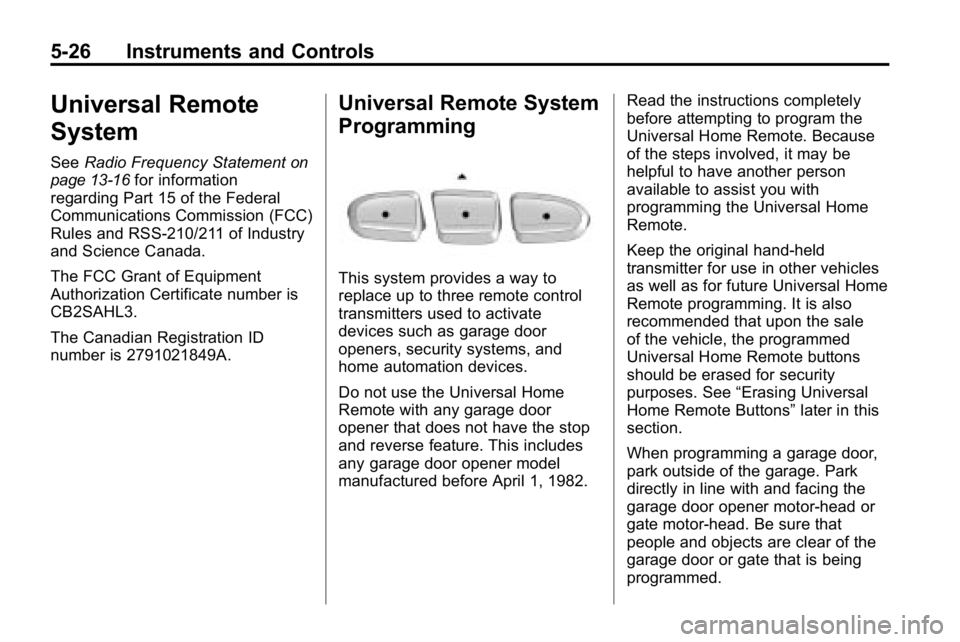
This system provides a way to
replace up to three remote control
transmitters used to activate
devices such as garage door
openers, security systems, and
home automation devices.
Do not use the Universal Home
Remote with any garage door
opener that does not have the stop
and reverse feature. This includes
any garage door opener model
manufactured before April 1, 1982. Read the instructions completely
before attempting to program the
Universal Home Remote. Because
of the steps involved, it may be
helpful to have another person
available to assist you with
programming the Universal Home
Remote.
Keep the original hand-held
transmitter for use in other vehicles
as well as for future Universal Home
Remote programming. It is also
recommended that upon the sale
of the vehicle, the programmed
Universal Home Remote buttons
should be erased for security
purposes. See
“Erasing Universal
Home Remote Buttons” later in this
section.
When programming a garage door,
park outside of the garage. Park
directly in line with and facing the
garage door opener motor-head or
gate motor-head. Be sure that
people and objects are clear of the
garage door or gate that is being
programmed.
Page 141 of 410
Instruments and Controls 5-27
It is recommended that a new
battery be installed in your
hand-held transmitter for quicker
and more accurate transmission of
the radio-frequency signal.
Programming the Universal
Home Remote System
For questions or help programming
the Universal Home Remote
System, call 1‐800‐355‐3515
or go to www.homelink.com.
Programming a garage door opener
involves time-sensitive actions, so
read the entire procedure before
starting. Otherwise, the device will
time out and the procedure will have
to be repeated.To program up to three devices:
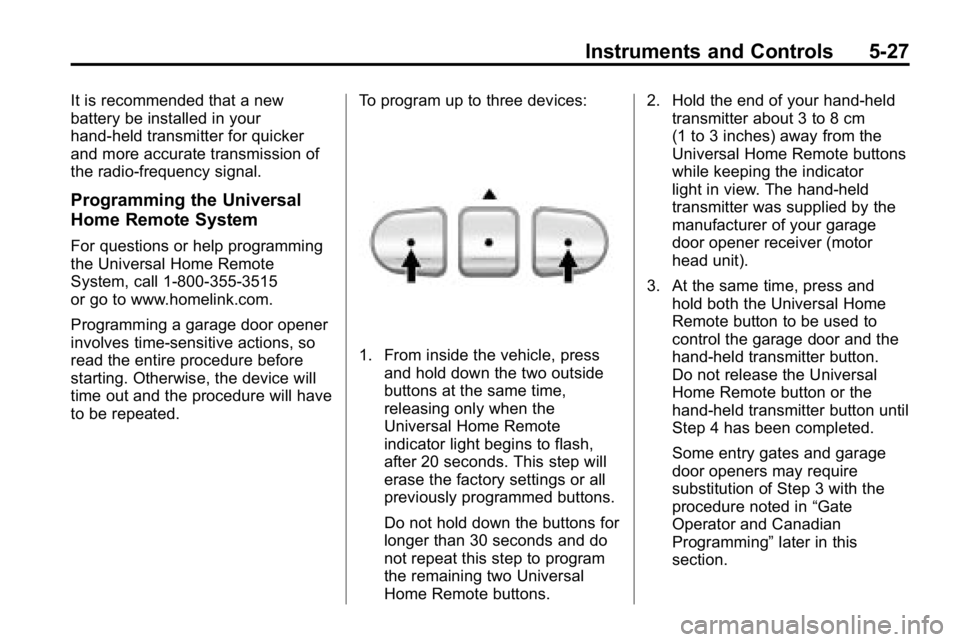
1. From inside the vehicle, press
and hold down the two outside
buttons at the same time,
releasing only when the
Universal Home Remote
indicator light begins to flash,
after 20 seconds. This step will
erase the factory settings or all
previously programmed buttons.
Do not hold down the buttons for
longer than 30 seconds and do
not repeat this step to program
the remaining two Universal
Home Remote buttons. 2. Hold the end of your hand-held
transmitter about 3 to 8 cm
(1 to 3 inches) away from the
Universal Home Remote buttons
while keeping the indicator
light in view. The hand-held
transmitter was supplied by the
manufacturer of your garage
door opener receiver (motor
head unit).
3. At the same time, press and hold both the Universal Home
Remote button to be used to
control the garage door and the
hand-held transmitter button.
Do not release the Universal
Home Remote button or the
hand-held transmitter button until
Step 4 has been completed.
Some entry gates and garage
door openers may require
substitution of Step 3 with the
procedure noted in “Gate
Operator and Canadian
Programming” later in this
section.