phone HUMMER H3 2010 Owners Manual
[x] Cancel search | Manufacturer: HUMMER, Model Year: 2010, Model line: H3, Model: HUMMER H3 2010Pages: 410, PDF Size: 2.24 MB
Page 1 of 410

2010 HUMMER H3/H3T Owner ManualM
In Brief. . . . . . . . . . . . . . . . . . . . . . . . 1-1
Instrument Panel . . . . . . . . . . . . . . 1-2
Initial Drive Information . . . . . . . . 1-3
Vehicle Features . . . . . . . . . . . . . 1-13
Performance and Maintenance . . . . . . . . . . . . . . . . 1-16
Keys, Doors and Windows . . . 2-1
Keys and Locks . . . . . . . . . . . . . . . 2-2
Doors . . . . . . . . . . . . . . . . . . . . . . . . . . 2-7
Vehicle Security . . . . . . . . . . . . . . . . 2-9
Exterior Mirrors . . . . . . . . . . . . . . . 2-13
Interior Mirrors . . . . . . . . . . . . . . . . 2-14
Windows . . . . . . . . . . . . . . . . . . . . . 2-15
Roof . . . . . . . . . . . . . . . . . . . . . . . . . . 2-17
Seats and Restraints . . . . . . . . . 3-1
Head Restraints . . . . . . . . . . . . . . . 3-2
Front Seats . . . . . . . . . . . . . . . . . . . . 3-3
Rear Seats . . . . . . . . . . . . . . . . . . . . 3-7
Safety Belts . . . . . . . . . . . . . . . . . . 3-10
Airbag System . . . . . . . . . . . . . . . . 3-27
Child Restraints . . . . . . . . . . . . . . 3-42 Storage
. . . . . . . . . . . . . . . . . . . . . . . 4-1
Storage Compartments . . . . . . . . 4-1
Additional Storage Features . . . 4-2
Roof Rack System . . . . . . . . . . . . . 4-4
Instruments and Controls . . . . 5-1
Controls . . . . . . . . . . . . . . . . . . . . . . . 5-2
Warning Lights, Gauges, and
Indicators . . . . . . . . . . . . . . . . . . . . 5-6
Information Displays . . . . . . . . . . 5-18
Vehicle Messages . . . . . . . . . . . . 5-21
Universal Remote System . . . . 5-26
Lighting . . . . . . . . . . . . . . . . . . . . . . . 6-1
Exterior Lighting . . . . . . . . . . . . . . . 6-1
Interior Lighting . . . . . . . . . . . . . . . . 6-7
Lighting Features . . . . . . . . . . . . . . 6-8
Infotainment System . . . . . . . . . 7-1
Introduction . . . . . . . . . . . . . . . . . . . . 7-1
Radio . . . . . . . . . . . . . . . . . . . . . . . . . . 7-5
Audio Players . . . . . . . . . . . . . . . . 7-10
Phone . . . . . . . . . . . . . . . . . . . . . . . . 7-15
Climate Controls . . . . . . . . . . . . . 8-1
Climate Control Systems . . . . . . 8-1
Air Vents . . . . . . . . . . . . . . . . . . . . . . . 8-4 Driving and Operating
. . . . . . . . 9-1
Driving Information . . . . . . . . . . . . . 9-2
Starting and Operating . . . . . . . 9-33
Engine Exhaust . . . . . . . . . . . . . . 9-40
Automatic Transmission . . . . . . 9-41
Manual Transmission . . . . . . . . . 9-44
Drive Systems . . . . . . . . . . . . . . . . 9-46
Brakes . . . . . . . . . . . . . . . . . . . . . . . 9-50
Ride Control Systems . . . . . . . . 9-52
Cruise Control . . . . . . . . . . . . . . . . 9-57
Object Detection Systems . . . . 9-60
Fuel . . . . . . . . . . . . . . . . . . . . . . . . . . 9-64
Towing . . . . . . . . . . . . . . . . . . . . . . . 9-70
Conversions and Add-Ons . . . 9-81
Vehicle Care . . . . . . . . . . . . . . . . . 10-1
General Information . . . . . . . . . . 10-2
Vehicle Checks . . . . . . . . . . . . . . . 10-4
Headlamp Aiming . . . . . . . . . . . 10-33
Bulb Replacement . . . . . . . . . . 10-35
Electrical System . . . . . . . . . . . . 10-38
Wheels and Tires . . . . . . . . . . . 10-44
Jump Starting . . . . . . . . . . . . . . . 10-86
Towing . . . . . . . . . . . . . . . . . . . . . . 10-90
Appearance Care . . . . . . . . . . . 10-92
Page 19 of 410

In Brief 1-15
Bluetooth®
The in-vehicle Bluetooth
system allows users with a
Bluetooth-enabled cell phone to
make and receive hands-free calls
using the vehicle’s audio system,
microphone and controls.
The Bluetooth-enabled cell phone
must be paired with the in-vehicle
Bluetooth system before it can be
used in the vehicle. Not all phones
will support all functions.
See Bluetooth on page 7‑15.
Navigation System
The vehicle's navigation system
provides detailed maps of most
major freeways and roads
throughout the United States and
Canada. After a destination has
been set, the system provides
turn-by-turn instructions for reaching
the destination. In addition, the
system can help locate a variety of points of interest (POI), such as
banks, airports, restaurants,
and more.
See the vehicle's Navigation System
manual for more information.
Cruise Control
The cruise controls are located at
the end of the multifunction lever.
9:
Turns the system off.
R: Turns the system on.
+ (Resume/Accelerate): Use to
accelerate or resume speed.
rT(Set): Press the button at the
end of the lever to set the speed.
For more information, see Cruise
Control on page 9‑57.
Storage Compartments
The vehicle comes with a cargo
management system located in the
rear of the vehicle. The system has
three rails located on the front and
sides of the bed.
There are four adjustable cargo
tie-downs, that can be placed on the
upper and lower slides of the rail.
The cargo management system can
be removed and re-installed into the
vehicle.
For more information, see Cargo
Management System on page 4‑2.
Page 20 of 410
1-16 In Brief
Power Outlets
The accessory power outlets can be
used to connect auxiliary electrical
equipment, such as a cellular
phone.
There are two accessory power
outlets located under the climate
control system. There is also
one accessory power outlet
located in the rear cargo area
(H3 model only).
To use the outlet, open the cover.
SeePower Outlets
on page 5‑5andCigarette Lighter on page 5‑5.
Sunroof
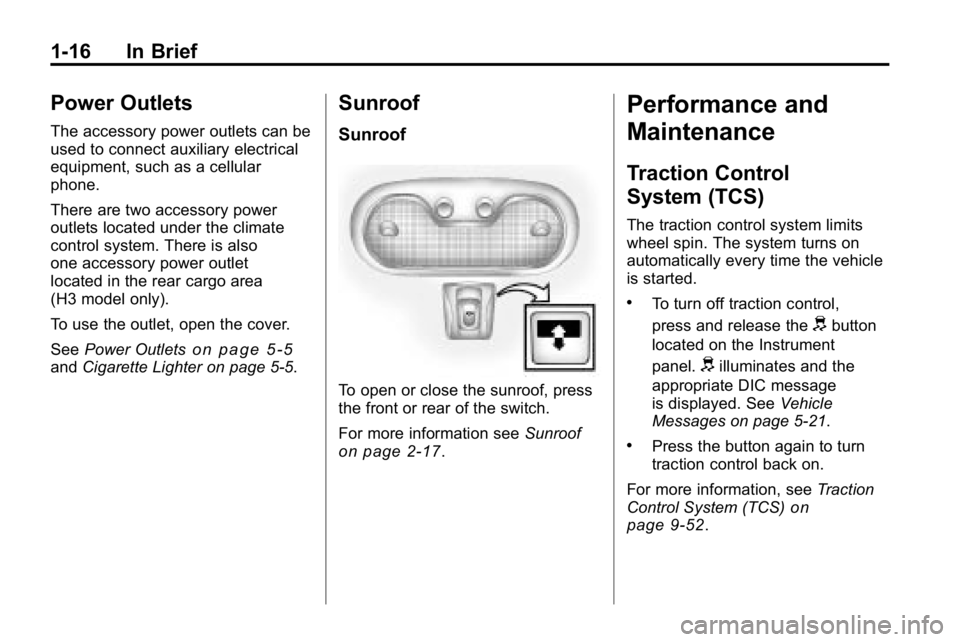
Sunroof
To open or close the sunroof, press
the front or rear of the switch.
For more information see Sunroof
on page 2‑17.
Performance and
Maintenance
Traction Control
System (TCS)
The traction control system limits
wheel spin. The system turns on
automatically every time the vehicle
is started.
.To turn off traction control,
press and release the
dbutton
located on the Instrument
panel.
dilluminates and the
appropriate DIC message
is displayed. See Vehicle
Messages on page 5‑21.
.Press the button again to turn
traction control back on.
For more information, see Traction
Control System (TCS)
on
page 9‑52.
Page 25 of 410
In Brief 1-21
The vehicle must have a working
electrical system, including
adequate battery power, for the
OnStar equipment to operate. There
are other problems OnStar cannot
control that may prevent OnStar
from providing OnStar service at
any particular time or place. Some
examples are damage to important
parts of the vehicle in a crash, hills,
tall buildings, tunnels, weather or
wireless phone network congestion.Additional OnStar Controls
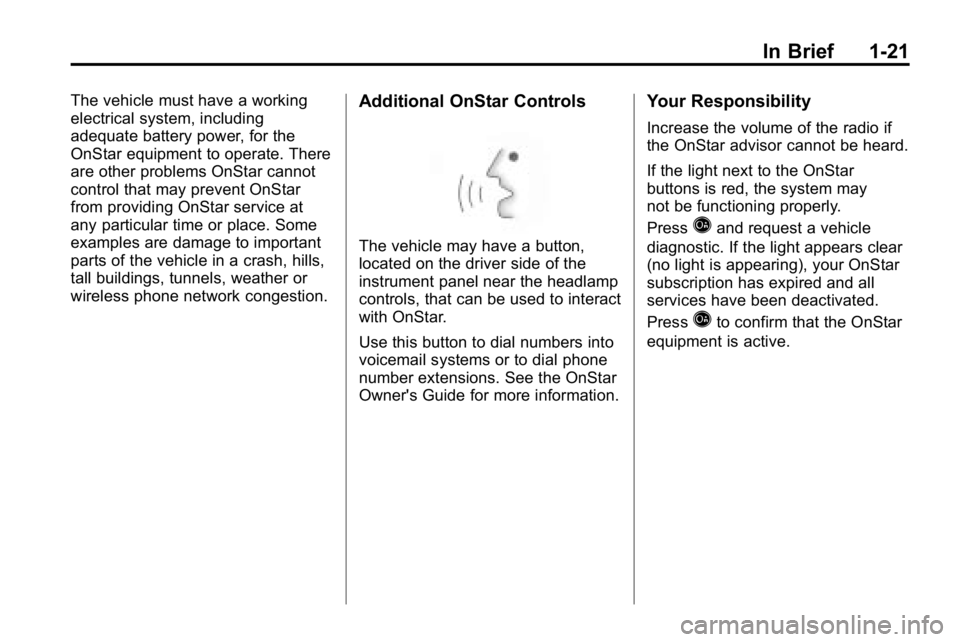
The vehicle may have a button,
located on the driver side of the
instrument panel near the headlamp
controls, that can be used to interact
with OnStar.
Use this button to dial numbers into
voicemail systems or to dial phone
number extensions. See the OnStar
Owner's Guide for more information.
Your Responsibility
Increase the volume of the radio if
the OnStar advisor cannot be heard.
If the light next to the OnStar
buttons is red, the system may
not be functioning properly.
Press
Qand request a vehicle
diagnostic. If the light appears clear
(no light is appearing), your OnStar
subscription has expired and all
services have been deactivated.
Press
Qto confirm that the OnStar
equipment is active.
Page 85 of 410
Seats and Restraints 3-41
on top of the seat fabric, could
also interfere with the operation
of the passenger sensing
system. This could either
prevent proper deployment of
the passenger airbag(s) or
prevent the passenger sensing
system from properly turning
off the passenger airbag(s).
SeePassenger Sensing System
on page 3‑35.
If you have questions, call
Customer Assistance. The
phone numbers and addresses
for Customer Assistance are
in Step Two of the Customer
Satisfaction Procedure in this
manual.
If the vehicle has rollover
roof-rail airbags, see Different
Size Tires and Wheels
on
page 10‑60for additional
important information. Q: Because I have a disability,
I have to get my vehicle
modified. How can I find out
whether this will affect my
airbag system?
A: If you have questions, call
Customer Assistance. The
phone numbers and addresses
for Customer Assistance are
in Step Two of the Customer
Satisfaction Procedure in this
manual.
In addition, your dealer and the
service manual have information
about the location of the airbag
sensors, sensing and diagnostic
module and airbag wiring.
Airbag System Check
The airbag system does not need
regularly scheduled maintenance
or replacement. Make sure the
airbag readiness light is working.
See Airbag Readiness Light
on
page 5‑10for more information.
Notice: If an airbag covering is
damaged, opened, or broken, the
airbag may not work properly.
Do not open or break the airbag
coverings. If there are any
opened or broken airbag covers,
have the airbag covering and/or
airbag module replaced. For the
location of the airbag modules,
see What Makes an Airbag
Inflate?
on page 3‑32. See your
dealer for service.
Page 119 of 410
Instruments and Controls 5-5
Power Outlets
The accessory power outlets can be
used to connect auxiliary electrical
equipment, such as a cellular
phone.
There are two accessory power
outlets located under the climate
control system. There is also one
accessory power outlet located in
the rear cargo area (H3 model only).
Pull down the small cover to access
the accessory power outlet.
Notice:Leaving electrical
equipment on for extended
periods will drain the battery.
Always unplug electrical
equipment when not in use
and do not plug in equipment
that exceeds the maximum
amperage rating of 20 amperes. Certain electrical accessories
may not be compatible with the
accessory power outlet and could
result in blown vehicle or adapter
fuses. If you experience a problem,
see your dealer for additional
information on accessory power
outlets.
Notice:
Adding any electrical
equipment to the vehicle
can damage it or keep other
components from working as
they should. The repairs would
not be covered by the vehicle
warranty. Do not use equipment
exceeding maximum amperage
rating of 20 amperes. Check
with your dealer before adding
electrical equipment.
When adding electrical equipment,
be sure to follow the proper
installation instructions included
with the equipment. Notice:
Improper use of the
power outlet can cause damage
not covered by the vehicle
warranty. Do not hang any type
of accessory or accessory
bracket from the plug because
the power outlets are designed
for accessory power plugs only.
Cigarette Lighter
For vehicles with a lighter, push the
lighter down and it will pop up when
it is ready to be used.
Notice: Holding a cigarette lighter
in while it is heating does not let
the lighter back away from the
heating element when it is hot.
Damage from overheating can
occur to the lighter or heating
element, or a fuse could be
blown. Do not hold a cigarette
lighter in while it is heating.
Page 144 of 410
5-30 Instruments and Controls
Universal Remote System
Operation
Using Universal Remote
Press and hold the appropriate
Universal Remote button for at least
half of a second. The indicator light
will come on while the signal is
being transmitted.
Erasing Universal Remote
Buttons
All programmed buttons should be
erased when the vehicle is sold or
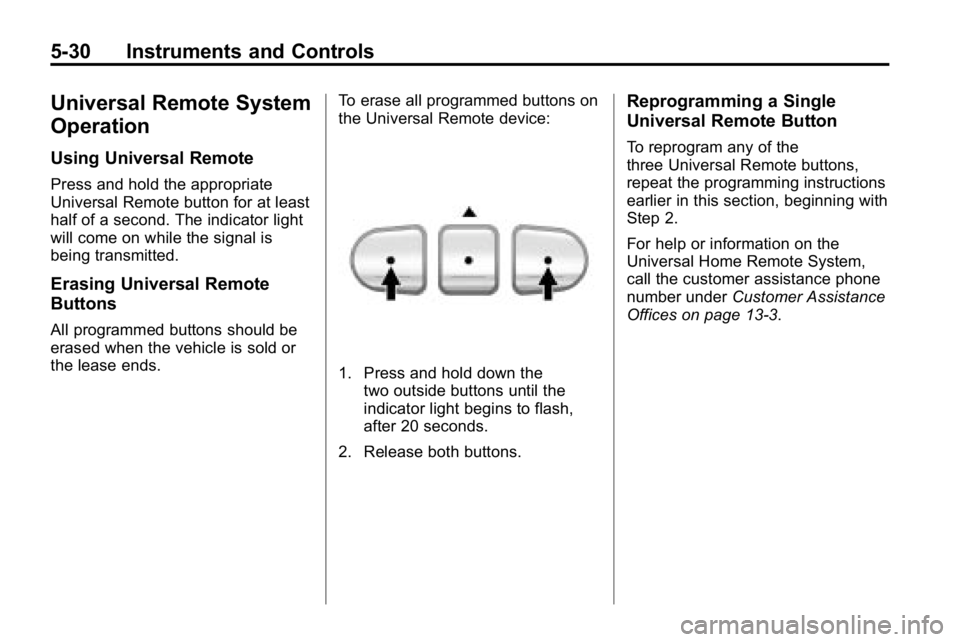
the lease ends.To erase all programmed buttons on
the Universal Remote device:
1. Press and hold down the
two outside buttons until the
indicator light begins to flash,
after 20 seconds.
2. Release both buttons.
Reprogramming a Single
Universal Remote Button
To reprogram any of the
three Universal Remote buttons,
repeat the programming instructions
earlier in this section, beginning with
Step 2.
For help or information on the
Universal Home Remote System,
call the customer assistance phone
number under Customer Assistance
Offices on page 13‑3.
Page 155 of 410
Infotainment System 7-1
Infotainment
System
Introduction
Introduction . . . . . . . . . . . . . . . . . . . 7-1
Theft-Deterrent Feature . . . . . . . 7-2
Operation . . . . . . . . . . . . . . . . . . . . . 7-2
Radio
AM-FM Radio . . . . . . . . . . . . . . . . . 7-5
Satellite Radio . . . . . . . . . . . . . . . . 7-6
Radio Reception . . . . . . . . . . . . . . 7-9
Fixed Mast Antenna . . . . . . . . . 7-10
Satellite Radio Antenna . . . . . . 7-10
Audio Players
CD Player . . . . . . . . . . . . . . . . . . . 7-10
Phone
Bluetooth . . . . . . . . . . . . . . . . . . . . 7-15
Introduction
Determine which radio the vehicle
has and read the following pages to
become familiar with its features.
{WARNING
Taking your eyes off the road
for extended periods could
cause a crash resulting in injury
or death to you or others. Do not
give extended attention to
entertainment tasks while driving.
This system provides access to
many audio and non‐audio listings.
To minimize taking your eyes off the
road while driving, do the following
while the vehicle is parked:
.Become familiar with the
operation and controls of the
audio system.
.Set up the tone, speaker
adjustments, and preset radio
stations. For more information, see
Defensive
Driving on page 9‑2.
Notice: Contact your dealer
before adding any equipment.
Adding audio or communication
equipment could interfere with
the operation of the vehicle's
engine, radio, or other systems,
and could damage them. Follow
federal rules covering mobile
radio and telephone equipment.
The vehicle has Retained
Accessory Power (RAP). With RAP,
the audio system can be played
even after the ignition is turned off.
See Retained Accessory Power
(RAP)
on page 9‑35for more
information.
For vehicles with a navigation radio
system, see the separate Navigation
System manual.
Page 163 of 410
Infotainment System 7-9
Unknown:If this message is
received when tuned to channel 0,
there may be a receiver fault.
Consult with your dealer.
Chk XMRcvr: If this message does
not clear within a short period of
time, the receiver may have a fault.
Consult with your dealer.
Radio Reception
Frequency interference and static
can occur during normal radio
reception if items such as cell phone
chargers, vehicle convenience
accessories, and external electronic
devices are plugged into the
accessory power outlet. If there is
interference or static, unplug the
item from the accessory power
outlet.
AM
The range for most AM stations is
greater than for FM, especially at
night. The longer range can cause
station frequencies to interfere with
each other. For better radio
reception, most AM radio stations
boost the power levels during the
day, and then reduce these levels
during the night. Static can also
occur when things like storms and
power lines interfere with radio
reception. When this happens, try
reducing the treble on the radio.
FM Stereo
FM signals only reach about
16 to 65 km (10 to 40 mile). Although
the radio has a built-in electronic
circuit that automatically works to
reduce interference, some static
can occur, especially around tall
buildings or hills, causing the sound
to fade in and out.
XM™ Satellite Radio Service
XM Satellite Radio Service gives
digital radio reception from
coast-to-coast in the 48 contiguous
United States, and in Canada. Just
as with FM, tall buildings or hills can
interfere with satellite radio signals,
causing the sound to fade in and
out. In addition, traveling or standing
under heavy foliage, bridges,
garages, or tunnels may cause loss
of the XM signal for a period of time.
Cellular Phone Usage
Cellular phone usage may cause
interference with the vehicle's radio.
This interference may occur when
making or receiving phone calls,
charging the phone's battery,
or simply having the phone on.
This interference causes an
increased level of static while
listening to the radio. If static is
received while listening to the radio,
unplug the cellular phone and turn
it off.
Page 169 of 410
Infotainment System 7-15
Phone
Bluetooth
Vehicles with a Bluetooth system
can use a Bluetooth capable cell
phone with a Hands Free Profile to
make and receive phone calls. The
system can be used while the key is
in ON/RUN or ACC/ACCESSORY
position. The range of the Bluetooth
system can be up to 9.1 m (30 ft.).
Not all phones support all functions,
and not all phones are guaranteed
to work with the in-vehicle Bluetooth
system. See gm.com/bluetooth for
more information on compatible
phones.
Voice Recognition
The Bluetooth system uses voice
recognition to interpret voice
commands to dial phone numbers
and name tags.
Noise:Keep interior noise levels to
a minimum. The system may not
recognize voice commands if there
is too much background noise.
When to Speak: A short tone
sounds after the system responds
indicating when it is waiting for a
voice command. Wait until the tone
and then speak.
How to Speak: Speak clearly in a
calm and natural voice.
Audio System
When using the in‐vehicle Bluetooth
system, sound comes through
the vehicle's front audio system
speakers and overrides the audio
system. Use the audio system
volume knob, during a call, to
change the volume level. The
adjusted volume level remains in
memory for later calls. To prevent
missed calls, a minimum volume
level is used if the volume is turned
down too low.
Bluetooth Controls
Use thegbutton, located on the
driver side of the instrument panel
near the headlamp controls, to
operate the in-vehicle Bluetooth
system.
g(Push To Talk): Press to answer
incoming calls, to confirm system
information, and to start speech
recognition.