lock Hyundai Accent 2011 Service Manual
[x] Cancel search | Manufacturer: HYUNDAI, Model Year: 2011, Model line: Accent, Model: Hyundai Accent 2011Pages: 282, PDF Size: 14.82 MB
Page 112 of 282
1
FEATURES OF YOUR HYUNDAI
1011
FEATURES OF YOUR HYUNDAI
101
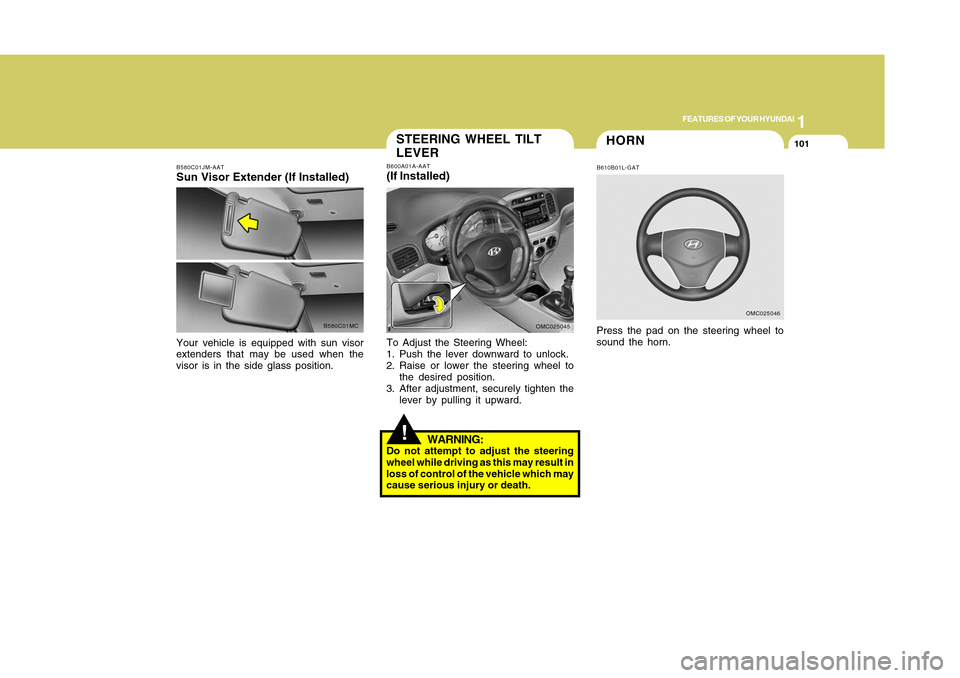
B580C01JM-AATSun Visor Extender (If Installed)Your vehicle is equipped with sun visor
extenders that may be used when the
visor is in the side glass position.
B580C01MC
!STEERING WHEEL TILT
LEVERB600A01A-AAT(If Installed)To Adjust the Steering Wheel:
1. Push the lever downward to unlock.
2. Raise or lower the steering wheel to
the desired position.
3. After adjustment, securely tighten the
lever by pulling it upward.
WARNING:
Do not attempt to adjust the steering
wheel while driving as this may result in
loss of control of the vehicle which may
cause serious injury or death.
OMC025045
HORNB610B01L-GATPress the pad on the steering wheel to
sound the horn.
OMC025046
Page 126 of 282
1
FEATURES OF YOUR HYUNDAI
1151
FEATURES OF YOUR HYUNDAI
115
AIR CONDITIONING SYSTEM
B740A01MC-D B740A01A-AAT
(If Installed)
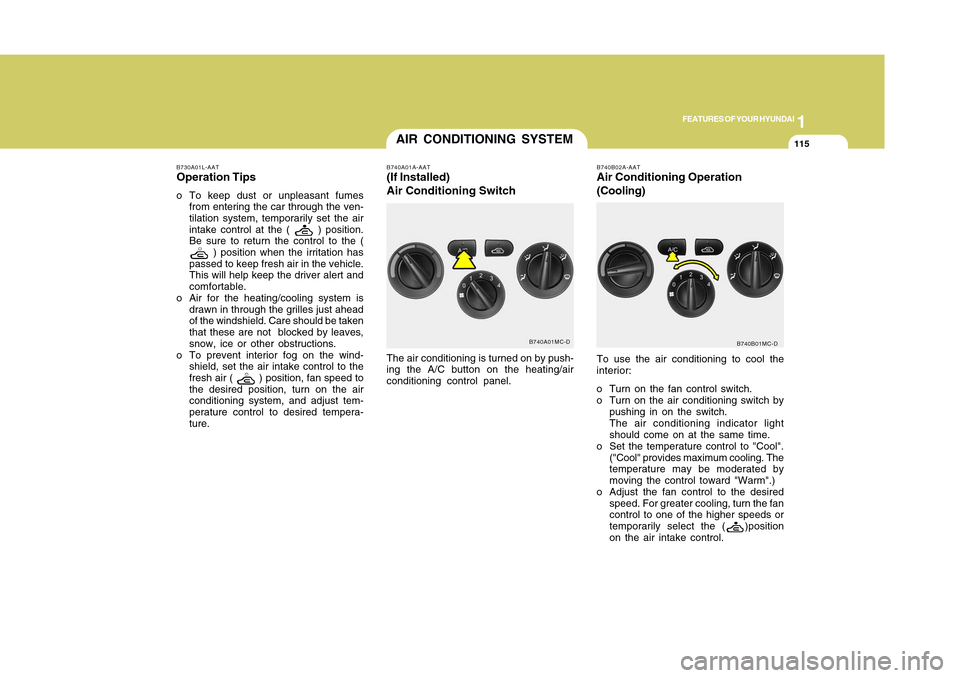
Air Conditioning SwitchThe air conditioning is turned on by push-
ing the A/C button on the heating/air
conditioning control panel.
B740B02A-AATAir Conditioning Operation
(Cooling)To use the air conditioning to cool the
interior:
o Turn on the fan control switch.
o Turn on the air conditioning switch by
pushing in on the switch.
The air conditioning indicator light
should come on at the same time.
o Set the temperature control to "Cool".
("Cool" provides maximum cooling. The
temperature may be moderated by
moving the control toward "Warm".)
o Adjust the fan control to the desired
speed. For greater cooling, turn the fan
control to one of the higher speeds or
temporarily select the (
)position
on the air intake control.B740B01MC-D B730A01L-AAT
Operation Tipso To keep dust or unpleasant fumes
from entering the car through the ven-
tilation system, temporarily set the air
intake control at the (
) position.
Be sure to return the control to the (
) position when the irritation has
passed to keep fresh air in the vehicle.
This will help keep the driver alert and
comfortable.
o Air for the heating/cooling system is
drawn in through the grilles just ahead
of the windshield. Care should be taken
that these are not blocked by leaves,
snow, ice or other obstructions.
o To prevent interior fog on the wind-
shield, set the air intake control to the
fresh air (
) position, fan speed to
the desired position, turn on the air
conditioning system, and adjust tem-
perature control to desired tempera-
ture.
Page 131 of 282
1FEATURES OF YOUR HYUNDAI
120
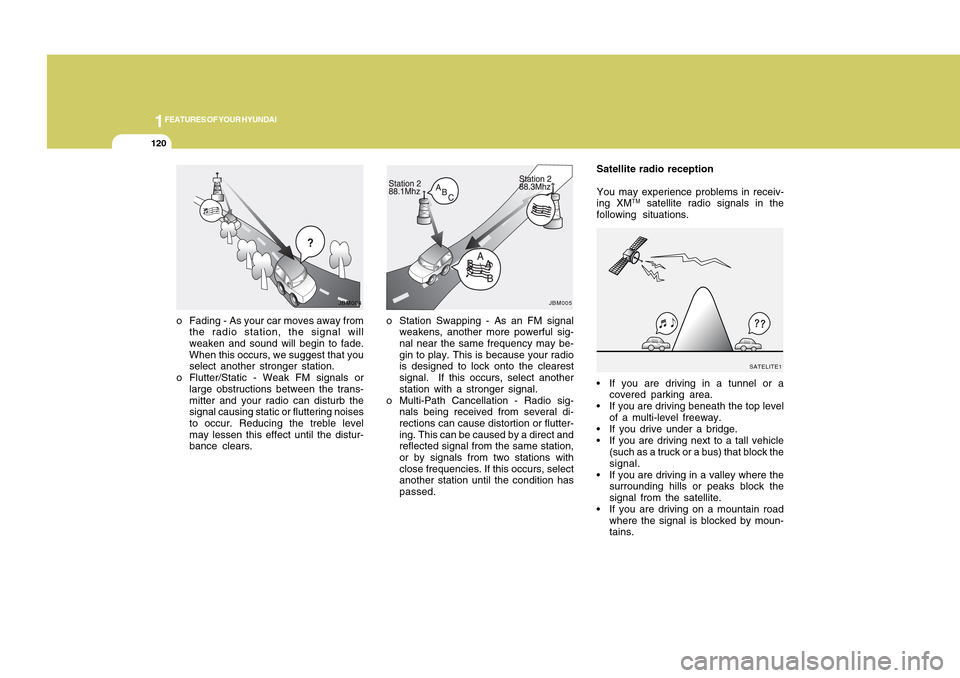
o Station Swapping - As an FM signal
weakens, another more powerful sig-
nal near the same frequency may be-
gin to play. This is because your radio
is designed to lock onto the clearest
signal. If this occurs, select another
station with a stronger signal.
o Multi-Path Cancellation - Radio sig-
nals being received from several di-
rections can cause distortion or flutter-
ing. This can be caused by a direct and
reflected signal from the same station,
or by signals from two stations with
close frequencies. If this occurs, select
another station until the condition has
passed. o Fading - As your car moves away from
the radio station, the signal will
weaken and sound will begin to fade.
When this occurs, we suggest that you
select another stronger station.
o Flutter/Static - Weak FM signals or
large obstructions between the trans-
mitter and your radio can disturb the
signal causing static or fluttering noises
to occur. Reducing the treble level
may lessen this effect until the distur-
bance clears.
JBM004
Satellite radio reception
You may experience problems in receiv-
ing XM
TM satellite radio signals in the
following situations.
If you are driving in a tunnel or a
covered parking area.
If you are driving beneath the top level
of a multi-level freeway.
If you drive under a bridge.
If you are driving next to a tall vehicle
(such as a truck or a bus) that block the
signal.
If you are driving in a valley where the
surrounding hills or peaks block the
signal from the satellite.
If you are driving on a mountain road
where the signal is blocked by moun-
tains.
JBM005
SATELITE1
Page 132 of 282
1
FEATURES OF YOUR HYUNDAI
1211
FEATURES OF YOUR HYUNDAI
121
!
B750B05Y-AATUsing a cellular phone or a two-way
radioWhen a cellular phone is used inside the
vehicle, noise may be produced from the
audio equipment. This does not mean
that something is wrong with the audio
equipment. In such a case, use the cellu-
lar phone at a place as far as possible
from the audio equipment.
WARNING:
Hyundai recommends that you never
use a cell phone while driving. This could
result in loss of control, and an accident
that may cause death, serious injury, or
property damage. You must stop at a
safe place to use a cellular phone.NOTE:Some states and cities have regulations
prohibiting the use of cell phones while
driving. You should be aware of the spe-
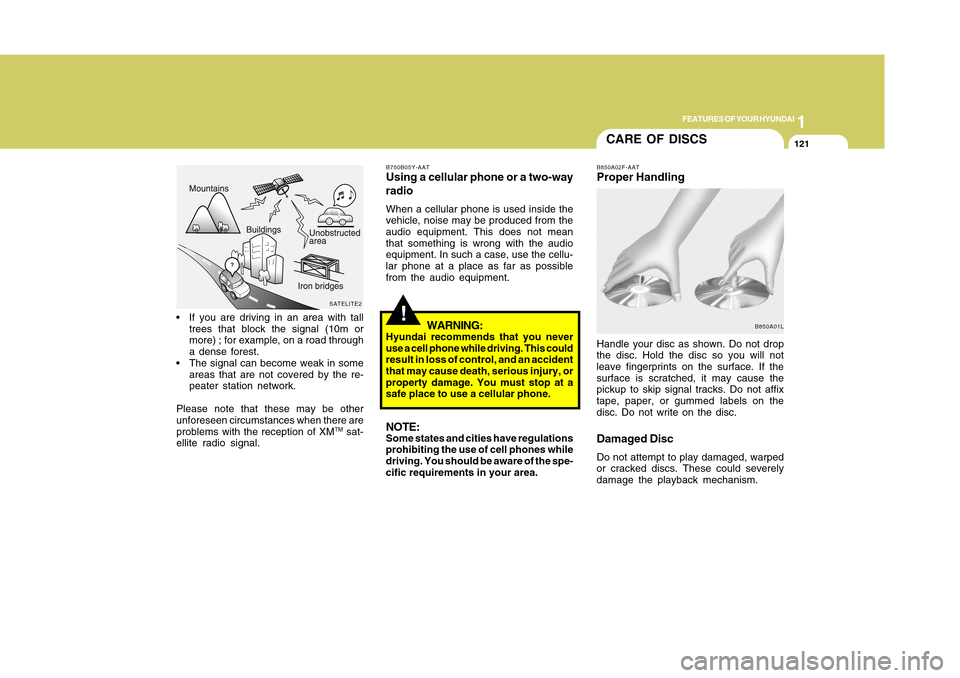
cific requirements in your area. If you are driving in an area with tall
trees that block the signal (10m or
more) ; for example, on a road through
a dense forest.
The signal can become weak in some
areas that are not covered by the re-
peater station network.
Please note that these may be other
unforeseen circumstances when there are
problems with the reception of XM
TM sat-
ellite radio signal.
SATELITE2
CARE OF DISCSB850A02F-AATProper HandlingHandle your disc as shown. Do not drop
the disc. Hold the disc so you will not
leave fingerprints on the surface. If the
surface is scratched, it may cause the
pickup to skip signal tracks. Do not affix
tape, paper, or gummed labels on the
disc. Do not write on the disc.Damaged DiscDo not attempt to play damaged, warped
or cracked discs. These could severely
damage the playback mechanism.
B850A01L
Page 133 of 282
1FEATURES OF YOUR HYUNDAI
122
StorageWhen not in use, place your discs in their
individual cases and store them in a cool
place away from the sun, heat, and dust.
Do not grip or pull out the disc with your
hand while the disc is being pulled into
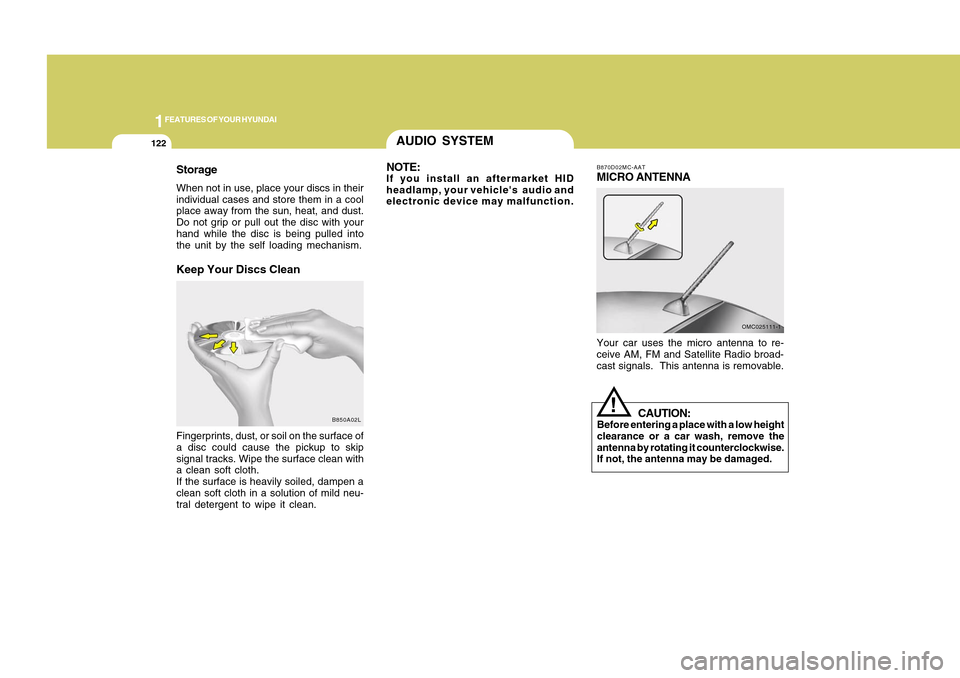
the unit by the self loading mechanism.Keep Your Discs CleanFingerprints, dust, or soil on the surface of
a disc could cause the pickup to skip
signal tracks. Wipe the surface clean with
a clean soft cloth.
If the surface is heavily soiled, dampen a
clean soft cloth in a solution of mild neu-
tral detergent to wipe it clean.
B850A02L
AUDIO SYSTEM
B870D02MC-AATMICRO ANTENNAYour car uses the micro antenna to re-
ceive AM, FM and Satellite Radio broad-
cast signals. This antenna is removable.
OMC025111-1
CAUTION:
Before entering a place with a low height
clearance or a car wash, remove the
antenna by rotating it counterclockwise.
If not, the antenna may be damaged.
!
NOTE:If you install an aftermarket HID
headlamp, your vehicle's audio and
electronic device may malfunction.
Page 135 of 282
![Hyundai Accent 2011 Service Manual 1FEATURES OF YOUR HYUNDAI
124
PA710B01MC-AAT1. AM Selection ButtonPressing the [AM] button selects the AM
band. AM Mode is displayed on the LCD.2. FM Selection ButtonTurns to FM mode and toggles FM1 a](/img/35/14385/w960_14385-134.png "Hyundai Accent 2011 Service Manual 1FEATURES OF YOUR HYUNDAI
124
PA710B01MC-AAT1. AM Selection ButtonPressing the [AM] button selects the AM
band. AM Mode is displayed on the LCD.2. FM Selection ButtonTurns to FM mode and toggles FM1 a")
1FEATURES OF YOUR HYUNDAI
124
PA710B01MC-AAT1. AM Selection ButtonPressing the [AM] button selects the AM
band. AM Mode is displayed on the LCD.2. FM Selection ButtonTurns to FM mode and toggles FM1 and
FM2 when the button is pressed each
time.3. Automatic Channel Selection
Buttono When the [SEEK
] button is pressed,
it reduces the band frequency by
200khz to automatically select chan-
nel. Stops at the previous frequency if
no channel is found.
o When the [SEEK ] button is pressed,
it increases the band frequency by
50khz to automatically select channel.
Stops at the previous frequency if no
channel is found.
4. Power ON/OFF & Volume Control
ButtonTurns on/off the set when the IGNITION
SWITCH is on ACC or ON. If the button is
turned to the right, it increases the volume
and left, decreases the volume.
5. SCAN ButtonIf this button is pressed, the frequencies
will become increased and receive the
corresponding broadcasts.
This function will play the frequencies for
10 seconds each and find other broad-
casts as the frequency increases.
Press the button again when desiring to
continue listening to the currently playing
broadcast.6. MUTE ButtonPress to temporarily cut off the Sound.7. SETUP ButtonPress this button to turn to the SCROLL
and P.BASS adjustment mode.
If no action is taken for 5 seconds after
pressing the button, it will return to the
play mode.(After entering SETUP mode,
move between items using the left, right
and PUSH functions of the TUNE button.)
The setup Items changes from SCROLL
<->P.BASS.
8. TUNE/ENTER ButtonTurn this button clockwise one notch to
increase frequency from current fre-
quency.
Turn this button counterclockwise by one
notch to decrease frequency from current
frequency.
The frequency cahnges by 0.2Mhz in FM
MODE and 9Khz in AM MODE.
Press this button while holding SETUP
button to activate / inactivate the item to.
Select SETUP item using left and right
function of the Tune button.9. PRESET ButtonPush [1]~[6] buttons less than 0.8 second
to play the channel saved in each button.
Push PRESET button for 0.8 second or
longer to save current channel to the
respective button with a beep.
!
CAUTION:
o Do not place beverages close to the
audio system. The audio system
mechanism may be damaged if you
spill them.
o Do not strike or allow anything to
impact the audio system, damage to
the system mechanisms could oc-
cur.
Page 137 of 282
1FEATURES OF YOUR HYUNDAI
126
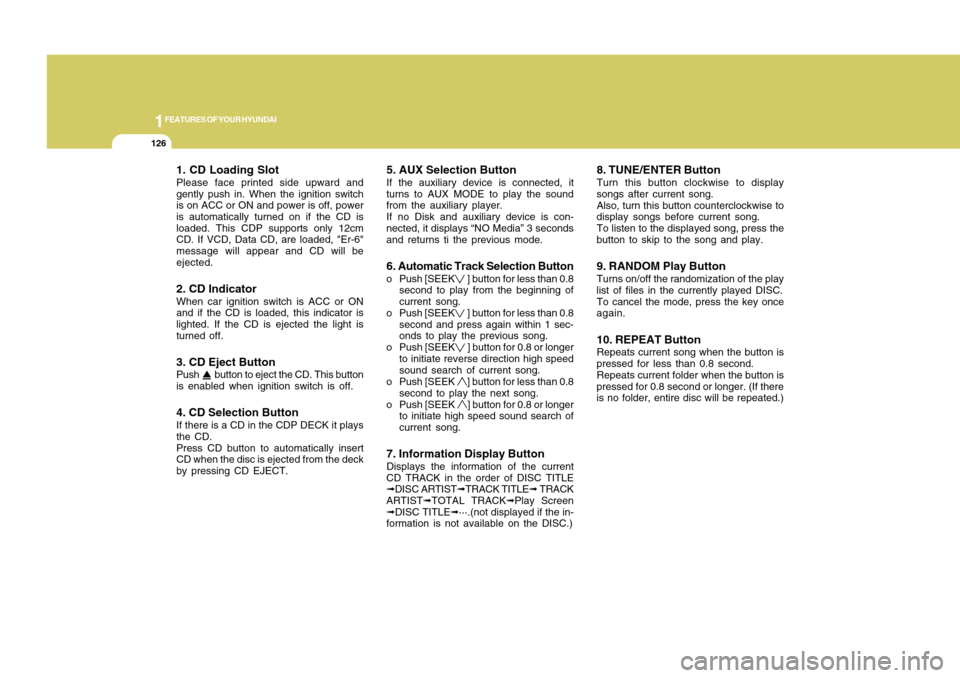
1. CD Loading SlotPlease face printed side upward and
gently push in. When the ignition switch
is on ACC or ON and power is off, power
is automatically turned on if the CD is
loaded. This CDP supports only 12cm
CD. If VCD, Data CD, are loaded, "Er-6"
message will appear and CD will be
ejected.2. CD IndicatorWhen car ignition switch is ACC or ON
and if the CD is loaded, this indicator is
lighted. If the CD is ejected the light is
turned off.3. CD Eject ButtonPush button to eject the CD. This button
is enabled when ignition switch is off.4. CD Selection ButtonIf there is a CD in the CDP DECK it plays
the CD.
Press CD button to automatically insert
CD when the disc is ejected from the deck
by pressing CD EJECT.
5. AUX Selection ButtonIf the auxiliary device is connected, it
turns to AUX MODE to play the sound
from the auxiliary player.
If no Disk and auxiliary device is con-
nected, it displays “NO Media” 3 seconds
and returns ti the previous mode.6. Automatic Track Selection Buttono Push [SEEK
] button for less than 0.8
second to play from the beginning of
current song.
o Push [SEEK ] button for less than 0.8
second and press again within 1 sec-
onds to play the previous song.
o Push [SEEK ] button for 0.8 or longer
to initiate reverse direction high speed
sound search of current song.
o Push [SEEK ] button for less than 0.8
second to play the next song.
o Push [SEEK ] button for 0.8 or longer
to initiate high speed sound search of
current song.
7. Information Display ButtonDisplays the information of the current
CD TRACK in the order of DISC TITLE
➟DISC ARTIST➟TRACK TITLE➟ TRACK
ARTIST➟TOTAL TRACK➟Play Screen
➟DISC TITLE➟···.(not displayed if the in-
formation is not available on the DISC.)
8. TUNE/ENTER ButtonTurn this button clockwise to display
songs after current song.
Also, turn this button counterclockwise to
display songs before current song.
To listen to the displayed song, press the
button to skip to the song and play.9. RANDOM Play ButtonTurns on/off the randomization of the play
list of files in the currently played DISC.
To cancel the mode, press the key once
again.10. REPEAT ButtonRepeats current song when the button is
pressed for less than 0.8 second.
Repeats current folder when the button is
pressed for 0.8 second or longer. (If there
is no folder, entire disc will be repeated.)
Page 140 of 282
1129129
DRIVING YOUR HYUNDAI
1
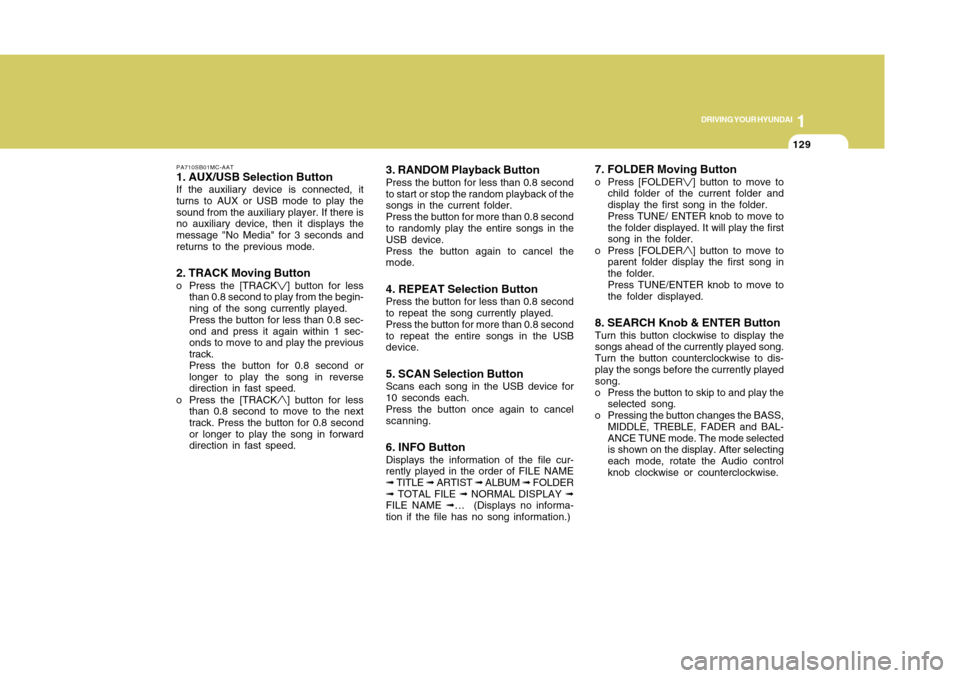
PA710SB01MC-AAT1. AUX/USB Selection ButtonIf the auxiliary device is connected, it
turns to AUX or USB mode to play the
sound from the auxiliary player. If there is
no auxiliary device, then it displays the
message "No Media" for 3 seconds and
returns to the previous mode.2. TRACK Moving Buttono Press the [TRACK
] button for less
than 0.8 second to play from the begin-
ning of the song currently played.
Press the button for less than 0.8 sec-
ond and press it again within 1 sec-
onds to move to and play the previous
track.
Press the button for 0.8 second or
longer to play the song in reverse
direction in fast speed.
o Press the [TRACK] button for less
than 0.8 second to move to the next
track. Press the button for 0.8 second
or longer to play the song in forward
direction in fast speed.
3. RANDOM Playback ButtonPress the button for less than 0.8 second
to start or stop the random playback of the
songs in the current folder.
Press the button for more than 0.8 second
to randomly play the entire songs in the
USB device.
Press the button again to cancel the
mode.4. REPEAT Selection ButtonPress the button for less than 0.8 second
to repeat the song currently played.
Press the button for more than 0.8 second
to repeat the entire songs in the USB
device.5. SCAN Selection ButtonScans each song in the USB device for
10 seconds each.
Press the button once again to cancel
scanning.6. INFO ButtonDisplays the information of the file cur-
rently played in the order of FILE NAME
➟ TITLE ➟ ARTIST ➟ ALBUM ➟ FOLDER
➟ TOTAL FILE ➟ NORMAL DISPLAY ➟
FILE NAME ➟… (Displays no informa-
tion if the file has no song information.)
7. FOLDER Moving Buttono Press [FOLDER
] button to move to
child folder of the current folder and
display the first song in the folder.
Press TUNE/ ENTER knob to move to
the folder displayed. It will play the first
song in the folder.
o Press [FOLDER] button to move to
parent folder display the first song in
the folder.
Press TUNE/ENTER knob to move to
the folder displayed.
8. SEARCH Knob & ENTER ButtonTurn this button clockwise to display the
songs ahead of the currently played song.
Turn the button counterclockwise to dis-
play the songs before the currently played
song.
o Press the button to skip to and play the
selected song.
o Pressing the button changes the BASS,
MIDDLE, TREBLE, FADER and BAL-
ANCE TUNE mode. The mode selected
is shown on the display. After selecting
each mode, rotate the Audio control
knob clockwise or counterclockwise.
Page 143 of 282
1FEATURES OF YOUR HYUNDAI
132
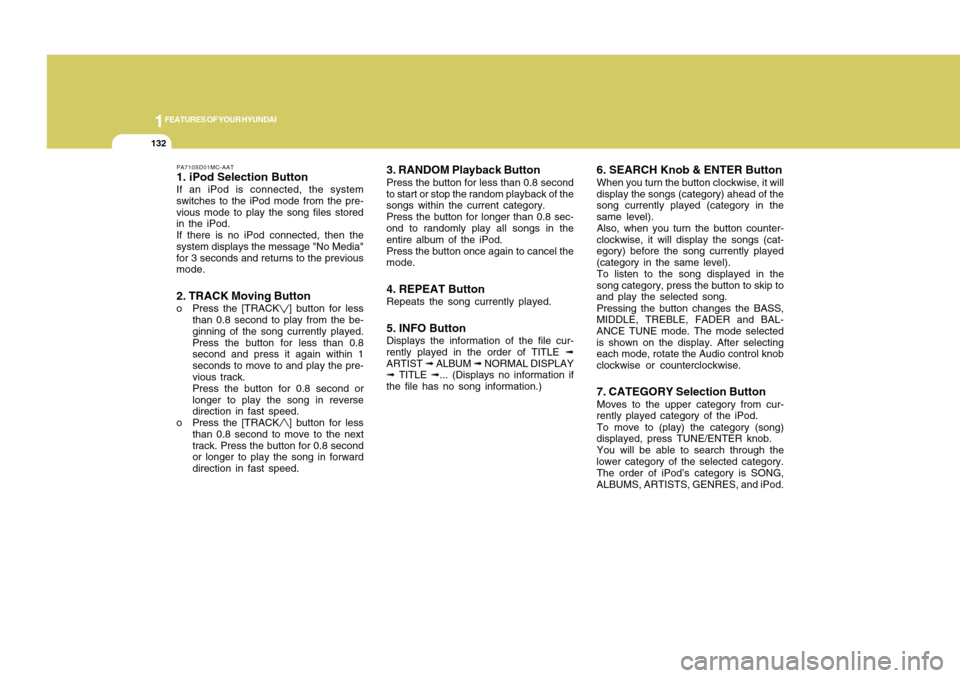
PA710SD01MC-AAT1. iPod Selection ButtonIf an iPod is connected, the system
switches to the iPod mode from the pre-
vious mode to play the song files stored
in the iPod.
If there is no iPod connected, then the
system displays the message "No Media"
for 3 seconds and returns to the previous
mode.2. TRACK Moving Buttono Press the [TRACK
] button for less
than 0.8 second to play from the be-
ginning of the song currently played.
Press the button for less than 0.8
second and press it again within 1
seconds to move to and play the pre-
vious track.
Press the button for 0.8 second or
longer to play the song in reverse
direction in fast speed.
o Press the [TRACK] button for less
than 0.8 second to move to the next
track. Press the button for 0.8 second
or longer to play the song in forward
direction in fast speed.
3. RANDOM Playback ButtonPress the button for less than 0.8 second
to start or stop the random playback of the
songs within the current category.
Press the button for longer than 0.8 sec-
ond to randomly play all songs in the
entire album of the iPod.
Press the button once again to cancel the
mode.4. REPEAT ButtonRepeats the song currently played.5. INFO ButtonDisplays the information of the file cur-
rently played in the order of TITLE ➟
ARTIST ➟ ALBUM ➟ NORMAL DISPLAY
➟ TITLE ➟... (Displays no information if
the file has no song information.)
6. SEARCH Knob & ENTER ButtonWhen you turn the button clockwise, it will
display the songs (category) ahead of the
song currently played (category in the
same level).
Also, when you turn the button counter-
clockwise, it will display the songs (cat-
egory) before the song currently played
(category in the same level).
To listen to the song displayed in the
song category, press the button to skip to
and play the selected song.
Pressing the button changes the BASS,
MIDDLE, TREBLE, FADER and BAL-
ANCE TUNE mode. The mode selected
is shown on the display. After selecting
each mode, rotate the Audio control knob
clockwise or counterclockwise.7. CATEGORY Selection ButtonMoves to the upper category from cur-
rently played category of the iPod.
To move to (play) the category (song)
displayed, press TUNE/ENTER knob.
You will be able to search through the
lower category of the selected category.
The order of iPod’s category is SONG,
ALBUMS, ARTISTS, GENRES, and iPod.
Page 147 of 282
![Hyundai Accent 2011 Service Manual 1FEATURES OF YOUR HYUNDAI
136
10. CAT(FOLDER) Button
Moves [CAT
] Button when Category Up
search operation.
o Category is moved Up fronm the cat-
egory currently being received and
Category name becom](/img/35/14385/w960_14385-146.png "Hyundai Accent 2011 Service Manual 1FEATURES OF YOUR HYUNDAI
136
10. CAT(FOLDER) Button
Moves [CAT
] Button when Category Up
search operation.
o Category is moved Up fronm the cat-
egory currently being received and
Category name becom")
1FEATURES OF YOUR HYUNDAI
136
10. CAT(FOLDER) Button
Moves [CAT
] Button when Category Up
search operation.
o Category is moved Up fronm the cat-
egory currently being received and
Category name becomes displayed.
o If the Enter Key is not pressed within
5 seconds, then the previous mode
will be restored.
o If the Key is Pressed While in the last
Category, then the first category will
become displayed and operation will
ne repeated.
o Corresponding category can be se-
lected by pressing ENTER. Moves
[CAT
] Button when Category Down
search operaton.
o Category is moved Down from the
cat-egry currently being receiced and
Category Name becomes displayed.
o If the Enter Key is nit pressed within 5
seconds, then the previous mode will
be restored.
o If the [CAT
] Key is pressed while in
the first Category, then the last cat-
egory will become displayed and op-
eration will be repeated.
o Corresponding category can be se-
letcted by pressing ENTER.11. TUNE/ENTER Button
Turn this button clockwise one notch to
increase frequency from current fre-
quency.
Turn this button counterclockwise by one
notch to decrease frequency from current
frequency.
The frequency cahnges by 0.2Mhz in FM
MODE and 9Khz in AM MODE.
Press this button while holding SETUP
button to activate / inactivate the item to.
Select SETUP item using left and right
function of the Tune button.
12. PRESET Button
Push [1]~[6] buttons less than 0.8 second
to play the channel saved in each button.
Push PRESET button for 0.8 second or
longer to save current channel to the
respective button with a beep.
!
CAUTION:
o Do not place beverages close to the
audio system. The playback mecha-
nism may be damaged if you spill
them.
o Do not strike or allow anything to
impact the audio system, damage to
the system mechanisms could oc-
cur.