display Hyundai Accent 2012 User Guide
[x] Cancel search | Manufacturer: HYUNDAI, Model Year: 2012, Model line: Accent, Model: Hyundai Accent 2012Pages: 370
Page 176 of 370
Features of your vehicle
98
4
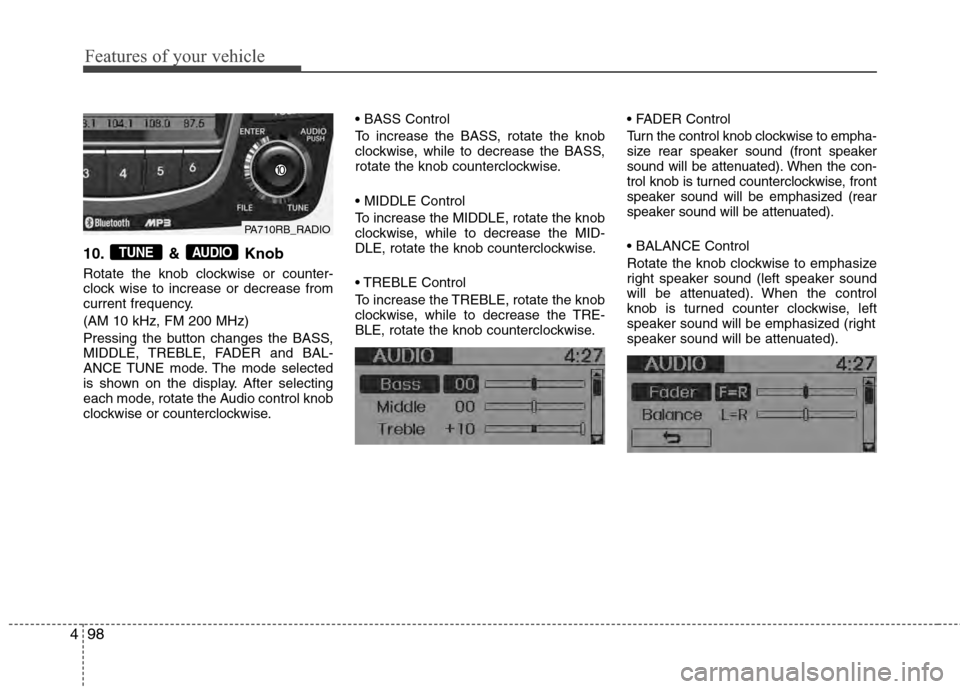
10. & Knob
Rotate the knob clockwise or counter-
clock wise to increase or decrease from
current frequency.
(AM 10 kHz, FM 200 MHz)
Pressing the button changes the BASS,
MIDDLE, TREBLE, FADER and BAL-
ANCE TUNE mode. The mode selected
is shown on the display. After selecting
each mode, rotate the Audio control knob
clockwise or counterclockwise.
To increase the BASS, rotate the knob
clockwise, while to decrease the BASS,
rotate the knob counterclockwise.
To increase the MIDDLE, rotate the knob
clockwise, while to decrease the MID-
DLE, rotate the knob counterclockwise.
Control
To increase the TREBLE, rotate the knob
clockwise, while to decrease the TRE-
BLE, rotate the knob counterclockwise.
Turn the control knob clockwise to empha-
size rear speaker sound (front speaker
sound will be attenuated). When the con-
trol knob is turned counterclockwise, front
speaker sound will be emphasized (rear
speaker sound will be attenuated).
Rotate the knob clockwise to emphasize
right speaker sound (left speaker sound
will be attenuated). When the control
knob is turned counter clockwise, left
speaker sound will be emphasized (right
speaker sound will be attenuated).AUDIOTUNE
PA710RB_RADIO
Page 177 of 370
499
Features of your vehicle
Using XM satellite Radio
Your vehicle is equipped with 3 months
complimentary period of XM Satellite
Radio. XM provides access to over 130
channels of music, information, and
entertainment programming.
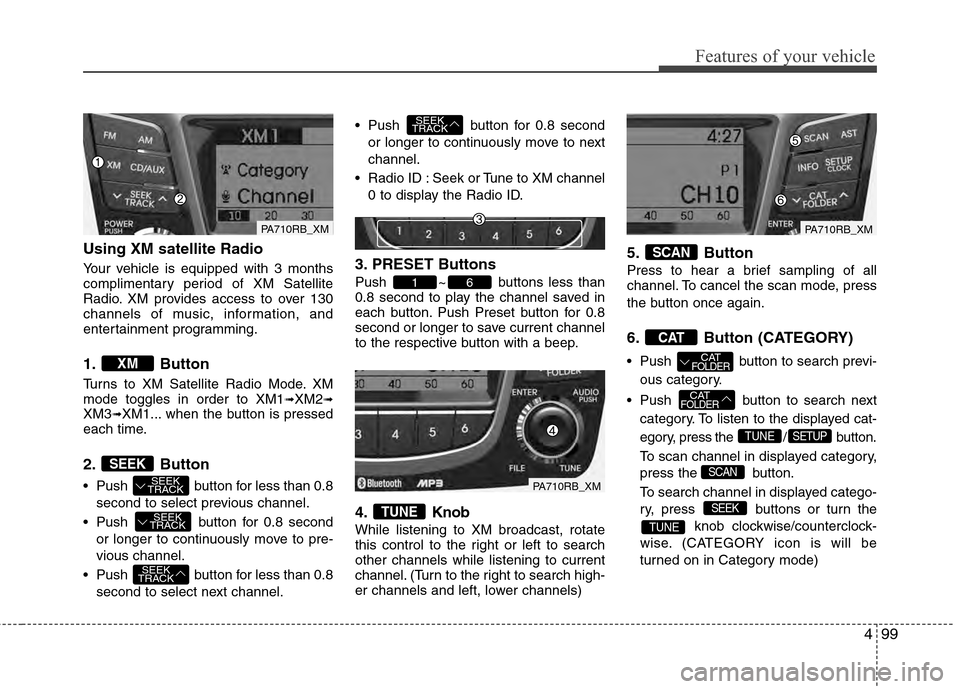
1. Button
Turns to XM Satellite Radio Mode. XM
mode toggles in order to XM1➟XM2➟XM3➟XM1... when the button is pressed
each time.
2. Button
Push button for less than 0.8
second to select previous channel.
Push button for 0.8 second or longer to continuously move to pre-
vious channel.
Push button for less than 0.8 second to select next channel. Push button for 0.8 second
or longer to continuously move to next
channel.
Radio ID : Seek or Tune to XM channel 0 to display the Radio ID.
3. PRESET Buttons
Push ~ buttons less than
0.8 second to play the channel saved in
each button. Push Preset button for 0.8
second or longer to save current channel
to the respective button with a beep.
4. Knob
While listening to XM broadcast, rotate
this control to the right or left to search
other channels while listening to current
channel. (Turn to the right to search high-
er channels and left, lower channels)
5. Button
Press to hear a brief sampling of all
channel. To cancel the scan mode, press
the button once again.
6. Button (CATEGORY)
Push button to search previ-
ous category.
Push button to search next category. To listen to the displayed cat-
egory, press the / button.
To scan channel in displayed category,
press the button.
To search channel in displayed catego-
ry, press buttons or turn the knob clockwise/counterclock-
wise. (CATEGORY icon is will be
turned on in Category mode)
TUNE
SEEK
SCAN
SETUPTUNE
CATFOLDER
CATFOLDER
CAT
SCAN
TUNE
61
SEEK
TRACK
SEEK
TRACK
SEEK
TRACK
SEEK
TRACK
SEEK
XM
PA710RB_XMPA710RB_XM
PA710RB_XM
Page 178 of 370
Features of your vehicle
100
4
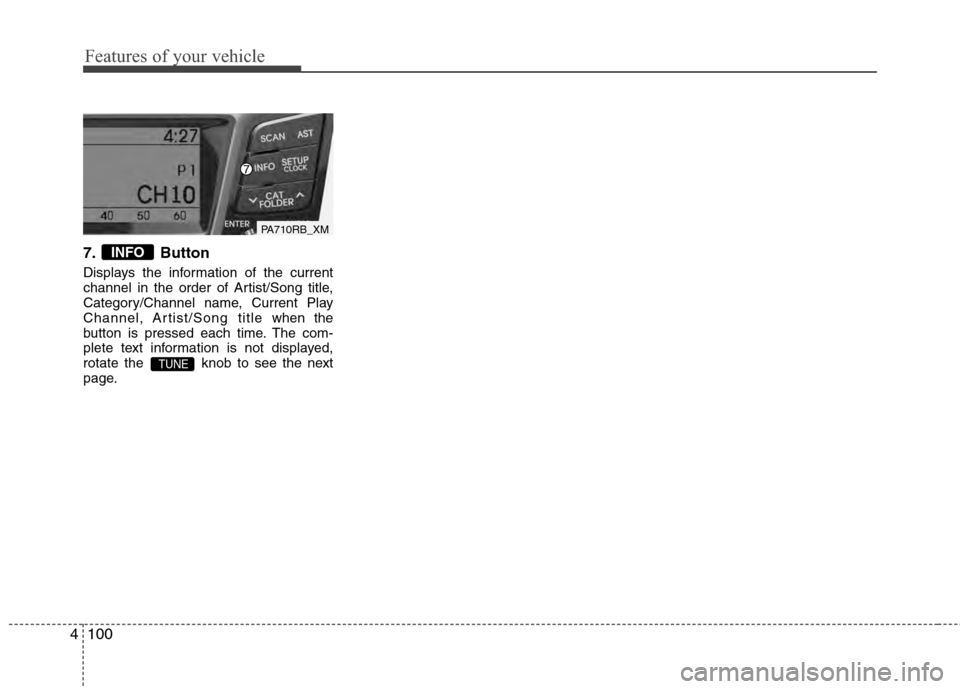
7. Button
Displays the information of the current
channel in the order of Artist/Song title,
Category/Channel name, Current Play
Channel, Artist/Song title when the
button is pressed each time. The com-
plete text information is not displayed,
rotate the knob to see the next
page.
TUNE
INFO
PA710RB_XM
Page 179 of 370
4101
Features of your vehicle
Using CD Player
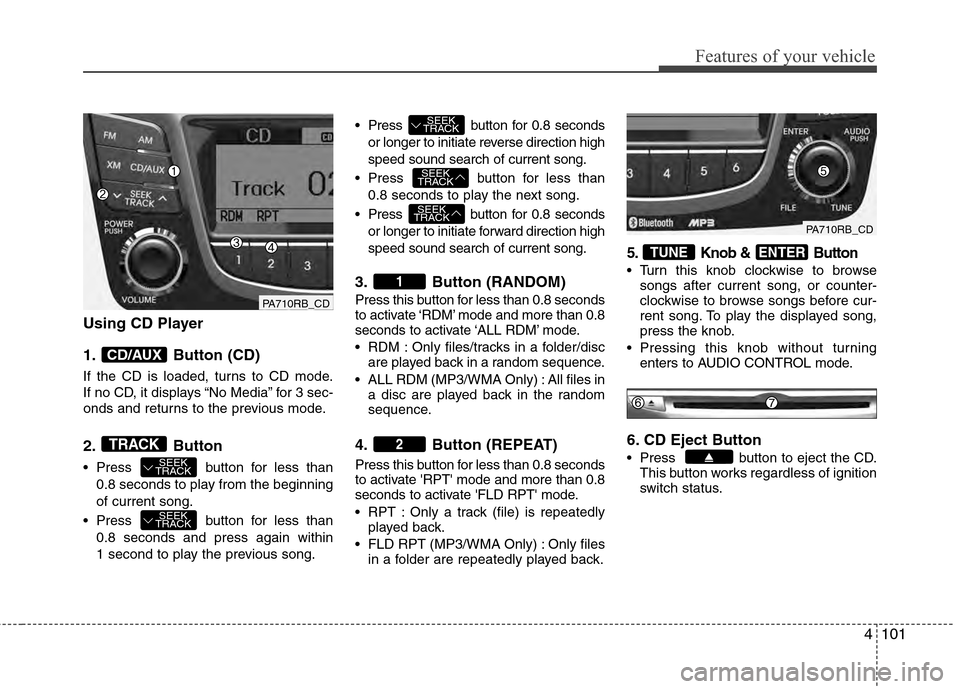
1. Button (CD)
If the CD is loaded, turns to CD mode.
If no CD, it displays “No Media” for 3 sec-
onds and returns to the previous mode.
2.Button
Press button for less than
0.8 seconds to play from the beginning
of current song.
Press button for less than 0.8 seconds and press again within
1 second to play the previous song. Press button for 0.8 seconds
or longer to initiate reverse direction high
speed sound search of current song.
Press button for less than 0.8 seconds to play the next song.
Press button for 0.8 seconds or longer to initiate forward direction high
speed sound search of current song.
3. Button (RANDOM)
Press this button for less than 0.8 seconds
to activate ‘RDM’ mode and more than 0.8
seconds to activate ‘ALL RDM’ mode.
RDM : Only files/tracks in a folder/discare played back in a random sequence.
ALL RDM (MP3/WMA Only) : All files in a disc are played back in the random
sequence.
4. Button (REPEAT)
Press this button for less than 0.8 seconds
to activate 'RPT' mode and more than 0.8
seconds to activate 'FLD RPT' mode.
RPT : Only a track (file) is repeatedlyplayed back.
FLD RPT (MP3/WMA Only) : Only files in a folder are repeatedly played back.
5. Knob & Button
Turn this knob clockwise to browsesongs after current song, or counter-
clockwise to browse songs before cur-
rent song. To play the displayed song,
press the knob.
Pressing this knob without turning enters to AUDIO CONTROL mode.
6. CD Eject Button
Press button to eject the CD.This button works regardless of ignition
switch status.
ENTERTUNE
2
1
SEEK
TRACK
SEEK
TRACK
SEEK
TRACK
SEEK
TRACK
SEEK
TRACK
TRACK
CD/AUX
PA710RB_CD
PA710RB_CD
Page 180 of 370
Features of your vehicle
102
4
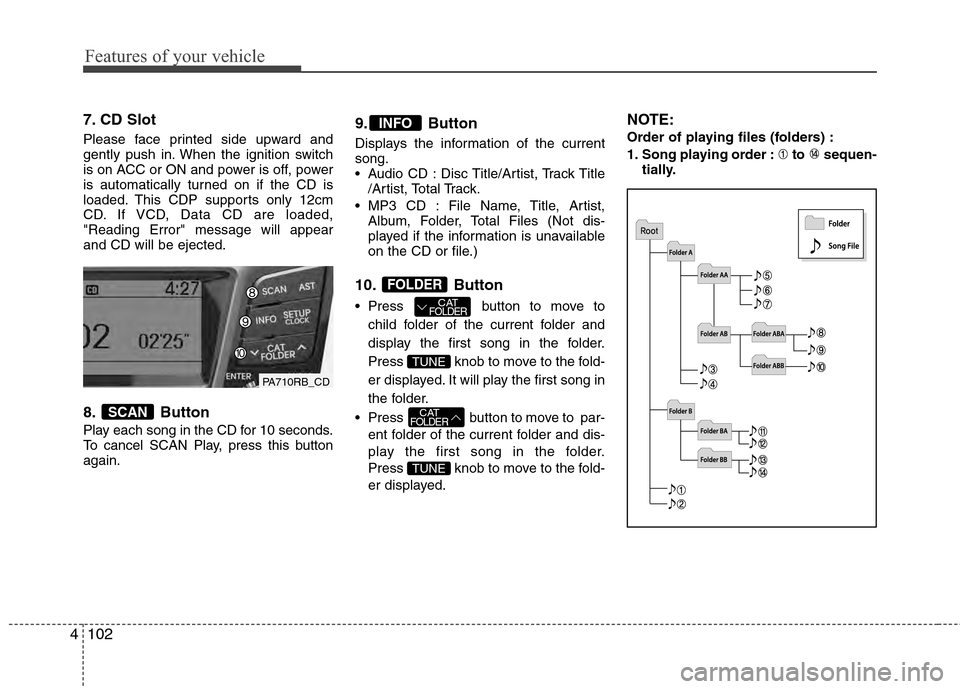
7. CD Slot
Please face printed side upward and
gently push in. When the ignition switch
is on ACC or ON and power is off, power
is automatically turned on if the CD is
loaded. This CDP supports only 12cm
CD. If VCD, Data CD are loaded,
"Reading Error" message will appear
and CD will be ejected.
8. Button
Play each song in the CD for 10 seconds.
To cancel SCAN Play, press this button
again.
9. Button
Displays the information of the current
song.
Audio CD : Disc Title/Artist, Track Title
/Artist, Total Track.
MP3 CD : File Name, Title, Artist, Album, Folder, Total Files (Not dis-
played if the information is unavailable
on the CD or file.)
10. Button
Press button to move to
child folder of the current folder and
display the first song in the folder.
Press knob to move to the fold-
er displayed. It will play the first song in
the folder.
Press button to move to par- ent folder of the current folder and dis-
play the first song in the folder.
Press knob to move to the fold-
er displayed.
NOTE:
Order of playing files (folders) :
1. Song playing order : to sequen- tially.
TUNE
CATFOLDER
TUNE
CATFOLDER
FOLDER
INFO
SCAN
PA710RB_CD
Page 181 of 370
4103
Features of your vehicle
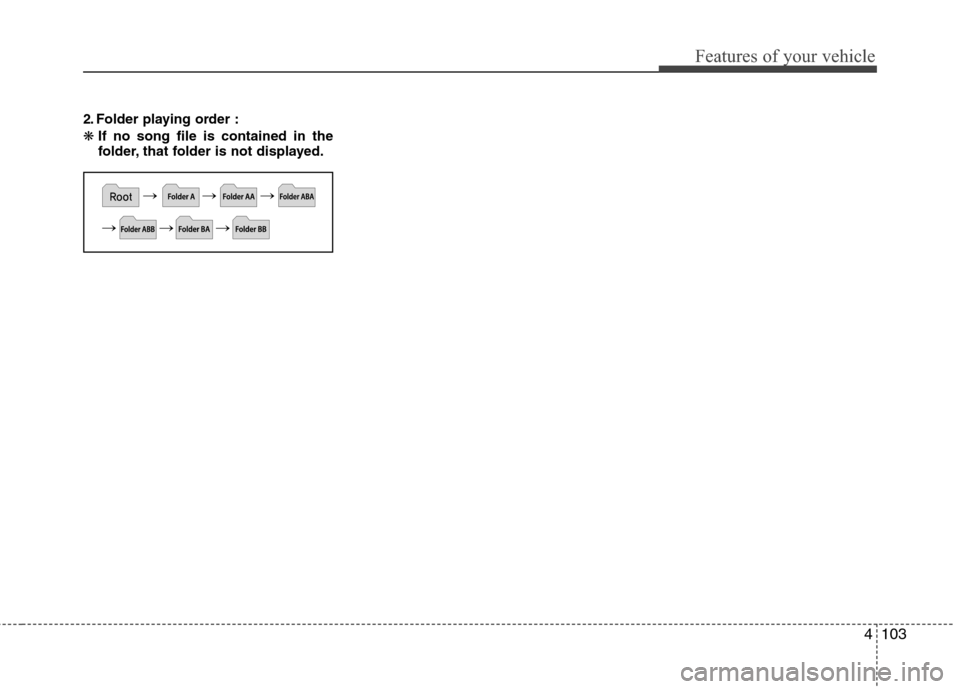
2. Folder playing order :
❋If no song file is contained in the
folder, that folder is not displayed.
Page 184 of 370
Features of your vehicle
106
4
Using USB device
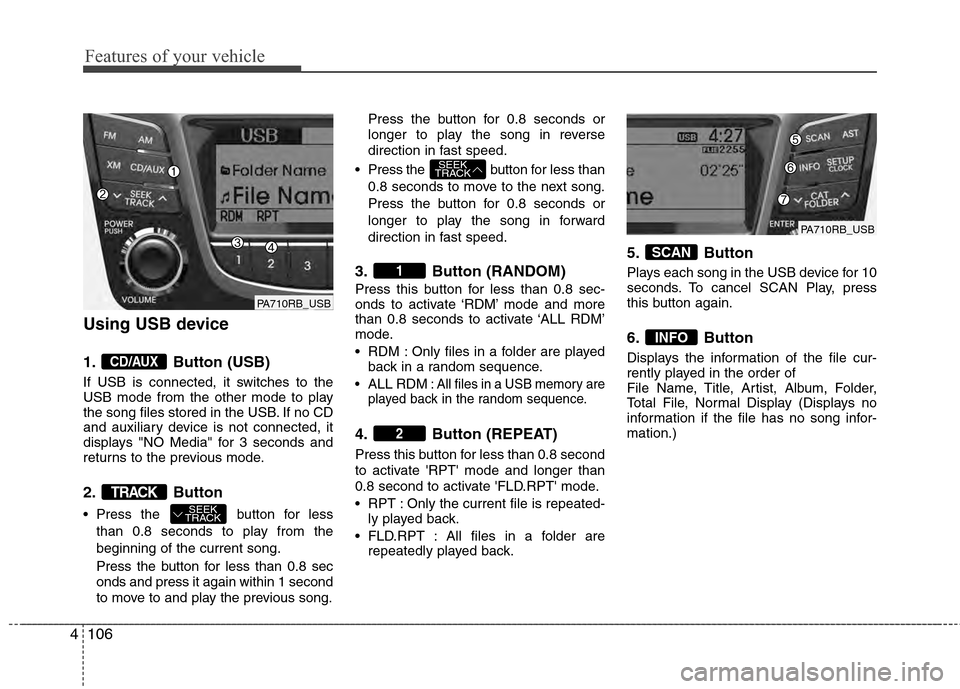
1. Button (USB)
If USB is connected, it switches to the
USB mode from the other mode to play
the song files stored in the USB. If no CD
and auxiliary device is not connected, it
displays "NO Media" for 3 seconds and
returns to the previous mode.
2. Button
Press the button for less
than 0.8 seconds to play from the
beginning of the current song.
Press the button for less than 0.8 sec
onds and press it again within 1 second
to move to and play the previous song. Press the button for 0.8 seconds or
longer to play the song in reverse
direction in fast speed.
Press the button for less than
0.8 seconds to move to the next song.
Press the button for 0.8 seconds or
longer to play the song in forward
direction in fast speed.
3. Button (RANDOM)
Press this button for less than 0.8 sec-
onds to activate ‘RDM’ mode and more
than 0.8 seconds to activate ‘ALL RDM’
mode.
RDM : Only files in a folder are played back in a random sequence.
ALL RDM: All files in a USB memory are
played back in the random sequence.
4. Button (REPEAT)
Press this button for less than 0.8 second
to activate 'RPT' mode and longer than
0.8 second to activate 'FLD.RPT' mode.
RPT : Only the current file is repeated- ly played back.
FLD.RPT : All files in a folder are repeatedly played back.
5. Button
Plays each song in the USB device for 10
seconds. To cancel SCAN Play, press
this button again.
6. Button
Displays the information of the file cur-
rently played in the order of
File Name, Title, Artist, Album, Folder,
Total File, Normal Display (Displays no
information if the file has no song infor-
mation.)
INFO
SCAN
2
1
SEEK
TRACK
SEEK
TRACKTRACK
CD/AUX
PA710RB_USB
PA710RB_USB
Page 185 of 370
4107
Features of your vehicle
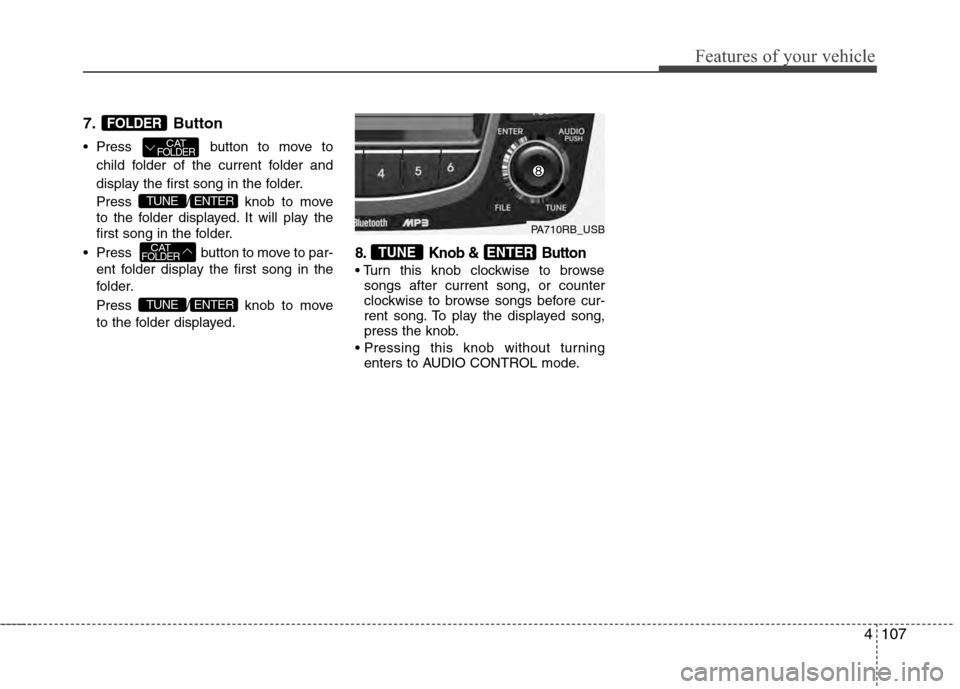
7.Button
Press button to move to
child folder of the current folder and
display the first song in the folder.
Press / knob to move
to the folder displayed. It will play the
first song in the folder.
Press button to move to par- ent folder display the first song in the
folder.
Press / knob to move
to the folder displayed.
8. Knob & Button
songs after current song, or counter
clockwise to browse songs before cur-
rent song. To play the displayed song,
press the knob.
enters to AUDIO CONTROL mode.
ENTERTUNE
ENTERTUNE
CATFOLDER
ENTERTUNE
CATFOLDER
FOLDER
PA710RB_USB
Page 187 of 370
4109
Features of your vehicle
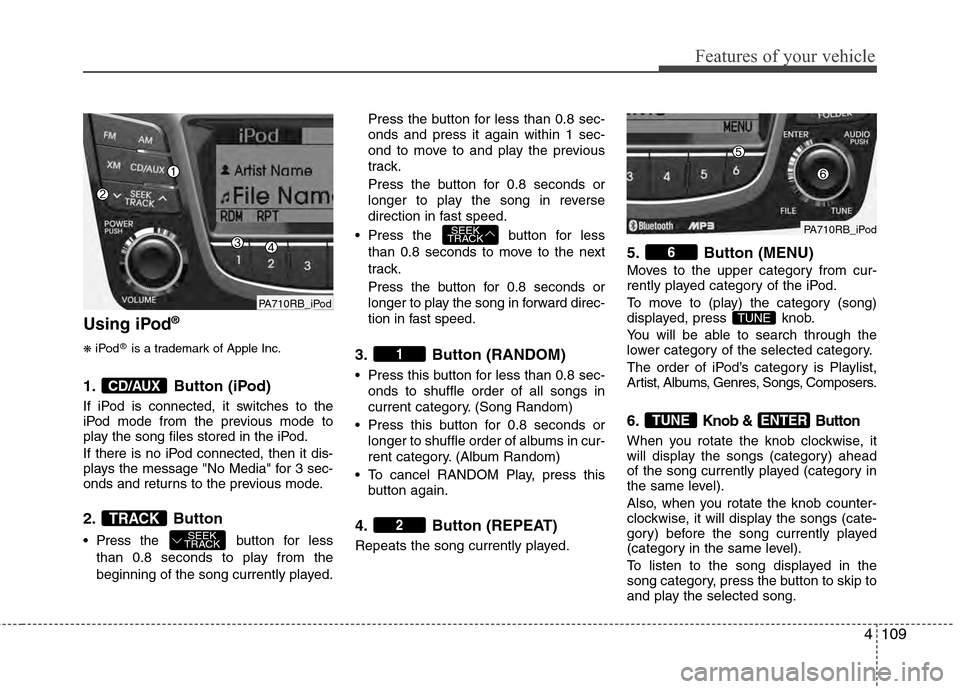
Using iPod®
❋
iPod®is a trademark of Apple Inc.
1. Button (iPod)
If iPod is connected, it switches to the
iPod mode from the previous mode to
play the song files stored in the iPod.
If there is no iPod connected, then it dis-
plays the message "No Media" for 3 sec-
onds and returns to the previous mode.
2.Button
Press the button for less
than 0.8 seconds to play from the
beginning of the song currently played. Press the button for less than 0.8 sec-
onds and press it again within 1 sec-
ond to move to and play the previous
track.
Press the button for 0.8 seconds or
longer to play the song in reverse
direction in fast speed.
Press the button for less than 0.8 seconds to move to the next
track.
Press the button for 0.8 seconds or
longer to play the song in forward direc-
tion in fast speed.
3. Button (RANDOM)
Press this button for less than 0.8 sec-onds to shuffle order of all songs in
current category. (Song Random)
Press this button for 0.8 seconds or longer to shuffle order of albums in cur-
rent category. (Album Random)
To cancel RANDOM Play, press this button again.
4. Button (REPEAT)
Repeats the song currently played.
5. Button (MENU)
Moves to the upper category from cur-
rently played category of the iPod.
To move to (play) the category (song)
displayed, press knob.
You will be able to search through the
lower category of the selected category.
The order of iPod’s category is Playlist,
Artist, Albums, Genres, Songs, Composers.
6.Knob & Button
When you rotate the knob clockwise, it
will display the songs (category) ahead
of the song currently played (category in
the same level).
Also, when you rotate the knob counter-
clockwise, it will display the songs (cate-
gory) before the song currently played
(category in the same level).
To listen to the song displayed in the
song category, press the button to skip to
and play the selected song.
ENTERTUNE
TUNE
6
2
1
SEEK
TRACK
SEEK
TRACKTRACK
CD/AUX
PA710RB_iPod
PA710RB_iPod
Page 188 of 370
Features of your vehicle
110
4
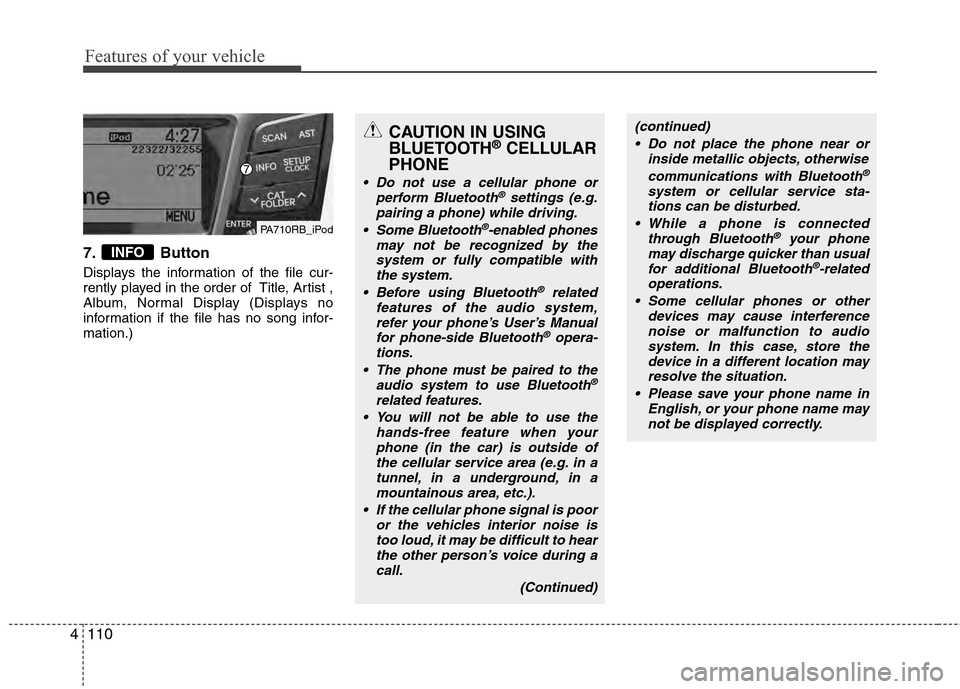
7. Button
Displays the information of the file cur-
rently played in the order of Title, Artist ,
Album, Normal Display (Displays no
information if the file has no song infor-
mation.)
INFO
PA710RB_iPod
CAUTION IN USING
BLUETOOTH®CELLULAR
PHONE
Do not use a cellular phone or
perform Bluetooth®settings (e.g.
pairing a phone) while driving.
Some Bluetooth
®-enabled phones
may not be recognized by the system or fully compatible withthe system.
Before using Bluetooth
®related
features of the audio system, refer your phone’s User’s Manual for phone-side Bluetooth
®opera-
tions.
The phone must be paired to the audio system to use Bluetooth®
related features.
You will not be able to use the hands-free feature when yourphone (in the car) is outside ofthe cellular service area (e.g. in atunnel, in a underground, in amountainous area, etc.).
If the cellular phone signal is poor or the vehicles interior noise istoo loud, it may be difficult to hearthe other person’s voice during a call.
(Continued)
(continued) Do not place the phone near or inside metallic objects, otherwise
communications with Bluetooth
®
system or cellular service sta-tions can be disturbed.
While a phone is connected through Bluetooth
®your phone
may discharge quicker than usual for additional Bluetooth
®-related
operations.
Some cellular phones or other devices may cause interferencenoise or malfunction to audiosystem. In this case, store thedevice in a different location may resolve the situation.
Please save your phone name in English, or your phone name maynot be displayed correctly.