sound system Hyundai Accent 2014 Owner's Manual
[x] Cancel search | Manufacturer: HYUNDAI, Model Year: 2014, Model line: Accent, Model: Hyundai Accent 2014Pages: 406, PDF Size: 33.11 MB
Page 46 of 406
329
Safety features of your vehicle
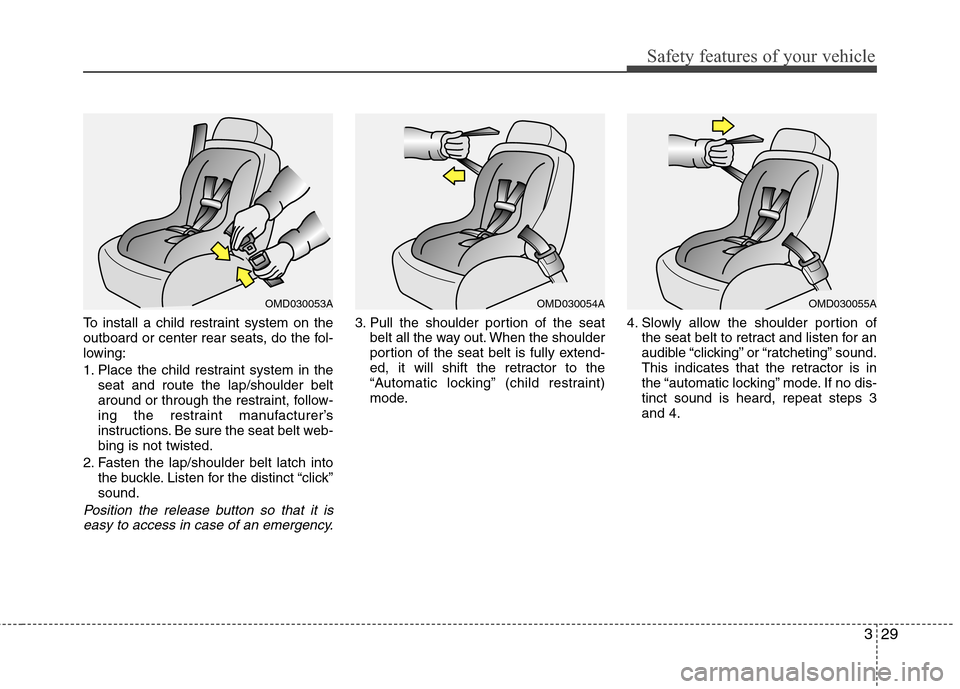
To install a child restraint system on the
outboard or center rear seats, do the fol-
lowing:
1. Place the child restraint system in the
seat and route the lap/shoulder belt
around or through the restraint, follow-
ing the restraint manufacturer’s
instructions. Be sure the seat belt web-
bing is not twisted.
2. Fasten the lap/shoulder belt latch into
the buckle. Listen for the distinct “click”
sound.
Position the release button so that it is
easy to access in case of an emergency.
3. Pull the shoulder portion of the seat
belt all the way out. When the shoulder
portion of the seat belt is fully extend-
ed, it will shift the retractor to the
“Automatic locking” (child restraint)
mode.4. Slowly allow the shoulder portion of
the seat belt to retract and listen for an
audible “clicking” or “ratcheting” sound.
This indicates that the retractor is in
the “automatic locking” mode. If no dis-
tinct sound is heard, repeat steps 3
and 4.
OMD030054AOMD030053AOMD030055A
Page 81 of 406
Features of your vehicle
4 4
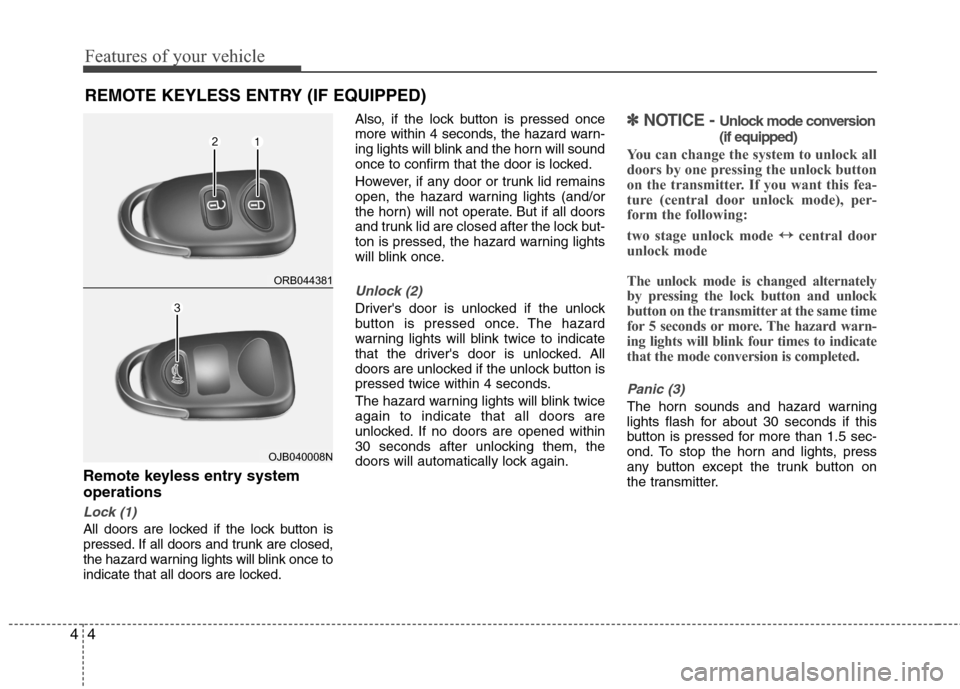
Remote keyless entry system
operations
Lock (1)
All doors are locked if the lock button is
pressed. If all doors and trunk are closed,
the hazard warning lights will blink once to
indicate that all doors are locked.Also, if the lock button is pressed once
more within 4 seconds, the hazard warn-
ing lights will blink and the horn will sound
once to confirm that the door is locked.
However, if any door or trunk lid remains
open, the hazard warning lights (and/or
the horn) will not operate. But if all doors
and trunk lid are closed after the lock but-
ton is pressed, the hazard warning lights
will blink once.
Unlock (2)
Driver's door is unlocked if the unlock
button is pressed once. The hazard
warning lights will blink twice to indicate
that the driver's door is unlocked. All
doors are unlocked if the unlock button is
pressed twice within 4 seconds.
The hazard warning lights will blink twice
again to indicate that all doors are
unlocked. If no doors are opened within
30 seconds after unlocking them, the
doors will automatically lock again.
✽ ✽
NOTICE - Unlock mode conversion
(if equipped)
You can change the system to unlock all
doors by one pressing the unlock button
on the transmitter. If you want this fea-
ture (central door unlock mode), per-
form the following:
two stage unlock mode ↔ ↔
central door
unlock mode
The unlock mode is changed alternately
by pressing the lock button and unlock
button on the transmitter at the same time
for 5 seconds or more. The hazard warn-
ing lights will blink four times to indicate
that the mode conversion is completed.
Panic (3)
The horn sounds and hazard warning
lights flash for about 30 seconds if this
button is pressed for more than 1.5 sec-
ond. To stop the horn and lights, press
any button except the trunk button on
the transmitter.
REMOTE KEYLESS ENTRY (IF EQUIPPED)
ORB044381
OJB040008N
Page 122 of 406
445
Features of your vehicle
✽ ✽
NOTICE
If the ABS warning light or EBD warn-
ing light is on and stays on, the
speedometer or odometer/tripmeter
may not work. In this case, have your
vehicle checked by an authorized
HYUNDAI dealer as soon as possible.
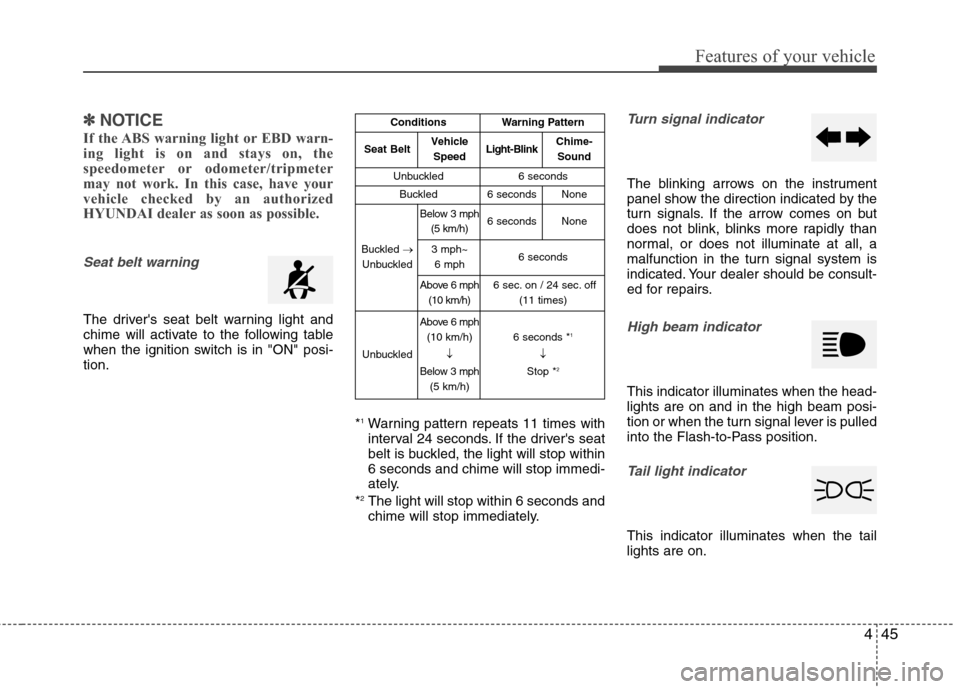
Seat belt warning
The driver's seat belt warning light and
chime will activate to the following table
when the ignition switch is in "ON" posi-
tion.
*
1Warning pattern repeats 11 times with
interval 24 seconds. If the driver's seat
belt is buckled, the light will stop within
6 seconds and chime will stop immedi-
ately.
*
2The light will stop within 6 seconds and
chime will stop immediately.
Turn signal indicator
The blinking arrows on the instrument
panel show the direction indicated by the
turn signals. If the arrow comes on but
does not blink, blinks more rapidly than
normal, or does not illuminate at all, a
malfunction in the turn signal system is
indicated. Your dealer should be consult-
ed for repairs.
High beam indicator
This indicator illuminates when the head-
lights are on and in the high beam posi-
tion or when the turn signal lever is pulled
into the Flash-to-Pass position.
Tail light indicator
This indicator illuminates when the tail
lights are on.
ConditionsWarning Pattern
Seat BeltVehicle
SpeedLight-BlinkChime-
Sound
Unbuckled6 seconds
Buckled6 secondsNone
Buckled →
Unbuckled
Below 3 mph
(5 km/h)6 secondsNone
3 mph~
6 mph6 seconds
Above 6 mph
(10 km/h)6 sec. on / 24 sec. off
(11 times)
Unbuckled
Above 6 mph
(10 km/h)
↓
Below 3 mph
(5 km/h)6 seconds *1
↓
Stop *2
Page 126 of 406
449
Features of your vehicle
Key reminder warning chime
(if equipped)
If the driver’s door is opened while the
ignition key is left in the ignition switch
(ACC or LOCK position), the key
reminder warning chime will sound. This
helps prevent you from locking your keys
in the vehicle. The chime sounds until the
key is removed from the ignition switch or
the driver’s door is closed.
Low fuel level warning light
This warning light indicates the fuel tank
is nearly empty. When it comes on, you
should add fuel as soon as possible.
Driving with the fuel level warning light on
or with the fuel level below “E” can cause
the engine to misfire and damage the
catalytic converter.
Malfunction indicator light
(MIL) (check engine light)
This indicator light is part of the Engine
Control System which monitors various
emission control system components. If
this light illuminates while driving, it indi-
cates that a potential malfunction has
been detected somewhere in the emis-
sion control system.
This light will also illuminate when the
ignition switch is turned to the ON posi-
tion, and will go out in a few seconds
after the engine is started. If it illuminates
while driving, or does not illuminate when
the ignition switch is turned to the ON
position, take your vehicle to your near-
est authorized HYUNDAI dealer and
have the system checked.
Generally, your vehicle will continue to be
drivable, but have the system checked by
an authorized HYUNDAI dealer promptly.
CAUTION
Prolonged driving with the
Malfunction Indicator Light illumi-
nated may cause damage to the
emission control systems which
could effect drivability and/or fuel
economy.
If the Malfunction Indicator Light
illuminates or blinks, potential
catalytic converter damage is
possible. This could result in loss
of engine power. Have the Engine
Control System inspected as
soon as possible by an author-
ized HYUNDAI dealer.
Page 174 of 406
497
Features of your vehicle
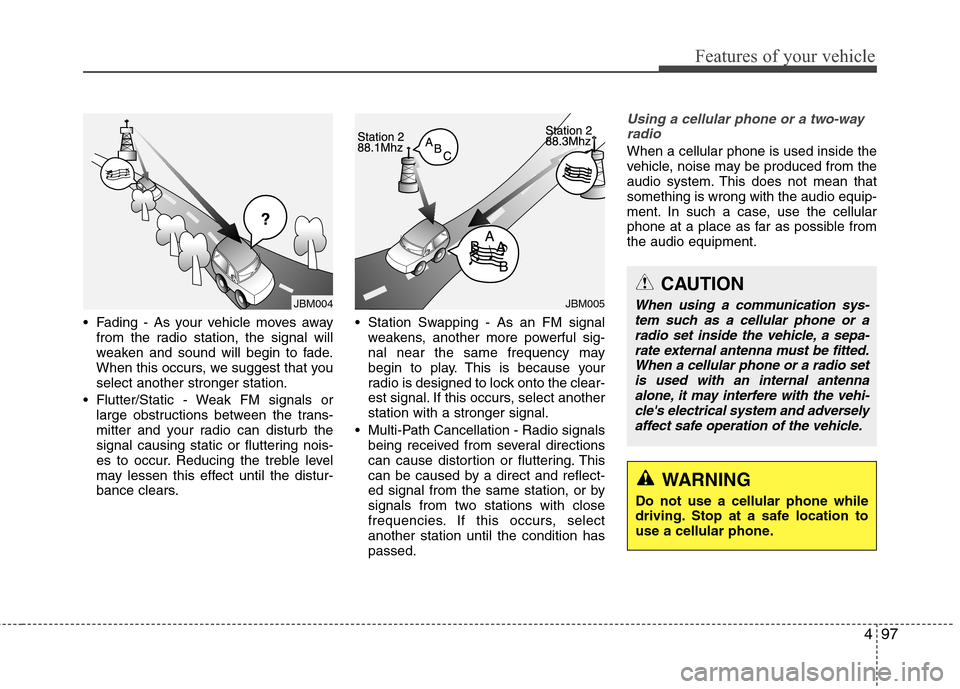
Fading - As your vehicle moves away
from the radio station, the signal will
weaken and sound will begin to fade.
When this occurs, we suggest that you
select another stronger station.
Flutter/Static - Weak FM signals or
large obstructions between the trans-
mitter and your radio can disturb the
signal causing static or fluttering nois-
es to occur. Reducing the treble level
may lessen this effect until the distur-
bance clears. Station Swapping - As an FM signal
weakens, another more powerful sig-
nal near the same frequency may
begin to play. This is because your
radio is designed to lock onto the clear-
est signal. If this occurs, select another
station with a stronger signal.
Multi-Path Cancellation - Radio signals
being received from several directions
can cause distortion or fluttering. This
can be caused by a direct and reflect-
ed signal from the same station, or by
signals from two stations with close
frequencies. If this occurs, select
another station until the condition has
passed.
Using a cellular phone or a two-way
radio
When a cellular phone is used inside the
vehicle, noise may be produced from the
audio system. This does not mean that
something is wrong with the audio equip-
ment. In such a case, use the cellular
phone at a place as far as possible from
the audio equipment.
JBM005JBM004
WARNING
Do not use a cellular phone while
driving. Stop at a safe location to
use a cellular phone.
CAUTION
When using a communication sys-
tem such as a cellular phone or a
radio set inside the vehicle, a sepa-
rate external antenna must be fitted.
When a cellular phone or a radio set
is used with an internal antenna
alone, it may interfere with the vehi-
cle's electrical system and adversely
affect safe operation of the vehicle.
Page 176 of 406
499
Features of your vehicle
WARNING
Do not stare at the screen while
driving. Staring at the screen for
prolonged periods of time could
lead to traffic accidents.
Do not disassemble, assemble, or
modify the audio system. Such
acts could result in accidents,
fire, or electric shock.
Using the phone while driving
may lead to a lack of attention of
traffic conditions and increase
the likelihood of accidents.
Use the phone feature after park-
ing the vehicle.
Heed caution not to spill water or
introduce foreign objects into the
device. Such acts could lead to
smoke, fire, or product malfunc-
tion.
(Continued)
(Continued)
Please refrain from use if the
screen is blank or no sound can
be heard as these signs may indi-
cate product malfunction.
Continued use in such conditions
could lead to accidents(fires,
electric shock) or product mal-
functions.
Do not touch the antenna during
thunder or lightening as such
acts may lead to lightning
induced electric shock.
Do not stop or park in parking-
restricted areas to operate the
product. Such acts could lead to
traffic accidents.
Use the system with the vehicle
ignition turned on. Prolonged use
with the ignition turned off could
result in battery discharge.
Page 177 of 406
Features of your vehicle
100 4
(Continued)
Turn on the car ignition before
using this device. Do not operate
the audio system for long periods
of time with the ignition turned off
as such operations may lead to
battery discharge.
Do not subject the device to
severe shock or impact. Direct
pressure onto the front side of
the monitor may cause damage to
the LCD or touch screen.
When cleaning the device, make
sure to turn off the device and
use a dry and smooth cloth.
Never use tough materials, chem-
ical cloths, or solvents (alcohol,
benzene, thinners, etc.) as such
materials may damage the device
panel or cause color/quality dete-
rioration.
(Continued)(Continued)
Do not place beverages close to
the audio system. Spilling bever-
ages may lead to system mal-
function.
In case of product malfunction,
please contact your place of pur-
chase or After Service center.
Placing the audio system within
an electromagnetic environment
may result in noise interference.
Prevent caustic solutions such as
perfume and cosmetic oil from
contacting the dashboard
because they may cause damage
or discoloration.CAUTION
Operating the device while driving
could lead to accidents due to a
lack of attention to external sur-
roundings. First park the vehicle
before operating the device.
Adjust the volume to levels that
allow the driver to hear sounds
from outside of the vehicle. Driving
in a state where external sounds
cannot be heard may lead to acci-
dents.
Pay attention to the volume setting
when turning the device on. A sud-
den output of extreme volume
upon turning the device on could
lead to hearing impairment.
(Adjust the volume to a suitable
levels before turning off the
device.)
(Continued)
Page 180 of 406
4103
Features of your vehicle
✽ ✽
NOTICE - USING THE
iPod®DEVICE
• Some iPod®models may not sup-
port communication protocol and
files may not properly play.
Supported iPod
®models:
- iPhone®3GS/4
- iPod®touch 1st~4th generation
- iPod®nano 1st~6th generation
- iPod®classic
• The order of search or playback of
songs in the iPod
®can be different
from the order searched in the
audio system.
• If the iPod
®is disabled due to its
own malfunction, reset the iPod®.
(Reset: Refer to iPod®manual)
• An iPod®may not operate normal-
ly on low battery.
(Continued)(Continued)
• Some iPod
®devices, such as the
iPhone®, can be connected through
the Bluetooth®Wireless Technology
interface. The device must have
audio Bluetooth
®Wireless
Technology capability (such as for
stereo headphone Bluetooth
®
Wireless Technology).
The device can play, but it will not
be controlled by the audio system.
• To use iPod
®features within the
audio, use the cable provided upon
purchasing an iPod
®device.
• Skipping or improper operation
may occur depending on the char-
acteristics of your iPod
®/ iPhone®
device.
• If your iPhone®is connected to
both the Bluetooth®Wireless
Technology and USB, the sound
may not be properly played. In
your iPhone
®, select the Dock con-
nector orBluetooth®Wireless
Technology to change the sound
output (source).
(Continued)(Continued)
• When connecting iPod
®with the
iPod®Power Cable, insert the con-
nector to the multimedia socket
completely. If not inserted com-
pletely, communications between
iPod
®and audio may be interrupt-
ed.
• When adjusting the sound effects of
the iPod
®and the audio system, the
sound effects of both devices will
overlap and might reduce or distort
the quality of the sound.
• Deactivate (turn off) the equalizer
function of an iPod
®when adjust-
ing the audio system’s volume, and
turn off the equalizer of the audio
system when using the equalizer of
an iPod
®.
• When not using iPod®with car
audio, detach the iPod®cable from
iPod®. Otherwise, iPod®may
remain in accessory mode, and may
not work properly.
Page 183 of 406
Features of your vehicle
106 4
✽
✽NOTICE - USING THE Voice
Recognition
• When using the voice recognition fea-
ture, only commands listed within the
user's manual are supported.
• Be aware that during the operation of
the voice recognition system, pressing
any key other than the key termi-
nate voice recognition mode.
• For superior voice recognition per-
formance, position the microphone
used for voice recognition above the
head of the driver’s seat and maintain
a proper position when saying com-
mands.
• Within the following situations, voice
recognition may not function properly
due to external sound.
- When the windows and sunroof are
open
- When the wind of the cooling / heat-
ing device is strong
- When entering and passing through
tunnels
(Continued)(Continued)
- When driving on rugged and
uneven roads
- During severe rain (heavy rains,
windstorms)
• Phone related voice commands can be
used only when a Bluetooth
®Wireless
Technology device is connected.
• When making calls by stating a name,
the corresponding contact must be
downloaded and stored within the
audio system.
• After downloading the Bluetooth
®
Wireless Technology phone book, it
takes some times to convert the phone
book data into voice information.
During this time, voice recognition
may not properly operate.
• Pronounce the voice commands natu-
rally and clearly as if in a normal con-
versation.
Page 186 of 406
4109
Features of your vehicle
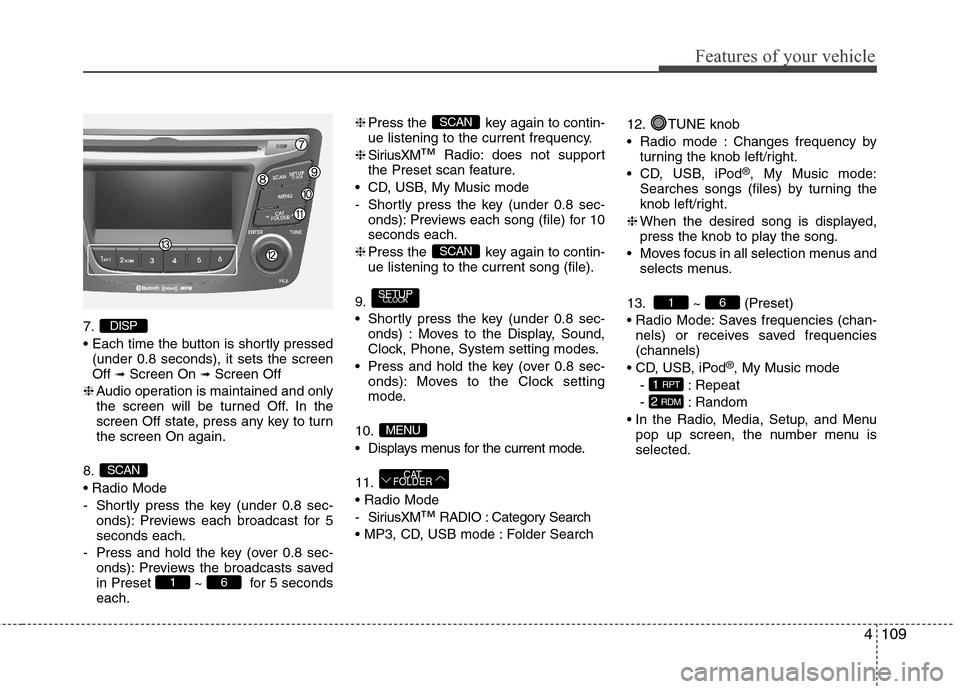
7.
(under 0.8 seconds), it sets the screen
Off
➟Screen On ➟Screen Off
❈Audio operation is maintained and only
the screen will be turned Off. In the
screen Off state, press any key to turn
the screen On again.
8.
Radio Mode
- Shortly press the key (under 0.8 sec-
onds): Previews each broadcast for 5
seconds each.
- Press and hold the key (over 0.8 sec-
onds): Previews the broadcasts saved
in Preset ~ for 5 seconds
each.❈Press the key again to contin-
ue listening to the current frequency.
❈SiriusXM
™Radio: does not support
the Preset scan feature.
CD, USB, My Music mode
- Shortly press the key (under 0.8 sec-
onds): Previews each song (file) for 10
seconds each.
❈Press the key again to contin-
ue listening to the current song (file).
9.
Shortly press the key (under 0.8 sec-
onds) : Moves to the Display, Sound,
Clock, Phone, System setting modes.
Press and hold the key (over 0.8 sec-
onds): Moves to the Clock setting
mode.
10.
Displays menus for the current mode.
11.
- SiriusXM
™RADIO : Category Search
Folder Search12. TUNE knob
Radio mode : Changes frequency by
turning the knob left/right.
CD, USB, iPod
®, My Music mode:
Searches songs (files) by turning the
knob left/right.
❈When the desired song is displayed,
press the knob to play the song.
Moves focus in all selection menus and
selects menus.
13. ~ (Preset)
Radio Mode: Saves frequencies (chan-
nels) or receives saved frequencies
(channels)
CD, USB, iPod
®, My Music mode
- : Repeat
- : Random
In the Radio, Media, Setup, and Menu
pop up screen, the number menu is
selected.
2 RDM
1 RPT
61
CAT
FOLDER
MENU
SETUPCLOCK
SCAN
SCAN
61
SCAN
DISP