Ac system Hyundai Accent 2016 Owner's Manual
[x] Cancel search | Manufacturer: HYUNDAI, Model Year: 2016, Model line: Accent, Model: Hyundai Accent 2016Pages: 456, PDF Size: 16.41 MB
Page 195 of 456
![Hyundai Accent 2016 Owners Manual Features of your vehicle
118
4
CLOCK SETTINGS
Press the key Select [Clock]
through TUNE knob or key
Select menu through TUNE knob
Clock Settings
This menu is used to set the time.
Select [Clock Se](/img/35/14353/w960_14353-194.png "Hyundai Accent 2016 Owners Manual Features of your vehicle
118
4
CLOCK SETTINGS
Press the key Select [Clock]
through TUNE knob or key
Select menu through TUNE knob
Clock Settings
This menu is used to set the time.
Select [Clock Se")
Features of your vehicle
118
4
CLOCK SETTINGS
Press the key Select [Clock]
through TUNE knob or key
Select menu through TUNE knob
Clock Settings
This menu is used to set the time.
Select [Clock Settings] Set through
TUNE knob Press TUNE knob
❈ Adjust the number currently in focus to
set the [hour] and press the tune knob
to set the [minute].
Calendar Settings
This menu is used to set the date
(MM/DD/YYYY).
Select [Calendar Settings] Set through
TUNE knob Press TUNE knob
❈ Adjust the number currently in focus to
make the settings and press the tune
knob to move to the next setting. (Set
in order of Year/Month/Day)
Time Format
This function is used to set the 12/24
hour time format of the audio system.
Select [Time Format] Set 12Hr / 24Hr
through TUNE knob
Clock Display when Power is OFF
Select [Clock Disp.(Pwr Off) Set /through TUNEknob
: Displays time/date on screen
: Turn off.
Off
On
OffOn
3
SETUPCLOCK
Page 196 of 456
![Hyundai Accent 2016 Owners Manual 4119
Features of your vehicle
SYSTEM SETTINGS
Press the key Select [System]Select menu through TUNE knob
Memory Information
Displays currently used memory and
total system memory.
Select [Memory Inf](/img/35/14353/w960_14353-195.png "Hyundai Accent 2016 Owners Manual 4119
Features of your vehicle
SYSTEM SETTINGS
Press the key Select [System]Select menu through TUNE knob
Memory Information
Displays currently used memory and
total system memory.
Select [Memory Inf")
4119
Features of your vehicle
SYSTEM SETTINGS
Press the key Select [System]Select menu through TUNE knob
Memory Information
Displays currently used memory and
total system memory.
Select [Memory Information] OK
The currently used memory is displayed
on the left side while the total system
memory is displayed on the right side.
Prompt Feedback
This feature is used to change voice
command feedback between Normal and
Expert modes.
Select [Prompt Feedback] Set through
TUNEknob
Normal(On) : This mode is for beginner users and provides detailed instruc-
tions during voice command operation.
Expert(Off) : This mode is for expert users and omits some information dur-
ing voice command operation. (When
using Expert mode, guidance instruc-
tions can be heard through the [Help]
or [Menu] commands.
Language
This menu is used to set the display and
voice recognition language.
Select [Language] Set through
TUNE knob
❈ The system will reboot after the lan-
guage is changed.
❈ Language support by region
- English, Francais, EspanolSETUPCLOCK
Page 199 of 456
Features of your vehicle
122
4
Satellite Radio channels:
SiriusXMTMSatellite Radio offers 150+
channels with 100% commercial-free
music, plus sports, news, talk and enter-
tainment, available nationwide in your
vehicle. For more information and a com-
plete list of SiriusXM
TMSatellite Radio
channels, visit www.siriusxm.com in the
United States, sirius-canada.ca in
Canada, or call SiriusXM
TMat 1-800-643-
2112.
Satellite Radio reception factors:
To receive the satellite signal, your vehi-
cle has been equipped with a satellite
radio antenna located on the roof of your
vehicle. The vehicle roof provides the
best location for an unobstructed, open
view of the sky, a requirement of a satel-
lite radio system. Like AM/FM, there are
several factors that can affect satellite
radio reception performance:
Antenna obstructions: For optimal reception performance, keep the
antenna clear of snow and ice build-up
and keep luggage and other material
as far away from the antenna as possi-
ble. Terrain: Hills, mountains, tall buildings,
bridges, tunnels, freeway overpasses,
parking garages, dense tree foliage
and thunderstorms can interfere with
your reception.
SiriusXM
TMSatellite Radio service:
SiriusXMTMSatellite Radio is a subscrip-
tion-based satellite radio service that
broadcasts music, sports, news and
entertainment programming to radio
receivers, which are available for installa-
tion in motor vehicles or factory installed,
as well as for the home, portable and
wireless devices, and through an Internet
connection on personal computer.
Vehicles that are equipped with a factory
installed
SiriusXMTMSatellite Radio sys-
tem include:
Hardware and an introductory trial sub- scription term, which begins on the
date of sale or lease of the vehicle.
For a small upgrade fee, access to
SiriusXMTMmusic channels, and other
select channels over the Internet using
any computer connected to the
Internet (U.S. customers only).
For information on extended subscrip-
tion terms, contact
SiriusXMTMat 1-
866-635-2349.
NOTE:
All SiriusXMTMservices require a sub-
scription, sold separately or as a
package, after 3-month trial included
with vehicle purchase or lease. If you
decide to continue your SiriusXM
TM
service at the end of your trial sub-
scription, the plan you choose will
automatically renew and bill at then-
current rates until you call us at 1-866-
635-2349 to cancel. See our Customer
Agreement for complete terms at
www.siriusxm.com. Other fees and
taxes apply. All fees and program-
ming are subject to change. Sirius
satellite service is available only to
those at least 18 and older in the 48
contiguous USA, D.C., and PR (with
coverage limitations). Our Internet
radio service is available throughout
our satellite service area and in AK
and HI. Certain channels are not avail-
able on our Internet radio service or
on mobile devices.
© 2013 Sirius XM Radio Inc. Sirius, XM
and all related marks and logos are
trademarks of SiriusXM
TMRadio Inc.
All rights reserved
SiriusXMTMSatellite Radio information
Page 208 of 456
4131
Features of your vehicle
✽
✽NOTICE - USING THE MY
MUSIC
• Even if memory is available, a maxi-
mum of 6,000 songs can be stored.
• The same song can be copied up to 1,000 times.
• Memory info can be checked in the System menu of Setup.
AUX
AUX is used to play external MEDIA cur-
rently connected with the AUX terminal.
AUX mode will automatically start when
an external device is connected with the
AUX terminal.
If an external device is connected, you
can also press the key to change
to AUX mode.
❈ AUX mode cannot be started unless
there is an external device connected
to the AUX terminal.
✽ ✽ NOTICE - USING THE AUX
Fully insert the AUX cable into the AUX
terminal for use.
MEDIA
Page 211 of 456
Features of your vehicle
134
4
Bluetooth®Wireless Technology
(if equipped model)
Pairing a
Bluetooth®Wireless
Technology Device
What is Bluetooth®Wireless
Technology Pairing?
Pairing refers to the process of synchro-
nizing your Bluetooth®Wireless
Technology phone or device with the car
audio system for connection. Pairing is
necessary to connect and use the
Bluetooth®Wireless Technology feature.
WARNING
Driving while distracted can
result in a loss of vehicle control
that may lead to an accident,
severe personal injury, and death.
The driver’s primary responsibili-
ty is in the safe and legal opera-
tion of a vehicle, and use of any
handheld devices, other equip-
ment, or vehicle systems which
take the driver’s eyes, attention
and focus away from the safe
operation of a vehicle or which
are not permissible by law should
never be used during operation
of the vehicle.
Page 212 of 456
4135
Features of your vehicle
Pairing Key / Key on
the Steering Remote Controller
When No Devices have been Paired
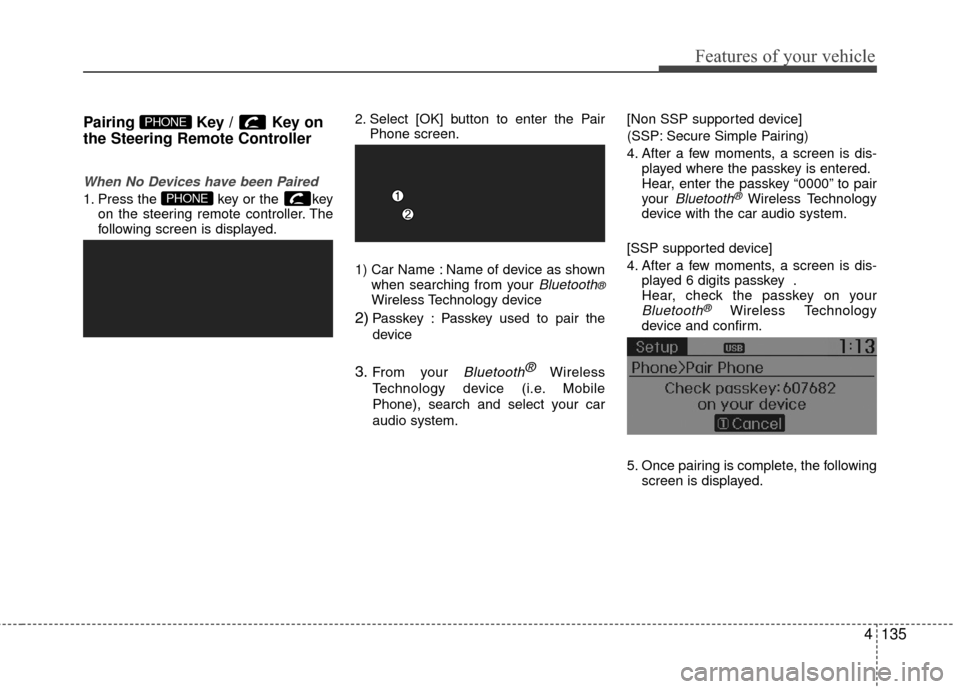
1. Press the key or the keyon the steering remote controller. The
following screen is displayed. 2. Select [OK] button to enter the Pair
Phone screen.
1) Car Name : Name of device as shown when searching from your
Bluetooth®Wireless Technology device
2)Passkey : Passkey used to pair the
device
3.From your Bluetooth ®Wireless
Technology device (i.e. Mobile
Phone), search and select your car
audio system. [Non SSP supported device]
(SSP: Secure Simple Pairing)
4. After a few moments, a screen is dis-
played where the passkey is entered.
Hear, enter the passkey “0000” to pair
your
Bluetooth®Wireless Technology
device with the car audio system.
[SSP supported device]
4. After a few moments, a screen is dis- played 6 digits passkey .
Hear, check the passkey on your
Bluetooth®Wireless Technology
device and confirm.
5. Once pairing is complete, the following screen is displayed.
PHONE
PHONE
Page 213 of 456
Features of your vehicle
136
4
✽
✽
NOTICE
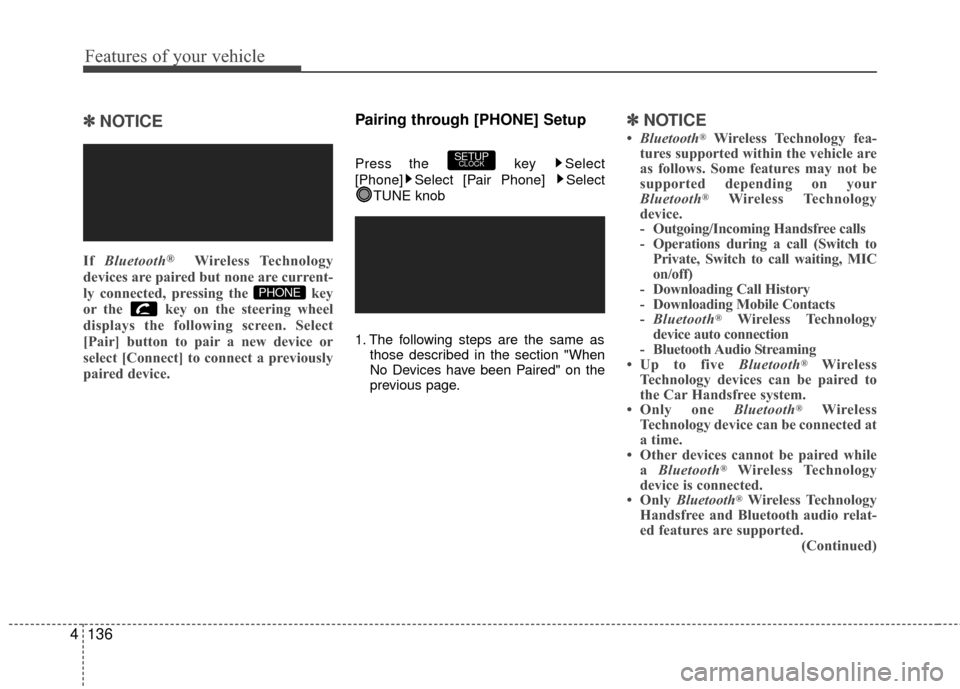
If Bluetooth®Wireless Technology
devices are paired but none are current-
ly connected, pressing the key
or the key on the steering wheel
displays the following screen. Select
[Pair] button to pair a new device or
select [Connect] to connect a previously
paired device.
Pairing through [PHONE] Setup
Press the key Select
[Phone] Select [Pair Phone] Select
TUNE knob
1. The following steps are the same as those described in the section "When
No Devices have been Paired" on the
previous page.
✽ ✽NOTICE
•Bluetooth®Wireless Technology fea-
tures supported within the vehicle are
as follows. Some features may not be
supported depending on your
Bluetooth
®Wireless Technology
device.
- Outgoing/Incoming Handsfree calls
- Operations during a call (Switch to Private, Switch to call waiting, MIC
on/off)
- Downloading Call History
- Downloading Mobile Contacts
- Bluetooth
®Wireless Technology
device auto connection
- Bluetooth Audio Streaming
• Up to five Bluetooth
®Wireless
Technology devices can be paired to
the Car Handsfree system.
• Only one Bluetooth
®Wireless
Technology device can be connected at
a time.
• Other devices cannot be paired while a Bluetooth
®Wireless Technology
device is connected.
• Only Bluetooth
®Wireless Technology
Handsfree and Bluetooth audio relat-
ed features are supported.
(Continued)
SETUPCLOCK
PHONE
Page 214 of 456
4137
Features of your vehicle
(Continued)Bluetooth related operations are pos-
sible only within devices that support
Handsfree or audio features, such as a
Bluetooth
®Wireless Technology
mobile phone or a Bluetooth audio
device.
• If a connected Bluetooth
®Wireless
Technology device becomes discon-
nected due to being out of communi-
cation range, turning the device OFF,
or a Bluetooth
®Wireless Technology
communication error, corresponding
Bluetooth
®Wireless Technology
devices are automatically searched
and reconnected.
• If the system becomes unstable due to communication errors between the
car Handsfree and the Bluetooth
®
Wireless Technology device, reset the
device by turning off and back on
again. Upon resetting Bluetooth
®
Wireless Technology device, the sys-
tem will be restored. (Continued)(Continued)
• After pairing is complete, a contacts
download request is sent once to the
mobile phone. Some mobile phones
may require confirmation upon
receiving a download request, ensure
your mobile phone accepts the con-
nection. Refer to your phones user’s
manual for additional information
regarding phone pairing and connec-
tions.
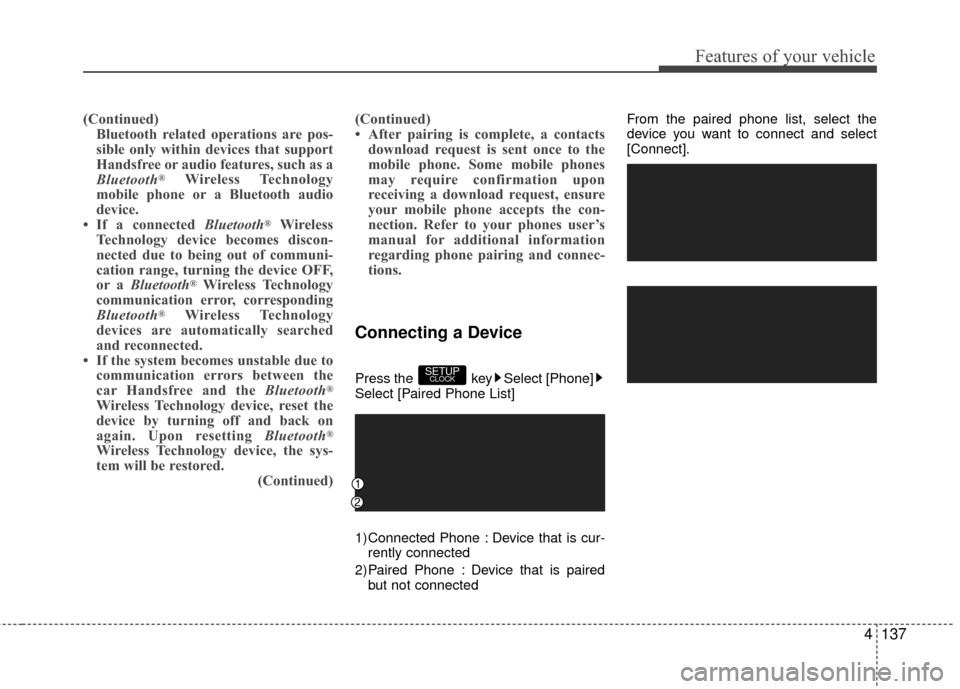
Connecting a Device
Press the key Select [Phone]
Select [Paired Phone List]
1) Connected Phone : Device that is cur-
rently connected
2) Paired Phone : Device that is paired but not connected From the paired phone list, select the
device you want to connect and select
[Connect].SETUPCLOCK
Page 215 of 456
Features of your vehicle
138
4
Changing Priority
What is Priority?
It is possible to pair up to five Bluetooth®
Wireless Technology devices with the car
audio system. The "Change Priority" fea-
ture is used to set the connection priority
of paired phones.
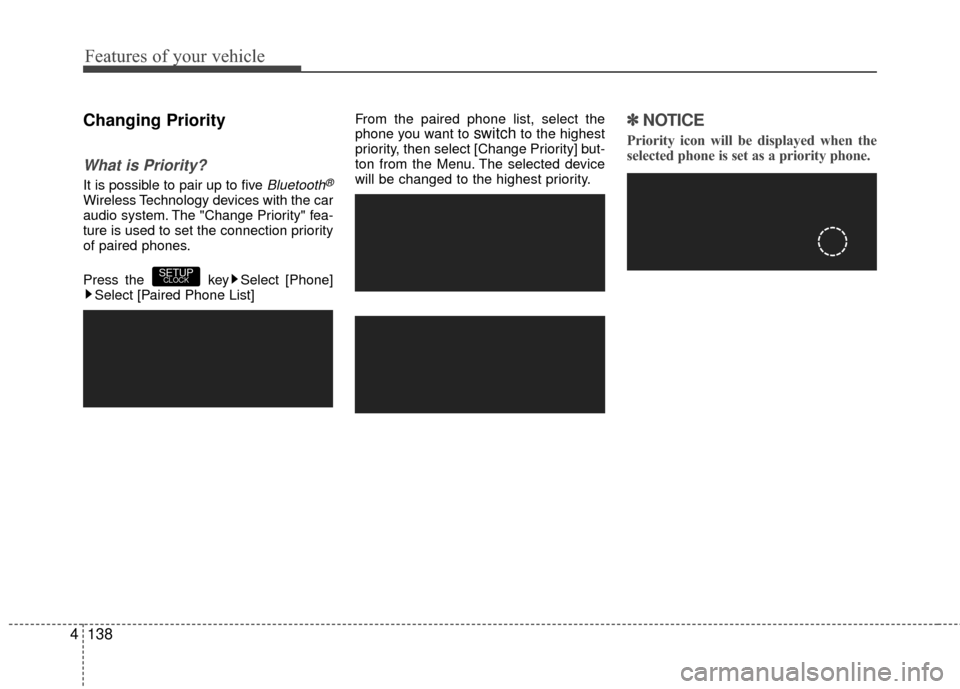
Press the key Select [Phone]
Select [Paired Phone List] From the paired phone list, select the
phone you want to
switchto the highest
priority, then select [Change Priority] but-
ton from the Menu. The selected device
will be changed to the highest priority.✽ ✽ NOTICE
Priority icon will be displayed when the
selected phone is set as a priority phone.
SETUPCLOCK
Page 220 of 456
![Hyundai Accent 2016 Owners Manual 4143
Features of your vehicle
Bluetooth®Wireless
Technology Setting
Pairing a New Device
Press the key Select [Phone]
Select [Pair Phone]
Bluetooth®Wireless Technology devices
can be paired with th](/img/35/14353/w960_14353-219.png "Hyundai Accent 2016 Owners Manual 4143
Features of your vehicle
Bluetooth®Wireless
Technology Setting
Pairing a New Device
Press the key Select [Phone]
Select [Pair Phone]
Bluetooth®Wireless Technology devices
can be paired with th")
4143
Features of your vehicle
Bluetooth®Wireless
Technology Setting
Pairing a New Device
Press the key Select [Phone]
Select [Pair Phone]
Bluetooth®Wireless Technology devices
can be paired with the audio system.
For more information, refer to the “Pairing
through Phone Setup” section within
Bluetooth®Wireless Technology.
Viewing Paired Phone List
Press the key Select [Phone]
Select [Paired Phone List]
This feature is used to view mobile
phones that have been paired with the
audio system. Upon selecting a paired
phone, the setup menu is displayed.
For more information, refer to the “Setting
Bluetooth®Wireless Technology
Connection” section within Bluetooth®
Wireless Technology. 1) Connect/Disconnect Phone : Connect/
disconnects currently selected phone
2) Change Priority : Sets currently select- ed phone to highest connection priori-
ty
3) Delete : Deletes the currently selected phone
4) Return : Moves to the previous screen
SETUPCLOCK
SETUPCLOCK