display Hyundai Accent 2016 Owner's Guide
[x] Cancel search | Manufacturer: HYUNDAI, Model Year: 2016, Model line: Accent, Model: Hyundai Accent 2016Pages: 456, PDF Size: 16.41 MB
Page 205 of 456
![Hyundai Accent 2016 Owners Guide Features of your vehicle
128
4
Folder Random
Press the key Set [ F.RDM]
through the TUNE knob or key
to randomly play songs within the current
folder.
❈ Press F.RDM again to turn off.
Folder Repe](/img/35/14353/w960_14353-204.png "Hyundai Accent 2016 Owners Guide Features of your vehicle
128
4
Folder Random
Press the key Set [ F.RDM]
through the TUNE knob or key
to randomly play songs within the current
folder.
❈ Press F.RDM again to turn off.
Folder Repe")
Features of your vehicle
128
4
Folder Random
Press the key Set [ F.RDM]
through the TUNE knob or key
to randomly play songs within the current
folder.
❈ Press F.RDM again to turn off.
Folder Repeat
Press the key Set [ F.RPT]
through the TUNEknob or key to
repeat songs within the current folder.
❈ Press F.RPT again to turn off.
All Random
Press the key Set [ A.RDM]
through the TUNEknob or key to
randomly play all songs within the CD.
❈ Press A.RDM again to turn off.
Information
Press the key Set [ Info]
through the TUNEknob or key to
display information of the current song.
❈ Press the key to turn off info
display.
Copy
Press the key Set [ Copy]
through the TUNE knob or key.
This is used to copy the current songinto My Music. You can play the copied
Music in My Music mode.
❈ If another key is pressed while copying
is in progress, a pop up asking you
whether to cancel copying is displayed.
❈ If another media is connected or
inserted (USB, CD, iPod
®, AUX) while
copying is in progress, copying is can-
celed.
❈ Music will not be played while copying
is in progress.
MENU : iPod®
In iPod®mode, press the key to
set the Repeat, Random, Information and
Search features.
Repeat
Press the key Set [ RPT]
through the TUNEknob or key to
repeat the current song.
❈ Press RPT again to turn repeat off.
Random
Press the key Set [ RDM]
through the TUNEknob or key.
Plays all songs within the currently play-
ing category in random order.
❈Press RDM again to turn off.
2 RDMMENU
1 RPTMENU
MENU
6
MENU
MENU
5MENU
4MENU
3MENU
2 RDM
MENU
Page 206 of 456
![Hyundai Accent 2016 Owners Guide 4129
Features of your vehicle
Information
Press the key Set [ Info]
through the TUNEknob or key.
Displays information of the current song.
❈ Press the key to turn off info
display.
Search
Press t](/img/35/14353/w960_14353-205.png "Hyundai Accent 2016 Owners Guide 4129
Features of your vehicle
Information
Press the key Set [ Info]
through the TUNEknob or key.
Displays information of the current song.
❈ Press the key to turn off info
display.
Search
Press t")
4129
Features of your vehicle
Information
Press the key Set [ Info]
through the TUNEknob or key.
Displays information of the current song.
❈ Press the key to turn off info
display.
Search
Press the key Set [ Search]
through the TUNEknob or key.
Displays iPod®category list.
❈ Searching iPod®category is
key pressed, move to parent category.MENU
4MENU
MENU
3MENU
Page 207 of 456
Features of your vehicle
130
4
MENU : My Music Mode
(if equipped)
In My Music mode, press the key
to set the Repeat, Random, Information,
Delete, Delete All, and Delete Selection
features.
Repeat
Press the key Set [ RPT]
through the TUNEknob or key.
Repeats the currently playing song.
❈ Press RPT again to turn repeat off.
Random
Press the key Set [ RDM]
through the TUNEknob or key.
Plays all songs in random order.
❈ Press RDM again to turn random off.
Information
Press the key Set [ Info]
through the TUNEknob or key.
Displays information of the current song.
❈ Press the key to turn off info
display.
Delete
Press the key Set [ Delete]
through the TUNEknob or key.
Deletes currently playing file
In the play screen, pressing delete will
delete the currently playing song. Deletes file from list
➀ Select the file you wish to delete by
using the TUNE knob.
➁ Press the key and select the
delete menu to delete the selected file.
Delete All
Press the key Set [ Del.All]
through the TUNEknob or key.
Deletes all songs of My Music.
Delete Selection
Press the key Set [ Del.Sel]
through the TUNEknob or key.
Songs within My Music are selected and
deleted.
➀Select the songs you wish to delete
from the list.
➁ After selecting, press the key and
select the delete menu.
6
MENU
5MENU
MENU
4MENU
MENU
3MENU
2 RDMMENU
1 RPTMENU
MENU
Page 210 of 456
4133
Features of your vehicle
PHONE
Before using the Bluetooth®Wireless
Technology phone features
In order to use Bluetooth®Wireless
Technology phone, you must first pair
and connect the
Bluetooth®Wireless
Technology mobile phone.
If the mobile phone is not paired or connected, it is not possible to enter
Phone mode. Once a phone is paired
or connected, the guidance screen will
be displayed.
If Priority is set upon vehicle ignition(IGN/ACC ON), the
Bluetooth®
Wireless Technology phone will be
automatically connected. Even if you
are outside, the first
Bluetooth®
Wireless Technology phone will be
automatically connected once you are
in the vicinity of the vehicle. If you do
not want automatic
Bluetooth®
Wireless Technology phone connec-
tion, set the Bluetooth®Wireless
Technology power to OFF.
PHONE
(if equipped model)
Making a call using the Steering
wheel mount controls
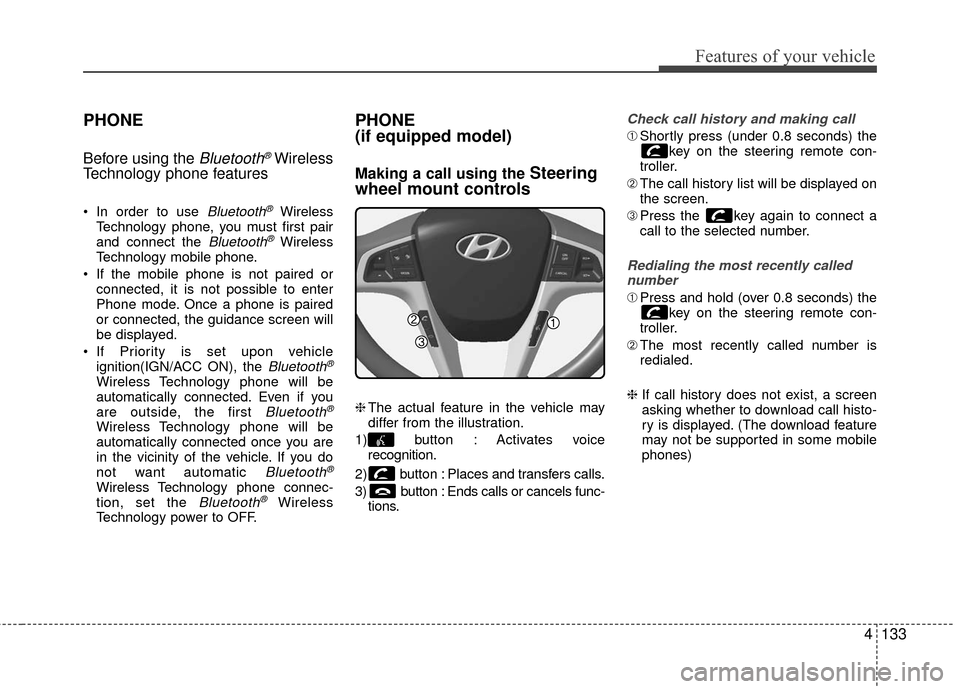
❈ The actual feature in the vehicle may
differ from the illustration.
1) button : Activates voice recognition.
2) button : Places and transfers calls.
3) button : Ends calls or cancels func- tions.
Check call history and making call
➀Shortly press (under 0.8 seconds) the
key on the steering remote con-
troller.
➁ The call history list will be displayed on
the screen.
\f Press the key again to connect a
call to the selected number.
Redialing the most recently called
number
➀ Press and hold (over 0.8 seconds) the
key on the steering remote con-
troller.
➁ The most recently called number is
redialed.
❈ If call history does not exist, a screen
asking whether to download call histo-
ry is displayed. (The download feature
may not be supported in some mobile
phones)
Page 212 of 456
4135
Features of your vehicle
Pairing Key / Key on
the Steering Remote Controller
When No Devices have been Paired
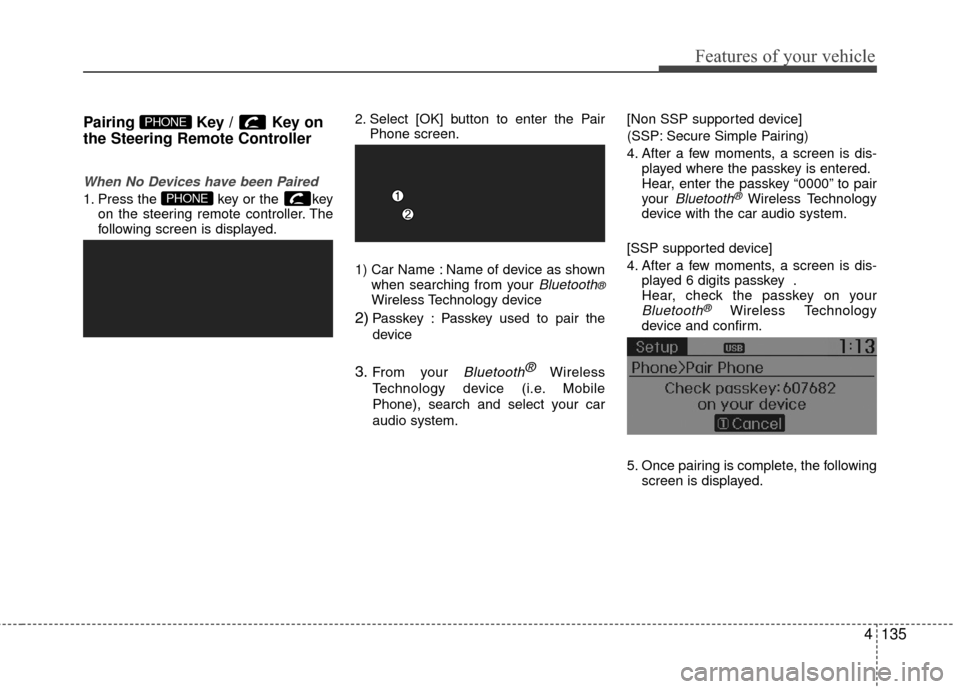
1. Press the key or the keyon the steering remote controller. The
following screen is displayed. 2. Select [OK] button to enter the Pair
Phone screen.
1) Car Name : Name of device as shown when searching from your
Bluetooth®Wireless Technology device
2)Passkey : Passkey used to pair the
device
3.From your Bluetooth ®Wireless
Technology device (i.e. Mobile
Phone), search and select your car
audio system. [Non SSP supported device]
(SSP: Secure Simple Pairing)
4. After a few moments, a screen is dis-
played where the passkey is entered.
Hear, enter the passkey “0000” to pair
your
Bluetooth®Wireless Technology
device with the car audio system.
[SSP supported device]
4. After a few moments, a screen is dis- played 6 digits passkey .
Hear, check the passkey on your
Bluetooth®Wireless Technology
device and confirm.
5. Once pairing is complete, the following screen is displayed.
PHONE
PHONE
Page 213 of 456
Features of your vehicle
136
4
✽
✽
NOTICE
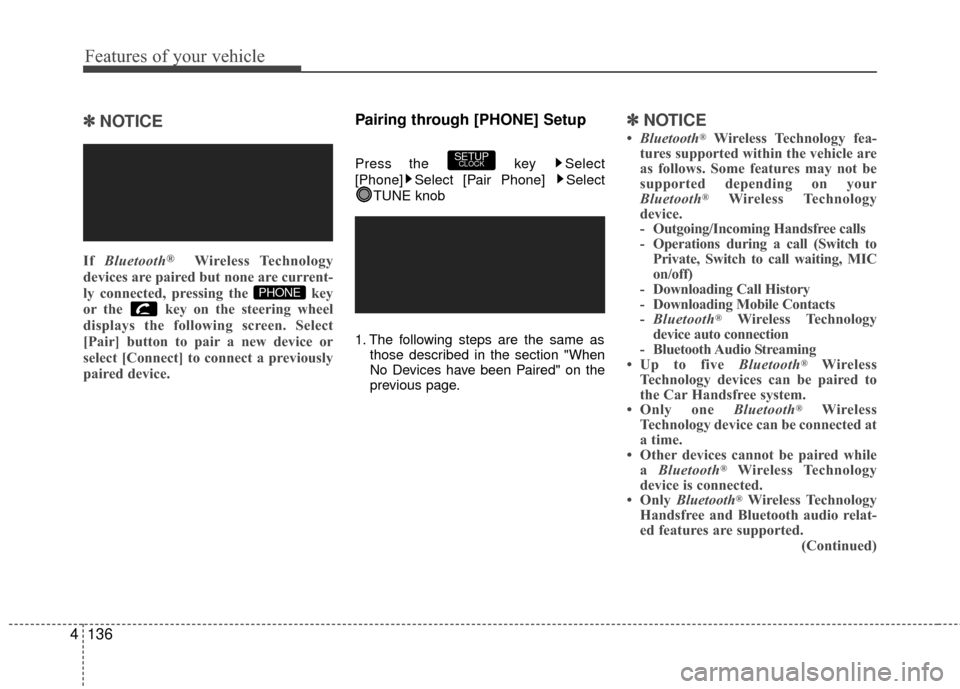
If Bluetooth®Wireless Technology
devices are paired but none are current-
ly connected, pressing the key
or the key on the steering wheel
displays the following screen. Select
[Pair] button to pair a new device or
select [Connect] to connect a previously
paired device.
Pairing through [PHONE] Setup
Press the key Select
[Phone] Select [Pair Phone] Select
TUNE knob
1. The following steps are the same as those described in the section "When
No Devices have been Paired" on the
previous page.
✽ ✽NOTICE
•Bluetooth®Wireless Technology fea-
tures supported within the vehicle are
as follows. Some features may not be
supported depending on your
Bluetooth
®Wireless Technology
device.
- Outgoing/Incoming Handsfree calls
- Operations during a call (Switch to Private, Switch to call waiting, MIC
on/off)
- Downloading Call History
- Downloading Mobile Contacts
- Bluetooth
®Wireless Technology
device auto connection
- Bluetooth Audio Streaming
• Up to five Bluetooth
®Wireless
Technology devices can be paired to
the Car Handsfree system.
• Only one Bluetooth
®Wireless
Technology device can be connected at
a time.
• Other devices cannot be paired while a Bluetooth
®Wireless Technology
device is connected.
• Only Bluetooth
®Wireless Technology
Handsfree and Bluetooth audio relat-
ed features are supported.
(Continued)
SETUPCLOCK
PHONE
Page 215 of 456
Features of your vehicle
138
4
Changing Priority
What is Priority?
It is possible to pair up to five Bluetooth®
Wireless Technology devices with the car
audio system. The "Change Priority" fea-
ture is used to set the connection priority
of paired phones.
Press the key Select [Phone]
Select [Paired Phone List] From the paired phone list, select the
phone you want to
switchto the highest
priority, then select [Change Priority] but-
ton from the Menu. The selected device
will be changed to the highest priority.✽ ✽ NOTICE
Priority icon will be displayed when the
selected phone is set as a priority phone.
SETUPCLOCK
Page 217 of 456
Features of your vehicle
140
4
USING Bluetooth®Wireless
Technology
Phone Menu Screen
Phone Menus
With a Bluetooth®Wireless Technology
device connected, press the
key to display the Phone menu screen.
1) Favorite : Up to 20 frequently used contacts saved for easy access
2) Call History : Device the call history list screen
3) Contacts : Displays the Contacts list screen
4) Setup : Displays Phone related set- tings.
✽ ✽ NOTICE
• If you select the [Call History] button
but there is no call history data, a
prompt is displayed which asks to
download call history data.
• If you select the [Contacts] button but there is no contacts data stored, a
prompt is displayed which asks to
download contacts data.
• This feature may not be supported in some mobile phones. For more infor-
mation on download support, refer to
your mobile phone user’s manual.
Answering Calls
Answering a Call
Answering a call with a Bluetooth®
Wireless Technology device connected
will display the following screen.
To accept the call, press key on
the
steering wheel while the call is
incoming.
1) Caller : Displays the other party’sname when the incoming caller is
saved within your contacts
2)Incoming Number : Displays the incoming number
PHONE
Page 218 of 456
4141
Features of your vehicle
✽
✽NOTICE
• When an incoming call pop-up is dis-
played, most Audio and SETUP mode
features are disabled. Only the call
volume will operate.
• The telephone number may not be properly displayed in some mobile
phones.
• When a call is answered with the mobile phone, the call mode will auto-
matically revert to Private mode.
Favorites
Press the key Select
[Favorites]
1) Saved favorite contact : Connects call
upon selection
2) To add favorite : Downloaded contacts be saved as favorite.
✽ ✽ NOTICE
• To save Favorite, contacts should be
downloaded.
• Contact saved in Favorites will not be automatically updated if the contact
has been updated in the phone. To
update Favorites, delete the Favorite
and create a new Favorite.
Call History
Press the key Select [Call
History]
A list of incoming, outgoing and missed
calls is displayed.
Call history may not be saved in the call
history list in some mobile phones.
Calls received with hidden caller ID will not be saved in the call history list.
possible when there is no call history
stored or a
Bluetooth®Wireless
Technology phone is not connected.
Up to 20 received, dialed and missed calls are stored in Call History.
Time of received/dialed calls and call time information are not saved.
PHONE
PHONE
Page 219 of 456
![Hyundai Accent 2016 Owners Guide Features of your vehicle
142
4
Contacts
Press the key Select
[Contacts]
The list of saved phone book entries is
displayed.
NOTE:
Find a contact in an alphabetical
order, press the key.
✽ ✽ NOTIC](/img/35/14353/w960_14353-218.png "Hyundai Accent 2016 Owners Guide Features of your vehicle
142
4
Contacts
Press the key Select
[Contacts]
The list of saved phone book entries is
displayed.
NOTE:
Find a contact in an alphabetical
order, press the key.
✽ ✽ NOTIC")
Features of your vehicle
142
4
Contacts
Press the key Select
[Contacts]
The list of saved phone book entries is
displayed.
NOTE:
Find a contact in an alphabetical
order, press the key.
✽ ✽ NOTICE
• Up to 1,000 contacts saved in your
Bluetooth® Wireless Technology
phone can be downloaded into the car
contacts. Contacts that have been
downloaded to the car cannot be edit-
ed or deleted on the phone.
• Mobile phone contacts are managed separately for each paired Bluetooth
®
Wireless Technology device (max 5
devices x 1,000 contacts each).
Previously downloaded data is main-
tained even if the Bluetooth
® Wireless
Technology device has been discon-
nected.
(However, the contacts and call histo-
ry saved to the phone will be deleted if
a paired phone is deleted.)
• It is possible to download contacts during Bluetooth streaming audio.
• When downloading contacts, the icon will be displayed within the status bar. (Continued)(Continued)
• It is not possible to begin downloading
a contact list when the contact down-
load feature has been turned off with-
in the Bluetooth
® Wireless Technology
device. In addition, some devices may
require device authorization upon
attempting to download contacts. If
downloading does not normally occur,
check the Bluetooth
® Wireless
Technology device settings or the
screen state.
• The contacts download feature may not be supported in some mobile
phones. For more information of sup-
ported Bluetooth
® devices and func-
tion support, refer to your phone’s
user manual.
MENU
PHONE