display Hyundai Accent 2016 Service Manual
[x] Cancel search | Manufacturer: HYUNDAI, Model Year: 2016, Model line: Accent, Model: Hyundai Accent 2016Pages: 456, PDF Size: 16.41 MB
Page 239 of 456
![Hyundai Accent 2016 Service Manual Features of your vehicle
162
4
SYSTEM SETTINGS
Press the keySelect [System]
Select menu through TUNE knob
Memory Information
Displays currently used memory and
total system memory.
Select [Memory Inf](/img/35/14353/w960_14353-238.png "Hyundai Accent 2016 Service Manual Features of your vehicle
162
4
SYSTEM SETTINGS
Press the keySelect [System]
Select menu through TUNE knob
Memory Information
Displays currently used memory and
total system memory.
Select [Memory Inf")
Features of your vehicle
162
4
SYSTEM SETTINGS
Press the keySelect [System]
Select menu through TUNE knob
Memory Information
Displays currently used memory and
total system memory.
Select [Memory Information] OK
The currently used memory is displayed
on the left side while the total system
memory is displayed on the right side.
Prompt Feedback
This feature is used to change voice
command feedback between Normal and
Expert modes.
Select [Prompt Feedback] Set through
TUNEknob
Normal(On) : This mode is for beginner users and provides detailed instruc-
tions during voice command operation.
Expert(Off) : This mode is for expert users and omits some information dur-
ing voice command operation. (When
using Expert mode, guidance instruc-
tions can be heard through the [Help]
or [Menu] commands.
Language
This menu is used to set the display and
voice recognition language.
Select [Language] Set through
TUNE knob
❈ The system will reboot after the lan-
guage is changed.
❈ Language support by region
- English, Français, EspañolSETUPCLOCK
Page 243 of 456
Features of your vehicle
166
4
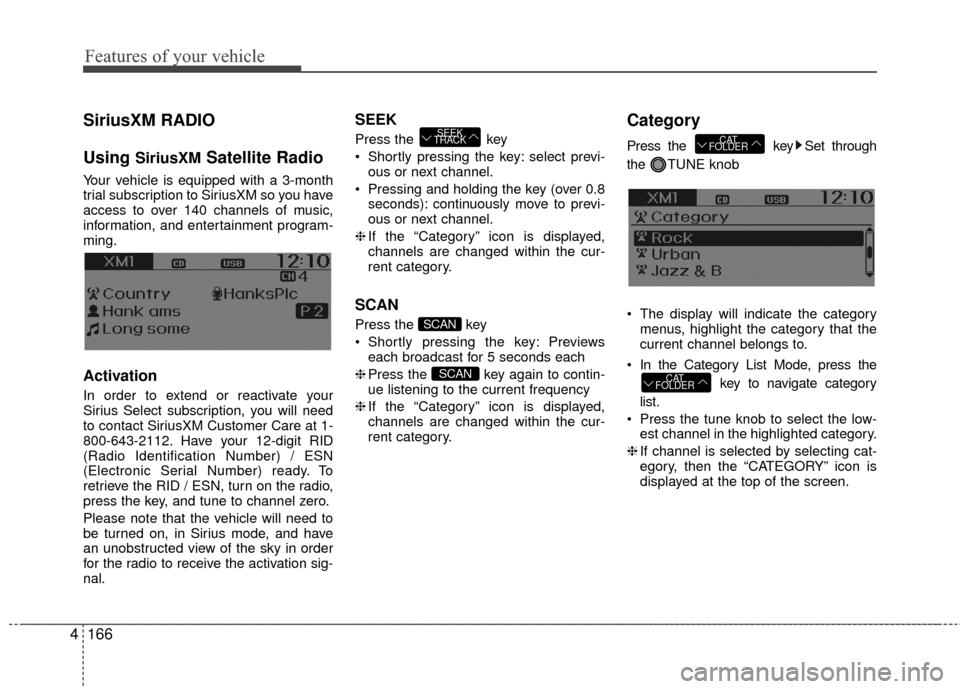
SiriusXM RADIO
Using
SiriusXMSatellite Radio
Your vehicle is equipped with a 3-month
trial subscription to SiriusXM so you have
access to over 140 channels of music,
information, and entertainment program-
ming.
Activation
In order to extend or reactivate your
Sirius Select subscription, you will need
to contact SiriusXM Customer Care at 1-
800-643-2112. Have your 12-digit RID
(Radio Identification Number) / ESN
(Electronic Serial Number) ready. To
retrieve the RID / ESN, turn on the radio,
press the key, and tune to channel zero.
Please note that the vehicle will need to
be turned on, in Sirius mode, and have
an unobstructed view of the sky in order
for the radio to receive the activation sig-
nal.
SEEK
Press the key
Shortly pressing the key: select previ-
ous or next channel.
Pressing and holding the key (over 0.8 seconds): continuously move to previ-
ous or next channel.
❈ If the “Category” icon is displayed,
channels are changed within the cur-
rent category.
SCAN
Press the key
Shortly pressing the key: Previews each broadcast for 5 seconds each
❈ Press the key again to contin-
ue listening to the current frequency
❈ If the “Category” icon is displayed,
channels are changed within the cur-
rent category.
Category
Press the key Set through
the TUNE knob
The display will indicate the category menus, highlight the category that the
current channel belongs to.
In the Category List Mode, press the key to navigate category
list.
Press the tune knob to select the low- est channel in the highlighted category.
❈ If channel is selected by selecting cat-
egory, then the “CATEGORY” icon is
displayed at the top of the screen.
CAT
FOLDER
CAT
FOLDER
SCAN
SCAN
SEEK
TRACK
Page 244 of 456

4167
Features of your vehicle
Preset
Press the ~ key
Shortly pressing the key: Plays the fre-quency saved in the corresponding
key.
Pressing and holding the key (over 0.8 seconds): Pressing and holding the
desired key from ~ will
save the current broadcast to the
selected key and sound a BEEP.
✽ ✽
Troubleshooting
1. Antenna Error
If this message is displayed, the antenna
or antenna cable is broken or
unplugged. Please consult with your
Hyundai dealership.
2. No Signal
If this message is displayed, it means
that the antenna is covered and that the
SiriusXM Satellite Radio signal is not
available. Ensure the antenna is uncov-
ered and has a clear view of the sky.
Tune
Rotate TUNE knob : Changes the
channel number or scrolls category list.
Press TUNE knob : Selects the menu.
Menu
Select category menu through the TUNE knob Press the key
Select [ Info] through the TUNE knob
or key
Info (Information)
Displays the Artist/Song info of the cur-
rent song.
1
MENU
61
61
Page 245 of 456
Features of your vehicle
168
4
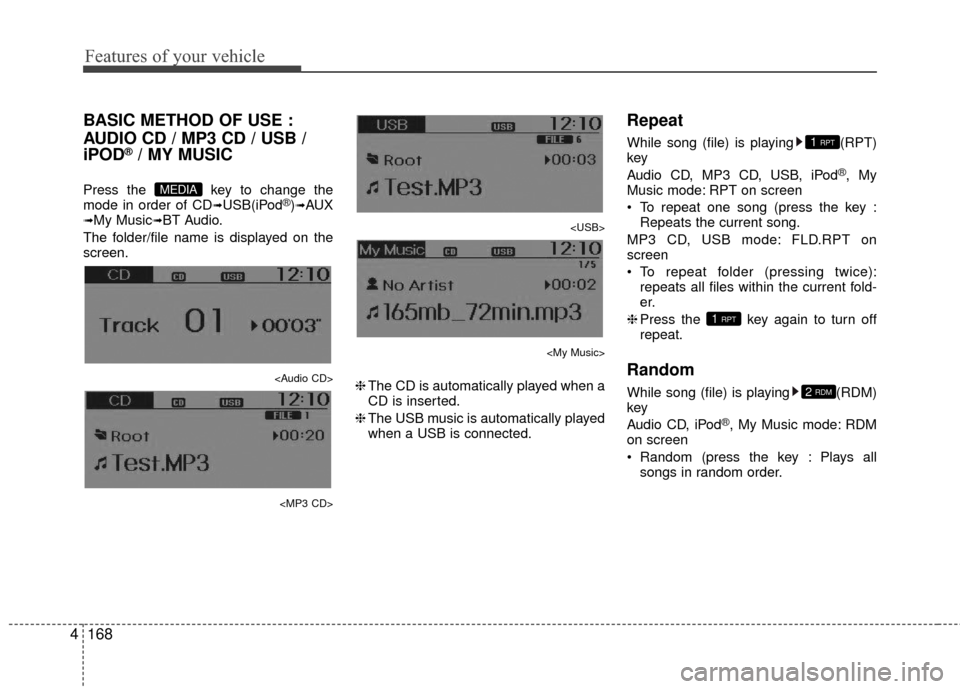
BASIC METHOD OF USE :
AUDIO CD / MP3 CD / USB /
iPOD
®/ MY MUSIC
Press the key to change the
mode in order of CD➟USB(iPod®)➟AUX➟My Music➟BT Audio.
The folder/file name is displayed on the
screen.
Page 247 of 456
![Hyundai Accent 2016 Service Manual Features of your vehicle
170
4
MENU : Audio CD
Press the Audio CD mode key
to set the Repeat, Random, Information
features.
Repeat
Press the key Set [ RPT]
through the TUNEknob or key
to repeat th](/img/35/14353/w960_14353-246.png "Hyundai Accent 2016 Service Manual Features of your vehicle
170
4
MENU : Audio CD
Press the Audio CD mode key
to set the Repeat, Random, Information
features.
Repeat
Press the key Set [ RPT]
through the TUNEknob or key
to repeat th")
Features of your vehicle
170
4
MENU : Audio CD
Press the Audio CD mode key
to set the Repeat, Random, Information
features.
Repeat
Press the key Set [ RPT]
through the TUNEknob or key
to repeat the current song.
❈ Press RPT again to turn off.
Random
Press the key Set [ RDM]
through the TUNEknob or key
to randomly play songs within the current
CD.
❈ Press RDM again to turn off.
Information
Press the key Set [ Info]
through the TUNEknob or key
to display information of the current song.
❈ Press the key to turn off info
display.
MENU : MP3 CD / USB
Press the MP3 CD/USB mode
key to set the Repeat, Folder Random,
Folder Repeat, All Random, Information,
and Copy features.
Repeat
Press the key Set [ RPT]
through the TUNEknob or key
to repeat the current song.
❈ Press RPT again to turn off.1 RPT
MENU
MENU
MENU
3
MENU
2 RDM
MENU
1 RPT
MENU
MENU
Page 248 of 456
![Hyundai Accent 2016 Service Manual 4171
Features of your vehicle
Folder Random
Press the key Set [ F.RDM]
through the TUNE knob or key
to randomly play songs within the current
folder.
❈Press F.RDM again to turn off.
Folder Repeat](/img/35/14353/w960_14353-247.png "Hyundai Accent 2016 Service Manual 4171
Features of your vehicle
Folder Random
Press the key Set [ F.RDM]
through the TUNE knob or key
to randomly play songs within the current
folder.
❈Press F.RDM again to turn off.
Folder Repeat")
4171
Features of your vehicle
Folder Random
Press the key Set [ F.RDM]
through the TUNE knob or key
to randomly play songs within the current
folder.
❈Press F.RDM again to turn off.
Folder Repeat
Press the key Set [ F.RPT]
through the TUNEknob or key
to repeat songs within the current folder.
❈ Press F.RPT again to turn off.
All Random
Press the key Set [ A.RDM]
through the TUNEknob or key to
randomly play all songs within the
CD/USB.
❈ Press A.RDM again to turn off.
Information
Press the key Set [ Info]
through the TUNEknob or key
to display information of the current song.
❈ Press the key to turn off info
display.
Copy
Press the key Set [ Copy]
through the TUNE knob or key.
This is used to copy the current songinto My Music. You can play the copied
Music in My Music mode.
❈ If another key is pressed while copying
is in progress, a pop up asking you
whether to cancel copying is displayed.
❈ If another media is connected or
inserted (USB, CD, iPod
®, AUX) while
copying is in progress, copying is can-
celed.
❈ Music will not be played while copying
is in progress.
MENU : iPod®
In iPod®mode, press the key to
set the Repeat, Random, Information and
Search features.
Repeat
Press the key Set [ RPT]
through the TUNEknob or key
to repeat the current song.
❈ Press RPT again to turn repeat off.
Random
Press the key Set [ RDM]
through the TUNEknob or key.
Plays all songs within the currently play-
ing category in random order.
❈Press RDM again to turn off.
2 RDM
MENU
1 RPT
MENU
MENU
6
MENU
MENU
5
MENU
4
MENU
3
MENU
2 RDM
MENU
Page 249 of 456
![Hyundai Accent 2016 Service Manual Features of your vehicle
172
4
Information
Press the key Set [ Info]
through the TUNEknob or key.
Displays information of the current song.
❈ Press the key to turn off info
display.
Search
Press](/img/35/14353/w960_14353-248.png "Hyundai Accent 2016 Service Manual Features of your vehicle
172
4
Information
Press the key Set [ Info]
through the TUNEknob or key.
Displays information of the current song.
❈ Press the key to turn off info
display.
Search
Press")
Features of your vehicle
172
4
Information
Press the key Set [ Info]
through the TUNEknob or key.
Displays information of the current song.
❈ Press the key to turn off info
display.
Search
Press the key Set [ Search]
through the TUNEknob or key.
Displays iPod®category list.
❈ Searching iPod®category is
key pressed, move to parent category.MENU
4
MENU
MENU
3
MENU
Page 250 of 456
4173
Features of your vehicle
MENU : My Music Mode
(if equipped)
In My Music mode, press the key
to set the Repeat, Random, Information,
Delete, Delete All, and Delete Selection
features.
Repeat
Press the key Set [ RPT]
through the TUNEknob or key.
Repeats the currently playing song.
❈ Press RPT again to turn repeat off.
Random
Press the key Set [ RDM]
through the TUNEknob or key.
Plays all songs in random order.
❈ Press RDM again to turn random off.
Information
Press the key Set [ Info]
through the TUNEknob or key.
Displays information of the current song.
❈ Press the key to turn off info
display.
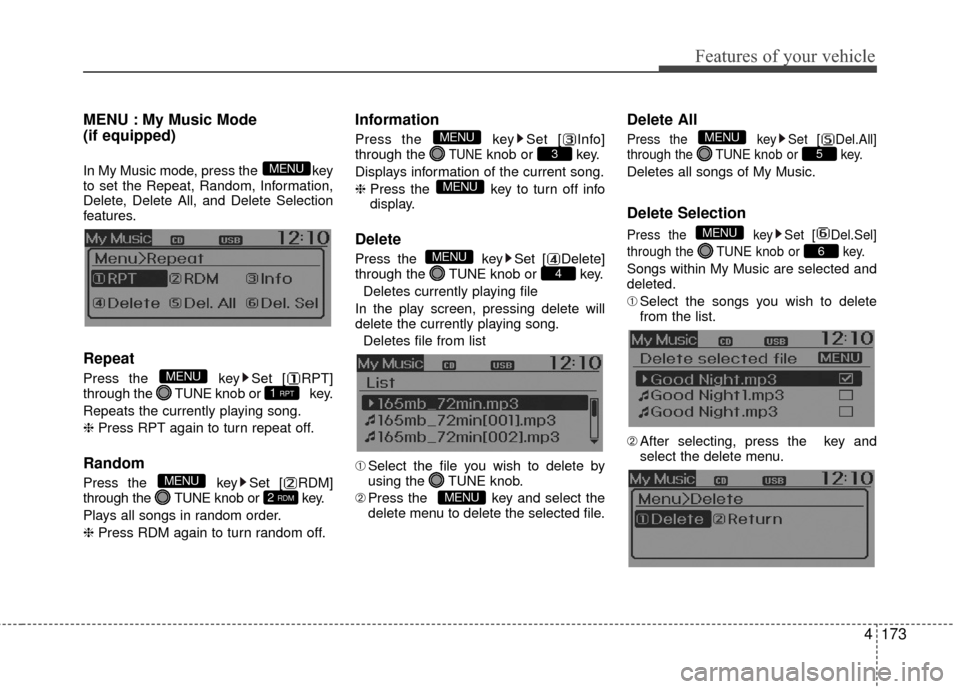
Delete
Press the key Set [ Delete]
through the TUNEknob or key.
Deletes currently playing file
In the play screen, pressing delete will
delete the currently playing song. Deletes file from list
➀ Select the file you wish to delete by
using the TUNE knob.
\b Press the key and select the
delete menu to delete the selected file.
Delete All
Press the key Set [ Del.All]
through the TUNEknob or key.
Deletes all songs of My Music.
Delete Selection
Press the key Set [ Del.Sel]
through the TUNEknob or key.
Songs within My Music are selected and
deleted.
➀Select the songs you wish to delete
from the list.
\b After selecting, press the key and
select the delete menu.
6
MENU
5
MENU
MENU
4
MENU
MENU
3
MENU
2 RDM
MENU
1 RPT
MENU
MENU
Page 252 of 456
4175
Features of your vehicle
Bluetooth®Wireless Technology
AUDIO (if equipped model)
What is
Bluetooth®Wireless
Technology
?
Bluetooth®Wireless Technology allows
devices to be connected in a short distance,
including hands-free devices, stereo head-
sets, wireless remote controllers, etc. For
more information, visit
the Bluetooth®
Wireless Technologywebsite atwww.Bluetooth.com
Before using Bluetooth®Wireless
Technology audio features
Bluetooth®Wireless Technology audio
may not be supported depending on
the compatibility of your
Bluetooth®
Wireless Technology mobile phone.
In order to use
Bluetooth®Wireless
Technology audio, you must first pair
and connect the
Bluetooth®Wireless
Technology mobile phone.
Bluetooth®Wireless Technology audio
can be used only when the [Audio
Streaming] of Phone is turned .
Starting Bluetooth®Wireless
Technology Audio
Press the key to change the
mode in order of CD➟USB➟AUX➟My
Music➟BT Audio.
If BT Audio is selected,
Bluetooth®
Wireless Technology audio will start
playing.
❈ Audio may not automatically start
playing in some mobile phones.
Using the Bluetooth®Wireless
Technology audio features
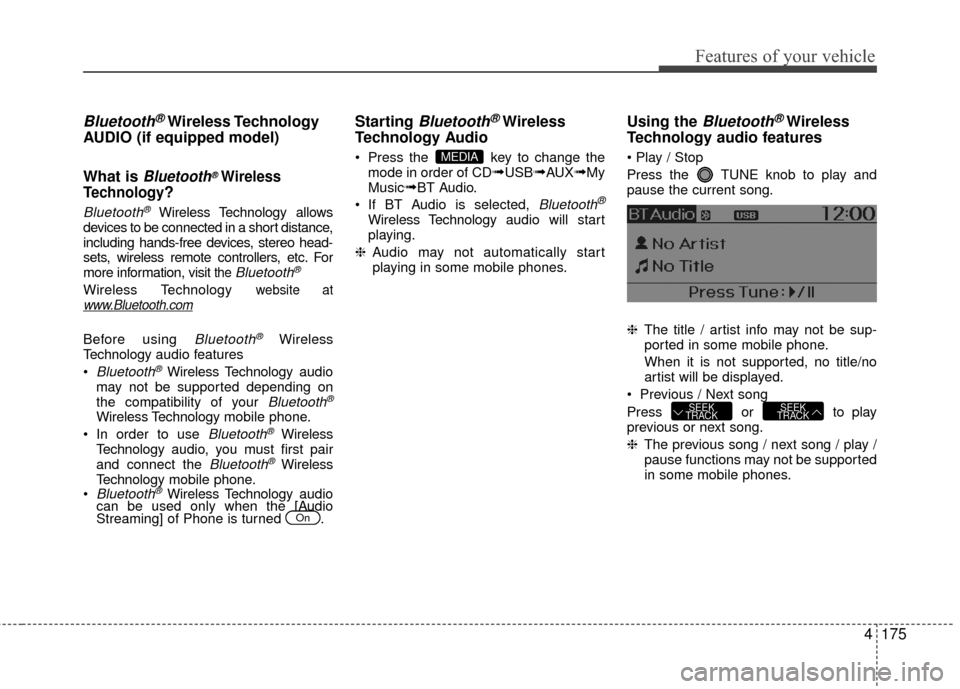
Press the TUNE knob to play and
pause the current song.
❈ The title / artist info may not be sup-
ported in some mobile phone.
When it is not supported, no title/no
artist will be displayed.
Previous / Next song
Press or to play
previous or next song.
❈ The previous song / next song / play /
pause functions may not be supported
in some mobile phones.
SEEK
TRACKSEEK
TRACK
MEDIA
On
Page 253 of 456
Features of your vehicle
176
4
PHONE
Before using the Bluetooth®Wireless
Technology phone features
In order to use
Bluetooth®Wireless
Technology phone, you must first pair
and connect the
Bluetooth®Wireless
Technology mobile phone.
If the mobile phone is not paired or connected, it is not possible to enter
Phone mode. Once a phone is paired
or connected, the guidance screen will
be displayed.
If Priority is set upon vehicle ignition(IGN/ACC ON), the
Bluetooth®
Wireless Technology phone will be
automatically connected. Even if you
are outside, the first
Bluetooth®
Wireless Technology phone will be
automatically connected once you are
in the vicinity of the vehicle. If you do
not want automatic
Bluetooth®
Wireless Technology phone connec-
tion, set the Bluetooth®Wireless
Technology power to OFF.
PHONE
(if equipped model)
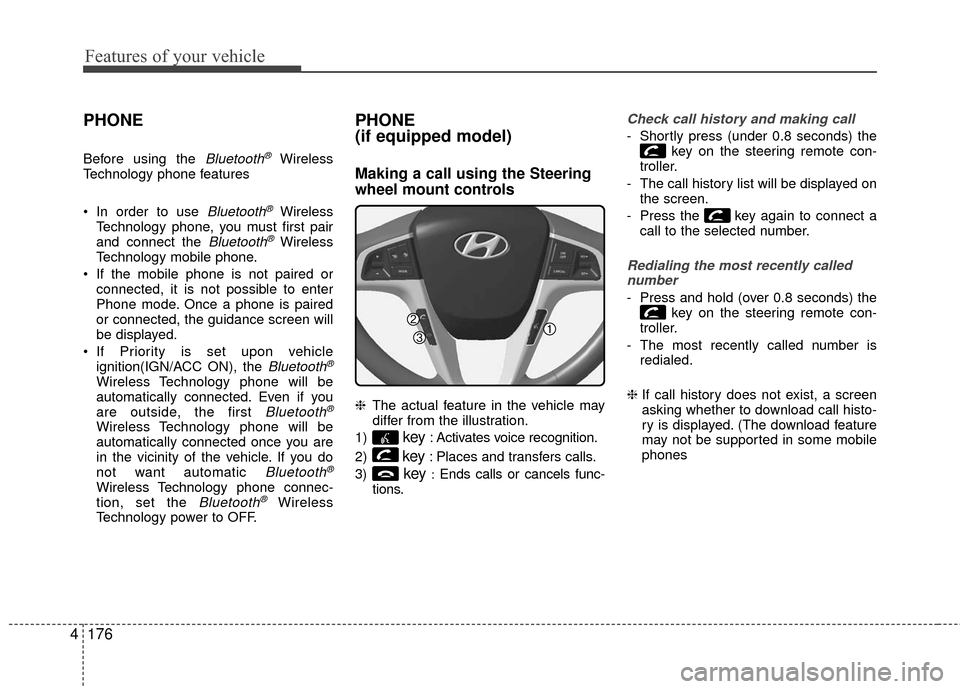
Making a call using the Steering
wheel mount controls
❈ The actual feature in the vehicle may
differ from the illustration.
1)
key: Activates voice recognition.
2)
key: Places and transfers calls.
3)
key:Ends calls or cancels func-
tions.
Check call history and making call
- Shortly press (under 0.8 seconds) the key on the steering remote con-
troller.
- The call history list will be displayed on the screen.
- Press the key again to connect a call to the selected number.
Redialing the most recently callednumber
- Press and hold (over 0.8 seconds) the key on the steering remote con-
troller.
- The most recently called number is redialed.
❈ If call history does not exist, a screen
asking whether to download call histo-
ry is displayed. (The download feature
may not be supported in some mobile
phones