ECO mode Hyundai Accent 2017 User Guide
[x] Cancel search | Manufacturer: HYUNDAI, Model Year: 2017, Model line: Accent, Model: Hyundai Accent 2017Pages: 380, PDF Size: 12.45 MB
Page 148 of 380
Features of your vehicle
4-74
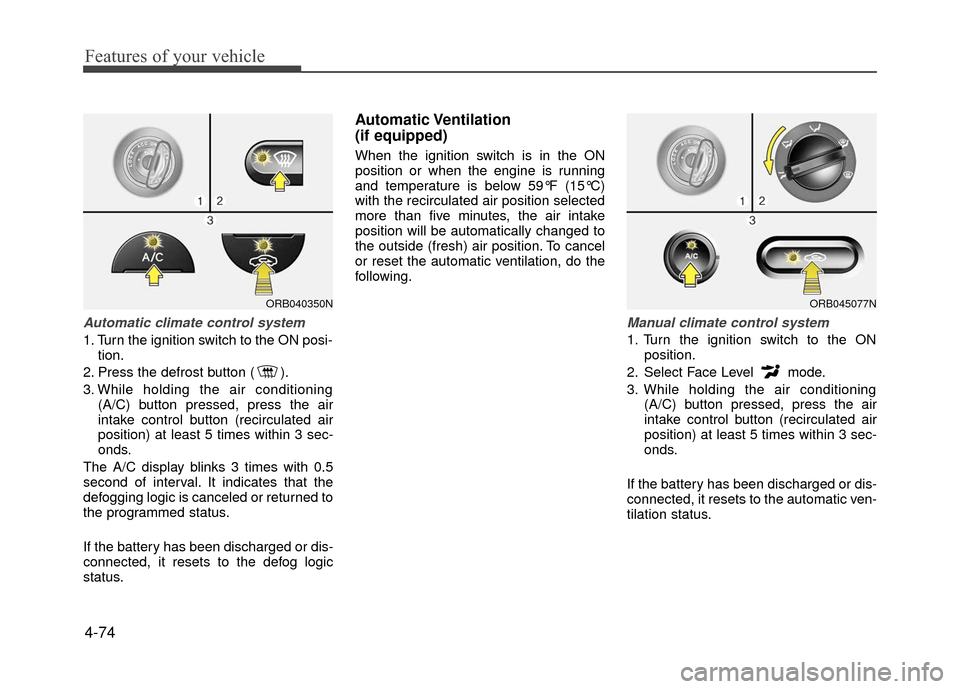
Automatic climate control system
1. Turn the ignition switch to the ON posi-tion.
2. Press the defrost button ( ).
3. While holding the air conditioning (A/C) button pressed, press the air
intake control button (recirculated air
position) at least 5 times within 3 sec-
onds.
The A/C display blinks 3 times with 0.5
second of interval. It indicates that the
defogging logic is canceled or returned to
the programmed status.
If the battery has been discharged or dis-
connected, it resets to the defog logic
status.
Automatic Ventilation
(if equipped)
When the ignition switch is in the ON
position or when the engine is running
and temperature is below 59°F (15°C)
with the recirculated air position selected
more than five minutes, the air intake
position will be automatically changed to
the outside (fresh) air position. To cancel
or reset the automatic ventilation, do the
following.
Manual climate control system
1. Turn the ignition switch to the ON position.
2. Select Face Level mode.
3. While holding the air conditioning (A/C) button pressed, press the air
intake control button (recirculated air
position) at least 5 times within 3 sec-
onds.
If the battery has been discharged or dis-
connected, it resets to the automatic ven-
tilation status.
ORB040350NORB045077N
Page 149 of 380
4-75
Features of your vehicle
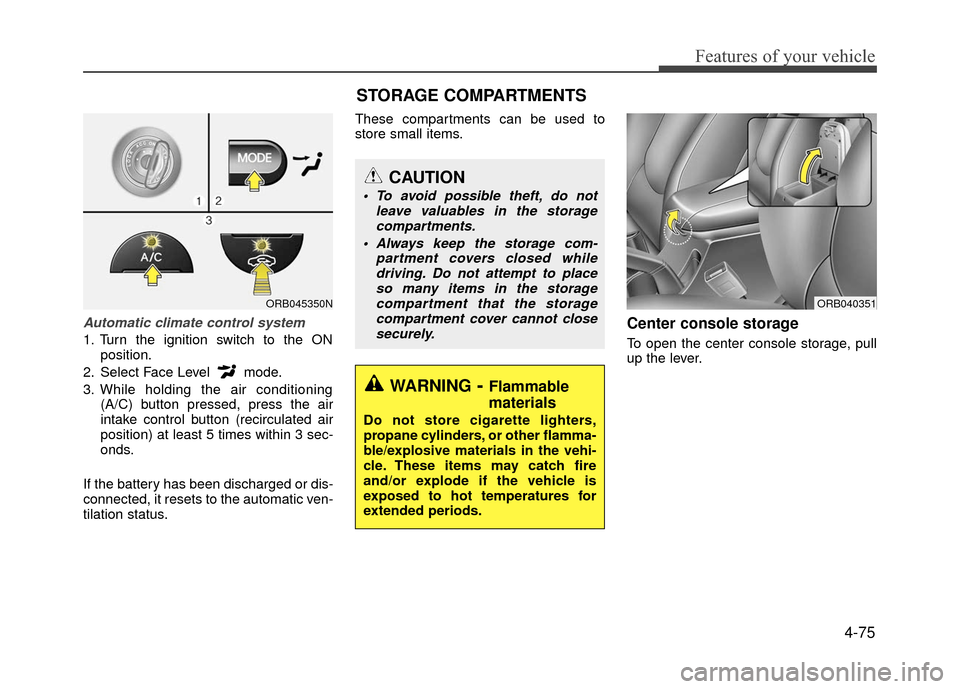
Automatic climate control system
1. Turn the ignition switch to the ONposition.
2. Select Face Level mode.
3. While holding the air conditioning (A/C) button pressed, press the air
intake control button (recirculated air
position) at least 5 times within 3 sec-
onds.
If the battery has been discharged or dis-
connected, it resets to the automatic ven-
tilation status. These compartments can be used to
store small items.
Center console storage
To open the center console storage, pull
up the lever.
ORB045350N
STORAGE COMPARTMENTS
WARNING- Flammable
materials
Do not store cigarette lighters,
propane cylinders, or other flamma-
ble/explosive materials in the vehi-
cle. These items may catch fire
and/or explode if the vehicle is
exposed to hot temperatures for
extended periods.
CAUTION
To avoid possible theft, do not
leave valuables in the storagecompartments.
Always keep the storage com- partment covers closed whiledriving. Do not attempt to placeso many items in the storagecompartment that the storagecompartment cover cannot closesecurely.
ORB040351
Page 159 of 380
4-85
Features of your vehicle
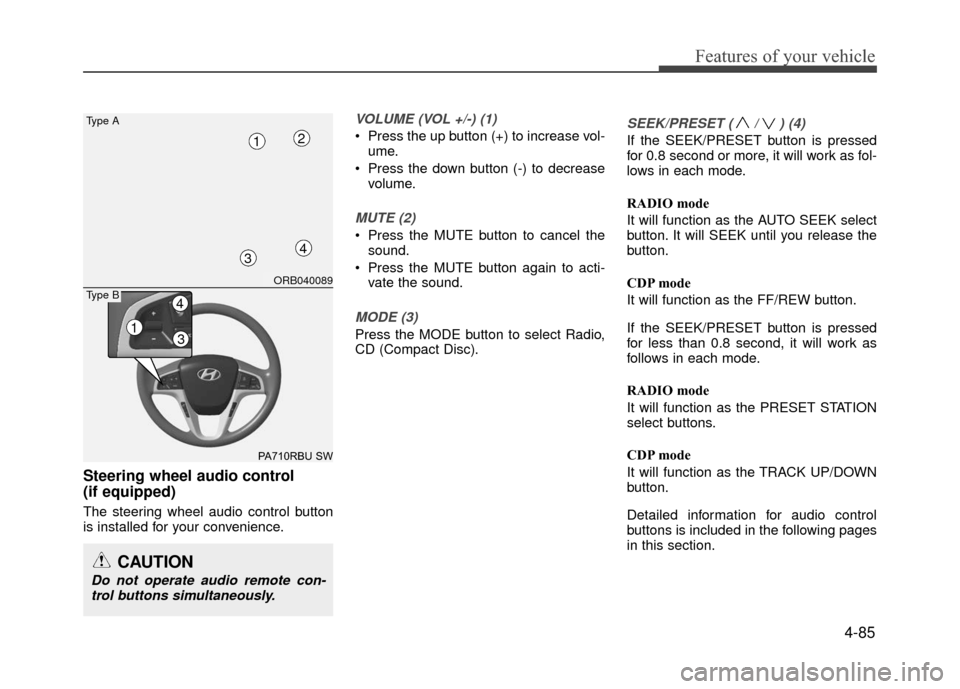
Steering wheel audio control
(if equipped)
The steering wheel audio control button
is installed for your convenience.
VOLUME (VOL +/-) (1)
Press the up button (+) to increase vol-ume.
Press the down button (-) to decrease volume.
MUTE (2)
Press the MUTE button to cancel thesound.
Press the MUTE button again to acti- vate the sound.
MODE (3)
Press the MODE button to select Radio,
CD (Compact Disc).
SEEK/PRESET ( / ) (4)
If the SEEK/PRESET button is pressed
for 0.8 second or more, it will work as fol-
lows in each mode.
RADIO mode
It will function as the AUTO SEEK select
button. It will SEEK until you release the
button.
CDP mode
It will function as the FF/REW button.
If the SEEK/PRESET button is pressed
for less than 0.8 second, it will work as
follows in each mode.
RADIO mode
It will function as the PRESET STATION
select buttons.
CDP mode
It will function as the TRACK UP/DOWN
button.
Detailed information for audio control
buttons is included in the following pages
in this section.
CAUTION
Do not operate audio remote con-trol buttons simultaneously.
ORB040089
PA710RBU SW
Type A
4
12
3
13
4Type B
Page 165 of 380
4-91
Features of your vehicle
(Continued)
• An encrypted MP3 PLAYER is notrecognizable.
• Depending on the condition of the external USB device, the connected
external USB device can be unrec-
ognizable.
• When the formatted byte/sector setting of External USB device is
not either 512BYTE or 2048BYTE,
then the device will not be recog-
nized.
• Use only a USB device formatted to FAT 12/16/32.
• USB devices without USB I/F authentication may not be recog-
nizable.
• Make sure the USB connection ter- minal does not come in contact with
the human body or other objects.
• If you repeatedly connect or discon- nect the USB device in a short peri-
od of time, it may break the device.
• You may hear a strange noise when connecting or disconnecting a USB
device. (Continued)(Continued)
• If you disconnect the external USB
device during playback in USB
mode, the external USB device can
be damaged or may malfunction.
Therefore, disconnect the external
USB device when the audio is
turned off or in another mode. (e.g,
Radio, CD)
• Depending on the type and capacity of the external USB device or the
type of the files stored in the device,
there is a difference in the time
taken for recognition of the device.
• Do not use the USB device for pur- poses other than playing music
files.
• Playing videos through the USB is not supported.
• Use of USB accessories such as rechargers or heaters using USB
I/F may lower performance or
cause trouble. (Continued)(Continued)
• If you use devices such as a USB hub
purchased separately, the vehicle’s
audio system may not recognize the
USB device. In that case, connect the
USB device directly to the multimedia
terminal of the vehicle.
• If the USB device is divided by logical drives, only the music files on the
highest-priority drive are recognized
by car audio.
• Devices such as MP3 Player/ Cellular phone/Digital camera can be unrec-
ognizable by standard USB I/F can be
unrecognizable.
• Charging through the USB may not be supported in some mobile devices.
• USB HDD or USB types liable to con- nection failures due to vehicle vibra-
tions are not supported.
(i-stick type)
• Some non-standard USB devices (METAL COVER TYPE USB) can be
unrecognizable. (Continued)
Page 166 of 380
Features of your vehicle
4-92
(Continued)
• Some USB flash memory readers(such as CF, SD, micro SD, etc.) or
external-HDD type devices can be
unrecognizable.
• Music files protected by DRM (DIGITAL RIGHTS MANAGE-
MENT) are not recognizable.
• The data in the USB memory may be lost while using this audio.
Always back up important data on
a personal storage device.
• Please avoid using USB memory products which can be used as key
chains or cellular phone
accessories as they could
cause damage to the
USB jack. Please make
certain only to use plug
type connector products.✽
✽ NOTICE - USING THE
iPod®DEVICE
• iPhone is a registered trademark of
Apple inc.
• Some iPod
®models may not sup-
port communication protocol and
files may not properly play.
Supported iPod
®models:
- iPhone®3GS/4
- iPod®touch 1st~4th generation
- iPod®nano 1st~6th generation
- iPod®classic
• The order of search or playback of songs in the iPod
®can be different
from the order searched in the
audio system.
• If the iPod
®is disabled due to its
own malfunction, reset the iPod®.
(Reset: Refer to iPod®manual)
• An iPod®may not operate normal-
ly on low battery. (Continued)(Continued)
• Some iPod
®devices, such as the
iPhone®, can be connected through
the Bluetooth®Wireless Technology
interface. The device must have
audio Bluetooth
®Wireless
Technology capability (such as for
stereo headphone Bluetooth
®
Wireless Technology).
The device can play, but it will not
be controlled by the audio system.
• To use iPod
®features within the
audio, use the cable provided upon
purchasing an iPod
®device.
• Skipping or improper operation may occur depending on the char-
acteristics of your iPod
®/ iPhone®
device.
• If your iPhone®is connected to
both the Bluetooth®Wireless
Technology and USB, the sound
may not be properly played. In
your iPhone
®, select the Dock con-
nector or Bluetooth®Wireless
Technology to change the sound
output (source). (Continued)
Page 168 of 380
Features of your vehicle
4-94
✽
✽NOTICE - PRECAUTIONS
FOR SAFE DRIVING
• Connecting the head unit with a
Bluetooth®phone allows the user to
conveniently make and receive calls
and use contacts. Before using
Bluetooth
®, carefully read the con-
tents of this user’s manual.
• Excessive use or operations while driving may lead to negligent driv-
ing practices and result in acci-
dents. Refrain from excessive oper-
ations while driving.
• Viewing the screen for prolonged periods of time is dangerous and
may lead to accidents. When driv-
ing, view the screen only for short
periods of time.
✽ ✽ NOTICE - WHEN CON-
NECTING A
Bluetooth®
PHONE
• Before connecting the head unit
with the mobile phone, check to see
that the mobile phone supports
Bluetooth
®features.
• Even if the phone supports Bluetooth
®, the phone will not be
found during device searches if the
phone has been set to hidden state
or the Bluetooth
®power is turned
off. Disable the hidden state or turn
on the Bluetooth
®power prior to
searching/connecting with the Head
unit.
• Bluetooth phone is automatically connected when the ignition on.
• If you do not want automatic con- nection with your Bluetooth
®
device, turn off the Bluetooth®fea-
ture within your mobile phone.
• The Handsfree call volume and quality may differ depending on the
mobile phone. (Continued)(Continued)
• Park the vehicle when connecting
the head unit with the mobile
phone.
• Bluetooth
®connection may become
intermittently disconnected in some
mobile phones. Follow these steps
to try again.
1. Within the mobile phone, turn the Bluetooth
®function off/on
and try again.
2. Turn the mobile phone power Off/On and try again.
3. Completely remove the mobile phone battery, reboot, and then
again.
4. Reboot the
AudioSystem and try
again.
5. Delete all paired devices, pair and try again.
• Handsfree call quality and volume may differ depending on the model
of your mobile phone.
Page 169 of 380
4-95
Features of your vehicle
✽
✽NOTICE - USING THE VOICE
RECOGNITION
• When using the voice recognition fea-ture, only commands listed within the
user's manual are supported.
• Be aware that during the operation of the voice recognition system, pressing
any key other than the key termi-
nate voice recognition mode.
• For superior voice recognition per- formance, position the microphone
used for voice recognition above the
head of the driver’s seat and maintain
a proper position when saying com-
mands.
• Within the following situations, voice recognition may not function properly
due to external sound.
- When the windows and sunroof areopen
- When the wind of the cooling / heat- ing device is strong
- When entering and passing through tunnels (Continued)(Continued)
- When driving on rugged anduneven roads
- During severe rain (heavy rains, windstorms)
• Phone related voice commands can be used only when a Bluetooth
®Wireless
Technology device is connected.
• When making calls by stating a name, the corresponding contact must be
downloaded and stored within the
audio system.
• After downloading the Bluetooth
®
Wireless Technology phone book, it
takes some times to convert the phone
book data into voice information.
During this time, voice recognition
may not properly operate.
• Pronounce the voice commands natu- rally and clearly as if in a normal con-
versation.
Page 172 of 380
Features of your vehicle
4-98
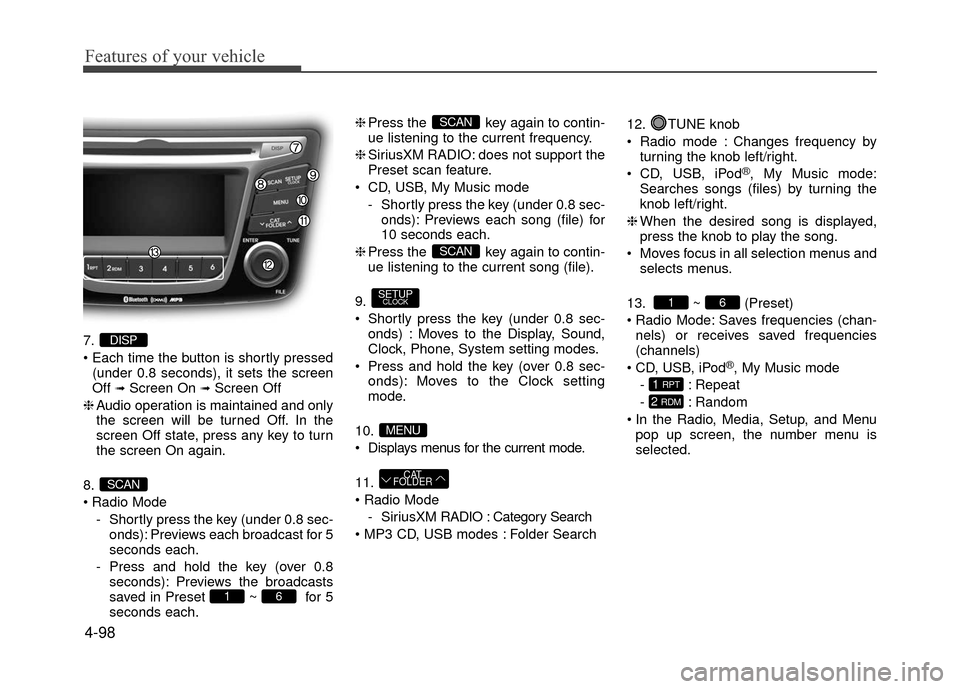
7.
(under 0.8 seconds), it sets the screen
Off
➟Screen On ➟Screen Off
❈ Audio operation is maintained and only
the screen will be turned Off. In the
screen Off state, press any key to turn
the screen On again.
8.
Radio Mode - Shortly press the key (under 0.8 sec-onds): Previews each broadcast for 5
seconds each.
- Press and hold the key (over 0.8 seconds): Previews the broadcasts
saved in Preset ~ for 5
seconds each. ❈
Press the key again to contin-
ue listening to the current frequency.
❈ SiriusXM RADIO: does not support the
Preset scan feature.
CD, USB, My Music mode - Shortly press the key (under 0.8 sec-onds): Previews each song (file) for
10 seconds each.
❈ Press the key again to contin-
ue listening to the current song (file).
9.
Shortly press the key (under 0.8 sec- onds) : Moves to the Display, Sound,
Clock, Phone, System setting modes.
Press and hold the key (over 0.8 sec- onds): Moves to the Clock setting
mode.
10.
Displays menus for the current mode.
11.
- SiriusXM RADIO : Category Search
Folder Search 12. TUNE knob
Radio mode : Changes frequency by
turning the knob left/right.
CD, USB, iPod
®, My Music mode:
Searches songs (files) by turning the
knob left/right.
❈ When the desired song is displayed,
press the knob to play the song.
Moves focus in all selection menus and selects menus.
13. ~ (Preset)
Radio Mode: Saves frequencies (chan- nels) or receives saved frequencies
(channels)
CD, USB, iPod
®, My Music mode
- : Repeat
- : Random
In the Radio, Media, Setup, and Menu pop up screen, the number menu is
selected.
2 RDM
1 RPT
61
CAT
FOLDER
MENU
SETUPCLOCK
SCAN
SCAN
61
SCAN
DISP
Page 176 of 380
![Hyundai Accent 2017 User Guide Features of your vehicle
4-102
SYSTEM SETTINGS
Press the keySelect [System]
Select menu through TUNE knob
Memory Information
Displays currently used memory and
total system memory.
Select [Memory Inf](/img/35/14348/w960_14348-175.png "Hyundai Accent 2017 User Guide Features of your vehicle
4-102
SYSTEM SETTINGS
Press the keySelect [System]
Select menu through TUNE knob
Memory Information
Displays currently used memory and
total system memory.
Select [Memory Inf")
Features of your vehicle
4-102
SYSTEM SETTINGS
Press the keySelect [System]
Select menu through TUNE knob
Memory Information
Displays currently used memory and
total system memory.
Select [Memory Information] OK
The currently used memory is displayed
on the left side while the total system
memory is displayed on the right side.
Prompt Feedback
This feature is used to change voice
command feedback between Normal and
Expert modes.
Select [Prompt Feedback] Set through
TUNEknob
Normal(On) : This mode is for beginner users and provides detailed instruc-
tions during voice command operation.
Expert(Off) : This mode is for expert users and omits some information dur-
ing voice command operation. (When
using Expert mode, guidance instruc-
tions can be heard through the [Help]
or [Menu] commands.
Language
This menu is used to set the display and
voice recognition language.
Select [Language] Set through
TUNE knob
❈ The system will reboot after the lan-
guage is changed.
❈ Language support by region
- English, Français, EspañolSETUPCLOCK
Page 179 of 380
4-105
Features of your vehicle
SiriusXM RADIO
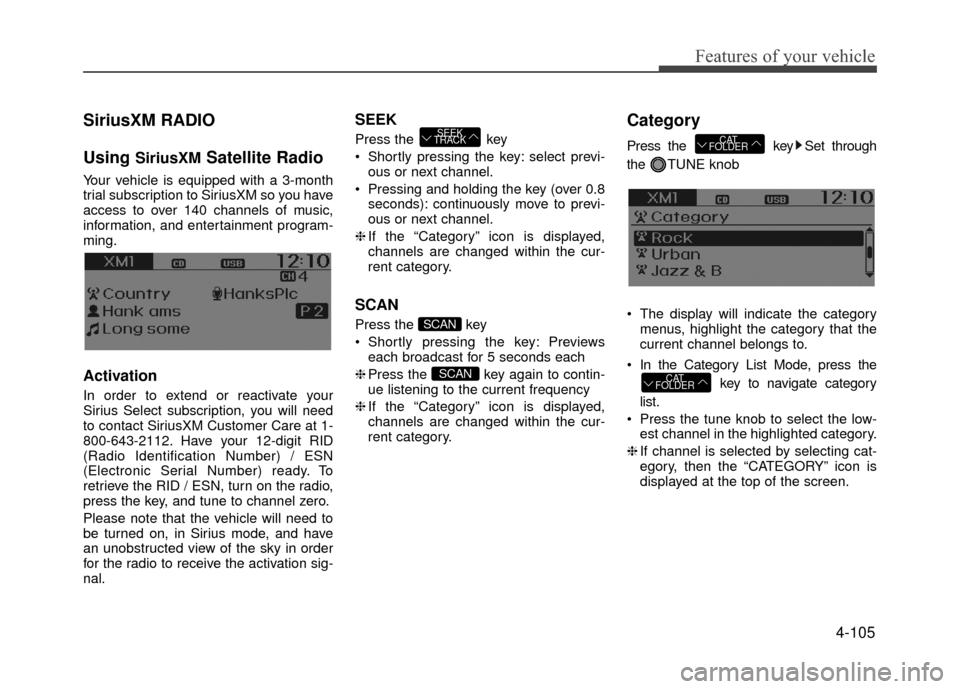
Using
SiriusXMSatellite Radio
Your vehicle is equipped with a 3-month
trial subscription to SiriusXM so you have
access to over 140 channels of music,
information, and entertainment program-
ming.
Activation
In order to extend or reactivate your
Sirius Select subscription, you will need
to contact SiriusXM Customer Care at 1-
800-643-2112. Have your 12-digit RID
(Radio Identification Number) / ESN
(Electronic Serial Number) ready. To
retrieve the RID / ESN, turn on the radio,
press the key, and tune to channel zero.
Please note that the vehicle will need to
be turned on, in Sirius mode, and have
an unobstructed view of the sky in order
for the radio to receive the activation sig-
nal.
SEEK
Press the key
Shortly pressing the key: select previ-ous or next channel.
Pressing and holding the key (over 0.8 seconds): continuously move to previ-
ous or next channel.
❈ If the “Category” icon is displayed,
channels are changed within the cur-
rent category.
SCAN
Press the key
Shortly pressing the key: Previews each broadcast for 5 seconds each
❈ Press the key again to contin-
ue listening to the current frequency
❈ If the “Category” icon is displayed,
channels are changed within the cur-
rent category.
Category
Press the key Set through
the TUNE knob
The display will indicate the category menus, highlight the category that the
current channel belongs to.
In the Category List Mode, press the key to navigate category
list.
Press the tune knob to select the low- est channel in the highlighted category.
❈ If channel is selected by selecting cat-
egory, then the “CATEGORY” icon is
displayed at the top of the screen.
CAT
FOLDER
CAT
FOLDER
SCAN
SCAN
SEEK
TRACK