ECO mode Hyundai Accent 2017 Owner's Guide
[x] Cancel search | Manufacturer: HYUNDAI, Model Year: 2017, Model line: Accent, Model: Hyundai Accent 2017Pages: 380, PDF Size: 12.45 MB
Page 182 of 380
Features of your vehicle
4-108
MP3 CD, USB mode: FLD.RDM on
screen
Folder Random (press the key : Playsall files within the current folder in ran-
dom order.
MP3 CD, USB mode : ALL RDM on
screen
All Random (pressing twice): Plays all files in random order.
❈ Press the key again to turn off
repeat.
Changing Song/File
While song (file) is playing key
Shortly pressing the key : Plays the current song from the beginning.
❈ If the key is pressed again
within 1 second, the previous song is
played.
Pressing and holding the key (over 0.8 seconds): Rewinds the song.
While song (file) is playing
key
Shortly pressing the key : Plays the next song.
Pressing and holding the key (over 0.8 seconds): Fast forwards the song.
Scan
While song (file) is playing key
Shortly pressing the key : Scans allsongs from the next song for 10 sec-
onds each.
❈ Press the key again to turn off.
❈ The SCAN function is not supported in
iPod
®mode.
Folder Search : MP3 CD, USB
Mode
While file is playing (Folder
Up) key
Searches the next folder.
While file is playing (Folder
Down) key
Searches the parent folder.
❈ If a folder is selected by pressing the
TUNE knob, the first file within the
selected folder will be played.
Searching Songs (File)
TUNE knob : Searches for songs (files)
TUNE knob : Plays select- ed song (file)
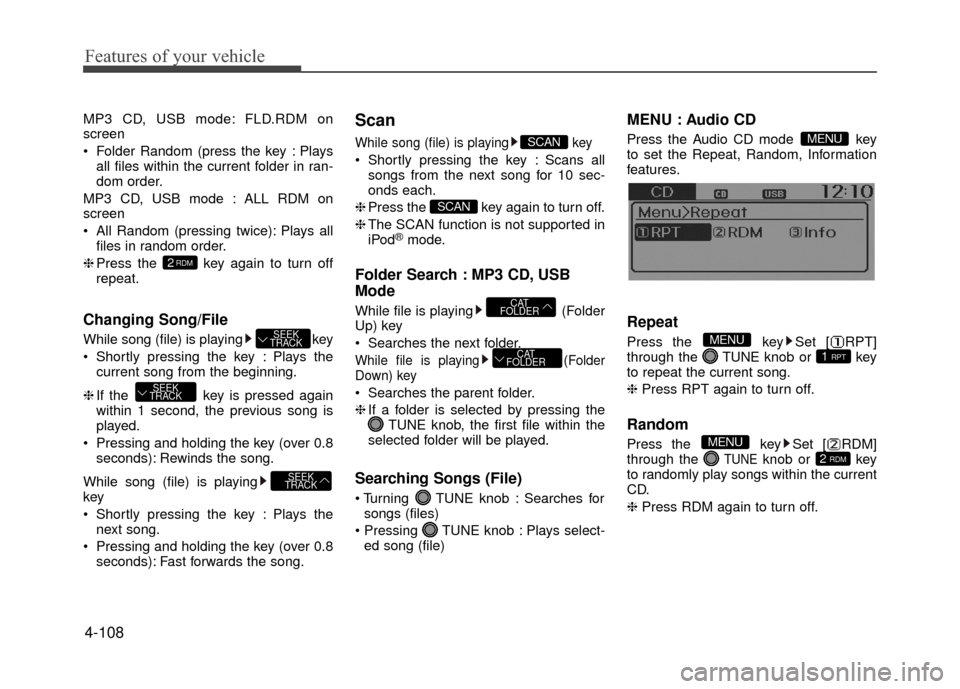
MENU : Audio CD
Press the Audio CD mode key
to set the Repeat, Random, Information
features.
Repeat
Press the key Set [ RPT]
through the TUNEknob or key
to repeat the current song.
❈ Press RPT again to turn off.
Random
Press the key Set [ RDM]
through the TUNEknob or key
to randomly play songs within the current
CD.
❈ Press RDM again to turn off.2 RDM
MENU
1 RPT
MENU
MENU
CAT
FOLDER
CAT
FOLDER
SCAN
SCAN
SEEK
TRACK
SEEK
TRACK
SEEK
TRACK
2RDM
Page 187 of 380
4-113
Features of your vehicle
PHONE
(if equipped model)
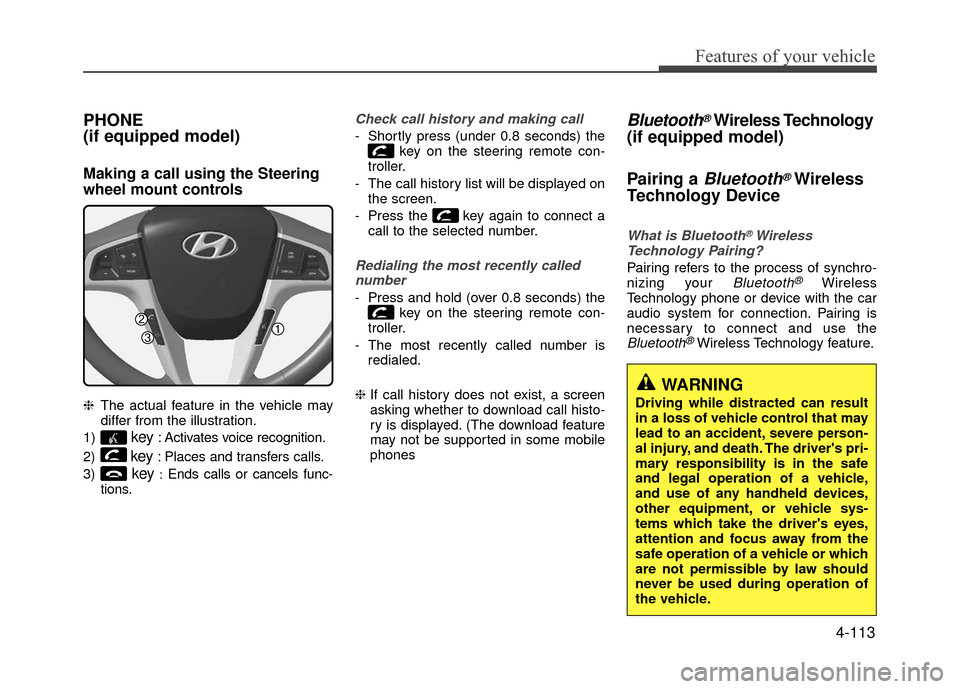
Making a call using the Steering
wheel mount controls
❈The actual feature in the vehicle may
differ from the illustration.
1)
key: Activates voice recognition.
2)
key: Places and transfers calls.
3)
key:Ends calls or cancels func-
tions.
Check call history and making call
- Shortly press (under 0.8 seconds) the key on the steering remote con-
troller.
- The call history list will be displayed on the screen.
- Press the key again to connect a call to the selected number.
Redialing the most recently callednumber
- Press and hold (over 0.8 seconds) the key on the steering remote con-
troller.
- The most recently called number is redialed.
❈ If call history does not exist, a screen
asking whether to download call histo-
ry is displayed. (The download feature
may not be supported in some mobile
phones
Bluetooth®Wireless Technology
(if equipped model)
Pairing a
Bluetooth®Wireless
Technology Device
What is Bluetooth®Wireless
Technology Pairing?
Pairing refers to the process of synchro-
nizing your Bluetooth®Wireless
Technology phone or device with the car
audio system for connection. Pairing is
necessary to connect and use the
Bluetooth®Wireless Technology feature.
WARNING
Driving while distracted can result
in a loss of vehicle control that may
lead to an accident, severe person-
al injury, and death. The driver's pri-
mary responsibility is in the safe
and legal operation of a vehicle,
and use of any handheld devices,
other equipment, or vehicle sys-
tems which take the driver's eyes,
attention and focus away from the
safe operation of a vehicle or which
are not permissible by law should
never be used during operation of
the vehicle.
Page 196 of 380
![Hyundai Accent 2017 Owners Guide Features of your vehicle
4-122
Turning Bluetooth System Off
Press the keySelect [Phone]
Select [Bluetooth System Off]
Once
Bluetooth®Wireless Technology is
turned off, Bluetooth®Wireless
Technology](/img/35/14348/w960_14348-195.png "Hyundai Accent 2017 Owners Guide Features of your vehicle
4-122
Turning Bluetooth System Off
Press the keySelect [Phone]
Select [Bluetooth System Off]
Once
Bluetooth®Wireless Technology is
turned off, Bluetooth®Wireless
Technology")
Features of your vehicle
4-122
Turning Bluetooth System Off
Press the keySelect [Phone]
Select [Bluetooth System Off]
Once
Bluetooth®Wireless Technology is
turned off, Bluetooth®Wireless
Technology related features will not be
supported within the audio system.
✽ ✽ NOTICE
To turn Bluetooth®Wireless Technology
back on, go to [Phone] and
select "Yes".
VOICE RECOGNITION
(if equipped model)
Using Voice Recognition
Starting Voice Recognition
Shortly press the key on the steer-
ing wheel. Say a command.
If prompt feedback is in [ON], then the
system will say "Please say a command
after the beep (BEEP)"
If prompt feedback is in [OFF] mode, then the system will only say "(BEEP)"
To change Prompt Feedback [On]/[Off], go to [System]
[Prompt Feedback]
✽ ✽ NOTICE
For proper recognition, say the com-
mand after the voice instruction and
beep tone.
Contact List Best Practices
1) Do not store single-name entries (e.g.,
"Bob", "Mom", "Kim", etc.).
Instead, always use full names (includ-
ing first and last names) for all contacts
(e.g., use "Jacob Stevenson" instead
of "Dad").
2) Do not use abbreviations (i.e., use "Lieutenant" instead of "Lt." or
"Sergeant" instead of "Sgt.").
3) Do not use acronyms (i.e., use "County Finance Department" instead of
"CFD").
4) Do not use special characters (e.g., "@", "hyphen -", "asterisk *", "amper-
sand &").
5) If a name is not recognized from the contact list, change it to a more
descriptive name (e.g., use "Grandpa
Joseph" instead of "Pa Joe").
SETUPCLOCKSETUPCLOCK
SETUPCLOCK
Page 197 of 380
4-123
Features of your vehicle
Skipping Prompt Messages
While prompt message is being stated
Shortly press the key on the steer-
ing remote controller.
The prompt message is immediately
ended and the beep tone will sound.
After the "beep", say the voice command.
Re-starting Voice Recognition
While system waits for a command
Shortly press the key on the steer-
ing remote controller.
The command wait state is immediately
ended and the beep ton will sound. After
the "beep", say the voice command.
ENDING VOICE RECOGNITION
While Voice Recognition is operating
Press and hold the key on the steer-
ing remote controller.
✽ ✽NOTICE
• While using voice command, pressing
any steering wheel control or a differ-
ent key will end voice command.
• When the system is waiting for a voice command, say "cancel" or "end" to
end voice command.
• When the system is waiting for a voice command, press and hold the key
on the steering wheel to end voice
command.
Voice Recognition and Phone
Contact Tips:
The Hyundai Voice Recognition System
may have difficulty understanding some
accents or uncommon names.
When using Voice Recognition to place a
call, speak in a moderate tone, with clear
pronunciation To maximize the use of
Voice Recognition, consider these guide-
lines when storing contacts:
Do not store single-name entries (e.g.,
"Bob", "Mom", etc.). Instead, always
use full names (including first and last
names) for these contacts
Do not use special characters (e.g., '@', '-', '*', '&', etc.)
Do not use abbreviations (i.e., use "Lieutenant" instead of "Lt.") or
acronyms (i.e., use "County Finance
Department" instead of "C. F. D."; Be
sure to say the name exactly as it is
entered in the contacts list
Page 198 of 380
Features of your vehicle
4-124
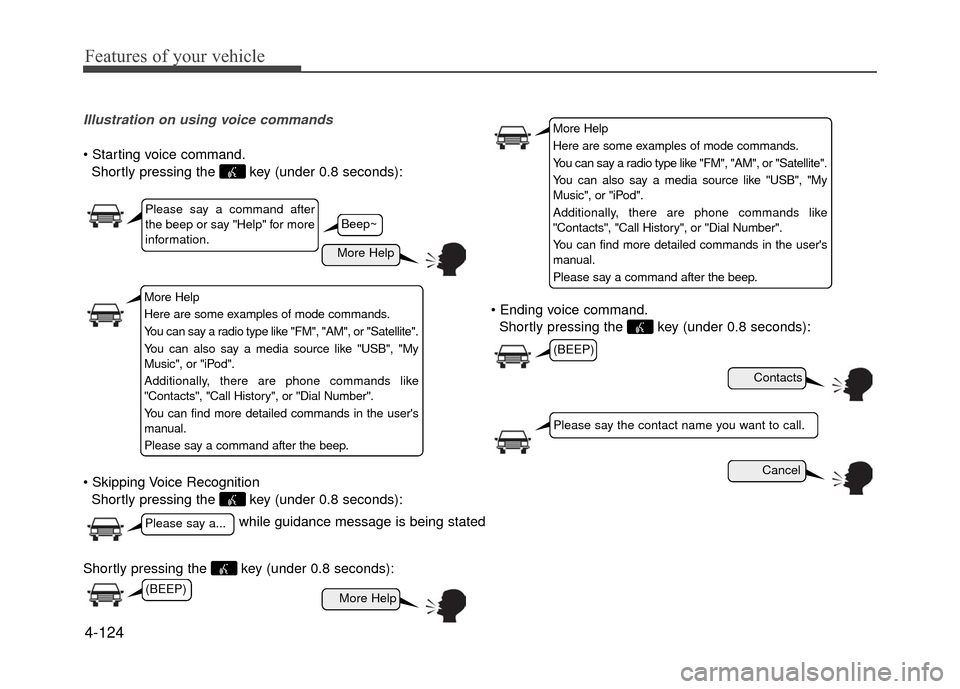
Illustration on using voice commands
Shortly pressing the key (under 0.8 seconds):
Shortly pressing the key (under 0.8 seconds):
Shortly pressing the key (under 0.8 seconds): voice command.
Shortly pressing the key (under 0.8 seconds):
while guidance message is being stated
More Help
Contacts
Cancel
More Help
Please say a command after
the beep or say "Help" for more
information.
Please say a...
Please say the contact name you want to call.
(BEEP)
Beep~
More Help
Here are some examples of mode commands.
You can say a radio type like "FM", "AM", or "Satellite".
You can also say a media source like "USB", "My
Music", or "iPod".
Additionally, there are phone commands like
"Contacts", "Call History", or "Dial Number".
You can find more detailed commands in the user's
manual.
Please say a command after the beep.
More Help
Here are some examples of mode commands.
You can say a radio type like "FM", "AM", or "Satellite".
You can also say a media source like "USB", "My
Music", or "iPod".
Additionally, there are phone commands like
"Contacts", "Call History", or "Dial Number".
You can find more detailed commands in the user's
manual.
Please say a command after the beep.
(BEEP)
Page 199 of 380
4-125
Features of your vehicle
Voice Command List
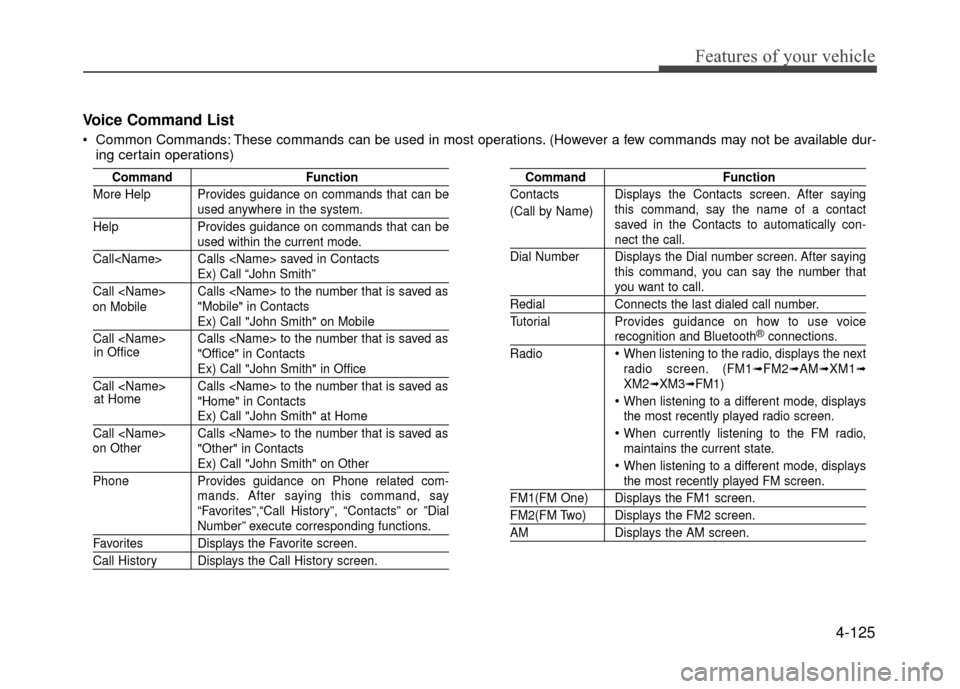
Common Commands: These commands can be used in most operations. (However a few commands may not be available dur-ing certain operations)
Command Function
More Help Provides guidance on commands that can be
used anywhere in the system.
Help Provides guidance on commands that can be
used within the current mode.
Call
Ex) Call “John Smith”
Call
Ex) Call "John Smith" on Mobile
Call
Ex) Call "John Smith" in Office
Call
Ex) Call "John Smith" at Home
Call
Ex) Call "John Smith" on Other
Phone Provides guidance on Phone related com- mands. After saying this command, say
“Favorites”,“Call History”, “Contacts” or ”Dial
Number” execute corresponding functions.
Favorites Displays the Favorite screen.
Call History Displays the Call History screen.
Command Function
Contacts Displays the Contacts screen. After saying this command, say the name of a contact
saved in the Contacts to automatically con-
nect the call.
Dial Number Displays the Dial number screen. After saying this command, you can say the number that
you want to call.
RedialConnects the last dialed call number.
Tutorial Provides guidance on how to use voice
recognition and Bluetooth®connections.
Radio
When listening to the radio, displays the next
radio screen. (FM1➟FM2➟AM➟XM1➟XM2➟XM3➟FM1)
When listening to a different mode, displays
the most recently played radio screen.
When currently listening to the FM radio,
maintains the current state.
When listening to a different mode, displaysthe most recently played FM screen.
FM1(FM One) Displays the FM1 screen.
FM2(FM Two) Displays the FM2 screen.
AM Displays the AM screen.
(Call by Name)
on Mobile
in Office
at Home
on Other
Page 200 of 380
Features of your vehicle
4-126
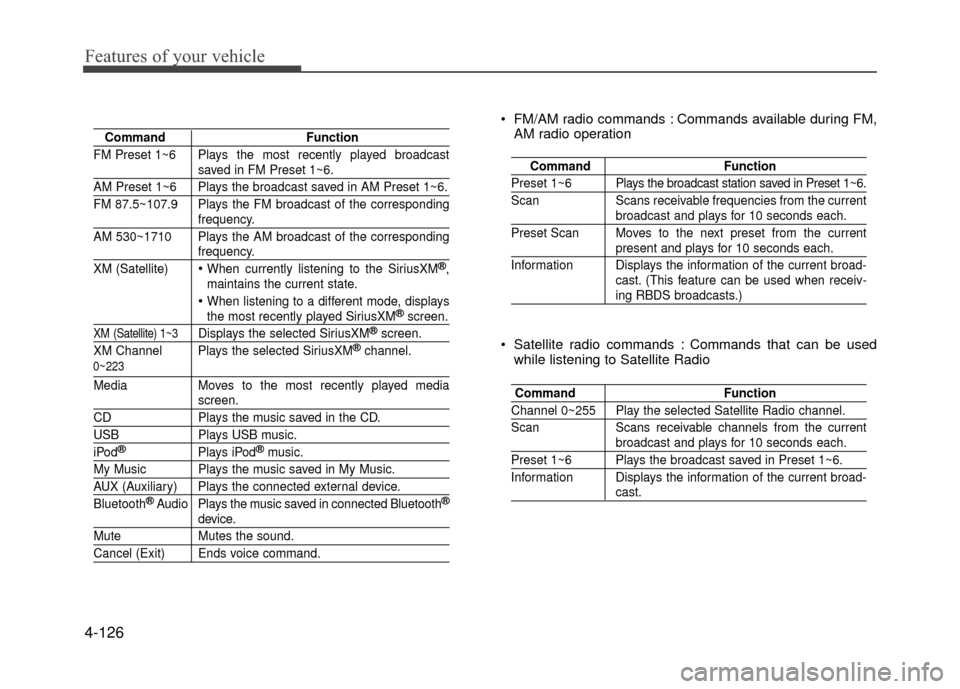
CommandFunction
FM Preset 1~6 Plays the most recently played broadcast
saved in FM Preset 1~6.
AM Preset 1~6 Plays the broadcast saved in AM Preset 1~6.
FM 87.5~107.9 Plays the FM broadcast of the corresponding
frequency.
AM 530~1710 Plays the AM broadcast of the corresponding
frequency.
XM (Satellite)
When currently listening to the SiriusXM®,
maintains the current state.
When listening to a different mode, displaysthe most recently played SiriusXM®screen.
XM (Satellite) 1~3Displays the selected SiriusXM®screen.
XM Channel Plays the selected SiriusXM®channel.
Media Moves to the most recently played mediascreen.
CD Plays the music saved in the CD.
USBPlays USB music.
iPod®Plays iPod®music.
My Music Plays the music saved in My Music.
AUX (Auxiliary) Plays the connected external device.
Bluetooth®Audio Plays the music saved in connected Bluetooth®
device.
Mute Mutes the sound.
Cancel (Exit) Ends voice command.
0~223
Command Function
Preset 1~6 Plays the broadcast station saved in Preset 1~6.
Scan Scans receivable frequencies from the current
broadcast and plays for 10 seconds each.
Preset Scan Moves to the next preset from the current
present and plays for 10 seconds each.
Information Displays the information of the current broad- cast. (This feature can be used when receiv-
ing RBDS broadcasts.)
FM/AM radio commands : Commands available during FM,AM radio operation
Command Function
Channel 0~255 Play the selected Satellite Radio channel.
Scan Scans receivable channels from the current
broadcast and plays for 10 seconds each.
Preset 1~6 Plays the broadcast saved in Preset 1~6.
Information Displays the information of the current broad-
cast.
Satellite radio commands : Commands that can be used
while listening to Satellite Radio
Page 209 of 380
Driving your vehicle
5-6
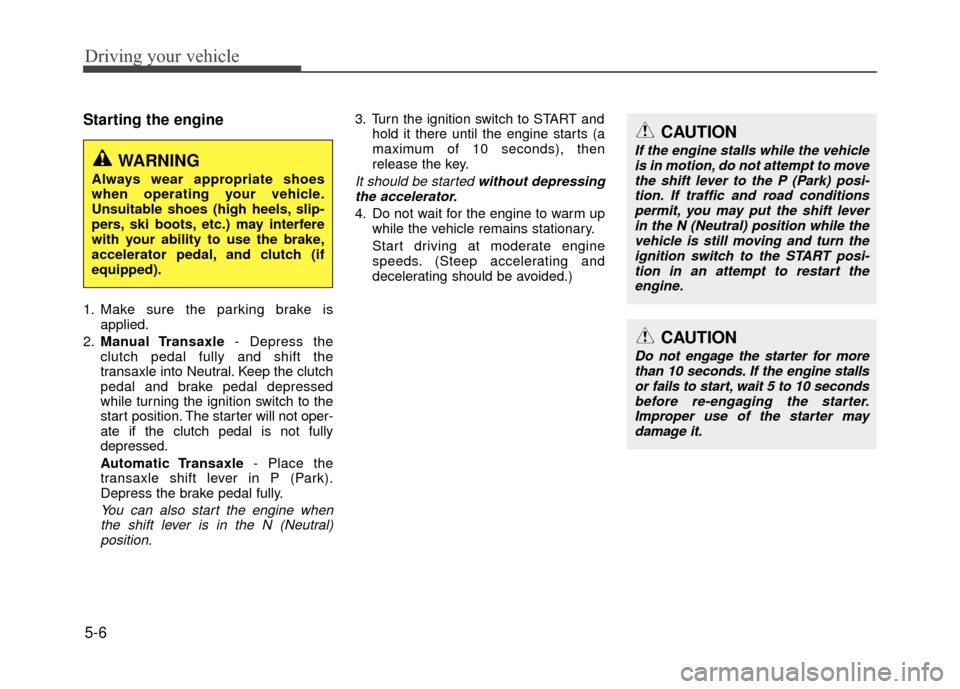
Starting the engine
1. Make sure the parking brake isapplied.
2. Manual Transaxle - Depress the
clutch pedal fully and shift the
transaxle into Neutral. Keep the clutch
pedal and brake pedal depressed
while turning the ignition switch to the
start position. The star ter will not oper-
ate if the clutch pedal is not fully
depressed.
Automatic Transaxle - Place the
transaxle shift lever in P (Park).
Depress the brake pedal fully.
You can also start the engine when the shift lever is in the N (Neutral)position.
3. Turn the ignition switch to START and
hold it there until the engine starts (a
maximum of 10 seconds), then
release the key.
It should be started without depressingthe accelerator.
4. Do not wait for the engine to warm up while the vehicle remains stationary.
Start driving at moderate engine
speeds. (Steep accelerating and
decelerating should be avoided.)
WARNING
Always wear appropriate shoes
when operating your vehicle.
Unsuitable shoes (high heels, slip-
pers, ski boots, etc.) may interfere
with your ability to use the brake,
accelerator pedal, and clutch (if
equipped).
CAUTION
Do not engage the starter for morethan 10 seconds. If the engine stallsor fails to start, wait 5 to 10 seconds before re-engaging the starter.Improper use of the starter maydamage it.
CAUTION
If the engine stalls while the vehicle is in motion, do not attempt to movethe shift lever to the P (Park) posi- tion. If traffic and road conditionspermit, you may put the shift leverin the N (Neutral) position while the vehicle is still moving and turn theignition switch to the START posi- tion in an attempt to restart theengine.
Page 215 of 380
Driving your vehicle
5-12
R (Reverse)
Use this position to drive the vehicle
backward.
N (Neutral)
The wheels and transaxle are not
engaged. The vehicle will roll freely even
on the slightest incline unless the parking
brake or service brakes are applied.
D (Drive)
This is the normal forward driving posi-
tion. The transaxle will automatically shift
through a 6-gear sequence, providing the
best fuel economy and power.
For extra power when passing another
vehicle or climbing grades, depress the
accelerator pedal, at which time the
transaxle will automatically downshift to
the lower gear.✽ ✽NOTICE
Always come to a complete stop before
shifting into D (Drive).
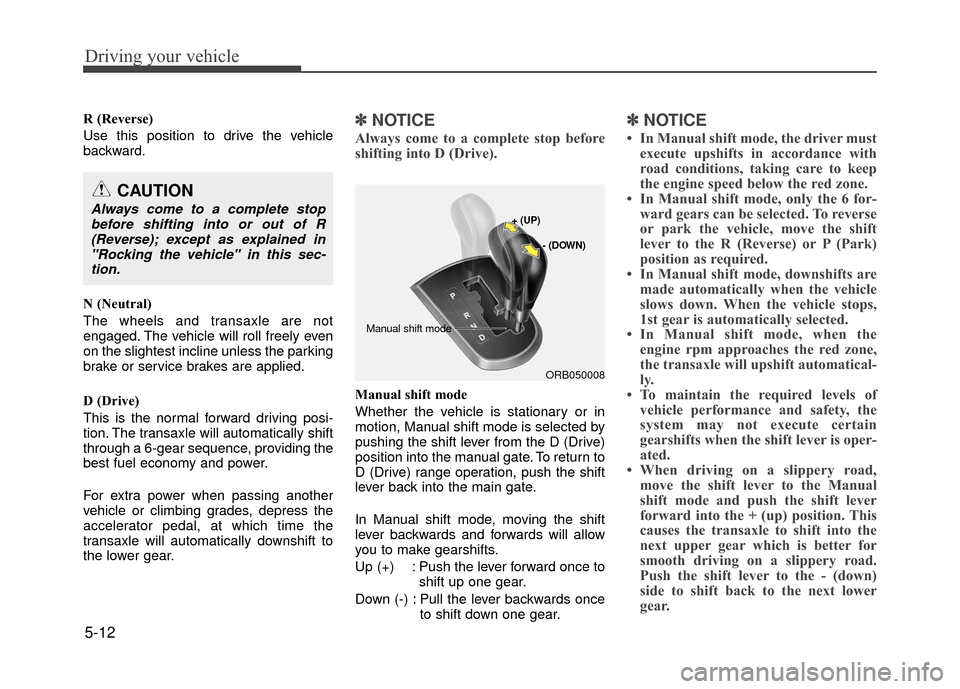
Manual shift mode
Whether the vehicle is stationary or in
motion, Manual shift mode is selected by
pushing the shift lever from the D (Drive)
position into the manual gate. To return to
D (Drive) range operation, push the shift
lever back into the main gate.
In Manual shift mode, moving the shift
lever backwards and forwards will allow
you to make gearshifts.
Up (+) : Push the lever forward once to
shift up one gear.
Down (-) : Pull the lever backwards once to shift down one gear.
✽ ✽NOTICE
• In Manual shift mode, the driver must
execute upshifts in accordance with
road conditions, taking care to keep
the engine speed below the red zone.
• In Manual shift mode, only the 6 for- ward gears can be selected. To reverse
or park the vehicle, move the shift
lever to the R (Reverse) or P (Park)
position as required.
• In Manual shift mode, downshifts are made automatically when the vehicle
slows down. When the vehicle stops,
1st gear is automatically selected.
• In Manual shift mode, when the engine rpm approaches the red zone,
the transaxle will upshift automatical-
ly.
• To maintain the required levels of vehicle performance and safety, the
system may not execute certain
gearshifts when the shift lever is oper-
ated.
• When driving on a slippery road, move the shift lever to the Manual
shift mode and push the shift lever
forward into the + (up) position. This
causes the transaxle to shift into the
next upper gear which is better for
smooth driving on a slippery road.
Push the shift lever to the - (down)
side to shift back to the next lower
gear.
CAUTION
Always come to a complete stop
before shifting into or out of R(Reverse); except as explained in "Rocking the vehicle" in this sec-tion.
ORB050008
+ (UP)
- (DOWN)
Manual shift mode
Page 233 of 380
Driving your vehicle
5-30
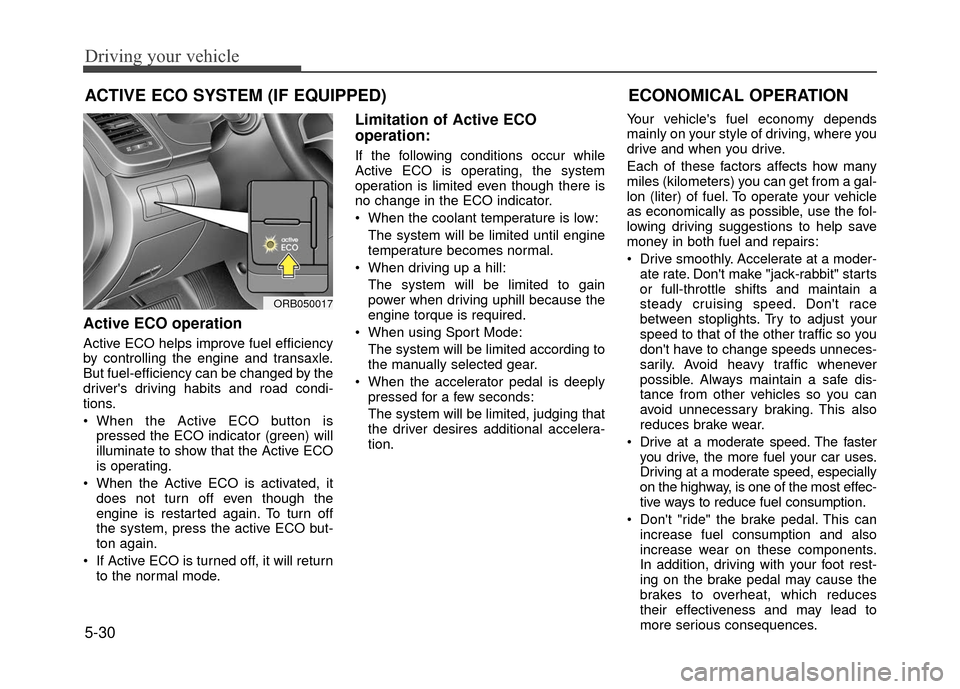
Active ECO operation
Active ECO helps improve fuel efficiency
by controlling the engine and transaxle.
But fuel-efficiency can be changed by the
driver's driving habits and road condi-
tions.
When the Active ECO button ispressed the ECO indicator (green) will
illuminate to show that the Active ECO
is operating.
When the Active ECO is activated, it does not turn off even though the
engine is restarted again. To turn off
the system, press the active ECO but-
ton again.
If Active ECO is turned off, it will return to the normal mode.
Limitation of Active ECO
operation:
If the following conditions occur while
Active ECO is operating, the system
operation is limited even though there is
no change in the ECO indicator.
When the coolant temperature is low:
The system will be limited until engine
temperature becomes normal.
When driving up a hill: The system will be limited to gain
power when driving uphill because the
engine torque is required.
When using Sport Mode: The system will be limited according to
the manually selected gear.
When the accelerator pedal is deeply pressed for a few seconds:
The system will be limited, judging that
the driver desires additional accelera-
tion. Your vehicle's fuel economy depends
mainly on your style of driving, where you
drive and when you drive.
Each of these factors affects how many
miles (kilometers) you can get from a gal-
lon (liter) of fuel. To operate your vehicle
as economically as possible, use the fol-
lowing driving suggestions to help save
money in both fuel and repairs:
Drive smoothly. Accelerate at a moder-
ate rate. Don't make "jack-rabbit" starts
or full-throttle shifts and maintain a
steady cruising speed. Don't race
between stoplights. Try to adjust your
speed to that of the other traffic so you
don't have to change speeds unneces-
sarily. Avoid heavy traffic whenever
possible. Always maintain a safe dis-
tance from other vehicles so you can
avoid unnecessary braking. This also
reduces brake wear.
Drive at a moderate speed. The faster you drive, the more fuel your car uses.
Driving at a moderate speed, especially
on the highway, is one of the most effec-
tive ways to reduce fuel consumption.
Don't "ride" the brake pedal. This can increase fuel consumption and also
increase wear on these components.
In addition, driving with your foot rest-
ing on the brake pedal may cause the
brakes to overheat, which reduces
their effectiveness and may lead to
more serious consequences.
ACTIVE ECO SYSTEM (IF EQUIPPED)
ORB050017
ECONOMICAL OPERATION