ESP Hyundai Accent 2017 User Guide
[x] Cancel search | Manufacturer: HYUNDAI, Model Year: 2017, Model line: Accent, Model: Hyundai Accent 2017Pages: 380, PDF Size: 12.45 MB
Page 146 of 380
Features of your vehicle
4-72
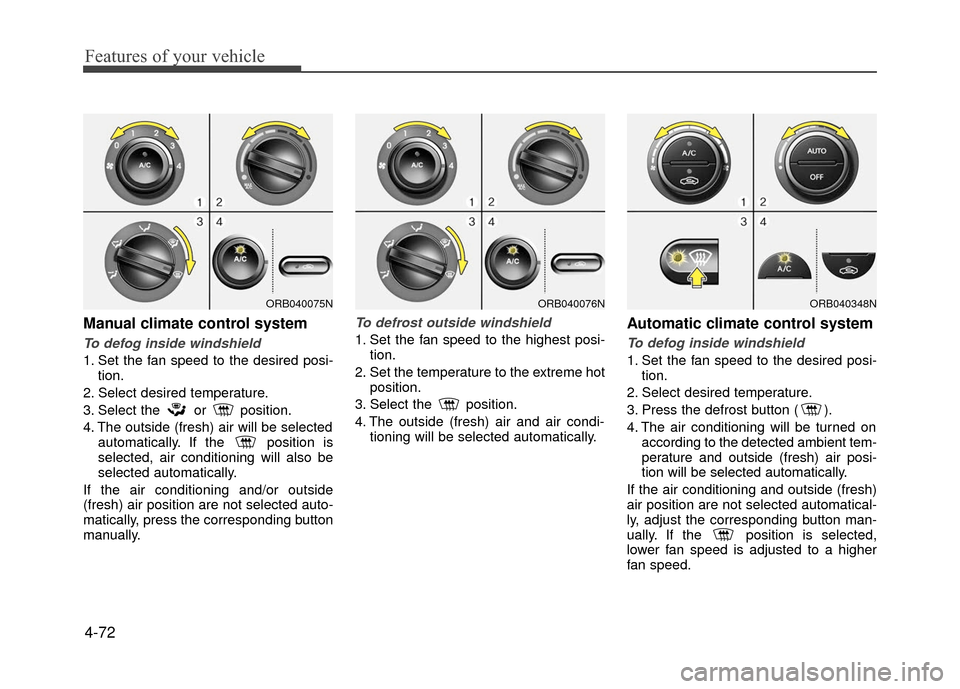
Manual climate control system
To defog inside windshield
1. Set the fan speed to the desired posi-tion.
2. Select desired temperature.
3. Select the or position.
4. The outside (fresh) air will be selected automatically. If the position is
selected, air conditioning will also be
selected automatically.
If the air conditioning and/or outside
(fresh) air position are not selected auto-
matically, press the corresponding button
manually.
To defrost outside windshield
1. Set the fan speed to the highest posi- tion.
2. Set the temperature to the extreme hot position.
3. Select the position.
4. The outside (fresh) air and air condi- tioning will be selected automatically.
Automatic climate control system
To defog inside windshield
1. Set the fan speed to the desired posi-tion.
2. Select desired temperature.
3. Press the defrost button ( ).
4. The air conditioning will be turned on according to the detected ambient tem-
perature and outside (fresh) air posi-
tion will be selected automatically.
If the air conditioning and outside (fresh)
air position are not selected automatical-
ly, adjust the corresponding button man-
ually. If the position is selected,
lower fan speed is adjusted to a higher
fan speed.
ORB040075NORB040348NORB040076N
Page 158 of 380
Features of your vehicle
4-84
✽
✽NOTICE
If you install an after market HID (high
intensity discharge) head lamp, your
vehicle's audio and electronic device
may malfunction.
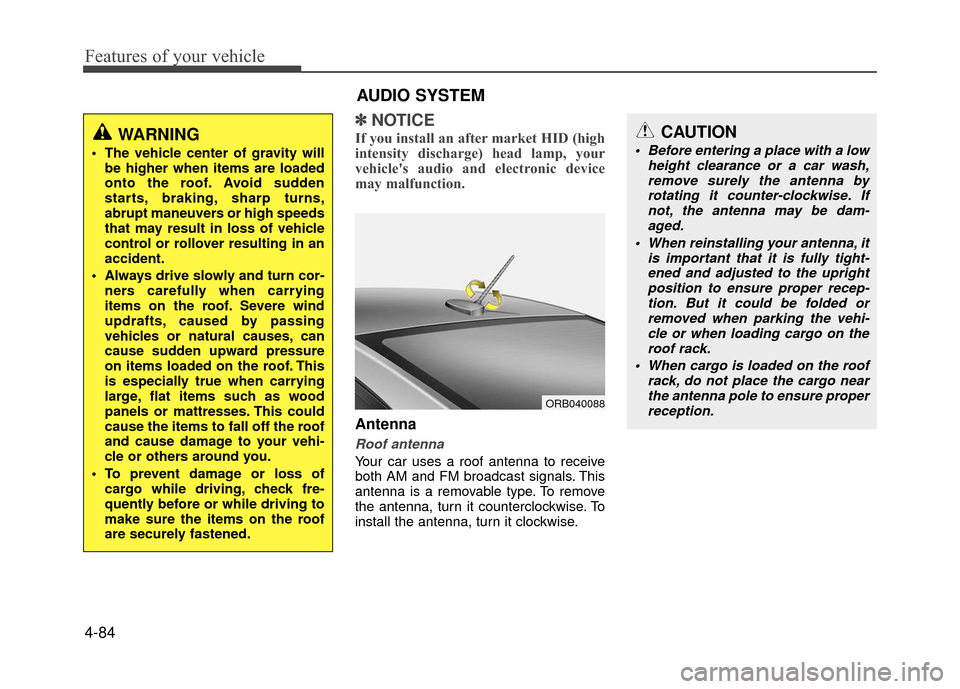
Antenna
Roof antenna
Your car uses a roof antenna to receive
both AM and FM broadcast signals. This
antenna is a removable type. To remove
the antenna, turn it counterclockwise. To
install the antenna, turn it clockwise.
WARNING
The vehicle center of gravity will
be higher when items are loaded
onto the roof. Avoid sudden
starts, braking, sharp turns,
abrupt maneuvers or high speeds
that may result in loss of vehicle
control or rollover resulting in an
accident.
Always drive slowly and turn cor- ners carefully when carrying
items on the roof. Severe wind
updrafts, caused by passing
vehicles or natural causes, can
cause sudden upward pressure
on items loaded on the roof. This
is especially true when carrying
large, flat items such as wood
panels or mattresses. This could
cause the items to fall off the roof
and cause damage to your vehi-
cle or others around you.
To prevent damage or loss of cargo while driving, check fre-
quently before or while driving to
make sure the items on the roof
are securely fastened.
AUDIO SYSTEM
ORB040088
CAUTION
Before entering a place with a low height clearance or a car wash,remove surely the antenna by rotating it counter-clockwise. Ifnot, the antenna may be dam-aged.
When reinstalling your antenna, it is important that it is fully tight-ened and adjusted to the upright position to ensure proper recep-tion. But it could be folded or removed when parking the vehi-cle or when loading cargo on the roof rack.
When cargo is loaded on the roof rack, do not place the cargo nearthe antenna pole to ensure properreception.
Page 169 of 380
4-95
Features of your vehicle
✽
✽NOTICE - USING THE VOICE
RECOGNITION
• When using the voice recognition fea-ture, only commands listed within the
user's manual are supported.
• Be aware that during the operation of the voice recognition system, pressing
any key other than the key termi-
nate voice recognition mode.
• For superior voice recognition per- formance, position the microphone
used for voice recognition above the
head of the driver’s seat and maintain
a proper position when saying com-
mands.
• Within the following situations, voice recognition may not function properly
due to external sound.
- When the windows and sunroof areopen
- When the wind of the cooling / heat- ing device is strong
- When entering and passing through tunnels (Continued)(Continued)
- When driving on rugged anduneven roads
- During severe rain (heavy rains, windstorms)
• Phone related voice commands can be used only when a Bluetooth
®Wireless
Technology device is connected.
• When making calls by stating a name, the corresponding contact must be
downloaded and stored within the
audio system.
• After downloading the Bluetooth
®
Wireless Technology phone book, it
takes some times to convert the phone
book data into voice information.
During this time, voice recognition
may not properly operate.
• Pronounce the voice commands natu- rally and clearly as if in a normal con-
versation.
Page 176 of 380
![Hyundai Accent 2017 User Guide Features of your vehicle
4-102
SYSTEM SETTINGS
Press the keySelect [System]
Select menu through TUNE knob
Memory Information
Displays currently used memory and
total system memory.
Select [Memory Inf](/img/35/14348/w960_14348-175.png "Hyundai Accent 2017 User Guide Features of your vehicle
4-102
SYSTEM SETTINGS
Press the keySelect [System]
Select menu through TUNE knob
Memory Information
Displays currently used memory and
total system memory.
Select [Memory Inf")
Features of your vehicle
4-102
SYSTEM SETTINGS
Press the keySelect [System]
Select menu through TUNE knob
Memory Information
Displays currently used memory and
total system memory.
Select [Memory Information] OK
The currently used memory is displayed
on the left side while the total system
memory is displayed on the right side.
Prompt Feedback
This feature is used to change voice
command feedback between Normal and
Expert modes.
Select [Prompt Feedback] Set through
TUNEknob
Normal(On) : This mode is for beginner users and provides detailed instruc-
tions during voice command operation.
Expert(Off) : This mode is for expert users and omits some information dur-
ing voice command operation. (When
using Expert mode, guidance instruc-
tions can be heard through the [Help]
or [Menu] commands.
Language
This menu is used to set the display and
voice recognition language.
Select [Language] Set through
TUNE knob
❈ The system will reboot after the lan-
guage is changed.
❈ Language support by region
- English, Français, EspañolSETUPCLOCK
Page 177 of 380
4-103
Features of your vehicle
RADIO : FM, AM OR SiriusXM
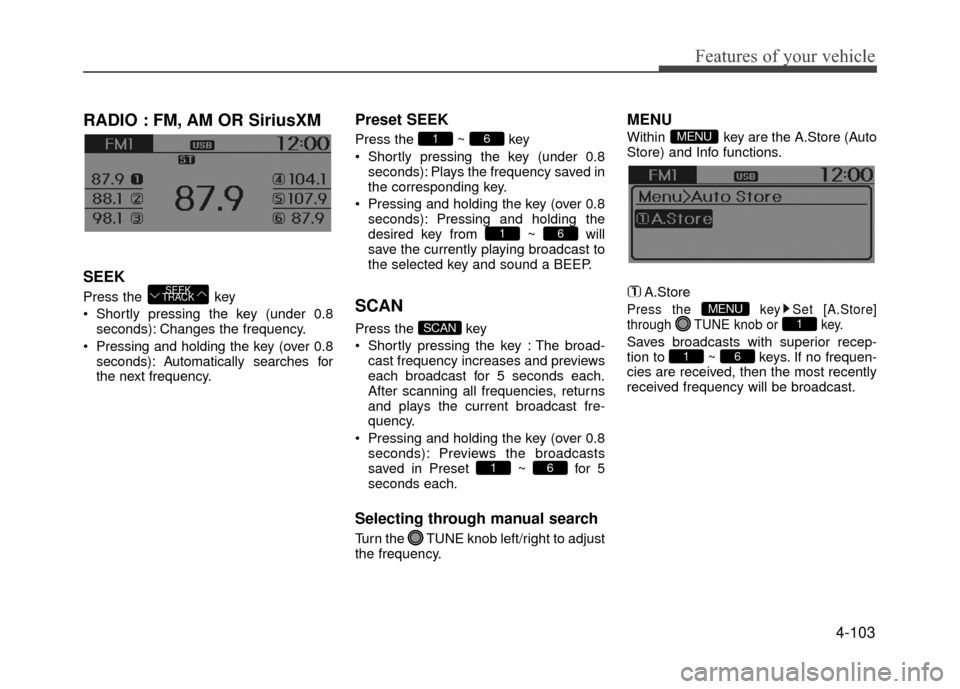
SEEK
Press the key
Shortly pressing the key (under 0.8seconds): Changes the frequency.
Pressing and holding the key (over 0.8 seconds): Automatically searches for
the next frequency.
Preset SEEK
Press the ~ key
Shortly pressing the key (under 0.8seconds): Plays the frequency saved in
the corresponding key.
Pressing and holding the key (over 0.8 seconds): Pressing and holding the
desired key from ~ will
save the currently playing broadcast to
the selected key and sound a BEEP.
SCAN
Press the key
Shortly pressing the key : The broad-cast frequency increases and previews
each broadcast for 5 seconds each.
After scanning all frequencies, returns
and plays the current broadcast fre-
quency.
Pressing and holding the key (over 0.8 seconds): Previews the broadcasts
saved in Preset ~ for 5
seconds each.
Selecting through manual search
Turn the TUNE knob left/right to adjust
the frequency.
MENU
Within key are the A.Store (Auto
Store) and Info functions.
A.Store
Press the key Set [A.Store]
through TUNE knob or key.
Saves broadcasts with superior recep-
tion to ~ keys. If no frequen-
cies are received, then the most recently
received frequency will be broadcast.61
1MENU
MENU
61
SCAN
61
61
SEEK
TRACK
Page 180 of 380
Features of your vehicle
4-106
Preset
Press the ~ key
Shortly pressing the key: Plays the fre-quency saved in the corresponding
key.
Pressing and holding the key (over 0.8 seconds): Pressing and holding the
desired key from ~ will
save the current broadcast to the
selected key and sound a BEEP.
✽ ✽
Troubleshooting
1. Antenna Error
If this message is displayed, the antenna
or antenna cable is broken or
unplugged. Please consult with your
Hyundai dealership.
2. No Signal
If this message is displayed, it means
that the antenna is covered and that the
SiriusXM Satellite Radio signal is not
available. Ensure the antenna is uncov-
ered and has a clear view of the sky.
Tune
Rotate TUNE knob : Changes the
channel number or scrolls category list.
Press TUNE knob : Selects the menu.
Menu
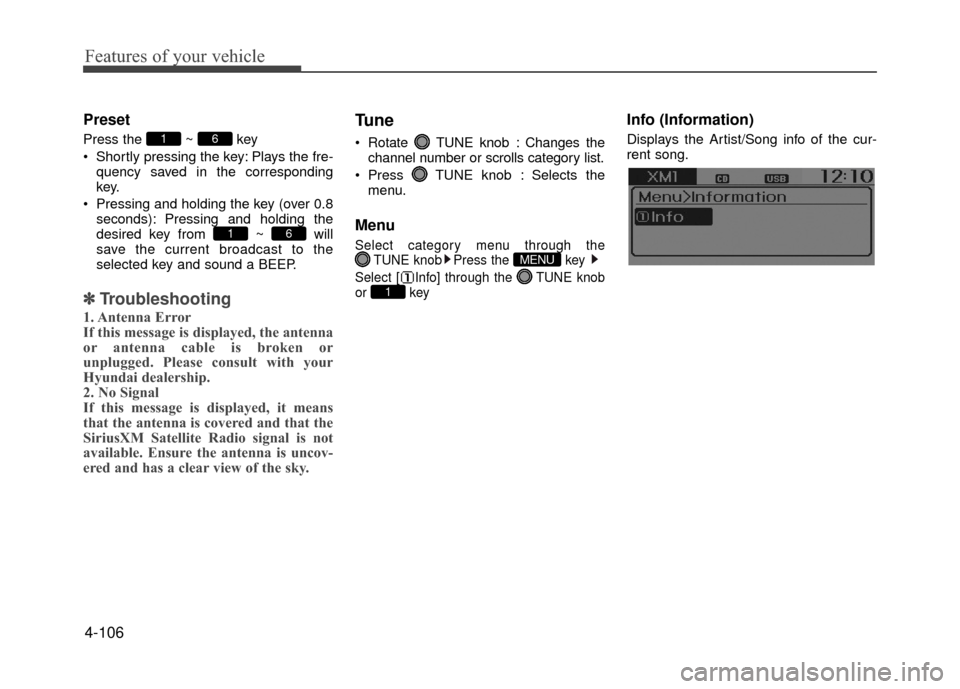
Select category menu through the TUNE knob Press the key
Select [ Info] through the TUNE knob
or key
Info (Information)
Displays the Artist/Song info of the cur-
rent song.
1
MENU
61
61
Page 187 of 380
4-113
Features of your vehicle
PHONE
(if equipped model)
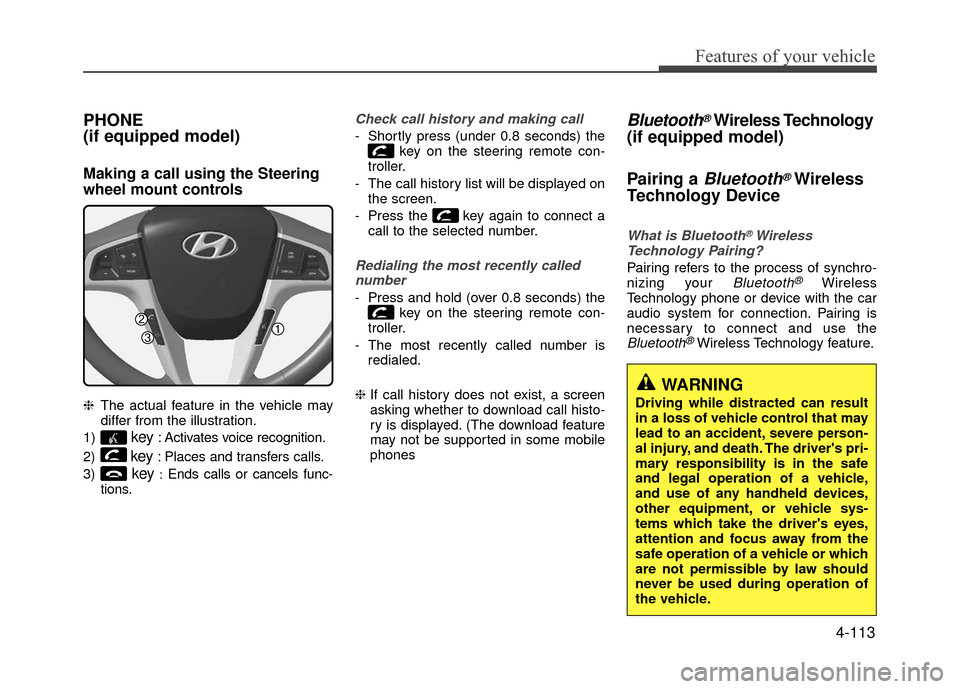
Making a call using the Steering
wheel mount controls
❈The actual feature in the vehicle may
differ from the illustration.
1)
key: Activates voice recognition.
2)
key: Places and transfers calls.
3)
key:Ends calls or cancels func-
tions.
Check call history and making call
- Shortly press (under 0.8 seconds) the key on the steering remote con-
troller.
- The call history list will be displayed on the screen.
- Press the key again to connect a call to the selected number.
Redialing the most recently callednumber
- Press and hold (over 0.8 seconds) the key on the steering remote con-
troller.
- The most recently called number is redialed.
❈ If call history does not exist, a screen
asking whether to download call histo-
ry is displayed. (The download feature
may not be supported in some mobile
phones
Bluetooth®Wireless Technology
(if equipped model)
Pairing a
Bluetooth®Wireless
Technology Device
What is Bluetooth®Wireless
Technology Pairing?
Pairing refers to the process of synchro-
nizing your Bluetooth®Wireless
Technology phone or device with the car
audio system for connection. Pairing is
necessary to connect and use the
Bluetooth®Wireless Technology feature.
WARNING
Driving while distracted can result
in a loss of vehicle control that may
lead to an accident, severe person-
al injury, and death. The driver's pri-
mary responsibility is in the safe
and legal operation of a vehicle,
and use of any handheld devices,
other equipment, or vehicle sys-
tems which take the driver's eyes,
attention and focus away from the
safe operation of a vehicle or which
are not permissible by law should
never be used during operation of
the vehicle.
Page 189 of 380
![Hyundai Accent 2017 User Guide 4-115
Features of your vehicle
Pairing through [PHONE] Setup
Press the keySelect [Phone]
Select [Pair Phone] Select TUNE
knob
1. The following steps are the same as those described in the section "W](/img/35/14348/w960_14348-188.png "Hyundai Accent 2017 User Guide 4-115
Features of your vehicle
Pairing through [PHONE] Setup
Press the keySelect [Phone]
Select [Pair Phone] Select TUNE
knob
1. The following steps are the same as those described in the section \"W")
4-115
Features of your vehicle
Pairing through [PHONE] Setup
Press the keySelect [Phone]
Select [Pair Phone] Select TUNE
knob
1. The following steps are the same as those described in the section "When
No Devices have been Paired" on the
previous page.
✽ ✽NOTICE
•Bluetooth®Wireless Technology fea-
tures supported within the vehicle are
as follows. Some features may not be
supported depending on your
Bluetooth
®Wireless Technology
device.
- Outgoing/Incoming Handsfree calls
- Operations during a call (Switch to Private, Switch to call waiting, MIC
on/off)
- Downloading Call History
- Downloading Mobile Contacts
- Bluetooth
®Wireless Technology
device auto connection
- Bluetooth Audio Streaming
• Up to five Bluetooth
®Wireless
Technology devices can be paired to
the Car Handsfree system.
• Only one Bluetooth
®Wireless
Technology device can be connected at
a time.
• Other devices cannot be paired while a Bluetooth
®Wireless Technology
device is connected.
• Only Bluetooth
®Wireless Technology
Handsfree and Bluetooth audio relat-
ed features are supported.
(Continued)(Continued)
Bluetooth related operations are pos-
sible only within devices that support
Handsfree or audio features, such as a
Bluetooth
®Wireless Technology
mobile phone or a Bluetooth audio
device.
• If a connected Bluetooth
®Wireless
Technology device becomes discon-
nected due to being out of communi-
cation range, turning the device OFF,
or a Bluetooth
®Wireless Technology
communication error, corresponding
Bluetooth
®Wireless Technology
devices are automatically searched
and reconnected.
• If the system becomes unstable due to communication errors between the
car Handsfree and the Bluetooth
®
Wireless Technology device, reset the
device by turning off and back on
again. Upon resetting Bluetooth
®
Wireless Technology device, the sys-
tem will be restored.
• After pairing is complete, a contacts download request is sent once to the
mobile phone. Some mobile phones
may require confirmation upon
receiving a download request, ensure
your mobile phone accepts the connec-
tion. Refer to your phones user’s man-
ual for additional information regard-
ing phone pairing and connections.
SETUPCLOCK
Page 195 of 380
![Hyundai Accent 2017 User Guide 4-121
Features of your vehicle
Viewing Paired Phone List
Press the keySelect [Phone]
Select [Paired Phone List]
This feature is used to view mobile
phones that have been paired with the
audio system.](/img/35/14348/w960_14348-194.png "Hyundai Accent 2017 User Guide 4-121
Features of your vehicle
Viewing Paired Phone List
Press the keySelect [Phone]
Select [Paired Phone List]
This feature is used to view mobile
phones that have been paired with the
audio system.")
4-121
Features of your vehicle
Viewing Paired Phone List
Press the keySelect [Phone]
Select [Paired Phone List]
This feature is used to view mobile
phones that have been paired with the
audio system. Upon selecting a paired
phone, the setup menu is displayed.
For more information, refer to the
"Setting
Bluetooth®Wireless Technology
Connection" section within Bluetooth®
Wireless Technology.
1) Connect/Disconnect Phone : Connect/ disconnects currently selected phone
2) Change Priority : Sets currently select- ed phone to highest connection priori-
ty 3) Delete : Deletes the currently selected
phone
4) Return : Moves to the previous screen
✽ ✽ NOTICE BEFORE DOWN-
LOADING CONTACTS
• Only contacts within connected
phones can be downloaded. Also
check to see that your mobile phone
supports the download feature.
• To learn more about whether your mobile phone supports contacts
downloads, refer to your mobile
phone user's manual.
• The contacts for only the connected phone can be downloaded.
Downloading Contacts
Press the keySelect [Phone]
Select [Contacts Download]
As the contacts are downloaded from
the mobile phone, a download progress
bar is displayed.
✽ ✽ NOTICE
• Upon downloading phone contacts,
the previous corresponding data is
deleted.
• This feature may not be supported in some mobile phones.
• Voice Recognition may not operate while contacts are being downloaded.
Outgoing Volume
Press thekeySelect [Phone]
Select [Outgoing Volume]
Use TUNE knob to adjust the outgo-
ing volume level.
✽ ✽ NOTICE
While on a call, the volume can be
changed by using the key.SEEK
TRACK
SETUPCLOCK
SETUPCLOCK
SETUPCLOCK
Page 199 of 380
4-125
Features of your vehicle
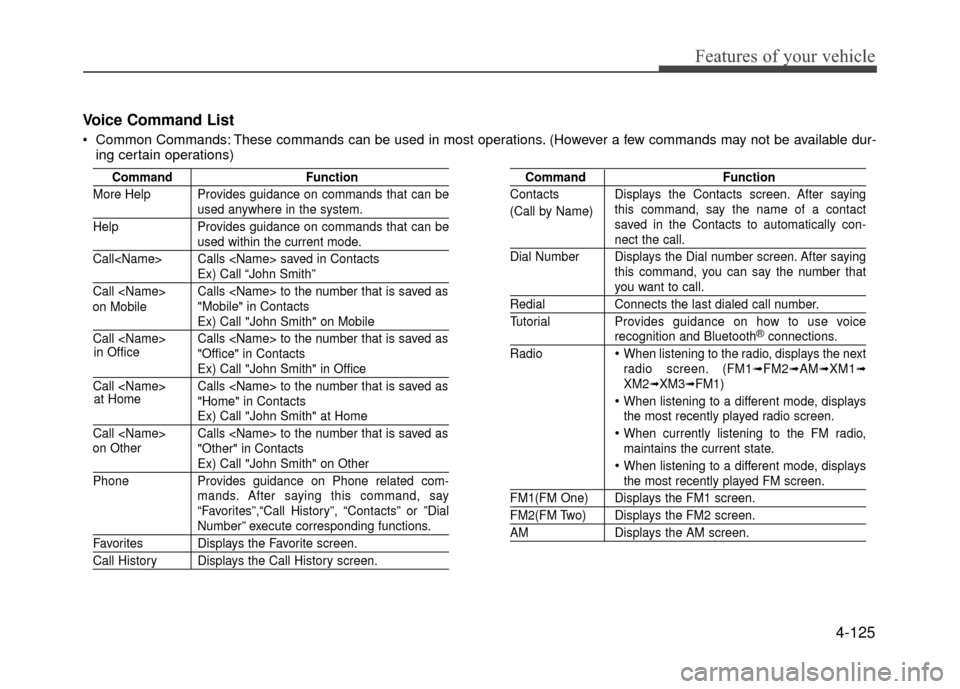
Voice Command List
Common Commands: These commands can be used in most operations. (However a few commands may not be available dur-ing certain operations)
Command Function
More Help Provides guidance on commands that can be
used anywhere in the system.
Help Provides guidance on commands that can be
used within the current mode.
Call
Ex) Call “John Smith”
Call
Ex) Call "John Smith" on Mobile
Call
Ex) Call "John Smith" in Office
Call
Ex) Call "John Smith" at Home
Call
Ex) Call "John Smith" on Other
Phone Provides guidance on Phone related com- mands. After saying this command, say
“Favorites”,“Call History”, “Contacts” or ”Dial
Number” execute corresponding functions.
Favorites Displays the Favorite screen.
Call History Displays the Call History screen.
Command Function
Contacts Displays the Contacts screen. After saying this command, say the name of a contact
saved in the Contacts to automatically con-
nect the call.
Dial Number Displays the Dial number screen. After saying this command, you can say the number that
you want to call.
RedialConnects the last dialed call number.
Tutorial Provides guidance on how to use voice
recognition and Bluetooth®connections.
Radio
When listening to the radio, displays the next
radio screen. (FM1➟FM2➟AM➟XM1➟XM2➟XM3➟FM1)
When listening to a different mode, displays
the most recently played radio screen.
When currently listening to the FM radio,
maintains the current state.
When listening to a different mode, displaysthe most recently played FM screen.
FM1(FM One) Displays the FM1 screen.
FM2(FM Two) Displays the FM2 screen.
AM Displays the AM screen.
(Call by Name)
on Mobile
in Office
at Home
on Other