key Hyundai Accent 2017 Owner's Guide
[x] Cancel search | Manufacturer: HYUNDAI, Model Year: 2017, Model line: Accent, Model: Hyundai Accent 2017Pages: 380, PDF Size: 12.45 MB
Page 166 of 380
Features of your vehicle
4-92
(Continued)
• Some USB flash memory readers(such as CF, SD, micro SD, etc.) or
external-HDD type devices can be
unrecognizable.
• Music files protected by DRM (DIGITAL RIGHTS MANAGE-
MENT) are not recognizable.
• The data in the USB memory may be lost while using this audio.
Always back up important data on
a personal storage device.
• Please avoid using USB memory products which can be used as key
chains or cellular phone
accessories as they could
cause damage to the
USB jack. Please make
certain only to use plug
type connector products.✽
✽ NOTICE - USING THE
iPod®DEVICE
• iPhone is a registered trademark of
Apple inc.
• Some iPod
®models may not sup-
port communication protocol and
files may not properly play.
Supported iPod
®models:
- iPhone®3GS/4
- iPod®touch 1st~4th generation
- iPod®nano 1st~6th generation
- iPod®classic
• The order of search or playback of songs in the iPod
®can be different
from the order searched in the
audio system.
• If the iPod
®is disabled due to its
own malfunction, reset the iPod®.
(Reset: Refer to iPod®manual)
• An iPod®may not operate normal-
ly on low battery. (Continued)(Continued)
• Some iPod
®devices, such as the
iPhone®, can be connected through
the Bluetooth®Wireless Technology
interface. The device must have
audio Bluetooth
®Wireless
Technology capability (such as for
stereo headphone Bluetooth
®
Wireless Technology).
The device can play, but it will not
be controlled by the audio system.
• To use iPod
®features within the
audio, use the cable provided upon
purchasing an iPod
®device.
• Skipping or improper operation may occur depending on the char-
acteristics of your iPod
®/ iPhone®
device.
• If your iPhone®is connected to
both the Bluetooth®Wireless
Technology and USB, the sound
may not be properly played. In
your iPhone
®, select the Dock con-
nector or Bluetooth®Wireless
Technology to change the sound
output (source). (Continued)
Page 169 of 380
4-95
Features of your vehicle
✽
✽NOTICE - USING THE VOICE
RECOGNITION
• When using the voice recognition fea-ture, only commands listed within the
user's manual are supported.
• Be aware that during the operation of the voice recognition system, pressing
any key other than the key termi-
nate voice recognition mode.
• For superior voice recognition per- formance, position the microphone
used for voice recognition above the
head of the driver’s seat and maintain
a proper position when saying com-
mands.
• Within the following situations, voice recognition may not function properly
due to external sound.
- When the windows and sunroof areopen
- When the wind of the cooling / heat- ing device is strong
- When entering and passing through tunnels (Continued)(Continued)
- When driving on rugged anduneven roads
- During severe rain (heavy rains, windstorms)
• Phone related voice commands can be used only when a Bluetooth
®Wireless
Technology device is connected.
• When making calls by stating a name, the corresponding contact must be
downloaded and stored within the
audio system.
• After downloading the Bluetooth
®
Wireless Technology phone book, it
takes some times to convert the phone
book data into voice information.
During this time, voice recognition
may not properly operate.
• Pronounce the voice commands natu- rally and clearly as if in a normal con-
versation.
Page 171 of 380
4-97
Features of your vehicle
SYSTEM CONTROLLERS AND
FUNCTIONS
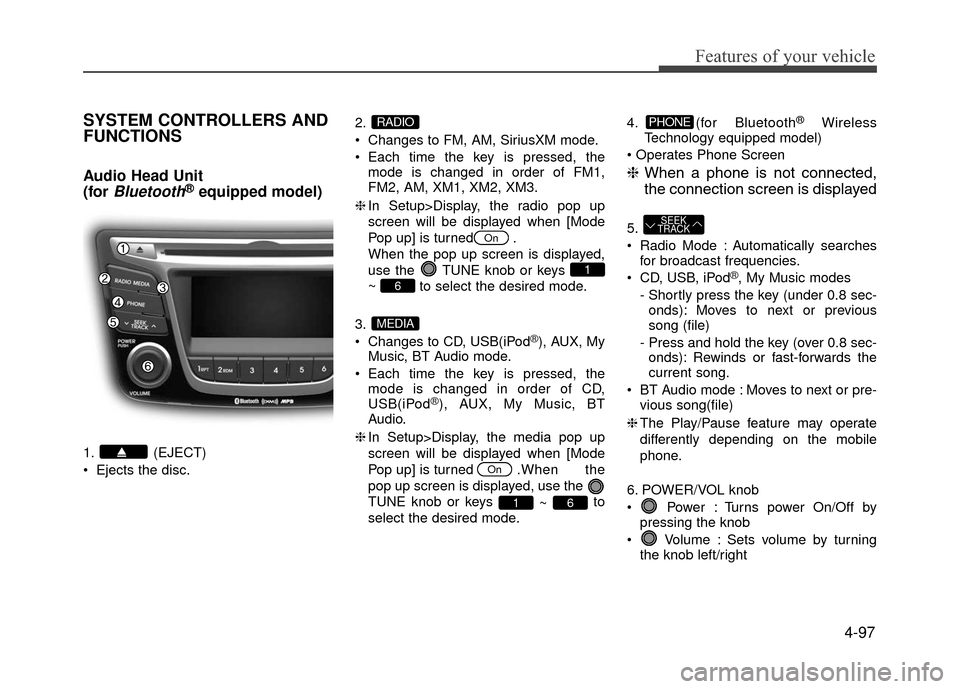
Audio Head Unit
(for
Bluetooth®equipped model)
1. (EJECT)
Ejects the disc.2.
Changes to FM, AM, SiriusXM mode.
Each time the key is pressed, the
mode is changed in order of FM1,
FM2, AM, XM1, XM2, XM3.
❈ In Setup>Display, the radio pop up
screen will be displayed when [Mode
Pop up] is turned .
When the pop up screen is displayed,
use the TUNE knob or keys
~ to select the desired mode.
3.
Changes to CD, USB(iPod
®), AUX, My
Music, BT Audio mode.
Each time the key is pressed, the mode is changed in order of CD,
USB(iPod
®), AUX, My Music, BT
Audio.
❈ In Setup>Display, the media pop up
screen will be displayed when [Mode
Pop up] is turned . When the
pop up screen is displayed, use the
TUNE knob or keys ~ to
select the desired mode. 4. (for Bluetooth
®Wireless
Technology equipped model)
❈ When a phone is not connected,
the connection screen is displayed
5.
Radio Mode : Automatically searches
for broadcast frequencies.
CD, USB, iPod
®, My Music modes
- Shortly press the key (under 0.8 sec- onds): Moves to next or previous
song (file)
- Press and hold the key (over 0.8 sec- onds): Rewinds or fast-forwards the
current song.
BT Audio mode : Moves to next or pre- vious song(file)
❈ The Play/Pause feature may operate
differently depending on the mobile
phone.
6. POWER/VOL knob
Power : Turns power On/Off by pressing the knob
Volume : Sets volume by turning the knob left/right
SEEK
TRACK
PHONE
61
On
MEDIA
6
1
On
RADIO
Page 172 of 380
Features of your vehicle
4-98
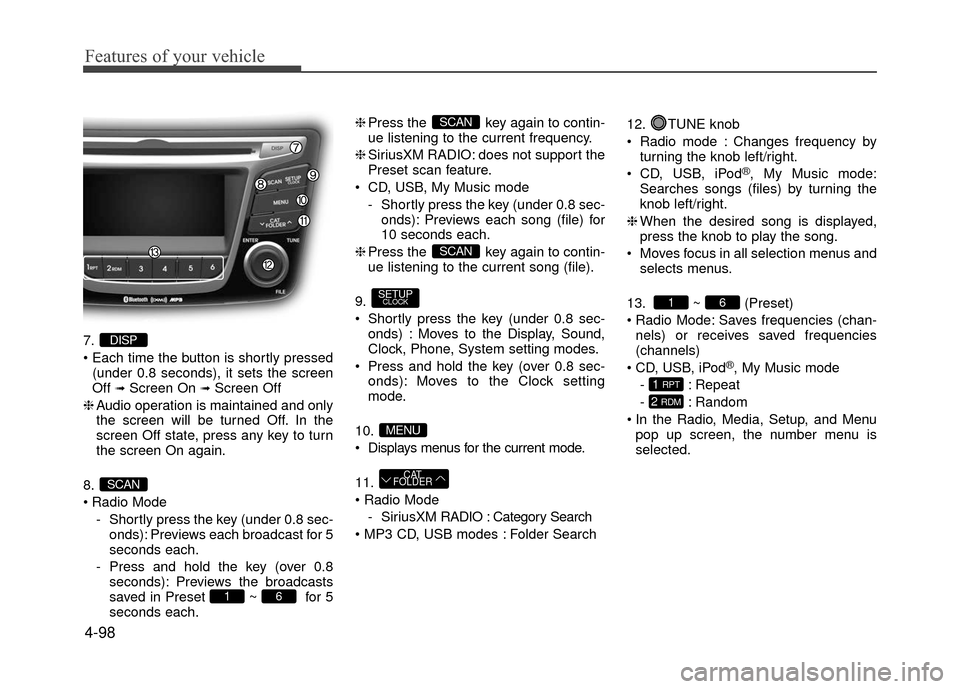
7.
(under 0.8 seconds), it sets the screen
Off
➟Screen On ➟Screen Off
❈ Audio operation is maintained and only
the screen will be turned Off. In the
screen Off state, press any key to turn
the screen On again.
8.
Radio Mode - Shortly press the key (under 0.8 sec-onds): Previews each broadcast for 5
seconds each.
- Press and hold the key (over 0.8 seconds): Previews the broadcasts
saved in Preset ~ for 5
seconds each. ❈
Press the key again to contin-
ue listening to the current frequency.
❈ SiriusXM RADIO: does not support the
Preset scan feature.
CD, USB, My Music mode - Shortly press the key (under 0.8 sec-onds): Previews each song (file) for
10 seconds each.
❈ Press the key again to contin-
ue listening to the current song (file).
9.
Shortly press the key (under 0.8 sec- onds) : Moves to the Display, Sound,
Clock, Phone, System setting modes.
Press and hold the key (over 0.8 sec- onds): Moves to the Clock setting
mode.
10.
Displays menus for the current mode.
11.
- SiriusXM RADIO : Category Search
Folder Search 12. TUNE knob
Radio mode : Changes frequency by
turning the knob left/right.
CD, USB, iPod
®, My Music mode:
Searches songs (files) by turning the
knob left/right.
❈ When the desired song is displayed,
press the knob to play the song.
Moves focus in all selection menus and selects menus.
13. ~ (Preset)
Radio Mode: Saves frequencies (chan- nels) or receives saved frequencies
(channels)
CD, USB, iPod
®, My Music mode
- : Repeat
- : Random
In the Radio, Media, Setup, and Menu pop up screen, the number menu is
selected.
2 RDM
1 RPT
61
CAT
FOLDER
MENU
SETUPCLOCK
SCAN
SCAN
61
SCAN
DISP
Page 173 of 380
4-99
Features of your vehicle
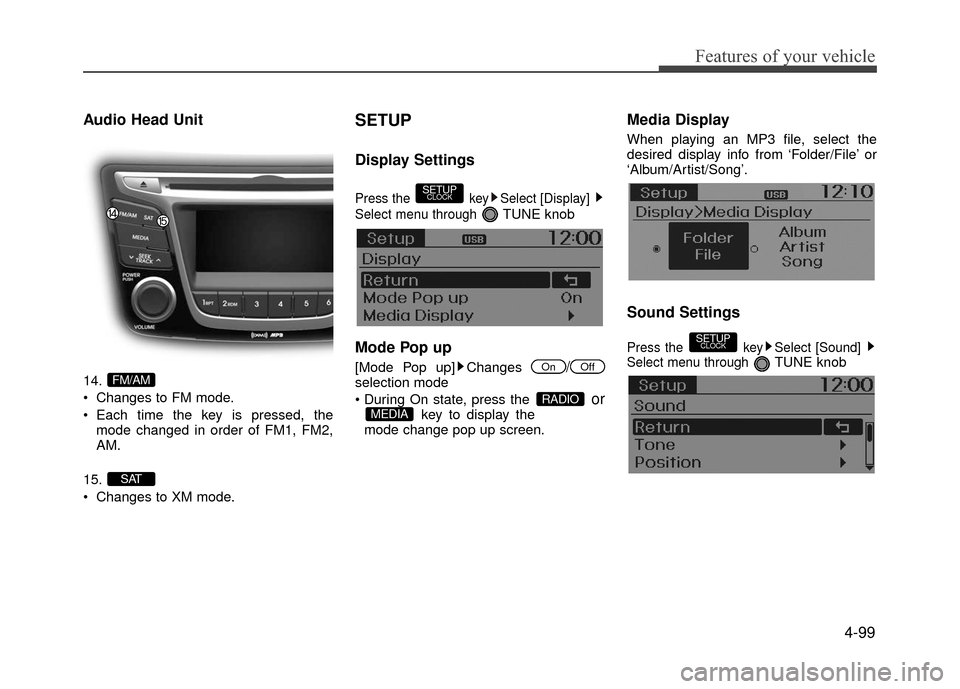
Audio Head Unit
14.
Changes to FM mode.
Each time the key is pressed, themode changed in order of FM1, FM2,
AM.
15.
Changes to XM mode.
SETUP
Display Settings
Press the key Select [Display]
Select menu through
TUNE knob
Mode Pop up
[Mode Pop up] Changes /selection mode
orkey to display the
mode change pop up screen.
Media Display
When playing an MP3 file, select the
desired display info from ‘Folder/File’ or
‘Album/Artist/Song’.
Sound Settings
Press the key Select [Sound]
Select menu through TUNE knob
SETUPCLOCK
MEDIARADIO
OffOn
SETUPCLOCK
SAT
FM/AM
Page 175 of 380
![Hyundai Accent 2017 Owners Guide 4-101
Features of your vehicle
CLOCK SETTINGS
Press the key Select[Clock]
through
TUNE knobor key
Selectmenu through TUNE knob
Clock Settings
This menu is used to set the time.
Select [Clock Settin](/img/35/14348/w960_14348-174.png "Hyundai Accent 2017 Owners Guide 4-101
Features of your vehicle
CLOCK SETTINGS
Press the key Select[Clock]
through
TUNE knobor key
Selectmenu through TUNE knob
Clock Settings
This menu is used to set the time.
Select [Clock Settin")
4-101
Features of your vehicle
CLOCK SETTINGS
Press the key Select[Clock]
through
TUNE knobor key
Selectmenu through TUNE knob
Clock Settings
This menu is used to set the time.
Select [Clock Settings] Set through
TUNE knob Press TUNE knob
❈Adjust the number currently in focus to set the [hour] and press the tune knob to
set the [minute].
Calendar Settings
This menu is used to set the date
(DD/MM/YYYY).
Select [Calendar Settings]
Set through
TUNE knob Press TUNEknob
❈Adjust the number currently in focus to make the settings and press the tune
knob to move to the next setting. (Set in
order of Day/Month/Year)
Time Format
This function is used to set the 12/24
hour time format of the audio system.
Select [Time Format] Set 12Hr / 24Hr
through TUNE
knob
Clock Display when Power is OFF
Select [Clock Disp.(Pwr Off) Set / through TUNEknob
: Displays time/date on screen
: Turn off.Off
On
OffOn
3
SETUPCLOCK
Page 176 of 380
![Hyundai Accent 2017 Owners Guide Features of your vehicle
4-102
SYSTEM SETTINGS
Press the keySelect [System]
Select menu through TUNE knob
Memory Information
Displays currently used memory and
total system memory.
Select [Memory Inf](/img/35/14348/w960_14348-175.png "Hyundai Accent 2017 Owners Guide Features of your vehicle
4-102
SYSTEM SETTINGS
Press the keySelect [System]
Select menu through TUNE knob
Memory Information
Displays currently used memory and
total system memory.
Select [Memory Inf")
Features of your vehicle
4-102
SYSTEM SETTINGS
Press the keySelect [System]
Select menu through TUNE knob
Memory Information
Displays currently used memory and
total system memory.
Select [Memory Information] OK
The currently used memory is displayed
on the left side while the total system
memory is displayed on the right side.
Prompt Feedback
This feature is used to change voice
command feedback between Normal and
Expert modes.
Select [Prompt Feedback] Set through
TUNEknob
Normal(On) : This mode is for beginner users and provides detailed instruc-
tions during voice command operation.
Expert(Off) : This mode is for expert users and omits some information dur-
ing voice command operation. (When
using Expert mode, guidance instruc-
tions can be heard through the [Help]
or [Menu] commands.
Language
This menu is used to set the display and
voice recognition language.
Select [Language] Set through
TUNE knob
❈ The system will reboot after the lan-
guage is changed.
❈ Language support by region
- English, Français, EspañolSETUPCLOCK
Page 177 of 380
4-103
Features of your vehicle
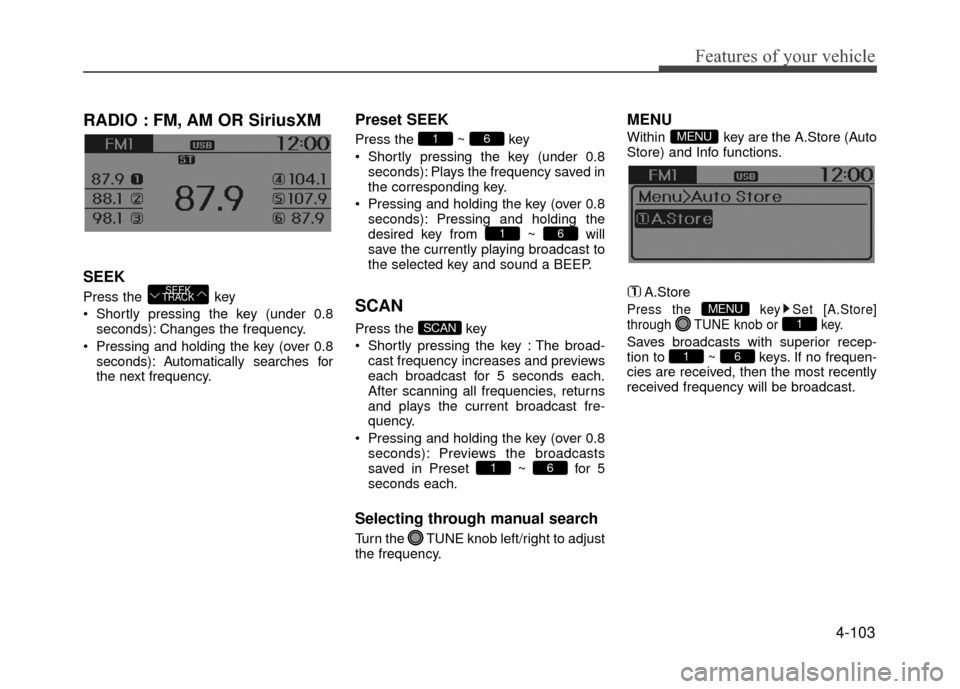
RADIO : FM, AM OR SiriusXM
SEEK
Press the key
Shortly pressing the key (under 0.8seconds): Changes the frequency.
Pressing and holding the key (over 0.8 seconds): Automatically searches for
the next frequency.
Preset SEEK
Press the ~ key
Shortly pressing the key (under 0.8seconds): Plays the frequency saved in
the corresponding key.
Pressing and holding the key (over 0.8 seconds): Pressing and holding the
desired key from ~ will
save the currently playing broadcast to
the selected key and sound a BEEP.
SCAN
Press the key
Shortly pressing the key : The broad-cast frequency increases and previews
each broadcast for 5 seconds each.
After scanning all frequencies, returns
and plays the current broadcast fre-
quency.
Pressing and holding the key (over 0.8 seconds): Previews the broadcasts
saved in Preset ~ for 5
seconds each.
Selecting through manual search
Turn the TUNE knob left/right to adjust
the frequency.
MENU
Within key are the A.Store (Auto
Store) and Info functions.
A.Store
Press the key Set [A.Store]
through TUNE knob or key.
Saves broadcasts with superior recep-
tion to ~ keys. If no frequen-
cies are received, then the most recently
received frequency will be broadcast.61
1MENU
MENU
61
SCAN
61
61
SEEK
TRACK
Page 179 of 380
4-105
Features of your vehicle
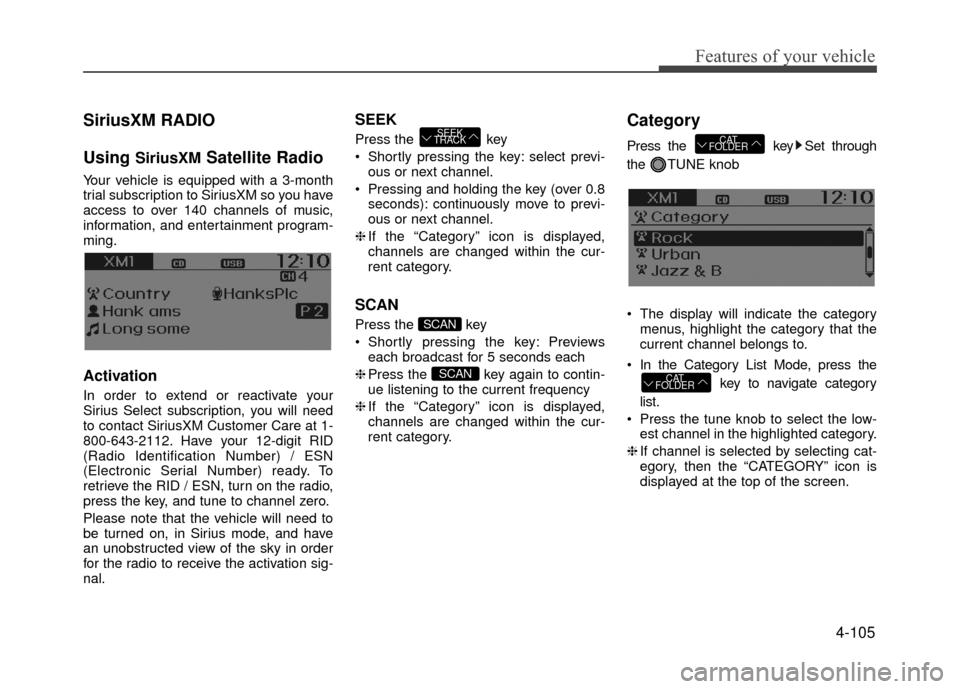
SiriusXM RADIO
Using
SiriusXMSatellite Radio
Your vehicle is equipped with a 3-month
trial subscription to SiriusXM so you have
access to over 140 channels of music,
information, and entertainment program-
ming.
Activation
In order to extend or reactivate your
Sirius Select subscription, you will need
to contact SiriusXM Customer Care at 1-
800-643-2112. Have your 12-digit RID
(Radio Identification Number) / ESN
(Electronic Serial Number) ready. To
retrieve the RID / ESN, turn on the radio,
press the key, and tune to channel zero.
Please note that the vehicle will need to
be turned on, in Sirius mode, and have
an unobstructed view of the sky in order
for the radio to receive the activation sig-
nal.
SEEK
Press the key
Shortly pressing the key: select previ-ous or next channel.
Pressing and holding the key (over 0.8 seconds): continuously move to previ-
ous or next channel.
❈ If the “Category” icon is displayed,
channels are changed within the cur-
rent category.
SCAN
Press the key
Shortly pressing the key: Previews each broadcast for 5 seconds each
❈ Press the key again to contin-
ue listening to the current frequency
❈ If the “Category” icon is displayed,
channels are changed within the cur-
rent category.
Category
Press the key Set through
the TUNE knob
The display will indicate the category menus, highlight the category that the
current channel belongs to.
In the Category List Mode, press the key to navigate category
list.
Press the tune knob to select the low- est channel in the highlighted category.
❈ If channel is selected by selecting cat-
egory, then the “CATEGORY” icon is
displayed at the top of the screen.
CAT
FOLDER
CAT
FOLDER
SCAN
SCAN
SEEK
TRACK
Page 180 of 380
Features of your vehicle
4-106
Preset
Press the ~ key
Shortly pressing the key: Plays the fre-quency saved in the corresponding
key.
Pressing and holding the key (over 0.8 seconds): Pressing and holding the
desired key from ~ will
save the current broadcast to the
selected key and sound a BEEP.
✽ ✽
Troubleshooting
1. Antenna Error
If this message is displayed, the antenna
or antenna cable is broken or
unplugged. Please consult with your
Hyundai dealership.
2. No Signal
If this message is displayed, it means
that the antenna is covered and that the
SiriusXM Satellite Radio signal is not
available. Ensure the antenna is uncov-
ered and has a clear view of the sky.
Tune
Rotate TUNE knob : Changes the
channel number or scrolls category list.
Press TUNE knob : Selects the menu.
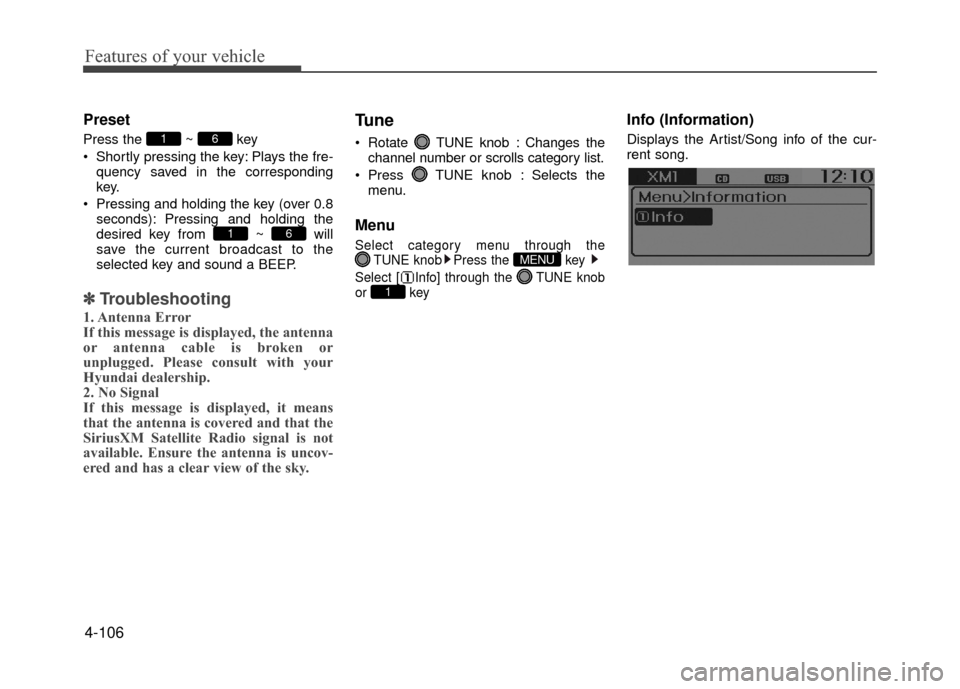
Menu
Select category menu through the TUNE knob Press the key
Select [ Info] through the TUNE knob
or key
Info (Information)
Displays the Artist/Song info of the cur-
rent song.
1
MENU
61
61