bluetooth Hyundai Accent 2018 Owner's Manual
[x] Cancel search | Manufacturer: HYUNDAI, Model Year: 2018, Model line: Accent, Model: Hyundai Accent 2018Pages: 442, PDF Size: 13.99 MB
Page 16 of 442
I
IN
N S
ST
T R
R U
U M
M E
EN
N T
T
P
P A
A N
N E
EL
L
O
O V
VE
ER
R V
V I
IE
E W
W
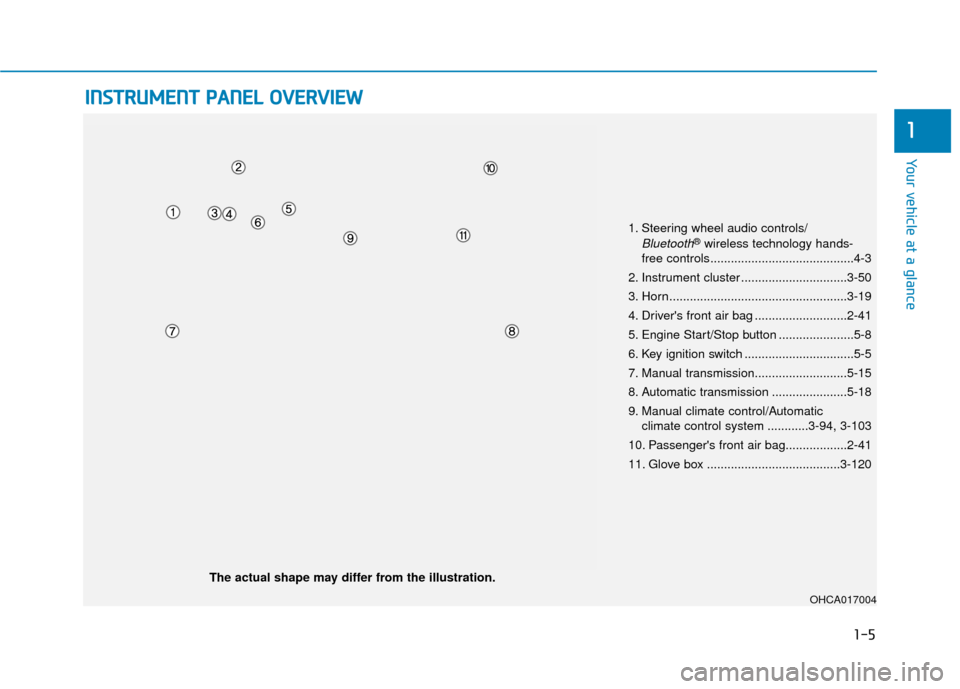
The actual shape may differ from the illustration.
1-5
Your vehicle at a glance
1
1. Steering wheel audio controls/
Bluetooth®wireless technology hands-
free controls..........................................4-3
2. Instrument cluster ...............................3-50
3. Horn....................................................3-19
4. Driver's front air bag ...........................2-41
5. Engine Start/Stop button ......................5-8
6. Key ignition switch ................................5-5
7. Manual transmission...........................5-15
8. Automatic transmission ......................5-18
9. Manual climate control/Automatic climate control system ............3-94, 3-103
10. Passenger's front air bag..................2-41
11. Glove box .......................................3-120
OHCA017004
Page 208 of 442
Multimedia System
Multimedia system .................................................4-2
AUX, USB and iPod®Port ...............................................4-2
Antenna ........................................................................\
.......4-2
Steering Wheel Audio Control........................................4-3
Bluetooth®Wireless Technology Hands-Free ..........4-4
How Vehicle Audio Works ...............................................4-5
Features of Your Vehicle.................................................4-7
Audio (With Touch Screen) ..................................4-9
Feature of Your Audio ...................................................4-10
Feature of Your Audio ...................................................4-13
Radio........................................................................\
...........4-18
List ........................................................................\
..............4-19
SiriusXM Radio.................................................................4-21
Media........................................................................\
..........4-22
Phone ........................................................................\
.........4-34
Setup ........................................................................\
..........4-42
4
Page 211 of 442
4-4
Multimedia System
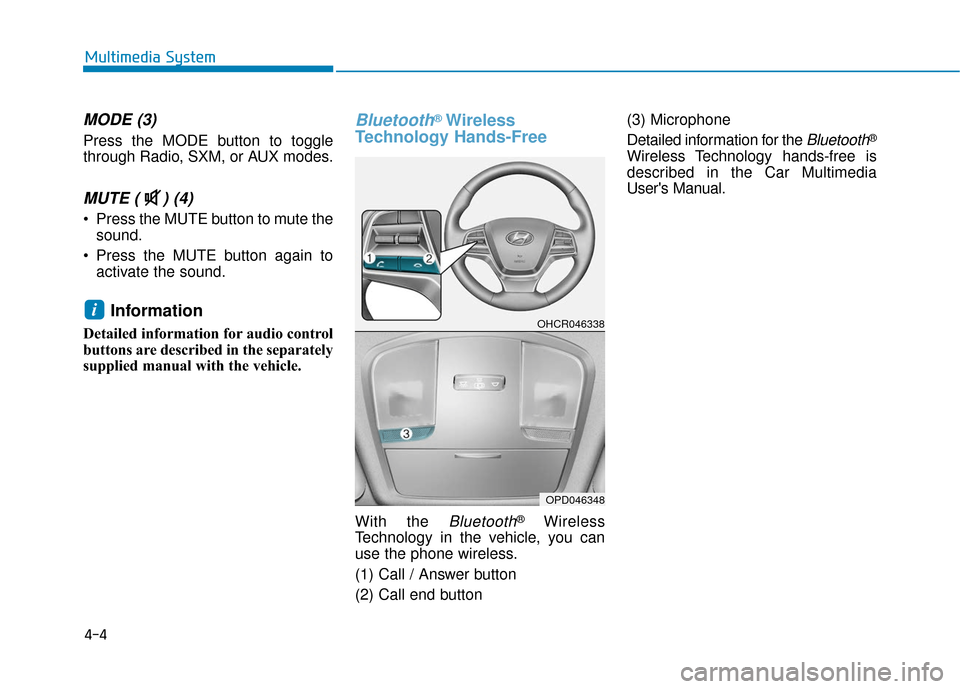
MODE (3)
Press the MODE button to toggle
through Radio, SXM, or AUX modes.
MUTE ( ) (4)
Press the MUTE button to mute thesound.
Press the MUTE button again to activate the sound.
Information
Detailed information for audio control
buttons are described in the separately
supplied manual with the vehicle.
Bluetooth®Wireless
Technology Hands-Free
With the Bluetooth®Wireless
Technology in the vehicle, you can
use the phone wireless.
(1) Call / Answer button
(2) Call end button (3) Microphone
Detailed information for the
Bluetooth®
Wireless Technology hands-free is
described in the Car Multimedia
User's Manual.
iOHCR046338
OPD046348
Page 215 of 442
4-8
Multimedia System
iPod®
iPod®is a registered trademark of Apple Inc.
Bluetooth®Wireless Technology
The Bluetooth®word mark and logos are registered
trademarks owned by Bluetooth SIG, Inc. and any use of
such marks by HYUNDAI is under license. Other trade-
marks and trade names are those of their respective
owners.
A
Bluetooth®Wireless Technology enabled cell phone is
required to use
Bluetooth®Wireless Technology.
Bluetooth®Wireless Technology phone compatibility can
be checked by visiting https://www.hyundaiusa.com/blue-
tooth.
Page 219 of 442
4-12
Multimedia System
J0H4H0002EU/J0H4H0003EU
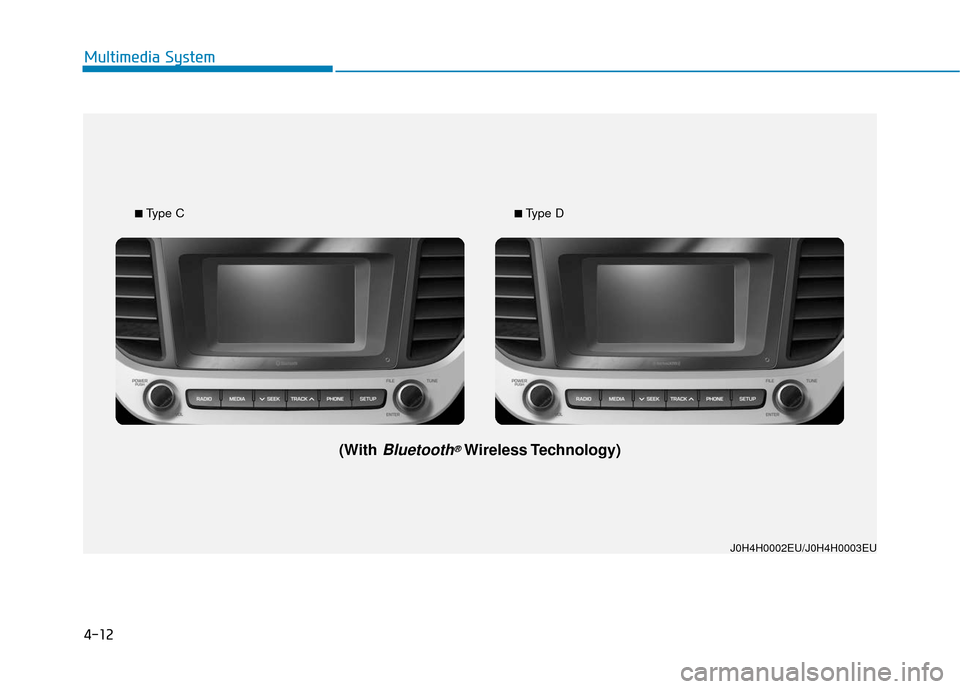
■Type C■Type D
(With Bluetooth®Wireless Technology)
Page 220 of 442
4-13
Multimedia System
4
Feature of Your Audio
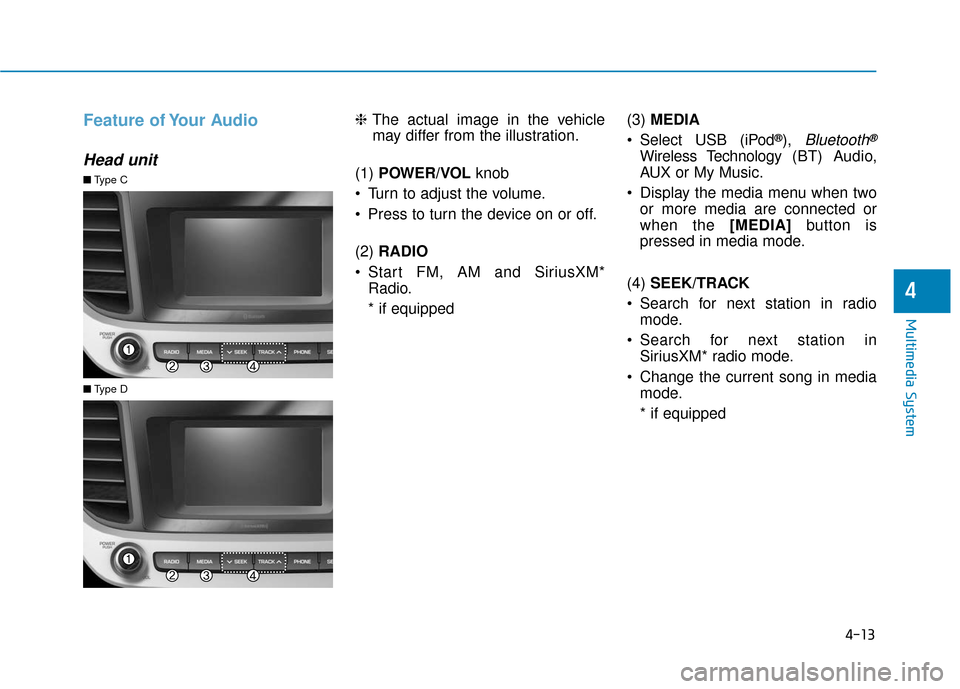
Head unit
❈The actual image in the vehicle
may differ from the illustration.
(1) POWER/VOL knob
Turn to adjust the volume.
Press to turn the device on or off.
(2) RADIO
Start FM, AM and SiriusXM* Radio.
* if equipped (3)
MEDIA
Select USB (iPod
®), Bluetooth®
Wireless Technology (BT) Audio,
AUX or My Music.
Display the media menu when two or more media are connected or
when the [MEDIA] button is
pressed in media mode.
(4) SEEK/TRACK
Search for next station in radio mode.
Search for next station in SiriusXM* radio mode.
Change the current song in media mode.
* if equipped
■ Type C
■Type D
Page 221 of 442
4-14
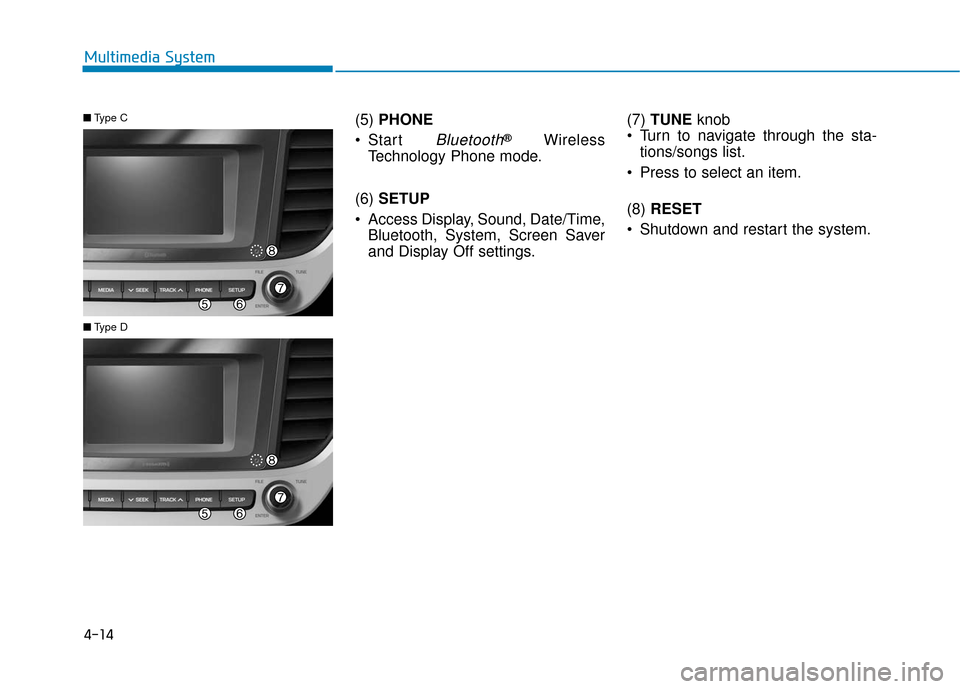
Multimedia System(5) PHONE
Start
Bluetooth®Wireless
Technology Phone mode.
(6) SETUP
Access Display, Sound, Date/Time, Bluetooth, System, Screen Saver
and Display Off settings. (7)
TUNE knob
Turn to navigate through the sta- tions/songs list.
Press to select an item.
(8) RESET
Shutdown and restart the system.
■ Type C
■Type D
Page 222 of 442
4-15
Multimedia System
4
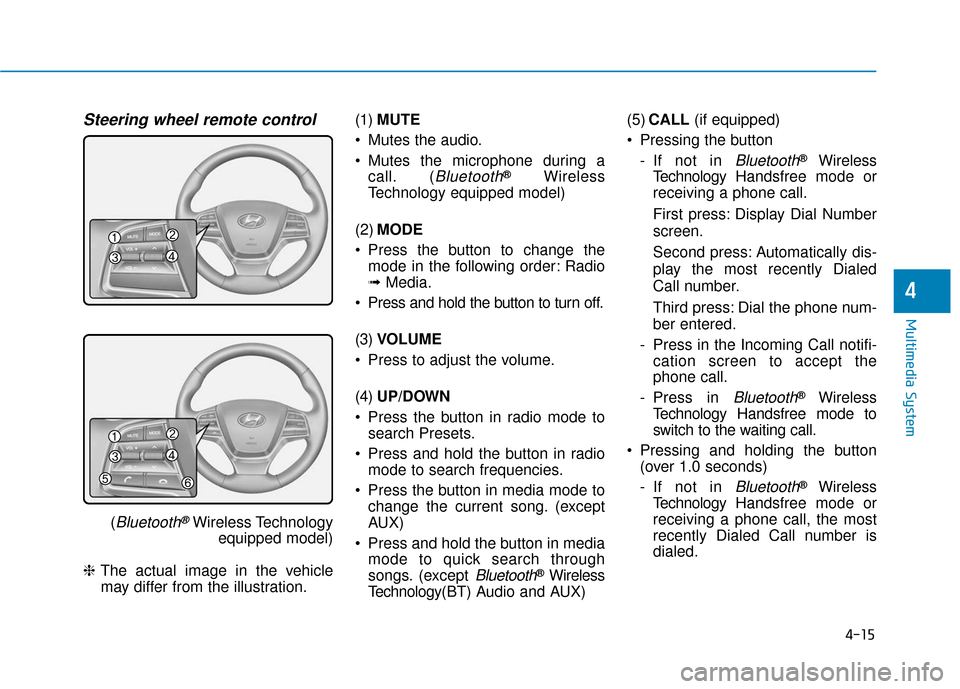
Steering wheel remote control
(Bluetooth®Wireless Technologyequipped model)
❈ The actual image in the vehicle
may differ from the illustration. (1)
MUTE
Mutes the audio.
Mutes the microphone during a call. (
Bluetooth®Wireless
Technology equipped model)
(2) MODE
Press the button to change the mode in the following order: Radio
➟ Media.
Press and hold the button to turn off.
(3) VOLUME
Press to adjust the volume.
(4) UP/DOWN
Press the button in radio mode to search Presets.
Press and hold the button in radio mode to search frequencies.
Press the button in media mode to change the current song. (except
AUX)
Press and hold the button in media mode to quick search through
songs. (except
Bluetooth®Wireless
Technology(BT) Audio and AUX) (5)
CALL (if equipped)
Pressing the button - If not in
Bluetooth®Wireless
Technology Handsfree mode or
receiving a phone call.
First press: Display Dial Number
screen.
Second press: Automatically dis-
play the most recently Dialed
Call number.
Third press: Dial the phone num-
ber entered.
- Press in the Incoming Call notifi- cation screen to accept the
phone call.
- Press in
Bluetooth®Wireless
Technology Handsfree mode to
switch to the waiting call.
Pressing and holding the button (over 1.0 seconds)
- If not in
Bluetooth®Wireless
Technology Handsfree mode or
receiving a phone call, the most
recently Dialed Call number is
dialed.
Page 223 of 442
4-16
Multimedia System- Press in
Bluetooth®Wireless
Technology Handsfree mode to
transfer the call to your cell
phone.
- Press in cell phone mode to switch to
Bluetooth®Wireless
Technology Handsfree mode.
(6) END (if equipped)
Press in
Bluetooth®Wireless
Technology Handsfree mode to
end the phone call.
Press in the incoming call screen to reject the call. (Continued)
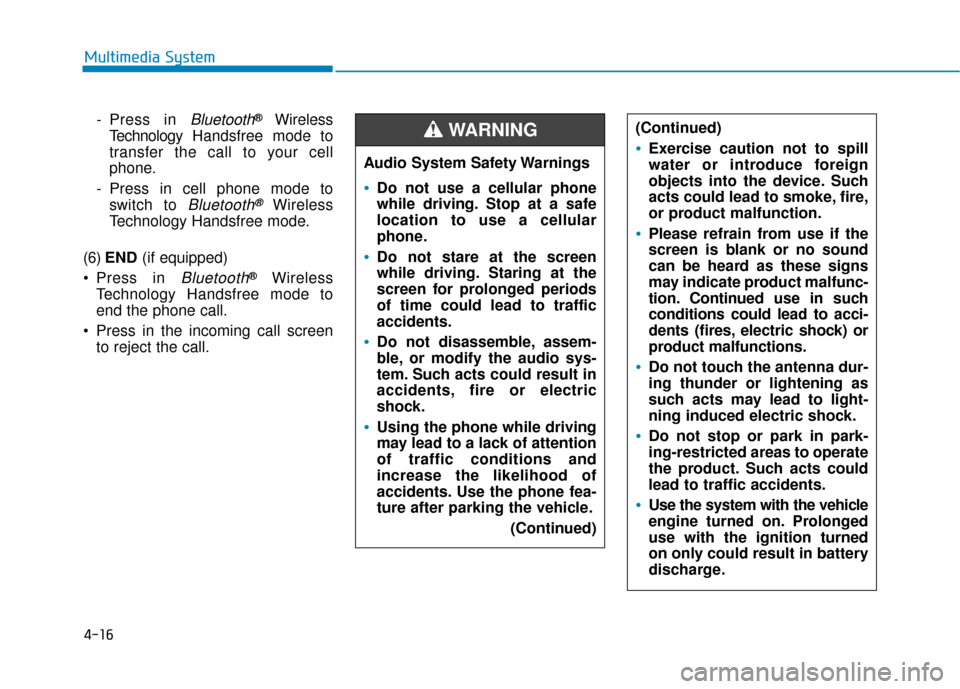
Exercise caution not to spill
water or introduce foreign
objects into the device. Such
acts could lead to smoke, fire,
or product malfunction.
Please refrain from use if the
screen is blank or no sound
can be heard as these signs
may indicate product mal
func-
tion. Continued use in such
conditions could lead to acci-
dents (fires, electric shock) or
product malfunctions.
Do not touch the antenna dur-
ing thunder or lightening as
such acts may lead to light-
ning induced electric shock.
Do not stop or park in park-
ing-restricted areas to operate
the product. Such acts could
lead to traffic accidents.
Use the system with the vehicle
engine turned on. Prolonged
use with the ignition turned
on only could result in battery
discharge.
Audio System Safety Warnings
Do not use a cellular phone
while driving. Stop at a safe
location to use a cellular
phone.
Do not stare at the screen
while driving. Staring at the
screen for prolonged periods
of time could lead to traffic
accidents.
Do not disassemble, assem-
ble, or modify the audio sys-
tem. Such acts could result in
accidents, fire or electric
shock.
Using the phone while driving
may lead to a lack of attention
of traffic conditions and
increase the likelihood of
accidents. Use the phone fea-
ture after parking the vehicle.
(Continued)
WARNING
Page 225 of 442
4-18
Multimedia System
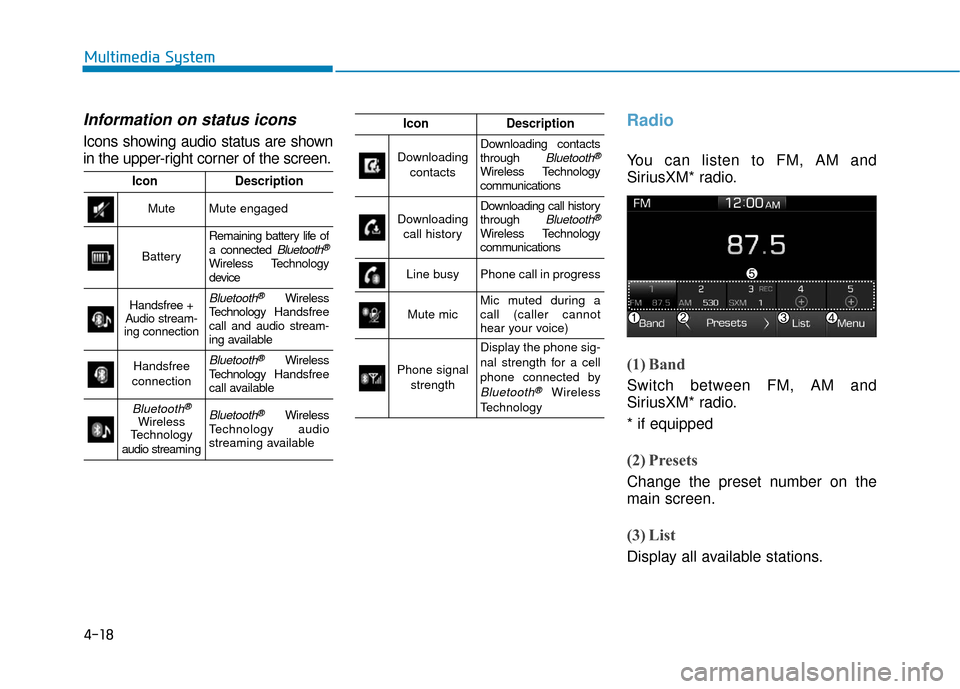
Information on status icons
Icons showing audio status are shown
in the upper-right corner of the screen.
Radio
You can listen to FM, AM and
SiriusXM* radio.
(1) Band
Switch between FM, AM and
SiriusXM* radio.
* if equipped
(2) Presets
Change the preset number on the
main screen.
(3) List
Display all available stations.
IconDescription
MuteMute engaged
Battery
Remaining battery life of
a connected Bluetooth®
Wireless Technology
device
Handsfree +
Audio stream-
ing connectionBluetooth®Wireless
Technology Handsfree
call and audio stream-
ing available
Handsfree
connectionBluetooth®Wireless
Technology Handsfree
call available
Bluetooth®
Wireless
Technology
audio streami n gBluetooth®Wireless
Technology audio
streaming available
IconDescription
Downloading
contactsDownloading contacts
through Bluetooth®
Wireless Technology
communications
Downloading call historyDownloading call history
through Bluetooth®
Wireless Technology
communications
Line busyPhone call in progress
Mute micMic muted during a
call (caller cannot
hear your voice)
Phone signal strength
Display the phone sig-
nal strength for a cell
phone connected by
Bluetooth®Wireless
Technology