Port Hyundai Accent 2019 Service Manual
[x] Cancel search | Manufacturer: HYUNDAI, Model Year: 2019, Model line: Accent, Model: Hyundai Accent 2019Pages: 442, PDF Size: 14.14 MB
Page 229 of 442
![Hyundai Accent 2019 Service Manual 4-22
Multimedia System
Menu
Select [Menu], and select the desired
function.
Presets: Save up to 40 frequentlyused channels. To listen to a pre-
set, select the desired channel.
Press and hold the des](/img/35/14345/w960_14345-228.png "Hyundai Accent 2019 Service Manual 4-22
Multimedia System
Menu
Select [Menu], and select the desired
function.
Presets: Save up to 40 frequentlyused channels. To listen to a pre-
set, select the desired channel.
Press and hold the des")
4-22
Multimedia System
Menu
Select [Menu], and select the desired
function.
Presets: Save up to 40 frequentlyused channels. To listen to a pre-
set, select the desired channel.
Press and hold the desired slot
from 1 through 40. This saves the
current channel in the selected
slot. If the slot is empty, simply
selecting saves the channel to the
slot.
Categories: Channels can be searched by category.
Direct Tune: The desired channel can be selected by entering num-
bers.
Sound Settings: Audio sound set- tings can be changed.
Tag Song: Tag the current song information. When an Apple device
(iPhone
®, iPod®) is connected,
tagged song information is sent
automatically to the connected
device.
Information
Up to 50 songs can be tagged.
Scan: All channels available in the vehicle’s current location are
played for ten seconds each.
Program Schedule: View the Program schedule.
Featured Favorites: The Featured Favorites feature allows
SiriusXM™ to broadcast additional
presets.
- Example 1: During holidays,"Holiday Music" might include all
SiriusXM™ channels that are
playing holiday music for easy
access by users.
Multiple sets of Featured Favorites
data can be broadcast by
SiriusXM™ and can change from
time to time.
Information: View detailed channel information.
Category Lock: Search or scan channels in the current category
only.
Media
Information
- Using MP3
Supported audio formats
File formats other than the for-
mats above may not be recog-
nized or playable. Information
such as filename may not be dis-
played.
NOTICE
i
i
Page 230 of 442
4-23
Multimedia System
4
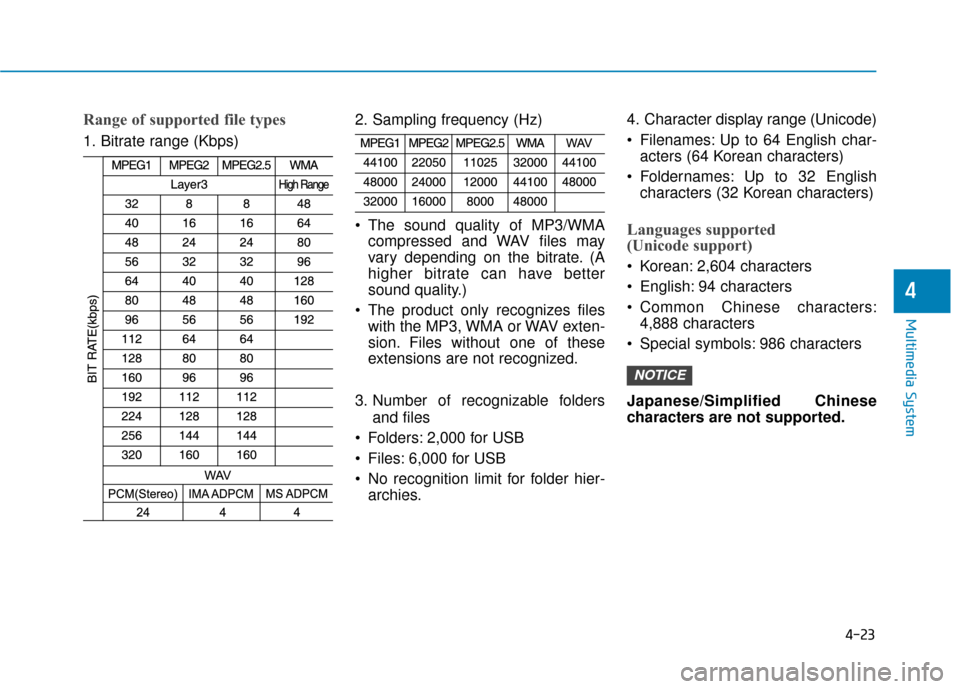
Range of supported file types
1. Bitrate range (Kbps)2. Sampling frequency (Hz)
The sound quality of MP3/WMA
compressed and WAV files may
vary depending on the bitrate. (A
higher bitrate can have better
sound quality.)
The product only recognizes files with the MP3, WMA or WAV exten-
sion. Files without one of these
extensions are not recognized.
3. Number of recognizable folders and files
Folders: 2,000 for USB
Files: 6,000 for USB
No recognition limit for folder hier- archies. 4. Character display range (Unicode)
Filenames: Up to 64 English char-
acters (64 Korean characters)
Foldernames: Up to 32 English characters (32 Korean characters)
Languages supported
(Unicode support)
Korean: 2,604 characters
English: 94 characters
Common Chinese characters:4,888 characters
Special symbols: 986 characters
Japanese/Simplified Chinese
characters are not supported.
NOTICE
Page 231 of 442
4-24
Multimedia System
Information
- Using the USB Devices
• Starting the vehicle while a USB device is connected can damage the
device. Please disconnect USB
devices before starting the vehicle.
• Starting the vehicle or stopping the engine while an external USB device
is connected can result in failure of
the external USB device to operate.
• Be cautious of static electricity when connecting/disconnecting external
USB devices.
• An encrypted MP3 player is not rec- ognized when connected as an exter-
nal device.
• External USB devices may not be recognized, depending on the state
of the external USB device.
• Only products with byte/sectors for- matted at 4 KB or lower are recog-
nized.
• Only USB devices in FAT12/16/32 format are recognized; NTFS and
ExFAT file systems are not recog-
nized.
(Continued)(Continued)
• Some USB devices are not recog-
nized due to compatibility issues.
• Do not touch the USB connections.
• Connecting and disconnecting USB devices rapidly over a short period
of time can cause equipment failure.
• Abnormal sounds may be audible when the USB device is disconnected.
• Turn the audio off before connecting or disconnecting external USB
devices.
• Recognition may take longer depending on the type, capacity or
file format of the external USB
device. This is not a product mal-
function.
• Use of USB devices for purposes other than playing music files is pro-
hibited.
• Image display and video playback are not supported.
(Continued)(Continued)
• Use of USB accessories, including
charge and heat though the USB I/F,
can lead to reduced product per-
formance or malfunctions. Do not
use USB devices or accessories for
these purposes.
• Use of aftermarket USB hubs and extension cables can result in the
vehicle’s audio system failing to rec-
ognize your USB device. Connect
the USB device directly to the multi-
media port of your vehicle.
• When using high-capacity USB devices with logical drive divisions,
only files saved on the highest level
logical drive can be played.
If applications are loaded on a USB
drive, file playback may fail.
• Some MP3 players, cell phones, dig- ital cameras, etc. (USB devices that
are not recognized as mobile stor-
age) may not operate normally
when connected.
• USB charging may not be supported by some mobile devices.
(Continued)
i
Page 232 of 442
4-25
Multimedia System
4
(Continued)
• Operation is guaranteed only forstandard (Metal Cover Type) USB
Memory drives.
• Operation of HDD, CF, SD and mem- ory stick devices is not guaranteed.
• DRM (Digital Rights Management) files cannot be played.
• SD-type USB memory, CF-type USB memory, and other USB mem-
ory devices that require adapters
for connection are not supported.
• Proper operation of USB HDDs or USB drives with connectors that
loosen due to vehicle vibrations is
not guaranteed. (iStick, etc.)
• USB products that are used as key chains or
cell phone accessories
may damage the USB
jack and affect proper
file playback. Please refrain from
use. Use only products with plug
connectors, as shown in the follow-
ing illustration.
• When MP3 devices or cell phones are connected simultaneously through
AUX, BT Audio and USB modes, a
popping noise or malfunction may
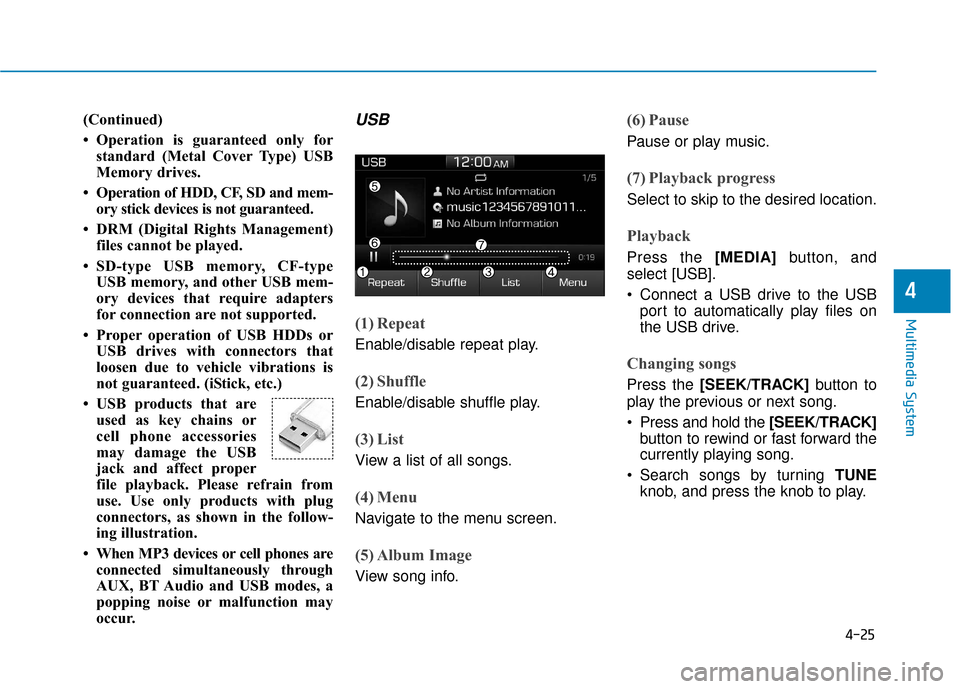
occur.USB
(1) Repeat
Enable/disable repeat play.
(2) Shuffle
Enable/disable shuffle play.
(3) List
View a list of all songs.
(4) Menu
Navigate to the menu screen.
(5) Album Image
View song info.
(6) Pause
Pause or play music.
(7) Playback progress
Select to skip to the desired location.
Playback
Press the [MEDIA] button, and
select [USB].
Connect a USB drive to the USB port to automatically play files on
the USB drive.
Changing songs
Press the [SEEK/TRACK] button to
play the previous or next song.
Press and hold the [SEEK/TRACK] button to rewind or fast forward the
currently playing song.
Search songs by turning TUNE knob, and press the knob to play.
Page 234 of 442
![Hyundai Accent 2019 Service Manual 4-27
Multimedia System
4
(4) Save: Save the selected file(s).- Select the files you want to save,and select [Save]. This saves the
selected files to My Music.
- If phone calls are received or made whi](/img/35/14345/w960_14345-233.png "Hyundai Accent 2019 Service Manual 4-27
Multimedia System
4
(4) Save: Save the selected file(s).- Select the files you want to save,and select [Save]. This saves the
selected files to My Music.
- If phone calls are received or made whi")
4-27
Multimedia System
4
(4) Save: Save the selected file(s).- Select the files you want to save,and select [Save]. This saves the
selected files to My Music.
- If phone calls are received or made while saving, saving will be
canceled.
- Up to 6,000 files can be saved.
- The currently playing file on the USB device cannot be changed
while saving.
- My Music cannot be used while saving.
- Up to 700 MB can be saved.
Information: Detailed information on the currently playing song is dis-
played.
Sound Settings: Audio sound set- tings can be changed.Information
- Using the iPod®Devices
• To use the audio system’s iPod
®con-
trol function, use the dedicated
cable provided with your iPod
®.
• Connecting the iPod
®to the vehicle
during play may result in a loud
noise that lasts about one to two sec-
onds. Connect the iPod
®to the vehi-
cle after stopping or pausing play.
• Connect the iPod
®with the vehicle in
the ACC ON state to begin charging.
• When connecting the iPod
®cable,
be sure to fully push the cable into
the port.
• When EQ effects are enabled simul- taneously on external devices, such
as iPod
®s and the audio system, the
EQ effects may overlap, causing
sound quality deterioration or dis-
tortion. Deactivate the EQ function
for all external devices, if possible.
• Noise may occur when your iPod
®
or the AUX port is connected.
Disconnect and store separately
when not in use. (Continued)(Continued)
• There may be noise if the audio sys-
tem is used with an iPod
®or AUX
external device connected to the
power jack. In these cases, discon-
nect the iPod
®or external device
from the power jack.
• Play may be interrupted, or device malfunctions may occur depending
on the characteristics of your
iPod
®/iPhone®/iPad®.
• Play may fail if your iPhone
®is con-
nected through both Bluetooth®
Wireless Technology and USB. In
this case, select Dock connector or
Bluetooth
®Wireless Technology on
your iPhone®to change the sound
output settings.
• If your software version does not support the communication proto-
col or your iPod
®is not recognized
due to device failure, anomalies or
defects, iPod
®mode cannot be used.
• iPod
®nano (5th generation) devices
may not be recognized if the battery
is low. Charge sufficiently before use.
(Continued)
i
Page 235 of 442
4-28
Multimedia System
(Continued)
• The search and song play order in the iPod
®device may be different
from the search order in the audio
system.
• If the iPod
®has failed due to an
internal defect, please reset the
iPod
®(consult your iPod®manual).
• Depending on the software version, the iPod
®may fail to sync with the
system. If the media is removed or
disconnected before recognition, the
previous mode may not be restored
(iPad
®cannot be charged).
• Cables other than the 1-meter cable provided with iPod
®/iPhone®/iPad®
products may not be recognized.
• When other music apps are used on your iPod
®, the system sync func-
tion may fail due to malfunction of
the iPod
®application.
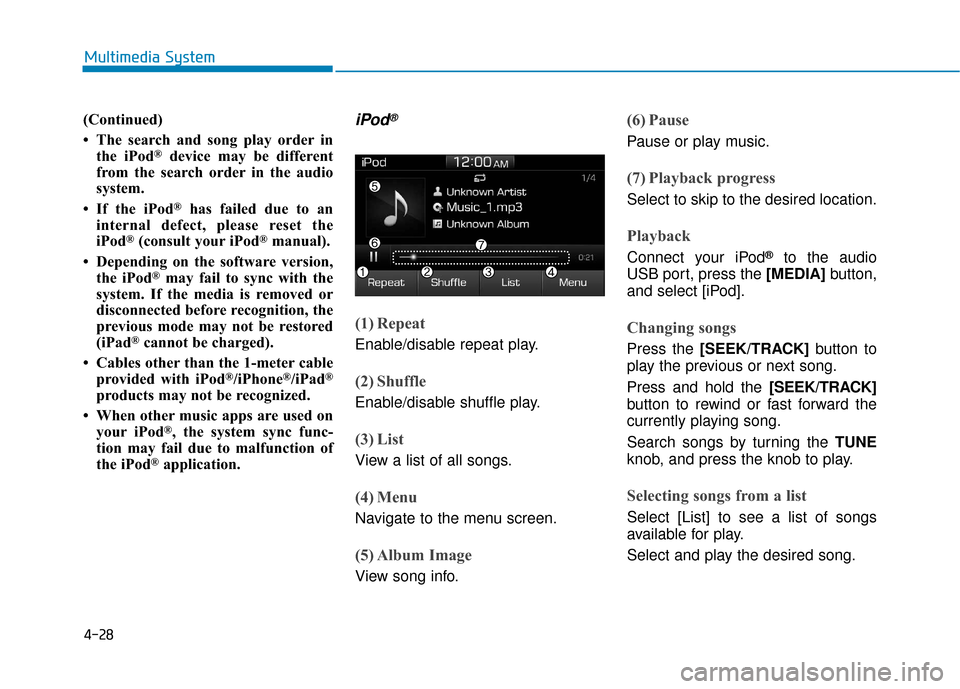
iPod®
(1) Repeat
Enable/disable repeat play.
(2) Shuffle
Enable/disable shuffle play.
(3) List
View a list of all songs.
(4) Menu
Navigate to the menu screen.
(5) Album Image
View song info.
(6) Pause
Pause or play music.
(7) Playback progress
Select to skip to the desired location.
Playback
Connect your iPod®to the audio
USB port, press the [MEDIA] button,
and select [iPod].
Changing songs
Press the [SEEK/TRACK] button to
play the previous or next song.
Press and hold the [SEEK/TRACK]
button to rewind or fast forward the
currently playing song.
Search songs by turning the TUNE
knob, and press the knob to play.
Selecting songs from a list
Select [List] to see a list of songs
available for play.
Select and play the desired song.
Page 237 of 442
4-30
Multimedia System
Information
- Using Bluetooth®Wireless
Technology(BT) Audio
(if equipped)
• Bluetooth
®Wireless Technology Audio
mode can only be used if a Bluetooth®
Wireless Technology-enabled phone is
connected. Only devices that support
Bluetooth
®Wireless Technology audio
can be used.
• If the Bluetooth
®Wireless Technology-
enabled phone is disconnected during
play, the music stops.
• When the TRACK UP/DOWN buttons are used during Bluetooth
®Wireless
Technology audio streaming, a popping
noise or sound interruptions may occur,
depending on the cell phone device.
• Depending on the cell phone model, the audio streaming function may
not be supported.
• If a phone call is made or received when music is playing in Bluetooth
®
Wireless Technology Audio mode,
the call may mix with the music.
• When returning to Bluetooth
®Wireless
Technology Audio mode after ending a
call, play might not resume automatical-
ly for some cell phone models.
Bluetooth®Wireless Technology
Handsfree is a feature that
enables drivers to practice safe
driving. Connecting the car
audio system with a
Bluetooth®
Wireless Technology phone
allows the user to conveniently
make calls, receive calls, and
manage the phone book. Before
using the
Bluetooth®Wireless
Technology, carefully read the
contents of this user’s manual.
Excessive use or operations while driving may lead to negli-
gent driving practices and be
the cause of accidents.
Do not operate the device exces- sively while driving.
Viewing the screen for pro- longed periods of time is dan-
gerous and may lead to acci-
dents.
When driving, view the screen only for short periods of time.
Bluetooth®Wireless Technology
(BT) Audio (if equipped)
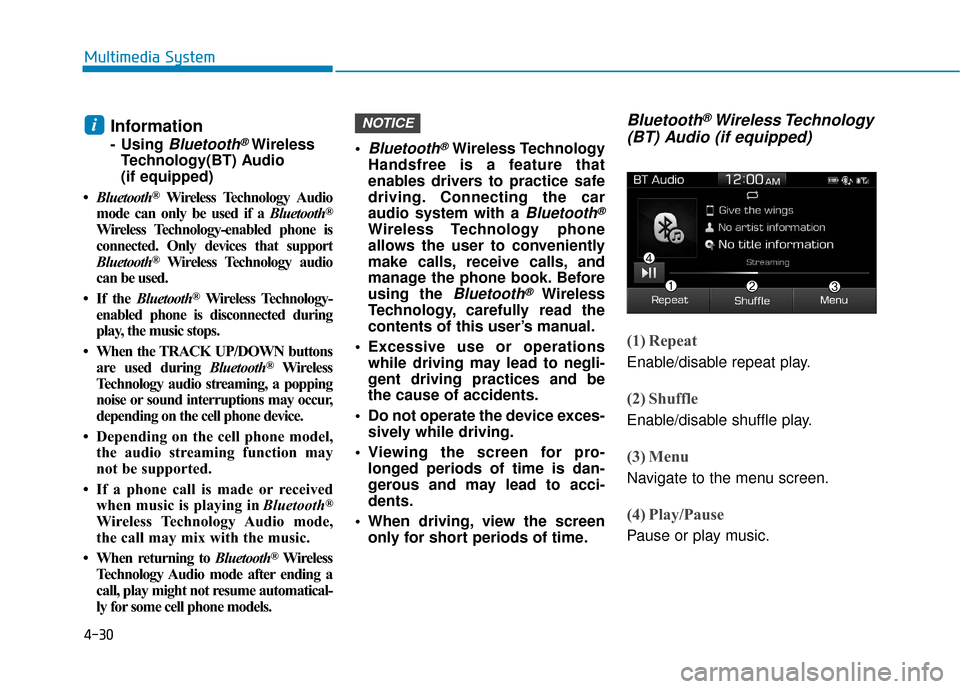
(1) Repeat
Enable/disable repeat play.
(2) Shuffle
Enable/disable shuffle play.
(3) Menu
Navigate to the menu screen.
(4) Play/Pause
Pause or play music.
NOTICEi
Page 238 of 442
4-31
Multimedia System
4
Information
• Some cell phone models may notsupport particular functions.
• Bluetooth
®Wireless Technology
audio volume is synced with cell
phone media volume.
Playback
Press the [MEDIA] button, and
select [BT Audio].
Changing songs
Press the [SEEK/TRACK] button to
play the previous or next song.
Information
Some cell phones may not support this
function.
Repeat play
Select [Repeat] to enable or disable
'Repeat all', 'Repeat current song' or
'Repeat category' play.
Repeat all: All songs in the playlist are repeated.
Repeat current song: The cur- rently playing song is repeated.
Repeat category: Repeat all songs in the current category.
Information
The repeat play function is engaged,
depending on the operation of the connect-
ed Bluetooth
®Wireless Technology
device.
Shuffle play
Select [Shuffle] to enable or disable
'Shuffle', 'Shuffle category' play.
Shuffle: Songs are played in random order.
Shuffle category: Songs within the current category are played in
random order.
Information
The shuffle function is engaged,
depending on the operation of the con-
nected Bluetooth
®Wireless
Technology device.
Menu
Select [Menu], and select the desired
function.
Connections: The currently con- nected
Bluetooth®Wireless
Technology device can be
changed.
Information: Detailed information on the currently playing song is dis-
played.
Sound Settings: Audio sound set- tings can be changed.
i
i
i
i
Page 241 of 442
4-34
Multimedia System
Phone (if equipped)Information
- Using Bluetooth®Wireless
Technology(BT) Cellular
Phone
• Bluetooth
®Wireless Technology is a
near-field wireless networking tech-
nology that uses the 2.4 GHz fre-
quency to connect various devices
within a certain distance wirelessly.
• The technology is used in PCs, peripherals, Bluetooth
®Wireless
Technology phones, tablet PCs,
household appliances and automo-
biles. Devices supporting Bluetooth
®
Wireless Technology can exchange
data at high speeds without physical
cable connections.
• Bluetooth
®Wireless Technology
Handsfree devices enable convenient
access to phone functions through cell
phones equipped with Bluetooth
®
Wireless Technology.
• Some Bluetooth
®Wireless Technology
devices may not be supported by
the Bluetooth
®Wireless Technology
Handsfree function.
(Continued)(Continued)
• When
Bluetooth
®Wireless Technology
is connected and calls are attempted
through a connected cell phone
from outside the vehicle, the call is
connected through the Bluetooth
®
Wireless Technology Handsfree
function of the vehicle.
• Please be sure to disconnect the Bluetooth
®Wireless Technology
Handsfree function through your
Bluetooth
®Wireless Technology
device or the audio screen.
• See https://www.hyundaiusa.com/ BlueTooth/for a list of supported
Bluetooth
®Wireless Technology
devices.
Safety precautions
The Bluetooth®Wireless Technology
Handsfree function helps drivers to
drive safely. By connecting a
Bluetooth®Wireless Technology-
enabled phone to the vehicle’s
audio system, phone calls can be
made and received through the
audio system and contacts can be
managed. Consult the user manual
before use. Excessive manipulation of controls
while driving, making it difficult to
pay attention to the road ahead,
can lead to accidents. Do not oper-
ate the device excessively while
driving.
Looking at the screen for a pro- longed time increases the risk of
accidents. Keep time spent looking
at the screen to a minimum.
Precautions when connecting
Bluetooth®Wireless Technology
devices
The vehicle supports the following
Bluetooth®Wireless Technology
functions. Some
Bluetooth®
Wireless Technology devices may
not support some functions.
1)
Bluetooth®Wireless Technology
Handsfree phone calls
2) Operations during a call (Private, Switch, Out Vol. con-
trols)
3) Download call history saved to the
Bluetooth®Wireless Technology
device
4) Download contacts saved to the
Bluetooth®Wireless Technology
device
i
Page 242 of 442
4-35
Multimedia System
4
5) Automatic contacts/call historydownload when
Bluetooth®
Wireless Technology is connected
6) Automatic
Bluetooth®Wireless
Technology device connection
when the vehicle is started
7)
Bluetooth®Wireless Technology
audio streaming playback
Before connecting the audio sys- tem to your device, make sure your
device supports
Bluetooth®
Wireless Technology.
Even if your device supports
Bluetooth®Wireless Technology, a
Bluetooth®Wireless Technology
connection cannot be established
if the device's
Bluetooth®Wireless
Technology function is switched
off. Search and connect with the
Bluetooth®Wireless Technology
function enabled.
Pair or connect
Bluetooth®Wireless
Technology devices to the audio
system with the vehicle at a stand-
still. If a
Bluetooth®Wireless Technology
connection is lost due to abnormal
conditions while a
Bluetooth®
Wireless Technology device is con-
nected (communication range
exceeded, device power OFF,
communication errors, etc.), the
disconnected
Bluetooth®Wireless
Technology device is searched for
and automatically reconnected.
If you want to disable the
Bluetooth®Wireless Technology
device auto-connect function, turn
the
Bluetooth®Wireless Technology
function OFF on your device.
Consult the user manuals for indi-
vidual devices to see whether
Bluetooth®Wireless Technology is
supported.
Handsfree call quality and volume may vary depending on the type of
Bluetooth®Wireless Technology
device.
Some
Bluetooth®Wireless Technology
devices are subject to intermittent
Bluetooth®Wireless Technology
connection failures. In this case,
use the following method. 1) Turn the
Bluetooth®Wireless
Technology function off on your
Bluetooth®Wireless Technology
device ➟Turn it on and try
again.
2) Delete the paired device from both the audio system and
Bluetooth®Wireless Technology
device, then pair again.
3) Power down your
Bluetooth®
Wireless Technology device ➟
Turn it on and try again.
4) Completely remove the battery from your
Bluetooth®Wireless
Technology device; reinsert it,
reboot, and attempt connection.
5) Restart the vehicle and reat- tempt connection.
Information
Maximum power output of Bluetooth
is 3mW.
i