phone Hyundai Accent 2020 User Guide
[x] Cancel search | Manufacturer: HYUNDAI, Model Year: 2020, Model line: Accent, Model: Hyundai Accent 2020Pages: 445, PDF Size: 42.28 MB
Page 137 of 445
3-49
Convenient features of your vehicle
3
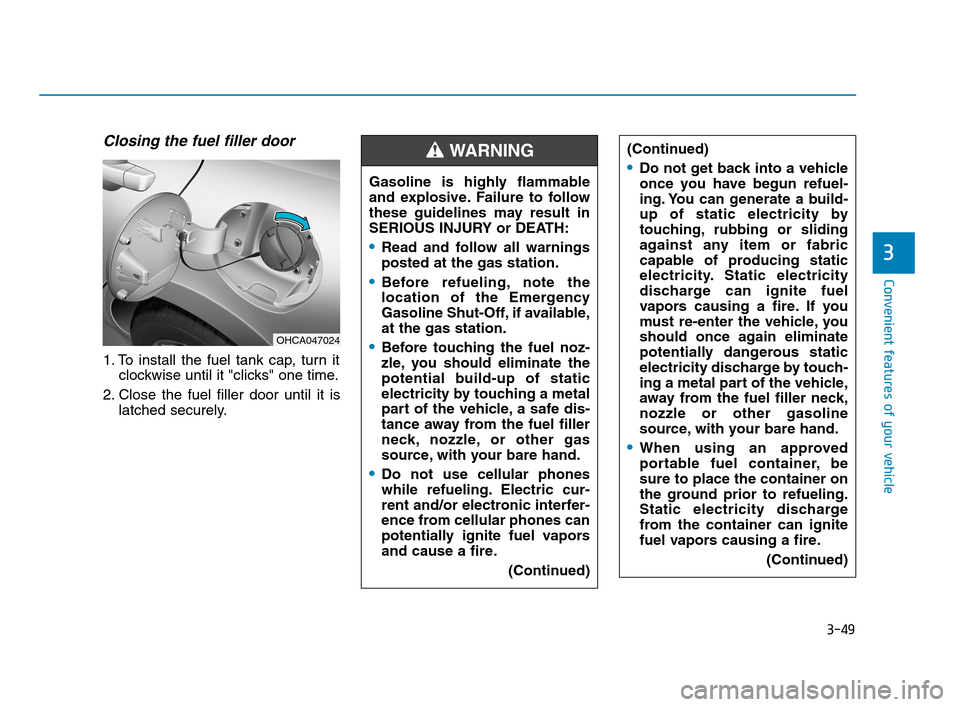
Closing the fuel filler door
1. To install the fuel tank cap, turn it
clockwise until it "clicks" one time.
2. Close the fuel filler door until it is
latched securely.Gasoline is highly flammable
and explosive. Failure to follow
these guidelines may result in
SERIOUS INJURY or DEATH:
Read and follow all warnings
posted at the gas station.
Before refueling, note the
location of the Emergency
Gasoline Shut-Off, if available,
at the gas station.
Before touching the fuel noz-
zle, you should eliminate the
potential build-up of static
electricity by touching a metal
part of the vehicle, a safe dis-
tance away from the fuel filler
neck, nozzle, or other gas
source, with your bare hand.
Do not use cellular phones
while refueling. Electric cur-
rent and/or electronic interfer-
ence from cellular phones can
potentially ignite fuel vapors
and cause a fire.
(Continued)
WARNING (Continued)
Do not get back into a vehicle
once you have begun refuel-
ing. You can generate a build-
up of static electricity by
touching, rubbing or sliding
against any item or fabric
capable of producing static
electricity. Static electricity
discharge can ignite fuel
vapors causing a fire. If you
must re-enter the vehicle, you
should once again eliminate
potentially dangerous static
electricity discharge by touch-
ing a metal part of the vehicle,
away from the fuel filler neck,
nozzle or other gasoline
source, with your bare hand.
When using an approved
portable fuel container, be
sure to place the container on
the ground prior to refueling.
Static electricity discharge
from the container can ignite
fuel vapors causing a fire.
(Continued)
OHCA047024
HCa HMA 3a(~84).qxp 4/9/2019 3:01 PM Page 49
Page 213 of 445
3-125
Convenient features of your vehicle
3
Close the vanity mirror cover
securely and return the sunvisor
to its original position after use.
Do not put several tickets in the
ticket holder at one time. This
could cause damage to the ticket
holder.
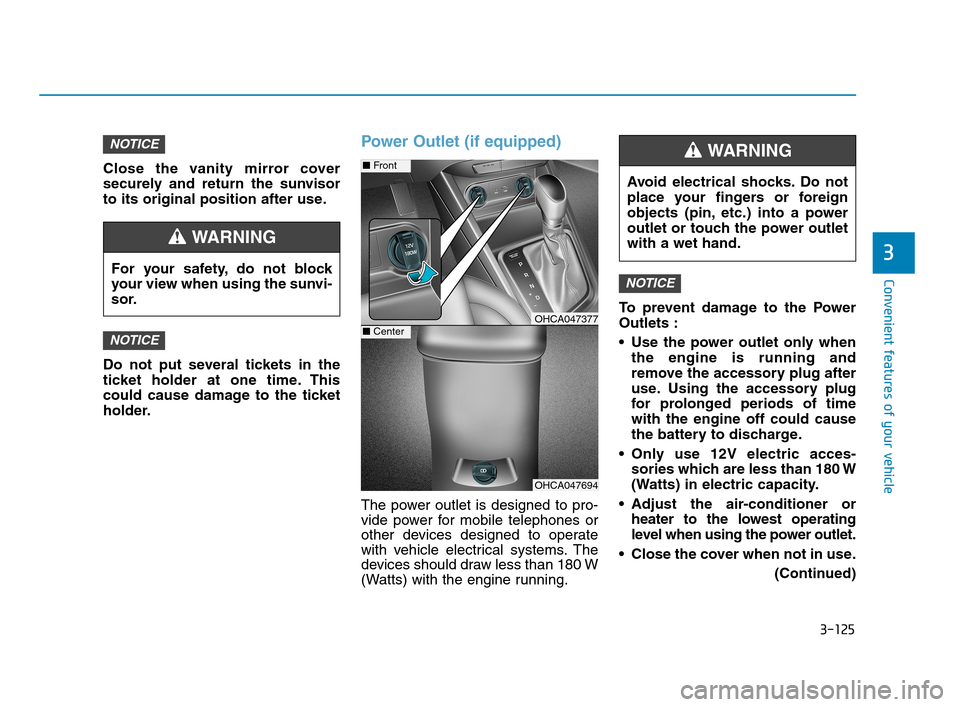
Power Outlet (if equipped)
The power outlet is designed to pro-
vide power for mobile telephones or
other devices designed to operate
with vehicle electrical systems. The
devices should draw less than 180 W
(Watts) with the engine running.To prevent damage to the Power
Outlets :
Use the power outlet only when
the engine is running and
remove the accessory plug after
use. Using the accessory plug
for prolonged periods of time
with the engine off could cause
the battery to discharge.
Only use 12V electric acces-
sories which are less than 180 W
(Watts) in electric capacity.
Adjust the air-conditioner or
heater to the lowest operating
level when using the power outlet.
Close the cover when not in use.
(Continued)
NOTICE
NOTICE
NOTICE
Avoid electrical shocks. Do not
place your fingers or foreign
objects (pin, etc.) into a power
outlet or touch the power outlet
with a wet hand.
WARNING
OHCA047694
■Front
OHCA047377■Center
For your safety, do not block
your view when using the sunvi-
sor.
WARNING
HCa HMA 3b(85~).qxp 5/7/2018 12:23 PM Page 125
Page 218 of 445
Multimedia System
Multimedia system .................................................4-2
AUX, USB and iPod®Port ...............................................4-2
Antenna ...............................................................................4-2
Steering Wheel Audio Control........................................4-3
Bluetooth®Wireless Technology Hands-Free ..........4-4
How Vehicle Audio Works ...............................................4-5
Features of Your Vehicle.................................................4-7
Audio (With Touch Screen) ..................................4-9
Feature of Your Audio ...................................................4-10
Feature of Your Audio ...................................................4-13
Radio...................................................................................4-18
List ......................................................................................4-19
SiriusXM Radio.................................................................4-21
Media..................................................................................4-22
Phone .................................................................................4-34
Setup ..................................................................................4-42
4
HCa HMA 4.qxp 12/1/2017 5:29 PM Page 1
Page 221 of 445
4-4
Multimedia System
MODE (3)
Press the MODE button to toggle
through Radio, SXM, or AUX modes.
MUTE ( ) (4)
Press the MUTE button to mute the
sound.
Press the MUTE button again to
activate the sound.
Information
Detailed information for audio control
buttons are described in the separately
supplied manual with the vehicle.
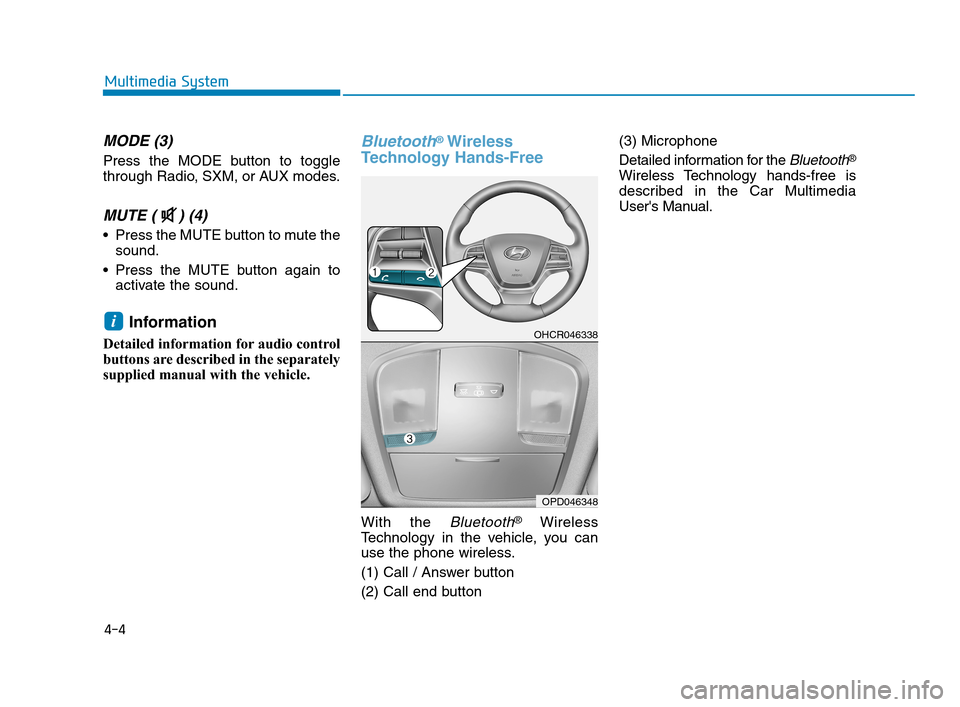
Bluetooth®Wireless
Technology Hands-Free
With the Bluetooth®Wireless
Technology in the vehicle, you can
use the phone wireless.
(1) Call / Answer button
(2) Call end button(3) Microphone
Detailed information for the
Bluetooth®
Wireless Technology hands-free is
described in the Car Multimedia
User's Manual.
iOHCR046338
OPD046348
HCa HMA 4.qxp 12/1/2017 5:29 PM Page 4
Page 225 of 445
4-8
Multimedia System
iPod®
iPod®is a registered trademark of Apple Inc.
Bluetooth®Wireless Technology
The Bluetooth®word mark and logos are registered
trademarks owned by Bluetooth SIG, Inc. and any use of
such marks by HYUNDAI is under license. Other trade-
marks and trade names are those of their respective
owners.
A
Bluetooth®Wireless Technology enabled cell phone is
required to use
Bluetooth®Wireless Technology.
Bluetooth®Wireless Technology phone compatibility can
be checked by visiting https://www.hyundaiusa.com/blue-
tooth.
HCa HMA 4.qxp 12/1/2017 5:29 PM Page 8
Page 231 of 445
4-14
Multimedia System
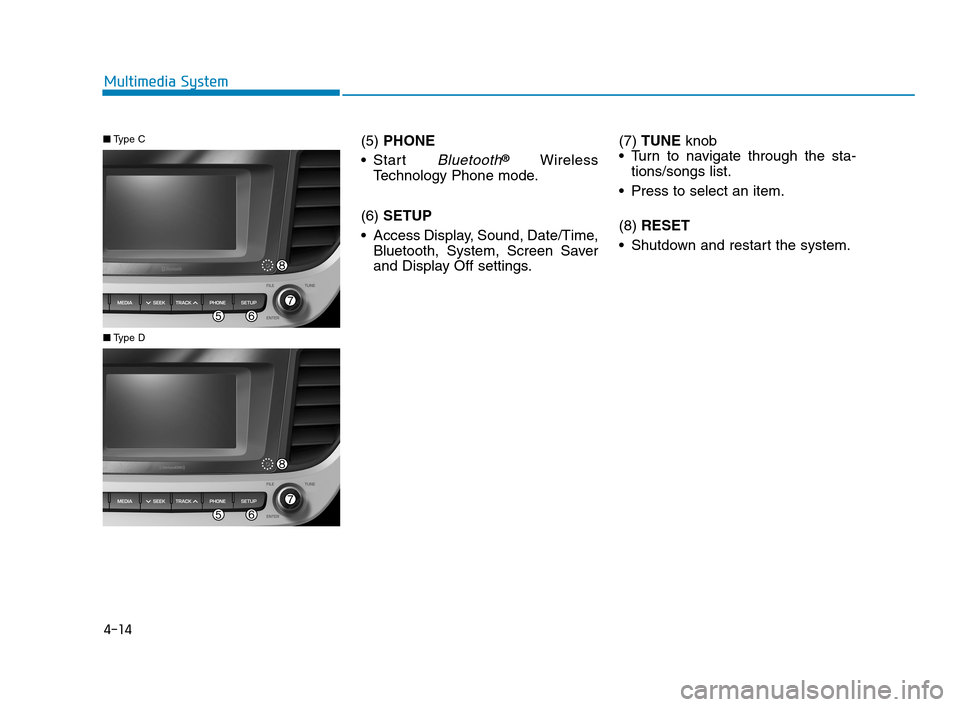
(5) PHONE
Start
Bluetooth®Wireless
Technology Phone mode.
(6)SETUP
Access Display, Sound, Date/Time,
Bluetooth, System, Screen Saver
and Display Off settings.(7) TUNE knob
Turn to navigate through the sta-
tions/songs list.
Press to select an item.
(8) RESET
Shutdown and restart the system.
■Type C
■Type D
HCa HMA 4.qxp 12/1/2017 5:30 PM Page 14
Page 232 of 445
4-15
Multimedia System
4
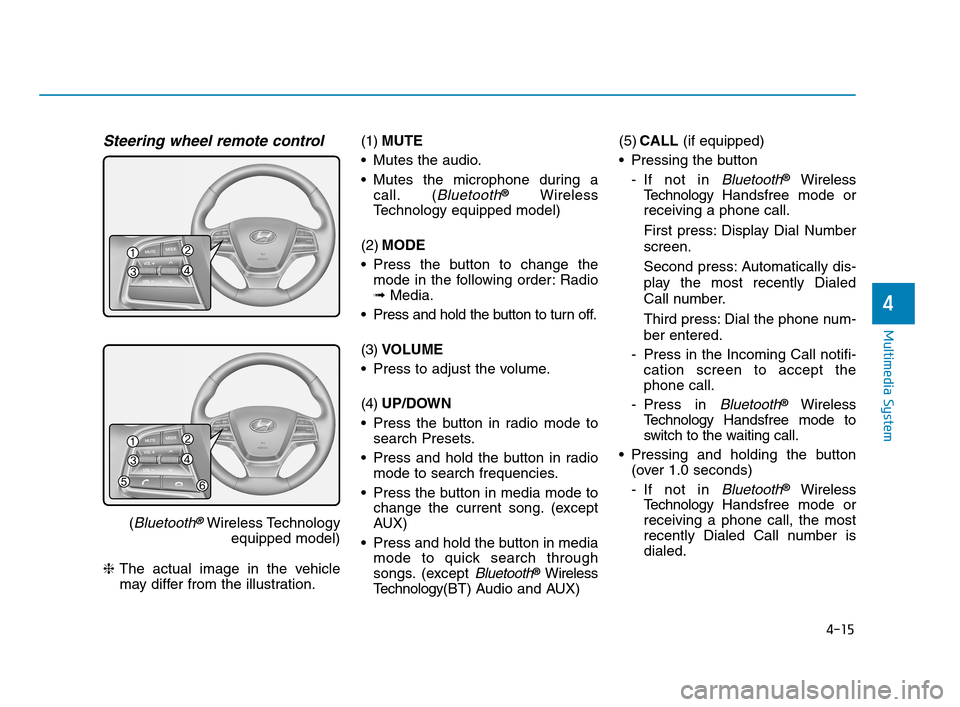
Steering wheel remote control
(Bluetooth®Wireless Technology
equipped model)
❈The actual image in the vehicle
may differ from the illustration.(1)MUTE
Mutes the audio.
Mutes the microphone during a
call. (
Bluetooth®Wireless
Technology equipped model)
(2)MODE
Press the button to change the
mode in the following order: Radio
➟Media.
Press and hold the button to turn off.
(3)VOLUME
Press to adjust the volume.
(4)UP/DOWN
Press the button in radio mode to
search Presets.
Press and hold the button in radio
mode to search frequencies.
Press the button in media mode to
change the current song. (except
AUX)
Press and hold the button in media
mode to quick search through
songs. (except
Bluetooth®Wireless
Technology(BT) Audio and AUX)(5)CALL (if equipped)
Pressing the button
- If not in
Bluetooth®Wireless
TechnologyHandsfree mode or
receiving a phone call.
First press: Display Dial Number
screen.
Second press: Automatically dis-
play the most recently Dialed
Call number.
Third press: Dial the phone num-
ber entered.
- Press in the Incoming Call notifi-
cation screen to accept the
phone call.
- Press in
Bluetooth®Wireless
TechnologyHandsfree mode to
switch to the waiting call.
Pressing and holding the button
(over 1.0 seconds)
- If not in
Bluetooth®Wireless
TechnologyHandsfree mode or
receiving a phone call, the most
recently Dialed Call number is
dialed.
HCa HMA 4.qxp 12/1/2017 5:30 PM Page 15
Page 233 of 445
4-16
Multimedia System
- Press in
Bluetooth®Wireless
TechnologyHandsfree mode to
transfer the call to your cell
phone.
- Press in cell phone mode to
switch to
Bluetooth®Wireless
Technology Handsfree mode.
(6)END (if equipped)
Press in
Bluetooth®Wireless
Technology Handsfree mode to
end the phone call.
Press in the incoming call screen
to reject the call.(Continued)
Exercise caution not to spill
water or introduce foreign
objects into the device. Such
acts could lead to smoke, fire,
or product malfunction.
Please refrain from use if the
screen is blank or no sound
can be heard as these signs
may indicate product malfunc-
tion. Continued use in such
conditions could lead to acci-
dents (fires, electric shock) or
product malfunctions.
Do not touch the antenna dur-
ing thunder or lightening as
such acts may lead to light-
ning induced electric shock.
Do not stop or park in park-
ing-restricted areas to operate
the product. Such acts could
lead to traffic accidents.
Use the system with the vehicle
engine turned on. Prolonged
use with the ignition turned
on only could result in battery
discharge.
Audio System Safety Warnings
Do not use a cellular phone
while driving. Stop at a safe
location to use a cellular
phone.
Do not stare at the screen
while driving. Staring at the
screen for prolonged periods
of time could lead to traffic
accidents.
Do not disassemble, assem-
ble, or modify the audio sys-
tem. Such acts could result in
accidents, fire or electric
shock.
Using the phone while driving
may lead to a lack of attention
of traffic conditions and
increase the likelihood of
accidents. Use the phone fea-
ture after parking the vehicle.
(Continued)
WARNING
HCa HMA 4.qxp 12/1/2017 5:30 PM Page 16
Page 235 of 445
4-18
Multimedia System
Information on status icons
Icons showing audio status are shown
in the upper-right corner of the screen.
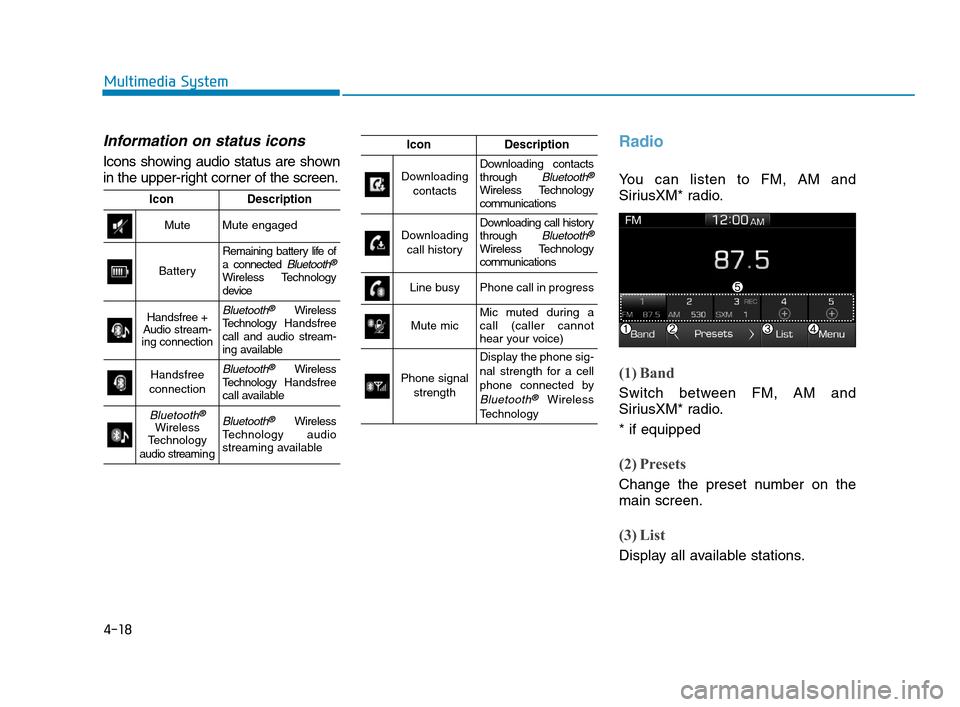
Radio
You can listen to FM, AM and
SiriusXM* radio.
(1) Band
Switch between FM, AM and
SiriusXM* radio.
* if equipped
(2) Presets
Change the preset number on the
main screen.
(3) List
Display all available stations.
IconDescription
MuteMute engaged
Battery
Remaining battery life of
a connected Bluetooth®
Wireless Technology
device
Handsfree +
Audio stream-
ing connectionBluetooth®Wireless
TechnologyHandsfree
call and audio stream-
ing available
Handsfree
connectionBluetooth®Wireless
TechnologyHandsfree
call available
Bluetooth®
Wireless
Technology
audio streami n gBluetooth®Wireless
Technology audio
streaming available
IconDescription
Downloading
contactsDownloading contacts
through Bluetooth®
Wireless Technology
communications
Downloading
call historyDownloading call history
through Bluetooth®
Wireless Technology
communications
Line busyPhone call in progress
Mute micMic muted during a
call (caller cannot
hear your voice)
Phone signal
strength
Display the phone sig-
nal strength for a cell
phone connected by
Bluetooth®Wireless
Technology
HCa HMA 4.qxp 12/1/2017 5:30 PM Page 18
Page 239 of 445
![Hyundai Accent 2020 User Guide 4-22
Multimedia System
Menu
Select [Menu], and select the desired
function.
Presets: Save up to 40 frequently
used channels. To listen to a pre-
set, select the desired channel.
Press and hold the de](/img/35/14344/w960_14344-238.png "Hyundai Accent 2020 User Guide 4-22
Multimedia System
Menu
Select [Menu], and select the desired
function.
Presets: Save up to 40 frequently
used channels. To listen to a pre-
set, select the desired channel.
Press and hold the de")
4-22
Multimedia System
Menu
Select [Menu], and select the desired
function.
Presets: Save up to 40 frequently
used channels. To listen to a pre-
set, select the desired channel.
Press and hold the desired slot
from 1 through 40. This saves the
current channel in the selected
slot. If the slot is empty, simply
selecting saves the channel to the
slot.
Categories: Channels can be
searched by category.
Direct Tune: The desired channel
can be selected by entering num-
bers.
Sound Settings: Audio sound set-
tings can be changed.
Tag Song: Tag the current song
information. When an Apple device
(iPhone
®, iPod®) is connected,
tagged song information is sent
automatically to the connected
device.
Information
Up to 50 songs can be tagged.
Scan: All channels available in the
vehicle’s current location are
played for ten seconds each.
Program Schedule: View the
Program schedule.
Featured Favorites: The Featured
Favorites feature allows
SiriusXM™ to broadcast additional
presets.
- Example 1: During holidays,
"Holiday Music" might include all
SiriusXM™ channels that are
playing holiday music for easy
access by users.
Multiple sets of Featured Favorites
data can be broadcast by
SiriusXM™ and can change from
time to time.
Information: View detailed channel
information.
Category Lock: Search or scan
channels in the current category
only.
Media
Information
- Using MP3
Supported audio formats
File formats other than the for-
mats above may not be recog-
nized or playable. Information
such as filename may not be dis-
played.
NOTICE
i
i
HCa HMA 4.qxp 12/1/2017 5:30 PM Page 22