phone Hyundai Accent 2020 Owner's Guide
[x] Cancel search | Manufacturer: HYUNDAI, Model Year: 2020, Model line: Accent, Model: Hyundai Accent 2020Pages: 445, PDF Size: 42.28 MB
Page 256 of 445
4-39
Information
• When the incoming call screen is
displayed, audio mode and the set-
tings screen cannot be shown. Only
call volume control is supported.
• Some Bluetooth
®Wireless Technology
devices may not support the call
reject function.
• Some Bluetooth
®Wireless Technology
devices may not support the phone
number display function.
Operation during calls
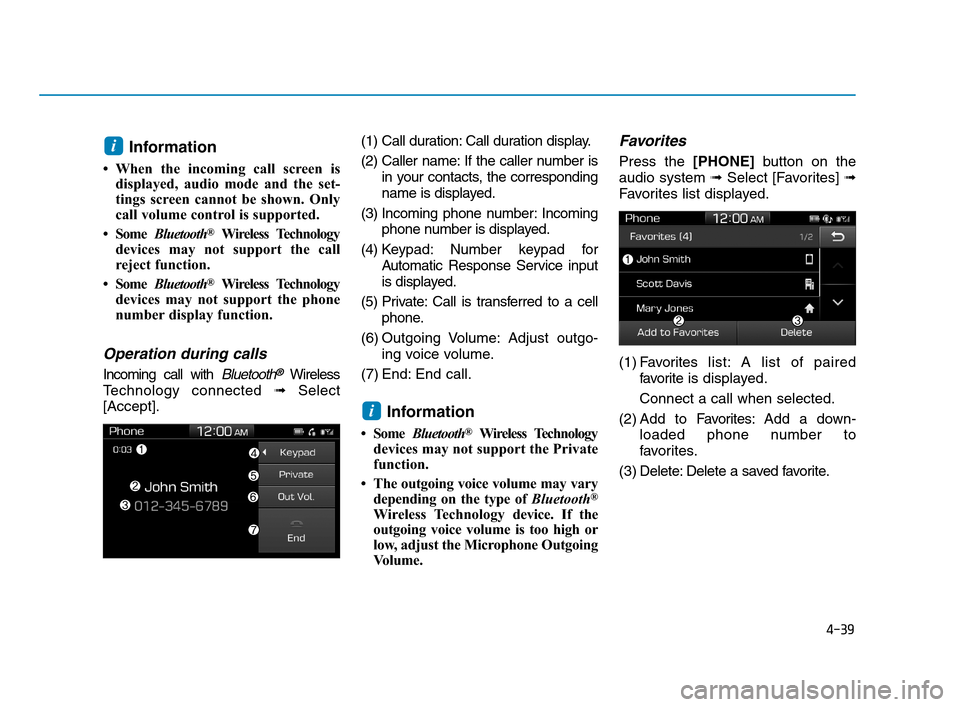
Incoming call with Bluetooth®Wireless
Technology connected ➟Select
[Accept].(1) Call duration: Call duration display.
(2) Caller name: If the caller number is
in your contacts, the corresponding
name is displayed.
(3) Incoming phone number: Incoming
phone number is displayed.
(4) Keypad: Number keypad for
Automatic Response Service input
is displayed.
(5) Private: Call is transferred to a cell
phone.
(6) Outgoing Volume: Adjust outgo-
ing voice volume.
(7) End: End call.
Information
• Some Bluetooth®Wireless Technology
devices may not support the Private
function.
• The outgoing voice volume may vary
depending on the type of Bluetooth
®
Wireless Technologydevice. If the
outgoing voice volume is too high or
low, adjust the Microphone Outgoing
Volume.
Favorites
Press the [PHONE]button on the
audio system ➟Select [Favorites] ➟
Favorites list displayed.
(1) Favoriteslist: A list of paired
favorite is displayed.
Connect a call when selected.
(2) Add to Favorites:Add a down-
loaded phone number to
favorites.
(3) Delete: Delete a saved favorite.
i
i
HCa HMA 4.qxp 12/1/2017 5:31 PM Page 39
Page 257 of 445
4-40
Multimedia System
Information
• Up to 20 favorites can be saved for
each connected Bluetooth®Wireless
Technology device.
• Favorites can be accessed when the
Bluetooth
®Wireless Technology
device they were paired from is con-
nected.
• The audio system does not down-
load favorites from Bluetooth
®
Wireless Technology devices.
Favorites must be newly saved
before use.
• To add to favorites, contacts must be
downloaded first.
• Saved favorites are not updated
even if the contacts of the connected
Bluetooth
®Wireless Technology
device are changed. In this case,
favorites need to be deleted and
added again.
Call History
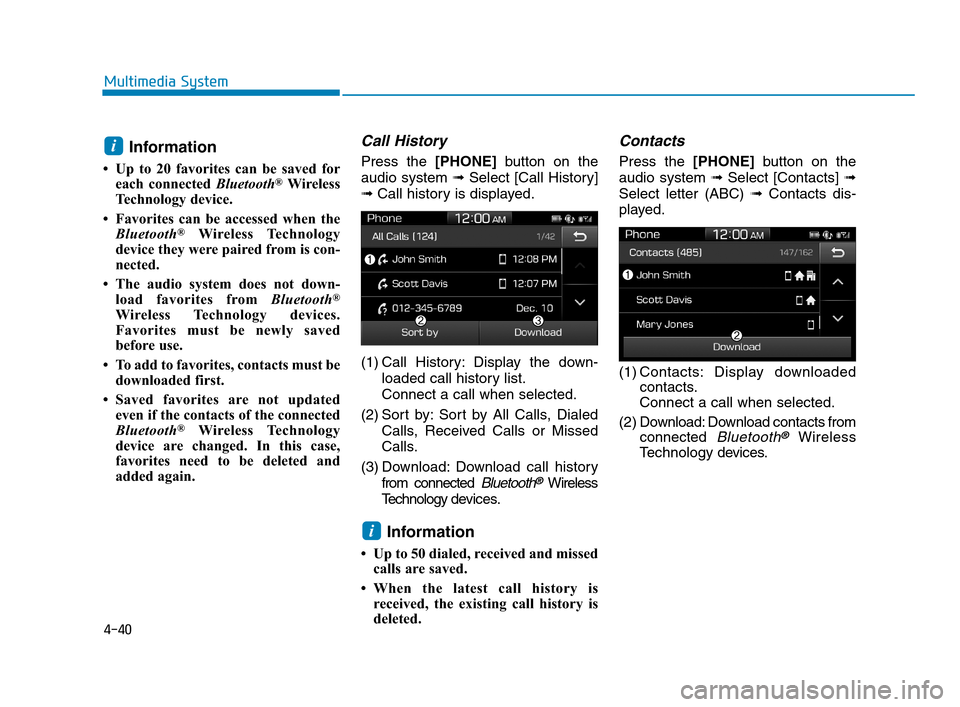
Press the [PHONE]button on the
audio system ➟Select [Call History]
➟Call history is displayed.
(1) Call History: Display the down-
loaded call history list.
Connect a call when selected.
(2) Sort by: Sort by All Calls, Dialed
Calls, Received Calls or Missed
Calls.
(3) Download: Download call history
from connected
Bluetooth®Wireless
Technology devices.
Information
• Up to 50 dialed, received and missed
calls are saved.
• When the latest call history is
received, the existing call history is
deleted.
Contacts
Press the [PHONE]button on the
audio system ➟Select [Contacts] ➟
Select letter (ABC) ➟Contacts dis-
played.
(1) Contacts: Display downloaded
contacts.
Connect a call when selected.
(2) Download: Download contacts from
connected
Bluetooth®Wireless
Technology devices.
i
i
HCa HMA 4.qxp 12/1/2017 5:31 PM Page 40
Page 258 of 445
4-41
Multimedia System
4
Multimedia System
4
Information
• Only supported contacts format can
be downloaded and displayed from
the Bluetooth
®Wireless Technology
device, contacts from some applica-
tions will not be included.
• Up to 2,000 contacts can be saved.
• In some cases, additional confirmation
from yourBluetooth
®Wireless
Technologydevice is necessary when
downloading contacts. If downloading
of contacts unsuccessful, consult your
Bluetooth
®Wireless Technology
device’s settings or the audio screen to
approve the download.
• Contacts without phone numbers
are not displayed.
Dial
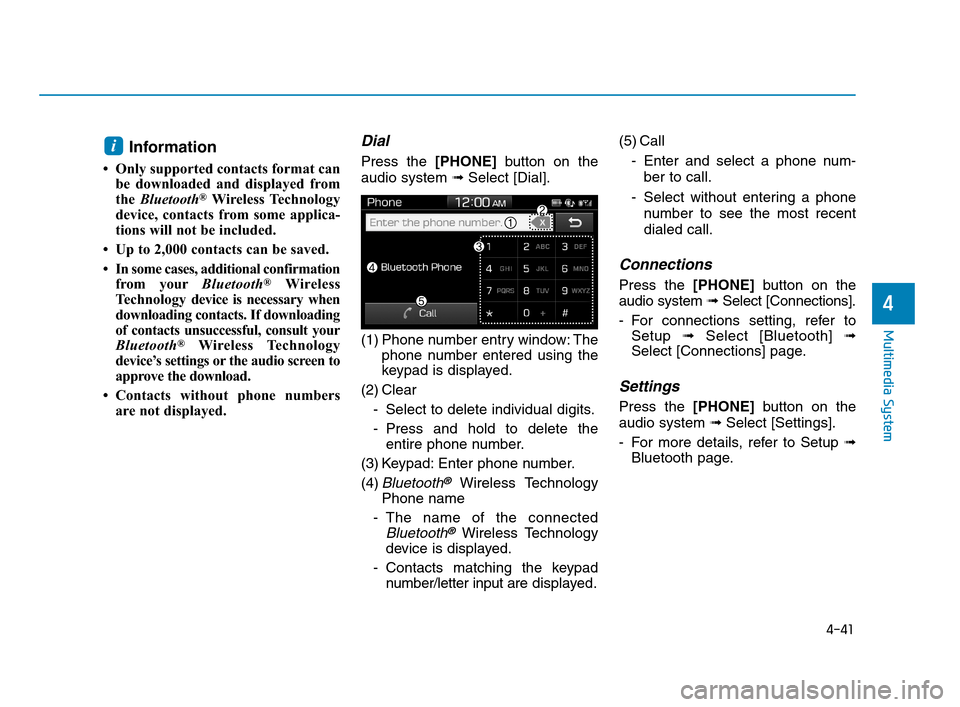
Press the [PHONE]button on the
audio system ➟Select [Dial].
(1) Phone number entry window: The
phone number entered using the
keypad is displayed.
(2) Clear
- Select to delete individual digits.
- Press and hold to delete the
entire phone number.
(3) Keypad: Enter phone number.
(4)
Bluetooth®Wireless Technology
Phone name
- The name of the connected
Bluetooth®Wireless Technology
device is displayed.
- Contacts matching the keypad
number/letter input aredisplayed.(5) Call
- Enter and select a phone num-
ber to call.
- Select without entering a phone
number to see the most recent
dialed call.
Connections
Press the [PHONE]button on the
audio system ➟Select [Connections].
- For connections setting, refer to
Setup ➟Select [Bluetooth] ➟
Select [Connections] page.
Settings
Press the [PHONE]button on the
audio system ➟Select [Settings].
- For more details, refer to Setup ➟
Bluetooth page.
i
HCa HMA 4.qxp 12/1/2017 5:31 PM Page 41