ECU Hyundai Azera 2017 Owner's Guide
[x] Cancel search | Manufacturer: HYUNDAI, Model Year: 2017, Model line: Azera, Model: Hyundai Azera 2017Pages: 520, PDF Size: 16.33 MB
Page 161 of 520
Features of your vehicle
82
4
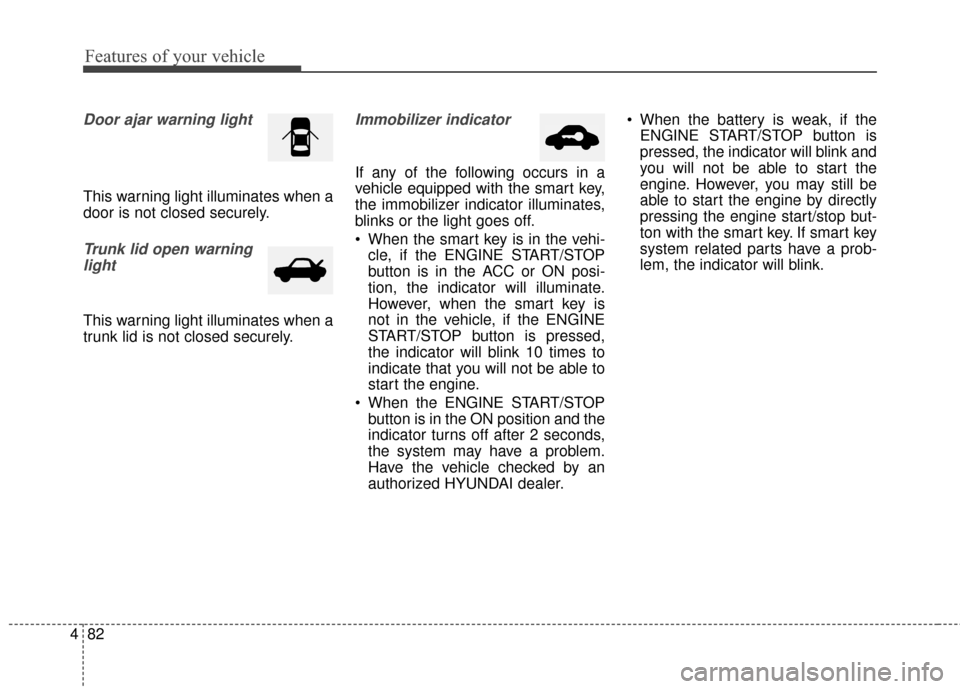
Door ajar warning light
This warning light illuminates when a
door is not closed securely.
Trunk lid open warning
light
This warning light illuminates when a
trunk lid is not closed securely.
Immobilizer indicator
If any of the following occurs in a
vehicle equipped with the smart key,
the immobilizer indicator illuminates,
blinks or the light goes off.
When the smart key is in the vehi- cle, if the ENGINE START/STOP
button is in the ACC or ON posi-
tion, the indicator will illuminate.
However, when the smart key is
not in the vehicle, if the ENGINE
START/STOP button is pressed,
the indicator will blink 10 times to
indicate that you will not be able to
start the engine.
When the ENGINE START/STOP button is in the ON position and the
indicator turns off after 2 seconds,
the system may have a problem.
Have the vehicle checked by an
authorized HYUNDAI dealer. When the battery is weak, if the
ENGINE START/STOP button is
pressed, the indicator will blink and
you will not be able to start the
engine. However, you may still be
able to start the engine by directly
pressing the engine start/stop but-
ton with the smart key. If smart key
system related parts have a prob-
lem, the indicator will blink.
Page 190 of 520
4111
Features of your vehicle
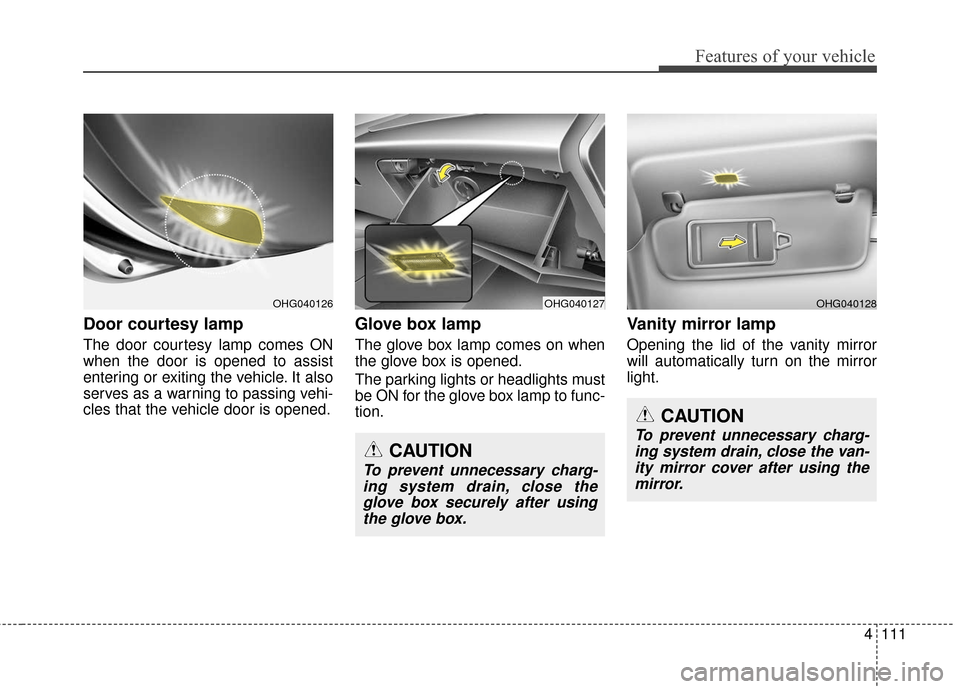
Door courtesy lamp
The door courtesy lamp comes ON
when the door is opened to assist
entering or exiting the vehicle. It also
serves as a warning to passing vehi-
cles that the vehicle door is opened.
Glove box lamp
The glove box lamp comes on when
the glove box is opened.
The parking lights or headlights must
be ON for the glove box lamp to func-
tion.
Vanity mirror lamp
Opening the lid of the vanity mirror
will automatically turn on the mirror
light.
OHG040127OHG040128OHG040126
CAUTION
To prevent unnecessary charg-ing system drain, close theglove box securely after usingthe glove box.
CAUTION
To prevent unnecessary charg-ing system drain, close the van-ity mirror cover after using themirror.
Page 217 of 520
Features of your vehicle
138
4
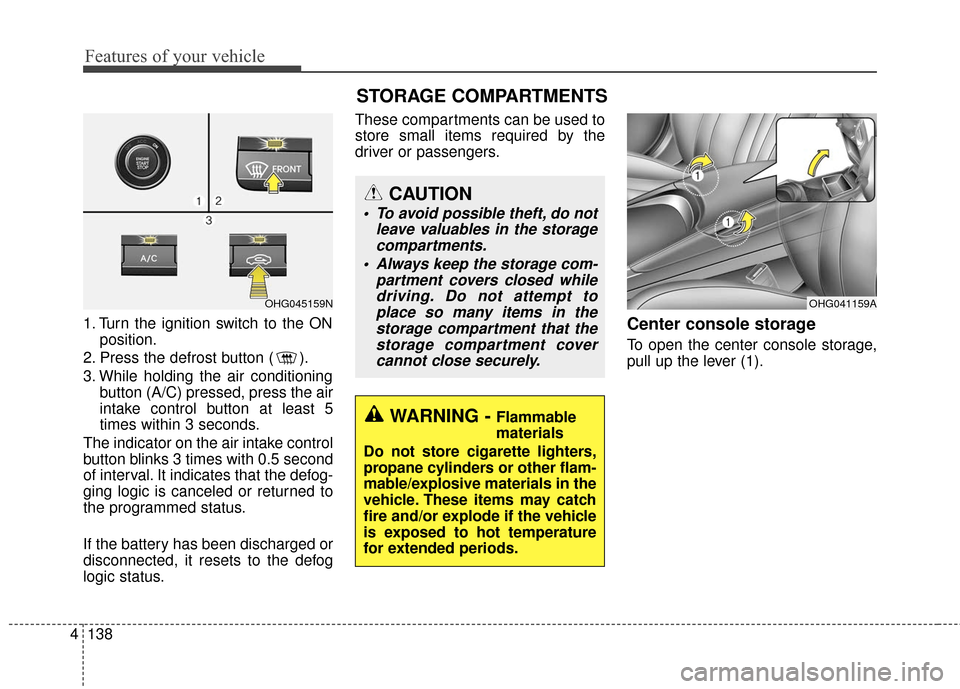
1. Turn the ignition switch to the ON
position.
2. Press the defrost button ( ).
3. While holding the air conditioning button (A/C) pressed, press the air
intake control button at least 5
times within 3 seconds.
The indicator on the air intake control
button blinks 3 times with 0.5 second
of interval. It indicates that the defog-
ging logic is canceled or returned to
the programmed status.
If the battery has been discharged or
disconnected, it resets to the defog
logic status. These compartments can be used to
store small items required by the
driver or passengers.Center console storage
To open the center console storage,
pull up the lever (1).
OHG041159A
WARNING - Flammable
materials
Do not store cigarette lighters,
propane cylinders or other flam-
mable/explosive materials in the
vehicle. These items may catch
fire and/or explode if the vehicle
is exposed to hot temperature
for extended periods.
CAUTION
To avoid possible theft, do not leave valuables in the storagecompartments.
Always keep the storage com- partment covers closed whiledriving. Do not attempt toplace so many items in thestorage compartment that thestorage compartment covercannot close securely.
OHG045159N
STORAGE COMPARTMENTS
Page 220 of 520
4141
Features of your vehicle
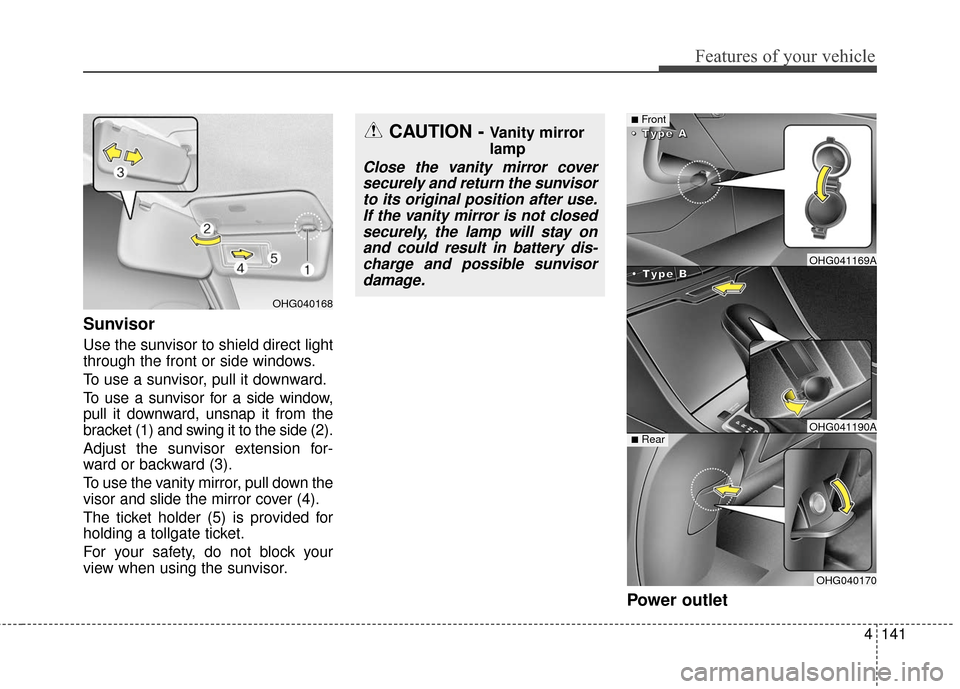
Sunvisor
Use the sunvisor to shield direct light
through the front or side windows.
To use a sunvisor, pull it downward.
To use a sunvisor for a side window,
pull it downward, unsnap it from the
bracket (1) and swing it to the side (2).
Adjust the sunvisor extension for-
ward or backward (3).
To use the vanity mirror, pull down the
visor and slide the mirror cover (4).
The ticket holder (5) is provided for
holding a tollgate ticket.
For your safety, do not block your
view when using the sunvisor.
Power outlet
OHG040168
CAUTION - Vanity mirror
lamp
Close the vanity mirror coversecurely and return the sunvisorto its original position after use.If the vanity mirror is not closedsecurely, the lamp will stay onand could result in battery dis-charge and possible sunvisordamage.
■Front
•
•
•
•
T
T
T
T
y
y
y
y
p
p
p
p
e
e
e
e
B
B
B
B
•
•
•
•
T
T
T
T
y
y
y
y
p
p
p
p
e
e
e
e
A
A
A
A
■Rear
OHG041169A
OHG041190A
OHG040170
Page 221 of 520
Features of your vehicle
142
4
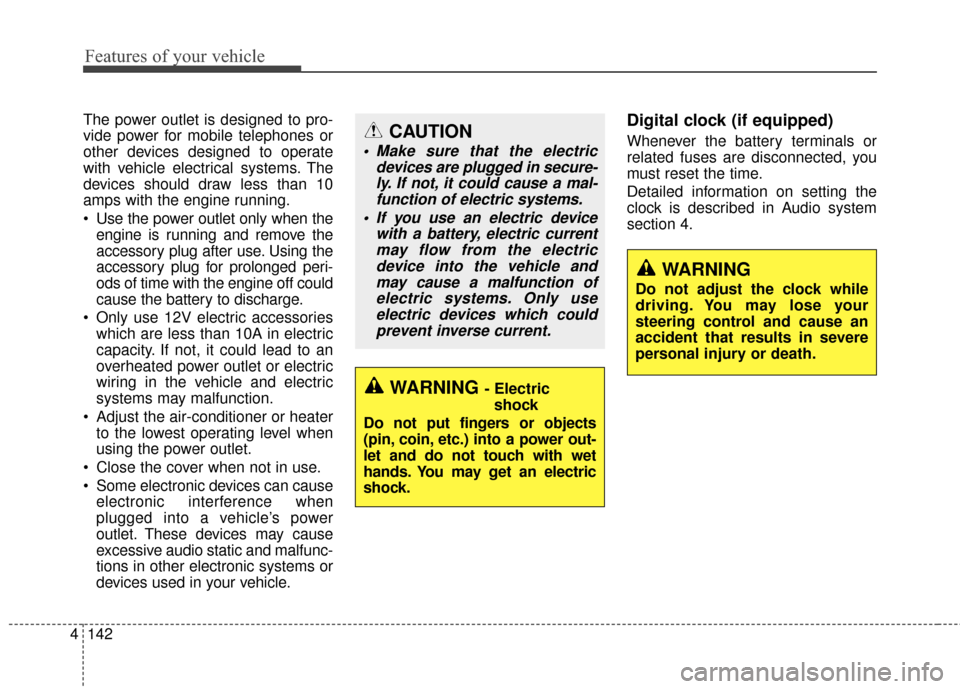
The power outlet is designed to pro-
vide power for mobile telephones or
other devices designed to operate
with vehicle electrical systems. The
devices should draw less than 10
amps with the engine running.
Use the power outlet only when the
engine is running and remove the
accessory plug after use. Using the
accessory plug for prolonged peri-
ods of time with the engine off could
cause the battery to discharge.
Only use 12V electric accessories which are less than 10A in electric
capacity. If not, it could lead to an
overheated power outlet or electric
wiring in the vehicle and electric
systems may malfunction.
Adjust the air-conditioner or heater to the lowest operating level when
using the power outlet.
Close the cover when not in use.
Some electronic devices can cause electronic interference when
plugged into a vehicle’s power
outlet. These devices may cause
excessive audio static and malfunc-
tions in other electronic systems or
devices used in your vehicle.Digital clock (if equipped)
Whenever the battery terminals or
related fuses are disconnected, you
must reset the time.
Detailed information on setting the
clock is described in Audio system
section 4.
WARNING
Do not adjust the clock while
driving. You may lose your
steering control and cause an
accident that results in severe
personal injury or death.
WARNING - Electricshock
Do not put fingers or objects
(pin, coin, etc.) into a power out-
let and do not touch with wet
hands. You may get an electric
shock.
CAUTION
Make sure that the electric devices are plugged in secure-ly. If not, it could cause a mal-function of electric systems.
If you use an electric device with a battery, electric currentmay flow from the electricdevice into the vehicle andmay cause a malfunction ofelectric systems. Only useelectric devices which couldprevent inverse current.
Page 222 of 520
4143
Features of your vehicle
Clock with AVN system (if equipped)
You can set the clock by using the
Audio or Navigation.
GPS Time check
The clock is automatically updated
through the navigation system.
GPS Time non-check
The clock can be manually adjusted.
1. Select the "Setup" key on the Head Unit.
2. Select the "Clock".
3. Select the "Date/Time Settings".
For more details, please refer to
the manual that was supplied with
your vehicle.
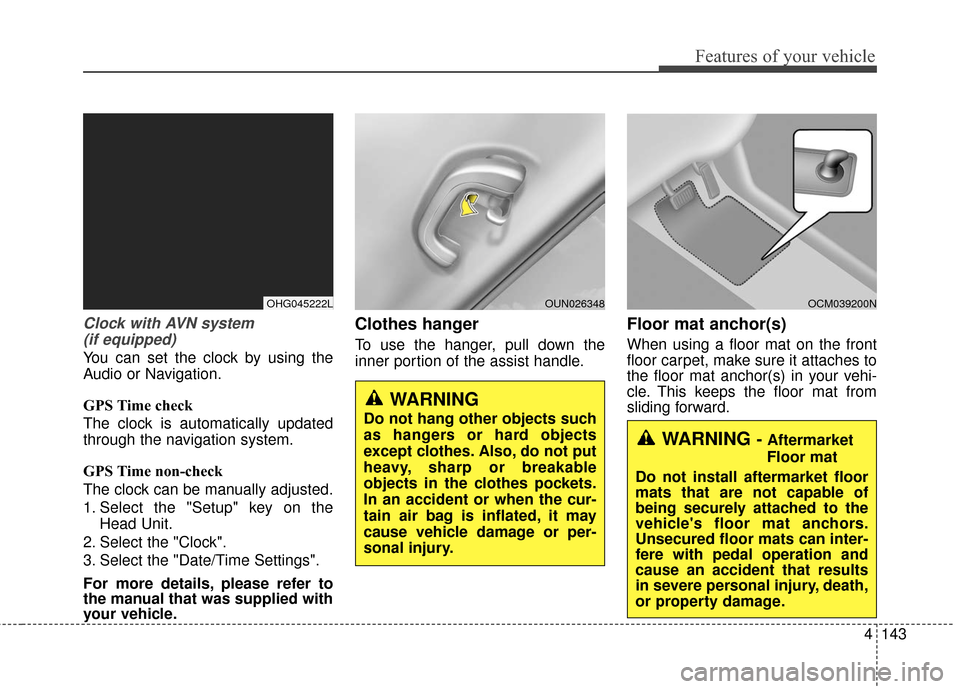
Clothes hanger
To use the hanger, pull down the
inner portion of the assist handle.
Floor mat anchor(s)
When using a floor mat on the front
floor carpet, make sure it attaches to
the floor mat anchor(s) in your vehi-
cle. This keeps the floor mat from
sliding forward.
WARNING - Aftermarket
Floor mat
Do not install aftermarket floor
mats that are not capable of
being securely attached to the
vehicle's floor mat anchors.
Unsecured floor mats can inter-
fere with pedal operation and
cause an accident that results
in severe personal injury, death,
or property damage.
WARNING
Do not hang other objects such
as hangers or hard objects
except clothes. Also, do not put
heavy, sharp or breakable
objects in the clothes pockets.
In an accident or when the cur-
tain air bag is inflated, it may
cause vehicle damage or per-
sonal injury.
OCM039200NOUN026348OHG045222L
Page 223 of 520
Features of your vehicle
144
4
The following must be observed when
installing ANY floor mat to the vehicle.
Ensure that the floor mats are
securely attached to the vehicle's
floor mat anchor(s) before driving
the vehicle.
Do not use ANY floor mat that can- not be firmly attached to the vehi-
cle's floor mat anchors.
Do not stack floor mats on top of one another (e.g. all-weather rub-
ber mat on top of a carpeted floor
mat). Only a single floor mat should
be installed in each position.
IMPORTANT - Your vehicle was
manufactured with driver's side floor
mat anchors that are designed to
securely hold the floor mat in place.
To avoid any interference with pedal
operation, HYUNDAI recommends
that only the HYUNDAI floor mat
designed for use in your vehicle be
installed.
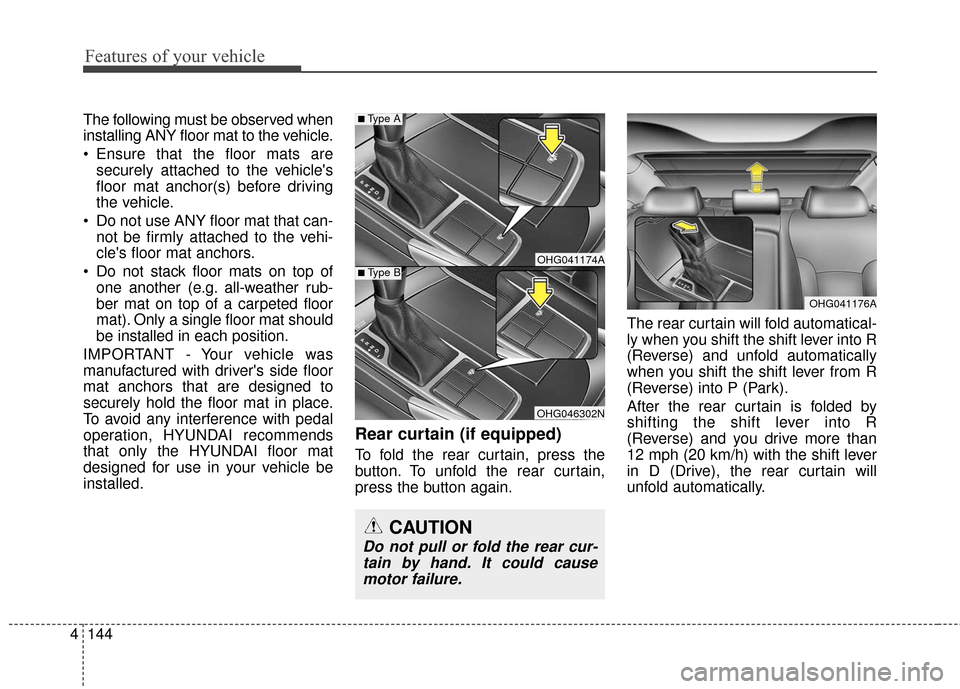
Rear curtain (if equipped)
To fold the rear curtain, press the
button. To unfold the rear curtain,
press the button again. The rear curtain will fold automatical-
ly when you shift the shift lever into R
(Reverse) and unfold automatically
when you shift the shift lever from R
(Reverse) into P (Park).
After the rear curtain is folded by
shifting the shift lever into R
(Reverse) and you drive more than
12 mph (20 km/h) with the shift lever
in D (Drive), the rear curtain will
unfold automatically.
OHG041176A
CAUTION
Do not pull or fold the rear cur-
tain by hand. It could causemotor failure.
OHG041174A
OHG046302N
■Type A
■Type B
Page 275 of 520
![Hyundai Azera 2017 Owners Guide Features of your vehicle
196
4
[Non SSP supported device]
(SSP: Secure Simple Pairing)
4. After a few moments, a screen is
displayed where the passkey is
entered.
Hear, enter the passkey “0000” to](/img/35/14459/w960_14459-274.png "Hyundai Azera 2017 Owners Guide Features of your vehicle
196
4
[Non SSP supported device]
(SSP: Secure Simple Pairing)
4. After a few moments, a screen is
displayed where the passkey is
entered.
Hear, enter the passkey “0000” to")
Features of your vehicle
196
4
[Non SSP supported device]
(SSP: Secure Simple Pairing)
4. After a few moments, a screen is
displayed where the passkey is
entered.
Hear, enter the passkey “0000” to
pair your
Bluetooth®Wireless
Technology device with the car
audio system.
[SSP supported device]
4. After a few moments, a screen is displayed 6 digits passkey.
Hear, check the passkey on your
Bluetooth®Wireless Technology
device and confirm.
5. Once pairing is complete, the fol- lowing screen is displayed.
✽ ✽NOTICE
If Bluetooth®Wireless Technology
devices are paired but none are cur-
rently connected, pressing the key or the key on the
steering wheel displays the following
screen. Press the [Pair] button to
pair a new device or press the
[Connect] to connect a previously
paired device.
Pairing through [PHONE]
Setup
Press the key Select
[Phone] Select [Pair Phone]
Select TUNE knob
1.The following steps are the same
as those described in the section
"When No Devices have been
Paired" on the previous page.SETUP
PHONE
Page 286 of 520
4207
Features of your vehicle
CommandFunction
More Help Provides guidance on commands that can be
used anywhere in the system.
Help Provides guidance on commands that can be
used within the current mode.
Call
Ex) Call “John Smith”
Phone Provides guidance on Phone related com- mands. After saying this command, say
“Favorites”,“Dial Number”, “Call History” or
“Contacts” execute corresponding functions.
Favorites Display the Favorite screen.
Call History Displays the Call History screen.
Contacts Displays the Contacts screen. After sayingthis command, say the name of a contact
saved in the Contacts to automatically con-
nect the call.
Dial Number Display the Dial number screen. After saying this command, you can say the number that
you want to call.
RedialConnects the most recently called number.
Tutorial Pro vide guidance on how to use voice
recognition and Bluetooth®connections.
Command Function
When listening to the radio, displays the
next radio screen. (FM1➟FM2➟AM➟XM1➟XM2➟XM3➟FM1)
Radio
When listening to a different mode, displays
the most recently played radio screen.
When currently listening to the FM radio,
maintains the current state.
When listening to a different mode, displaysthe most recently played FM screen.
FM1(FM One) Displays the FM1 screen.
FM2(FM Two) Displays the FM2 screen.
AM Displays the AM screen.
FM Preset 1~6 Plays the most recently played broadcast
saved in FM Preset 1~6.
AM Preset 1~6 Plays the broadcast saved in AM Preset 1~6.
FM 87.5~107.9 Plays the FM broadcast of the corresponding
frequency.
AM 530~1710 Plays the AM broadcast of the corresponding
frequency.
XM (Satellite)
When currently listening to the XM, main-
tains the current state.
When listening to a different mode, displaysthe most recently played XM screen.
(Call by Name)
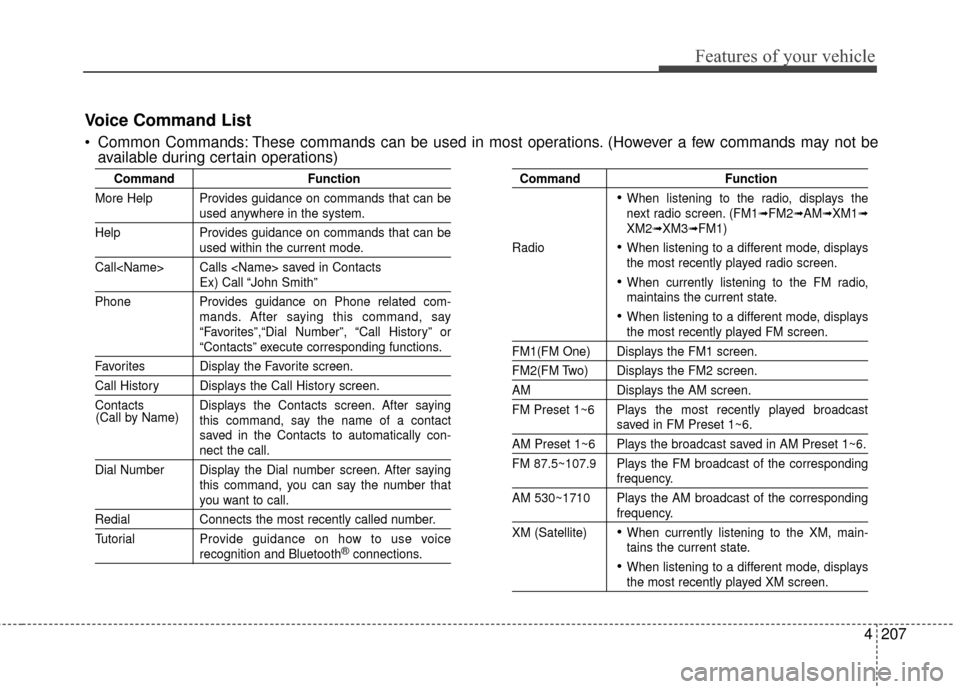
Voice Command List
Common Commands: These commands can be used in most operations. (However a few commands may not be
available during certain operations)
Page 301 of 520
Features of your vehicle
222
4
Blue Link®(if equipped)
Hyundai aims to offer differentiated
customer values through a
‘Connected Car Life,’ which is to pro-
vide consumers with fast and reliable
IT technology. As consumers’
lifestyles become more and more
mobile in thanks to remarkable
advances in smart phones, tablet
PCs and overall wireless telecommu-
nication, new lifestyle patterns
demand seamless connection
between one’s office, home, out-
doors and automobiles.
Automobile companies are now
faced with the task of shifting their
paradigm from vehicle-centered
services to customer value-centered
services, with the ultimate goal of
securing global leadership in the
field of vehicle IT and telematics.
Hyundai Motor plans to achieve this
by realizing a terminal platform flexi- ble to changes in IT technology,
cooperating with global IT compa-
nies, creating an eco-system and
providing the latest contents & serv-
ices based on an open environment.
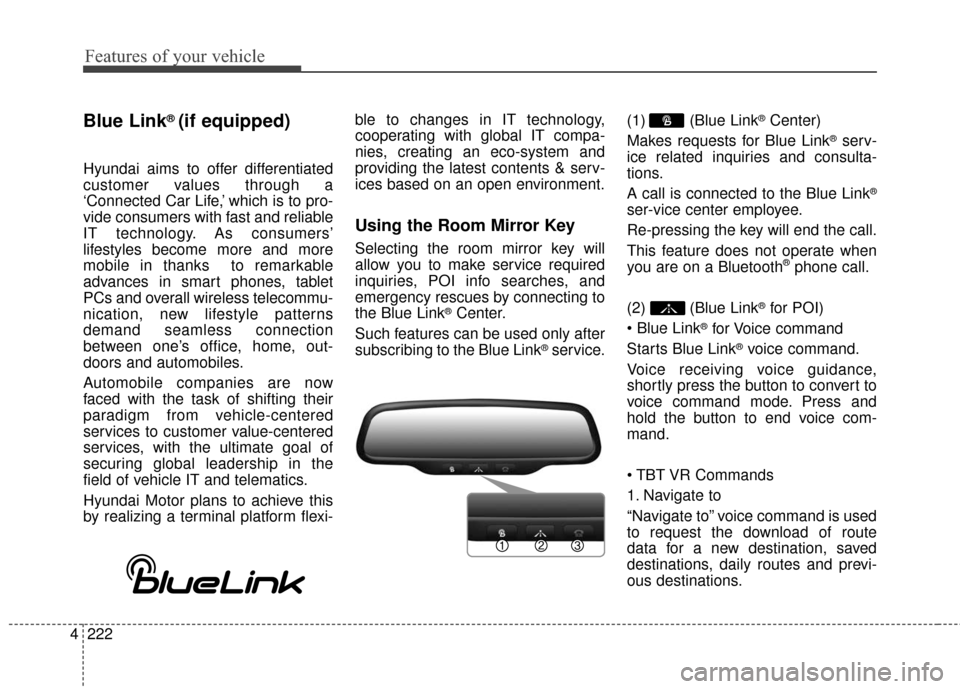
Using the Room Mirror Key
Selecting the room mirror key will
allow you to make service required
inquiries, POI info searches, and
emergency rescues by connecting to
the Blue Link
®Center.
Such features can be used only after
subscribing to the Blue Link
®service. (1) (Blue Link
®Center)
Makes requests for Blue Link
®serv-
ice related inquiries and consulta-
tions.
A call is connected to the Blue Link
®
ser-vice center employee.
Re-pressing the key will end the call.
This feature does not operate when
you are on a Bluetooth
®phone call.
(2) (Blue Link
®for POI)
®for Voice command
Starts Blue Link
®voice command.
Voice receiving voice guidance,
shortly press the button to convert to
voice command mode. Press and
hold the button to end voice com-
mand.
1. Navigate to
“Navigate to” voice command is used
to request the download of route
data for a new destination, saved
destinations, daily routes and previ-
ous destinations.